Project 1 - Wiper control system and Vehicle speed calculation for ABS using Wheel Speed sensor
Question no 01 :-
Solution:-
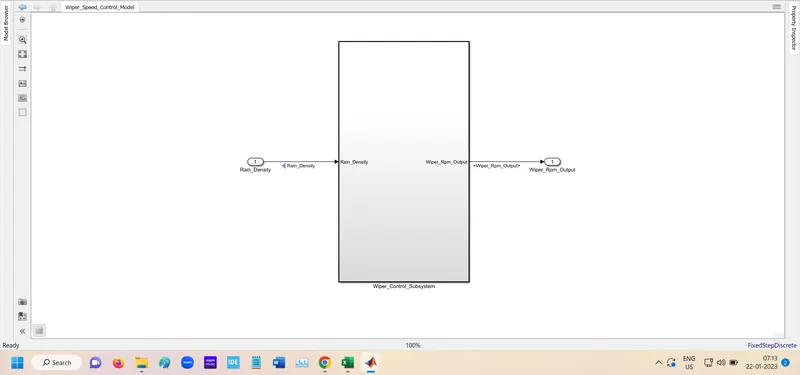
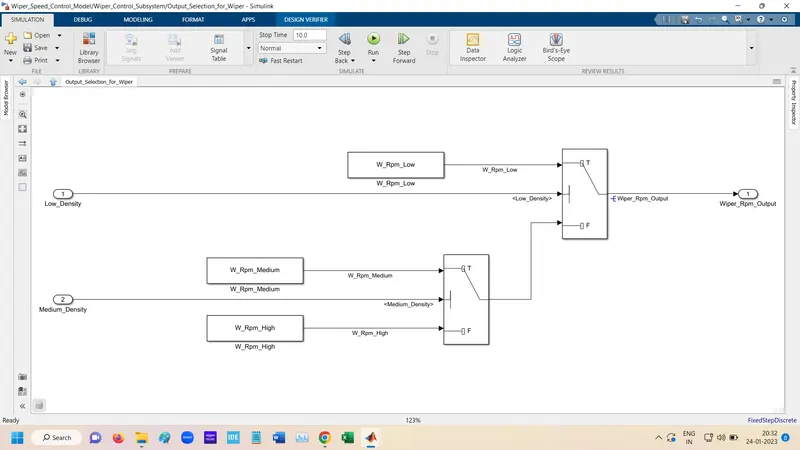
According the requirement the Simulation Model
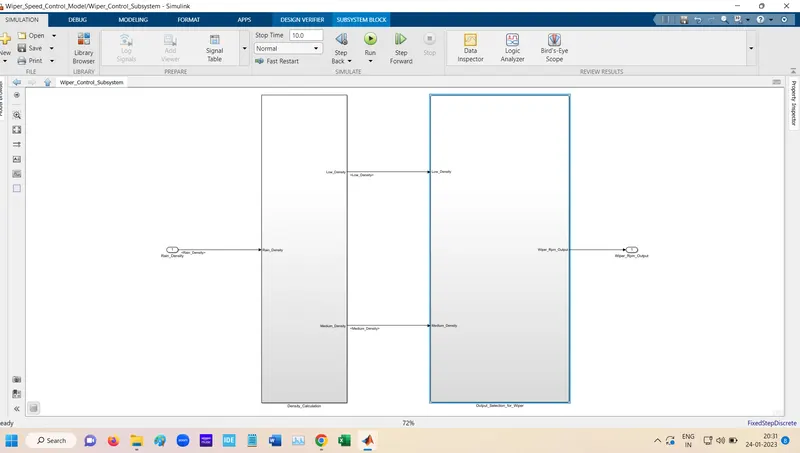
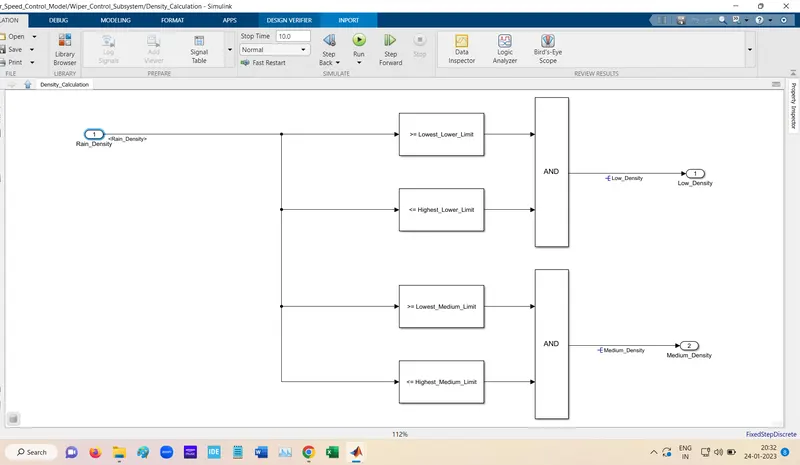
Selecting Rain Density Range
Selecting According Rain Density range according Wiper RPM.
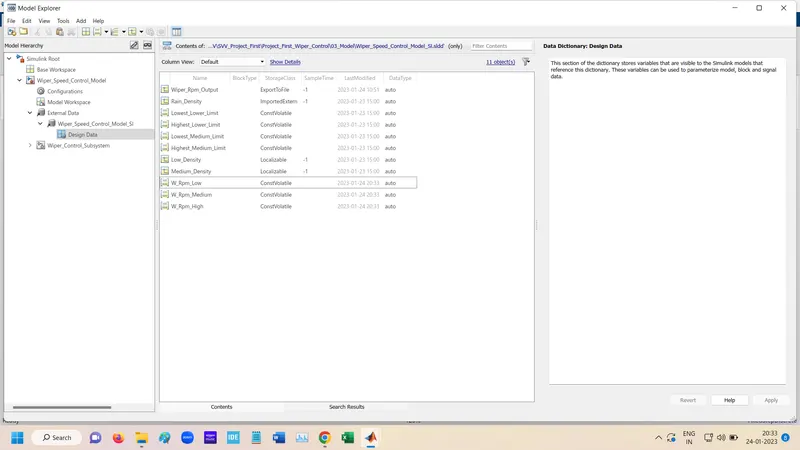
SLDD File
Requirement Tagging
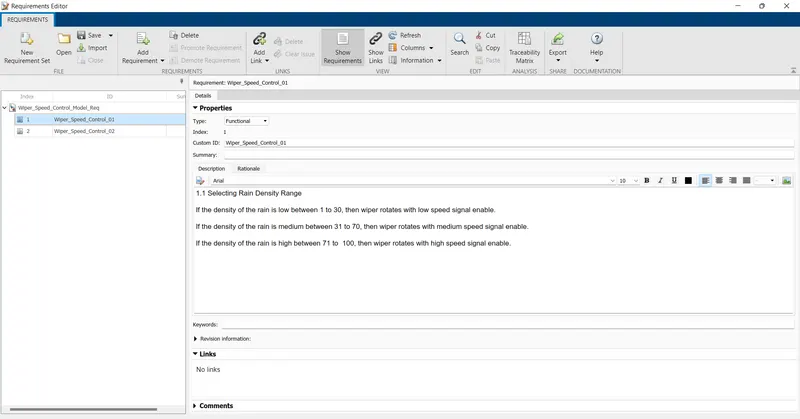
Goto the Requirement Editor Option and select.

Below page open and in this click to the New Requirement.
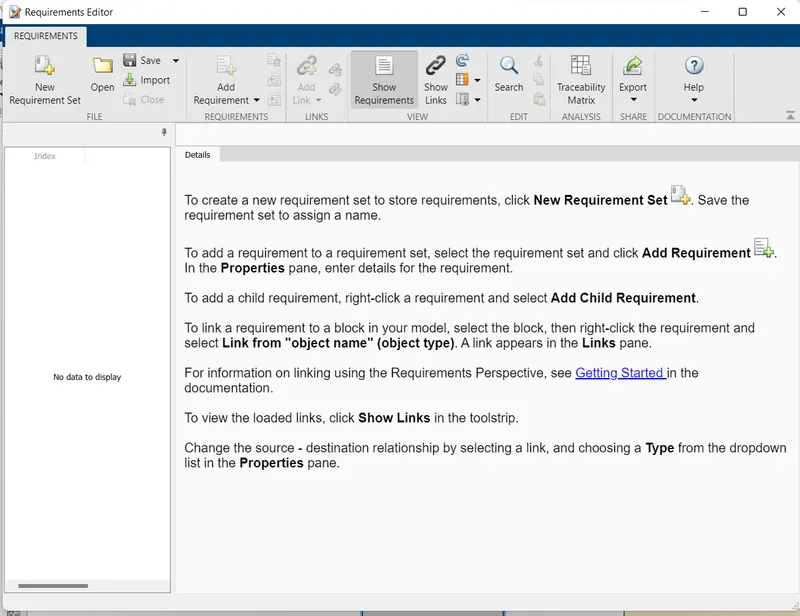
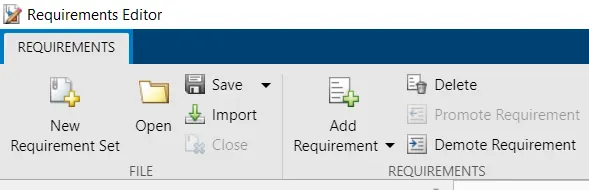
After Creating New Requirement Set then in the set add Requirement.
Details fill on there places.
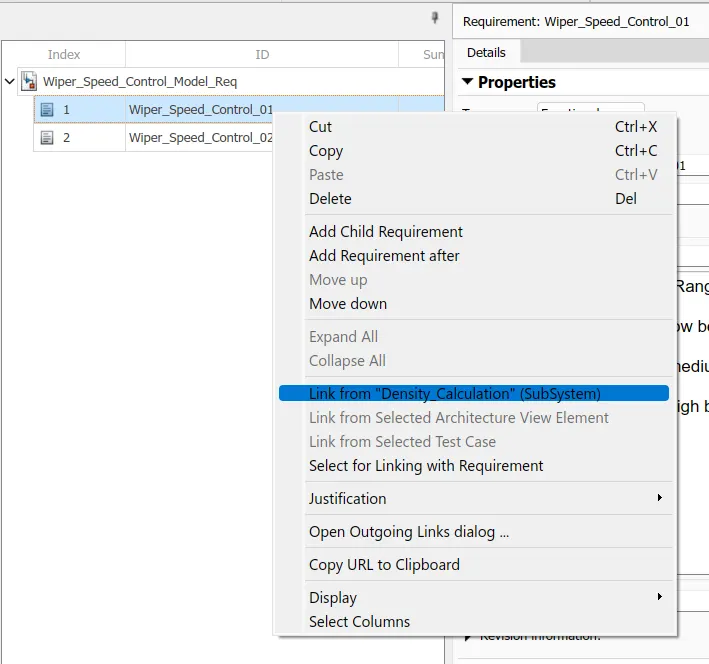
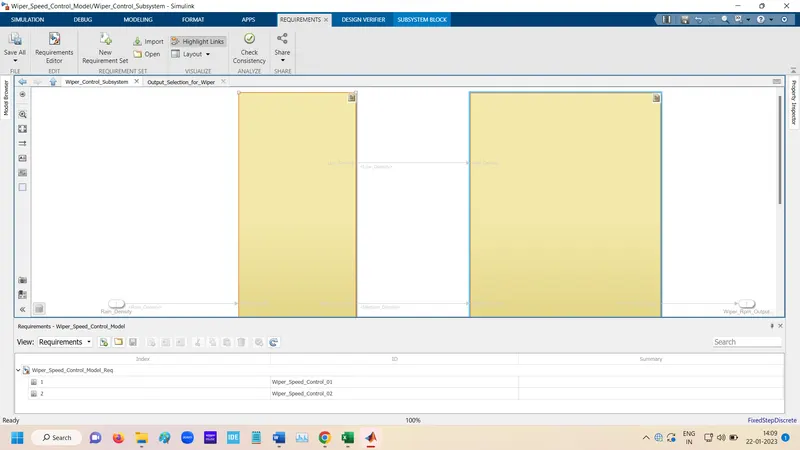
For Linking the requirement First select the subsystem and after selection goto requirement and right click on the requiement and link.
.
After this Link apper in Requirement page
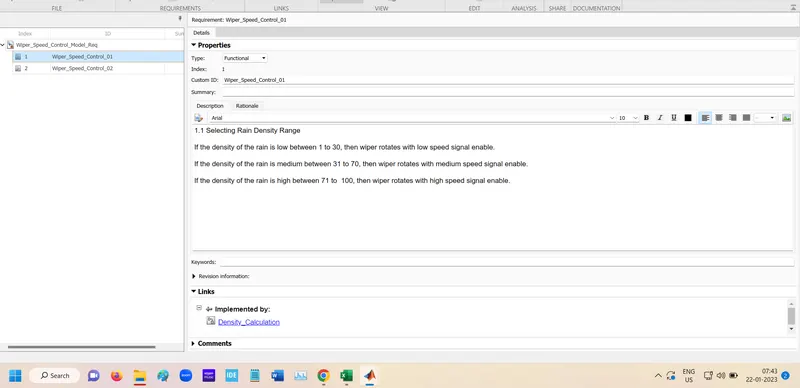
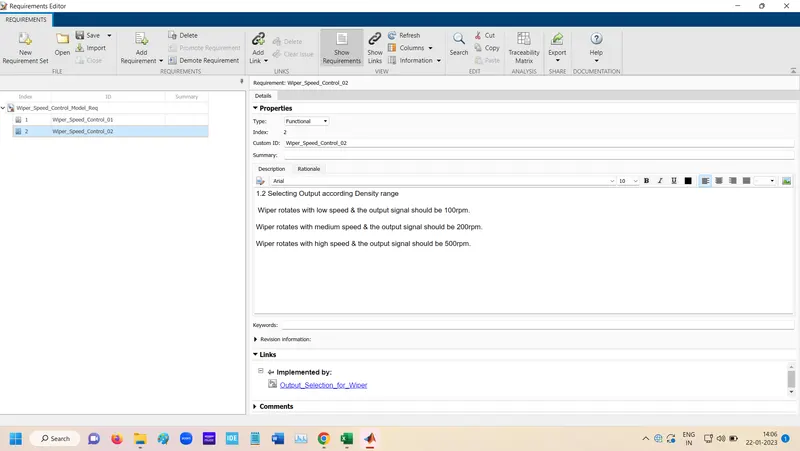
After adding the link save. Links will Showing in Show Link page.
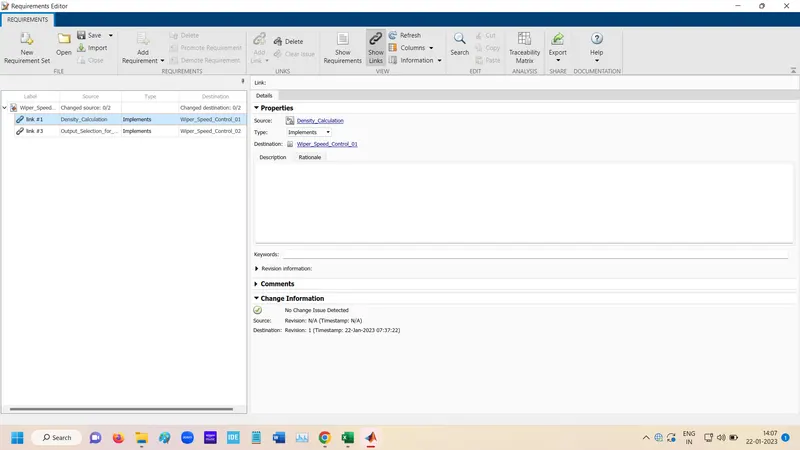
For Report Genration
Goto the Export option and Select Genrate Report.
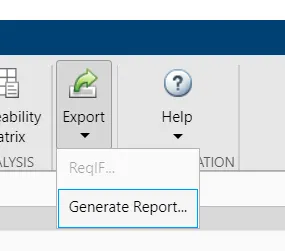
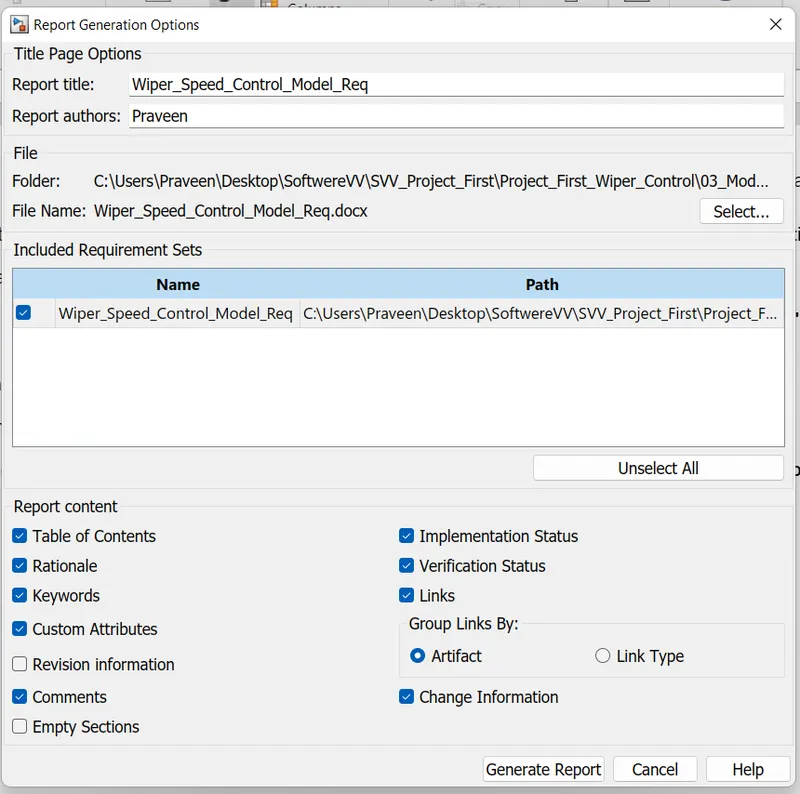
Report is genrated
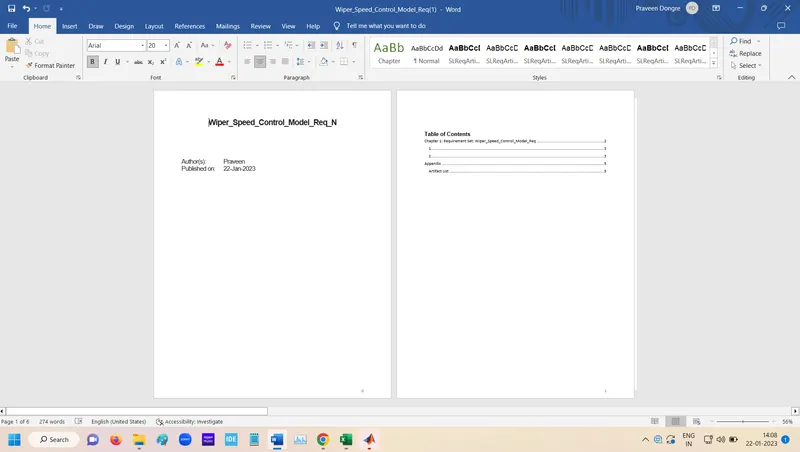
Requirement Tagged in subsystem and Chart flow.
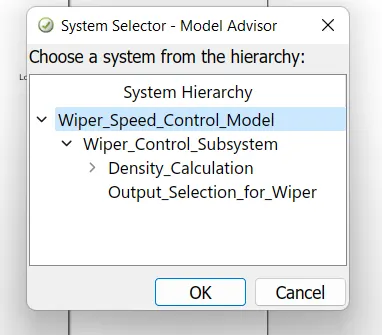
Model Advisor-JMAAB Compliance:-
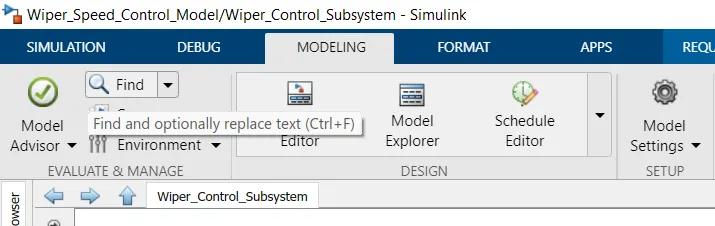
In this select
Select JMAAB Checks
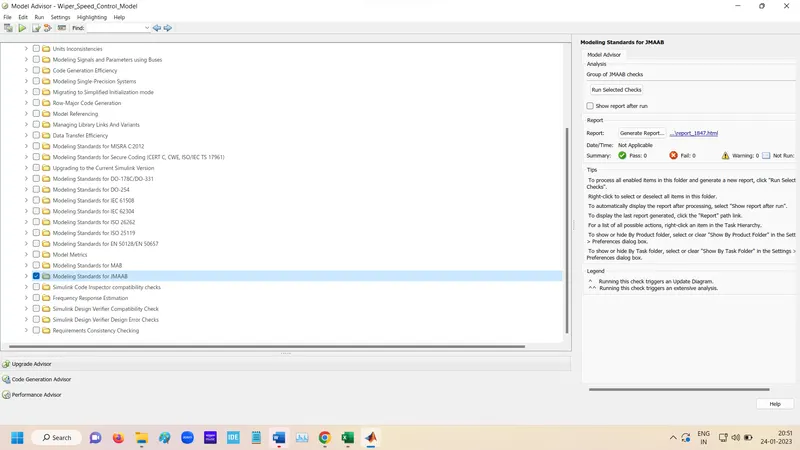
Run the selection checks
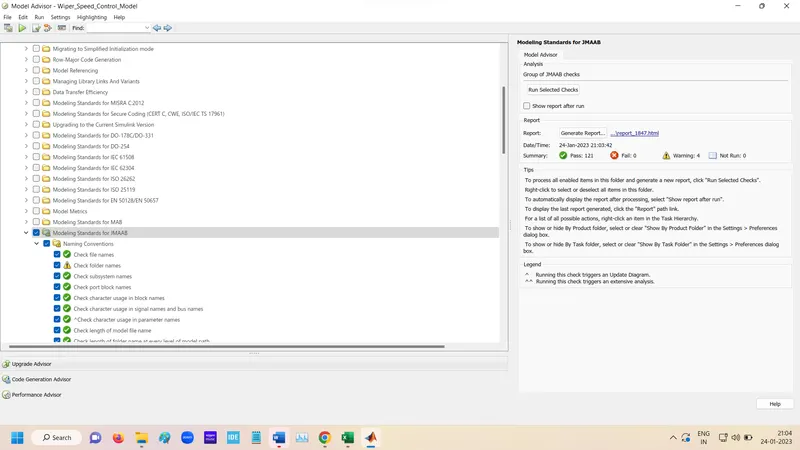
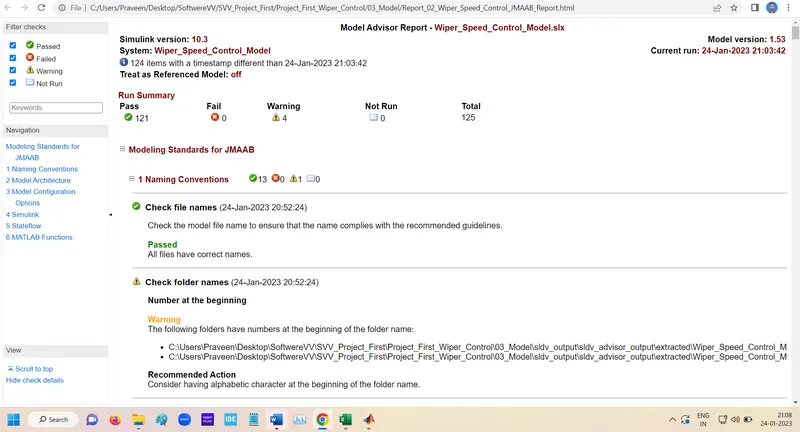
Report Genrated
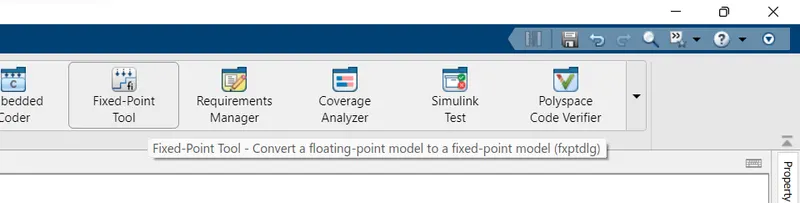
For Fixed Point Tool
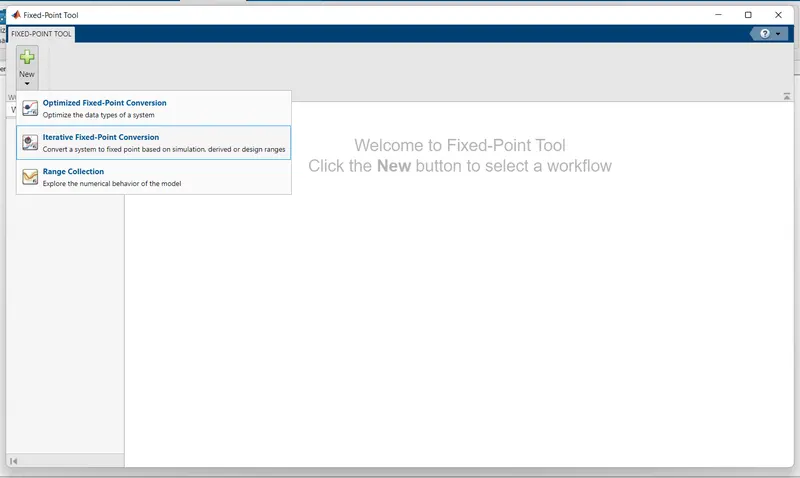
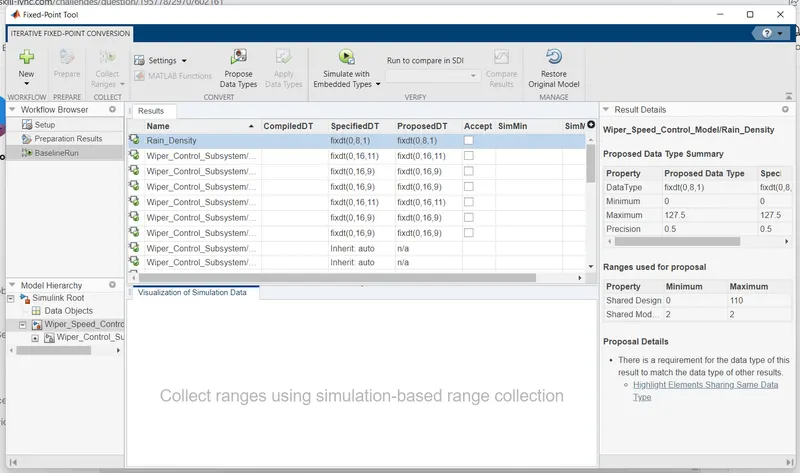
After Fixed point tool selection below page open.
In this page click to New and Select Iterative Fixed Point Conversio option.
Below page open in this First Click to Prepare.
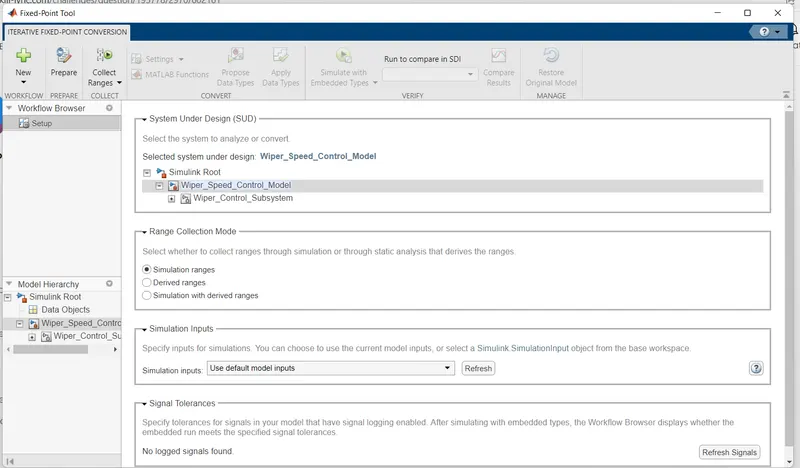
After the Prepare Click to the Collect Ranges.
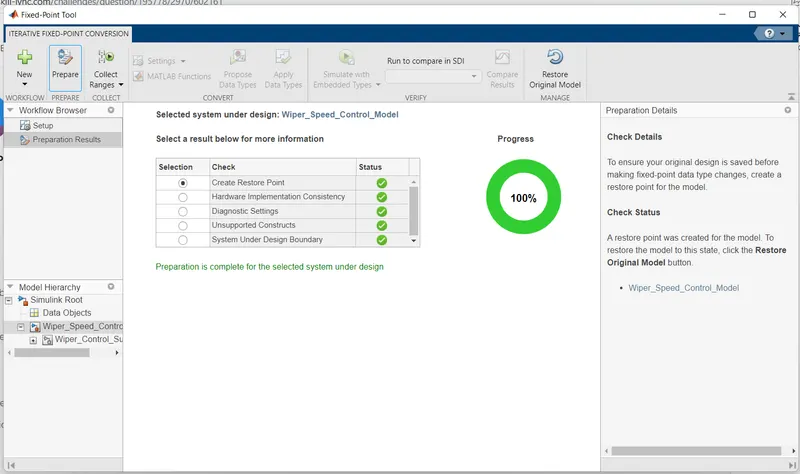
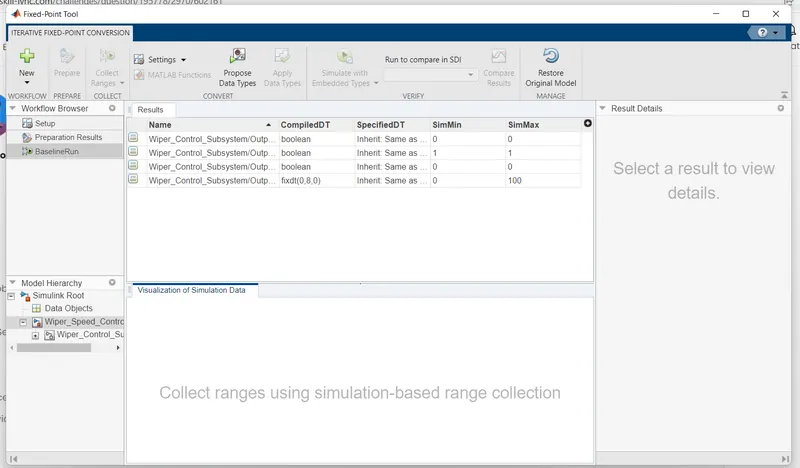
After Collecting Ranges Click to Propose Data Type.
After that if you want to Apply the Data type Select and the clcik to Apply Data Type.
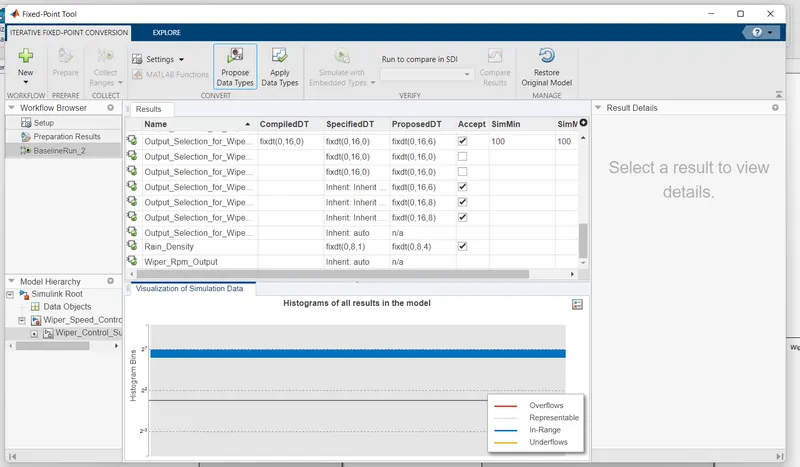
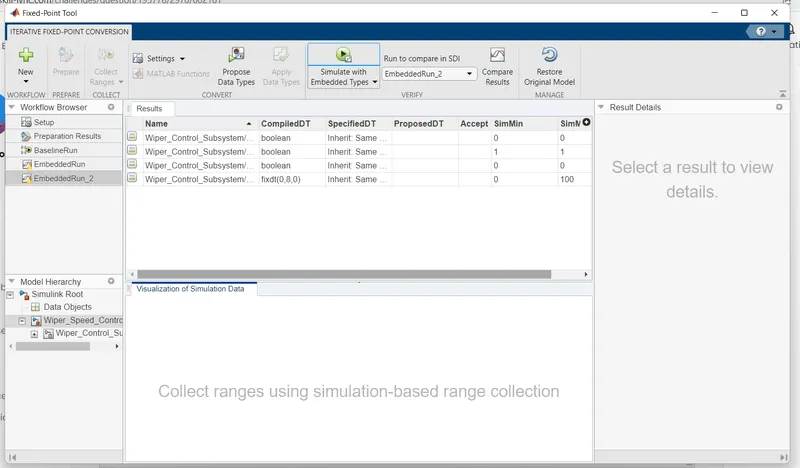
After that Simulate Embedded Types.
SLDV Desgine error detection:-
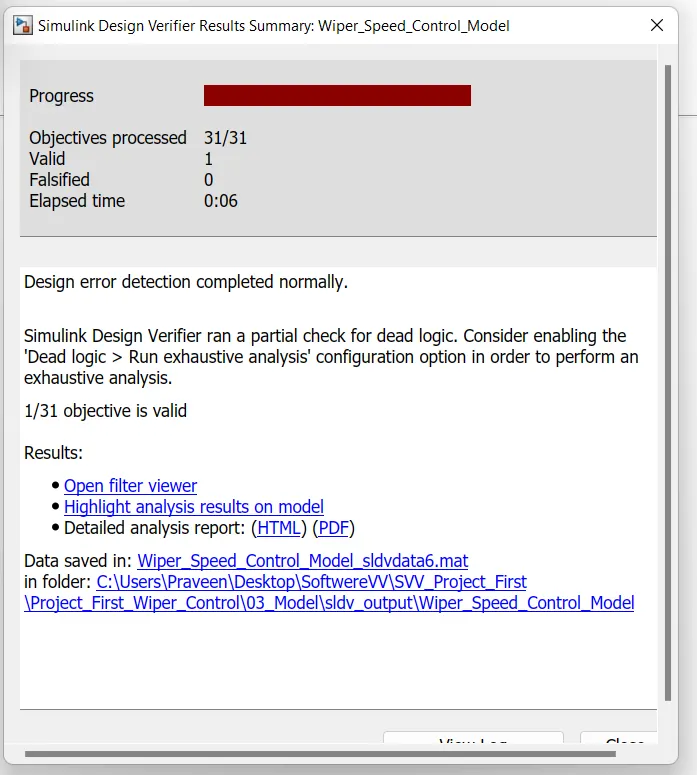
For SLDV

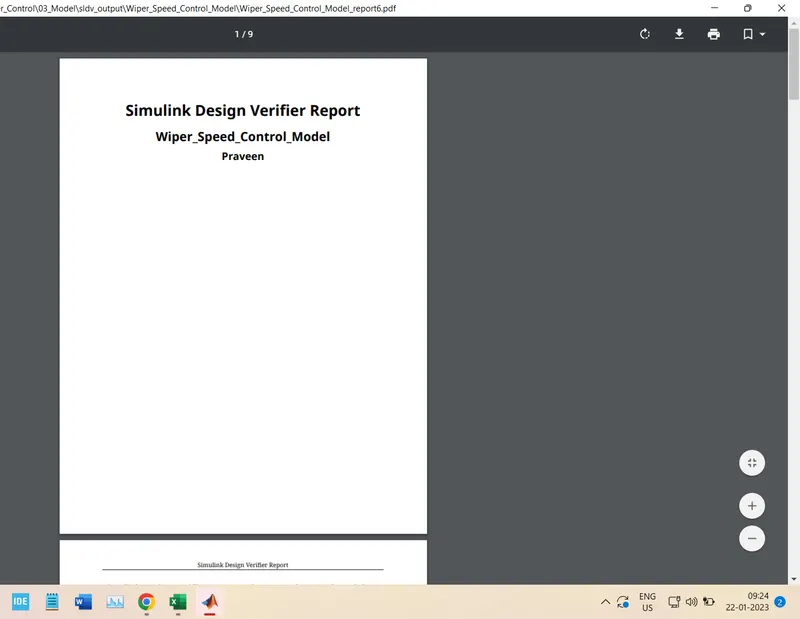
Report Genration
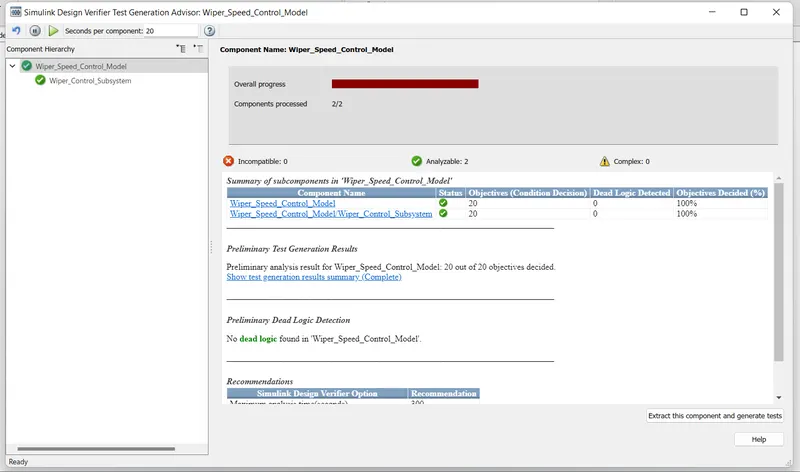
After Error Detection Goto the Test Genration tab and Click to Advisor check.
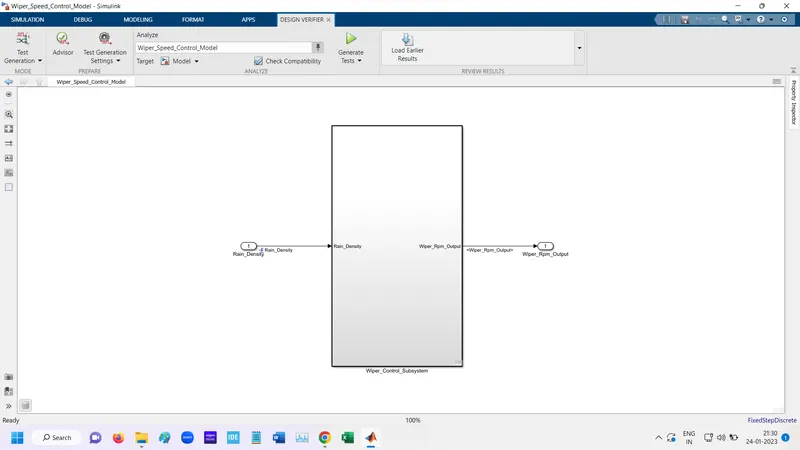
Doing Advisor Check
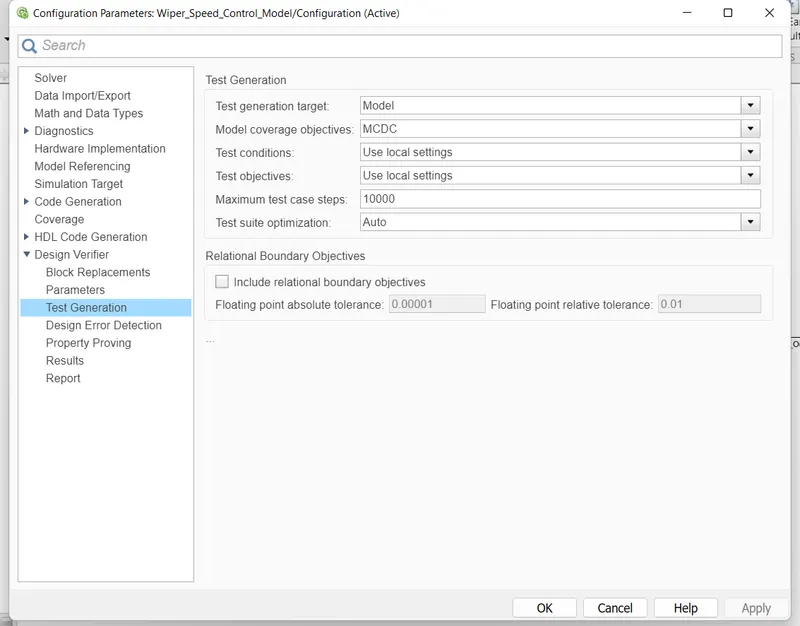
Settings for Desgin verifier
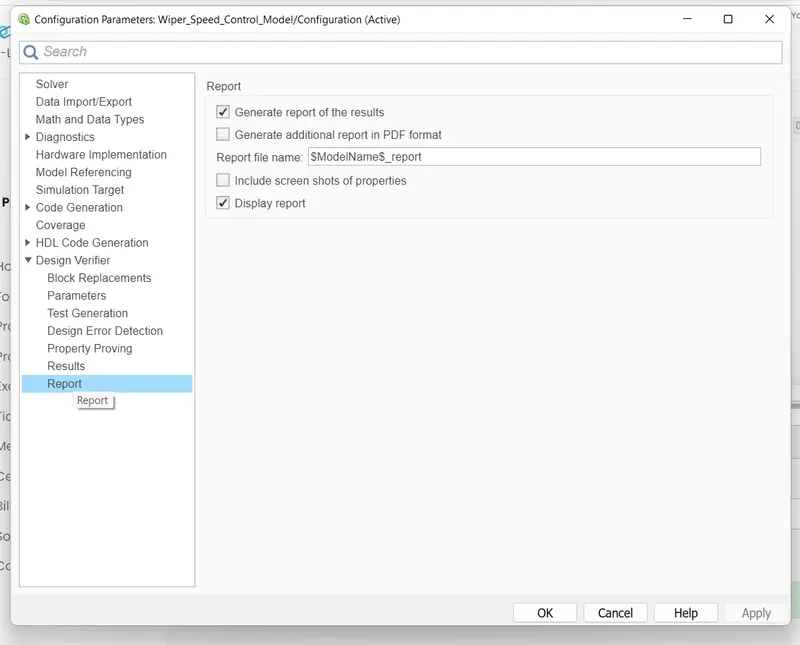
For automatically genrate report click to Genrate report of the results.

Run the Genrate Test.
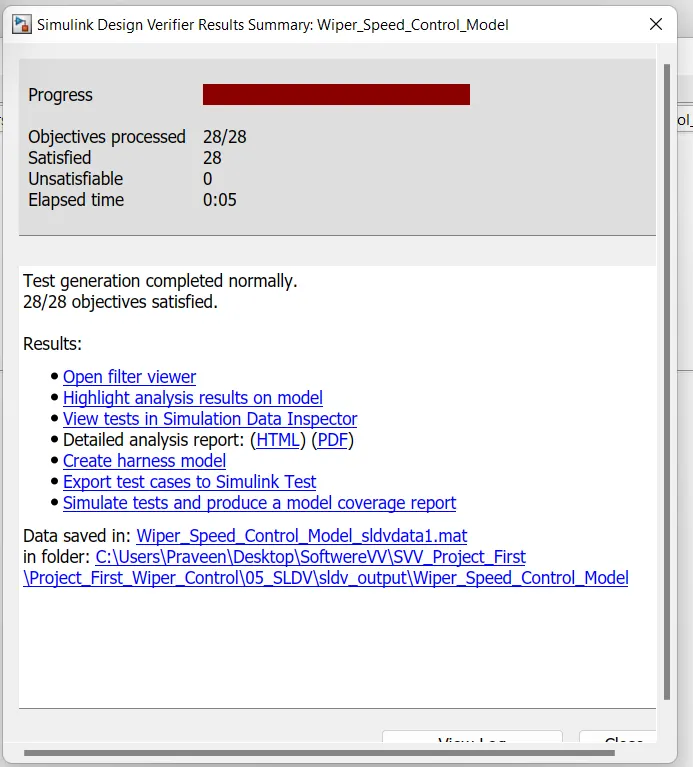
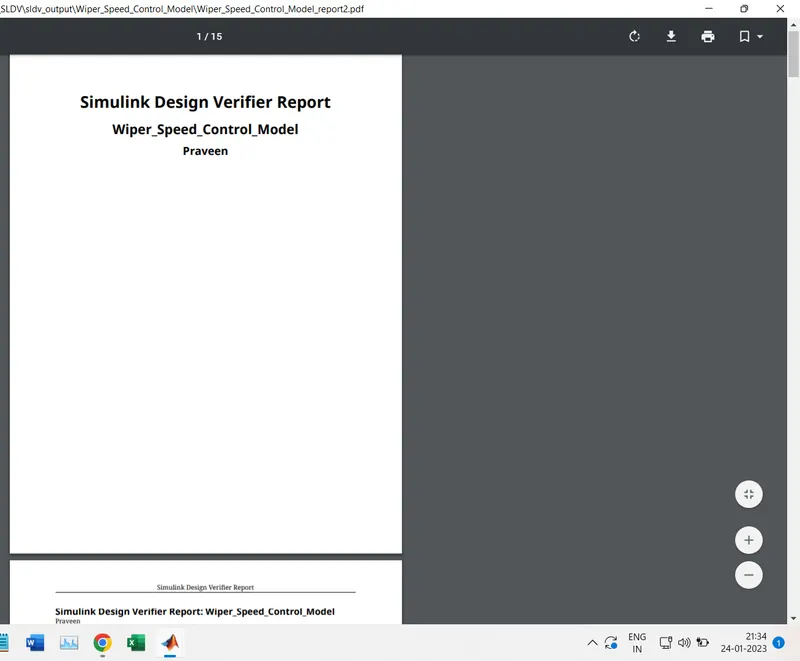
Report Genrated
SLDV Test Genration:-
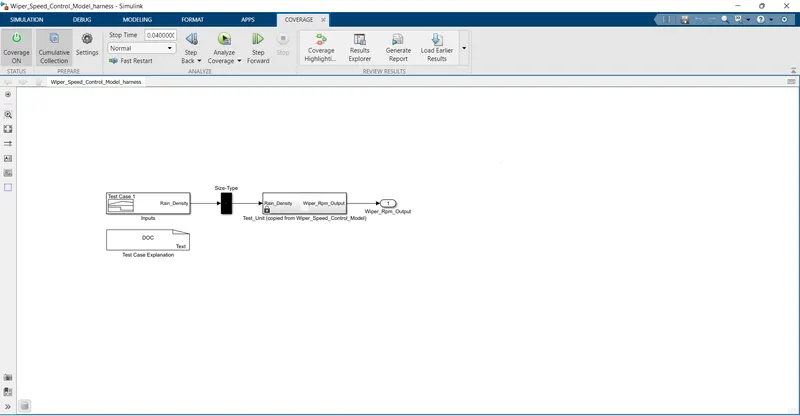
Create test harness model option use for Genrate SLDV Test Genration.
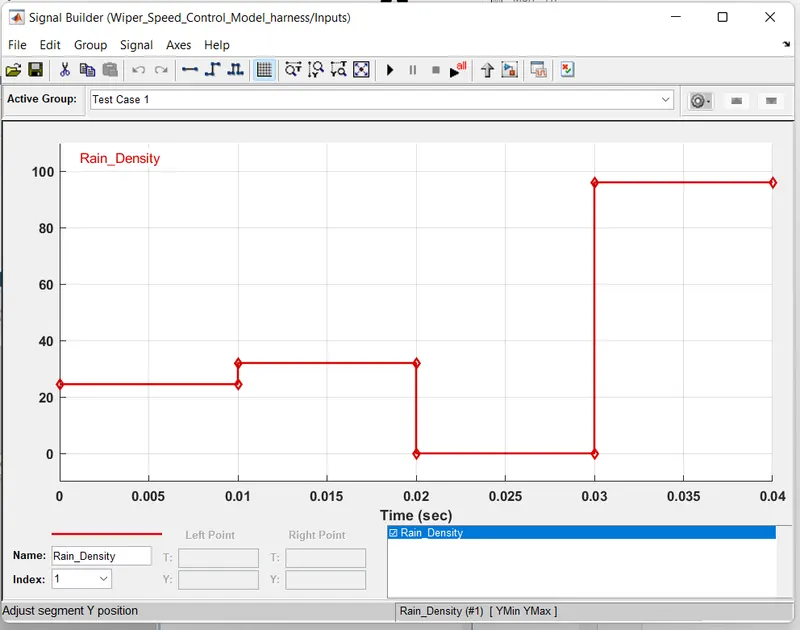
Signal bulider Signal of SLDv Test Genration
Test with coverage checks.
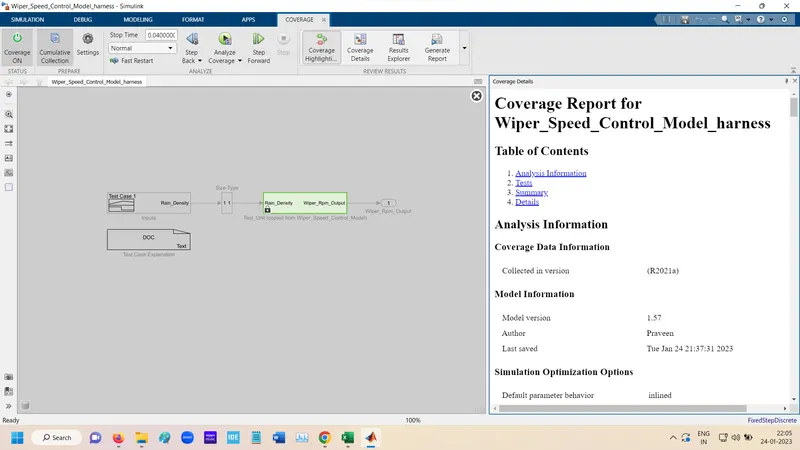
Harnesses is created in main subsystem.
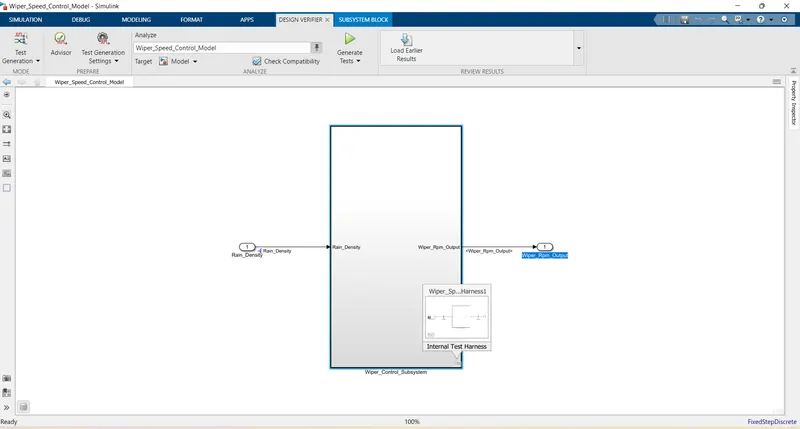
Functional Test Case MIL, SIL Harness & Coverage :-
MIL Harnesses:-
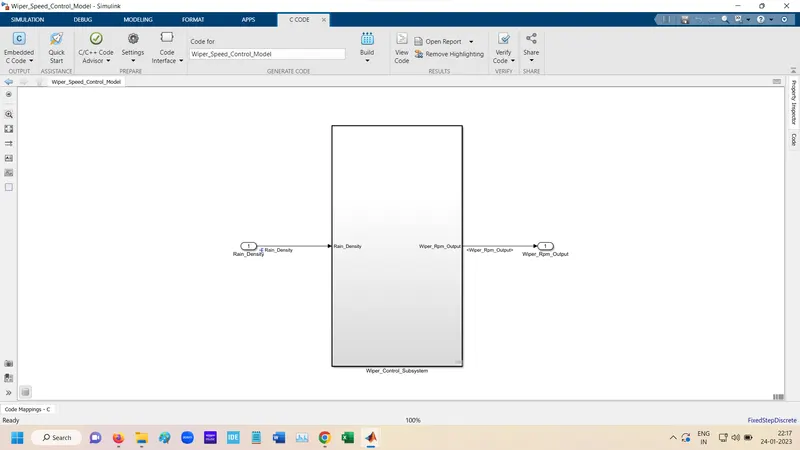
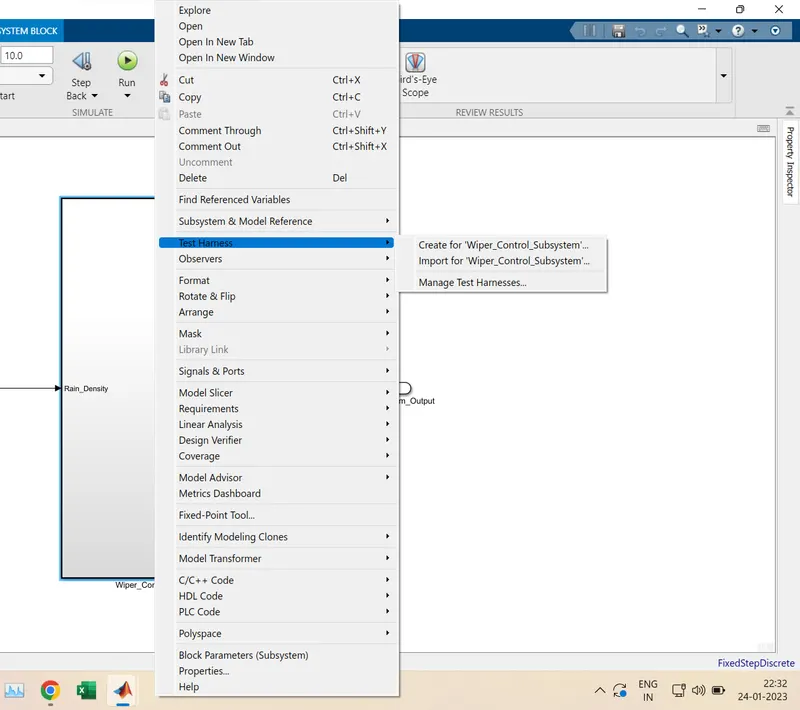
Right Click to Main Subsystem and Create Test Harnesses.
Create Test Harnesses settings
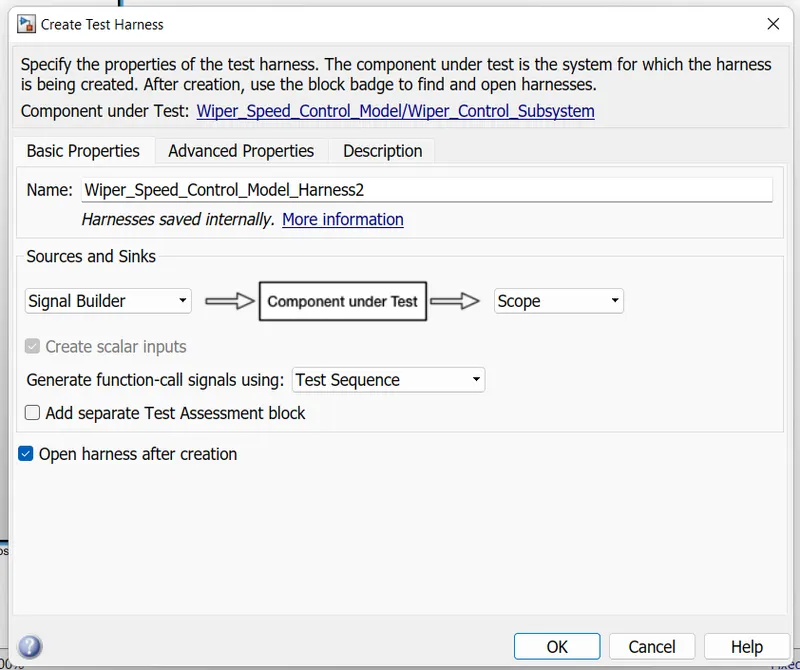
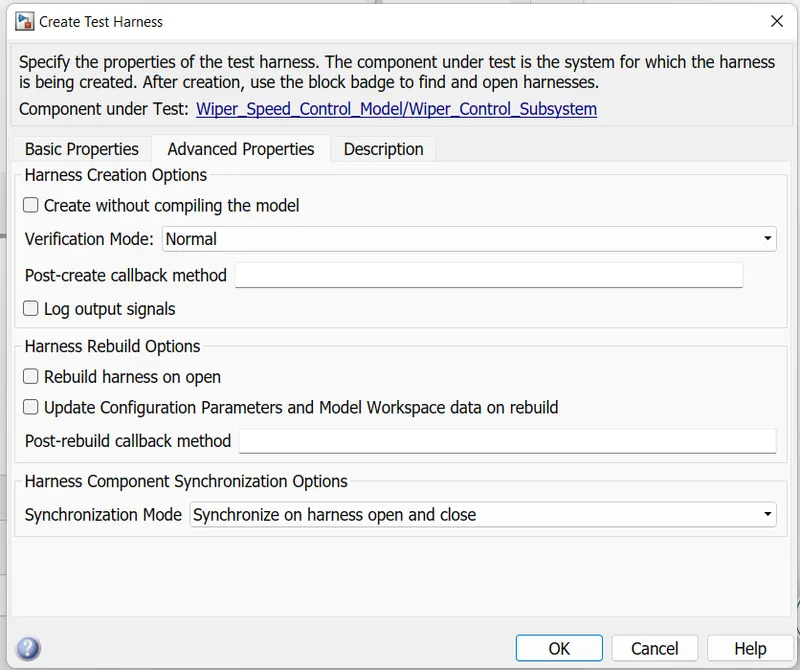
Harnesses for MIL is Created.
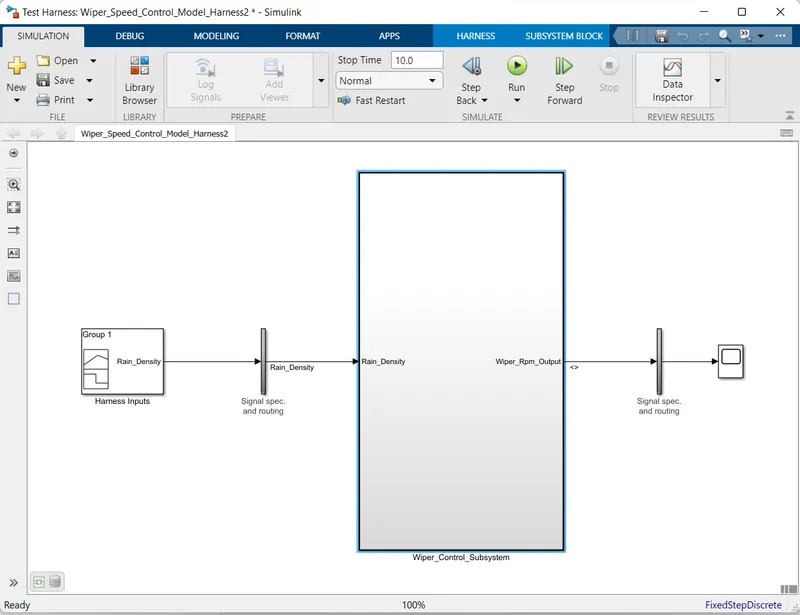
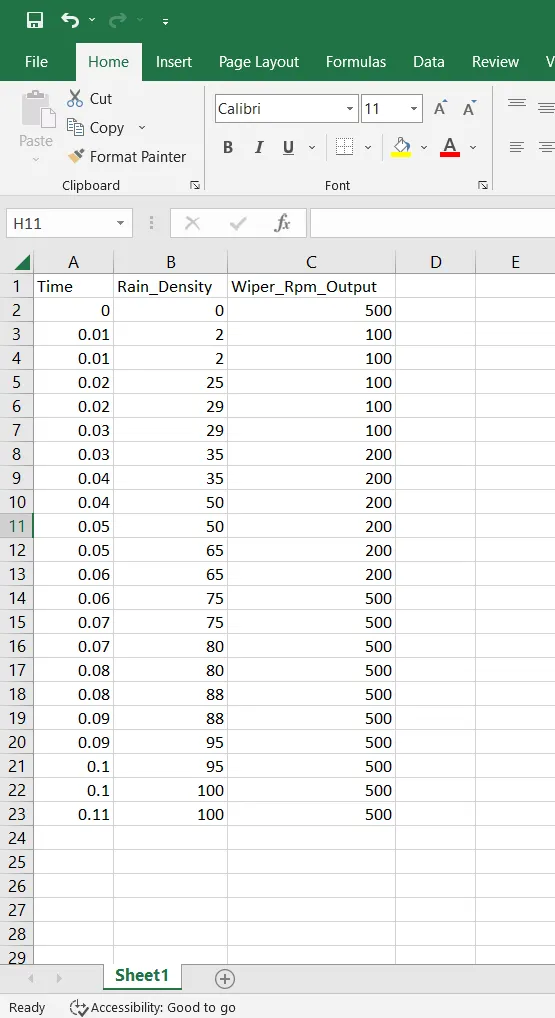
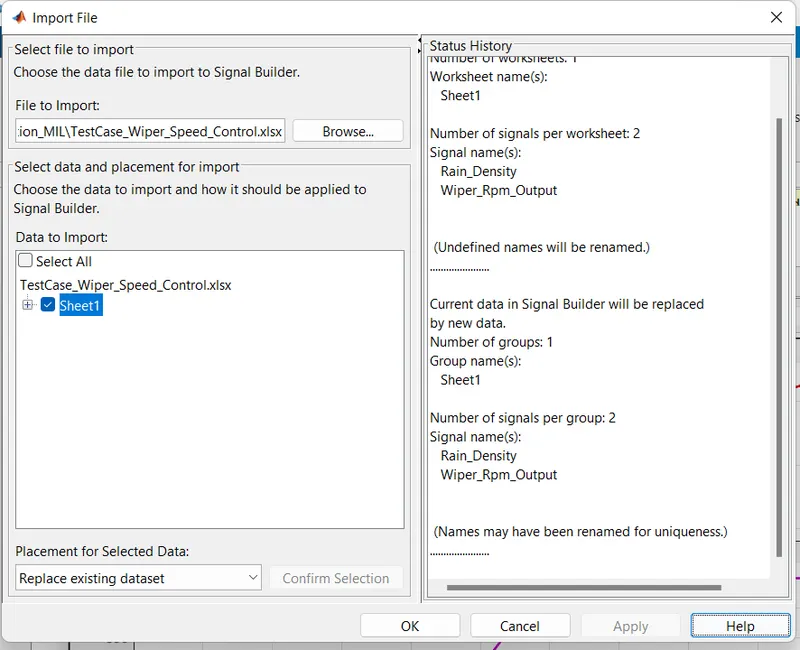
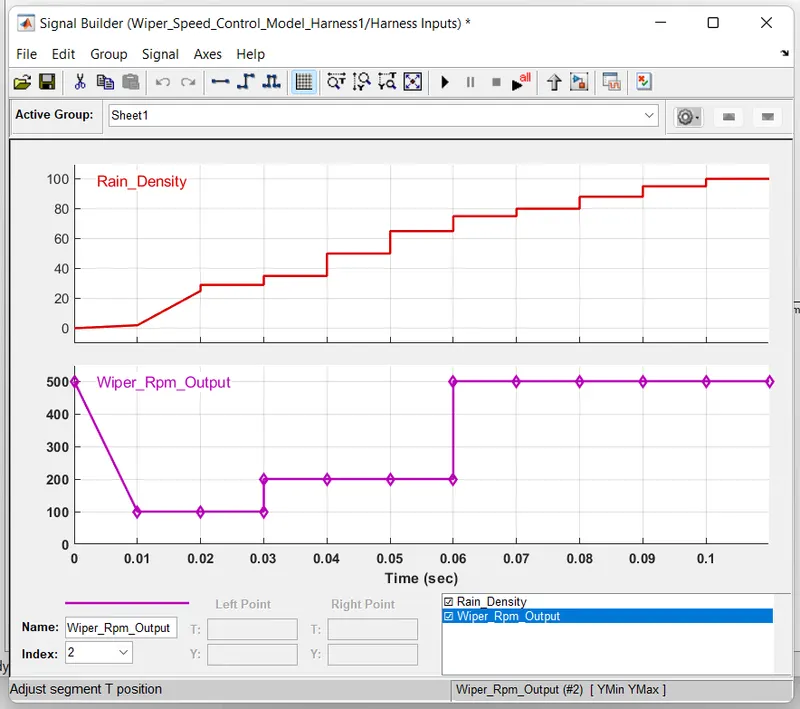
Open signal builder and Upload Excel file.
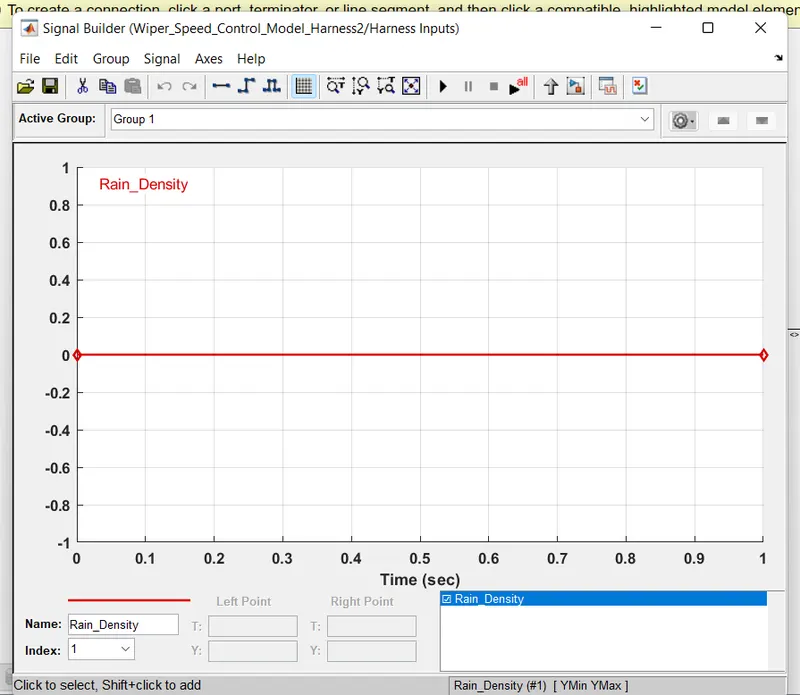
Excel
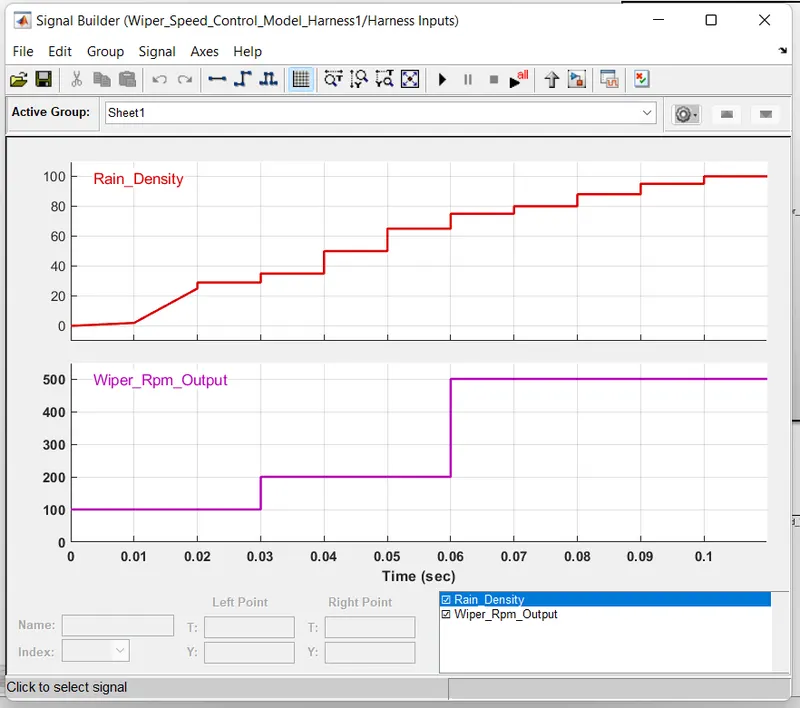
After Test case uploaded
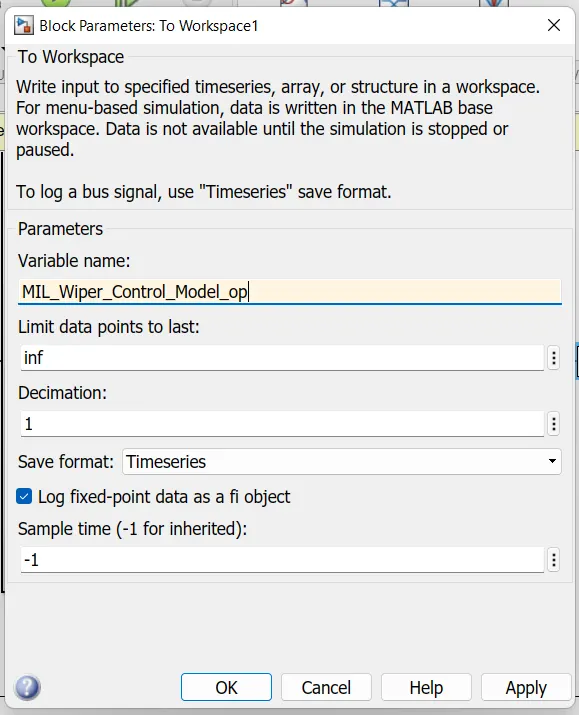
To Workspace block used for store the data
Log selected Signal
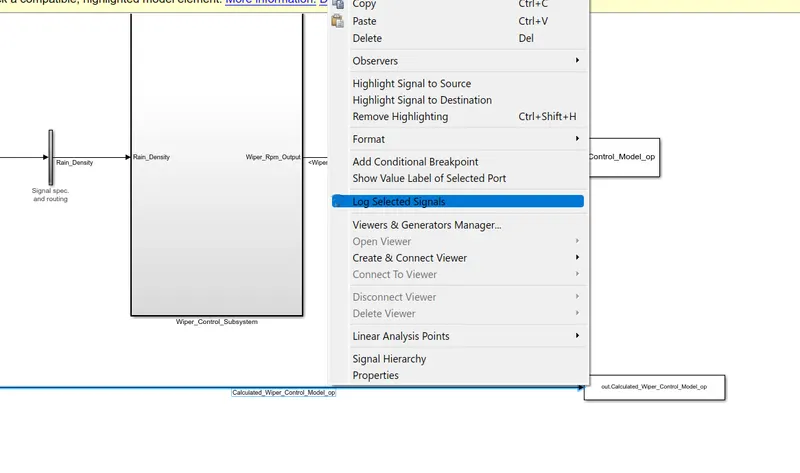
Log of signal output
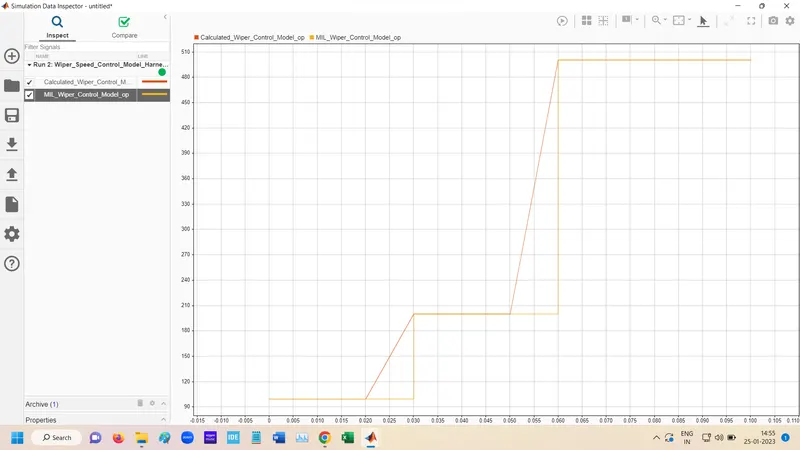
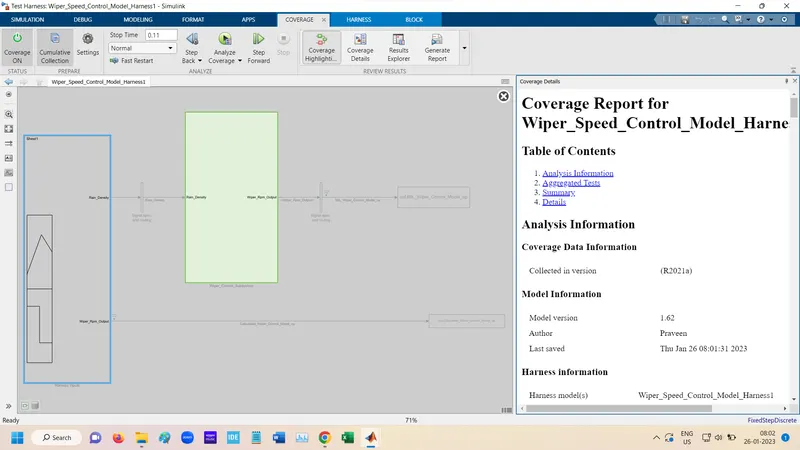
MIL test with coverage of model check.
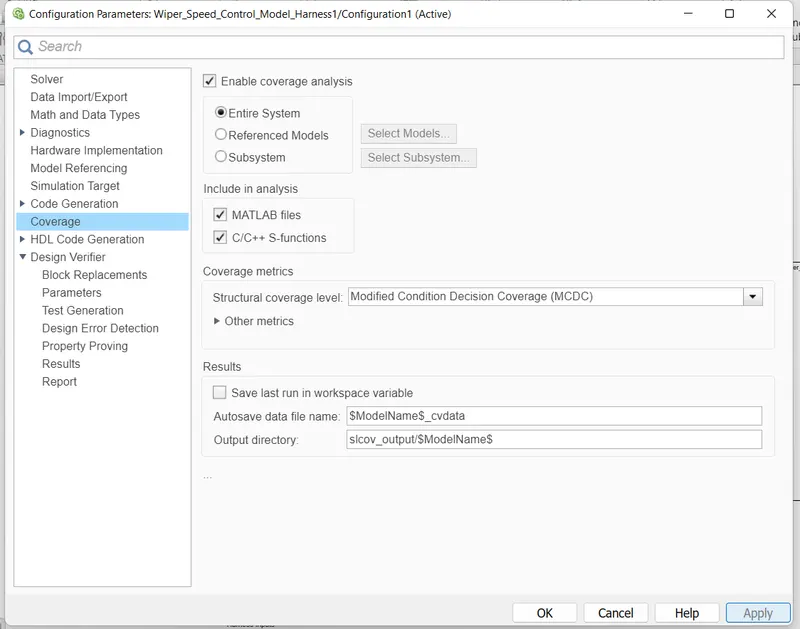
For Coverage settihg
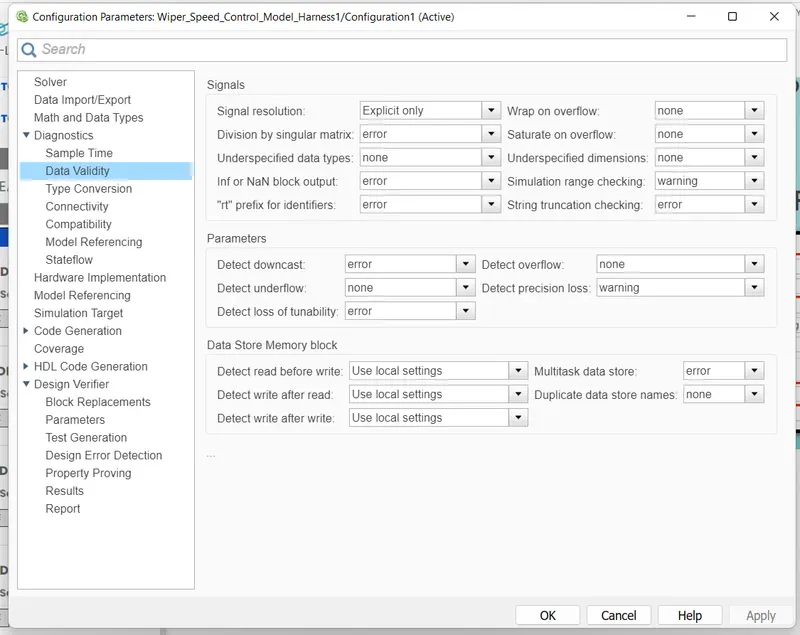
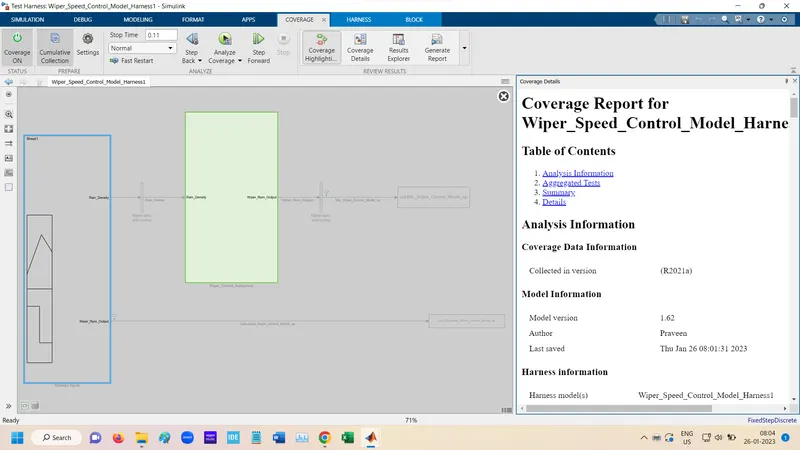
SIL Harness
For SIL Right Click to Main Subsystem and Create Test Harnesses. and click below settings.
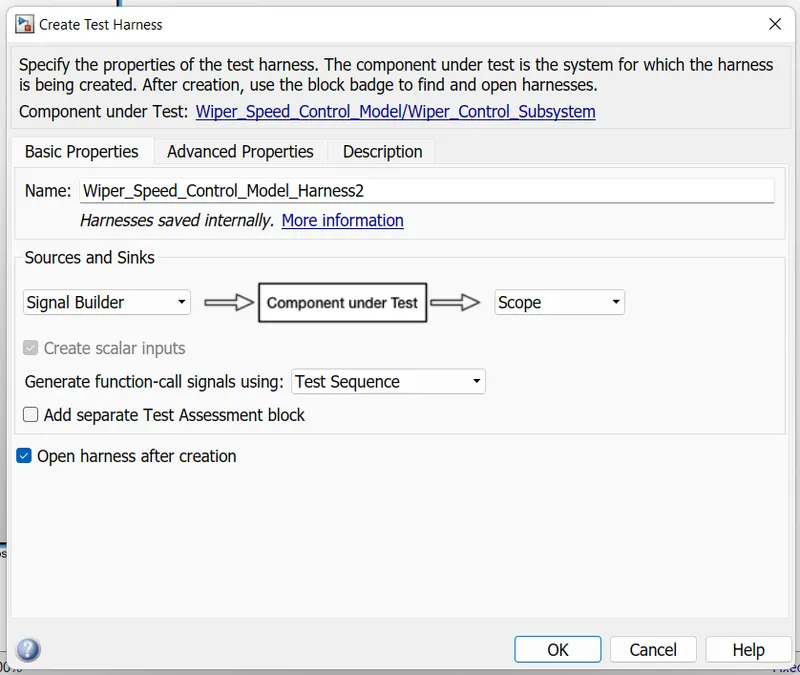
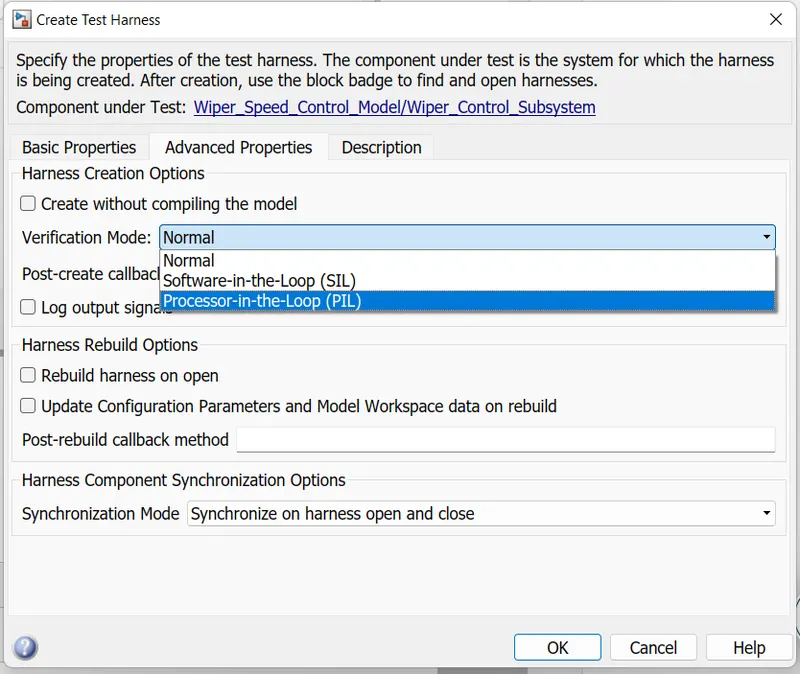
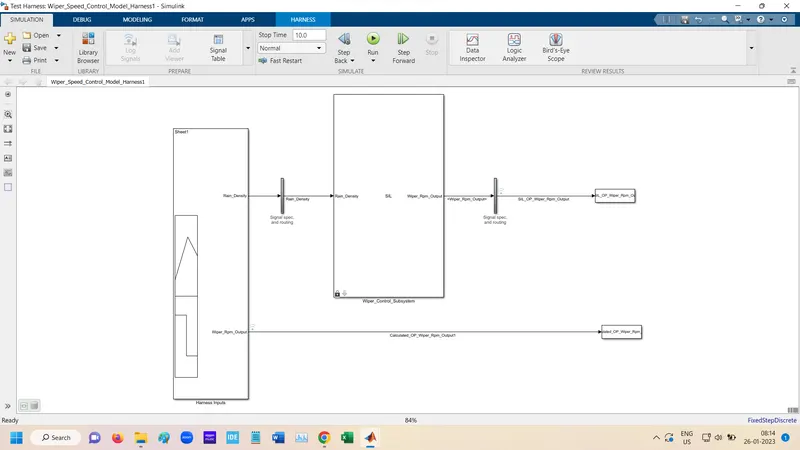
SIL Harnesses created.
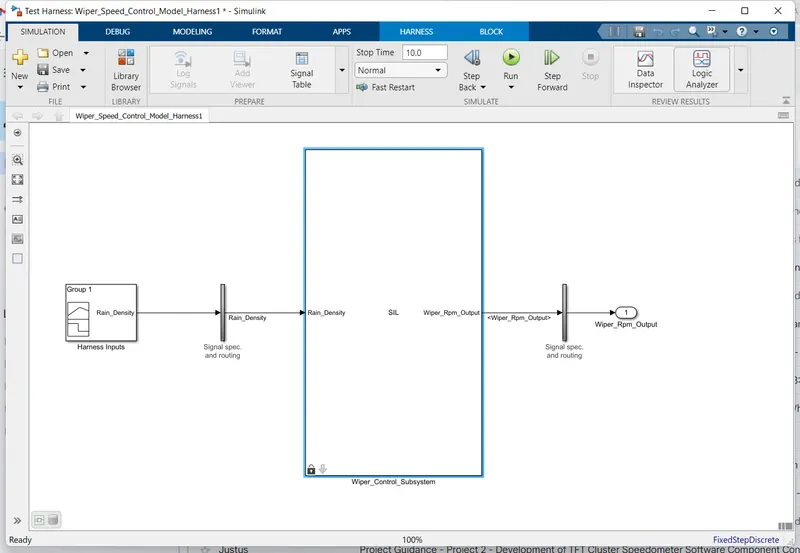
Uplaod test case in signal builder
Add to workspace and connect them with signal.
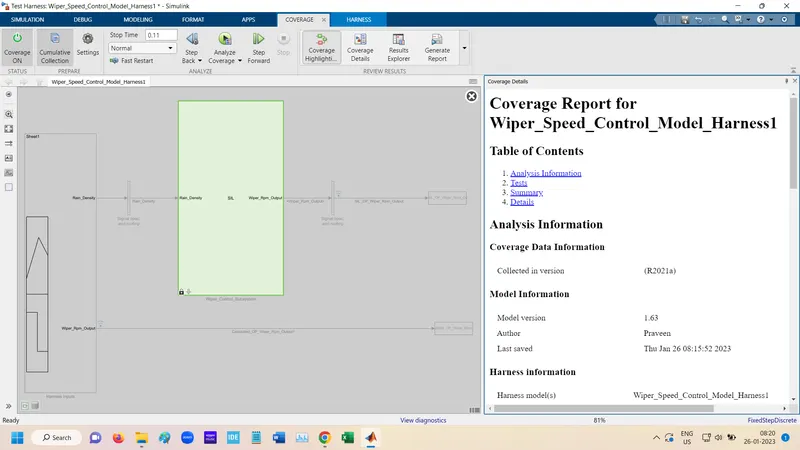
RUN the SIL test with Coverage.
Autocode Genration:-
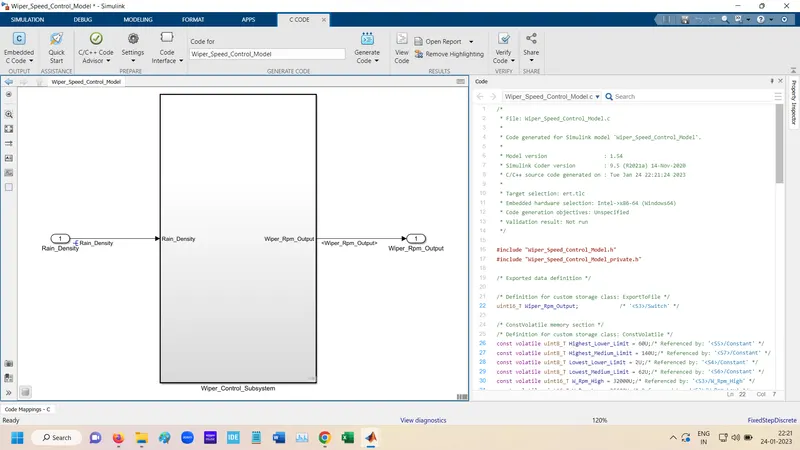
For Code genration
for genration code Click to Genrate Code.
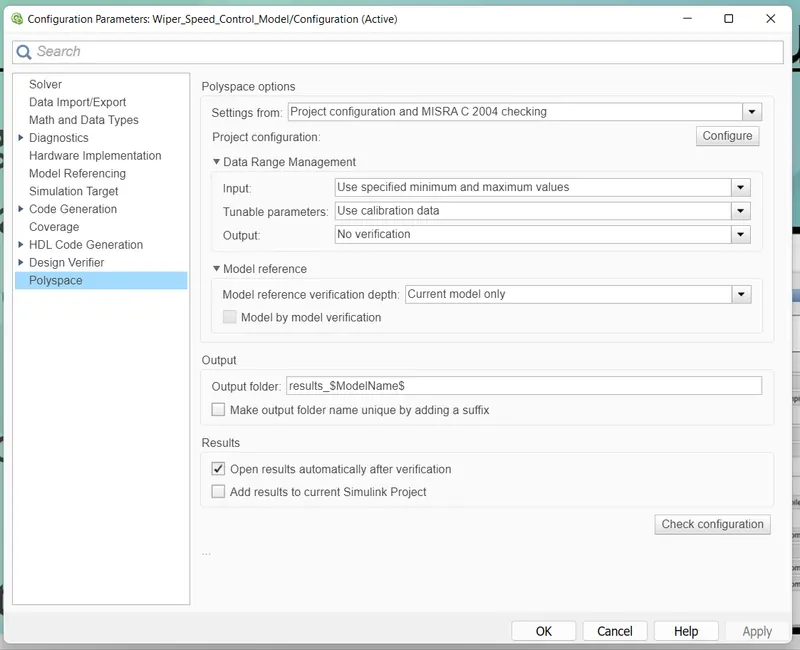
Polyspace Analysis:-

Select setting from is Project Configuration and MISHRA C 2004 checking.
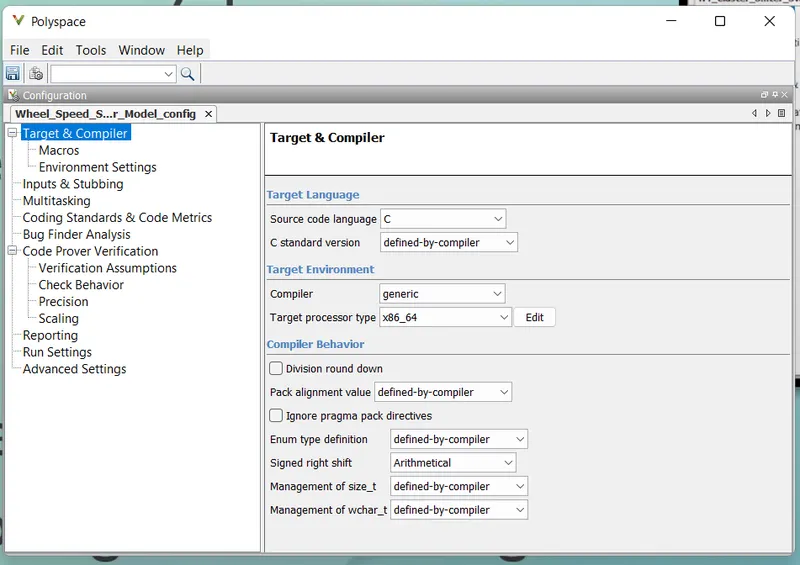
Open Polyspace Bug finder Select Source code language as "C".
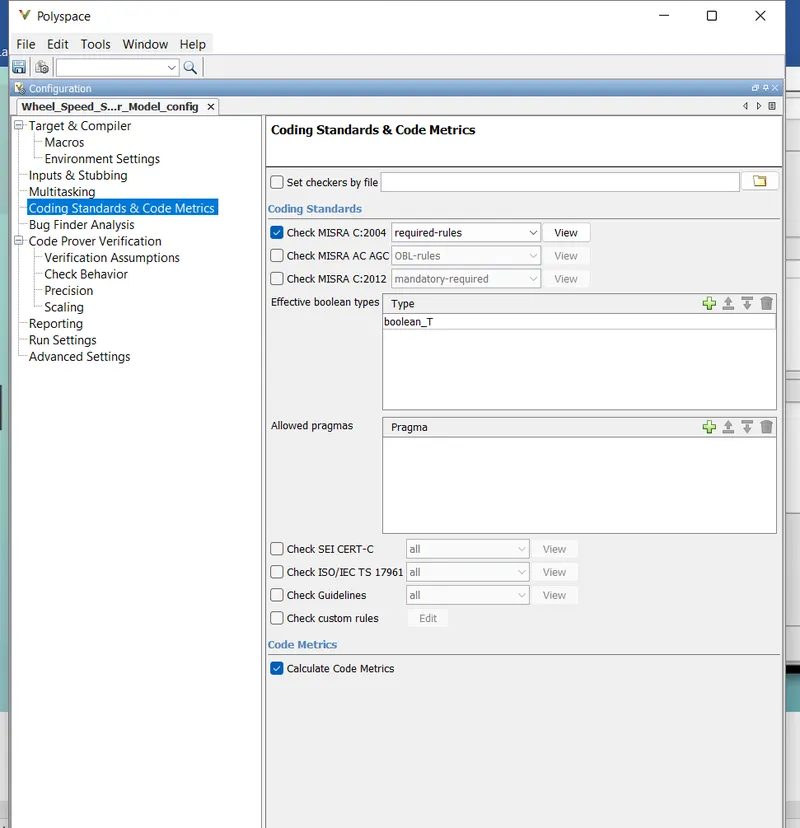
Enable the MISRA C:2004
Find defects set as default according requirement.
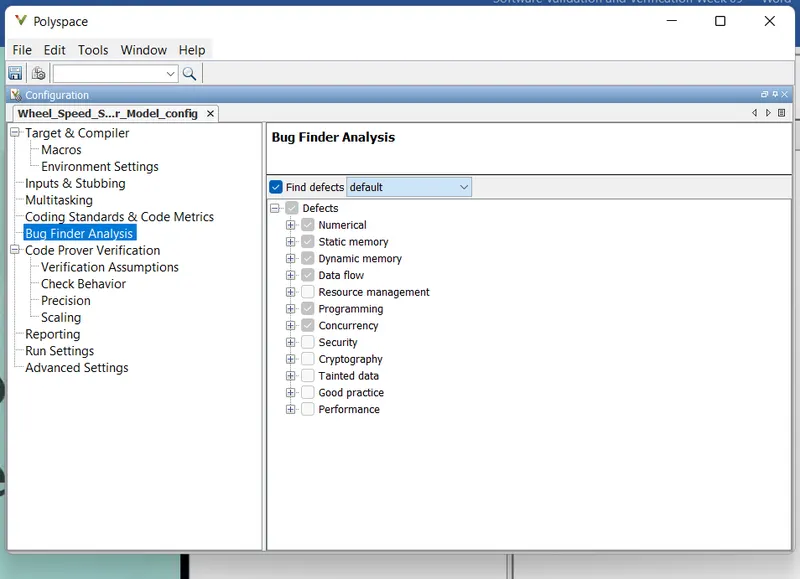
After this Run Polyspace bug finder.
The RUN Polyspace prover
for Prover has following Settings.
Under check behavior enable "Allow negative operands for left shifts" & "Detect stack pointer derefrence outside scope".
Under "Precision", set "Precision Level" to 2 & "Verification level" to " Software Safety Analysis Level 2".
Test Manager:- Basline Test
For Baseline test goto the Simulink Tese Manager and open.

In New icon goto the test file.
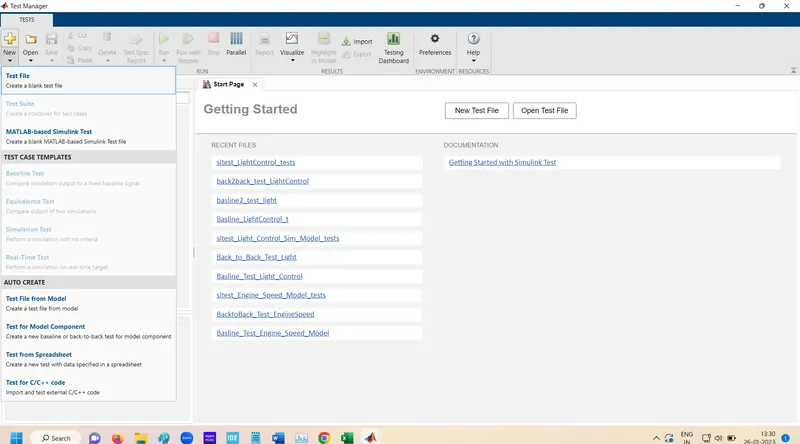
Below page is open.
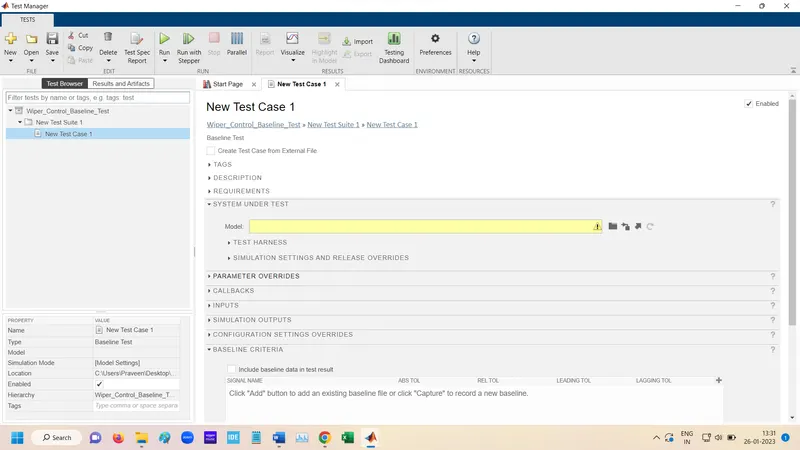
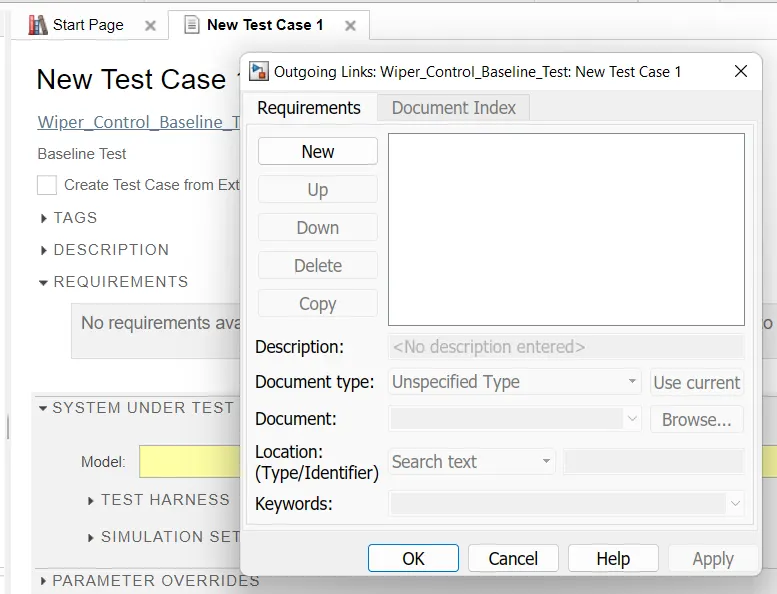
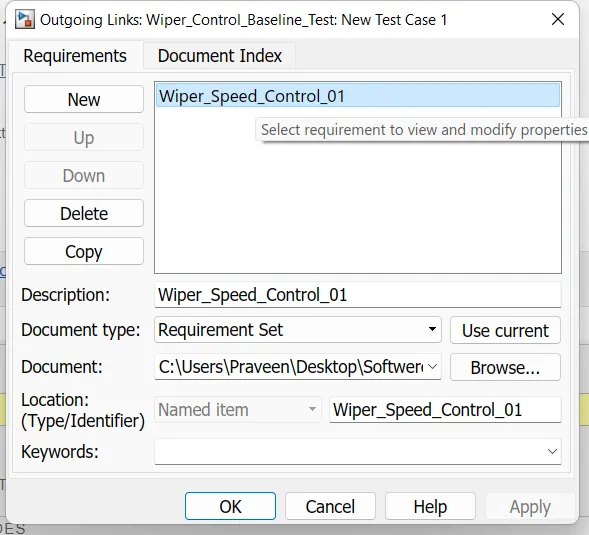
Add Requirements
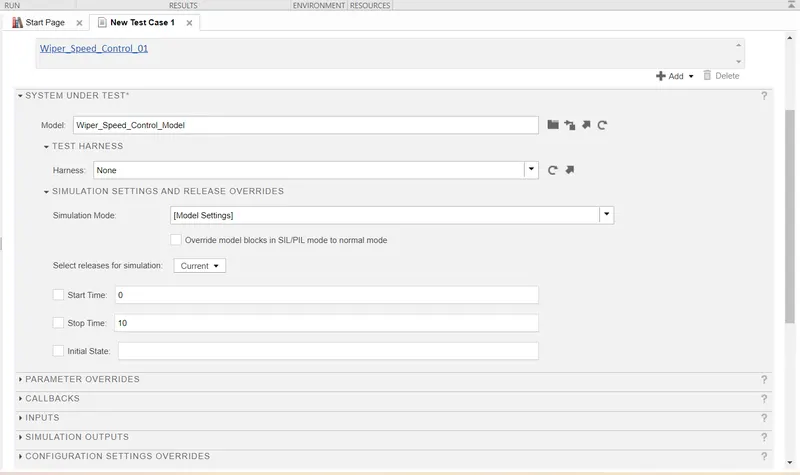
Select system Under test the module.
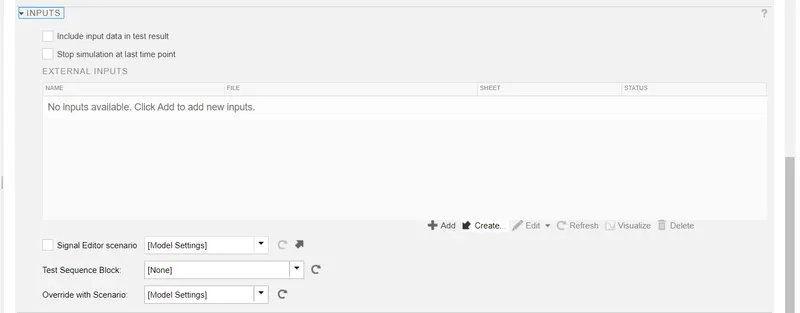
Create Input for the model.
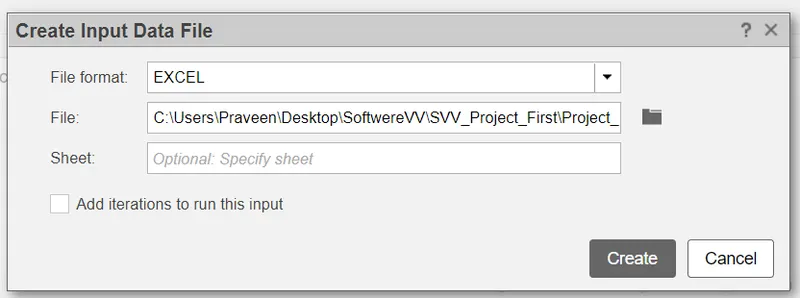
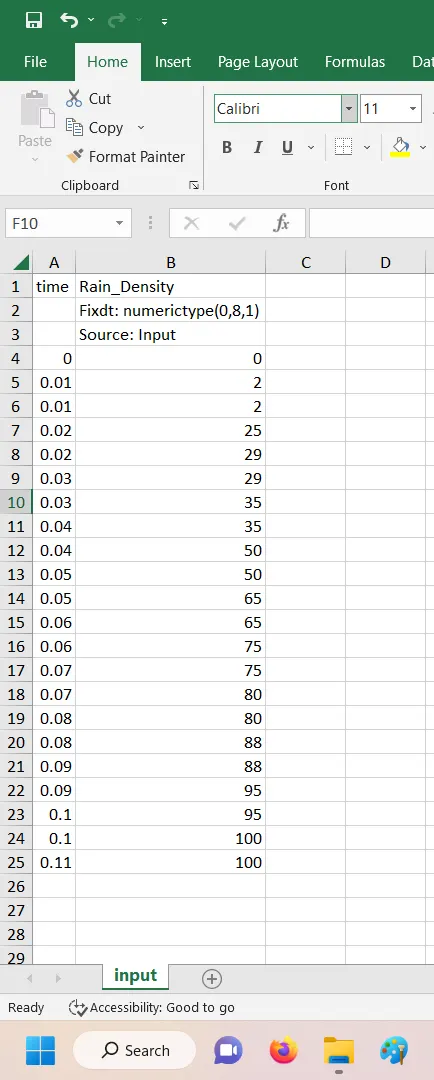
Select file location for storing the file location.
Excel sheet is open and then add some other test case data.
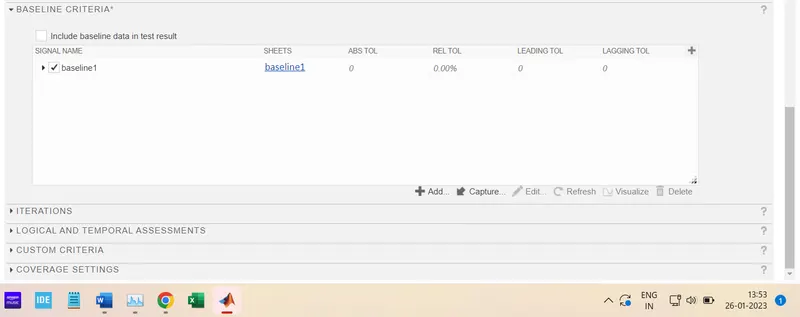
For output select location and Define file name.
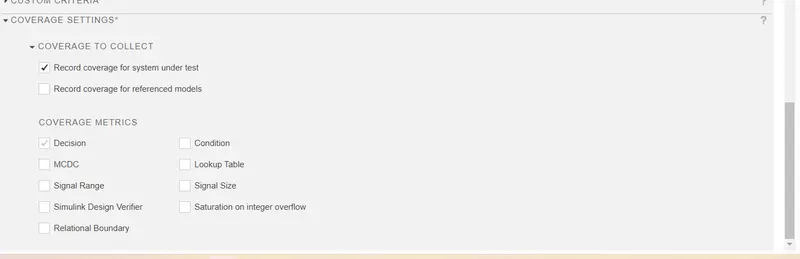
For Coverage Enable the Record coverage for system under test.
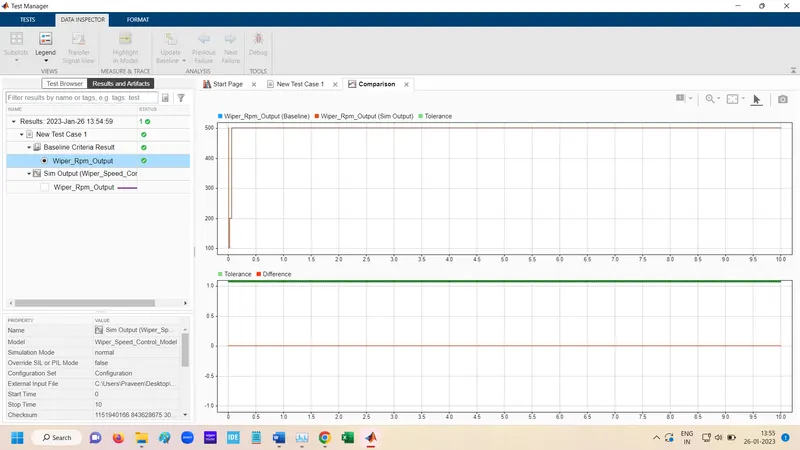
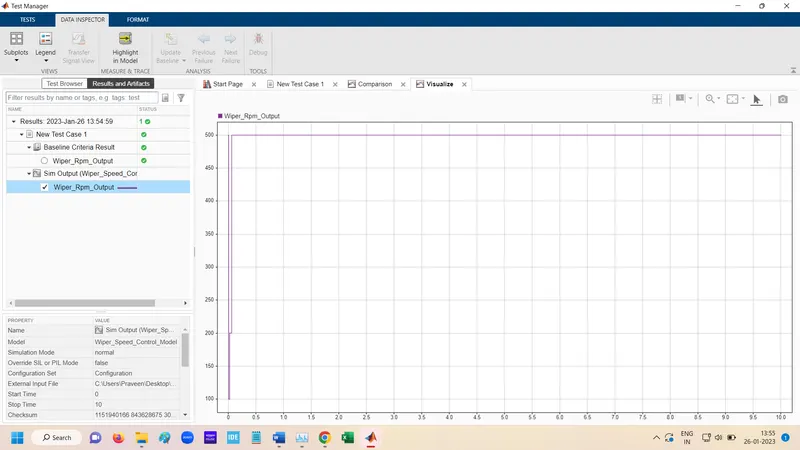
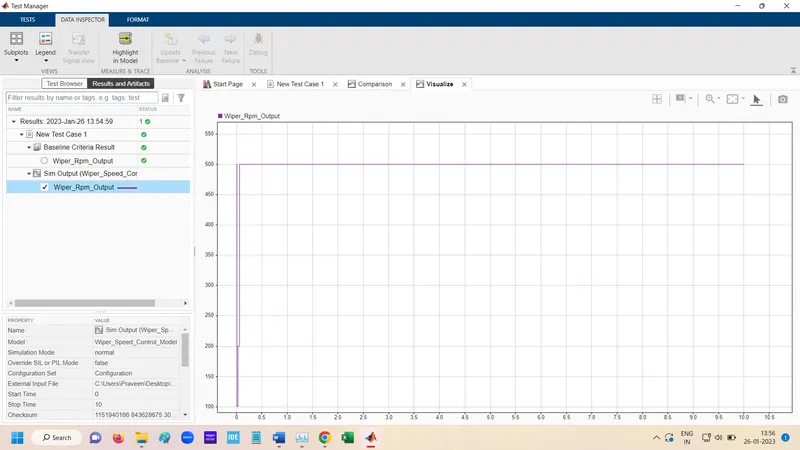
After Run the Basline test the result of output.
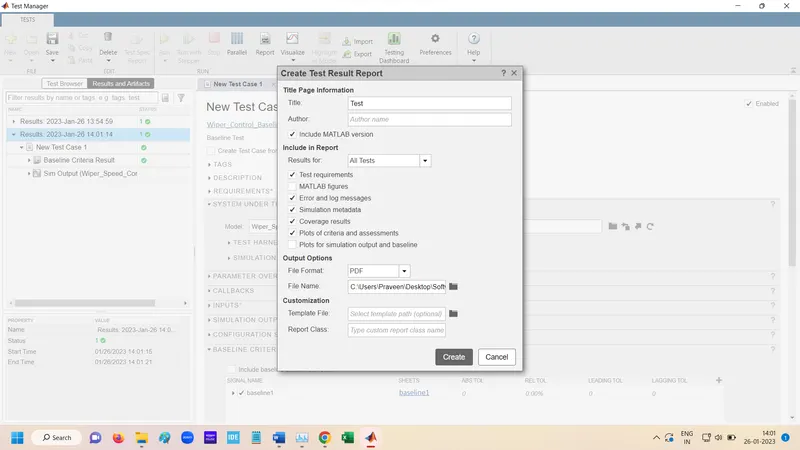
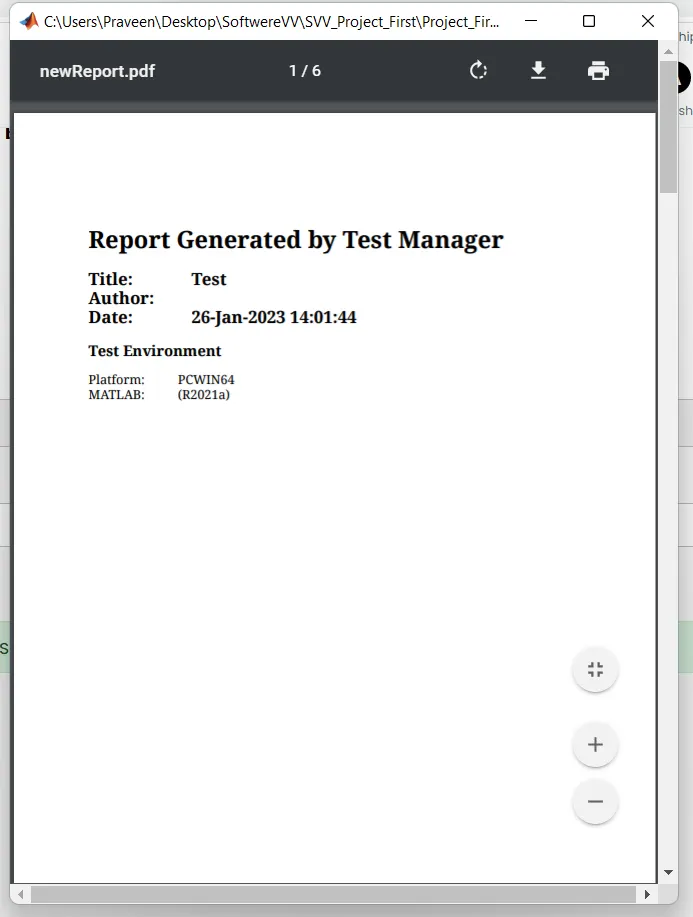
For Genrating Report
Test Manager:- Back to Back Test

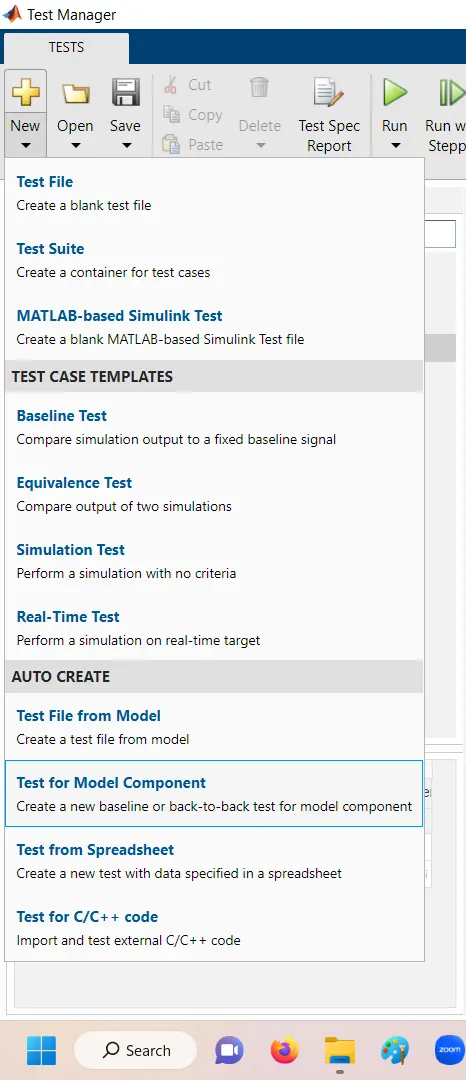
Goto the New Click test for module component.
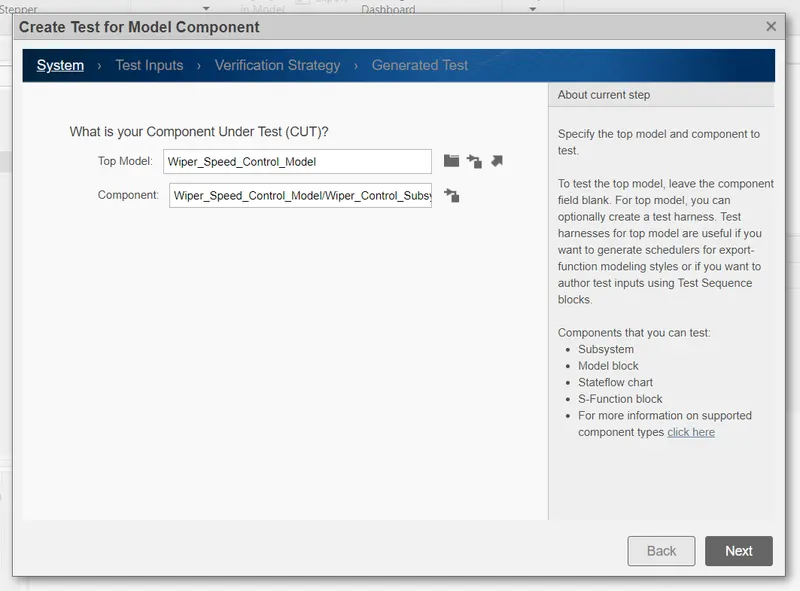
In System Select model and Subsystem.
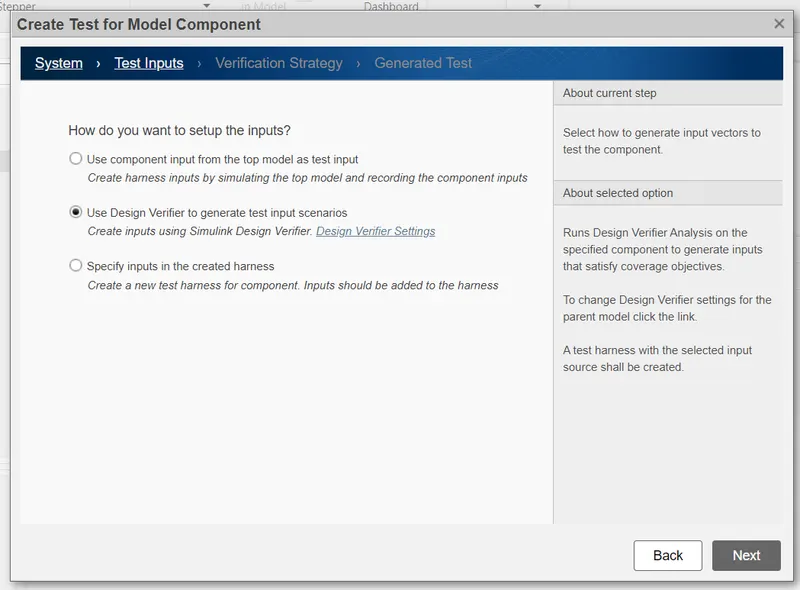
Select use Design Verifier to generate test input scenarios.
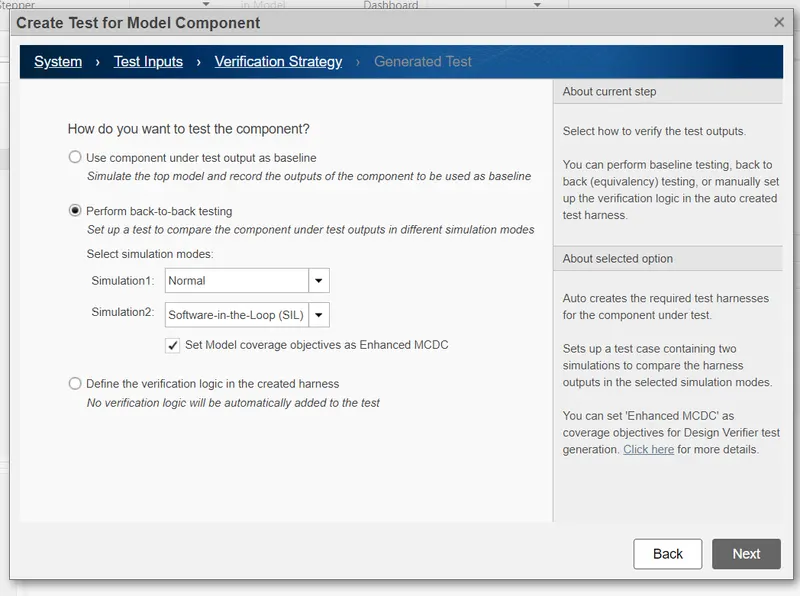
In Verification Strategy Select Perform back to back test.
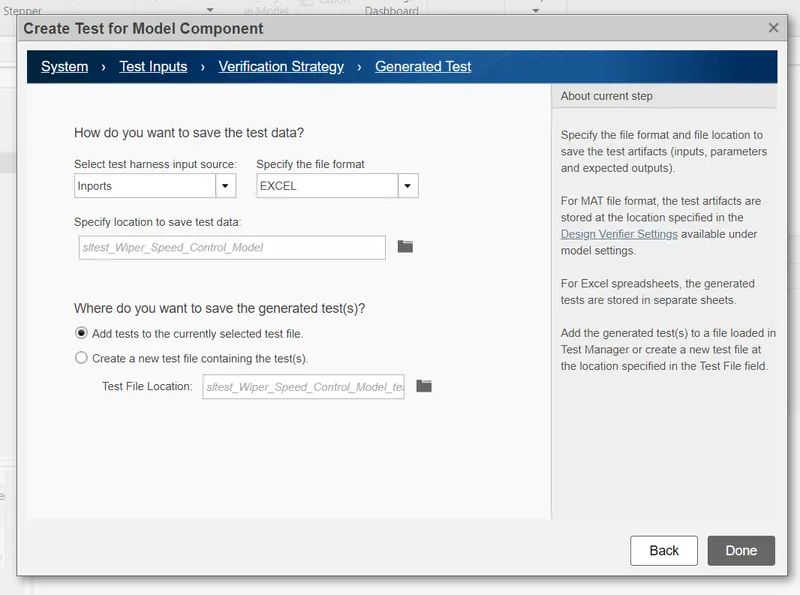
In Genrate Test Select like below.
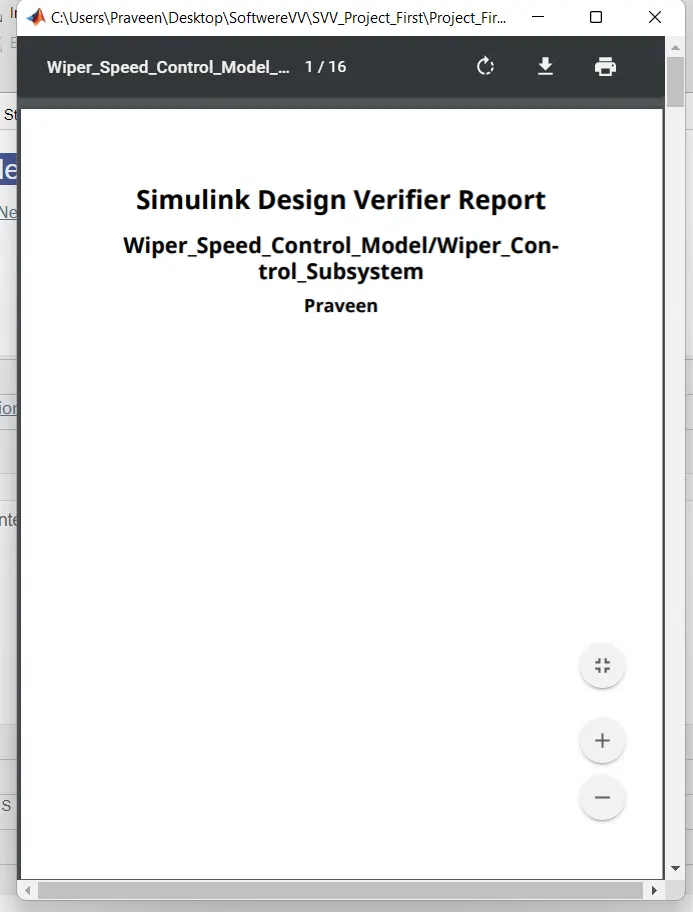
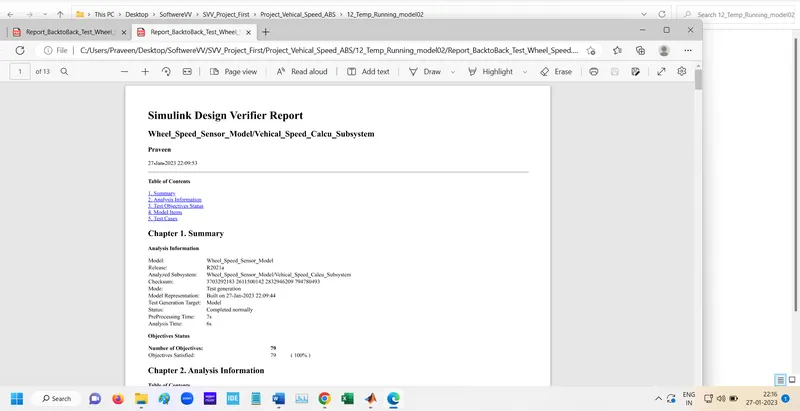
Genrate Report Back to Back test Desgine Verifier report.
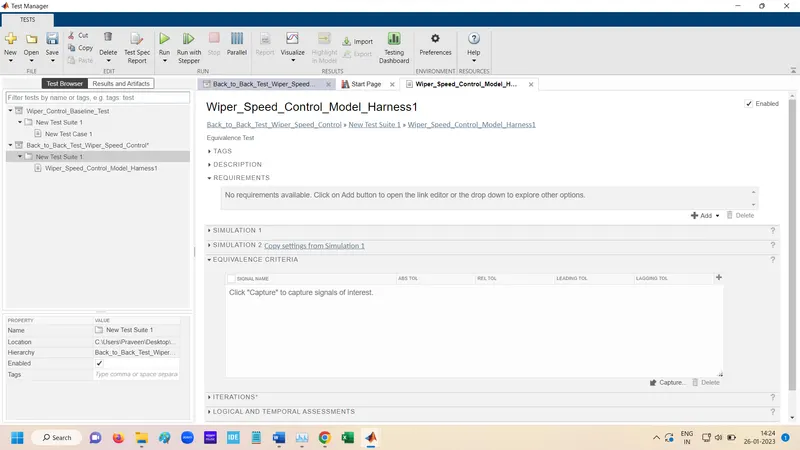
After add the requirement and other all already Genrated automatically.
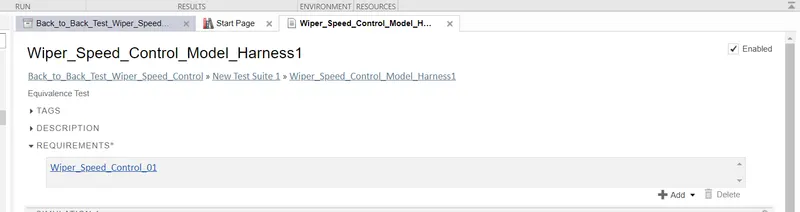
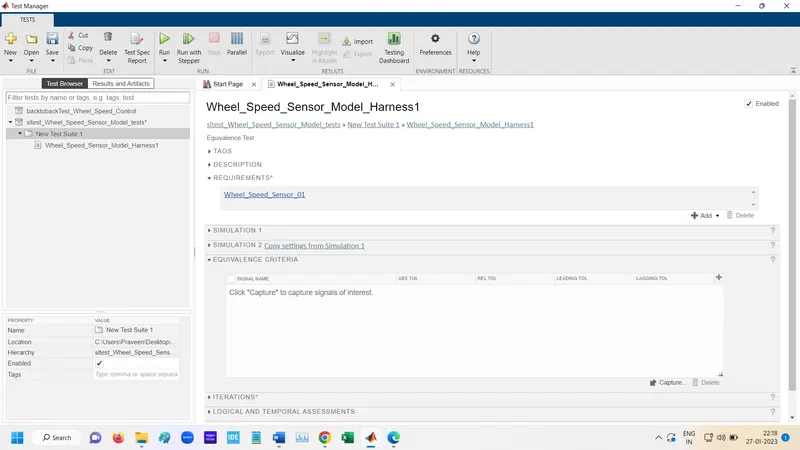
add requirements
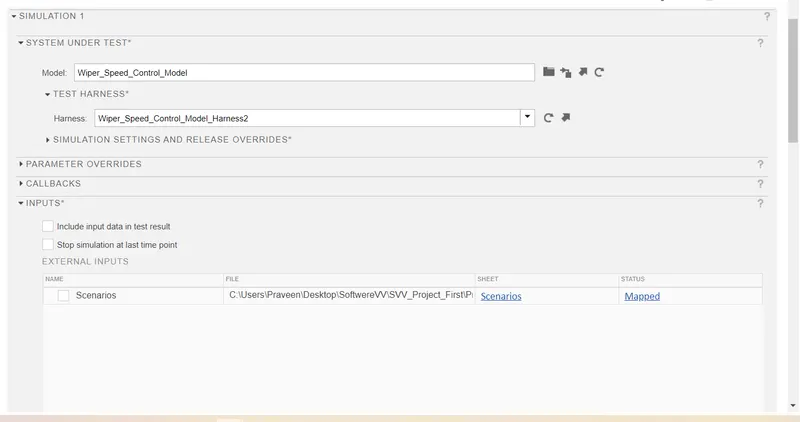
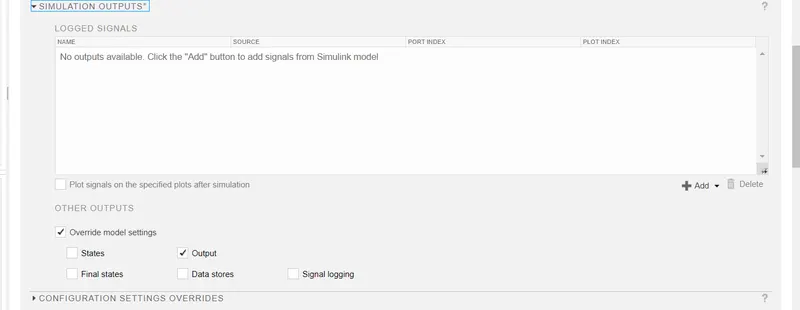
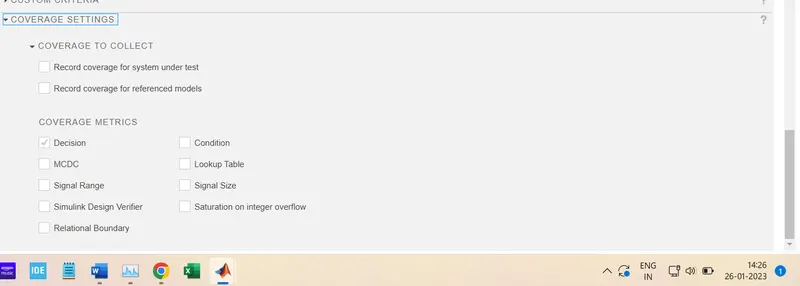
Coverage selection
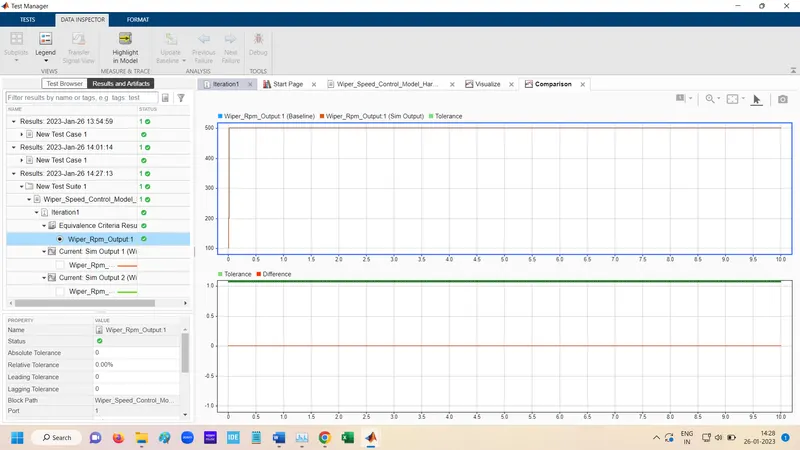
After RUN the Back to Back test.
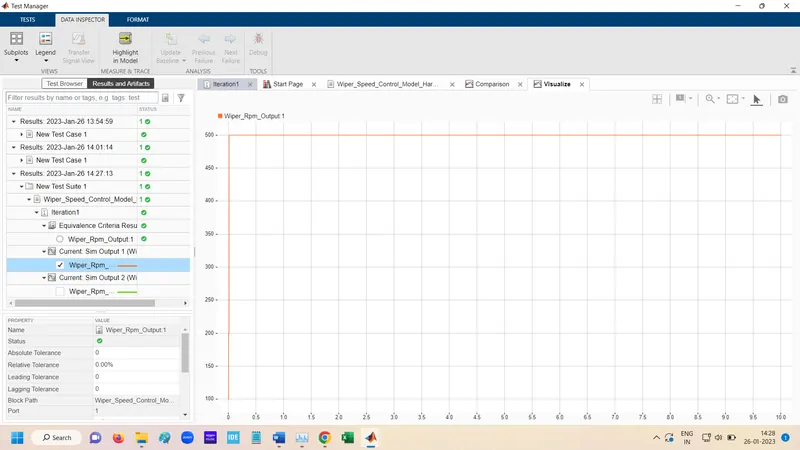
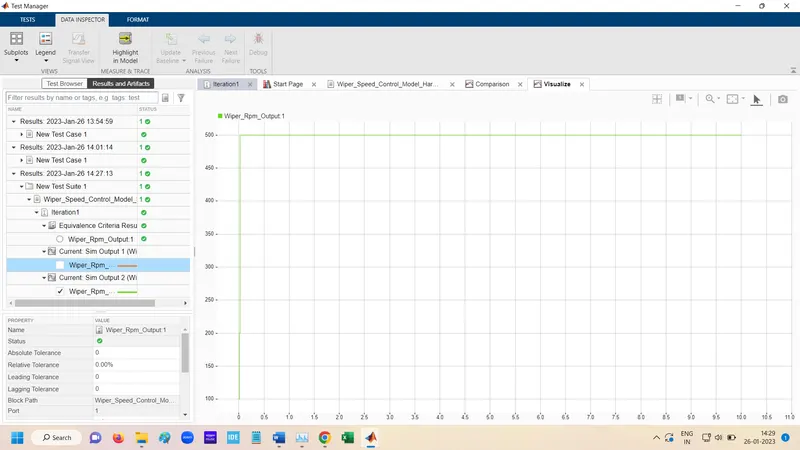
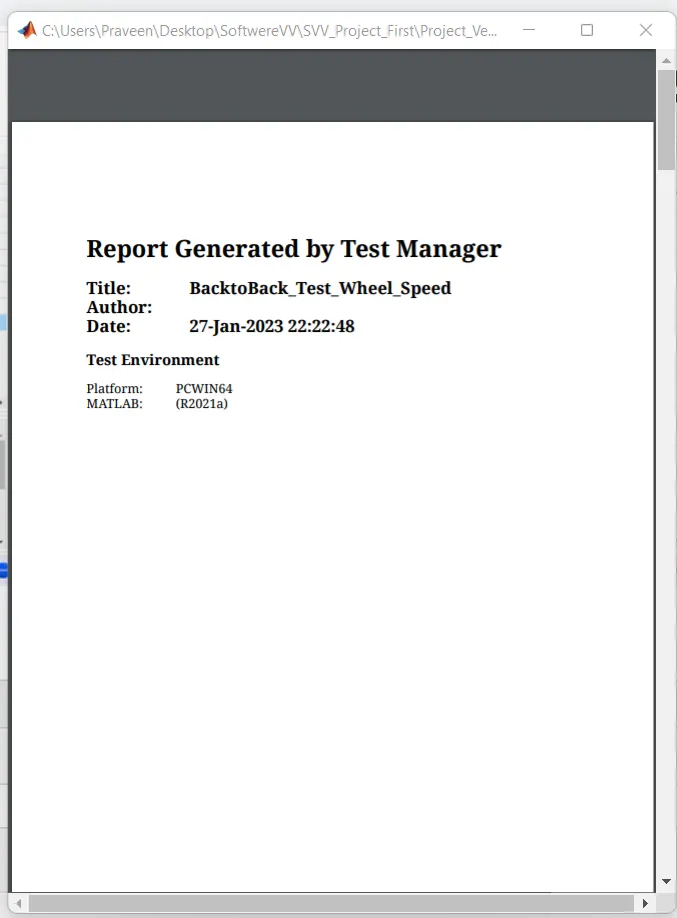
Genrate the BAck to Back Test Report.
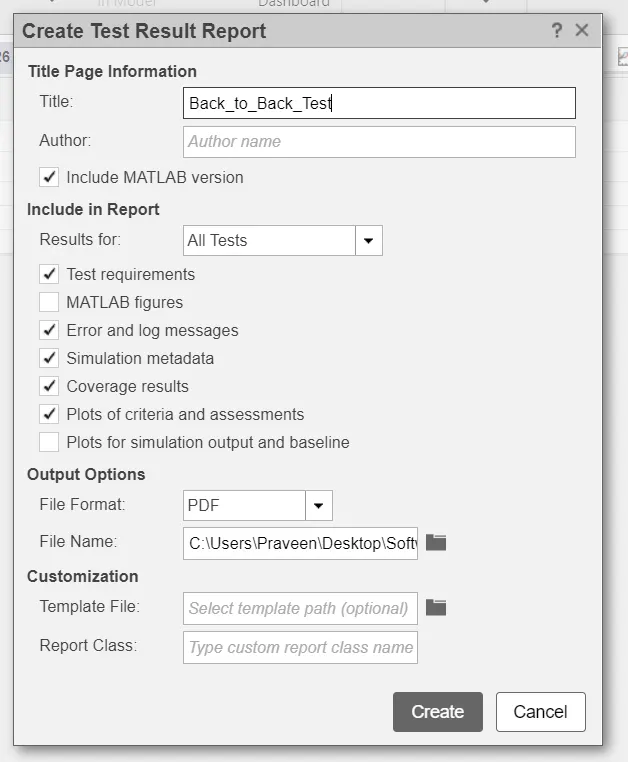
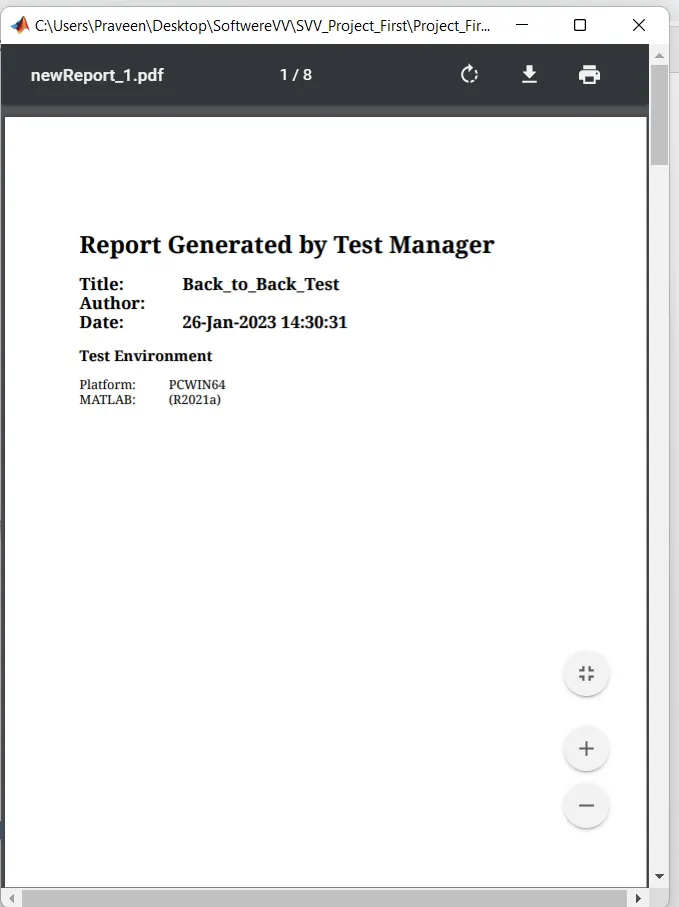
Report
Question no 02:-
Solution:-
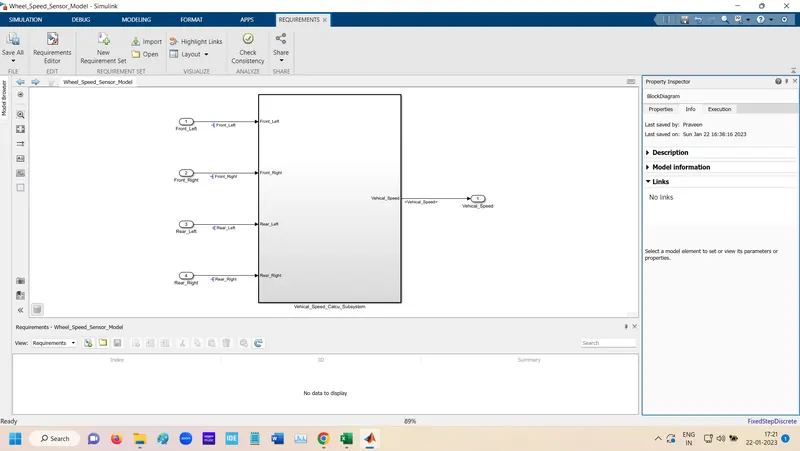
Simulation Model:-
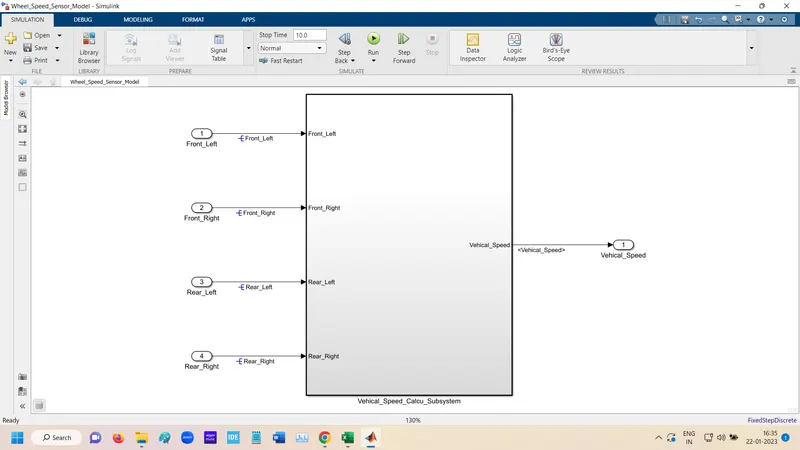
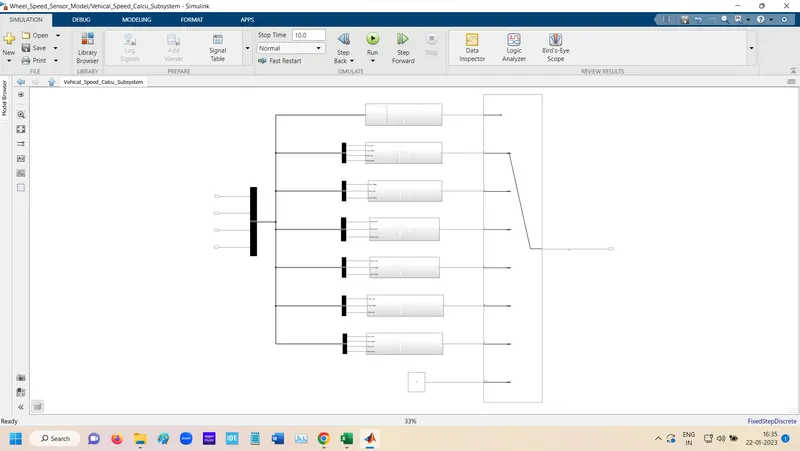
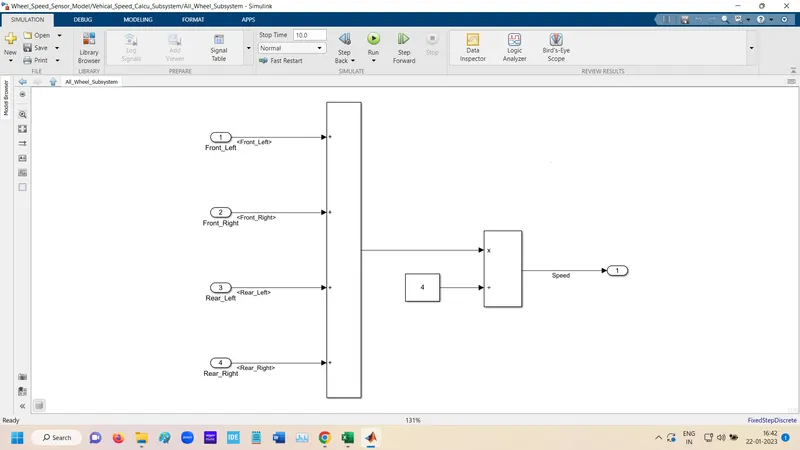
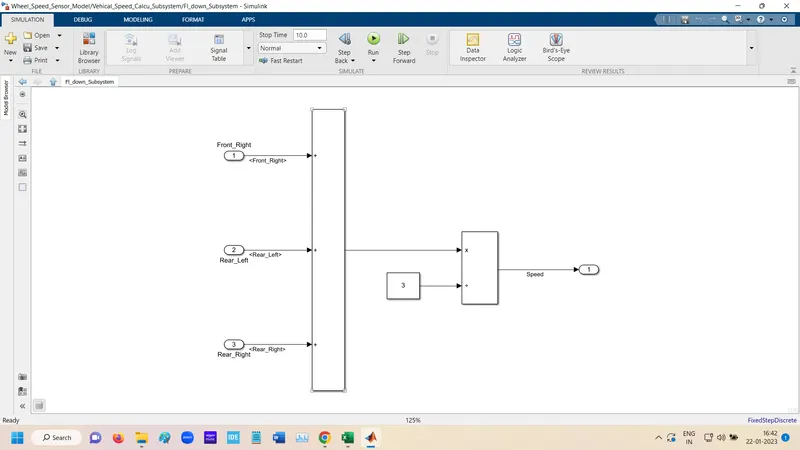
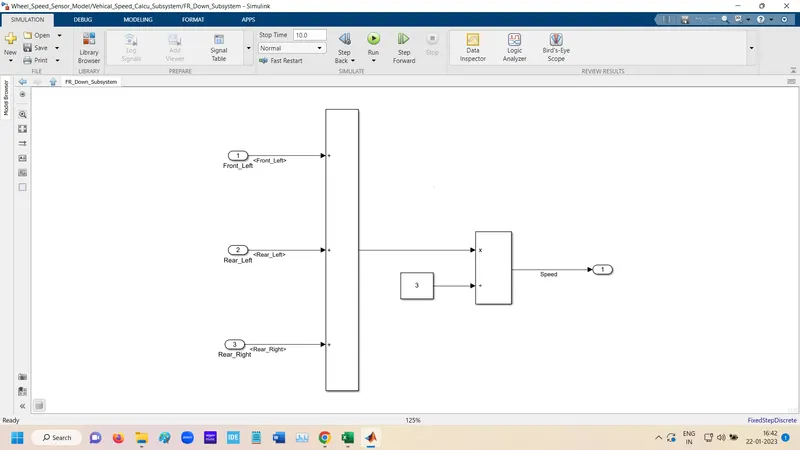
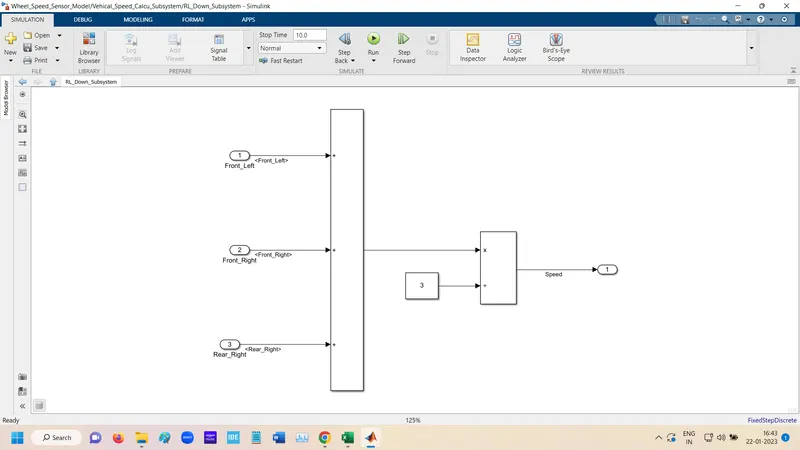
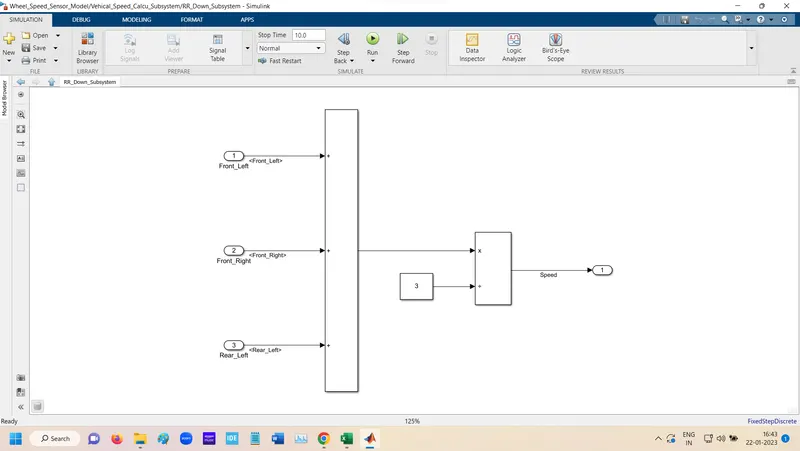
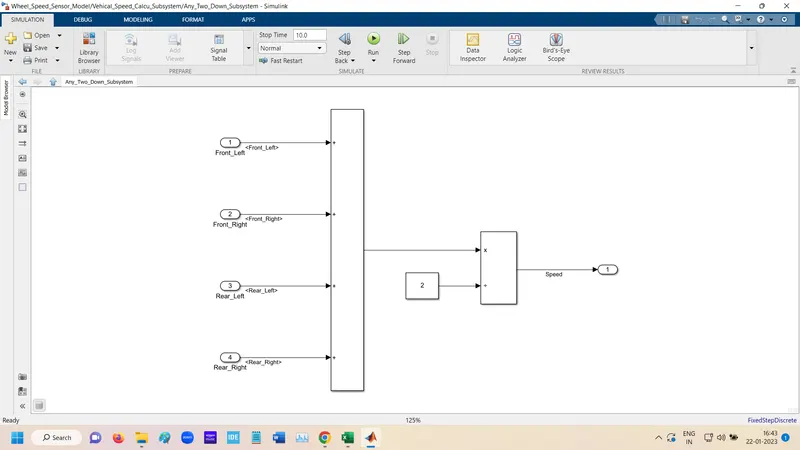
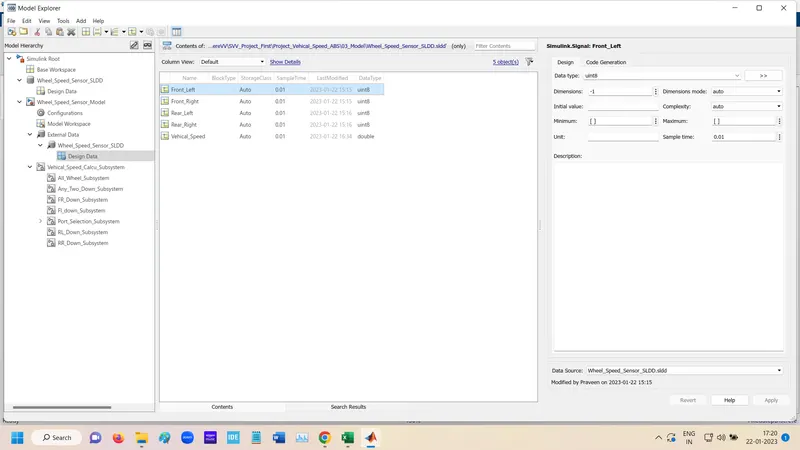
SLDD File: -
Requirement Tagging:-
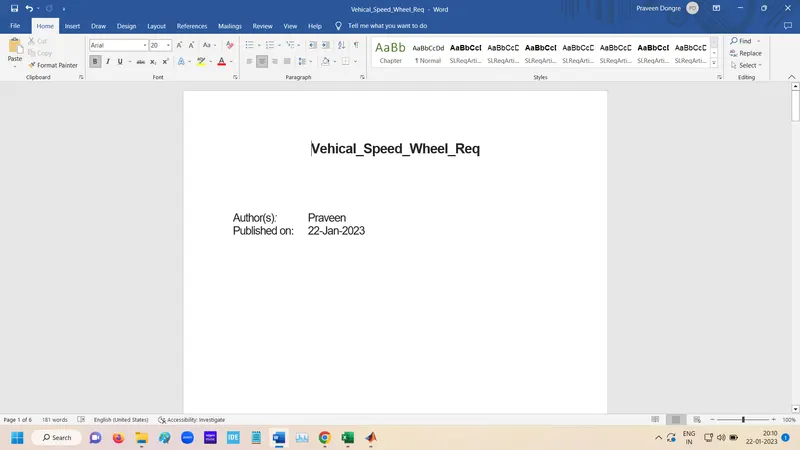
Open Requirement manager
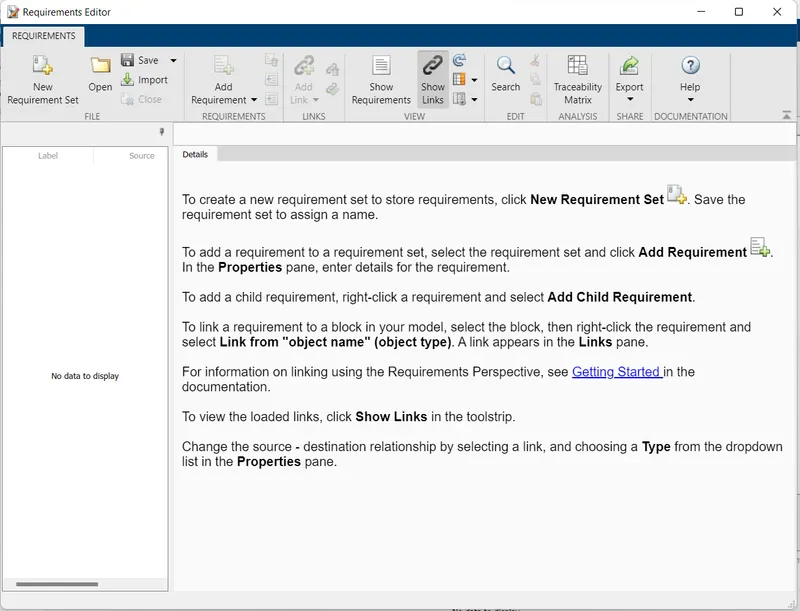
Below page open and in this click to the New Requirement.
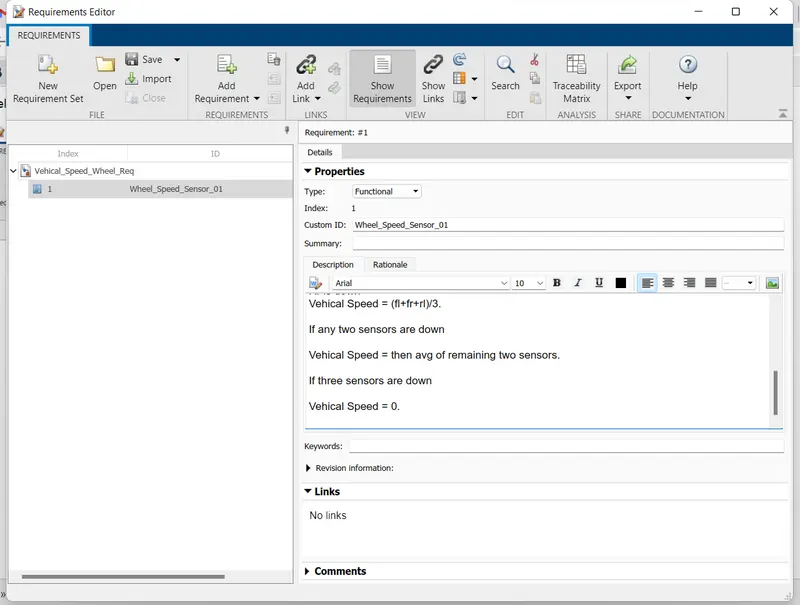
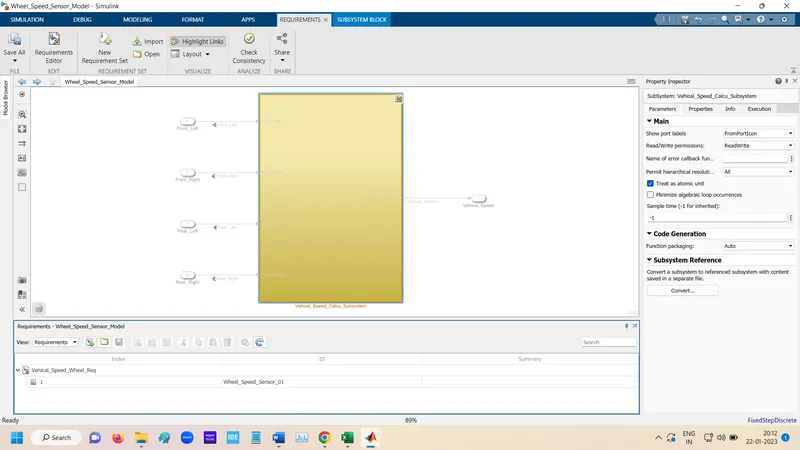
After adding Requirement set Add requirement and add the details. then link to the subsystem.
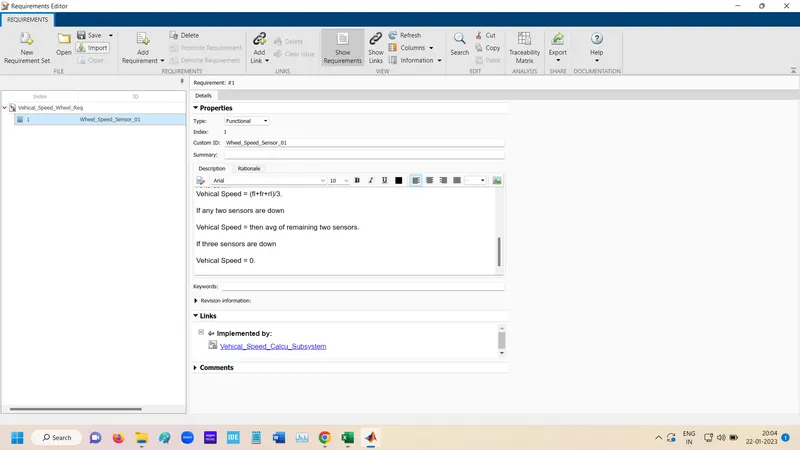
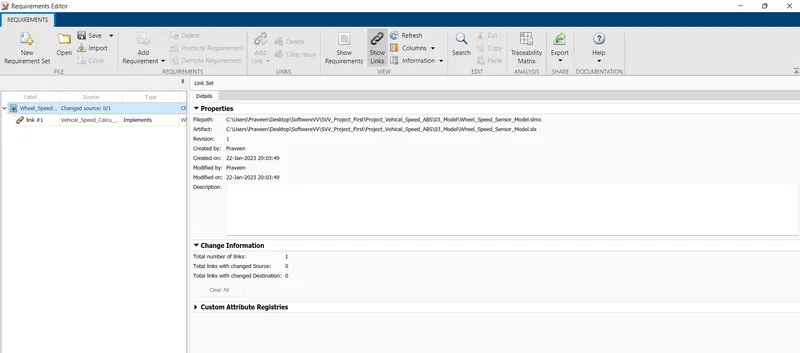
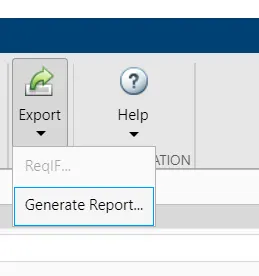
For genrating report
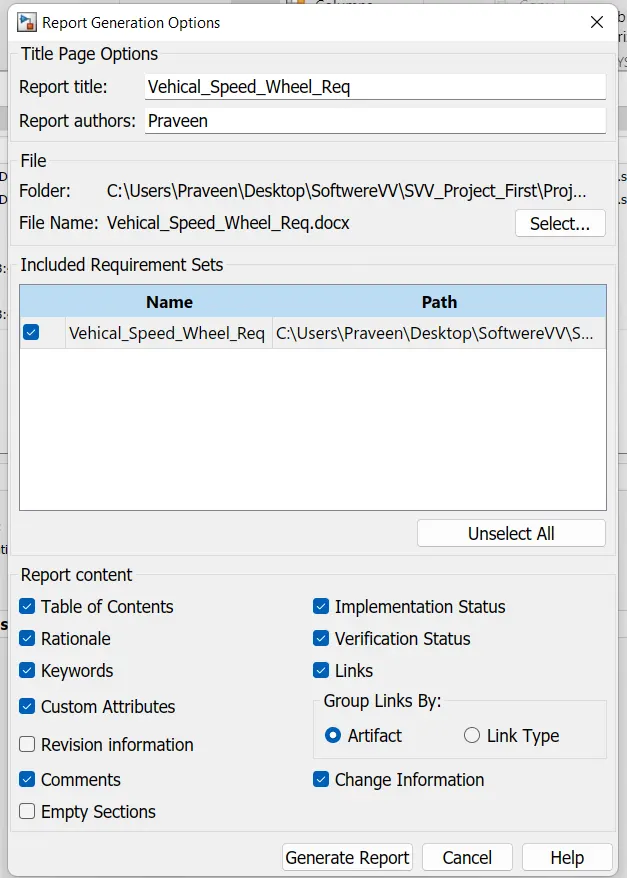
Genrated Report
Model Advisor-JMAAB Compliance:-
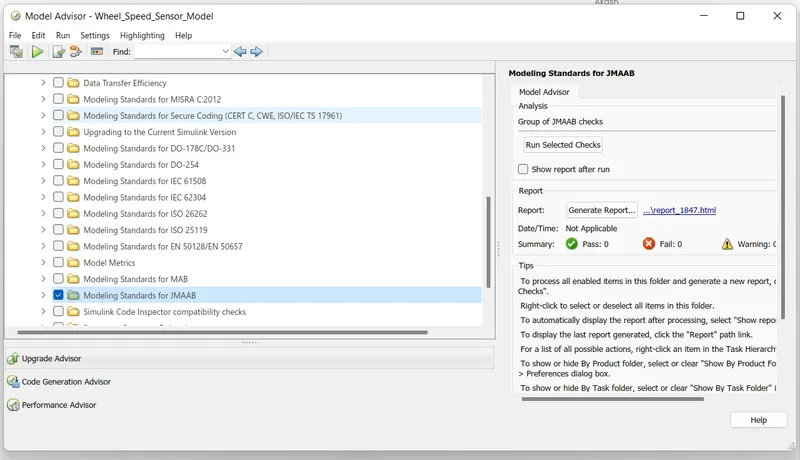
For Advisor check for this go in Modeling Tab
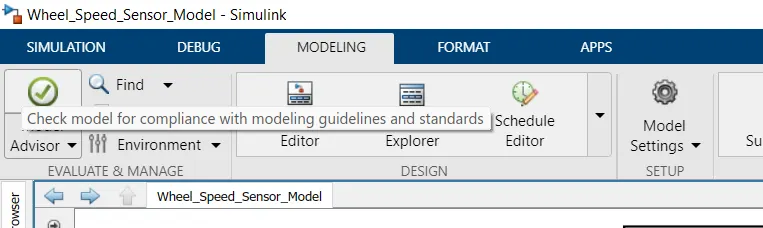
Select top subsystem
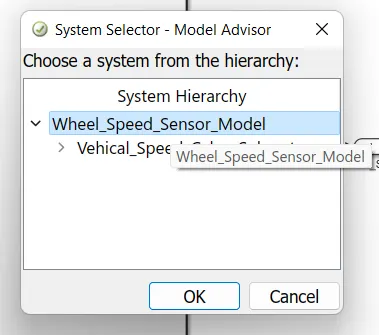
In this select JMAAB Checks
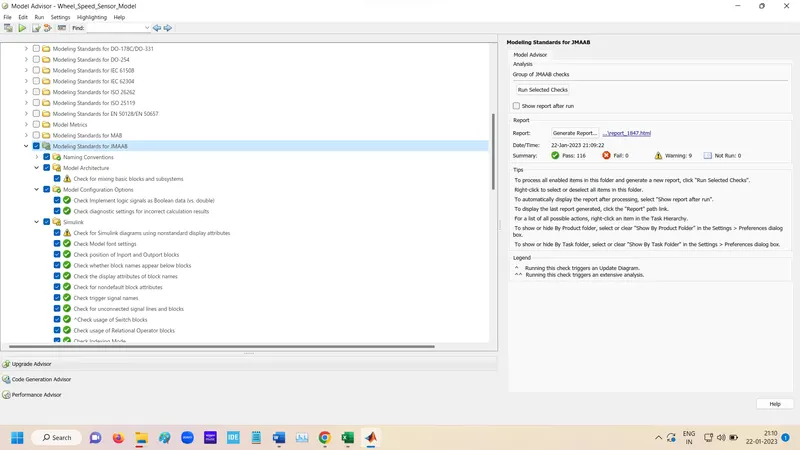
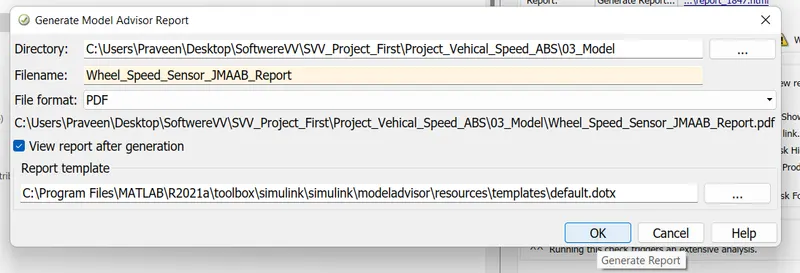
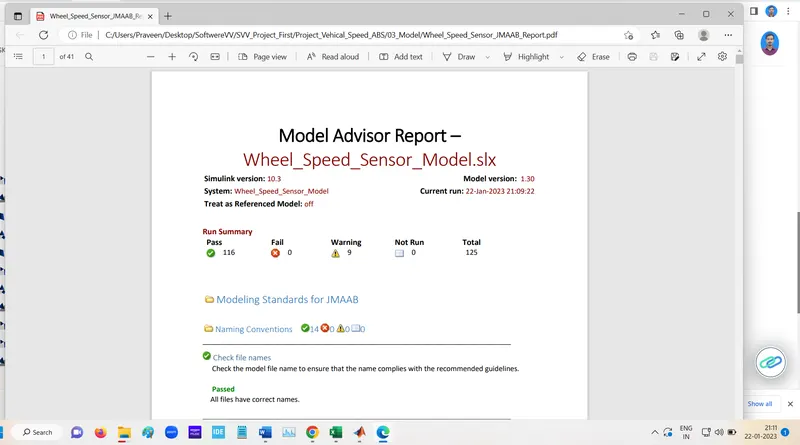
Report Genration
Fixed Point Tool

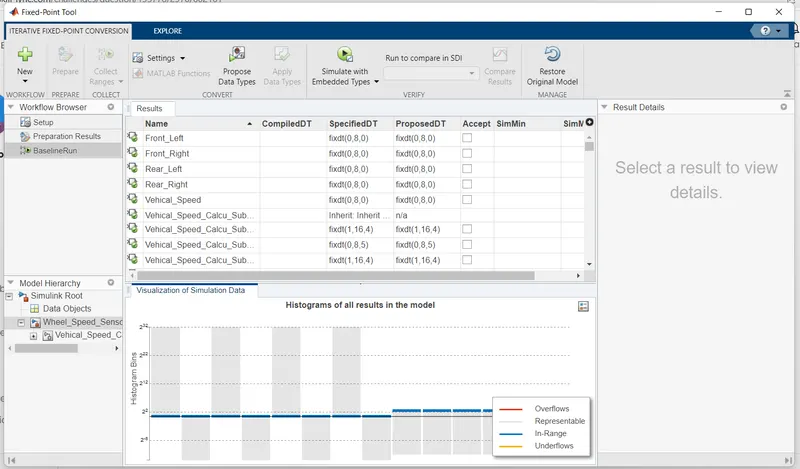
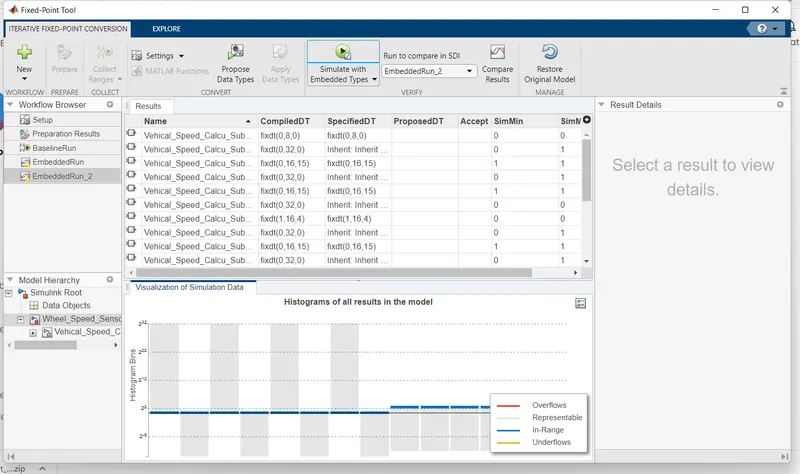
Select fixed point tool
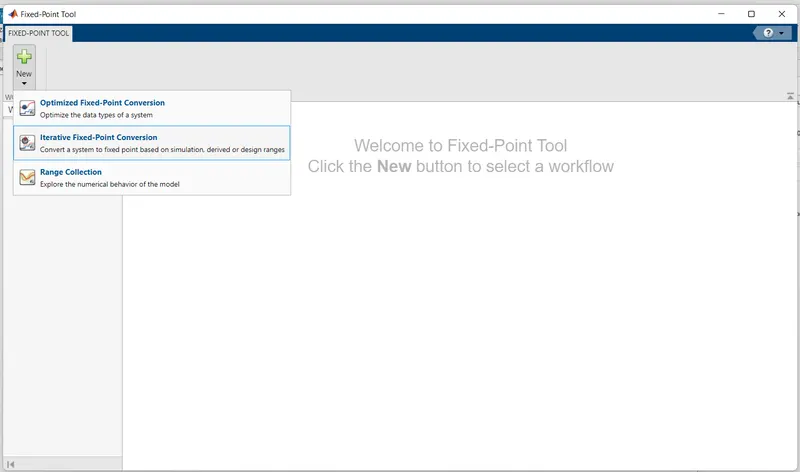
In the above page click to new and select itreative option.
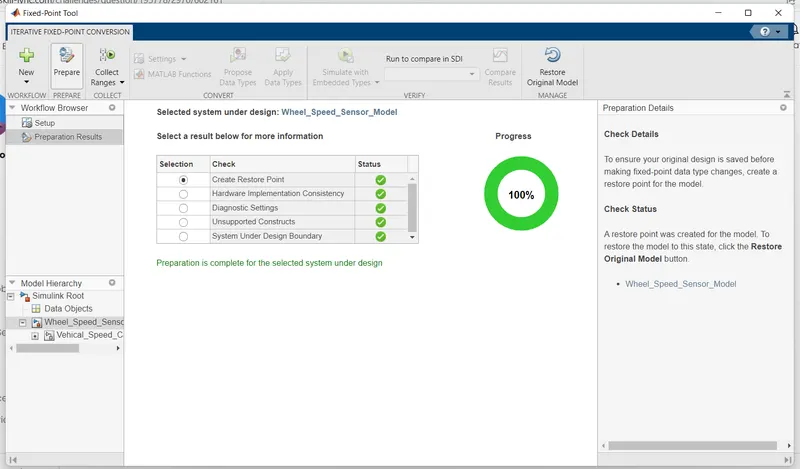
and click to prepare
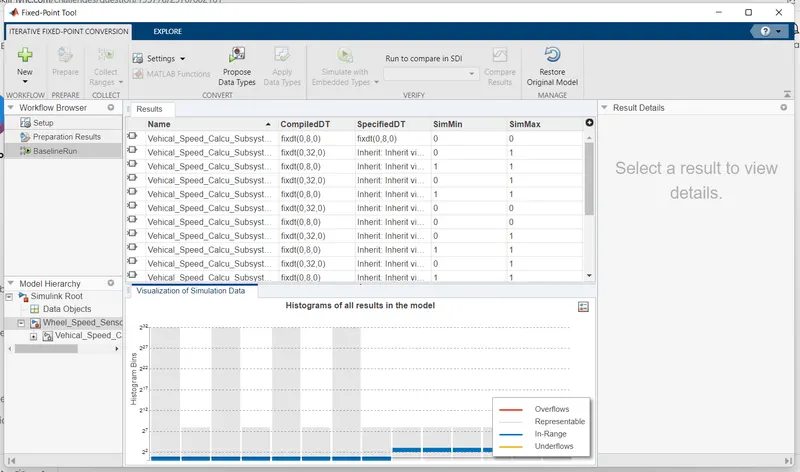
After Collect ranges Click to Propose data Type.
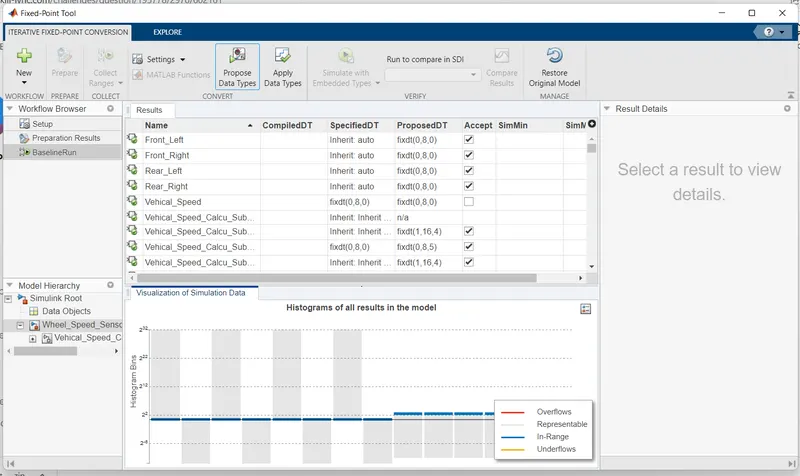
Click to Apply Data Type
Click to Simulate with Embedded Type
SLDV Desgine error detection:-
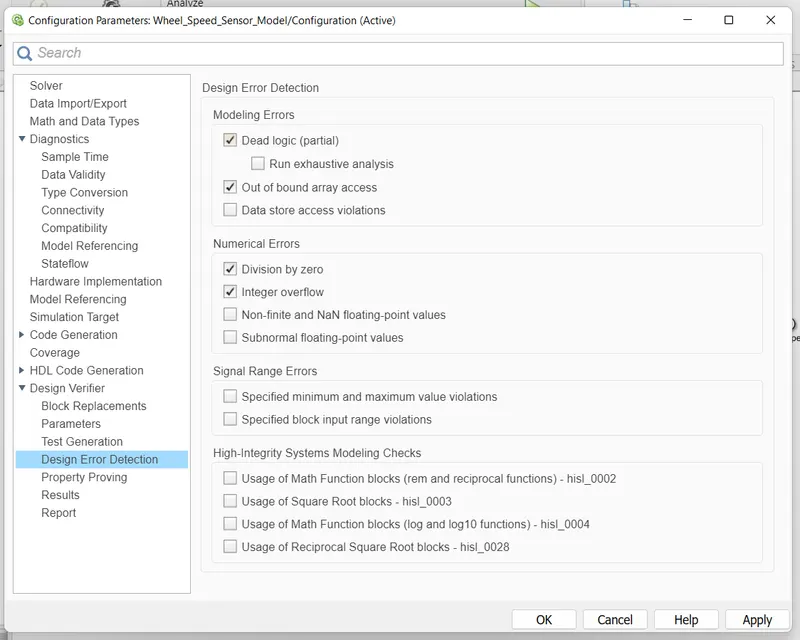
Goto the Desgine Verifier tab

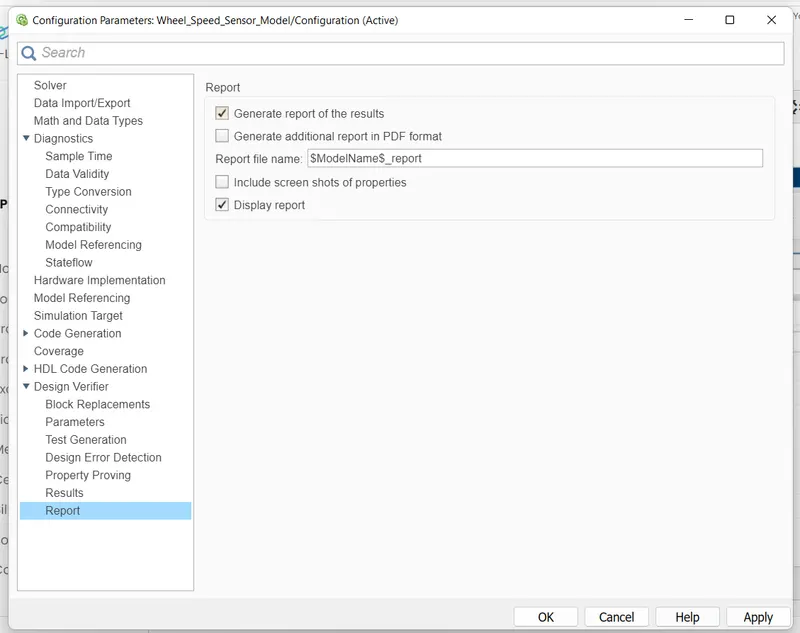
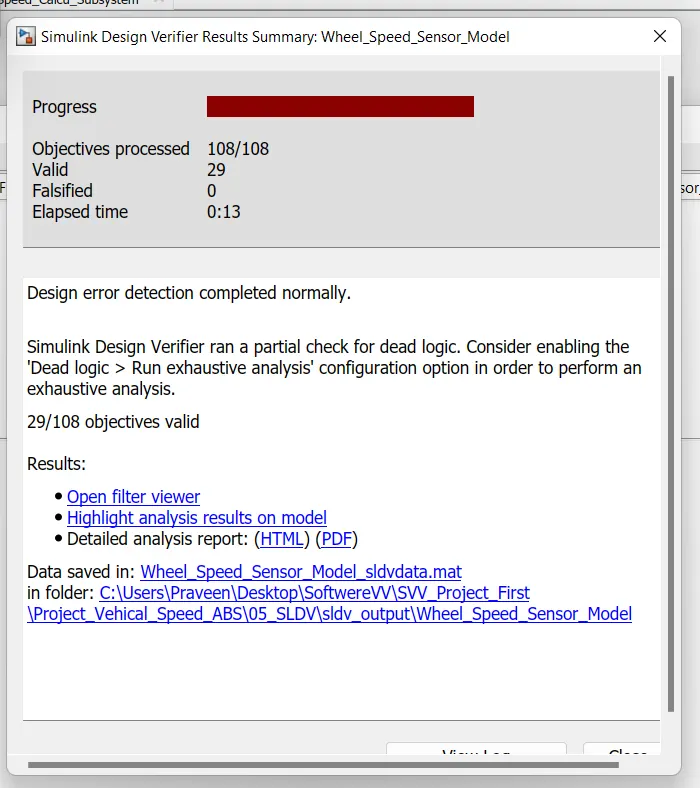
Report Genrated
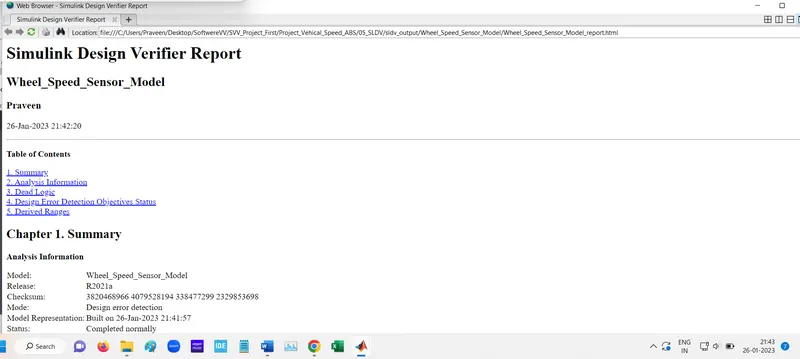
SLDV Test Genration:-
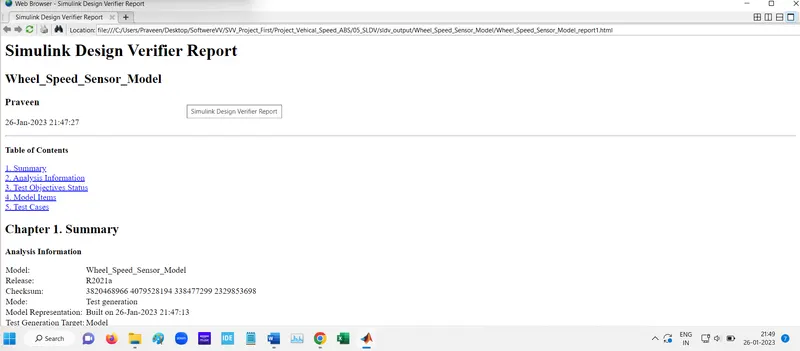
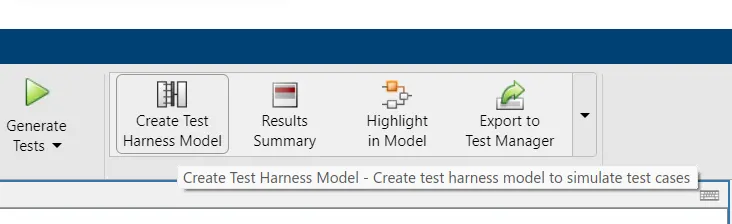
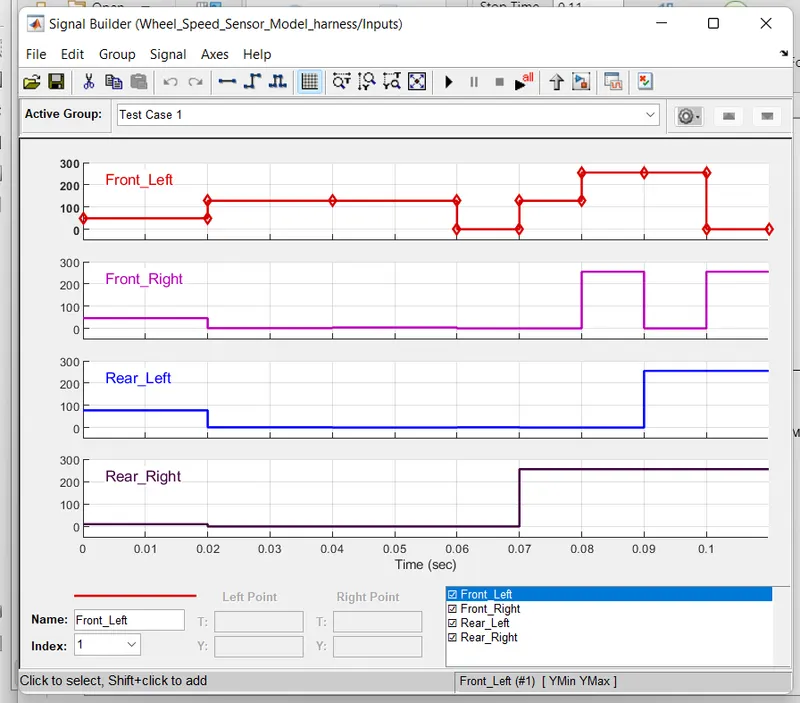
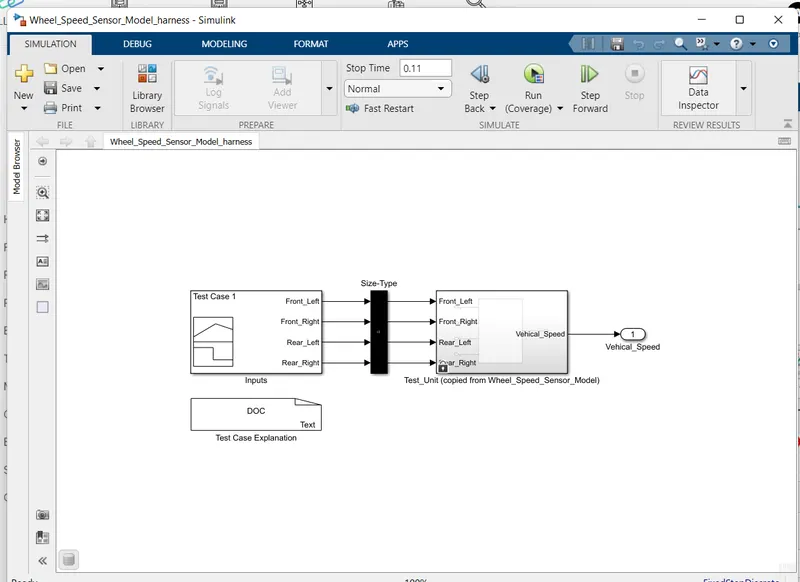
SLDV Test Gen

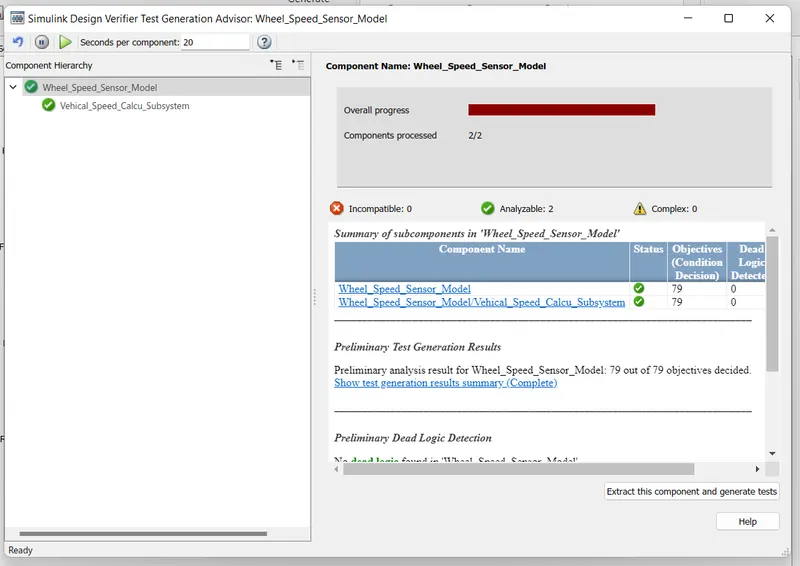
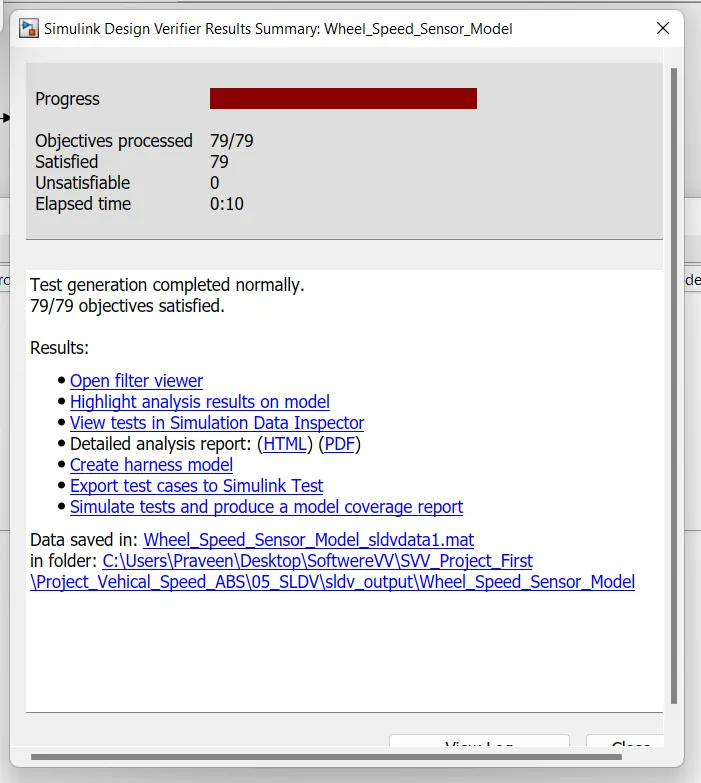
Report Genrated
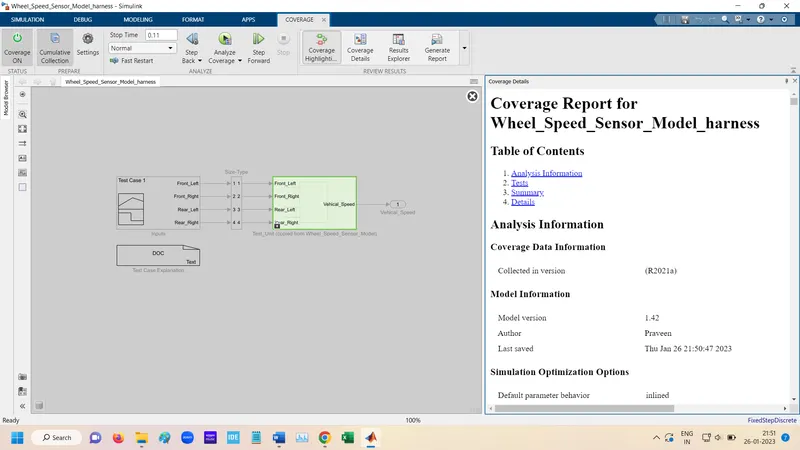
Functional Test Case MIL, SIL Harness & Coverage Report :-
MIL test harness
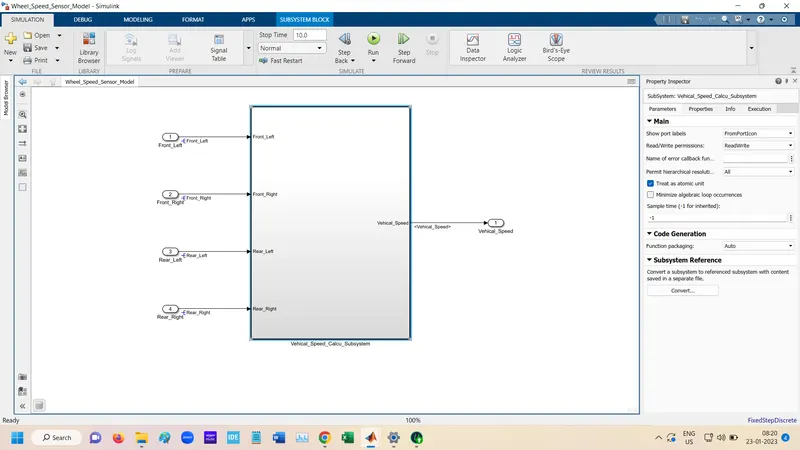
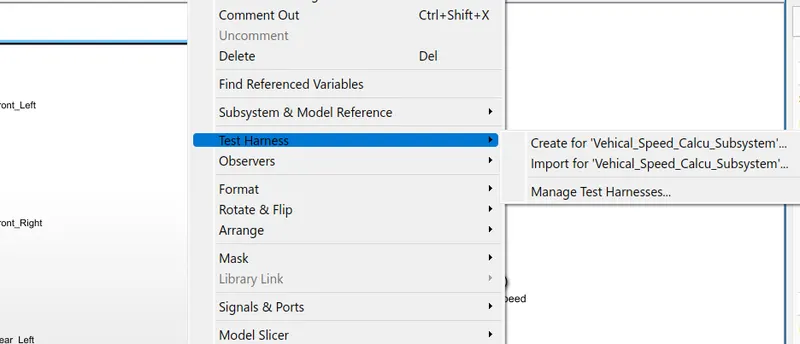
Right click on subsystem and goto test harness.
Select Signal builder and Scope
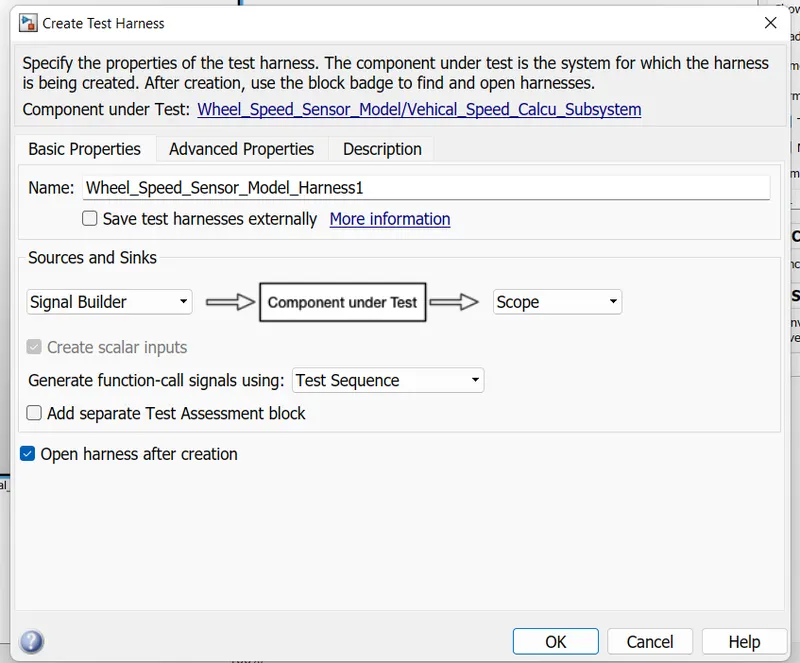
Verification mode select as Normal
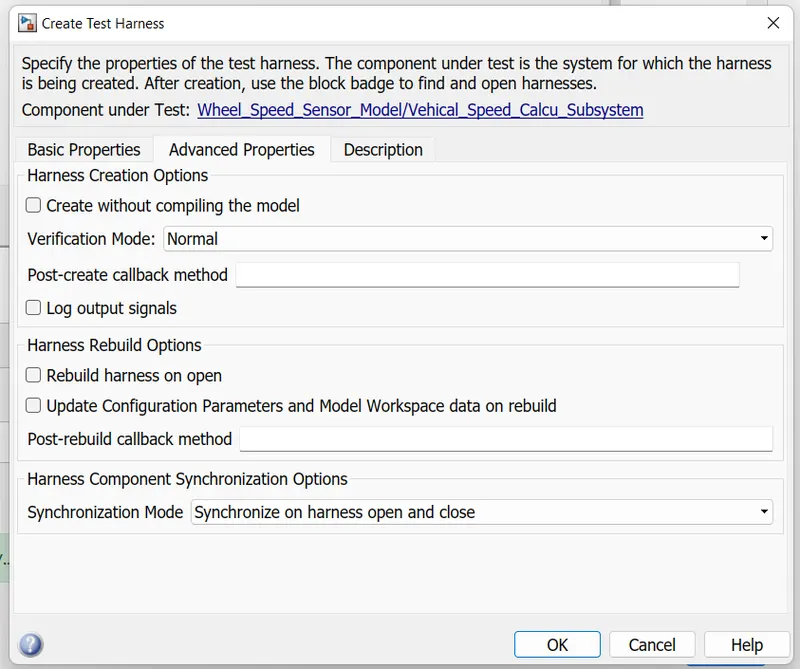
Harnesses for MIL is created.
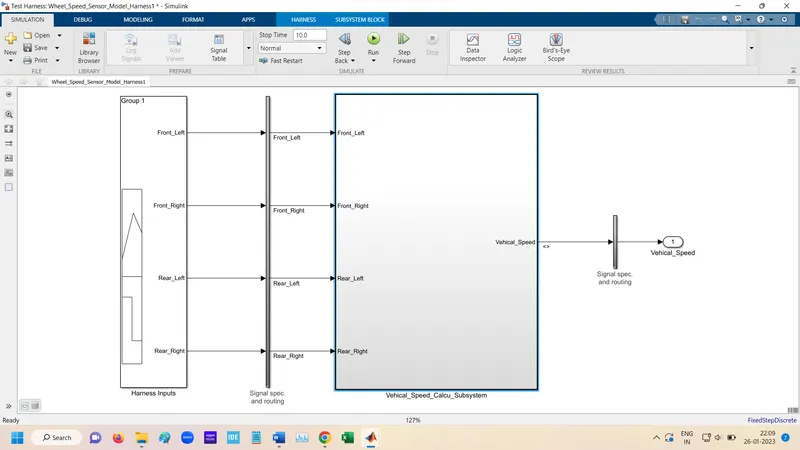
Open Harnesses model.
In Signal builder block add test case.
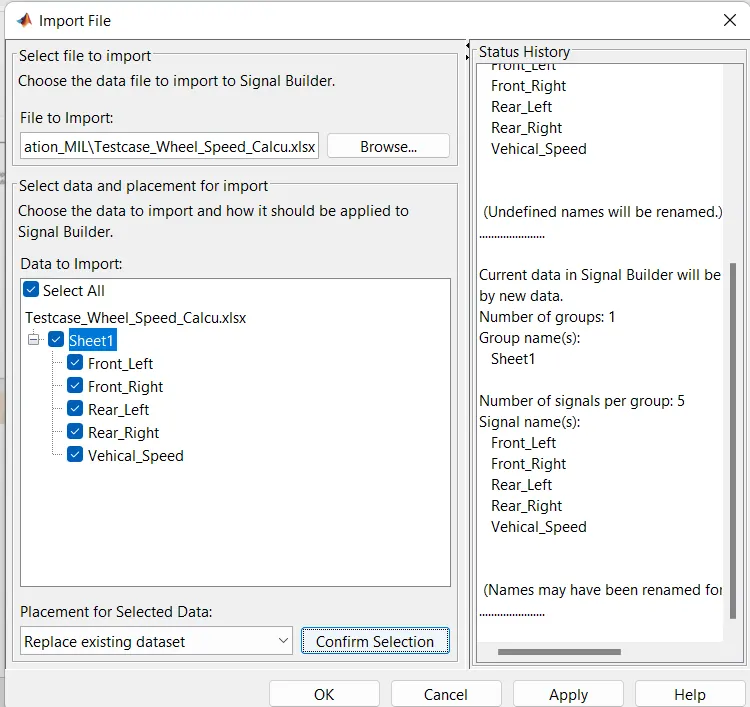
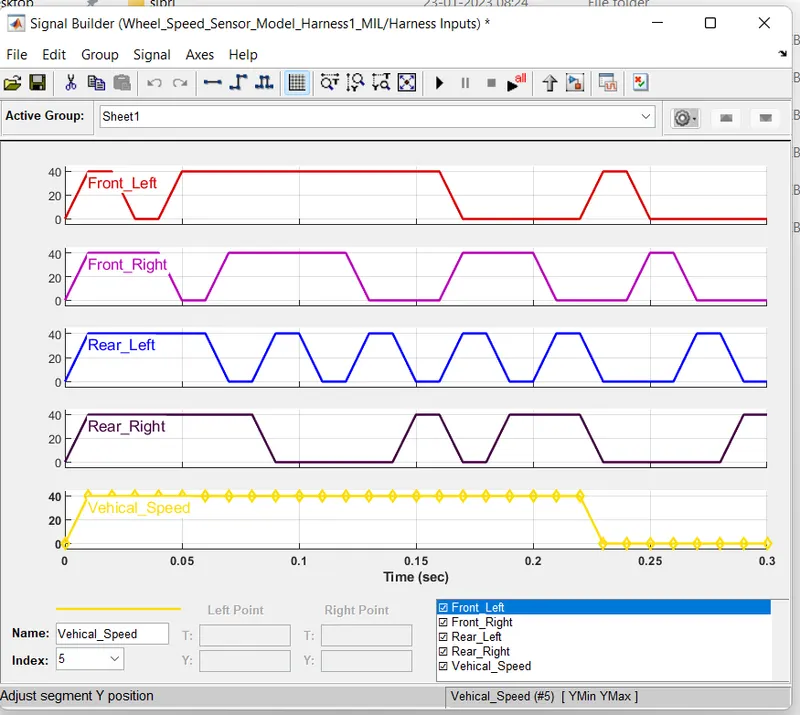
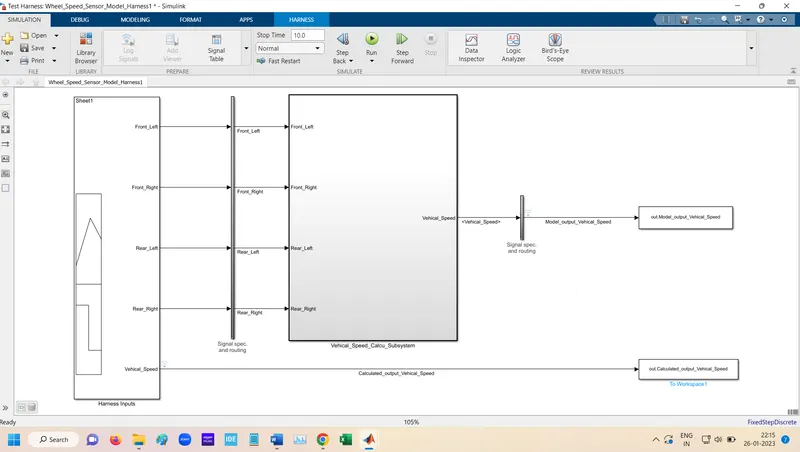
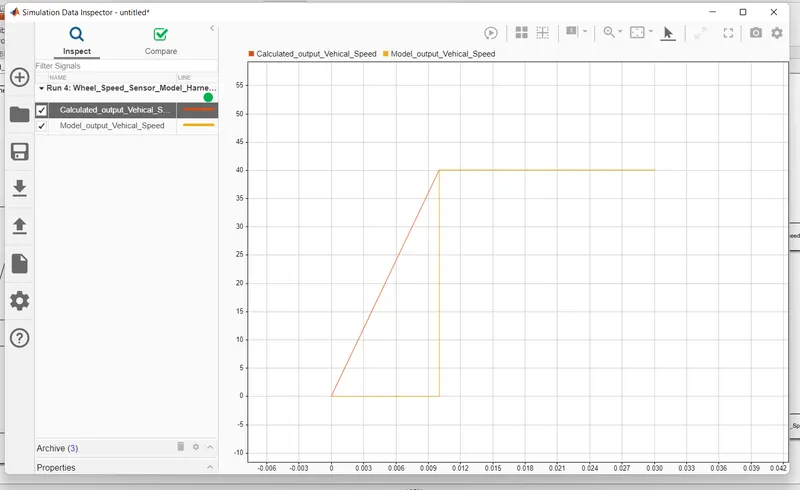
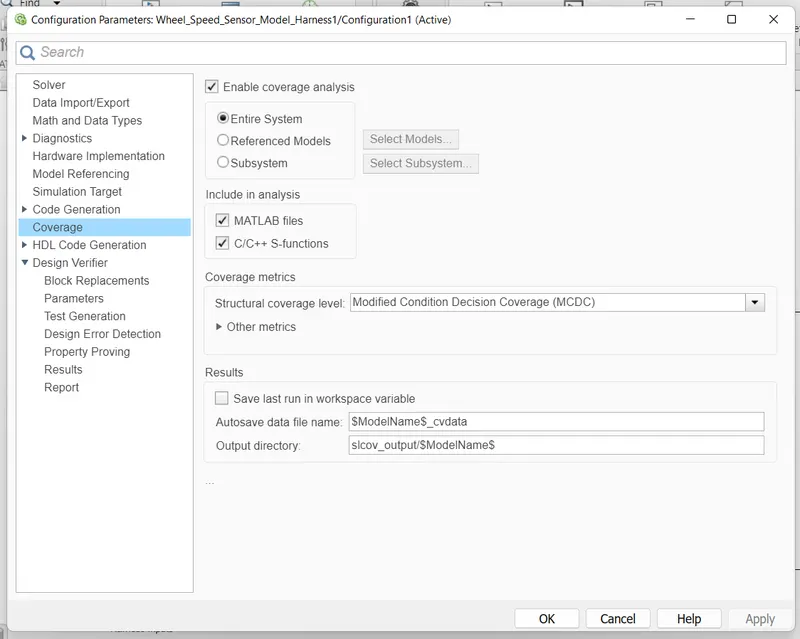
For Coverage setting for MIL
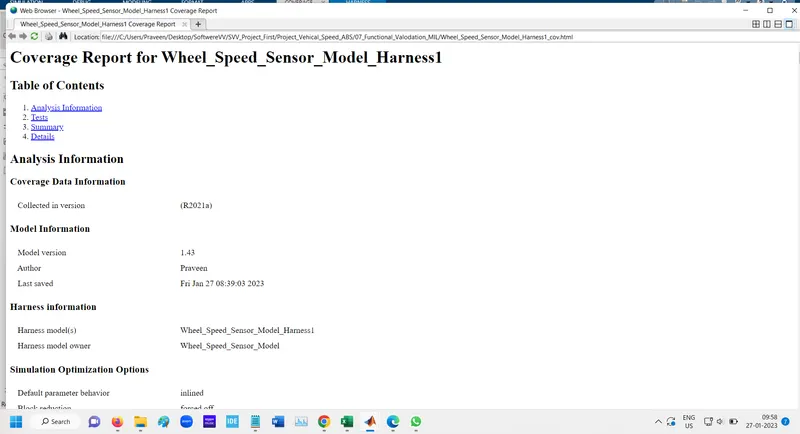
Coverage Report
SIL Harnesses
Right Click on subsystem and goto the Test Harnesses and Create for subsystem.
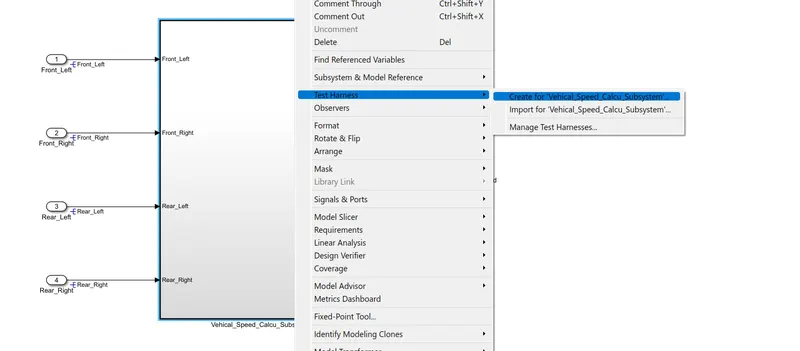
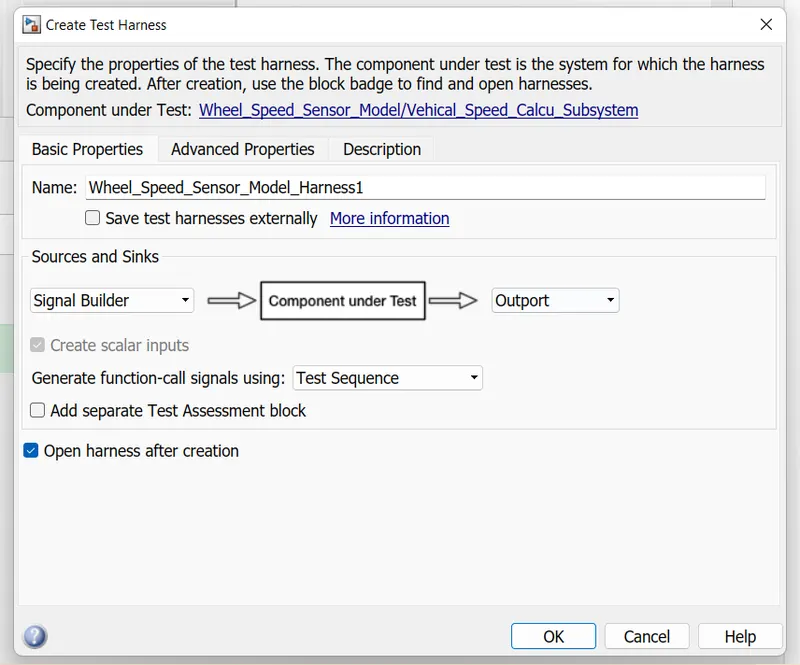
SIL Harnesses Settings.
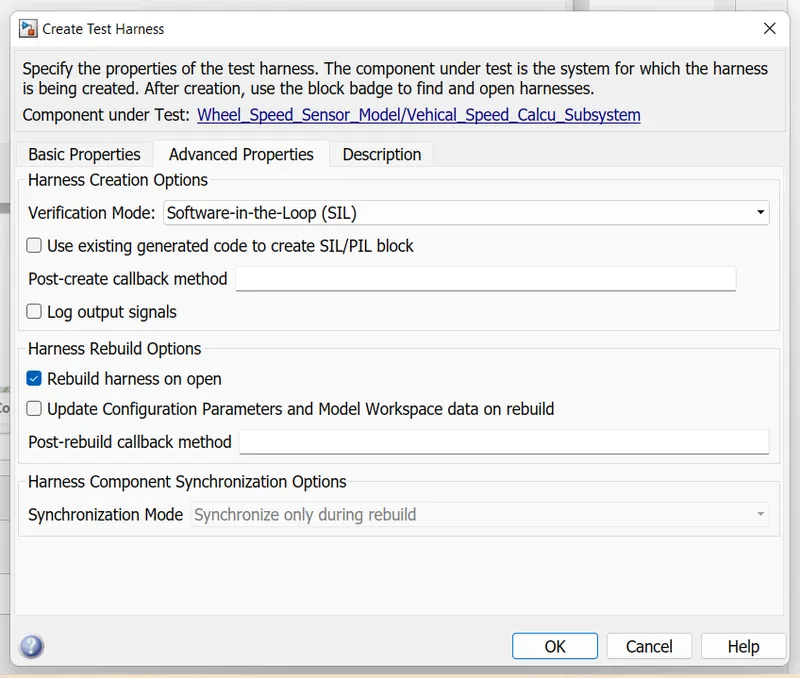
Select SIL as Verification Mode.
Genrated SIL Harnesses
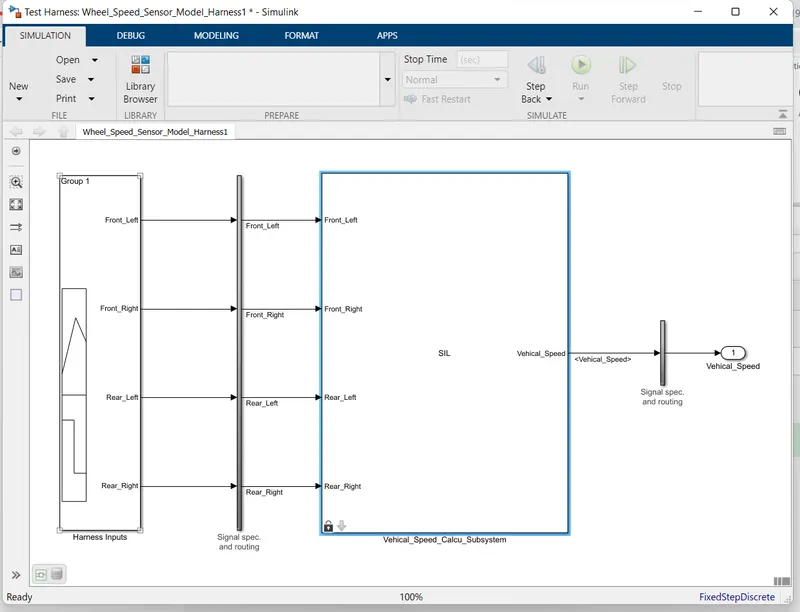
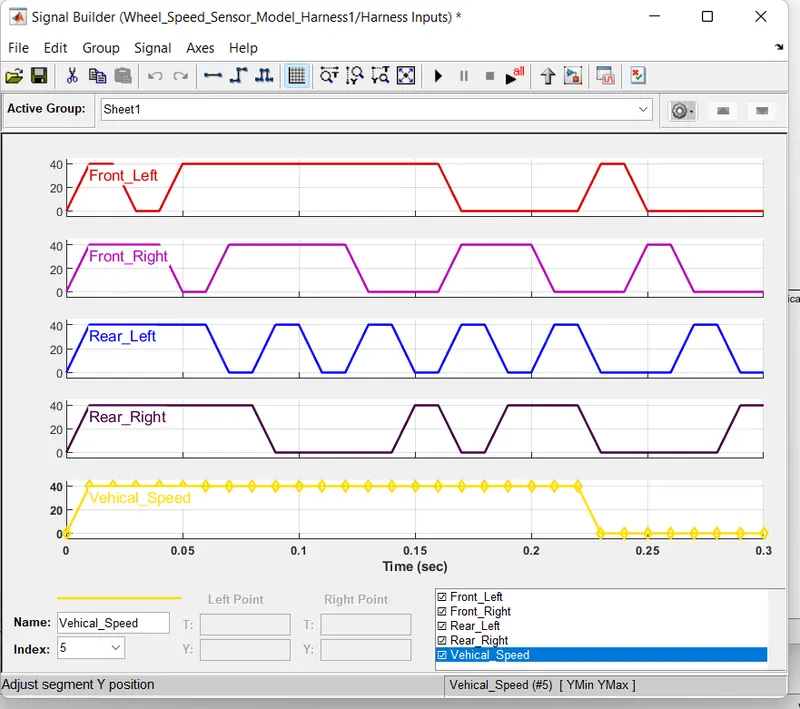
Upload the Test case in Signal Builder.
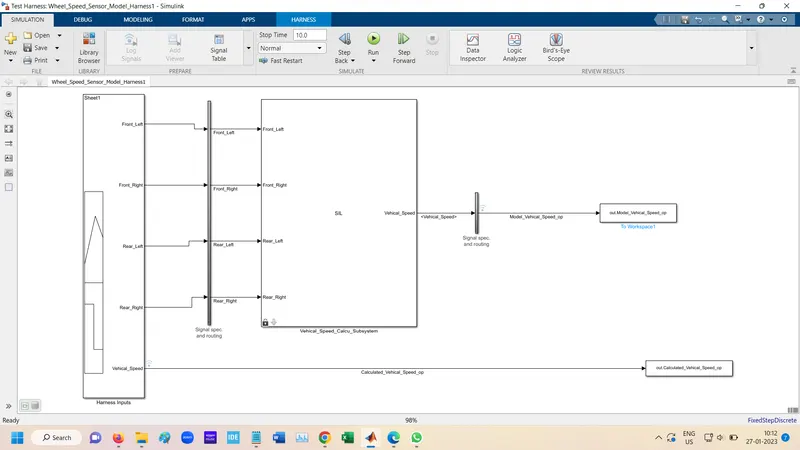
Connect To Workspace in SIL Harnesses.
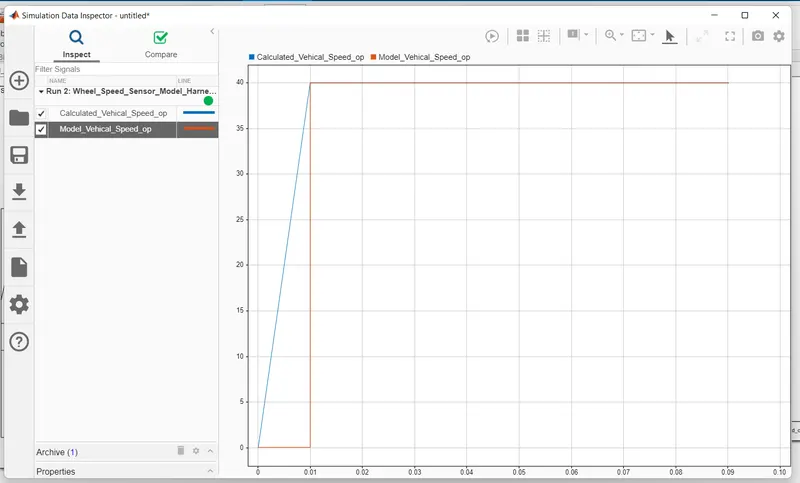
Output
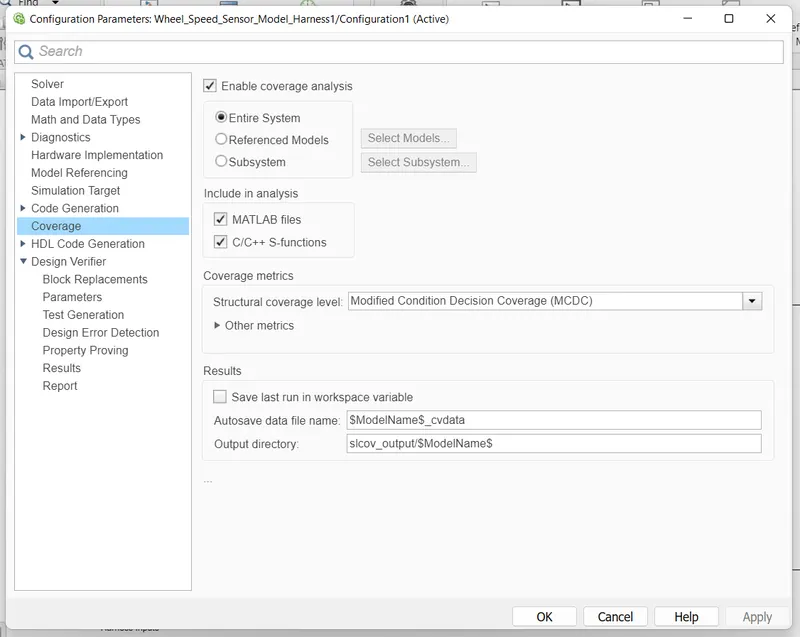
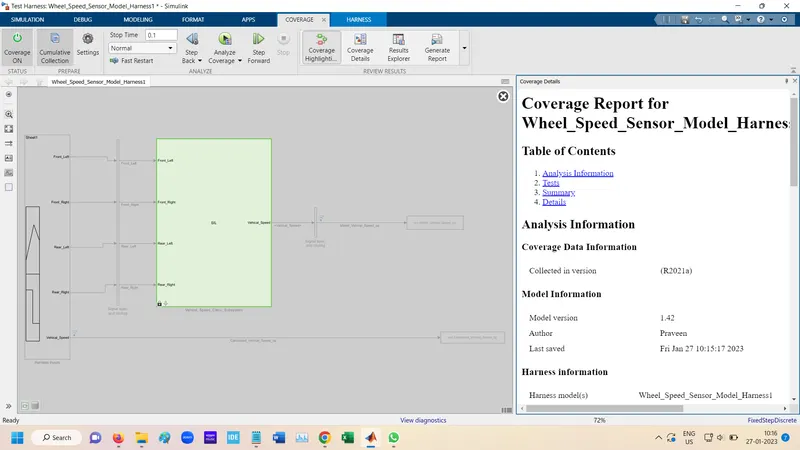
For Coverage Testing setting
Autocode Genration:-
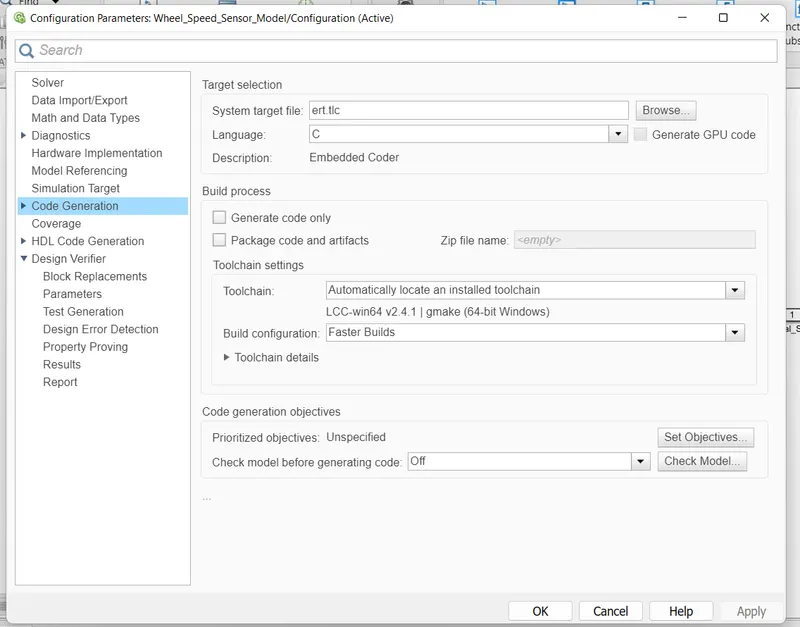
For Code Genration settings
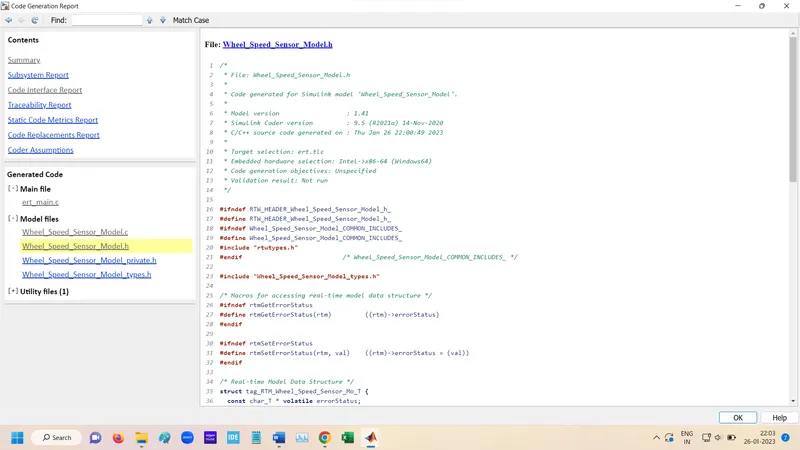
Code generation
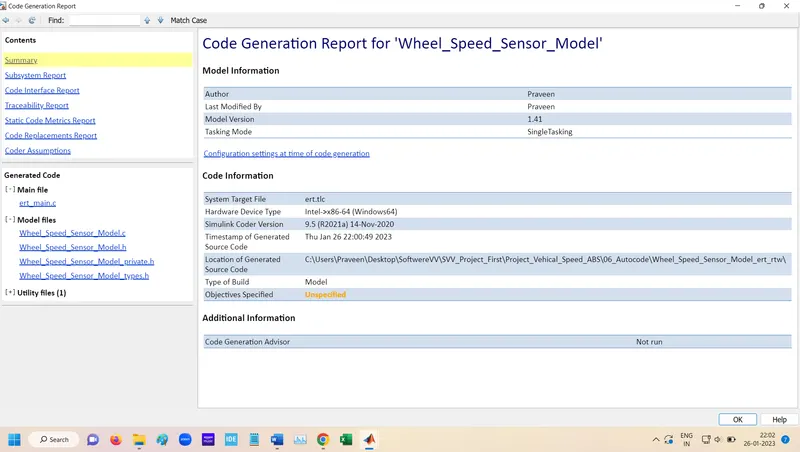
Report Code Generation
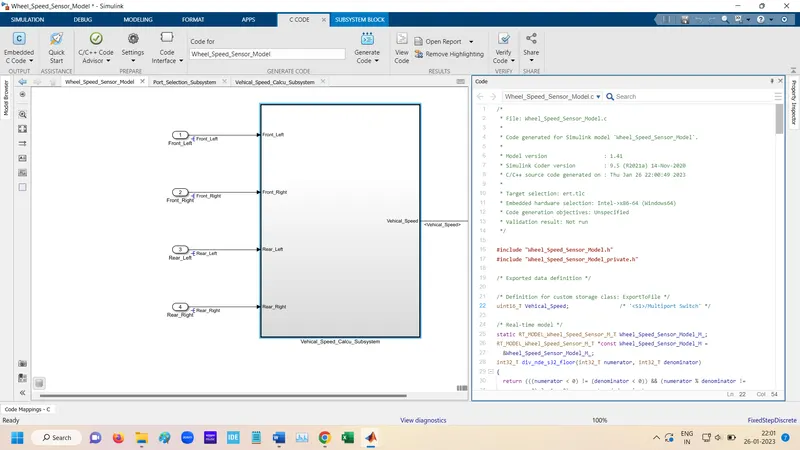
C code
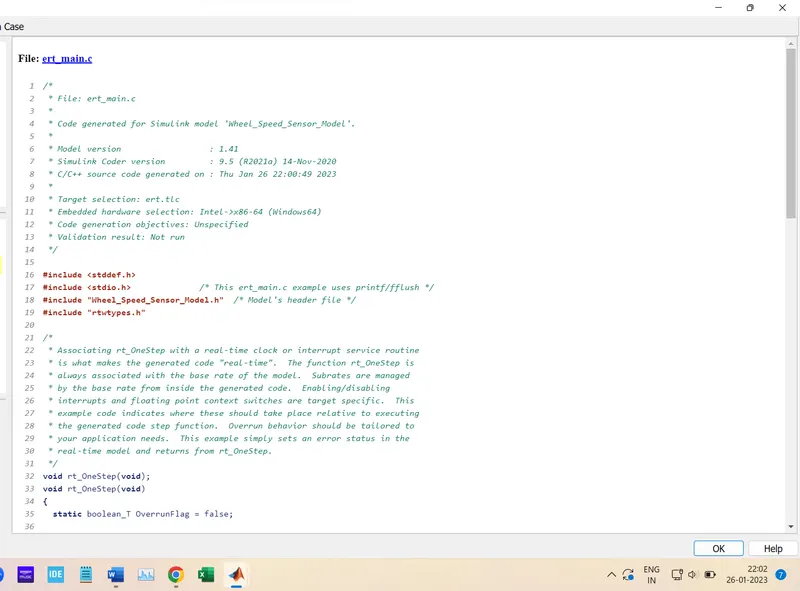
C code
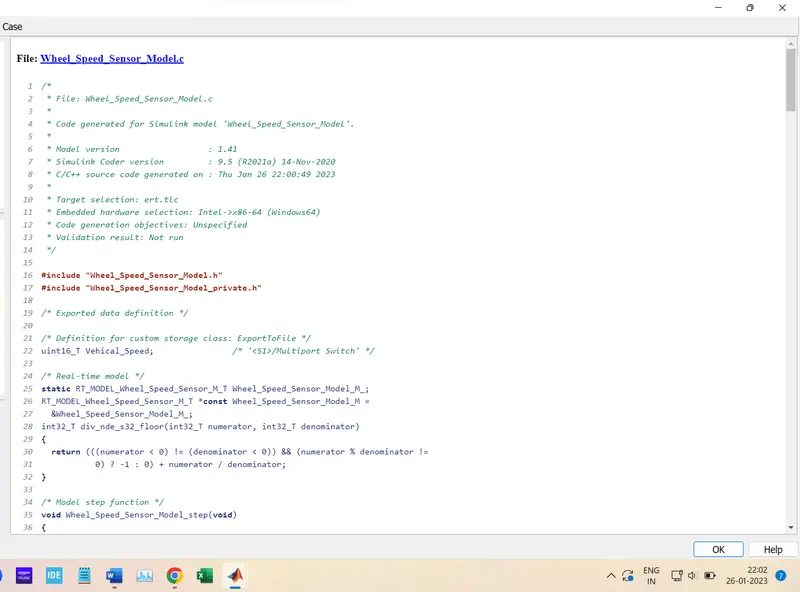
H code
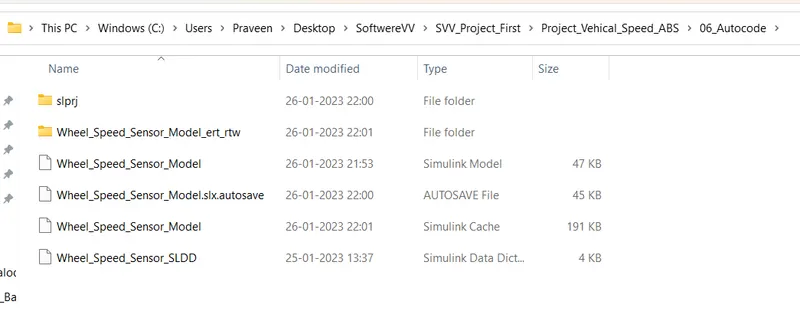
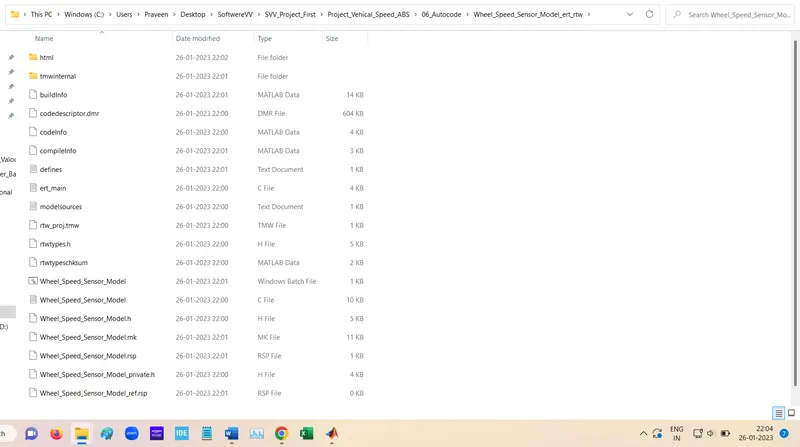
Code is Genrated in folder
Polyspace Analysis:-
Open Polyspace Bug finder Select Source code language as "C".
Enable the MISRA C:2004
Find defects set as defult according requirement.
After this Run Polyspace bug finder.
The RUN Polyspace prover
for Prover has following Settings.
Under check behavior enable "Allow negative operands for left shifts" & "Detect stack pointer derefrence outside scope".
Under "Precision", set "Precision Level" to 2 & "Verification level" to " Software Safety Analysis Level 2".
Test Manager:- Basline Test
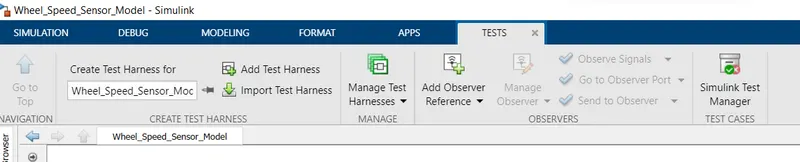
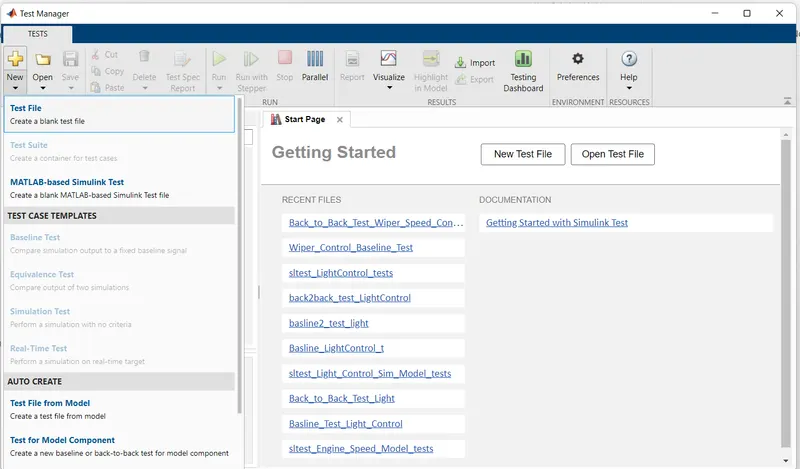
Add Requirement
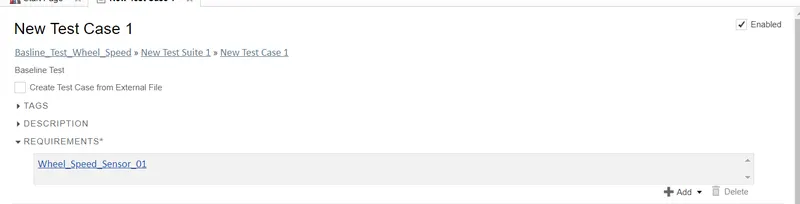
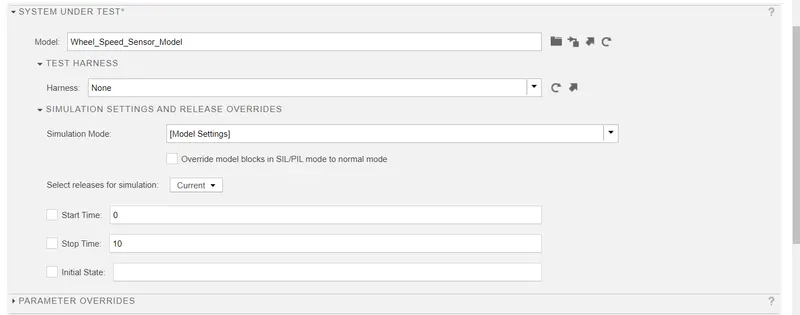
Select System for Testing
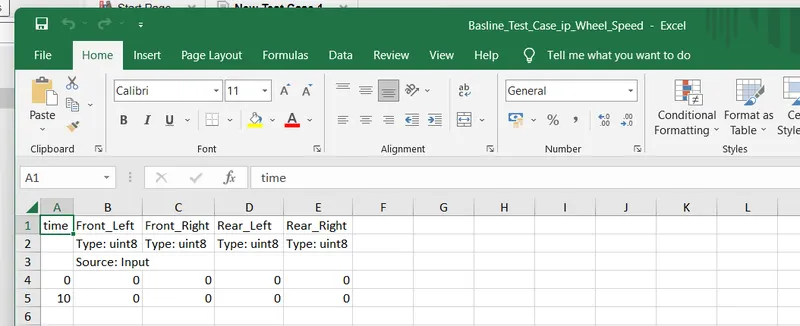
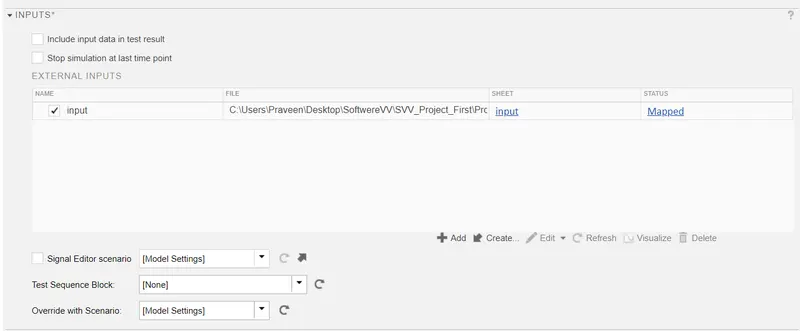
Excel file is created and mapped in input.
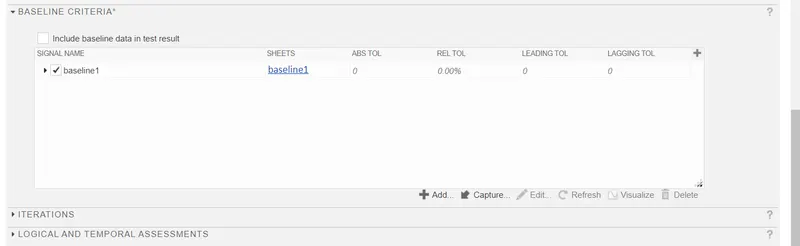
In Baseline Capture the op.
Enable Record coverage.
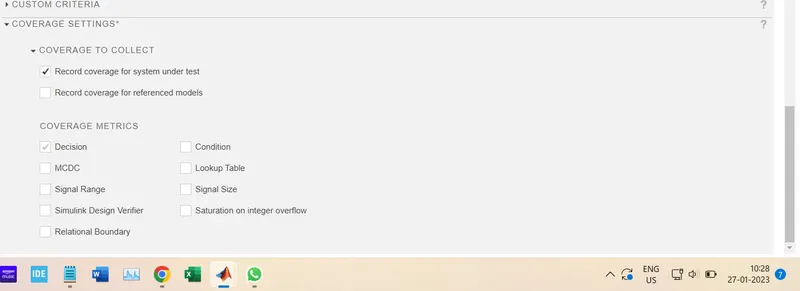
then Run the Basline Test
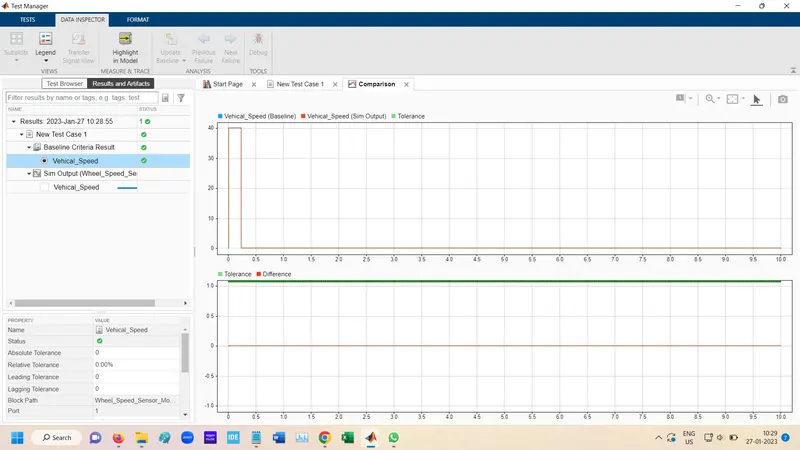
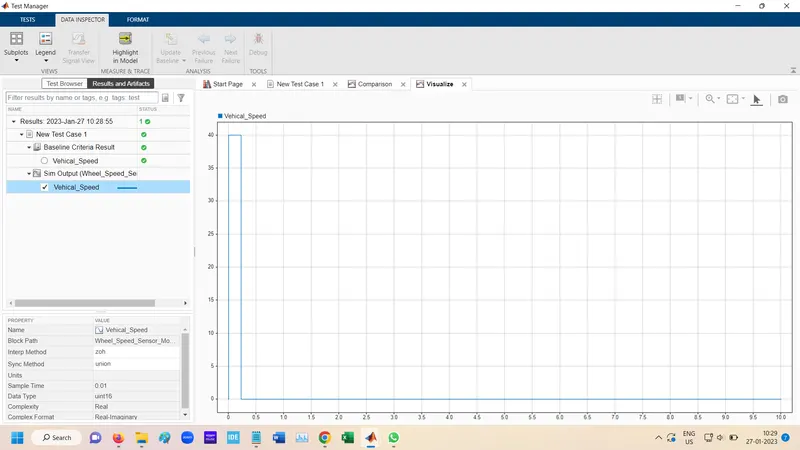
Genrate Report
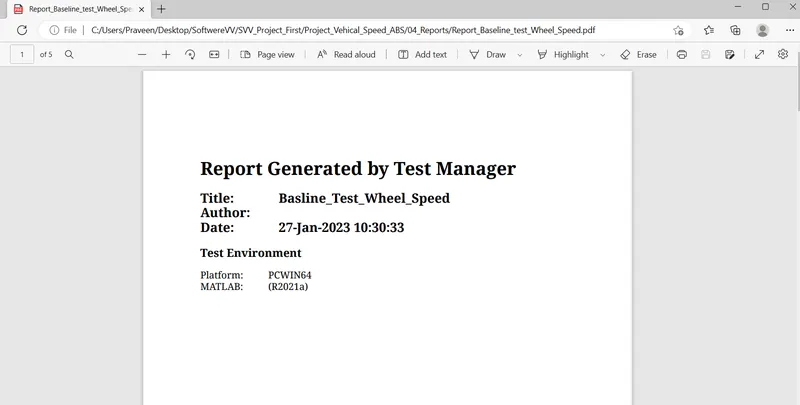
Test Manager:- Back to Back Test
Select Test for Module Component
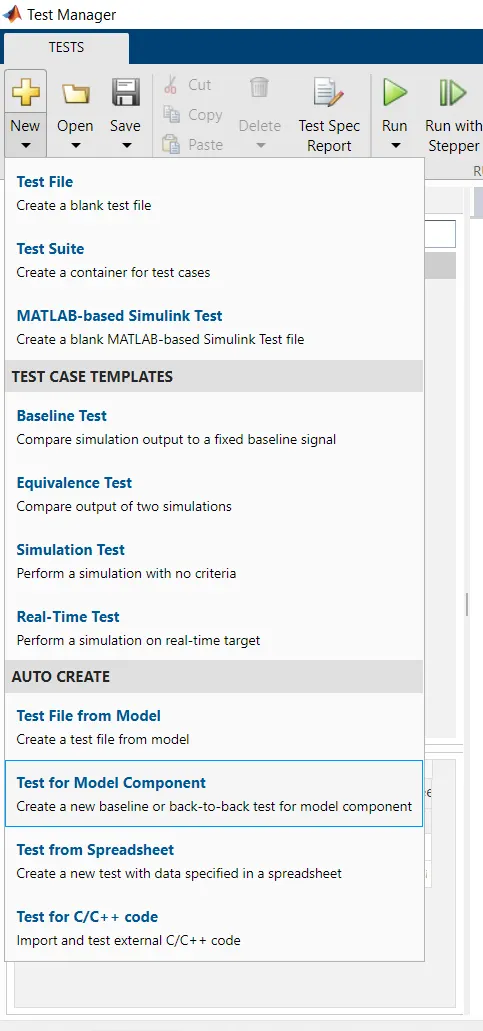
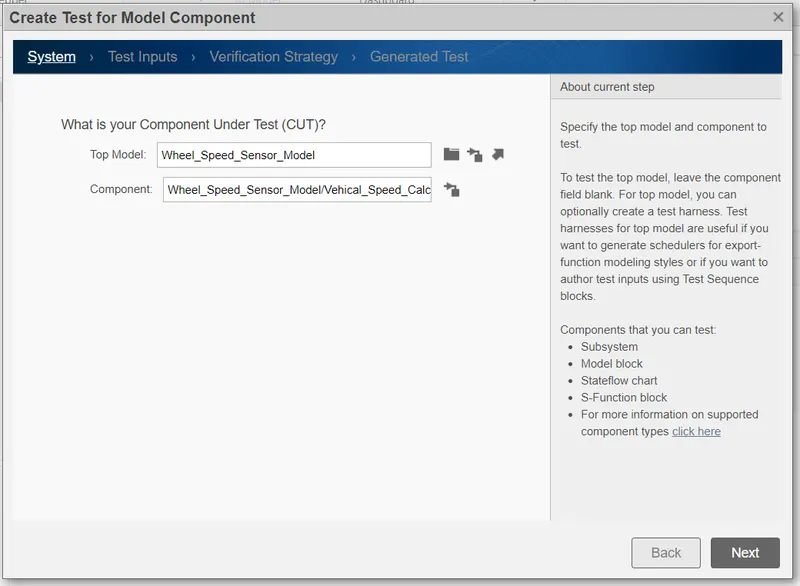
In system Select Model and theri Subsystem.
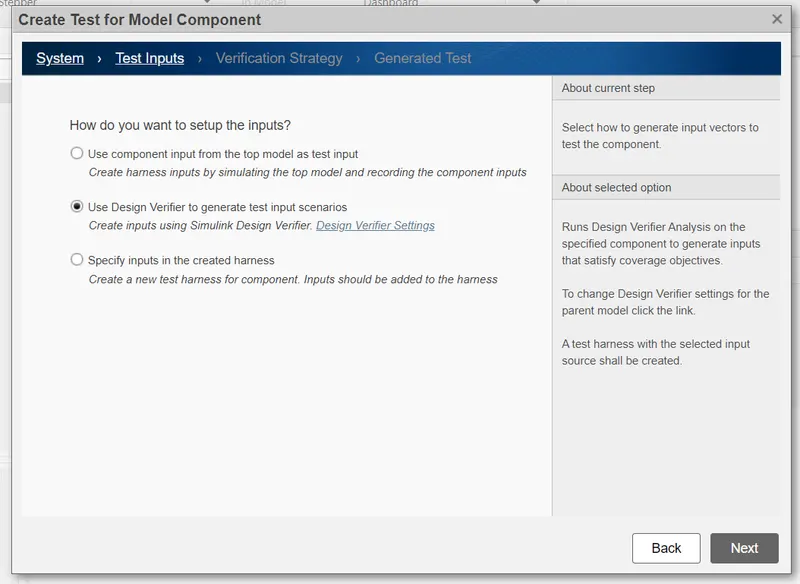
Select Desgine Verifier
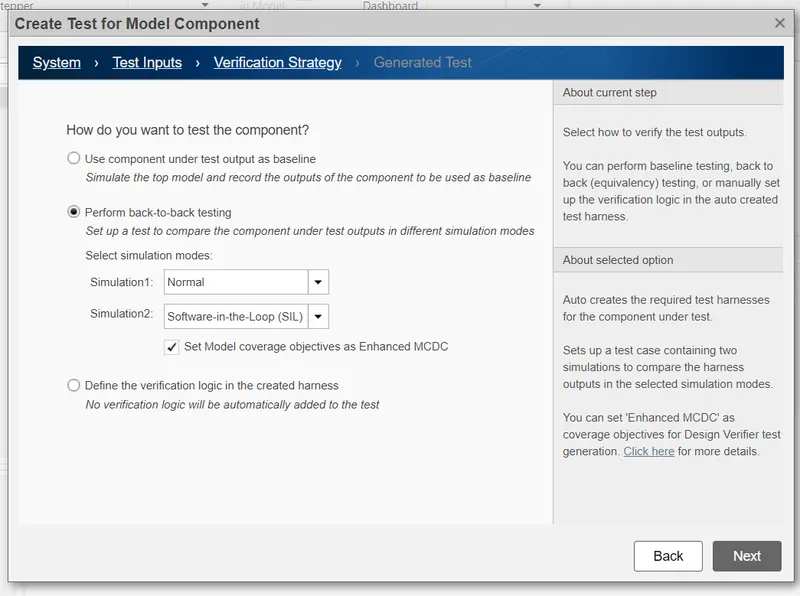
Select Back to back testing.
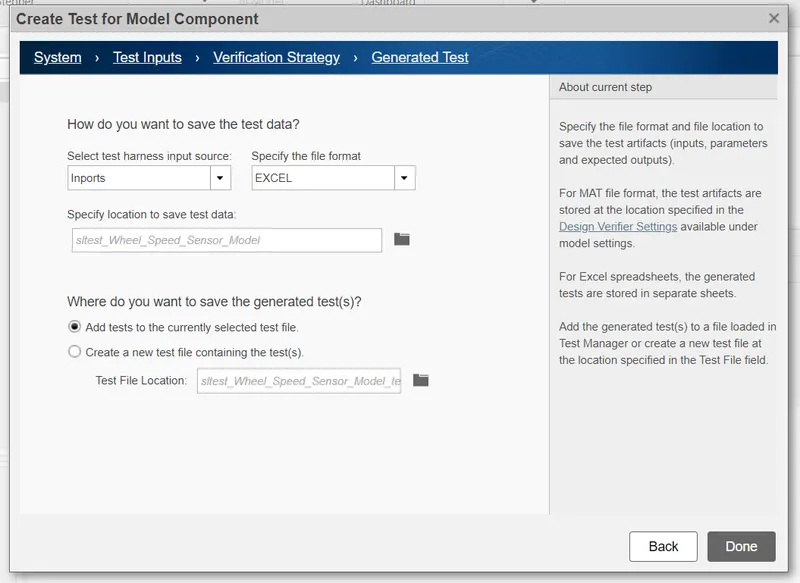
Generate report
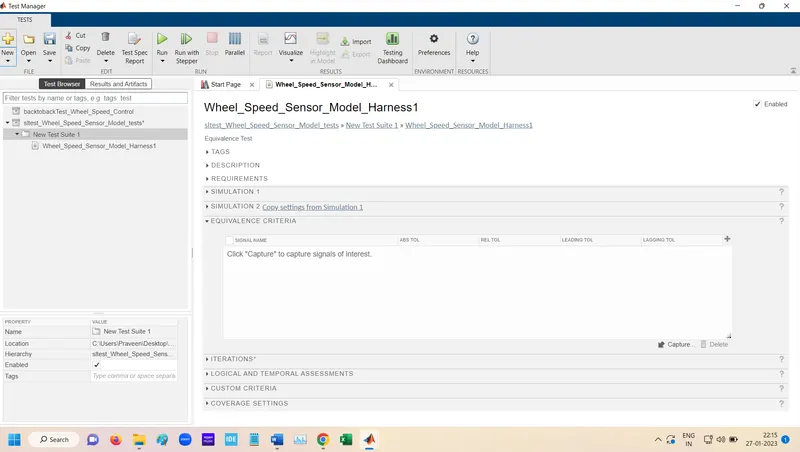
Add only requirement
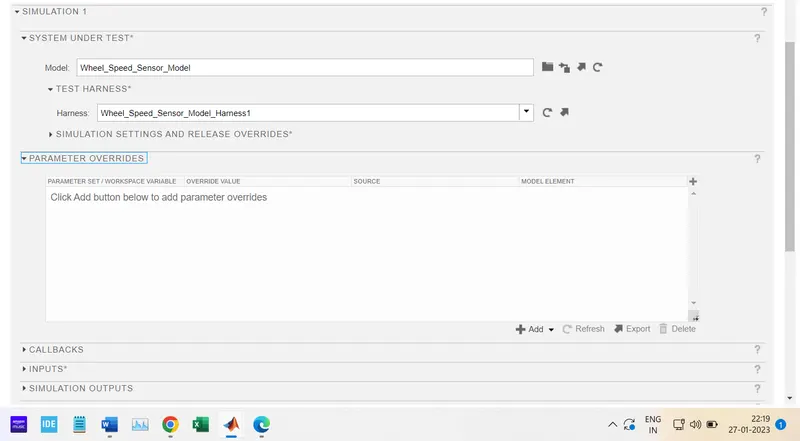
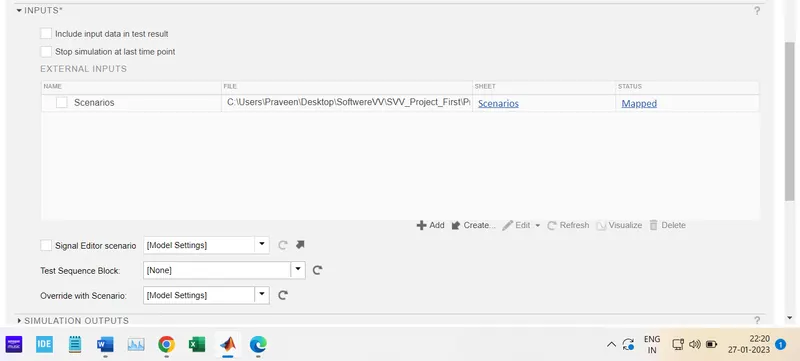
Run the Back to Back testing
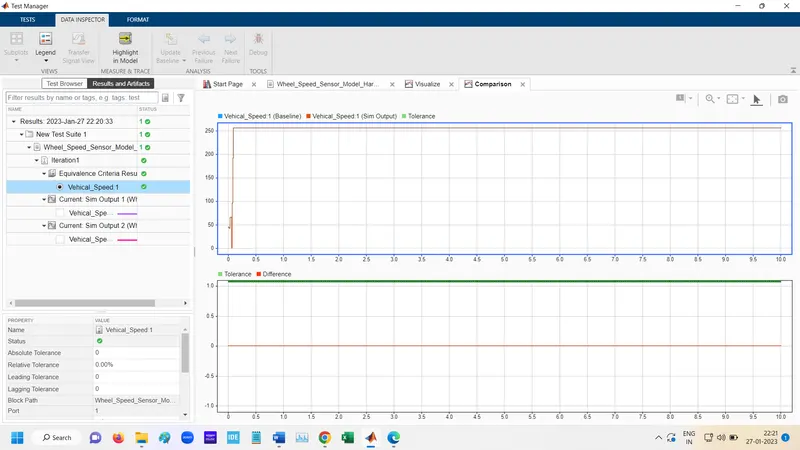
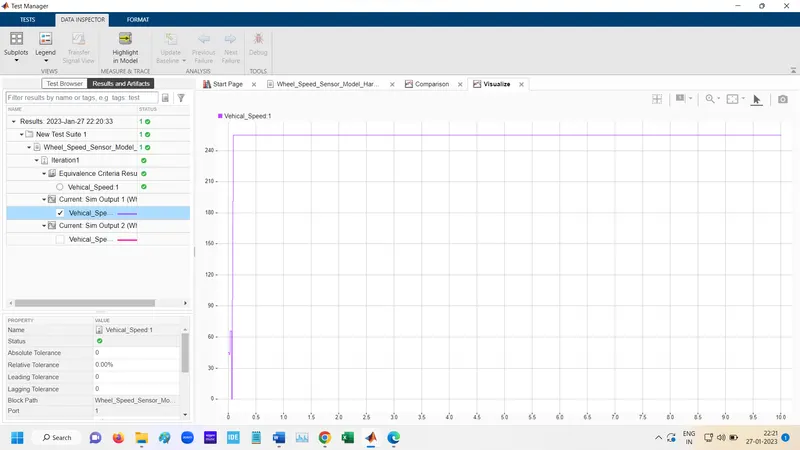
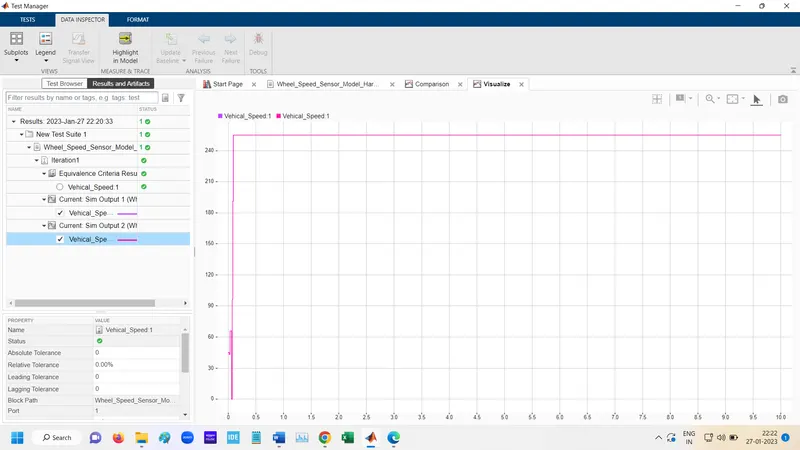
Genrated Report