Project 1-Meshing of Rear Wheel Holder challenge
Project 1
Meshing of Rear Wheel Holder challenge
Aim : Follow the below-mentioned quality criteria, mesh the component given and assign thickness
Target Element Length = 5 Units
Quality Criteria Value
Aspect Ratio 5
Skewness 45
Warping 15
Taper 0.5
Min. Length 2 Units
Max. Length 8 Units
Min angle Quad 45
Max angle Quad 135
Min angle Tria 20
Max angle Tria 120
Tria % 10
Procedure :
Geometry cleanup
- Imported the Rear wheeel holder component into hypermesh .
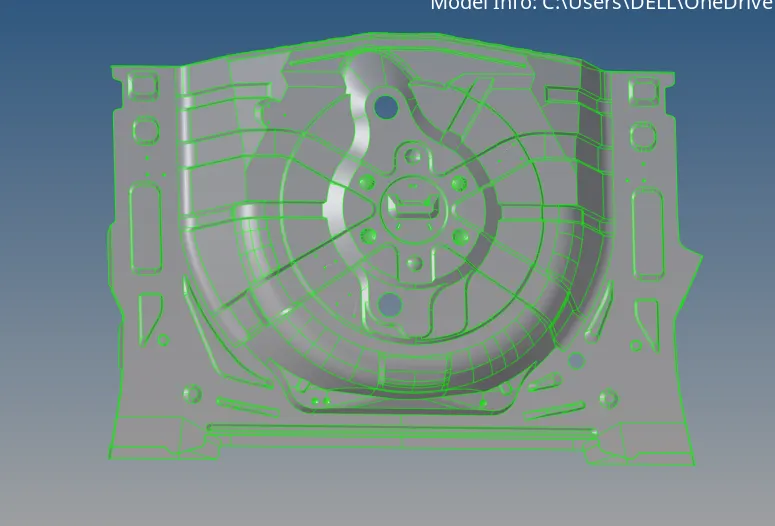
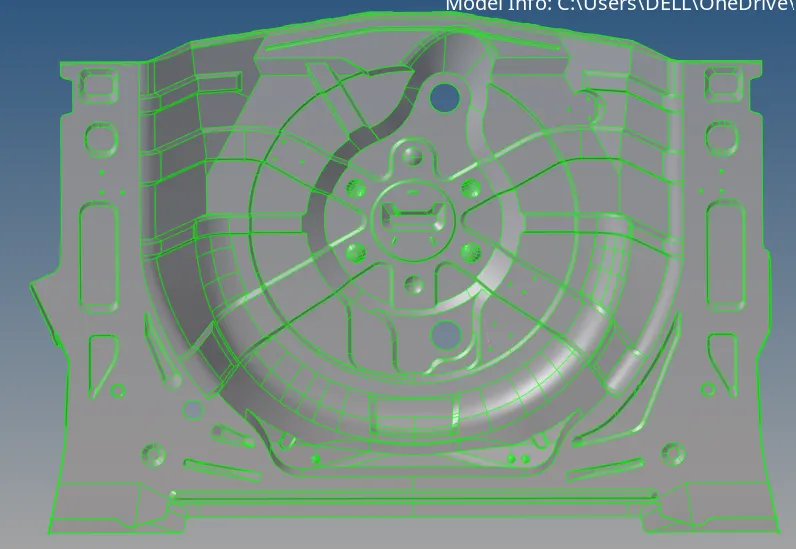
- The CAD geometry had a lot of improper surfaces and gaps.
- Deleted the unwanted surfaces.
- Filled the gap using Quick edit > Filler tool and Surfaces > spline , ruled , skin option.
- Used the Quick edit > Toogle edge to make surfaces proper.
Midsurface : - Extracted Midsurface using Midsurface > Extraction option > Offset + Planes + Sweeps, as the geomaetry was very complicated with more surfaces.
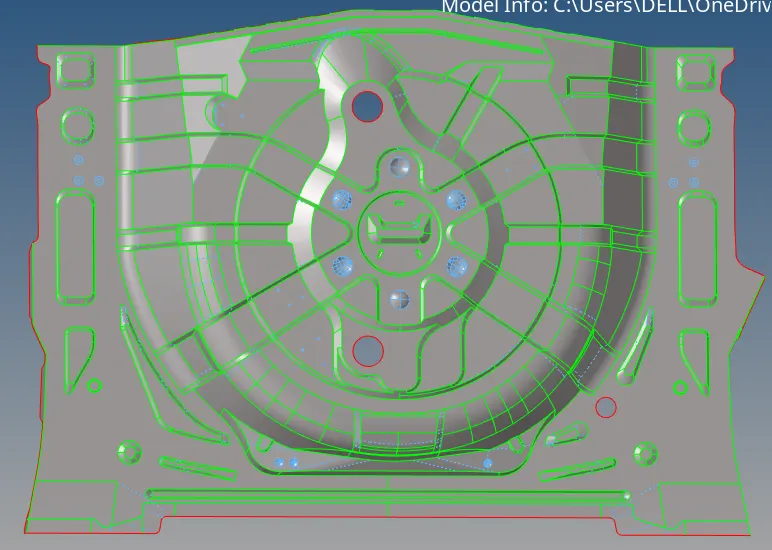
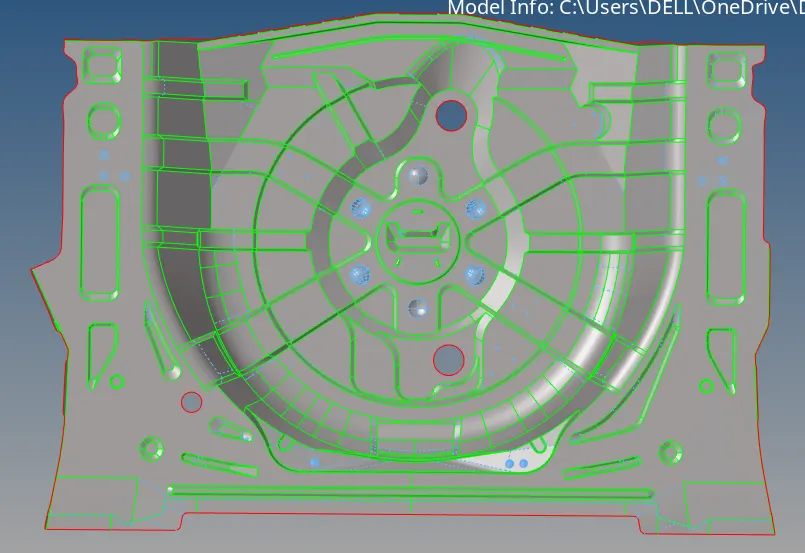
- Midsurface generated had surfaces missing and improper surfaces.
- Did not do the autoclean up because it was making the parts improper, so did clean up manually
- Used the Quick edit > filler surface, toggle edge options and Surfaces > spline, ruled , skin to get it fixed.
- Deleted some unwanted surfaces too, covered the holes which was below the min size.
- Midsurface was ready for meshing.
Meshing - Started meshing the surface from the middle.
- Used the Clean up tools from quality index to decrease the trias formed.
- swap tria , combine tria , split quad element , smooth , optimize element and place node were some of the cleam up tools used from quality index to improve the mesh quality.
- Used the nodes align option to align elements.
- Used the reflect option to reflect elements from similar surfaces.
- Stitched the reflected elements using Edges > Equivalence option and by pasting nodes using F3.
- Meshed the whole Rear wheel midsurface.
- Checked for free edges , and did the Equivalence option in the end.
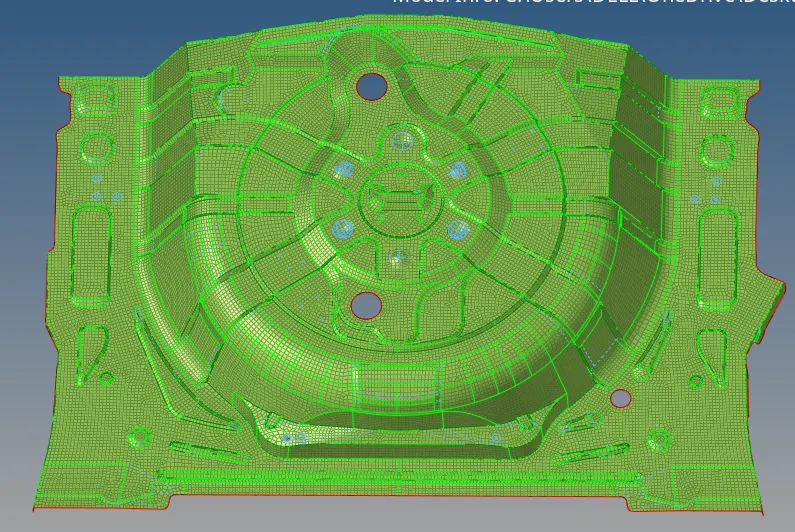
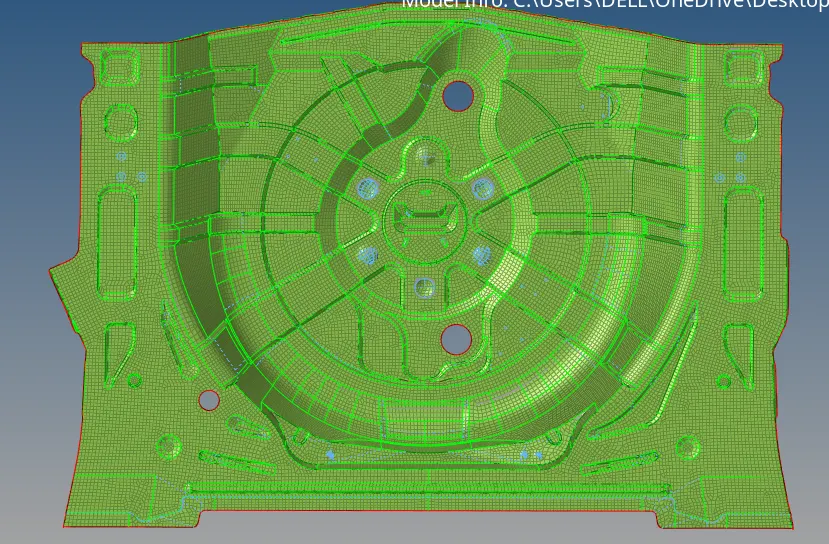
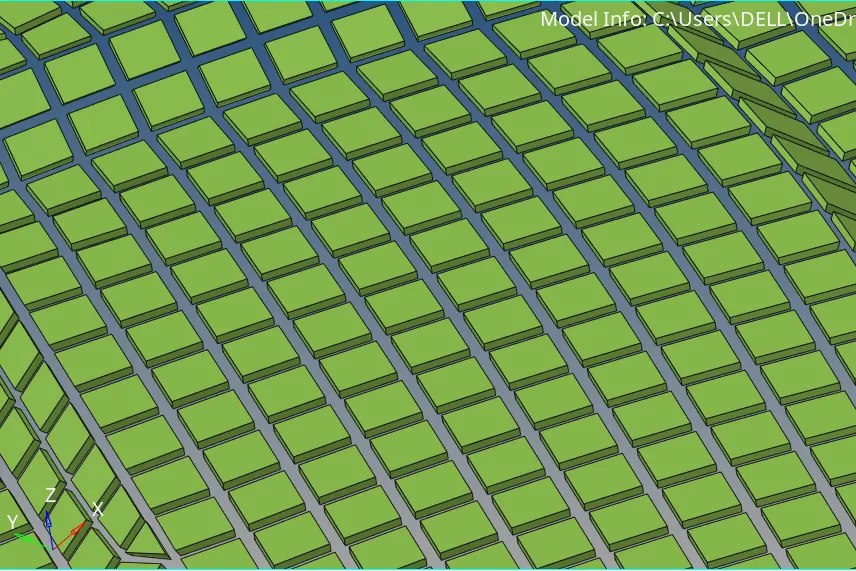
Assigning Thickness - Assigned thickness for the meshed elements by creating a new component and property card and entering the value of thickness which was 0.75 .
- Assigned the elements under the property with the thickness value 0.75.
- Shrinked the elements and changed the the elements to 2D detailed representation with thickness 0.75.
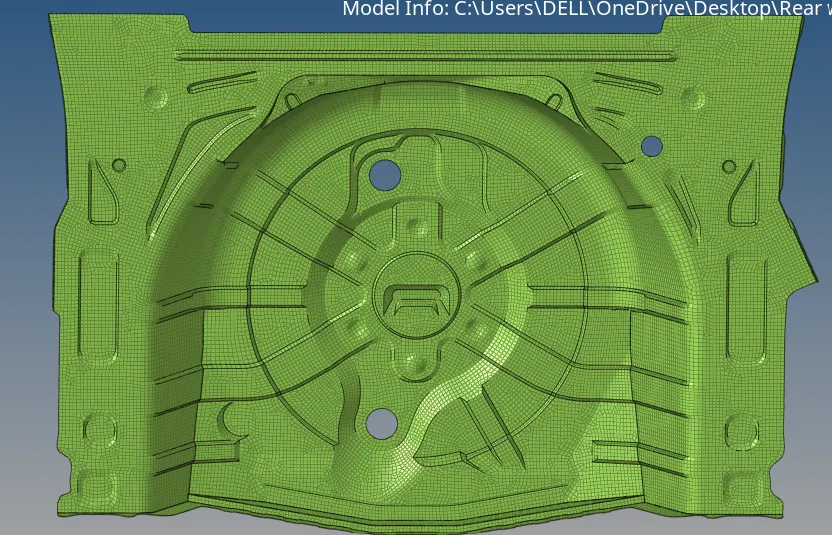
Conclusion - The mid surface has been extracted from the parent geometry.
- There are no surface deformations in the geometry.
- Proper connectivity has been established between the surfaces.
- The features have been captured properly.
- Good mesh flow have been achieved with the zero elements failing for quality
- Hence tria percentage with 1.2 % have been achieved.
Learning Outcome
In this project,I came to know how, - To mesh a complex sheetmetal component.
- To extract the mid surface manually for the complex sheetmetal components.
- To clean complex geometry .
- To generate a proper mesh flow with low tria percentage.
- To assign thickness to the components.
Note: As the Model is not able to be uploaded because of the size, the link for the model is pasted in the text file uploaded.