Project 1-Meshing of Rear Wheel Holder challenge
Report on Meshing of Rear Wheel Holder
Aim :- Meshing of Rear Wheel Holder with the given Quality Criteria and assign thickness
For that we have to follow the following steps
1)First we import the geometry from import solver deck>import geometry>STEP format>import
Note:- Here the very large numbers of component can be formed but we to convert (move) it into one component
2) First we have to Rectify the Geometrical Errors for that we have to do manual geometry cleanup specially in this model, check the connectivity and suppress the unnecessary lines and the models should have closed geometry,correct the undeformed surface.
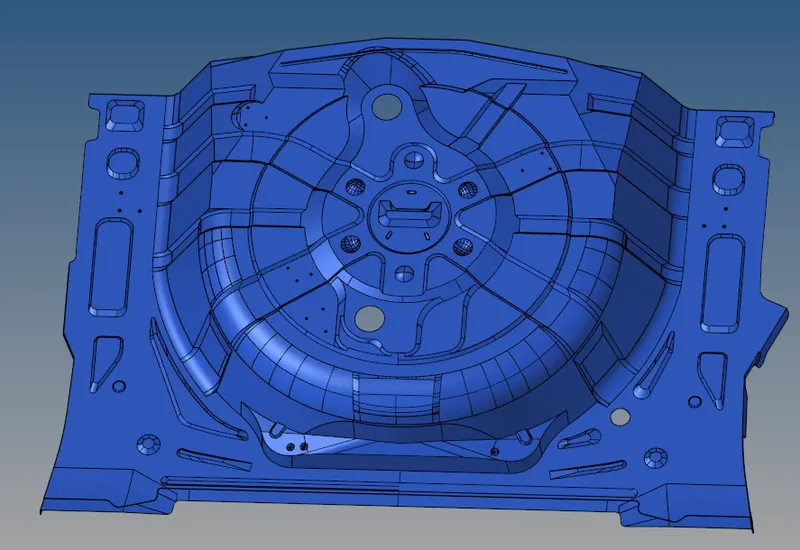
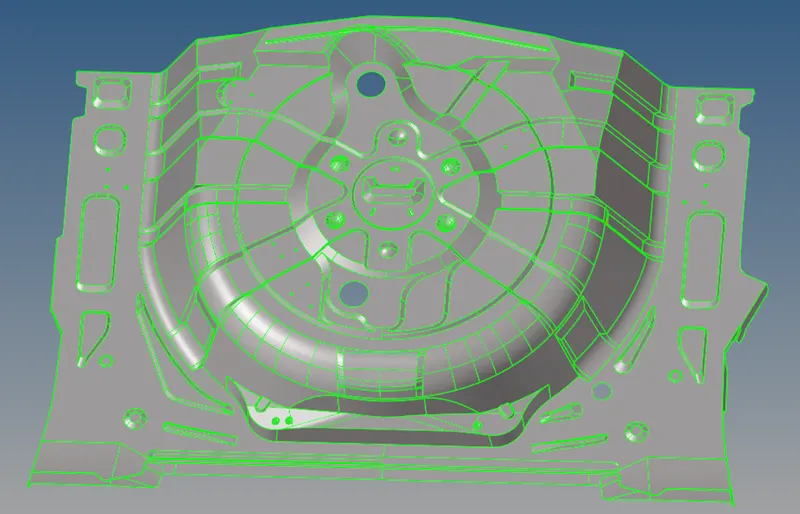
3) Now for mid surface extraction goto midsurface>auto midsurface>extraction option>select offset+planes+sweep option>again click on the auto extraction>select all>midle mouse click>mid surface is generated
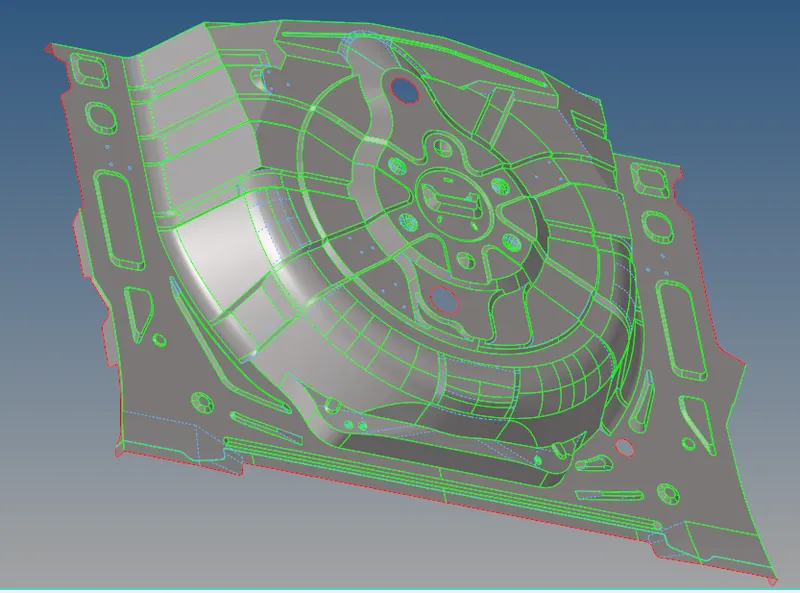
4) Now compare the mid surface with parent geometry , Here some commands are frequently used like trim option (Geom>surface edit>trim with surface>self intersecting surface), for creating surface (Geom>surfacwe>rule option>select the edges one by one along with middle mouse click), delete surface (quick edit>delete surfs), etc
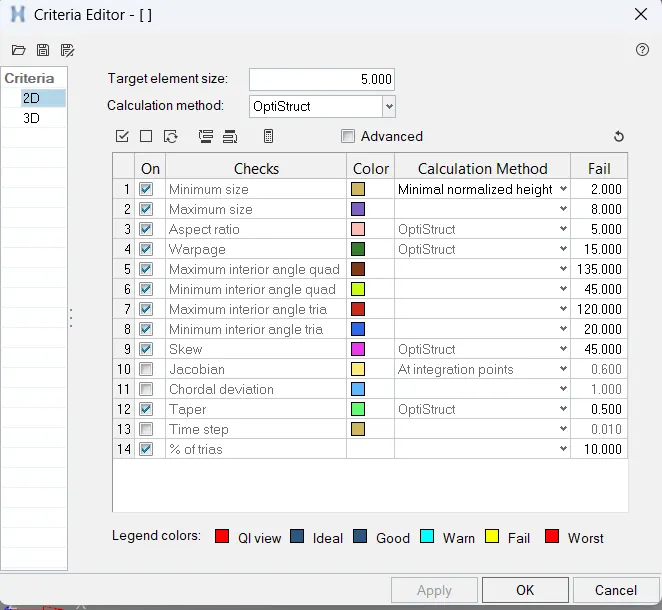
5) Enter the quality criteria goto preferences>criteeria file setting>set the value and click on apply and as well set parameter target element size equal to 5 unit
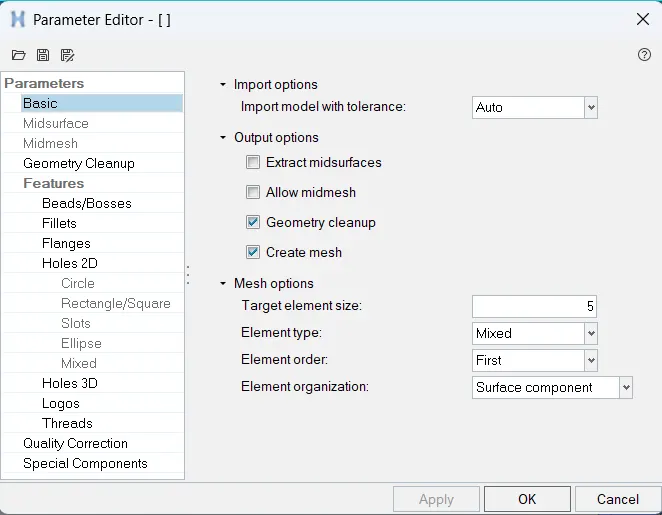
6) Now perform meshing operation one by one , create a mesh on the mid surface goto 2D>automesh>select the surface>give element size =5>click on mesh
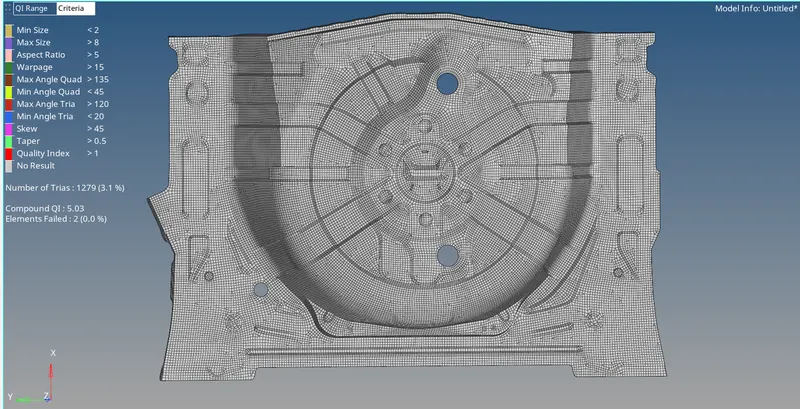
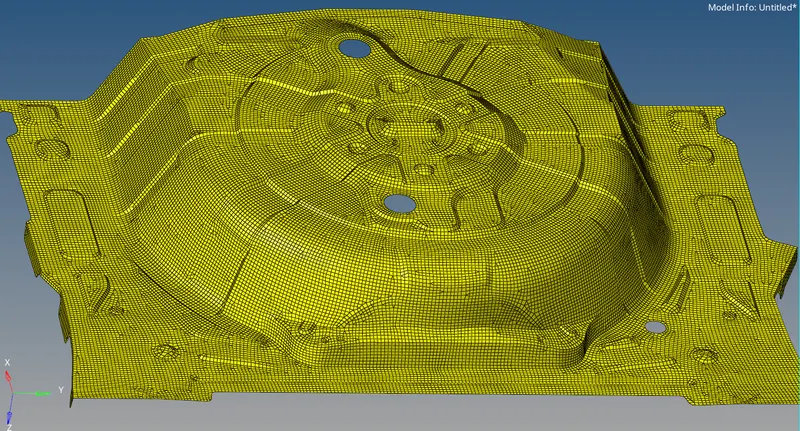
Few points must be Obey during the meshing
- No Tria element on the edges (free edge , share edge ,non- manifold edges, )
- No opposite trias in the Mesh
- Not trias should touch each other (no back to back trias)
- No trias must touch features (Embosses,Fillets , Holes, Logos, Dog Houses, Weldings etc.)
- There should be an even number of nodes on the holes opening
- No rotational quads
- No pattern Trias
7) Check mesh flow and make it proper for that some frequently used commands Rebuild mesh (2D>Rebuild mesh>select elements>click on rebuils), Edit element (2D>Edit element>create/split/combine), smooth option (2D>smooth>select element,enter iterations>smooth), quality index (2D>quality index>QI setting/cleanup tool) in quality index we have both option Quality index and cleanup tools we can use both options, in QI we can check quality criteria and we can set display thresholds, and in cleanup tools we can split,collapse, combine, optimize element node etc, we can use Replace option to connect two nodes or to remove edges,
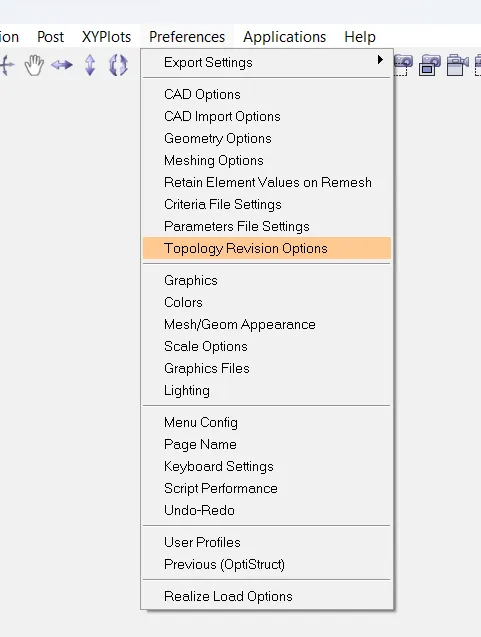
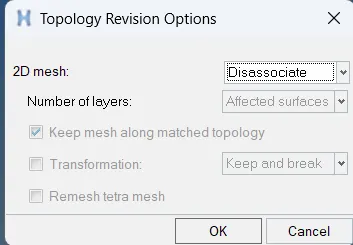
Here we need to change remesh to disasociate option for that goto preferences>topology revision option>change it into disasociate, because if we need to do topological cleanup after meshing we have to change remesh to disasociate so that our meshing will not disturb
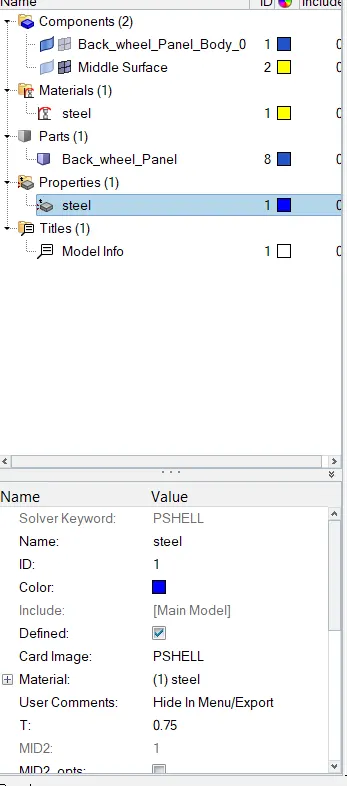
8) Provide thickness for that first create the property card enter the thickness value which is equals to 0.75 unit, since it is a sheet metal component hence thickness is constant throughout, asign the property to the elements,
Repeat step 7 until we got proper mesh flow
conclution :- In this model we learned that, do not depend on autocleanup,