Project 1-Meshing of Rear Wheel Holder challenge
Meshing of Rear wheel Holder
Aim : To extract the mid surface and to mesh the Rear wheel Holder component for the given quality criteria and assign the thickness for the component
Procedure:
-
To import the CAD geometry into Hypermesh
-
The file format will be in .IGES format
File > Import > Import Model > File type > Open File > Import File
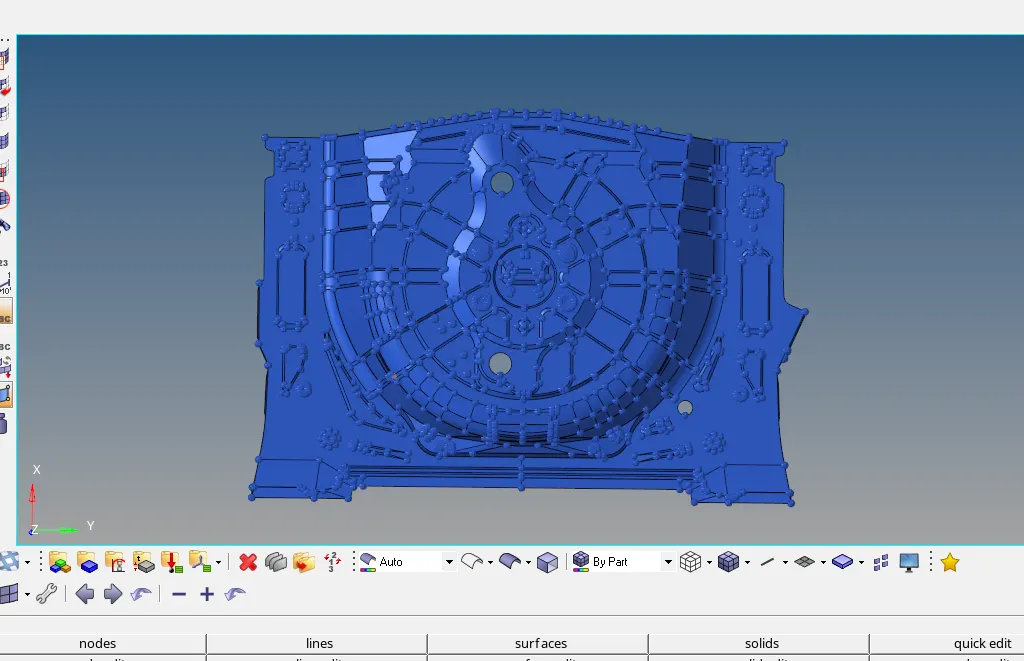
-
Next switch to topo mode and check for solid in the component or not, if exists delete the solids by using delete option or F2
Delete [F2] >> Solids >> Delete solids
-
Check for geometrical errors like free edges ,unwanted points, damaged surface on the geometry, if any fix the errors
-
It can be observed that there are some free edges in the component as shown below
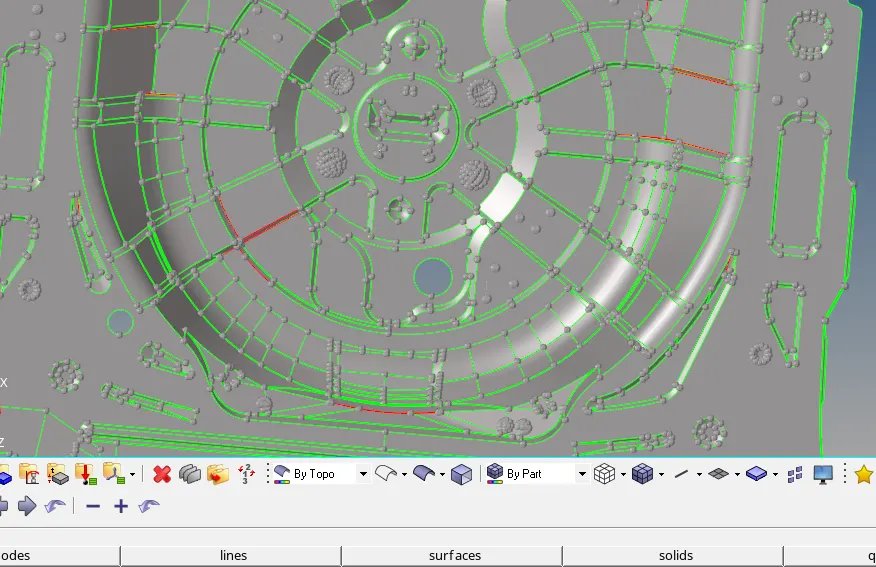
-
This errors can be fixed in the parent component or we can extract the mid surface and then this errors can be fixed with the help of Quick edit option
Geom>>Quick edit
-
As the Rear wheel component is a bigger component it is difficult to find the free edges so we can use visualization tab and find the free edges
-
Put the component in the wire frame mode and as well as in shaded mode,all the free edges in the component are visible as shown below
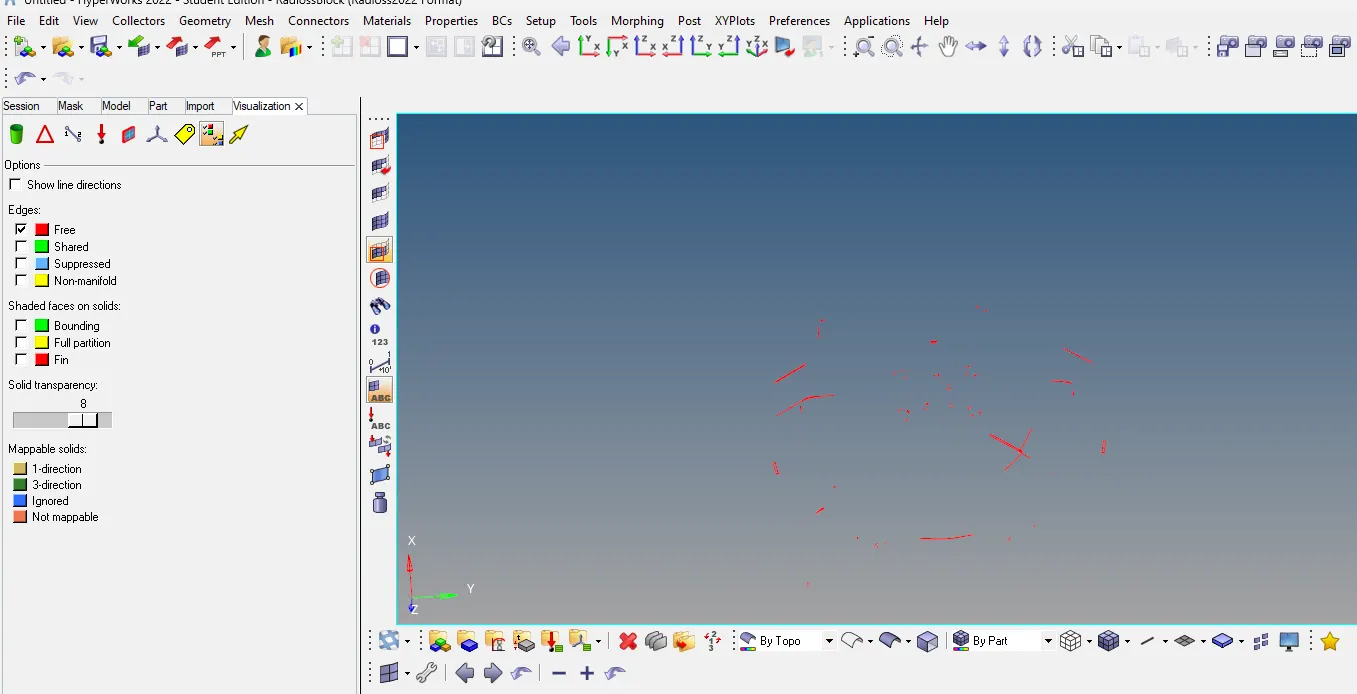
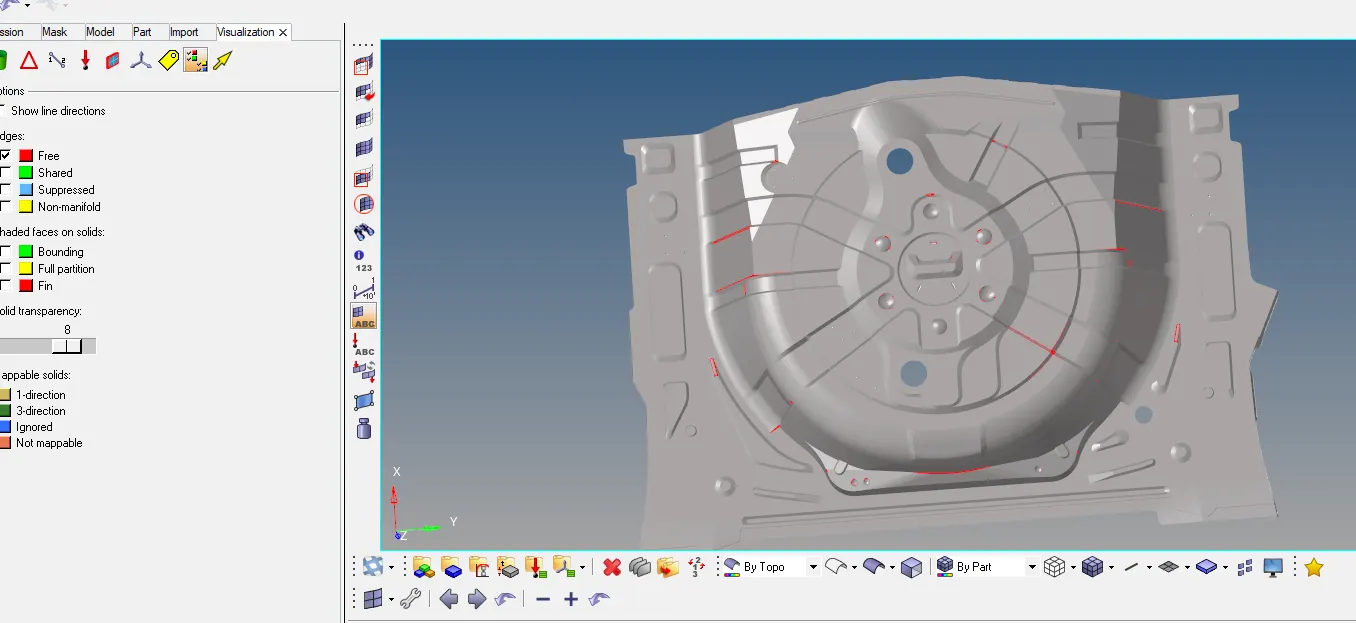
-
And then do the geometrical cleanup on the given Rear wheel holder component by using quick edit option
Mid surface:
-
Next to extract the midsurface, auto midsurface can be extracted
-
The following approaches are some methods to extract mid-surface.
-
Offset Approach.
-
Offset + planes + sweep Approach.
-
Offset + planes Approach.
-
Skin Offset Approach.
-
Here I’m extracting the midsurface by using offset approach as shown below
Mid surface>>extraction option>>offset>>auto extraction>>surface>>extract
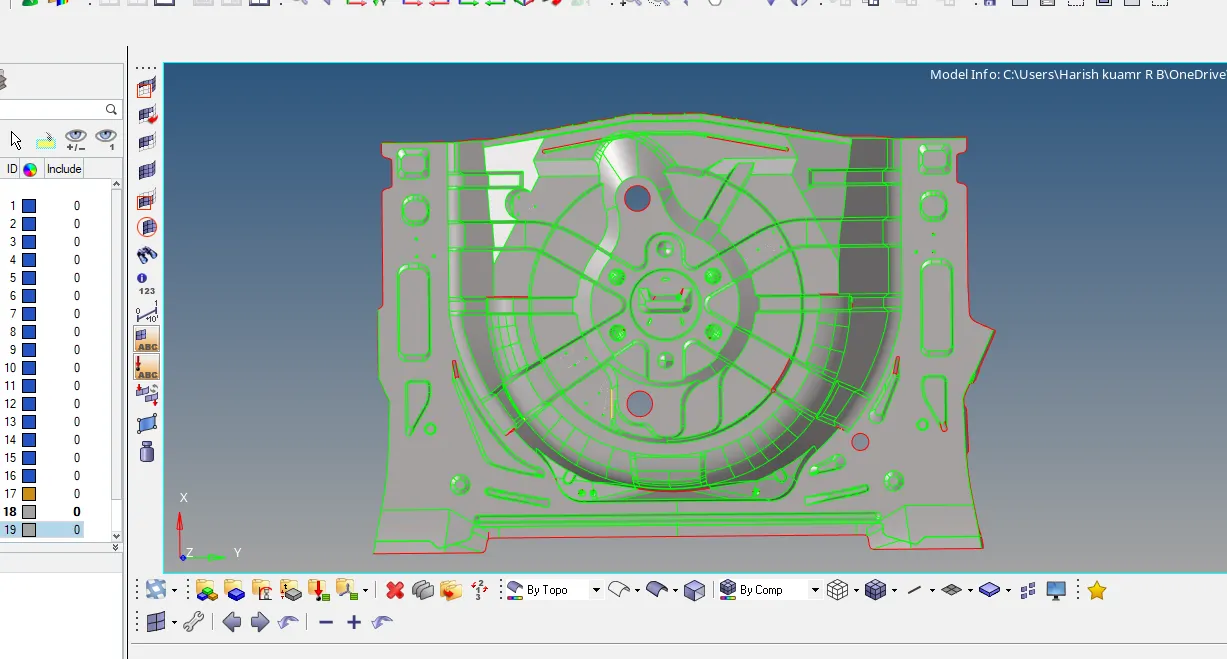
- I have directly extracted midsurface without cleaning the geometry ,so the following are the geometrical errors occurred on the midsurface
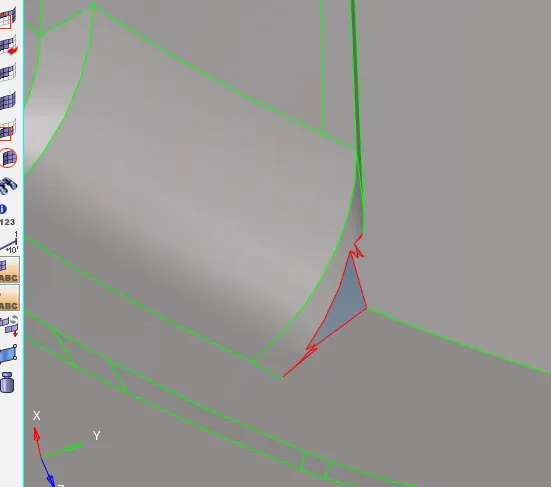
-
The above geometrical error can be fixed by manual offset at that particular area or has it is symmetrical at some area it can be Reflected to other side
Tool>>Reflect>>surface>>displayed>>duplicate>>create
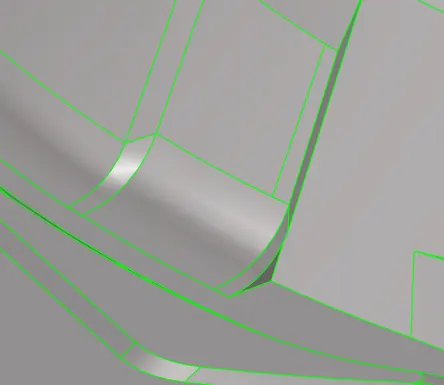
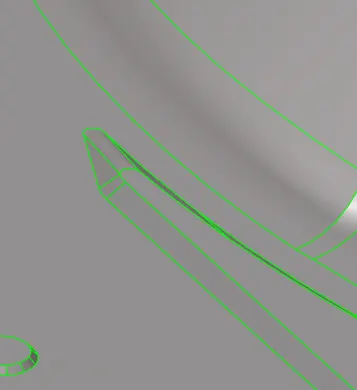
- The below errors can be fixed by using spline ,ruled, skin any one of them we can use and create the surface
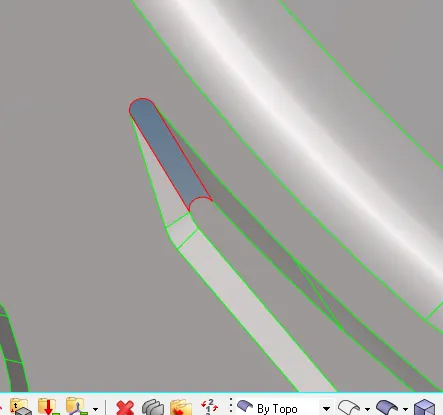
2d>>spline>>lines>>create
Surface will be created as shown below
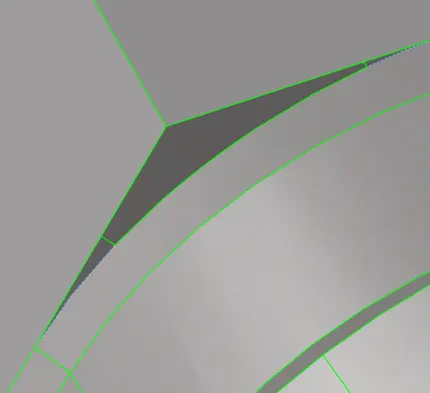
- By using Ruled option the surface can be created in the below geometrical error
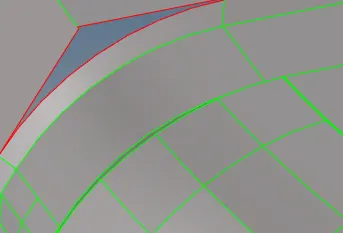
Geometry >> Surfaces >> Ruled Surface >> Select Line List 1,2 >> Create.
-
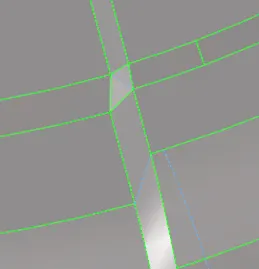
Here the free edge can be fixed by using the quick edit option by toggle and the gap can be filled by using the spline option and we can create the surface.
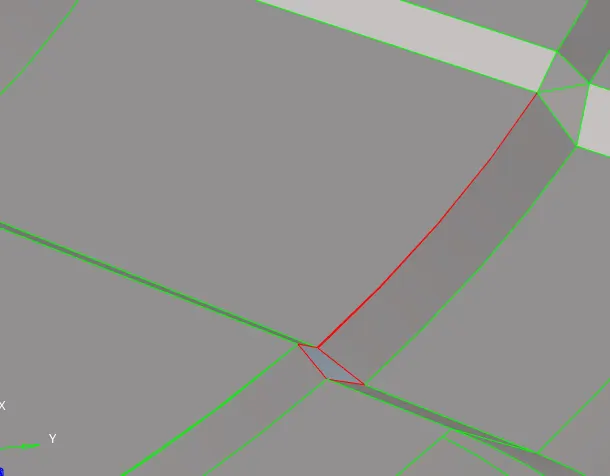
geom>>quick edit>>toggle
2D>>spline>>lines>>create
.Meshing:
-
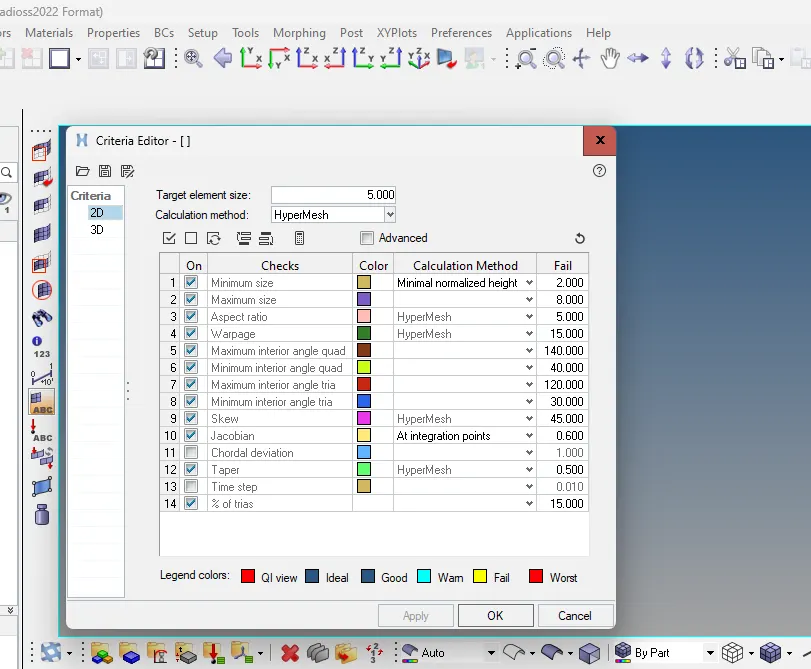
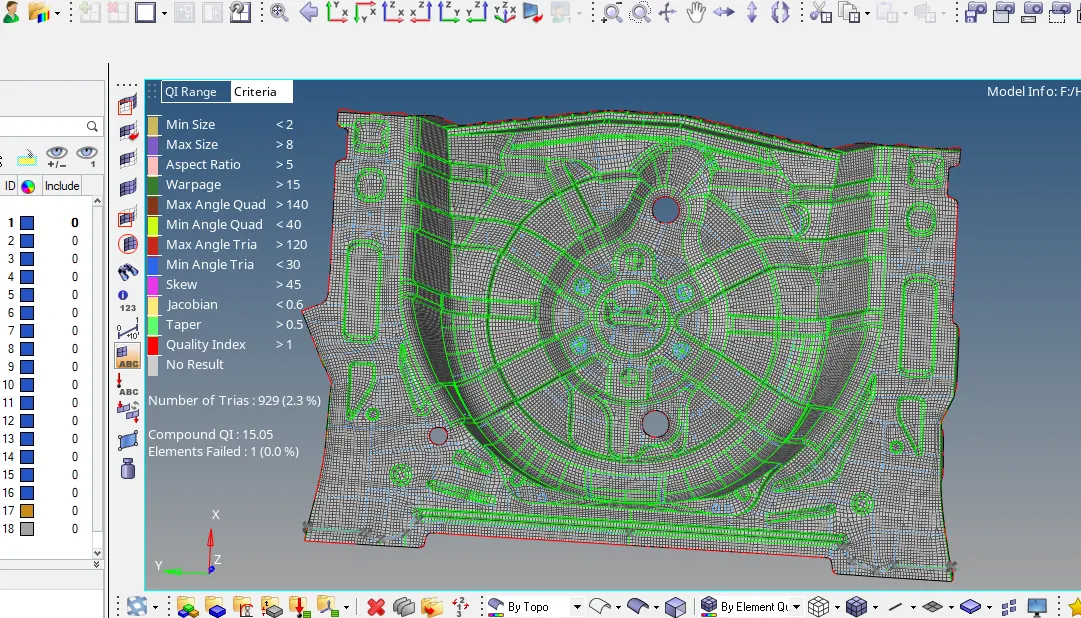
Now all the geometrical cleanup has been done on the mid surface and is ready for meshing. Before meshing ,set the quality parameters as given for the component
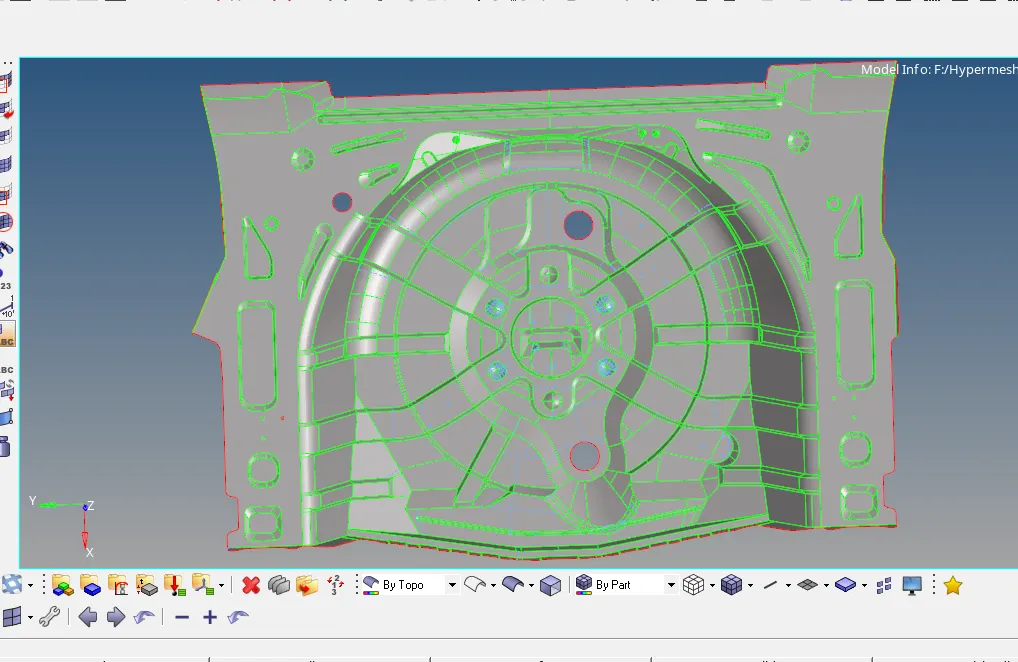
preference>>parameter file settings>>basic>> target length>>apply>>ok
preference>>criteria file settings>>apply>>ok
-
If any unwanted construction lines remove them and capture the feature properly
-
Start meshing from the center of Rear wheel holder so that the mesh flow will be proper
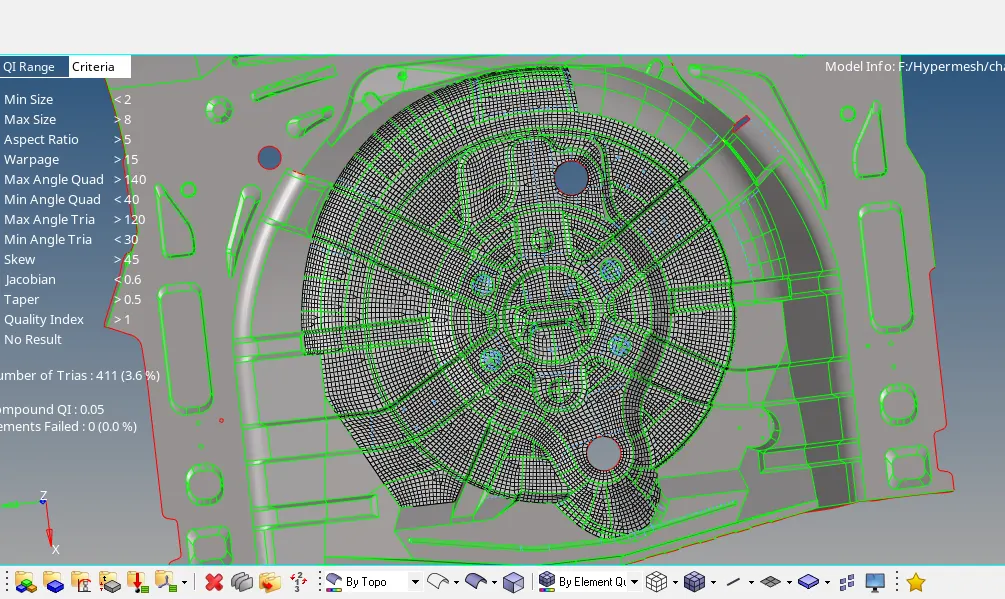
2D>>automesh>>surface>>mesh
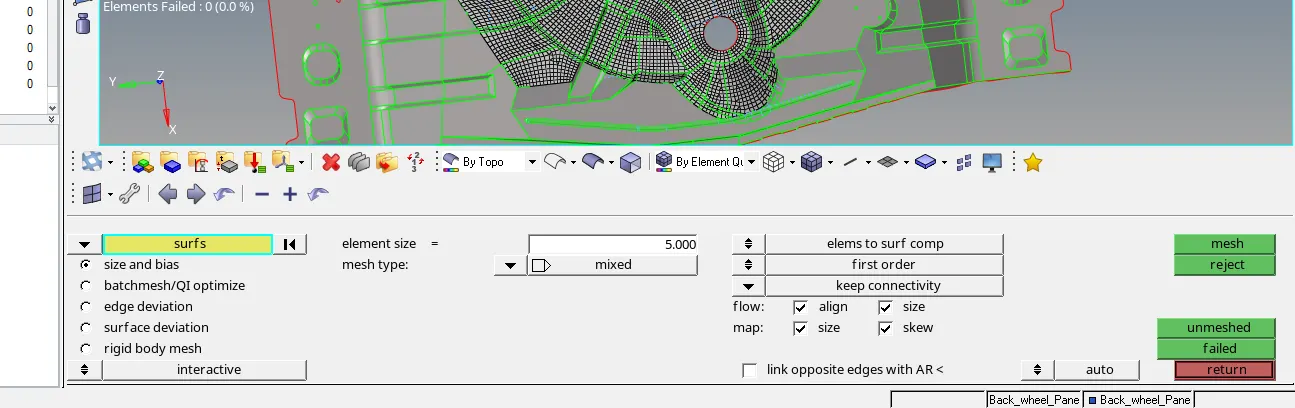
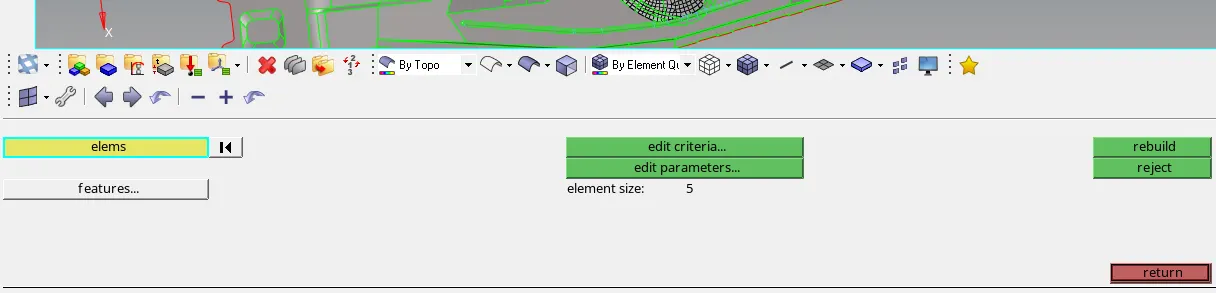
If the mesh flow is not proper then use the rebuild option to have a good quality mesh flow
2D>>rebuild mesh>>elements>>rebuild
-
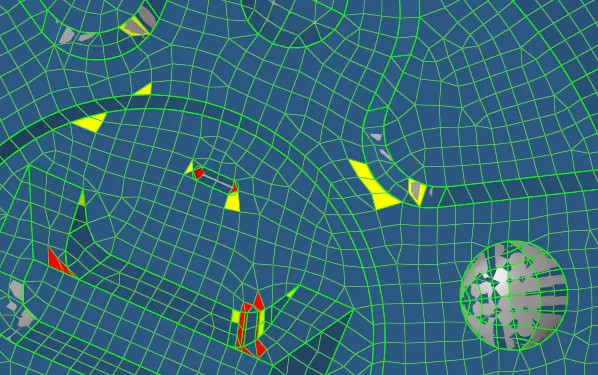
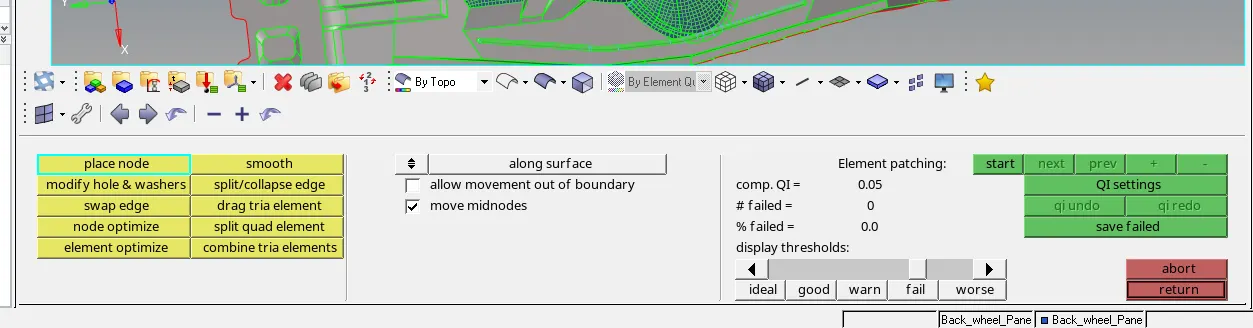
Fix the quality issues by using quality index option
2D>>quality index>>cleanup tools>>smooth
-
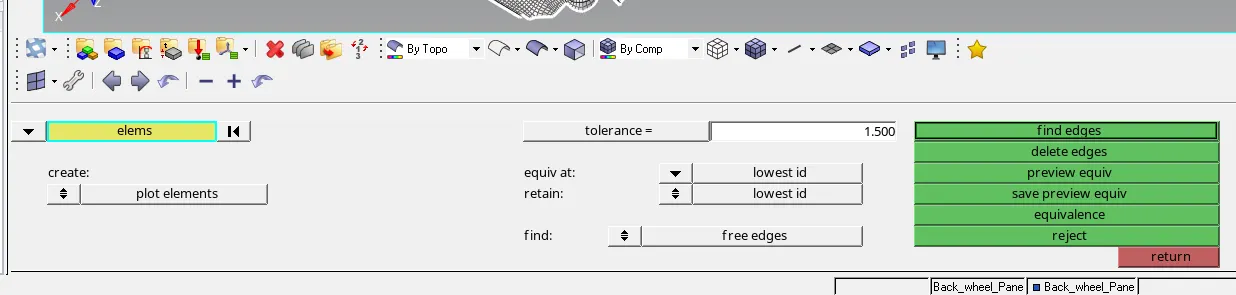
Next to maintain a proper connectivity of node to node for the meshed element,it can be checked by using the option edges
Tool>>edges>>elements>>find edges>>preview equiv>>equivalence
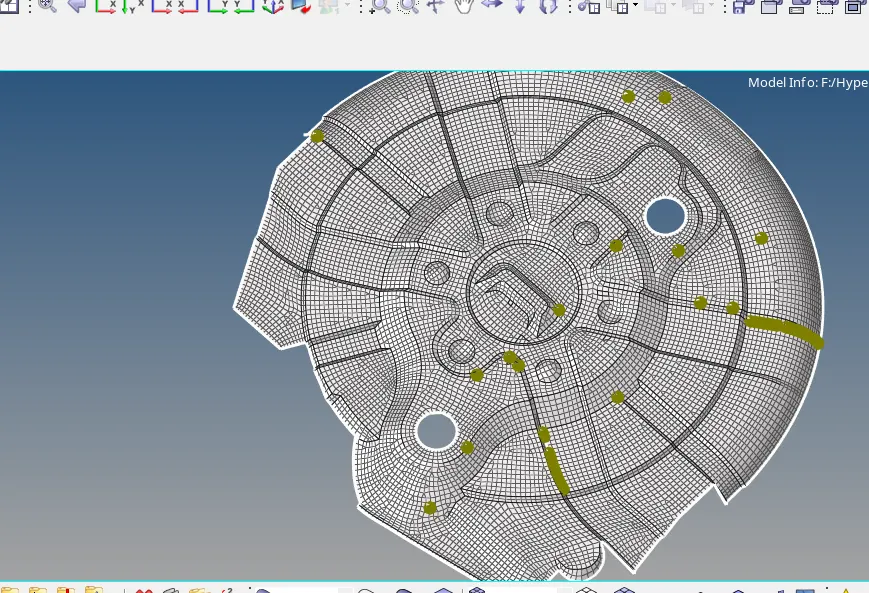
Final mesh model is as shown below
Assigning the thickness:
-
To create a property , Right click on browser
-
After Creating a property, rename it and assign thickness to the component and then define the property in the middle surface.
Create >> Property.>>thick>>0.75
-
Next give 2D Detailed element Representation, the thickness will be assigned to the component
Learning outcome
-
Learnt how to extract the mid surface
-
Learnt how to mesh the complex sheet metal geometry
-
Learnt to establish connectivity between node to node of meshed element
-
Learnt to maintain a proper mesh flow
-
Learnt how to assign the thickness to the component
Conclusion: Extracted the mid surface and meshed the rear wheel holder as per the quality criteria and assigned the thickness to the component