Project 1 _Creating an Architectural plan for the provided plot size and develop relevant basic structural drawings
AIM:- To draw architectural Drawings (Floor Plan, Elevations, and Sections) & Structural drawings (Column, Beam, Footing Plan) of a residential building of plot Size 60’x20’ facing East using AutoCad
INTRODUCTION:- The plan is created in AutoCAD using primarily the XLine and Line tools, the dimensions and text are provided with the use of layers. The procedure of drawing is explained in detail with diagrams of each step and the final result is given.
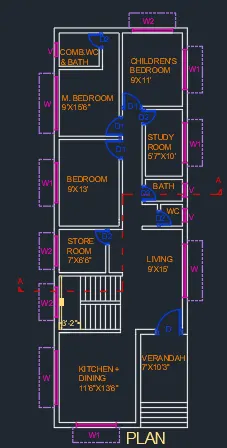
1) FLOOR PLAN:
Procedure-
- Start the Line command by clicking the Line button on the Draw panel on the Ribbon, or by entering L and then pressing Enter. Draw line segments by picking several random points. Terminate the command by pressing Enter, Esc, or the spacebar. Press Enter or the spacebar to repeat the Line command.
- Click Home tab Modify panel Trim. Find. Select the objects to serve as cutting edges. Press Enter when you finish selecting the cutting edges. Select the objects to trim and press Enter a second time when you finish selecting the objects to trim.
- Offset any object through a point or at a specified distance.
- The layer command is used to control and manage the drawings in AutoCAD for different purposes. It increases the display performance of the AutoCAD by hiding the portion of our drawing when needed. It also improves the visual complexity of the drawing.
- Place all doors and windows.
- You can select objects or points on objects to dimension, and then click to place the dimension line. When you hover over an object, the DIM command automatically generates a preview of a suitable dimension type to use. Supported dimension types include vertical, horizontal, and aligned linear dimensions.
- Select text command from the Annotation menu of the Home tab of this software. We have two types of text commands in auto cad. One is Multiline text, and the other is Single line text. You can use any one of the text commands according to your requirement. Give all text and dimensions to the layout plan.
- Draw chhajja projection.
2) Elevations:
Procedure-
Step 1-
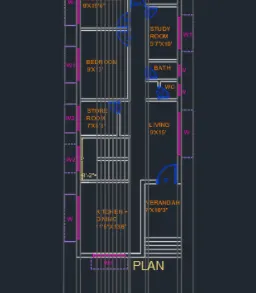
- Draw Construction lines by using construction lines draw sections A-A.
- Click Home tab Draw panel, Construction Line. Specify a point to define the root of the construction line. Specify a second point through which the construction line should pass and enter.
Step 2-
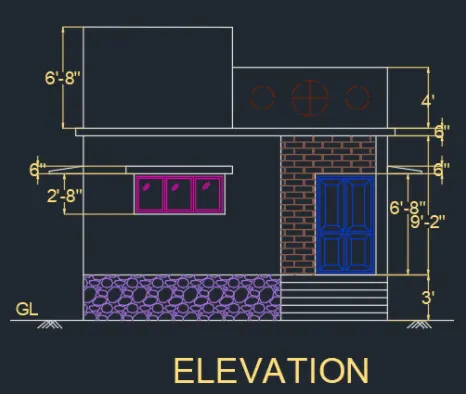
- Start the Line command by clicking the Line button on the Draw panel on the Ribbon, or by entering L and then pressing Enter. Draw line segments by picking several random points. Terminate the command by pressing Enter, Esc, or the spacebar.
- Place door and window.
- Hatch- by using hatch command draw rubble masonry, wall cladding, and parapet wall section.
- Give dimensions and text.
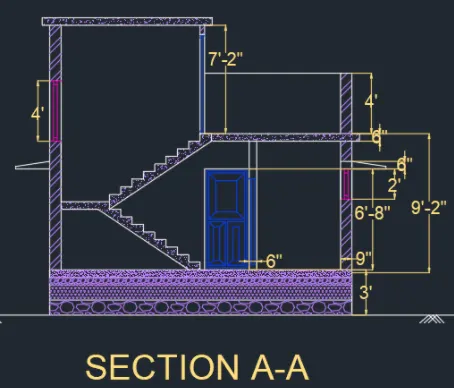
3) Sections:
Procedure-
Step 1-
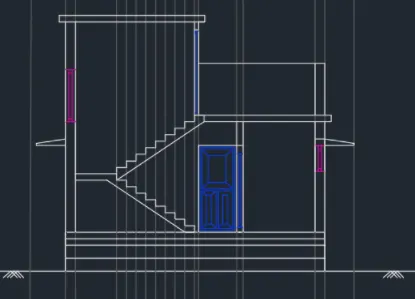
- Draw section line through the plan.
- Draw construction lines.
- By using the command line draw all lines in the section plan.
- Draw door window and ventilator in section.
Step 2-
- Hatch command- By using hatch command show concrete section, wall section, and earth filling in rubble masonry.
- Give dimensions and text to section plan.
4) Columns:
Procedure-
Step 1-
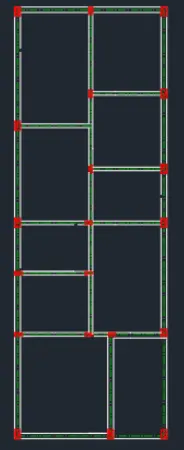
- Draw a centerline throughout all walls.
- Place columns wherever required.
- and hatch the column section.
Step 2-
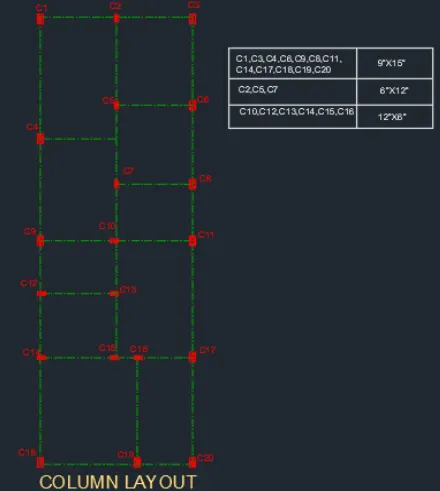
- Lable the column positions.
- Add column details.
5) Beams:
Procedure-
Step 1-
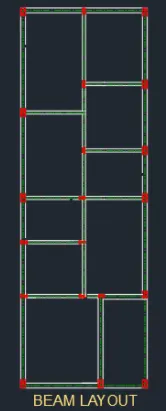
- Draw a centerline throughout all walls.
Step 2-
- By using line command draw all beam section
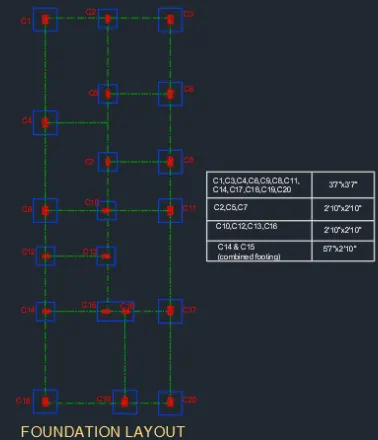
6) Footings:
Procedure-
Step 1-
- Draw a centerline throughout all walls.
- Place columns wherever required.
- and hatch the column section.
Step 2-
- Lable the column positions.
- Now draw the foundation layout for all columns.
CONCLUSION:-
In this extensively elaborated exercise, almost all the majorly used commands like – LINE, RECTANG, OFFSET, FILLET, EXTEND, TRIM, MIRROR, ROTATE, ARRAY, COPY, MOVE, PLINE, CIRCLE, TEXT, MTEXT, DIMLIN, DIMBREAK, LAYER, DIMSTYLE, LINEWEIGHT, HATCH to name a few. Apart from these other properties like the thickness of lines were also extensively use.