Project 1
Design a multi-storey Residential Building located in Bangalore using STAAD Pro Connect Edition. The specification must be as follows:
|
Building floors |
G + 6 + R |
|
Plan dimension |
B = 25m , L = 16m |
|
Storey Height |
h = 3.5m |
|
Soil |
Hard soil |
|
Use |
Residential Purpose |
|
Safe Bearing Capacity |
180 kN/m2 |
|
Maximum slab thickness |
150mm |
Assume suitable sections for structural elements. Follow IS456, IS1893 and IS 875
- Prepare a Design Basis Report for the project
- Create structural model using STAAD Pro Connect Edition
- Prepare DL, LL, WL and EQL load calculations as per IS 875 standards
- Design slab element using MS – Excel
- Design beam and column element using STAAD RCDC. Attach the design calculation report.
- Design Foundations using STAAD Foundation.
- Prepare bar bending schedule for beam and column using STAAD RCDC
- Attach necessary sketches and drawings wherever required.
- All stipulations, assumptions and design parameter must adhere to Indian Standards.
Aim:
Design a multi-storey Residential Building located in Bangalore using STAAD Pro Connect Edition.
Introduction:
In this project designed the G + 6 + R residential building which includes the structural framework, layout, load combinations, material properties, analytical techniques and design methodology. Building is designed with the help of staad and RCDC software.
Given data:
Building floors G + 6 + R Plan
dimension B = 25m, L = 16m
Storey Height h = 3.5m
Soil Hard soil
Use Residential Purpose
Safe Bearing Capacity 180 kN/m2
Maximum slab thickness 150mm
1.Prepare a Design Basis Report for the project
The Design Basis Report are attached
2.Created structural model using STAAD Pro Connect Edition
Procedure:
STEP 1) Creating Modal
- Open STAAD.Pro CONNECT Edition Software
- Go to New option left side on the home interface
- Specify the file name, location, unit and modal type
- Click on Create, modal user interface will open
- Now, I can able to create geometry
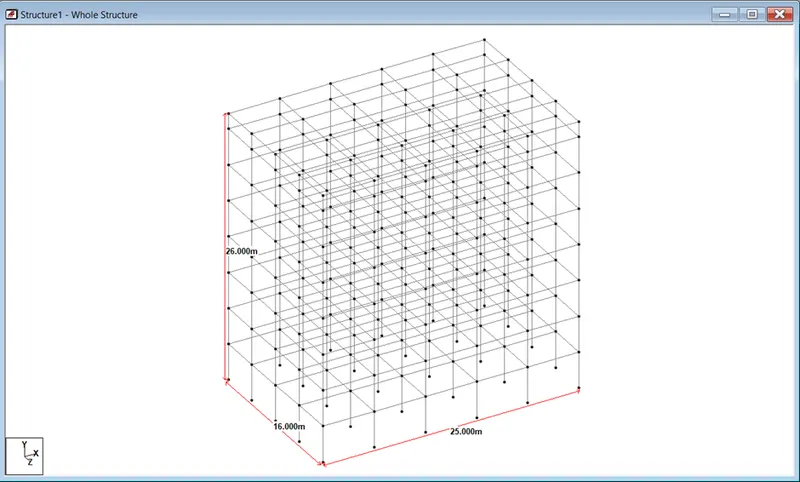
STEP 2) Creating Geometry
- In the geometry, created nodes for the building
- Select Add Beam from the ribbon Beam
- By using translation method, skeleton structure created for the building
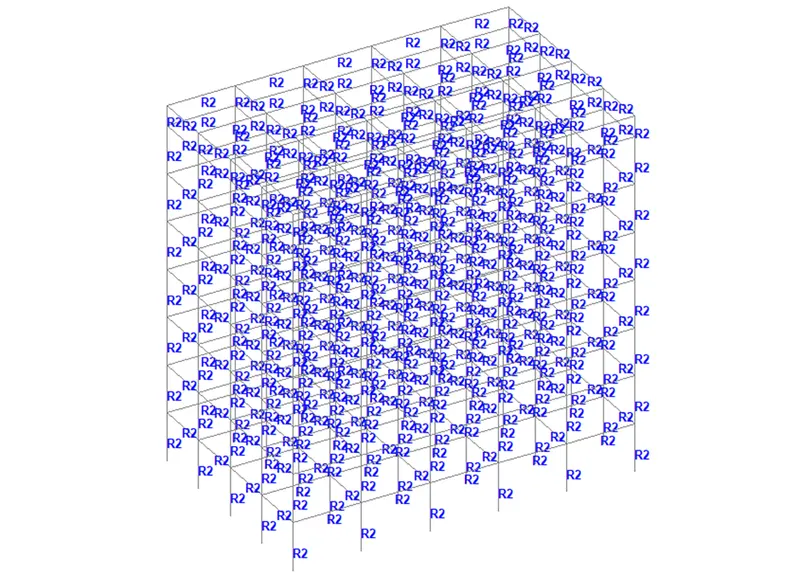
STEP 3) Define Property of Structure
- Goto Properties tab, click on Define
- Select shape of structure, provide dimension
- Select material of structure as a Concrete and add
- Click on Assign to View and press Yes it will visible
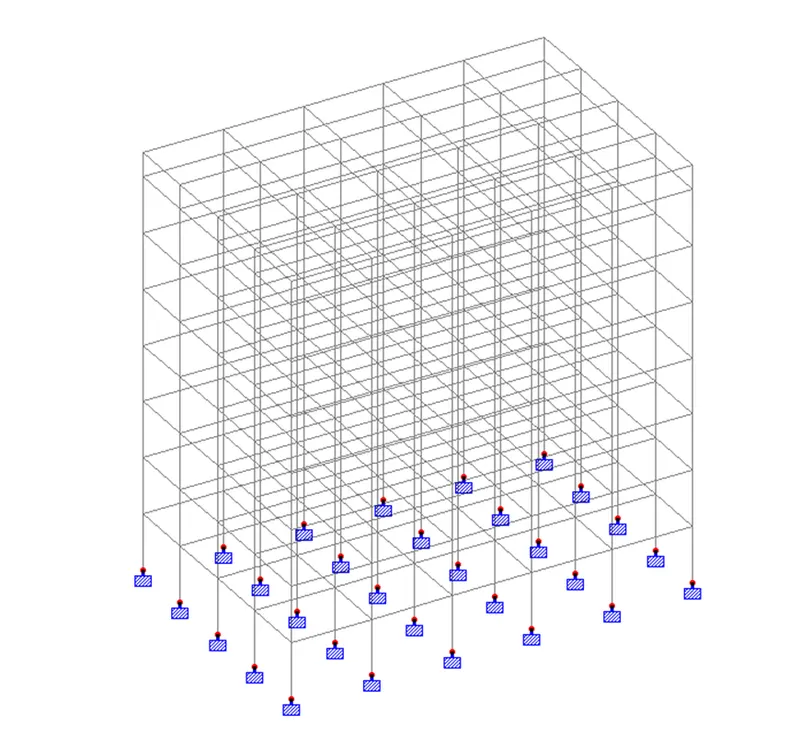
STEP 4) Assigning Support
- Goto Support tab, click on Create
- Add Fixed support
- By the help of Use Cursor to Assign, place one by one supports in structure
- Support is visible in the structure
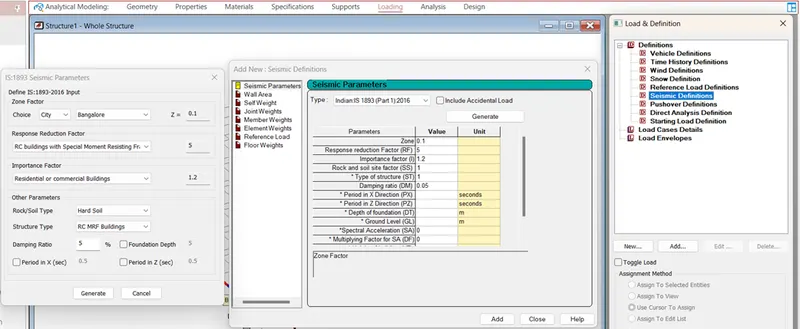
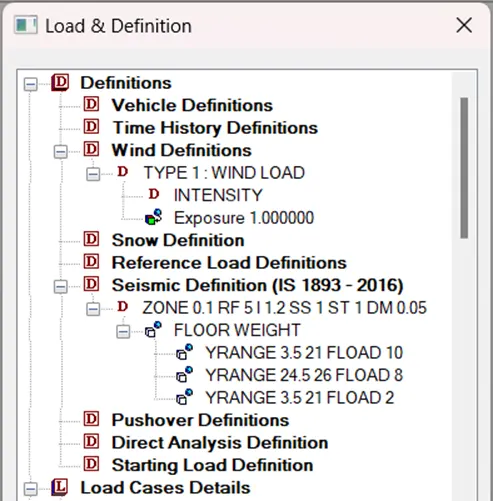
STEP 5) Loading Assignment
- Goto Loading tab, Loading and Definition dialog box will open in right side
- Expand the Definitions, select Seismic Definition click on Add and put the given information
- Then select added Seismic Definition and put the value of dead & live load for floor
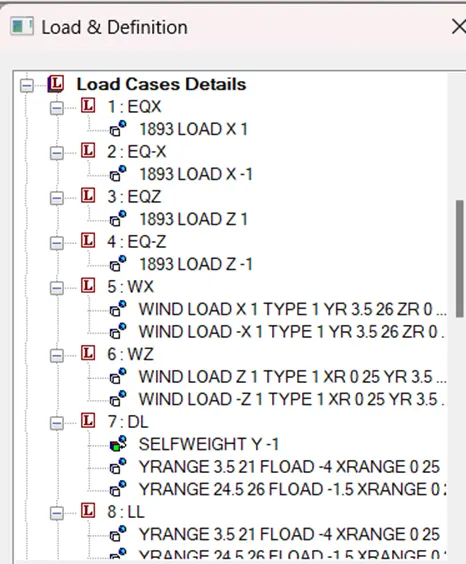
- Select Load Case Detail and Add them as a EQX-EQZ, in both negative and positive direction and select loading type Seismic H then put the value on it
- Similarly add the Wind Load on it
- Add required load case detail also
STEP 6) Run Analysis
- Goto Analysis tab, click on Analysis Command which is left side in the ribbon
- Analysis print command dialog box will open with Perform Analysis tab
- By default, it is on No Print option, so that simply click on add
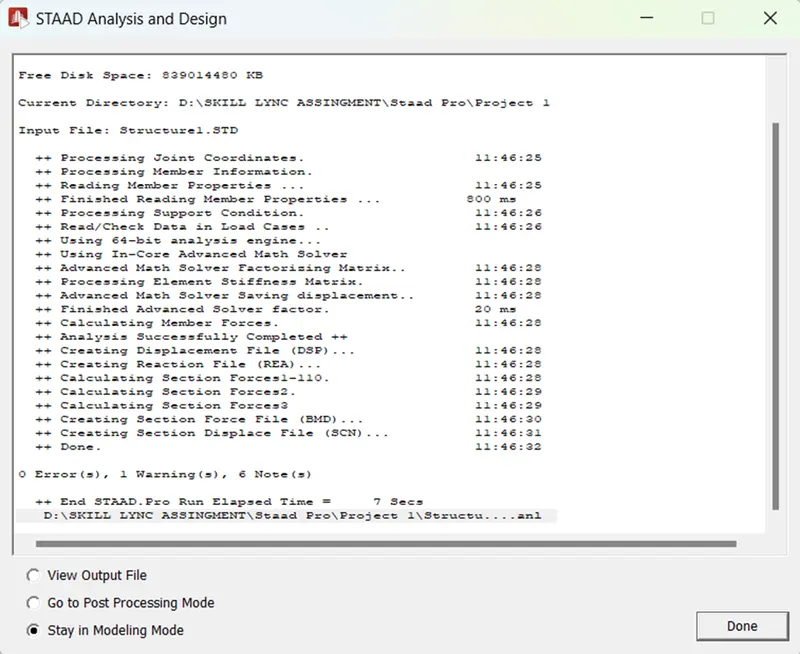
- Press the Run Analysis button from the ribbon and check the result
- In the result there is no error hence output is OK
STEP 7) Check the necessary output
- Goto Post processing
- Apply all load cases
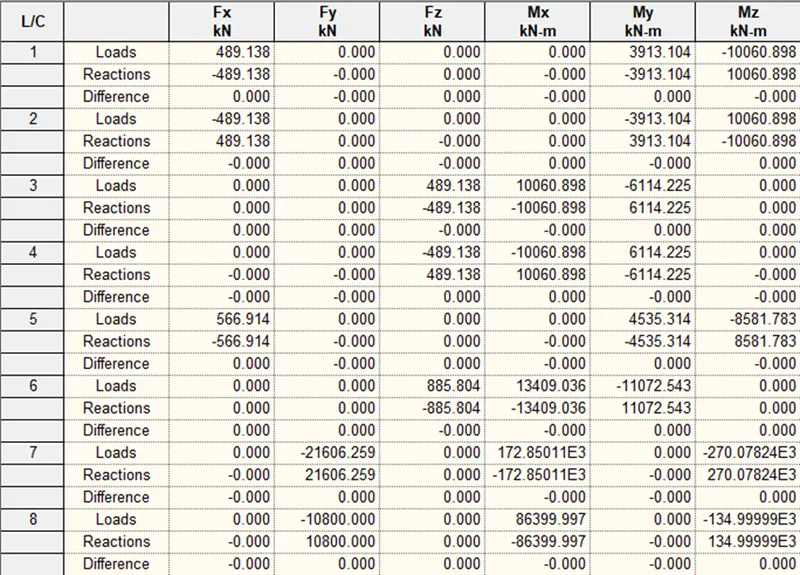
- Check Reaction, Displacement, Shear, Bending Moment and Deflection
- Analysis output
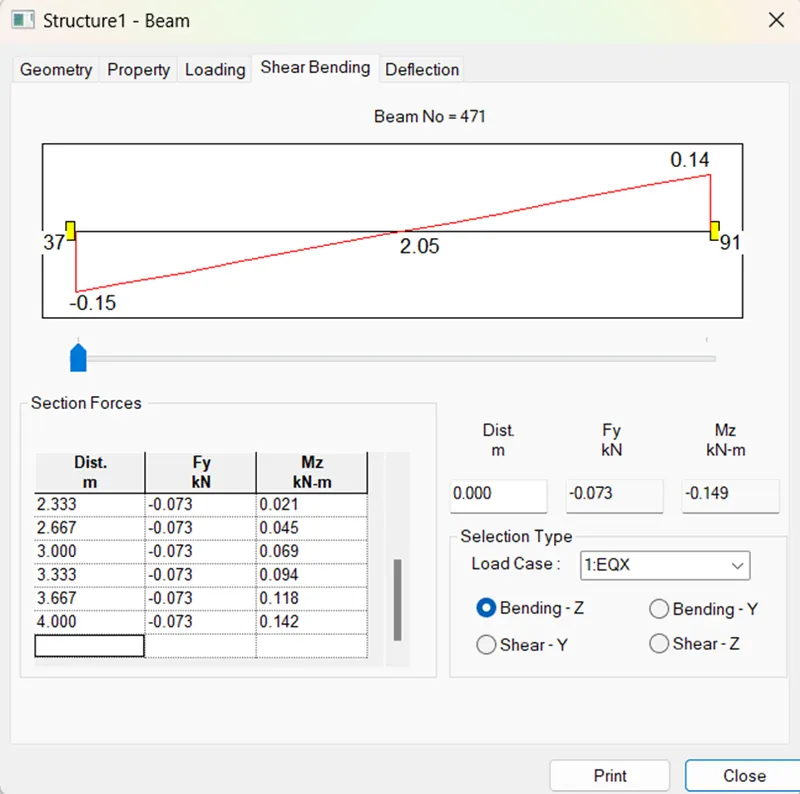
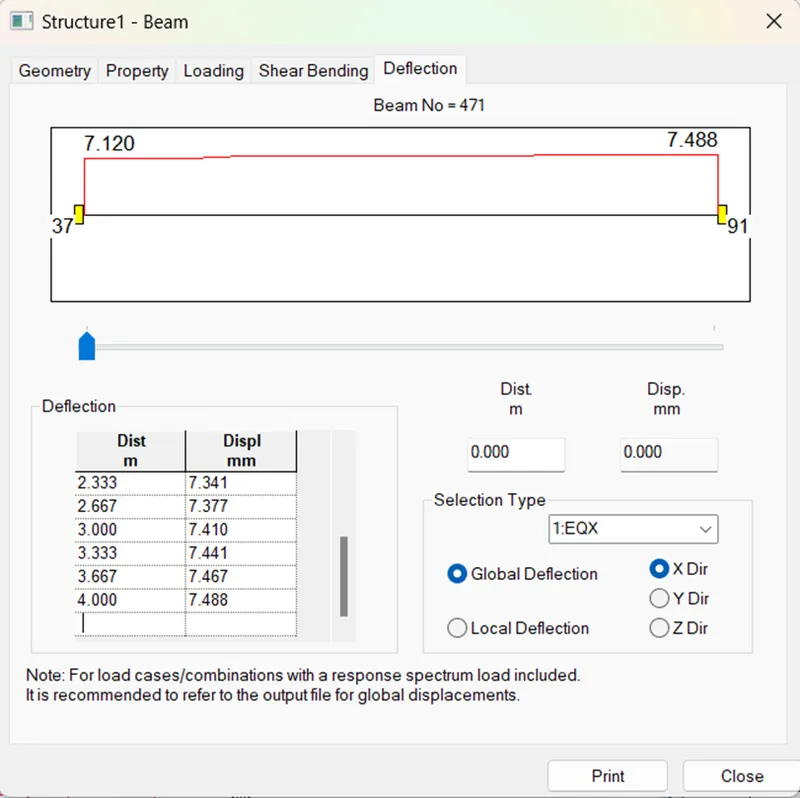
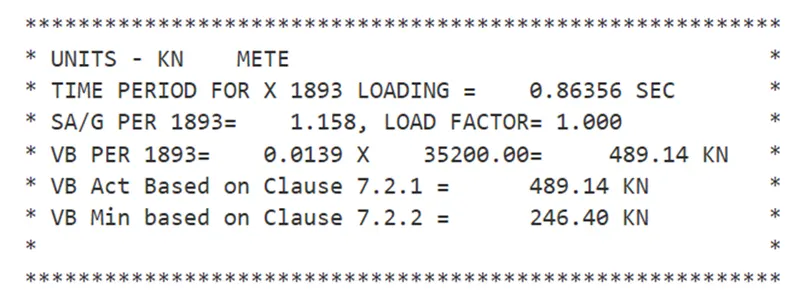
3.Prepare DL, LL, WL and EQL load calculations as per IS 875 standards
Load Calculation attached in Design Basis Report
4.Design slab element using MS – Excel
Design of slab attached
5.Design beam and column element using STAAD RCDC. Attach the design calculation report.
Design of beam in RCDC
- For beam design we have to go in RCDC software
- In the most left side of the staad software, there is option called advance concrete design
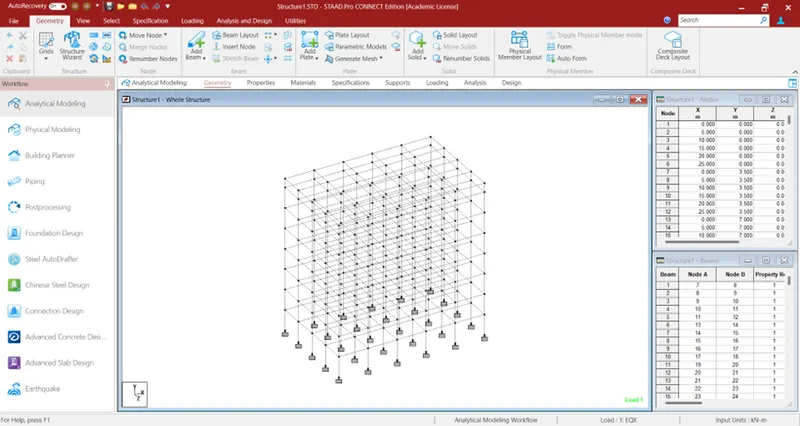
- After clicking on advance concrete design, it asks which software want to use
- Click on RCDC and accept
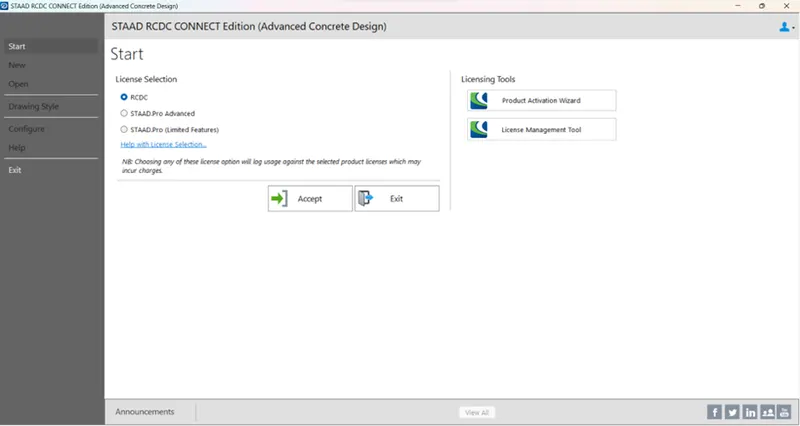
- The welcome screen of RCDC software will visible
- After choosing the beam design element and desire level, click on create
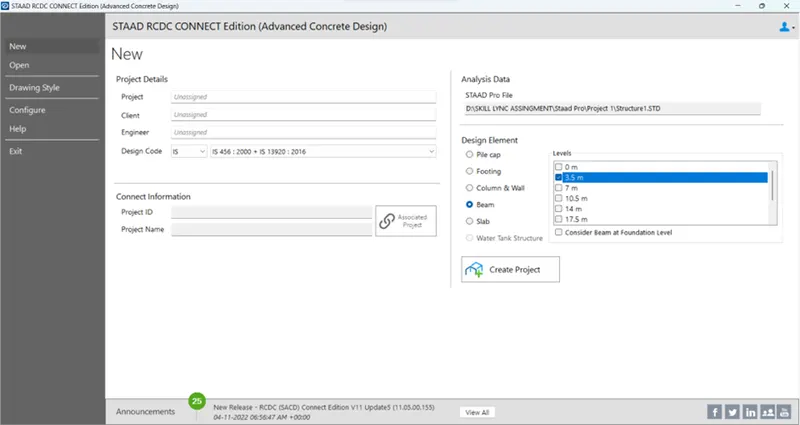
- The beam layout and beam table open in RCDC software
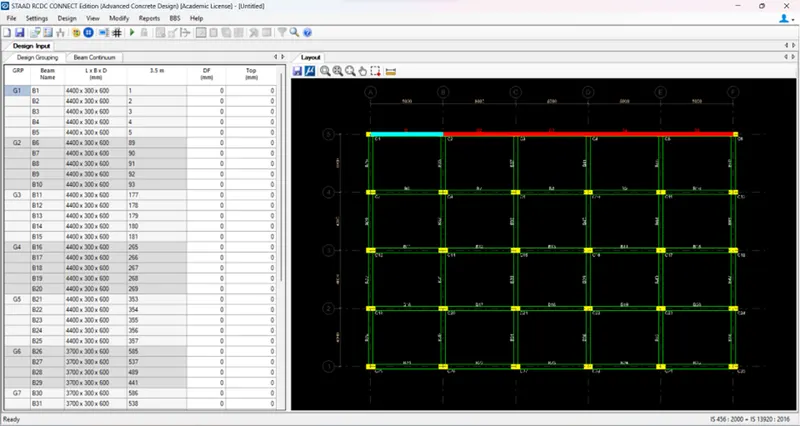
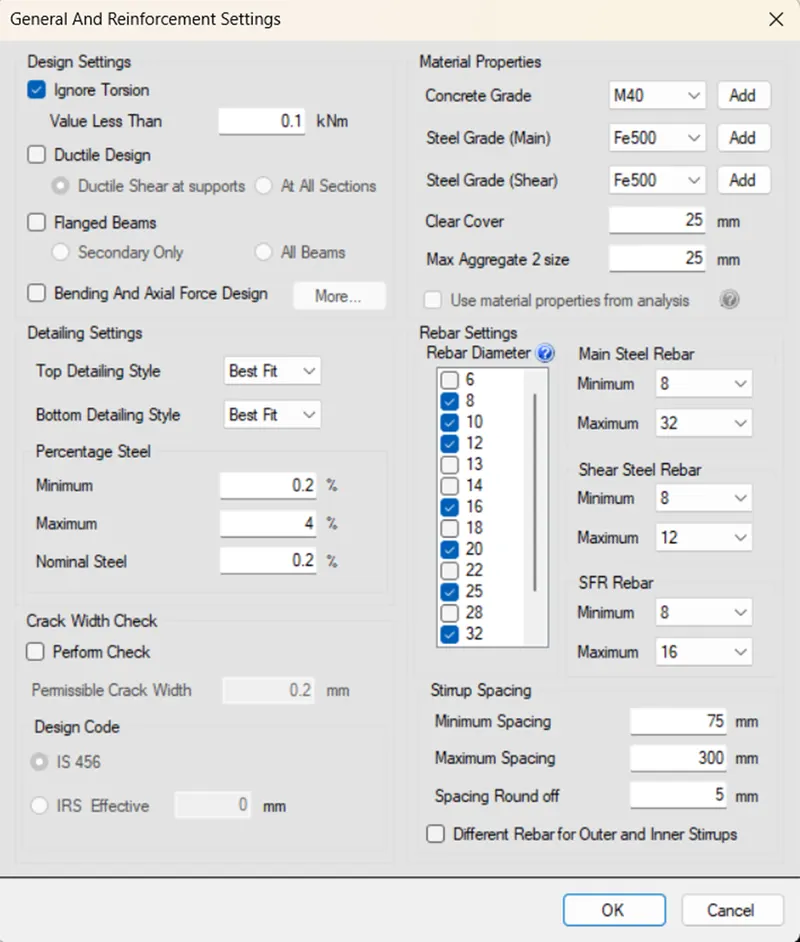
- Change the grade of concrete and grade of steel from the general and reinforcement setting
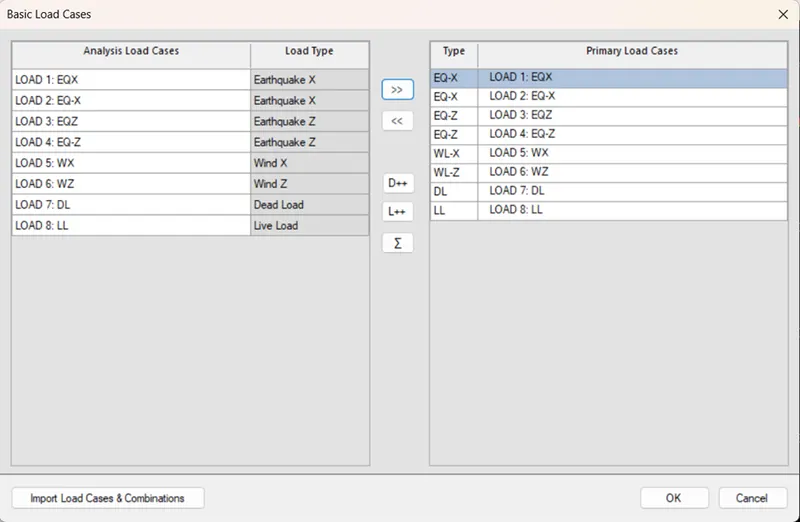
- Click on design > auto design, it asks for basic load cases select appropriate load type, OK
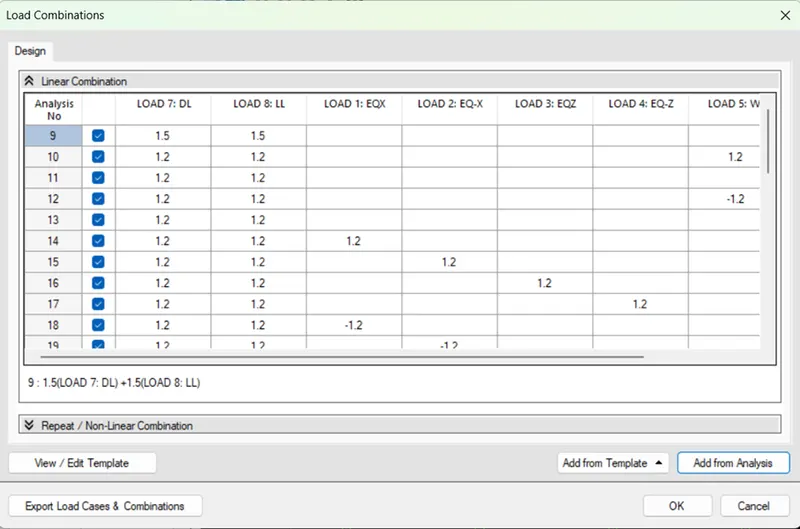
- The load combination dialog box will open, click on add from analysis and press OK
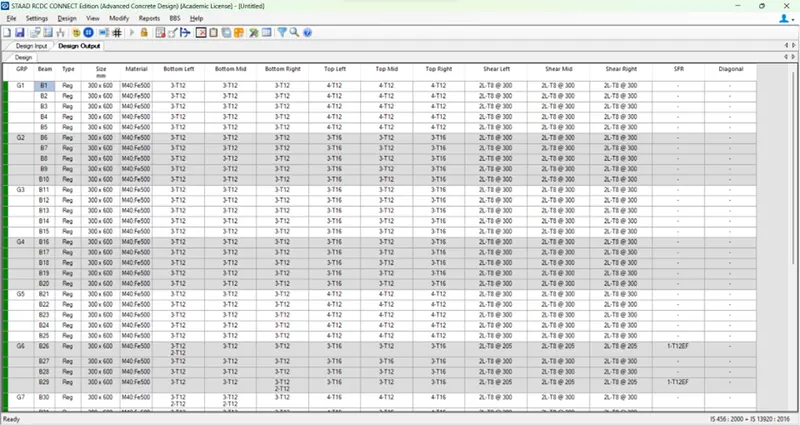
- The design output will display
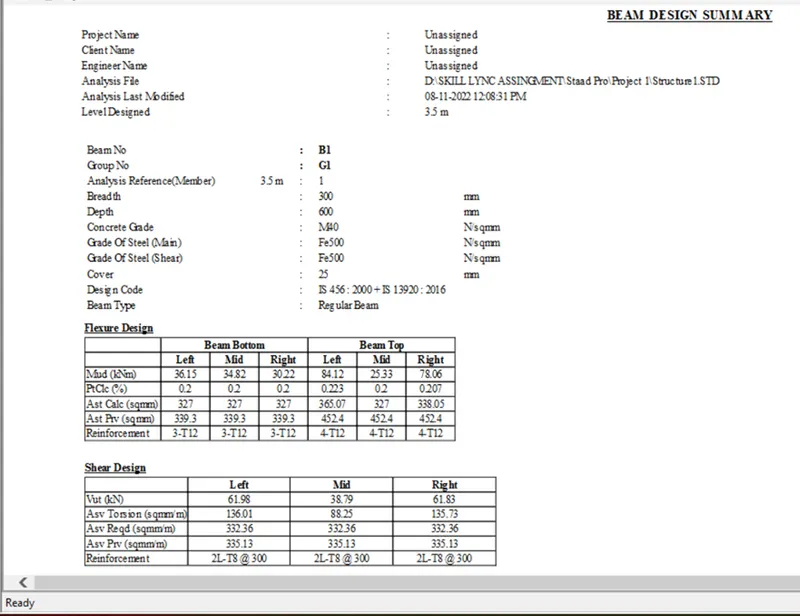
- Check the beam design summary and check the failure diagnostic
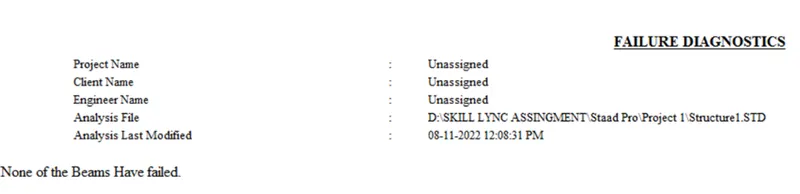
Design of column in RCDC
- Similarly open RCDC software for column design
- After choosing the Column & wall design element, click on create
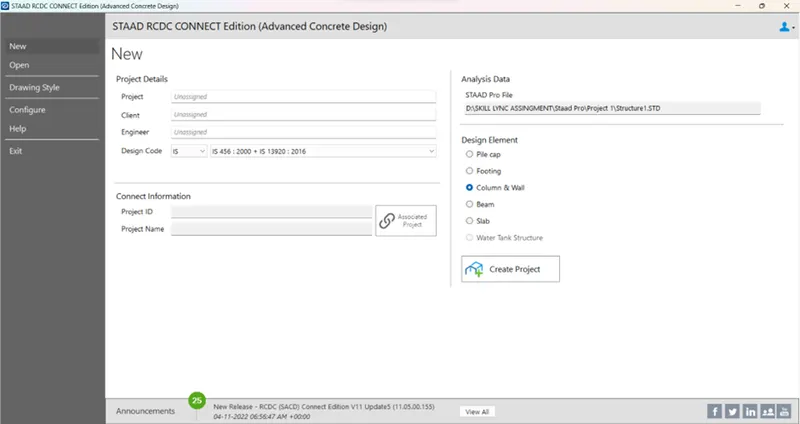
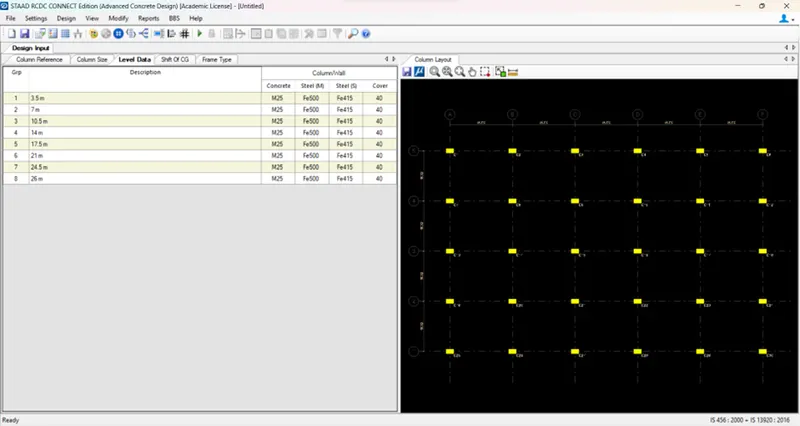
- The column layout and table open in RCDC software
- Change the grade of steel, grade of concrete and cover from the table
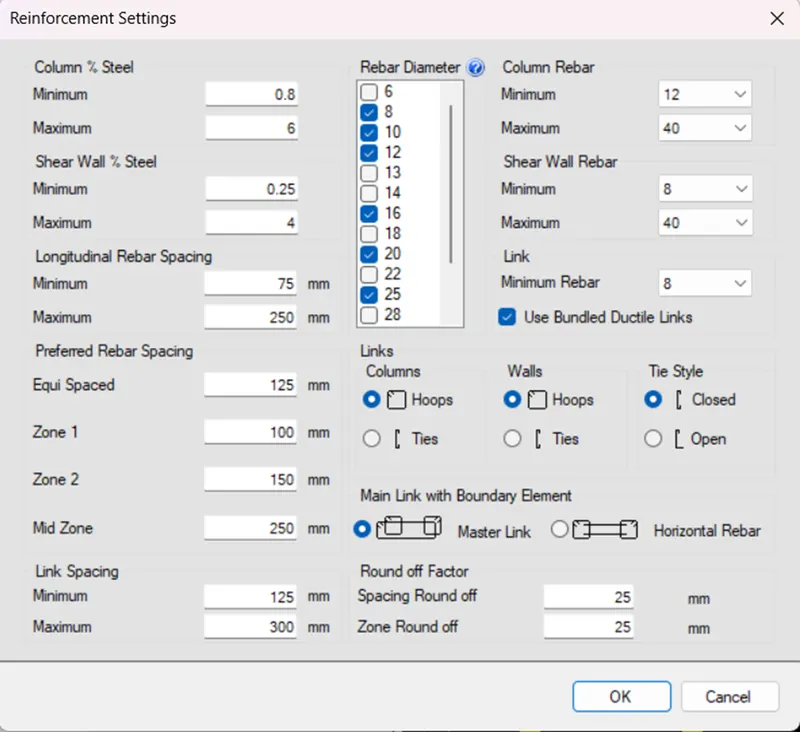
- Open reinforcement setting and change the % of column steel
- Click on design > auto design, it asks for basic load cases select appropriate load type, OK
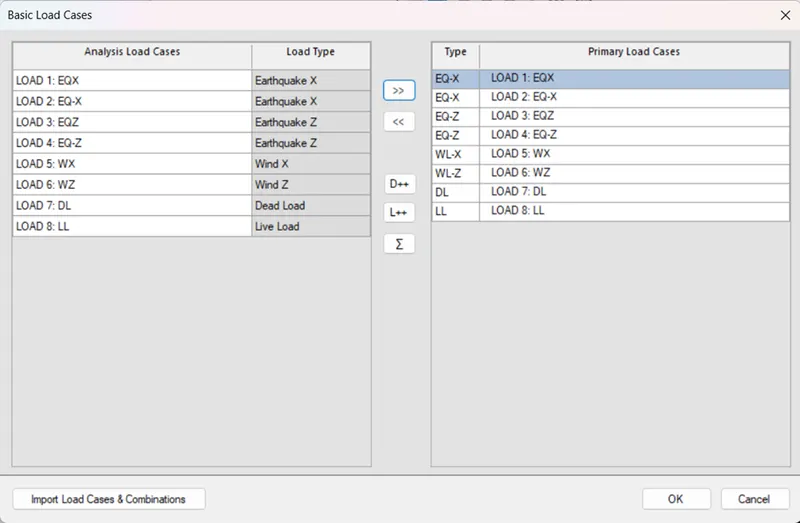
- The load combination dialog box will open, click on add from analysis and press OK
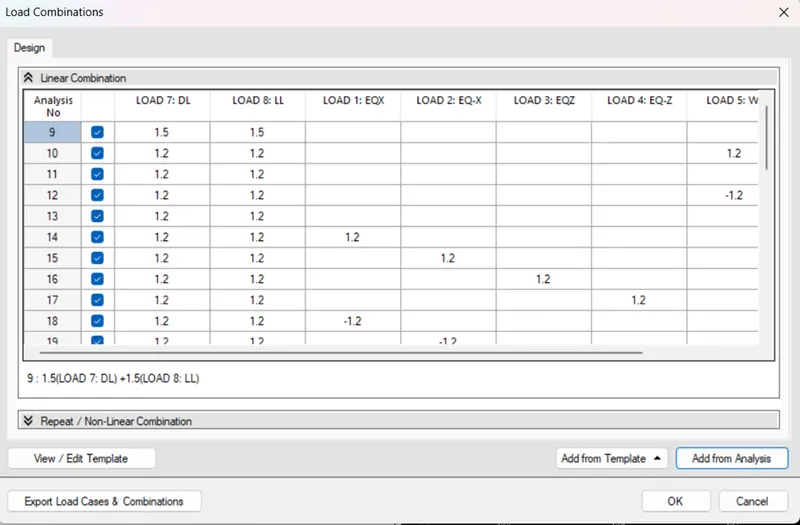
- The design output will display
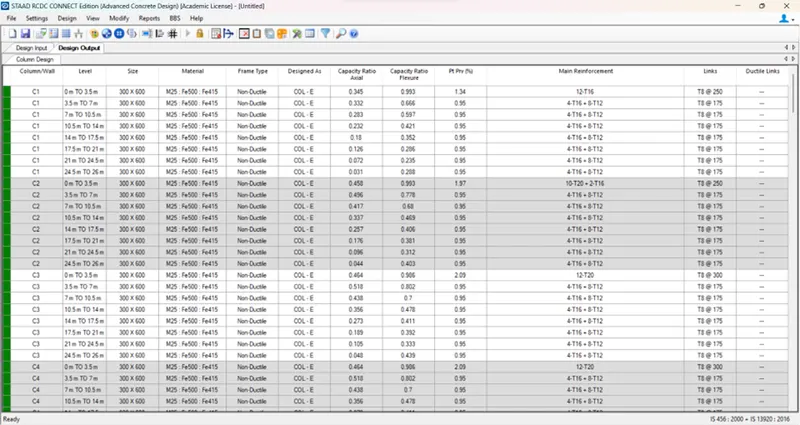
- Check the beam design summary and check the failure diagnostic
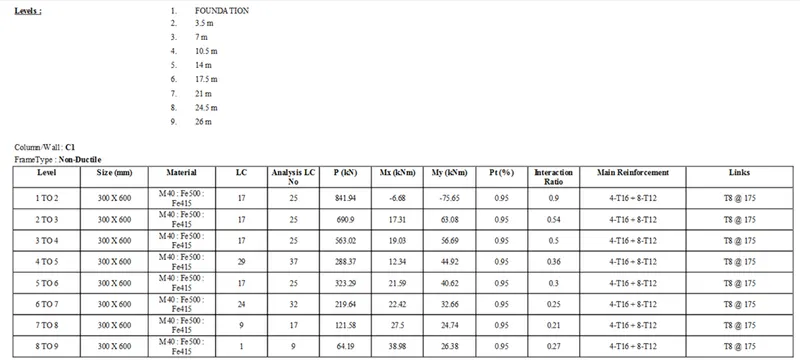
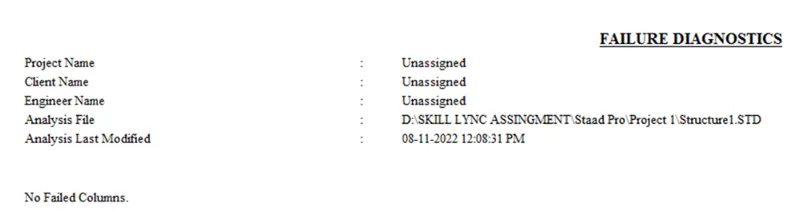
Design calculation
Calculation files are attached
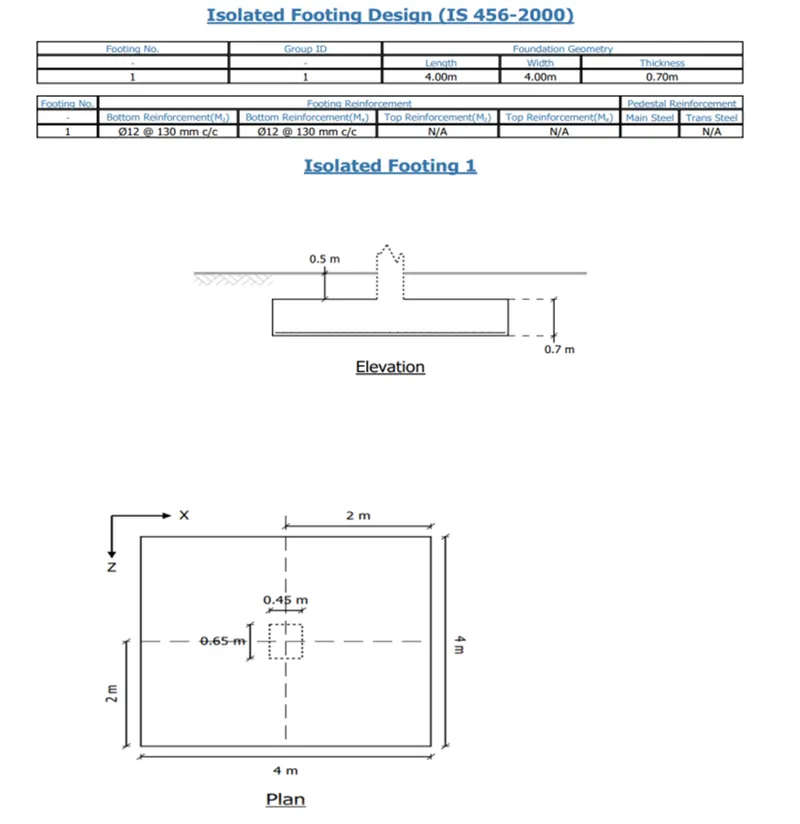
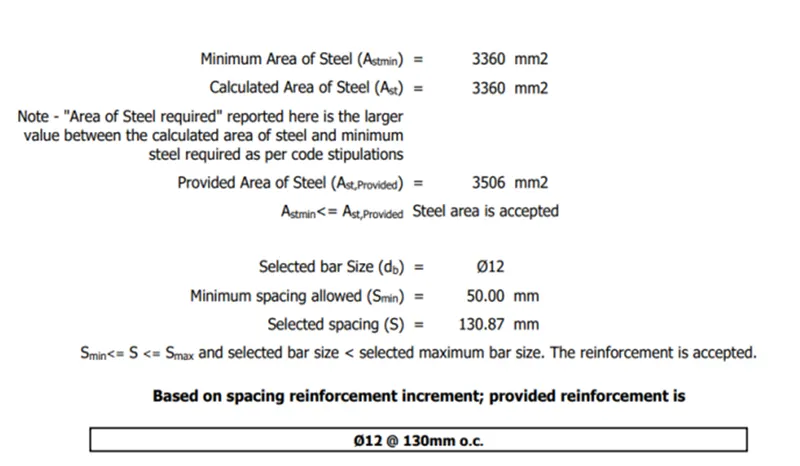
6.Design Foundations using STAAD Foundation.
- After analysis done in staad software go to Foundation Design
- Which is most left side on the staad software
- Include load cases and combination then click on the staad foundation advance
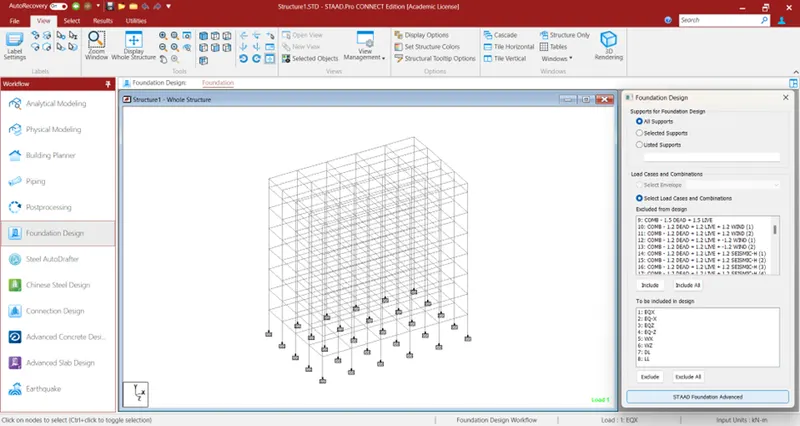
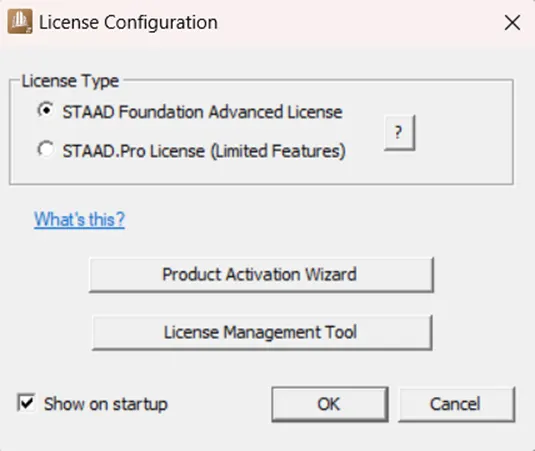
- A popup will open for licence configuration there select staad Foundation Advance
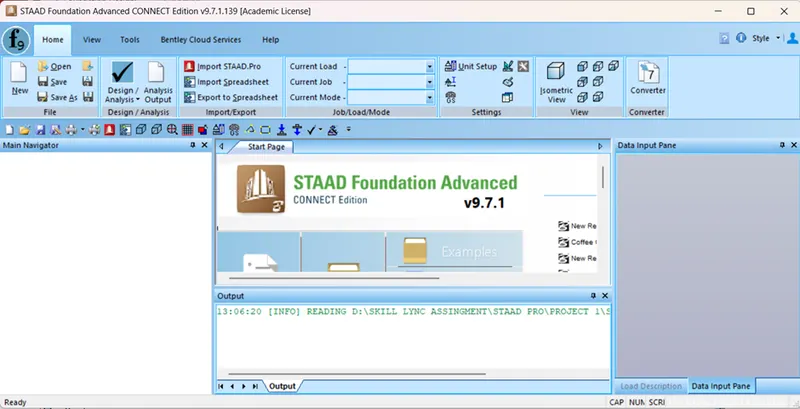
- Staad foundation advance welcome screen will open
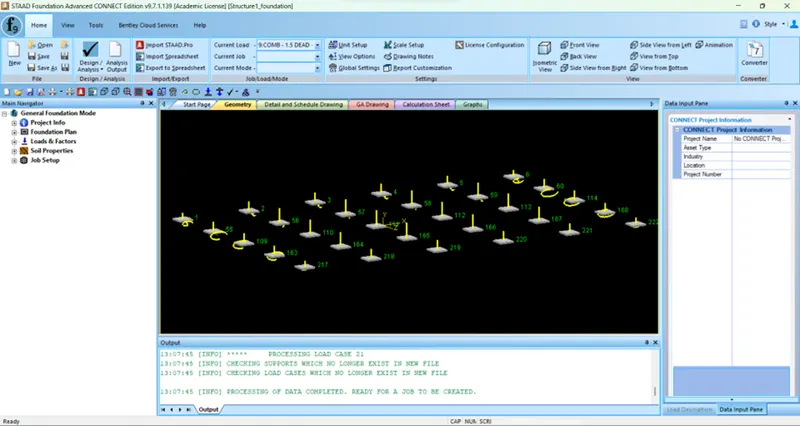
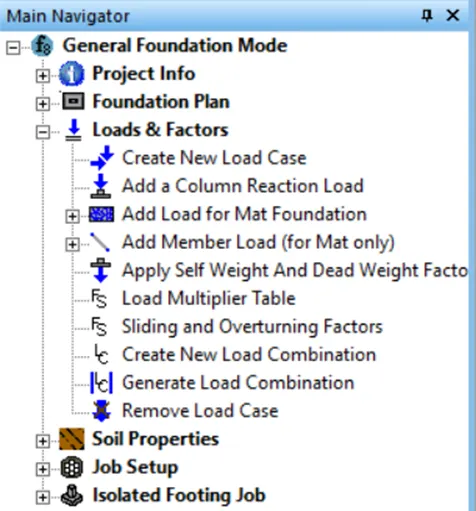
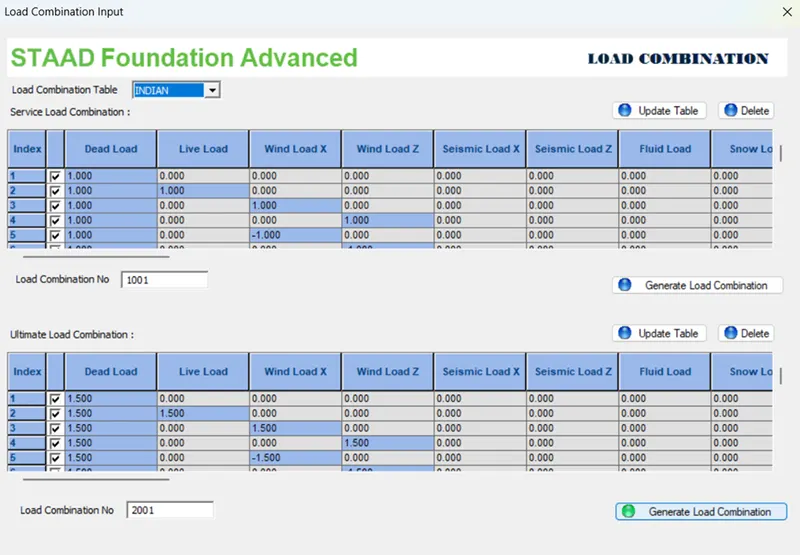
- Go to loads and factor Generate loads combination using IS 456
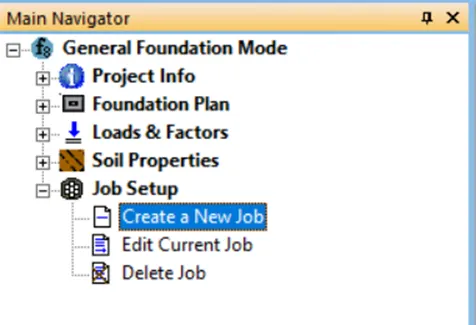
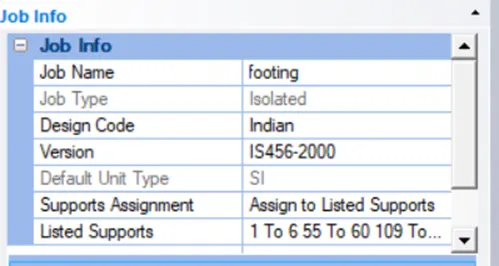
- Create a Job
- Provide name, design code and version IS 456:2000
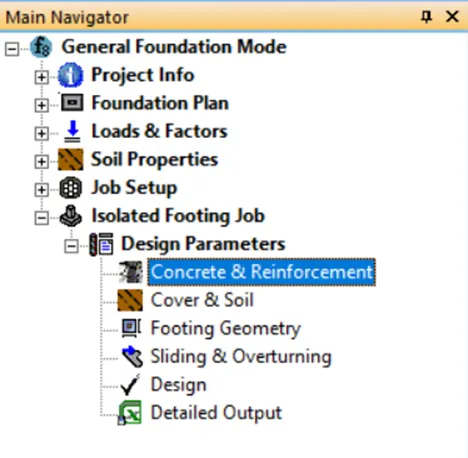
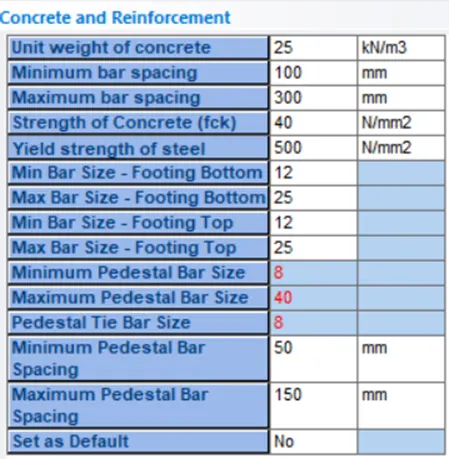
- Concrete & reinforcement
- Edit the necessary data
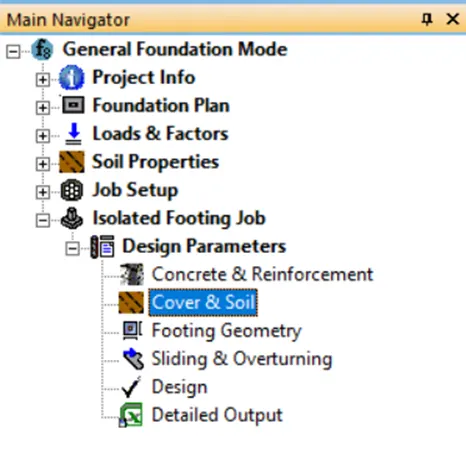
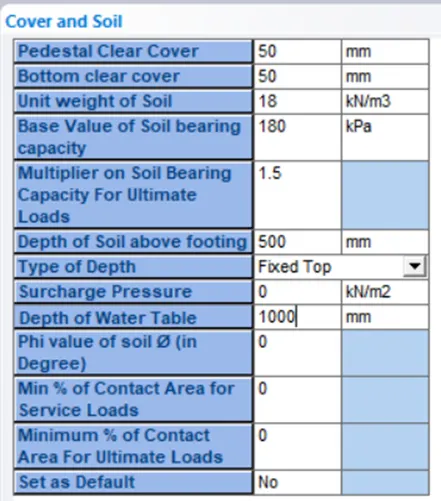
- Cover & Soil
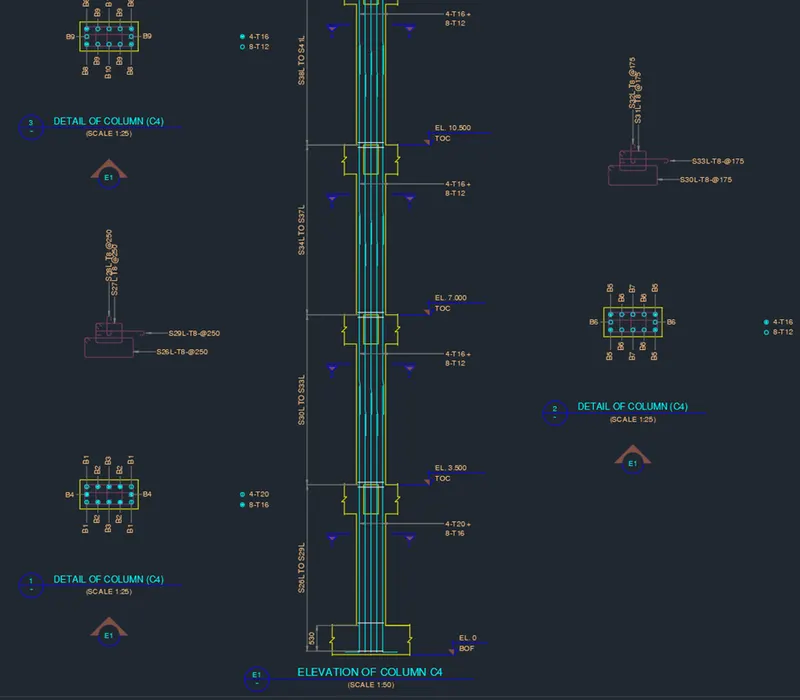
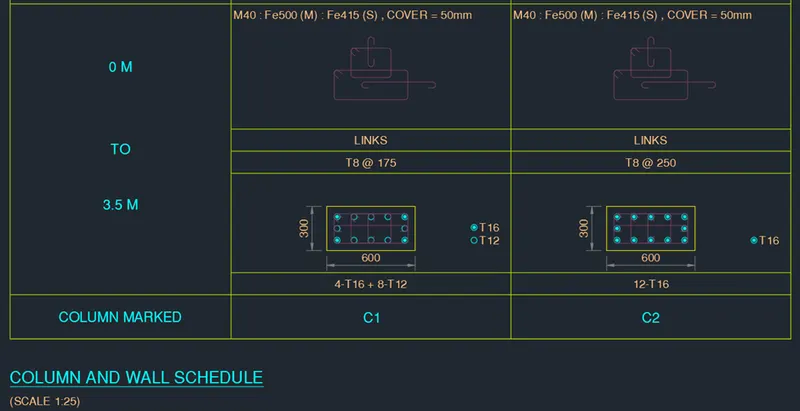
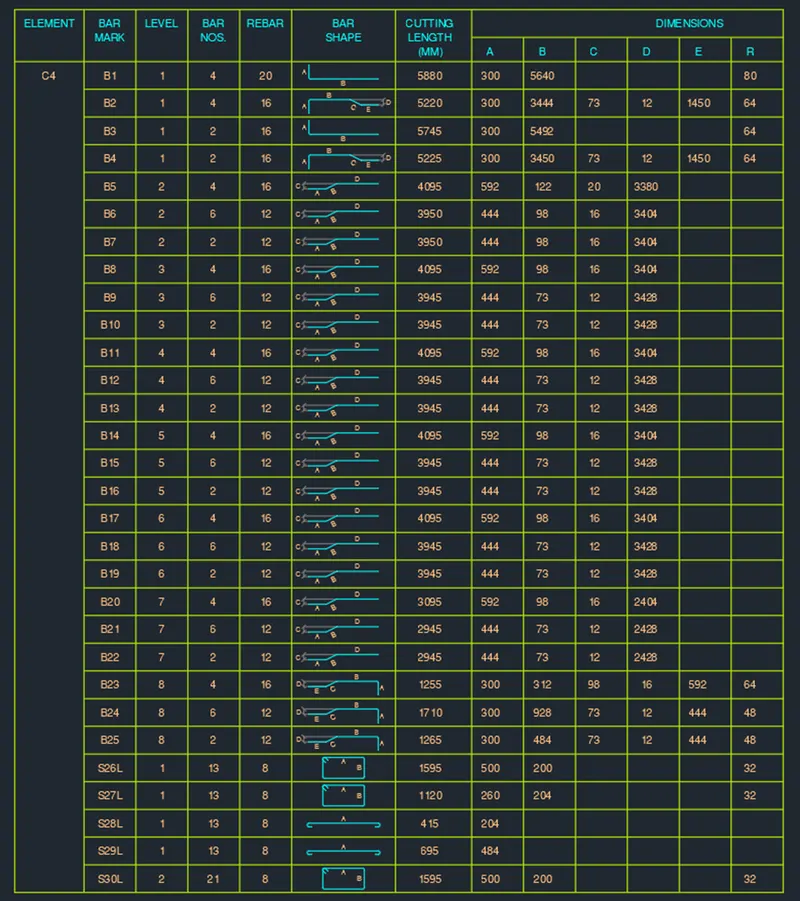
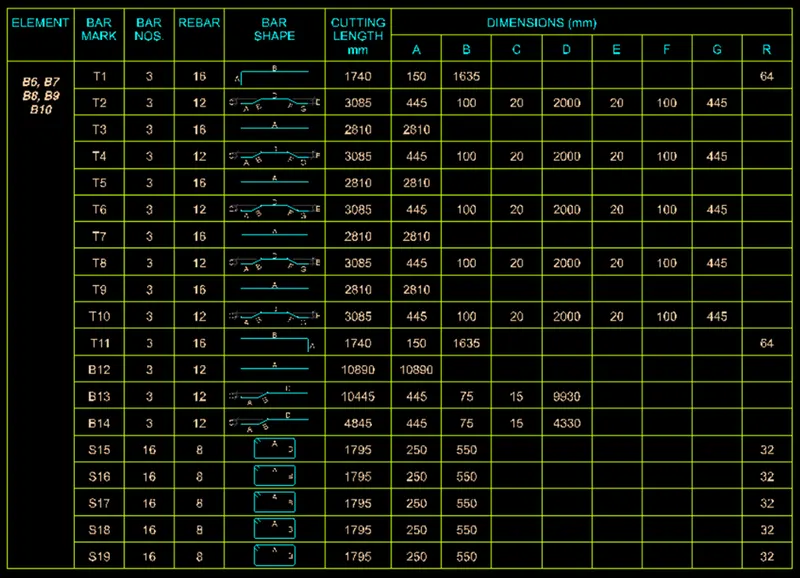
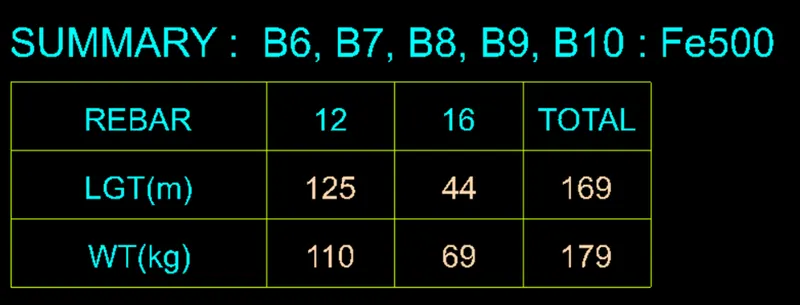
7.Prepare bar bending schedule for beam and column using STAAD RCDC
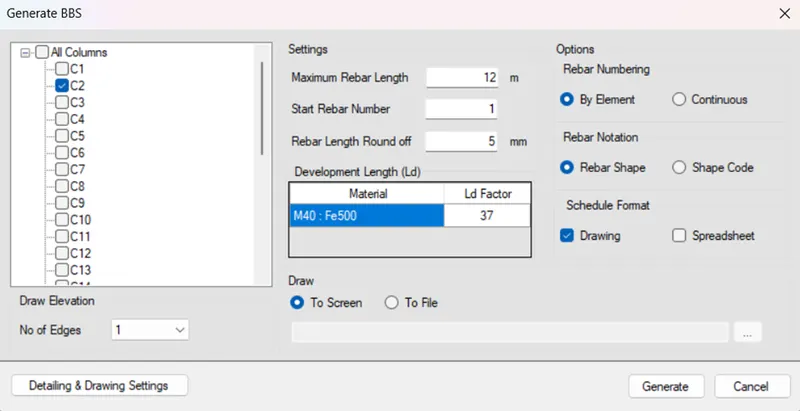
For BBS of column click on BBS and press generate to extract the result
BBS for column
BBS for beam

Result:
Hence, all task performs in staad, RCDC and foundation design
Necessary files are attached