AutoCAD_Developing Architectural and Structural drawing_Project 1
Aim:- Draft the residential building layout in the plot size of 60'x20' with orientation of the building east.
1. We need to Provide Architectural Drawing of (Floor plan, Elevations and sections)
2. We need to Provide Structural Drawing (Column, Beam, Footing Plan)
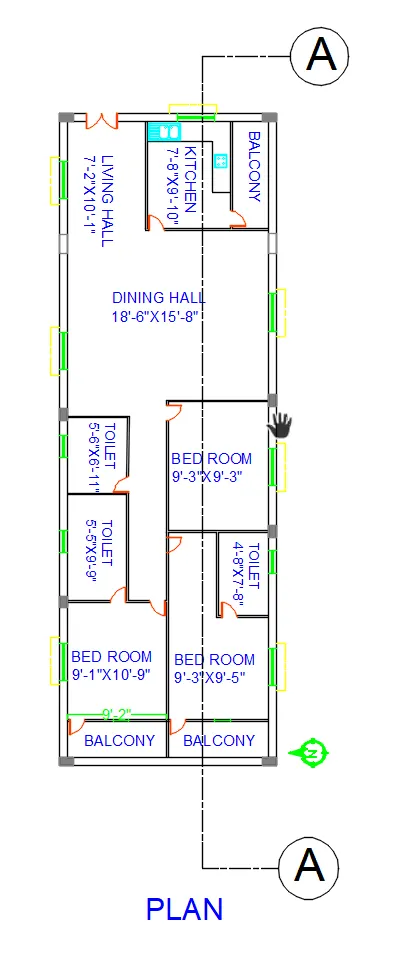
1. To draw a plan of residential Building
2. Open the autocad
3. Type UN in the command prompt and select engineering and precision as 0'-0" (as its in imperial system)
4. Type Limits and define the lower and upper limuts
5 Z enter A enter and we are ready for drafting
6. The plot size is 20'x60'
7. Type Line in command prompt and select the first point and type 20' in x direction
8. Type 60' in y direction with facing the arrow top
9. Again type 20' and draw
10. Typr 60' pointing the cursor downwards and enter
11. Type offset and type 3" and do the offset inside now the plot is ready for drafting
12. Type offset and specify 9'10" and do the offset for Kitchen
13. Type offset and specify 3'4" and do the offset for balcony
14. Type trim and trim the extra line
15. Type offset and specify 15'8" and do the offset from kitchen wall for dinning space
16. Type offset and specify 15'8" and do the offset from kitchen wall for dinning space
17. Type offset and specify 9'3" and do the offset from dinning wall for bedroom
18. Type offset and specify 9'5" and do the offset from dinningwall for bedroom
19. Type offset and specify 9'3" and do the offset from side wall for bedroom and balcony (vertically)
20. Type offset and specify 10'9" and do the offset from bedroom wall for toilet (left side)
21. Type offset and specify 6'11" and do the offset from toilet wall for 2nd toilet
22. Type offset and specift 3" and offset the inner wall and delete all the extra line
23. Type L in command prompt and draw the doors and crete new layer as door and specify color
24. Select the door and type BL and select the base point and save as door block is created
25. Insert the block where doors are needed and rotate the block for the direction
26. Draw windows with the help of line and select new layer and name it as windows
27. Select the window and write Bl and select the base point and covert the window in blocks
28. Insert the window block where required and rotate the block as required
29. Draw Chajja where windows are available
30. Select the text command and select the font size of the text and do the detailing
31. Create a new layer and name it as dimension and select the details and put in dimension layer
32. Do the detailing for all the rooms
33. type XL for construction line and type V for vertical and cut the plan for section
34. Select the line type and select the width and select the dashed line
35. The plan is drawn as shown in the figure
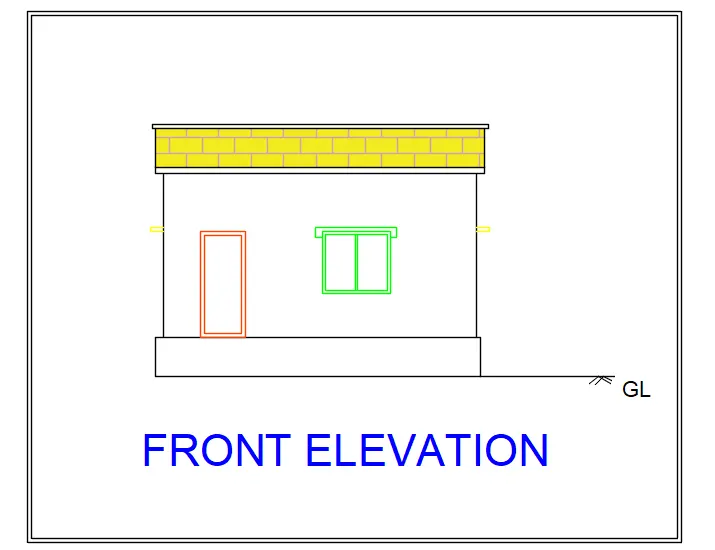
36. To draw elevation
37. Type XL in the command prompt and type V for vertical line and draw the line with all the starting and end points of doors, windows, wall, chajja
38. Draw the horizonal line and type offset and specify 2'6" for plinth and do the offset
39. Type trim and trim the extra line
40. Draw the chazza and trim the extra lines with trim command
41. Draw the window with the starting and end point with the length and width of the window and trim the extra line
42. Draw the door with the starting and end point of the door
43. Type offset and specify 10'10" for the roof and do the offset
44. Type offset an specify 2'6" for the parapit wall
45. Select the layer of respective layer and put the object in the layer (door, windows, chajja)
46. Select the hatch option and select pattern and select brick and do the hatching for parapit wall
47. Elevation is obtained as per the drawing
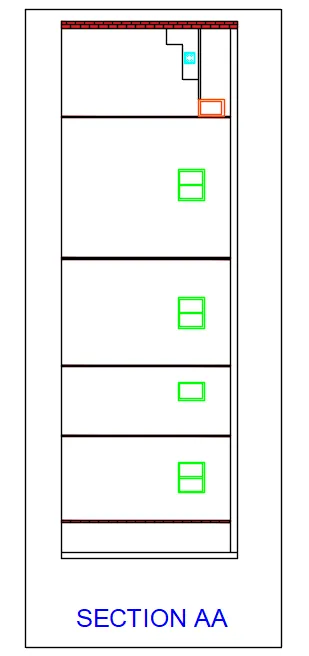
48. For section type XL and then type H for horizontal line and extend the line for all the windows, doors, walls, slab from the section is cut AA
49. Trim the extra line and join the lines where ever required
50. Draw the windows with the help of line with the starting and end point of window from the plan
51. Draw the Door in kitchen for balcony from the plan
52. Select the hatch and select brick and do the hatching for the walls
53. Draw the kichen counter as the section marked is crossing the counter slab
54. Place the stove block from the insert option.
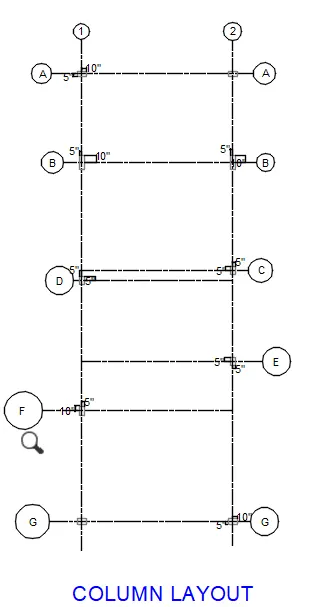
55. To draw the column layout Tyoe XL in the command prompt and extend the line from the top and bottom of columns placed in the plan
56. Type XL in the command prompt and type V and extend the line from right corner and left corner of the plan
57. Trim the the extra line with the help of trim command
58. Select the column and place it at the center of the intersection line of the construction line
59. Place all the columns in plan to the layout
60. Select the dimension and do the dimension of the column with the construction line (center to center)
61. Column layout is obtained
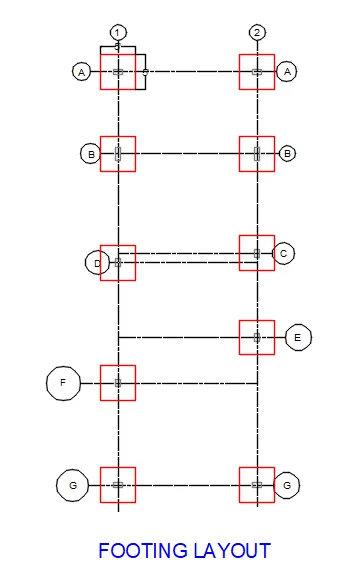
62. Select the column layout and copy and then paste
63. Remove the dimension from all the columns
64. Draw a rectangle with rec command and specify the dimension as 5' and 5'
65. Select the object and type BL and select the mid point and save it as footing
66. Insert the block from insert command and place it at all the columns center to center, footing is placed at all the respective place
67. footing layout is obtained
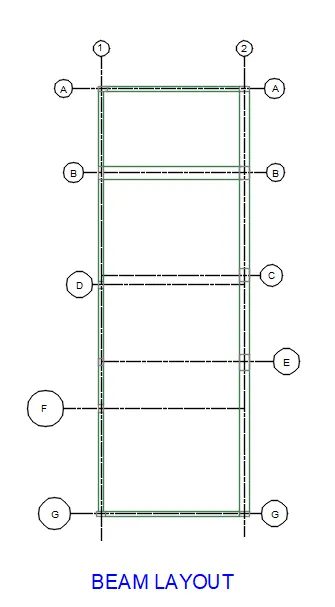
68. Select the column layout and copy and then paste
69. Remove the dimension from all the columns
70. Draw a straight line with the line command and join all the columns with each other
71. Select all the beam line and create a new layer as beam layout and enter
72. Select the text comamnd and name the beam (B1, B2 etc) as per the length and breadth of the beam
73. Required beam layout is obtained
Result:-
Residential building layout in the plot size of 60'x20' with orientation of the building east is obtained with all the Architectural Drawing as mentioned and structural Drawings. With all these drawings the construction of the building can be started and project can be completed with the given details.