Project 1 - 2D meshing on the instrumental Panel
Aim: 2D Meshing on the instrumental Panel
Introduction:
Instrumental Panel is a panel on which are mounted an array of dials, lights, and gauges that monitor the performance of a machine or device, as an airplane.
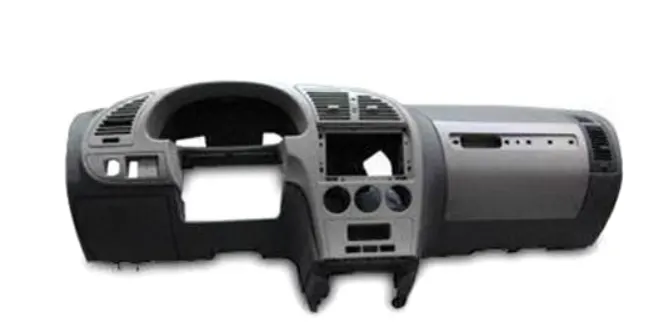
Instrumental Panel
Procedure:
Open the geometry model in ANSA.
Go to File menu >> open> select model file and click ok.
2. Give Resolution of 1 mm and get connectivity of cons using Topo .
Go to Mesh modlue>> Perimeters>> Length>> select all geometry and set length to 1
Go to Topo Module>> Faces>> Topo
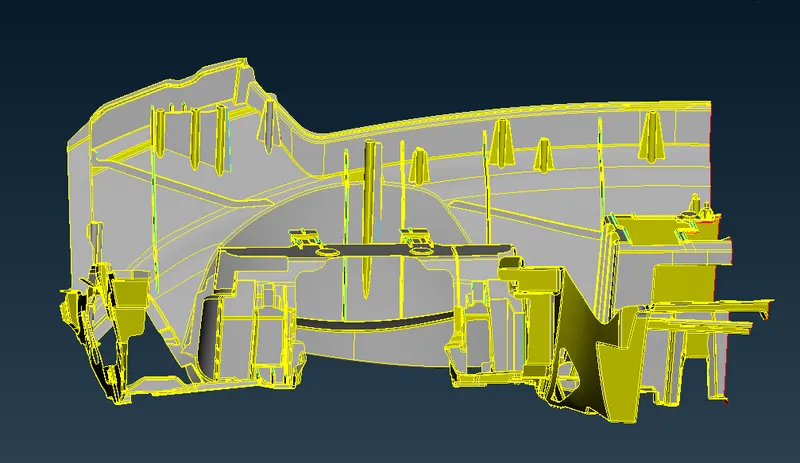
3. Clear all the uncheckes Go to Check Manager and check the Geometry and cleanup the Geometry.
4. After cleaning the Geometry Extract the mid surface by using different Extracting tools like Offset, Middle, Extend, Intersect etc.
For the constant thickness use offset method and for varuing thickness use middle tool.
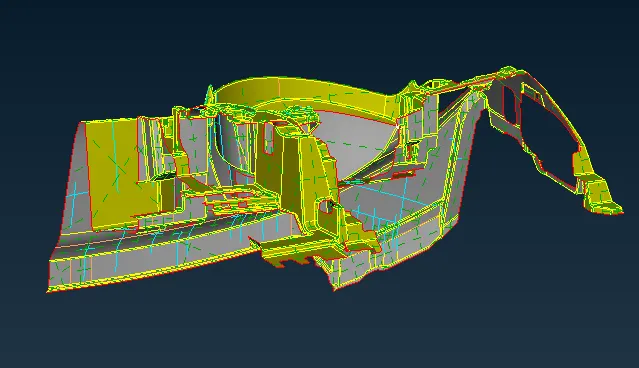
constant thickness etraction by offset method.
For Dog house's cylinder attached ribs should be extended as follows.
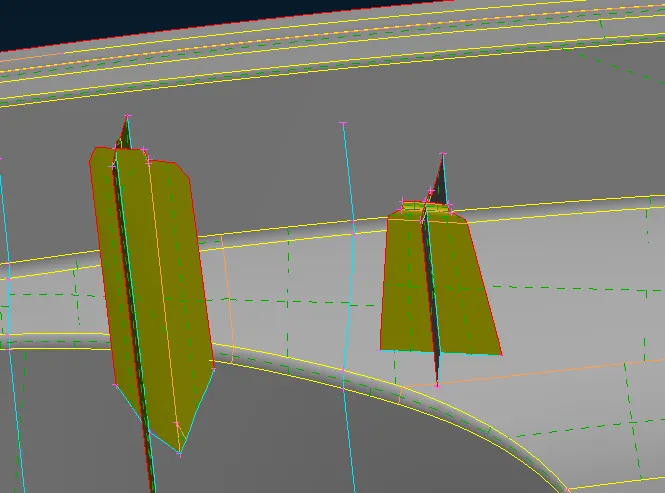
5. After ectracting the mid Surface set it to a new PID.
6. Now perform Batch Meshing.
7.We have to create a new part in the Model browser.
1. Go to the Model Browser and Give a right click and choose a new part from visible.
2. Make sure that we have only the mid surface in the graphical Area.
8.We have to go to the batch meshing manager.
1. We have to create a new meshing scenario.
2. Select the meshing scenario and give the right click on it.
3. Go to Edit and select the contents.
4. Choose the part which was created to the midsurfaces.
9. Make sure that the Mesh parameters and quality criteria was added.
10. Hit on the run option it will start the meshing.
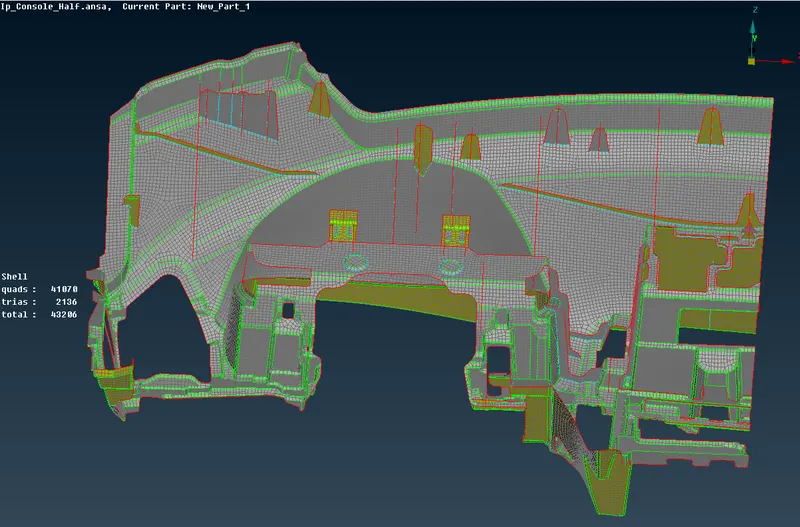
Meshing by Batch Mesh
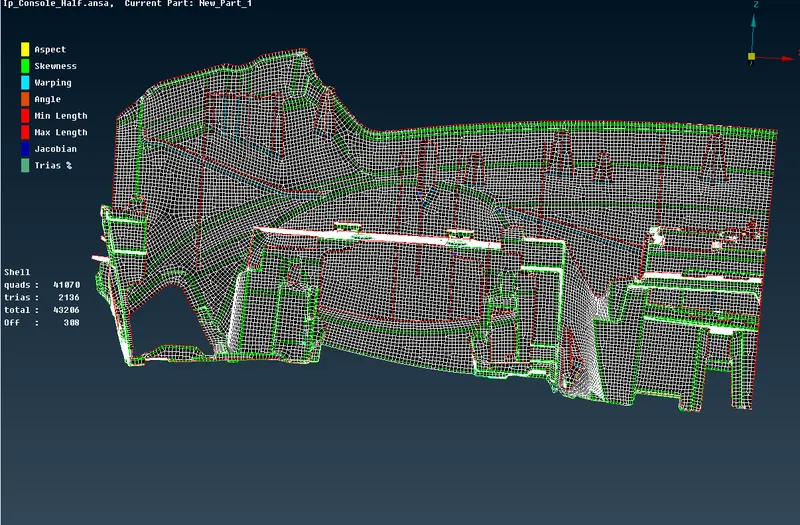
11. After Performing the batch meshing manually correct the mesh flow and remove the off elements. Try to remove the Off elements as possible.
12. Assign thickness to model. For constant thickness assign the thickness. But for the varying thickness assign average thickness. For assigning thickness go to SET PID in Mesh Module >> select component >> give thickness and then click ok.
To see thickness, Go to quality Creteria>> presentation parametr>> Tick 'Draw shell as solid'
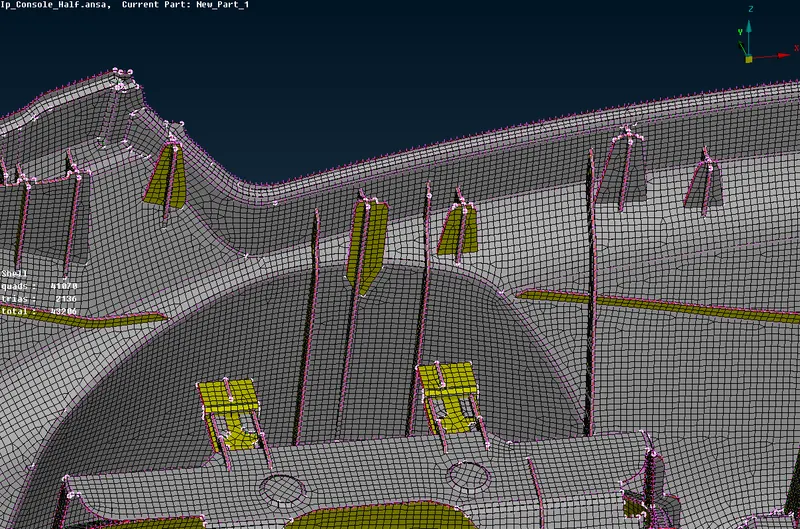
After enabling Draw shell as solid
Learning Outcomes:
1. learnt to extract mid - surface, batch meshing process amd assigning thickness, removing off material.
Conclusion:
Mid Surface for Instrumental Panel is Extracted and Meshed by Batch Meshing. Proper Thickness is assigned.
Project Link: https://drive.google.com/drive/folders/1qrv41XT7CcZ_mQDCXh6m2OoqBjMPqHSi?usp=sharing