Project 1
Project1
Aim:
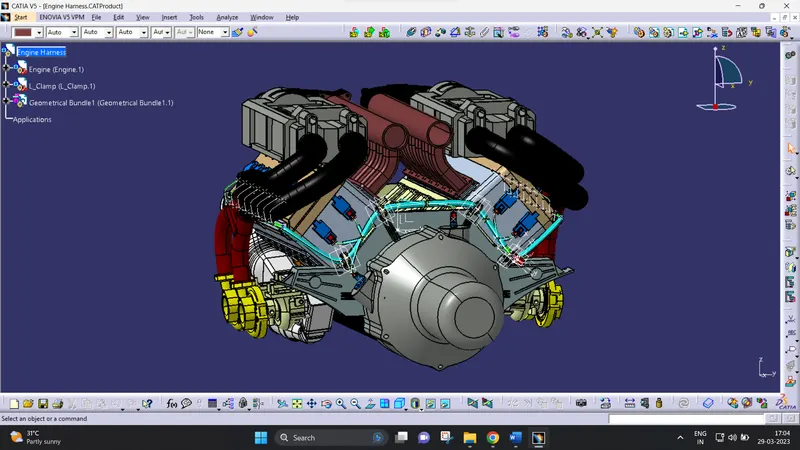
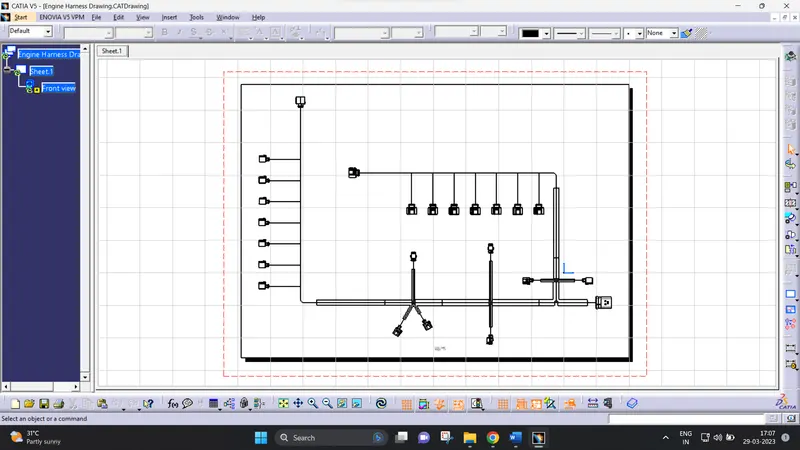
To route the wire harness for the Engine of the car with the given data of the Engine. Then prepare the flatten assembly and Drafting for the harness.
Procedure:
Step 1: Parts Definition
For CONNECTOR: Define as a connector and define the Bundle entry point, Connection Connecting Point and Cavity Connection Point if needed.
For ANTI-ROTATIONAL CLIP: Define as a mounting Equipment and define the Cavity in the anti-rotational Clip.
For CLAMP & CLIPS: Define as a Support part, and define the entry, exit and base plane for the part.
For CABLE CHANNEL: Define as an Electrical Equipment, and define the Bundle Entry Point for Each Holes. Totally We have to Create a 9 Bundle Entry Point.
Step 2: Assembly creation
- To create the New Assembly.
- File → New → Product.
- Add new product by right click the product name on the top of the tree → Component → New product.
- Define the new product as the Engine.
- Define the new product as the Geometrical Bundle.
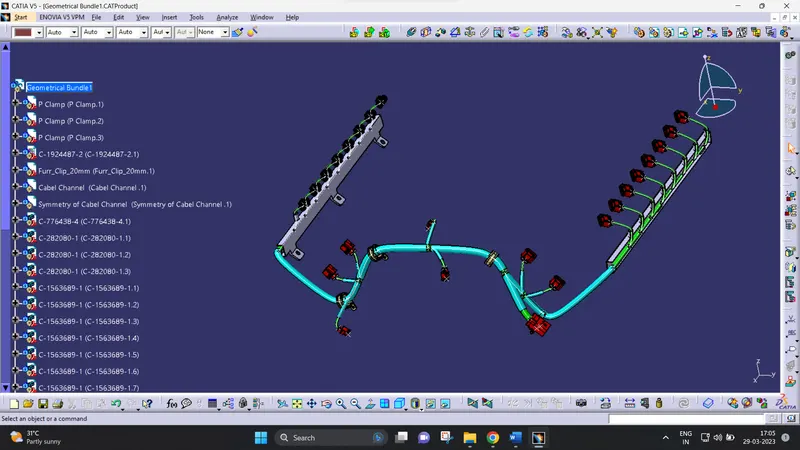
Step 3: Geometrical Bundle
- Define the assembly as the Geometrical Bundle.
- Add the required parts in the Geometrical bundle.
- Place the Connectors, Clips & Clamps.
- Use Multi branchable to route the harness.
- Add the Protective covering for the multi branchable.
Step 4: Bundle Connectivity
- Bundle connectivity is used to check the inter connection of the bundle.
- To check the bundle connectivity.
- Edit → Search → Advanced.
- Select Electrical in the Workbench.
- Select Bundle Segment in the Type.
- Select Fully Connected in the Attributes.
- Select (True or False) and click OK.
- Click Search icon.
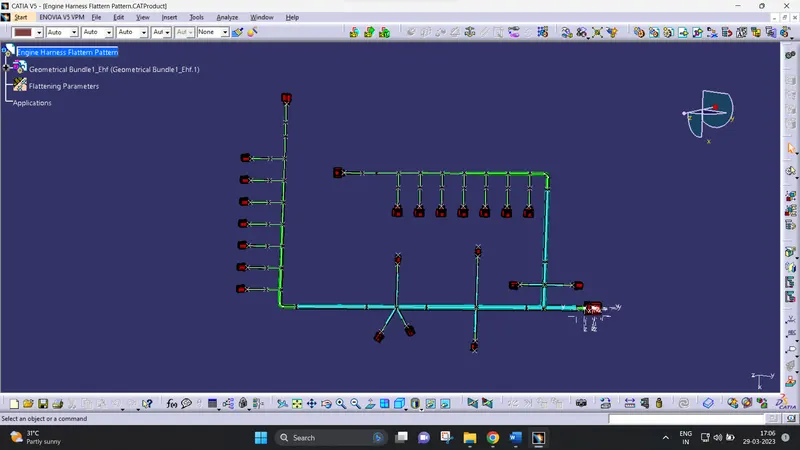
Step 5: Flatten Assembly
- Create a new product and define as the Flatten assembly.
- Define the Flatten Harness Parameters.
- Click Export command to extract the Harness from the Geometrical bundle.
- Select the view which you want to represent as the Front View.
Step 6: Flatten Assembly
- Create a new product and define as the Flatten assembly.
- Define the Flatten Harness Parameters.
- Click Export command to extract the Harness from the Geometrical bundle.
- Select the view which you want to represent as the Front View.
Screenshots: