Preparing Schedule & Cost Estimation for a building using REVIT
AIM: Preparing Schedule & Cost Estimation for a building using REVIT
INTRODUCTION:
Revit is a database-driven 3D modeling software that encompasses information in every element. Using this information-rich model (BIM) we can leverage the data in these elements for a great number of goals. We will be looking at how you can use schedules to create cost estimates of elements in a building.
Schedules: A schedule is a tabular display of information, extracted from the properties of the elements in a project. A schedule can list every instance of the type of element you are scheduling, or it can collapse multiple instances onto a single row, based on the schedule's grouping criteria. The schedule can be created at any point in the design process. If any changes are made in the model that affects the schedules, It automatically updates to reflect those changes. Using Revit software, cost estimates can also be developed. By providing the unit cost of materials, the total cost can be derived.
The other concept coming under this section is Visual programming. Here, the visual programming tool is Dynamo. It is an open-source visual programming language for Revit, written by designers and construction professionals. It is a programming language that allows you to type lines of code; while also creating an algorithm that consists of nodes.
Dynamo and Revit together can be utilized to model and analyze complex geometries, automate repetitive processes, minimize human error, export data to excel files and other file types not typically supported by Revit. Dynamo can make the design process more efficient, with an intuitive interface and pre-made scripting libraries
TASK 1: Use the shortcut keys in Revit discussed in class to complete the following tasks and list them below
a. Using a 3D model create a section box
b. To create similar doors and windows in a floor plan layout
c. To reduce the thickness of lines visible in plan views
d. To apply override settings to a floor in the model section view
e. To increase the range of visibility in a plan view
f. To select the previously selected items
g. To add annotations to the model views
h. To bring the model elements inline
i. To rotate the model elements
j. To move an object to another location
k. To copy a model element
l. To mirror an element about an axis
m. To create an array of model elements
SHOT KEYS IN REVIT
- Using a 3D model create a section box - SECTION BOX - BX
- To create similar doors and windows in a floor plan layout - CREATE SIMILAR - CS
- To reduce the thickness of lines visible in plan views - THIN LINES - TL
- To apply override settings to a floor in the model section view - VISIBILITY GRAPHICS AND OVERRIDE SETTING - VG
- To increase the range of visibility in a plan view - VIEW RANGE - VR
- To select the previously selected items - RESELECT - Ctrl+>
- To add annotations to the model views - DIMENSIONS - DI
- To bring the model elements inline - ALIGN - AL
- To rotate the model elements - ROTATE - R
- To move an object to another location - MOVE - MV
- To copy a model element - COPY - CO
- To mirror an element about an axis - MIRROR - MM
- To create an array of model elements - ARRAY - AR
TASK 2: Using Revit and the project used from week 6 to 8 prepare a schedule for the following
a. Walls
b. Doors
c. Windows
d. Material – Concrete/Wood
PROCEDURE:
Open the architectural file of challenges 7 and 8
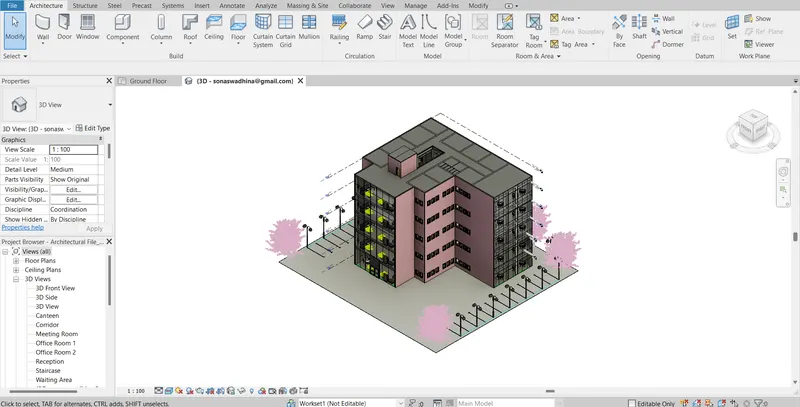
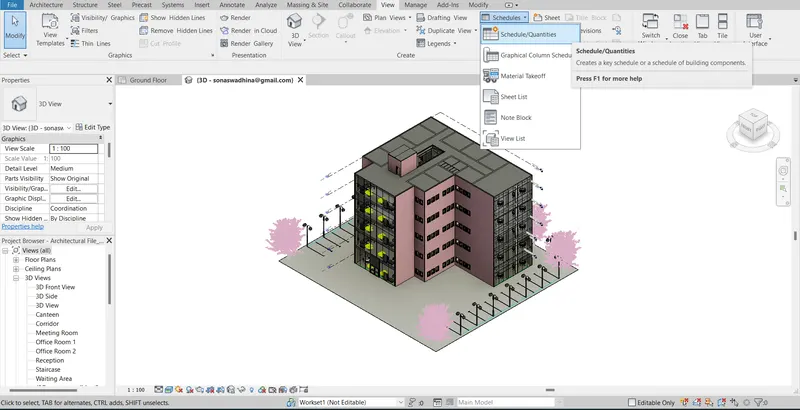
In the view, tab click on Schedules and then select Schedules/Quantities Option
A) WALL SCHEDULE:
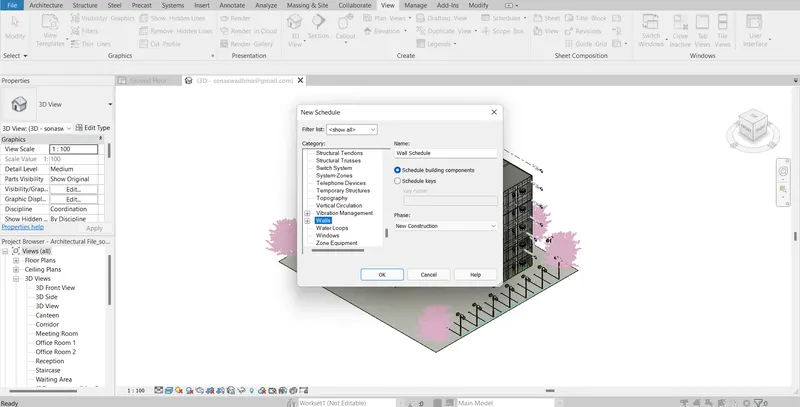
From the category select the wall option and click OK.
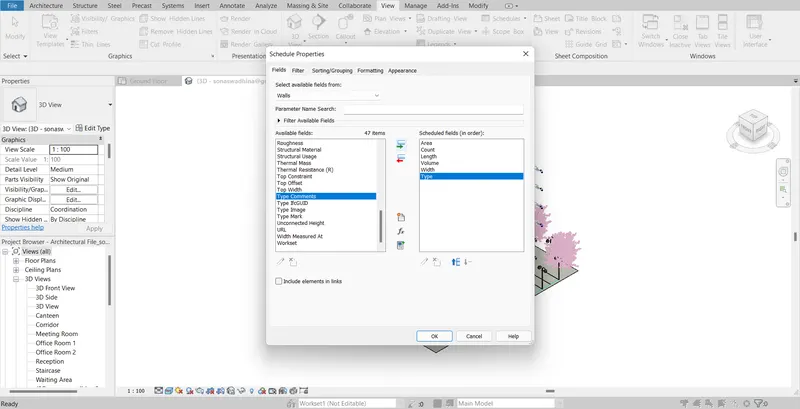
From the schedule properties, the dialogue box chooses the necessary parameters for scheduling the wall and clicks OK.
The wall schedule is prepared and is as below
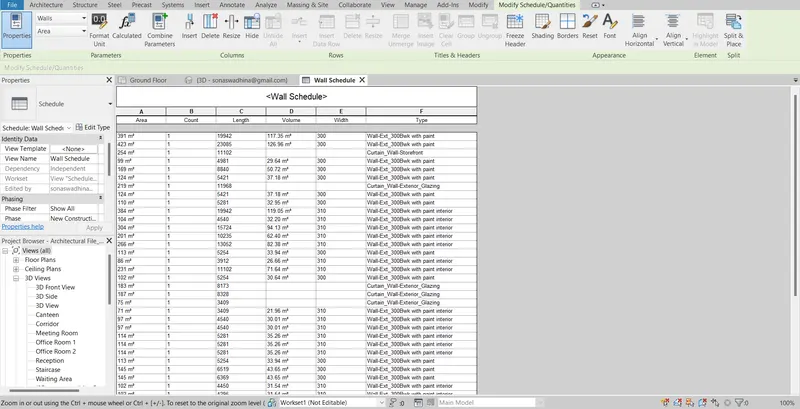
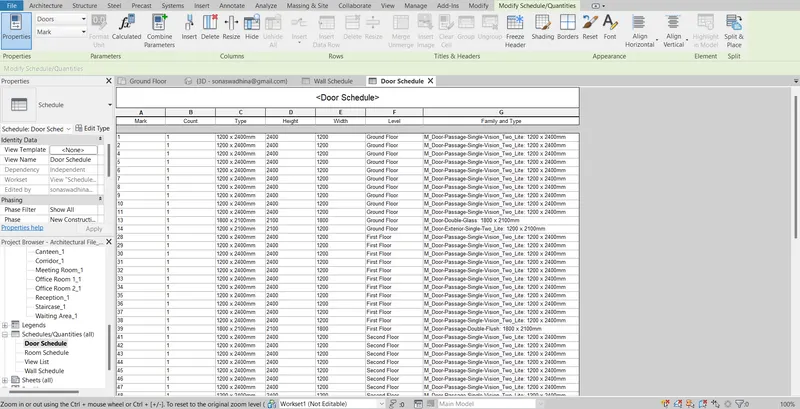
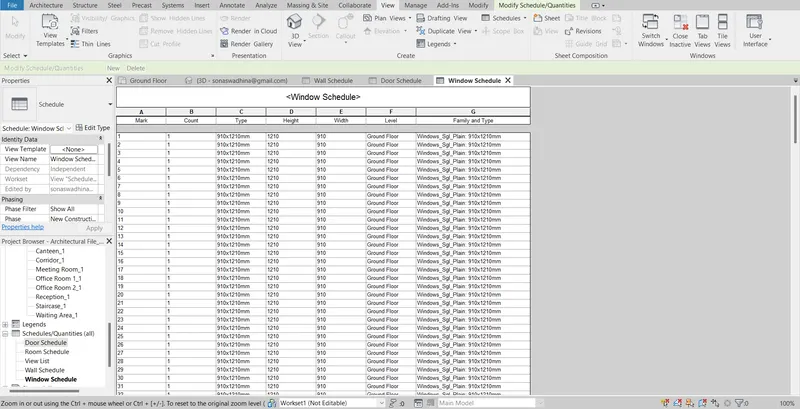
In a similar way as above Door and window schedule was prepared.
B) Door Schedule
C) Window Scheduled
D) Material- Concrete/Wood
In the view, tab click on Schedules and then select the Materials take-off option
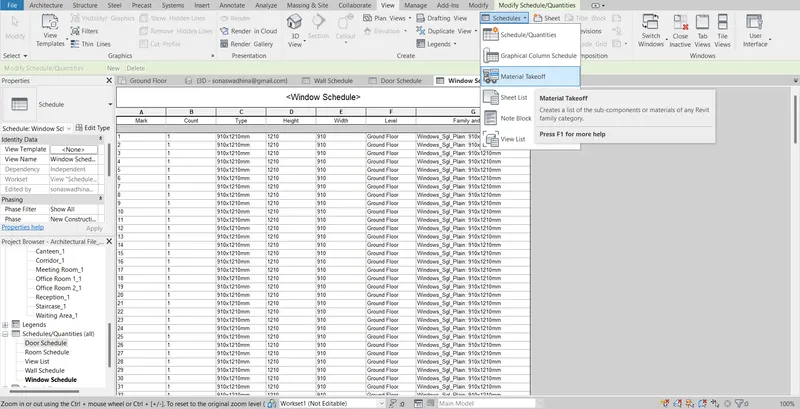
The floor category was selected
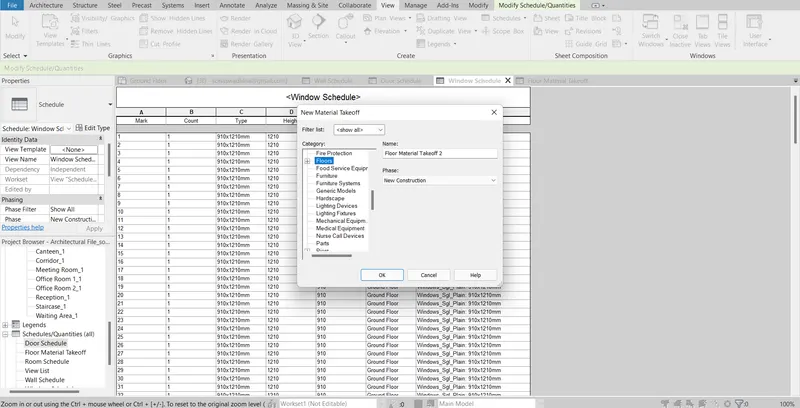
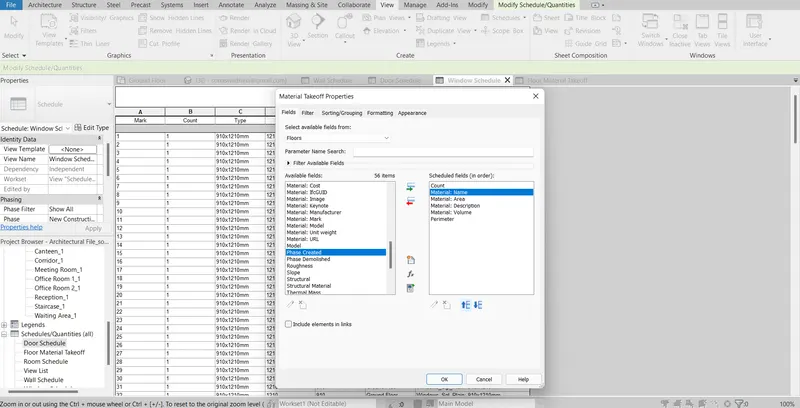
Add the required parameters are added to the scheduled fields as shown
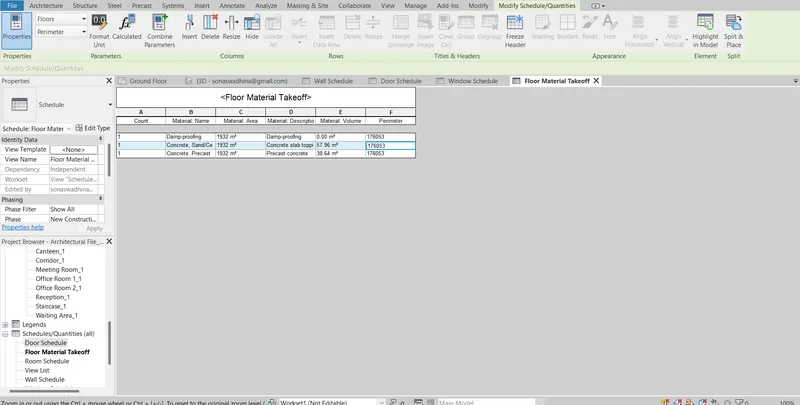
The floor material take-off schedule is given below
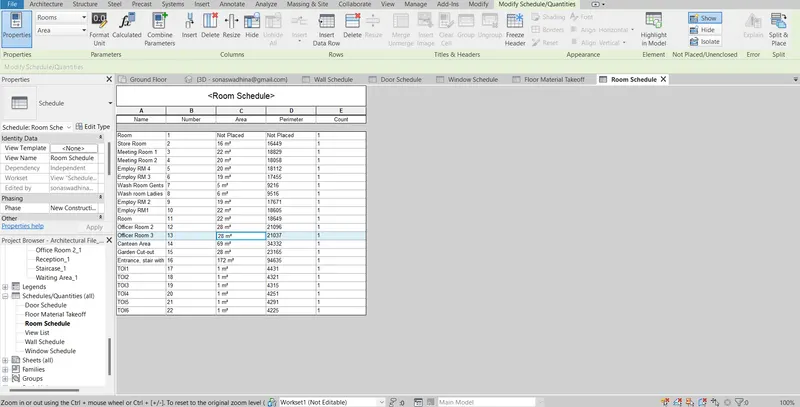
TASK 3: Using Revit Calculate the area and volume of each room in the model with appropriate room tags applied to each room. Prepare a schedule report for the area and volume of each room.
PROCEDURE:
The room tags and annotations were provided as shown
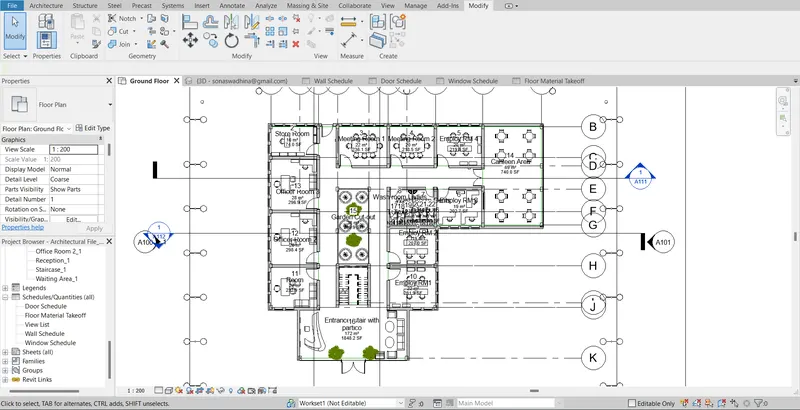
In the view, tab click on Schedules and then select Schedules/Quantities Option
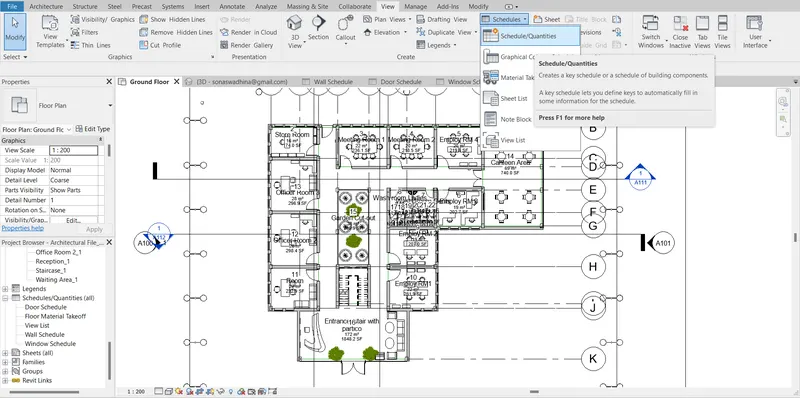
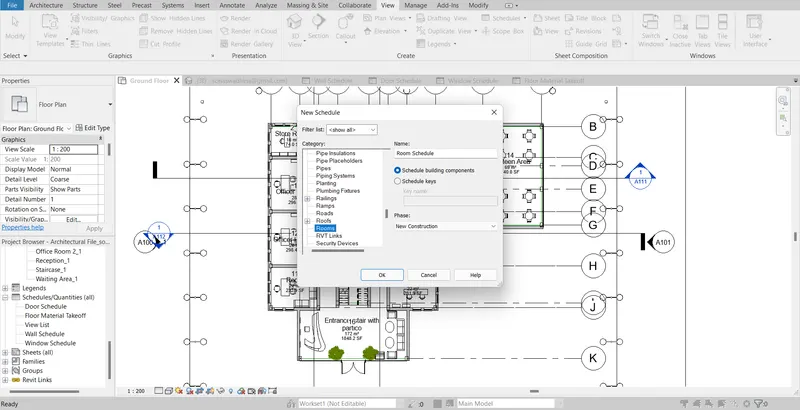
From the category select the option of the rooms and click OK.
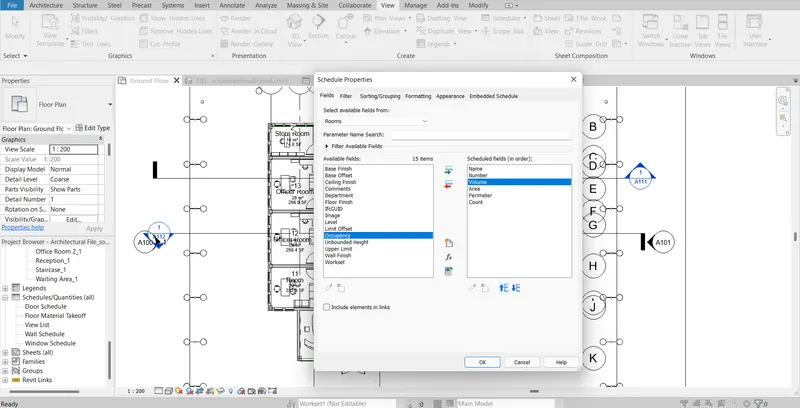
From the schedule properties, the dialogue box chooses the necessary parameters for the scheduling room and clicks OK.
The room area schedule is given as follows:
TASK 4: Using the same schedule using the unit cost rate for materials available on the internet, prepare the total cost of materials used in the project
a. Total Cost of Materials
b. Individual Material Takeoff
PROCEDURE:
In the view, tab click on Schedules and then select the Materials take-off option
A) Walls:
The walls category was selected and clicked OK.
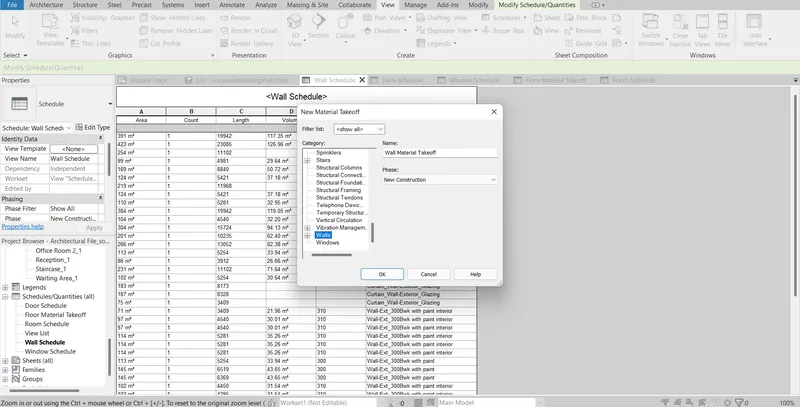
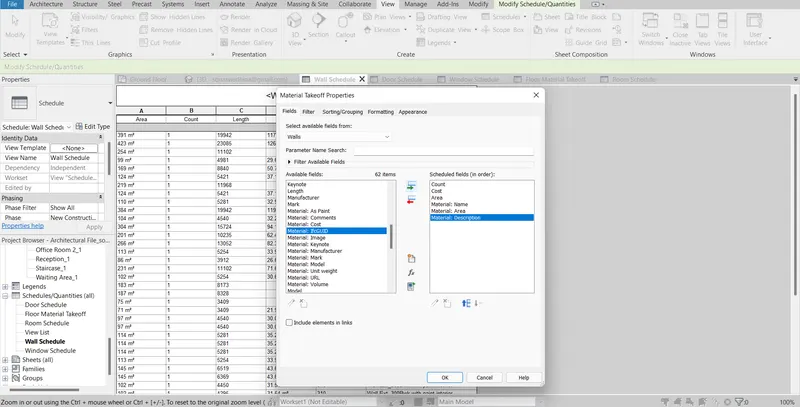
From the Materials take-off properties dialogue box choose the necessary parameters for the floor and click OK.
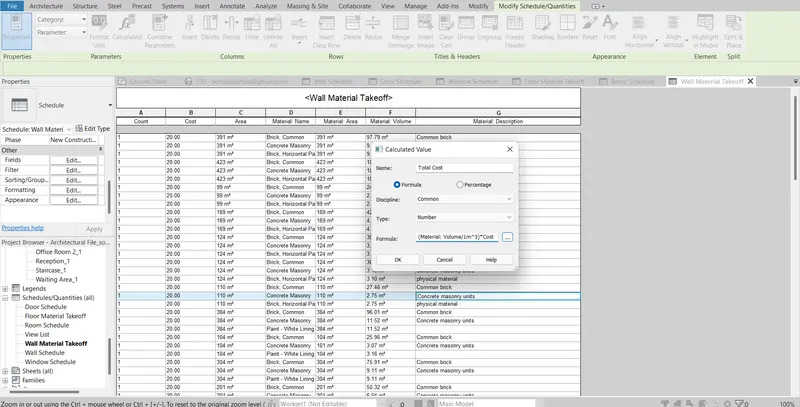
Total cost parameter calculated quantity was also added
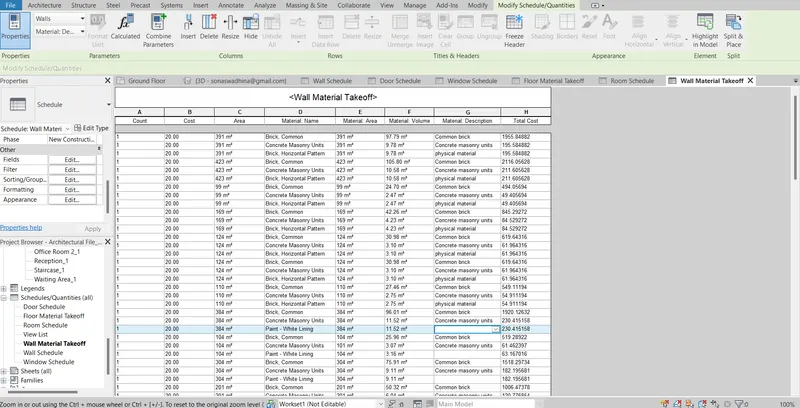
The wall material take-off is given as follows:
B) Doors:
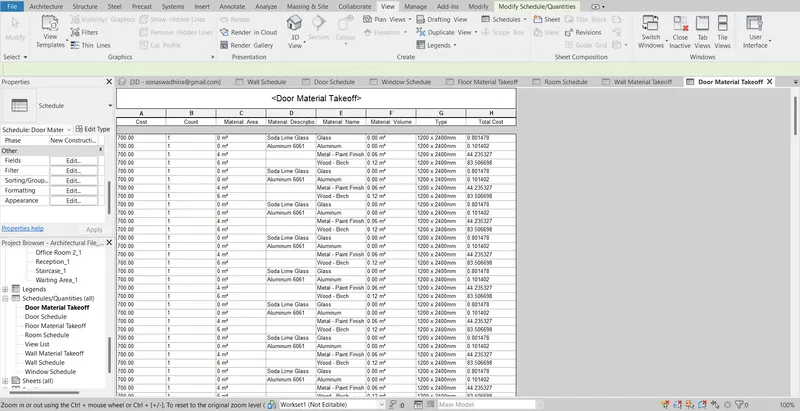
From the Materials take-off properties dialogue box choose the necessary parameters for Door and click OK. Total cost parameter calculated quantity was also added.
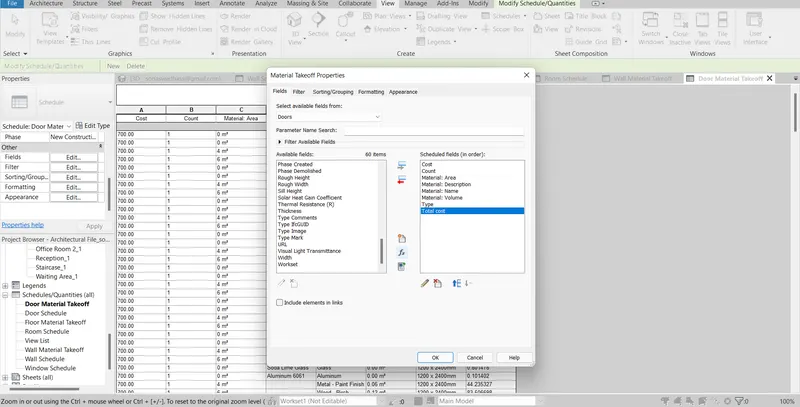
The Door material take-off is given as follows:
C) Window :
The window category was selected and clicked OK.
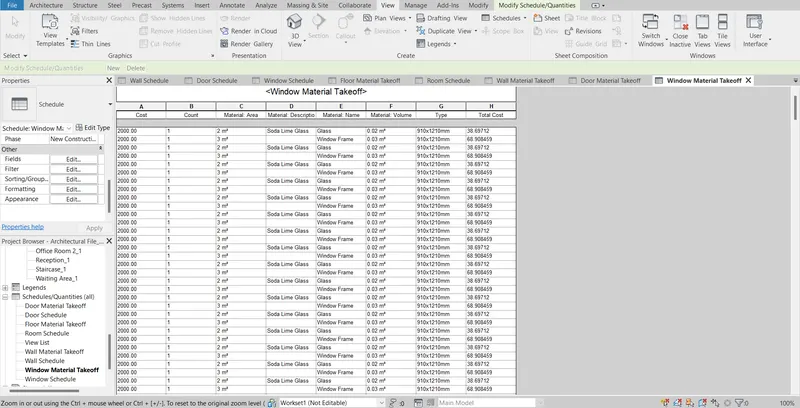
From the Materials take-off properties dialogue box choose the necessary parameters for the window and click OK. Total cost parameter calculated quantity was also added.
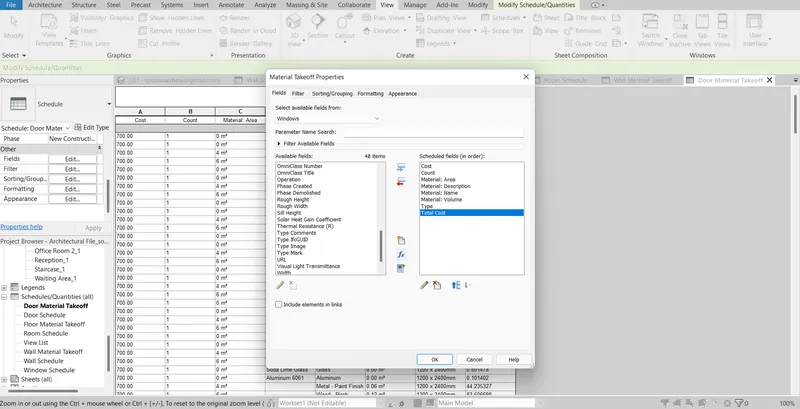
The window material take-off is given as follows:
D) Floor:
The Floors category was selected and clicked OK. From the Materials take-off properties dialogue box choose the necessary parameters for the floor and click OK. Total cost parameter calculated quantity was also added.
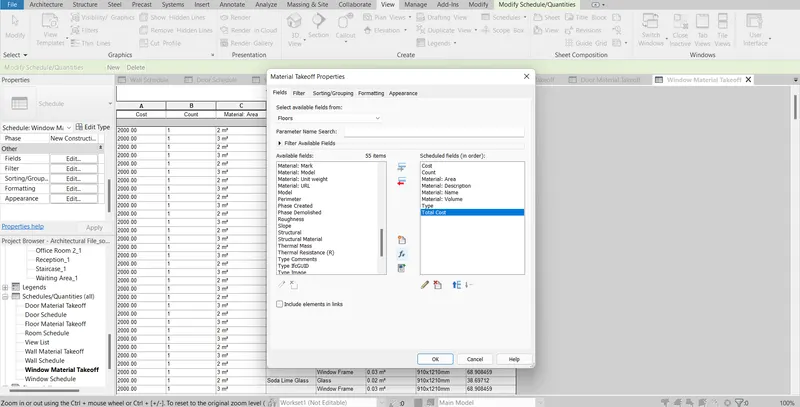
The floor material take-off is given as follows:
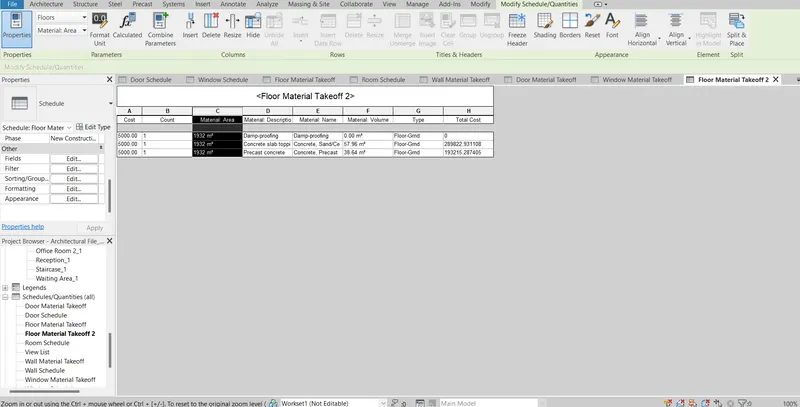
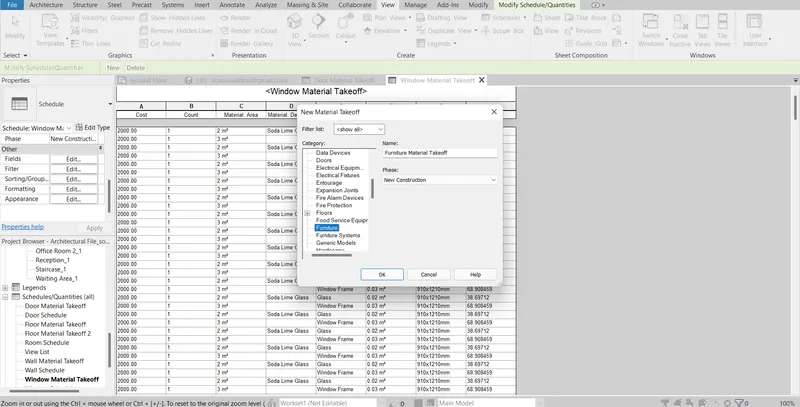
E) Furniture:
The furniture category was selected and clicked OK.
From the Materials take-off properties dialogue box choose the necessary parameters for furniture and click OK. Total cost parameter calculated quantity was also added.
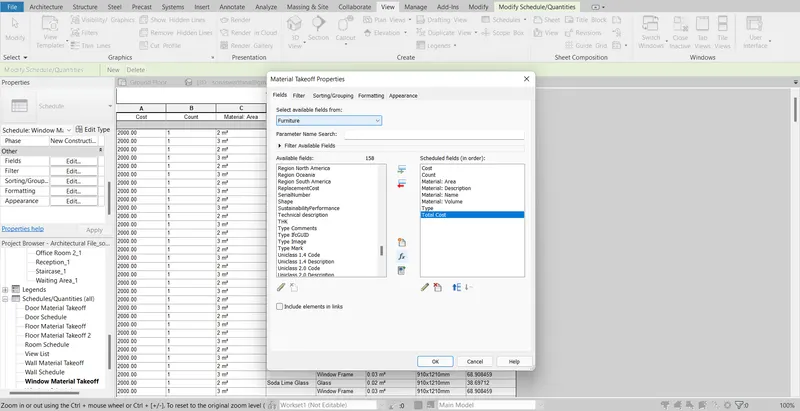
The furniture material take-off is given as follows:
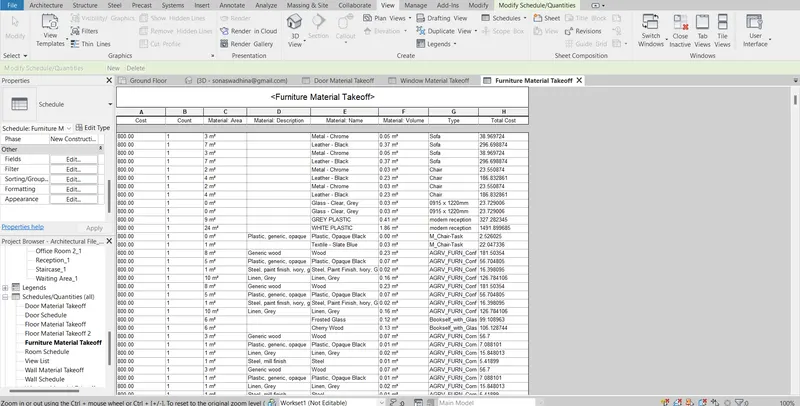
RESULTS:
By using the same schedule and unit cost rate for materials the total cost of materials and individual material take-off was created.
TASK 5:
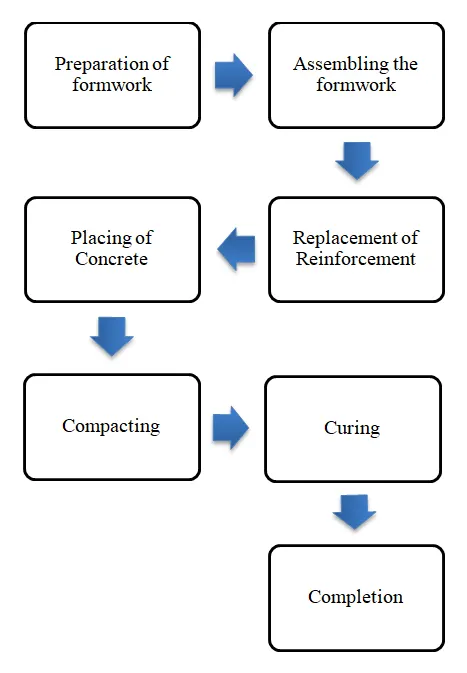
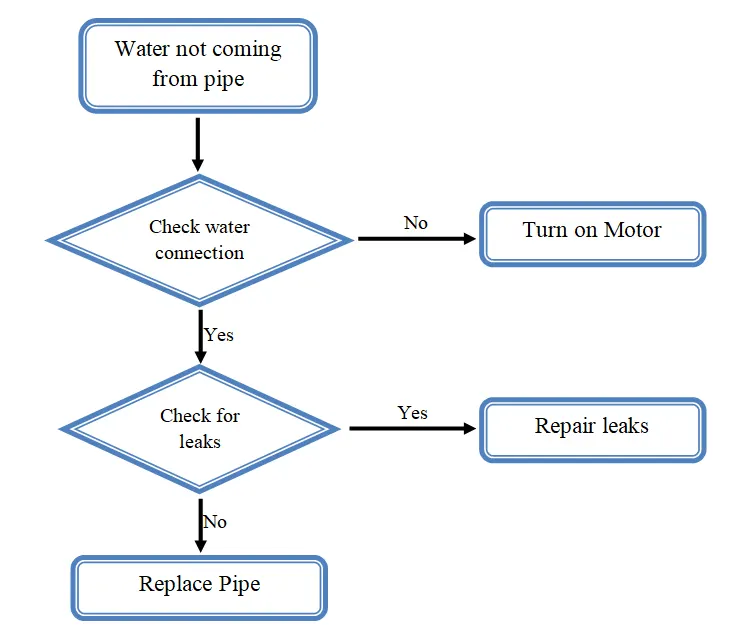
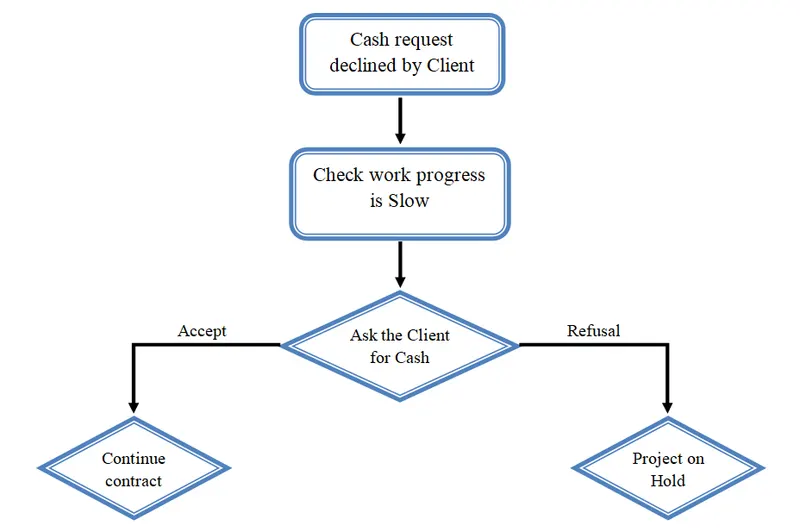
Create a flowchart for the following scenarios
A) How to decide framings for a structure using Dynamo?
B) If there is no water coming from the pipes
C) If the request for money from the client has been declined for the project
TASK 6:
To list the parameters associated with each model element
WALLS
Wall Type
Wall Description
Wall Length
Wall Thickness
Wall Height
Wall Materials
Wall Location
Wall Cost
Floor
Floor Type
Floor Description
Floor Height
Floor Width
Floor material
Floor cost
Door
Door Type
Door Description
Door Height
Door Width
Door Material
Door Cost
Window
Window Type
Window Description
Window Height
Window Width
Window Material
Window cost
Table
Table Type
Table length
Table Weight
Table Width
Table Material
Table cost
Building
Building type
Building Floor area
Building Perimeter
Building Location
Building Height
Material
Possible loads and combinations