Preparing Schedule & Cost Estimation for a building using REVIT
Q.1 Ans
Aim: Use the Shortcut Key.
Procedure: Direct type the command for related creation.
Result:
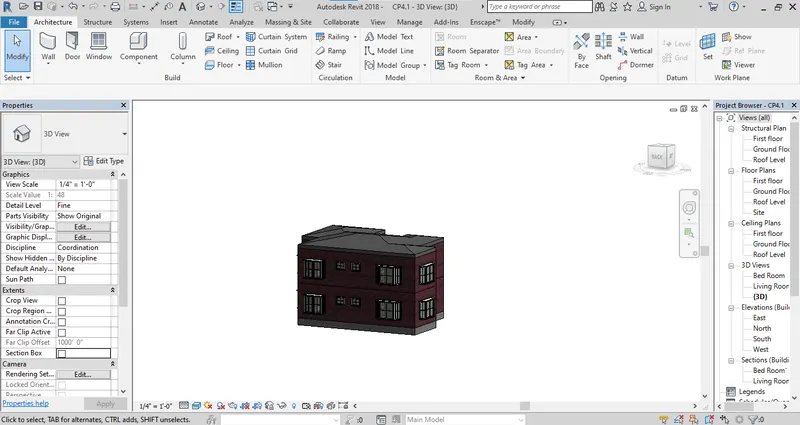
a. using 3D model create a section box: BX
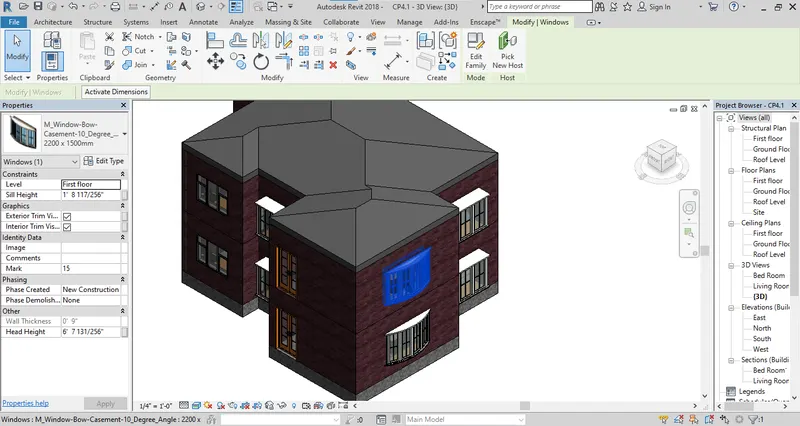
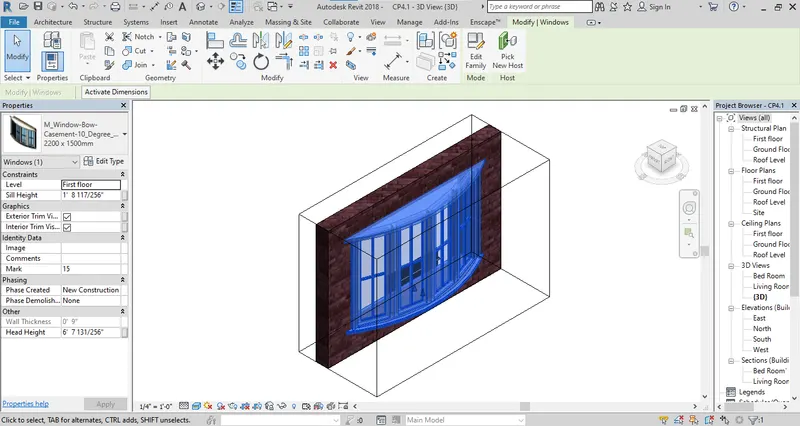
- We can also create a section box for particular component. Select the component and use BX Command.
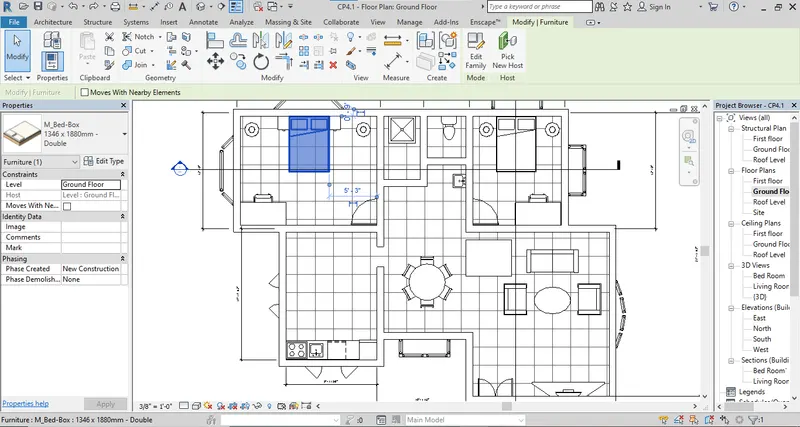
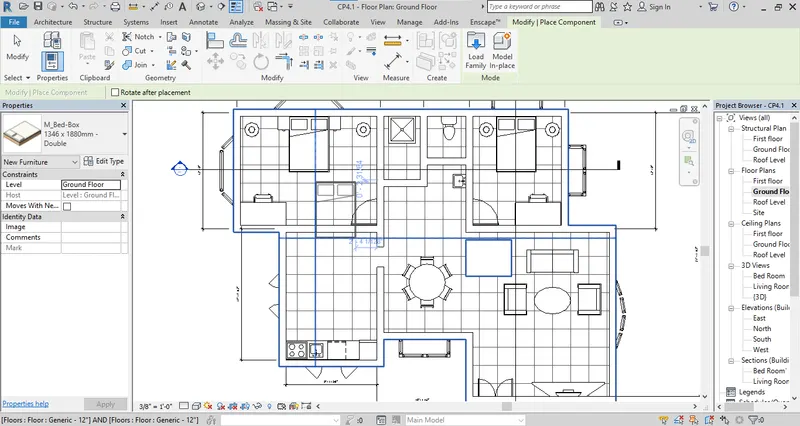
b. To create a similar doors and windows in a floor plan layout: CS
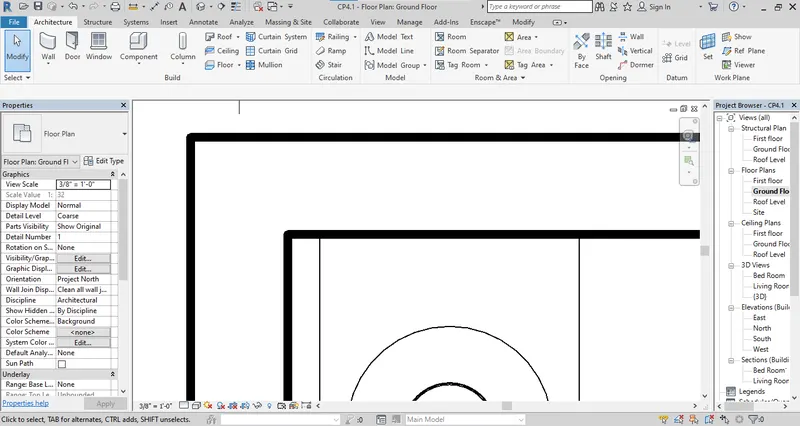
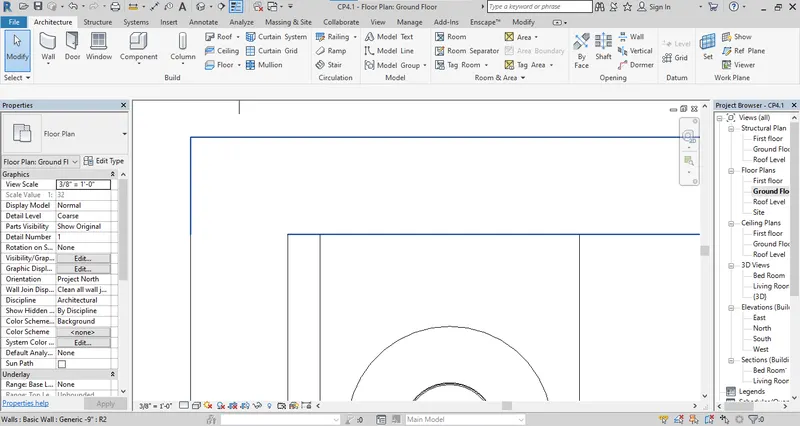
c. To reduce the thickness of lines visible in plan views: TL
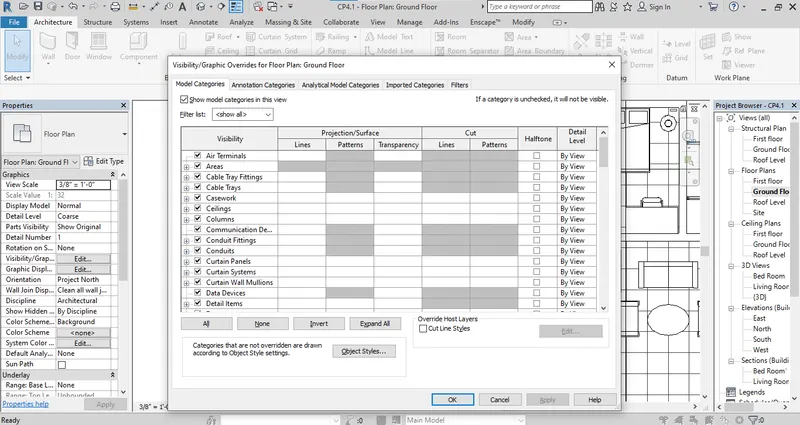
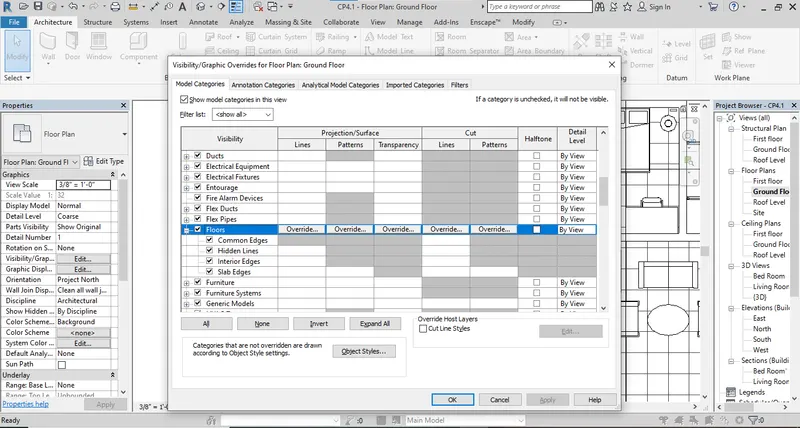
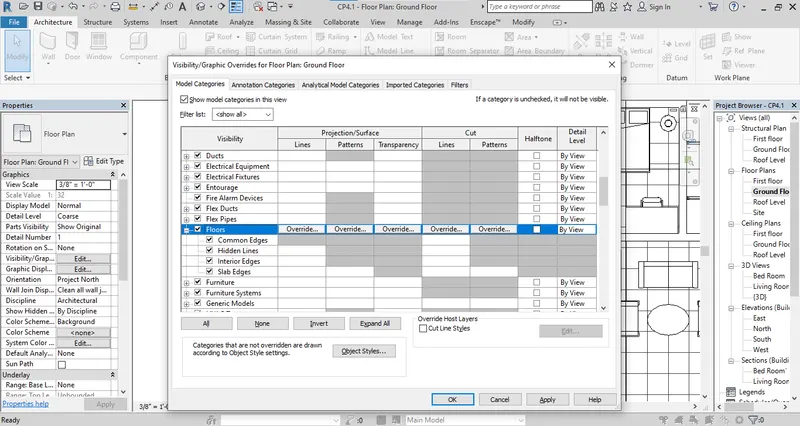
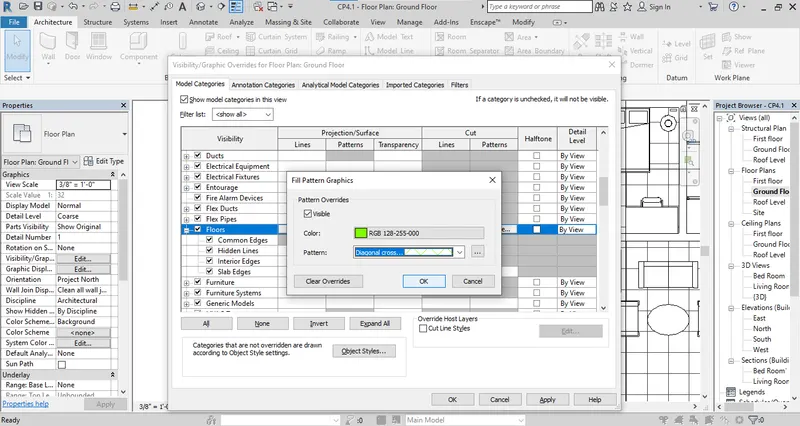
d. To apply override settings to a floor in the model section view: EOD
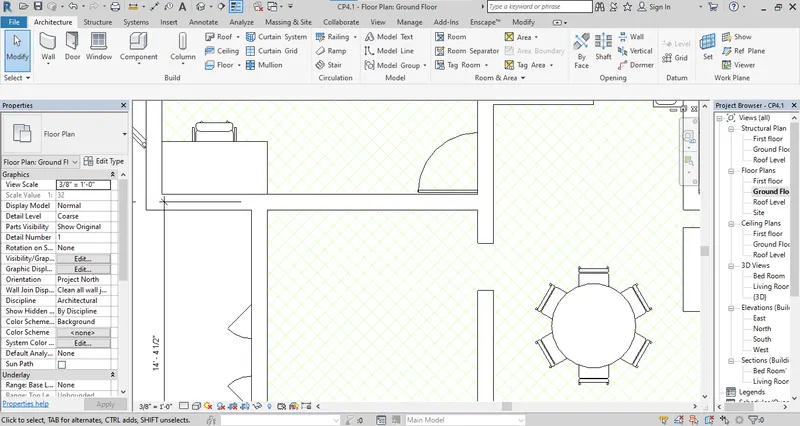
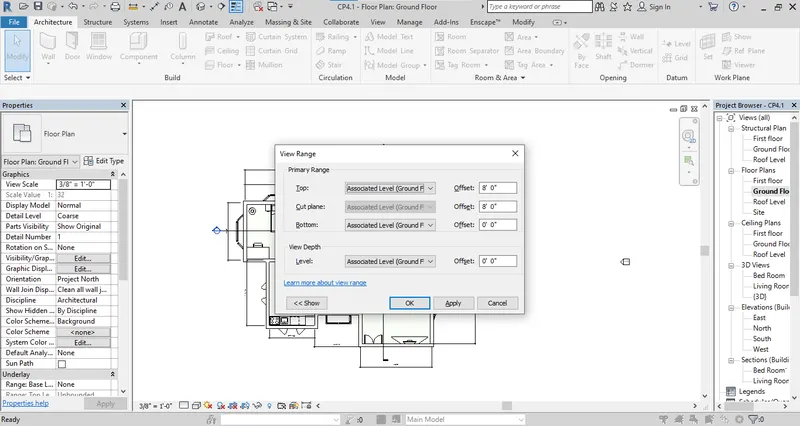
e. To increase the range of visibility in a plan view: VR
f. To select the previously selected item: CTRL+<
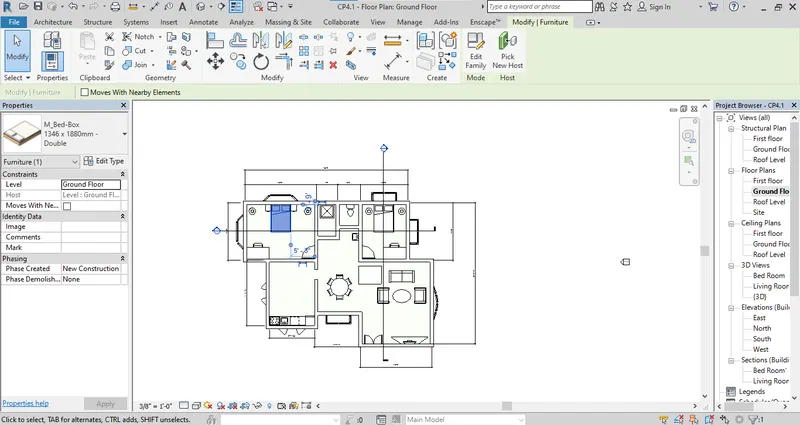
g. To add annotation to the model view: DI
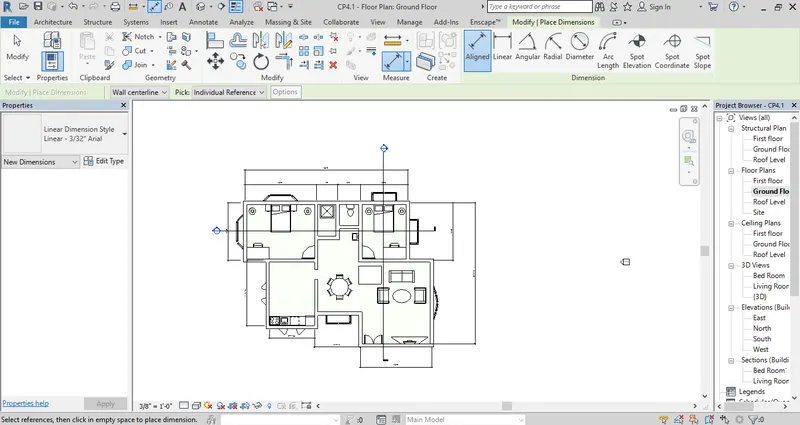
h. To bring the model element in the line: AL
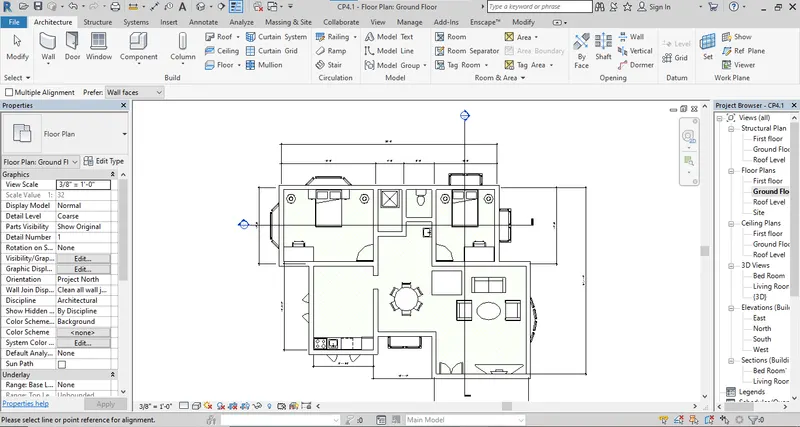
i. To rotate the model elements: RO
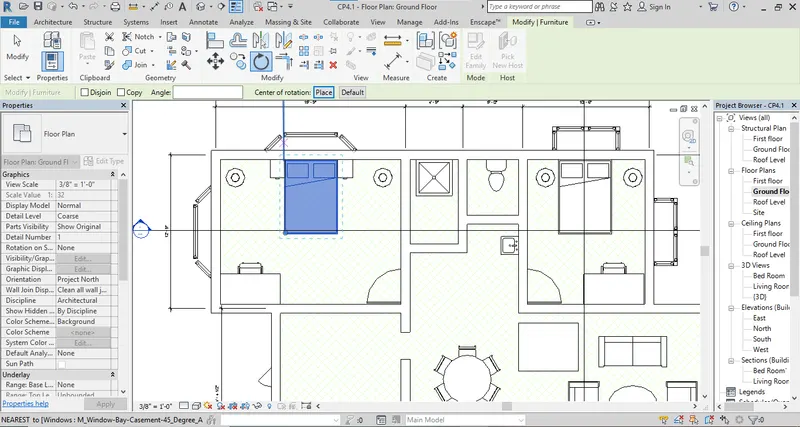
j. To move object to another location: MV
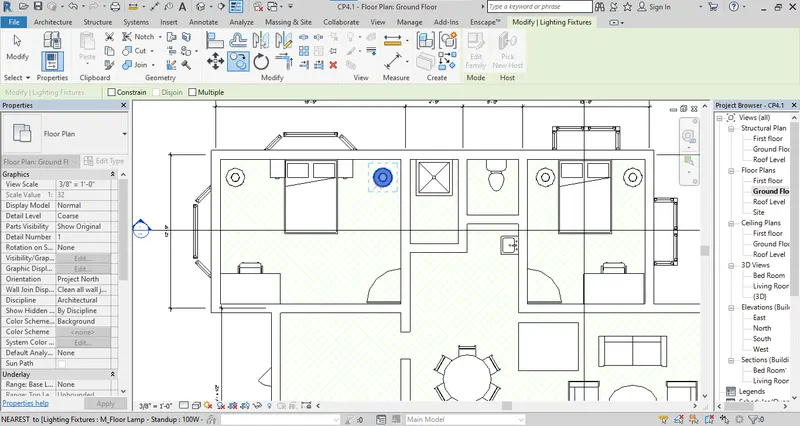
k. To copy the model element: CO
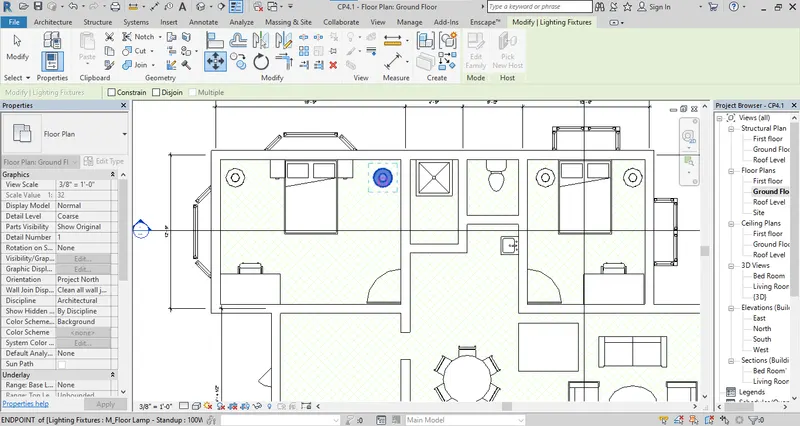
l. To mirror an element about an axis: MM
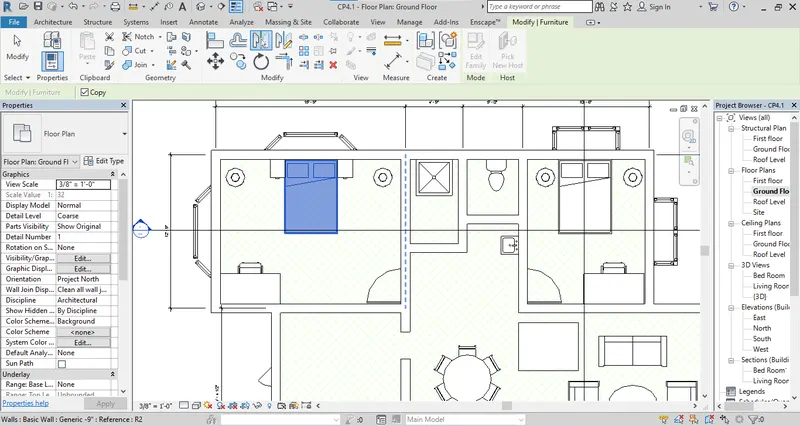
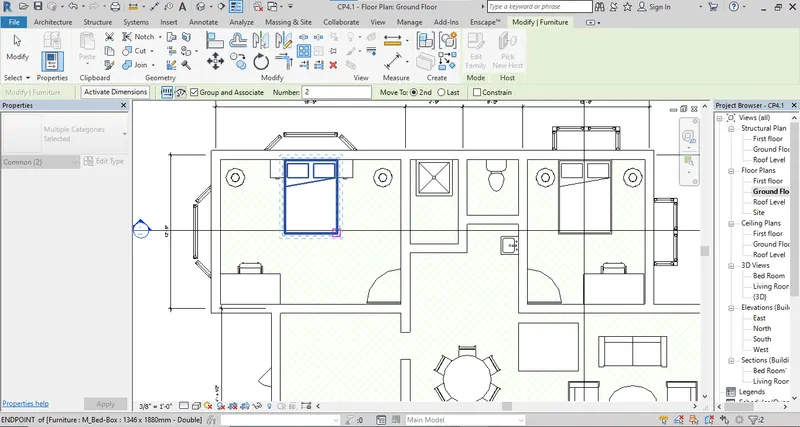
m. To create an array of the model element: AR
Q.2 Ans
AIM: To prepare the schedule for following:
- Walls
- Doors
- Windows
- Material- Concrete/Wood
Procedure:
Step 1: To create a schedule Go to View -> Schedules -> Schedules/Quantities.
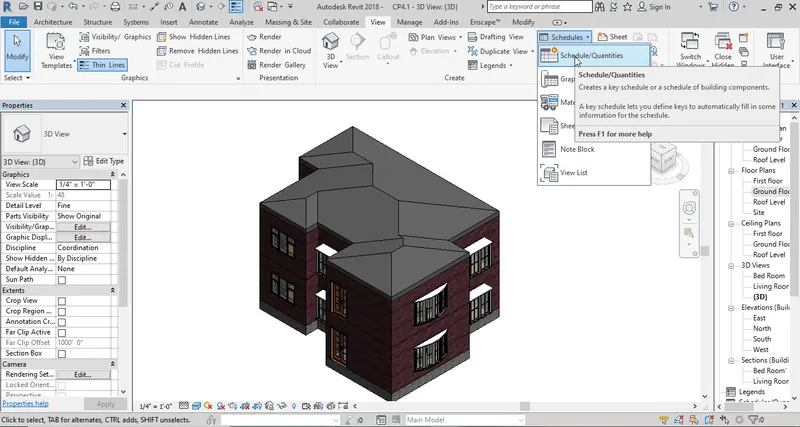
Step 2: Select the category of walls.
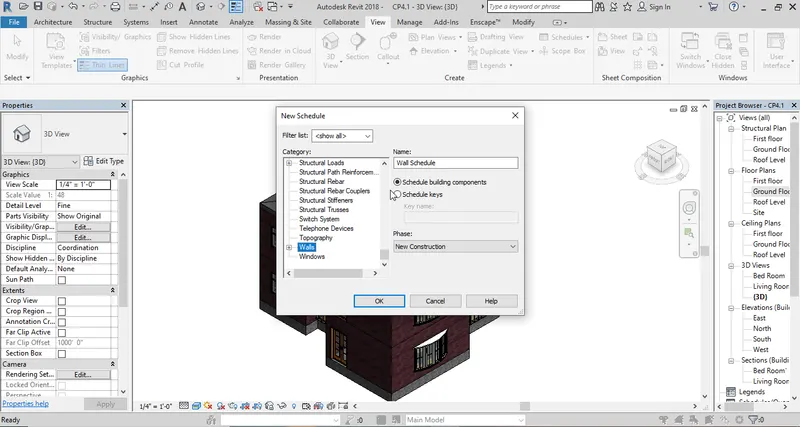
Step 3: Select the parameters for schedule. Like; Type,Length, Count, Area.
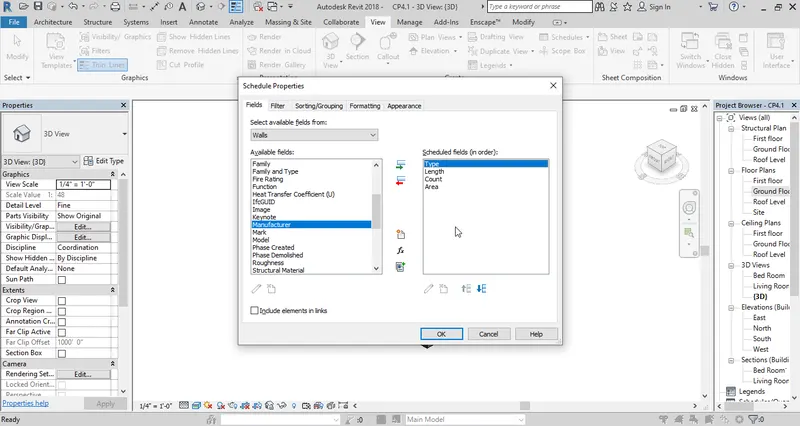
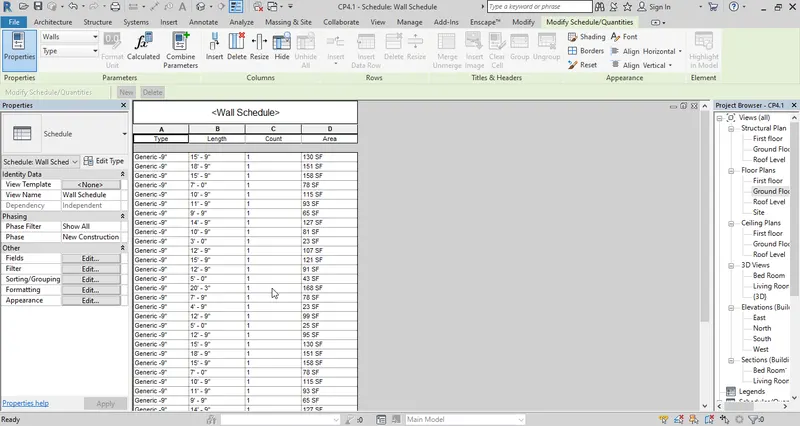
Step 4: The schedule for the Walls has been created.
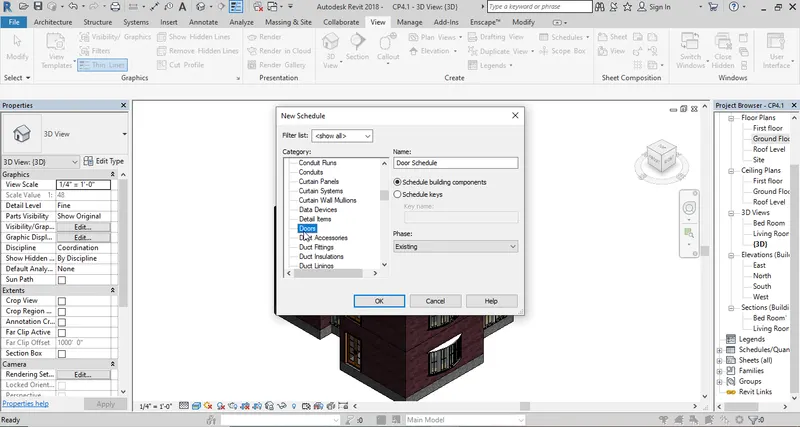
Step 5: Again Go to the Schedule Select the Door category.
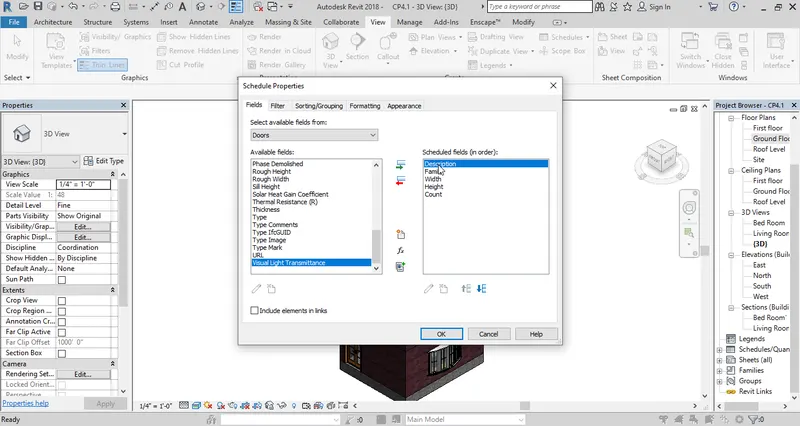
Step 6: Select the parameters for schedule of door.
Step 7: The schedule of Door is ready.
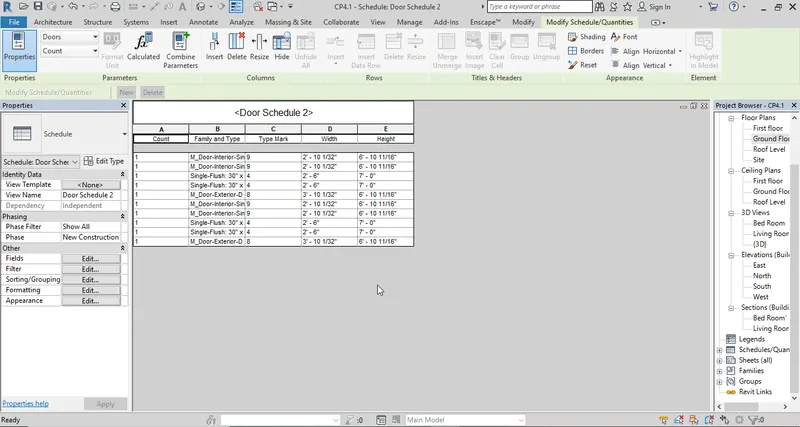
Step 8: Repeat the same process for the window.
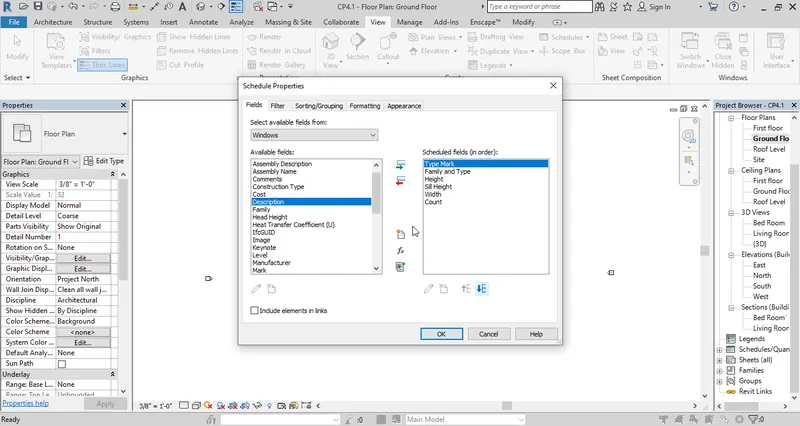
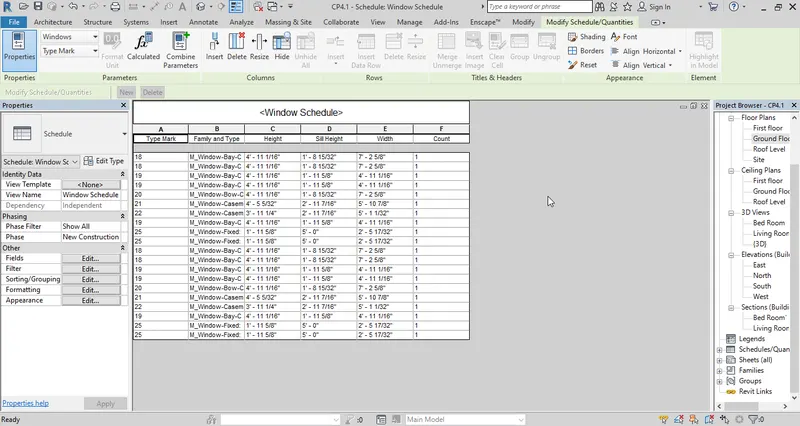
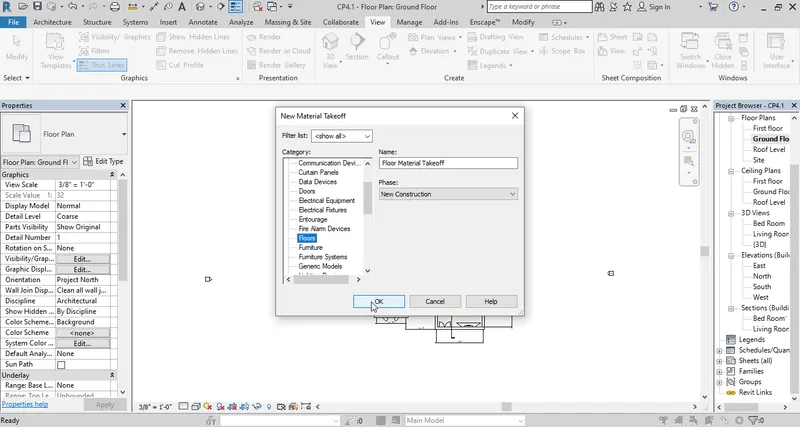
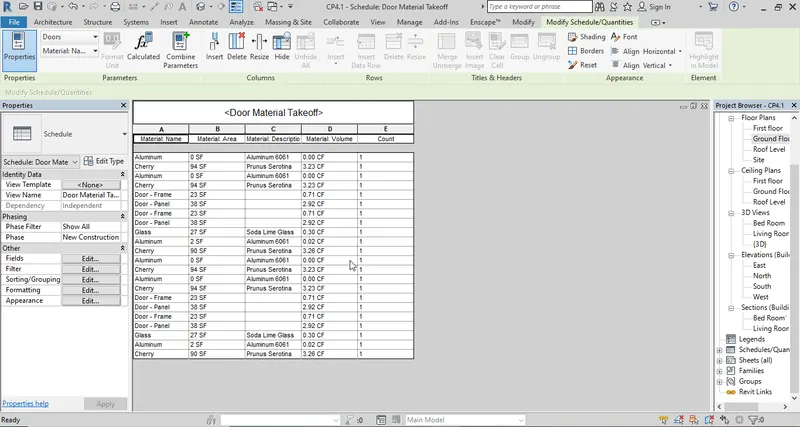
Step 9: Go to View -> Schedule -> Material Takeoff.
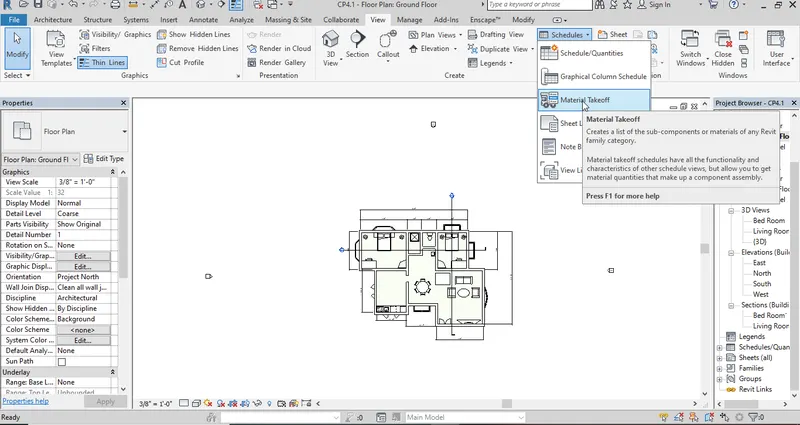
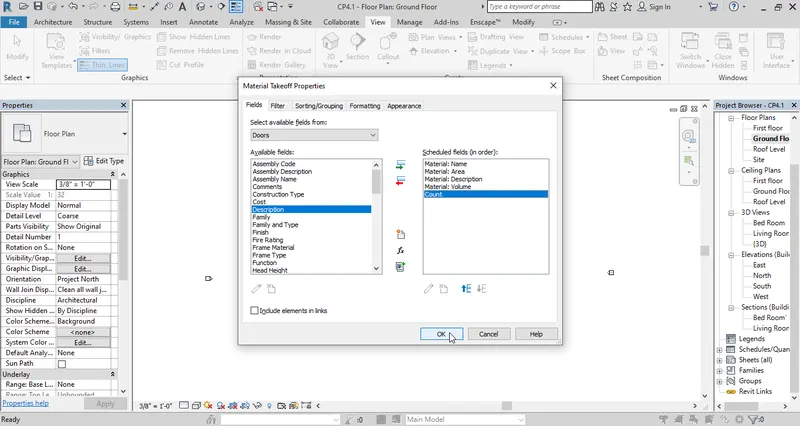
Step 10: Select the category for material takeoff. I am selecting the Door category.
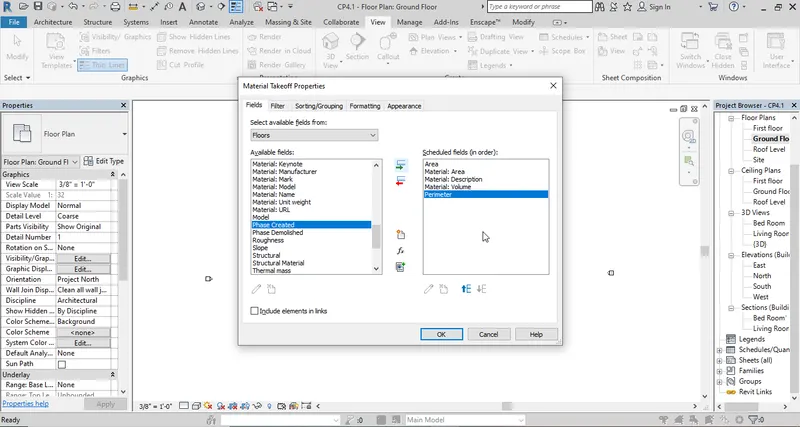
Step 11: Select the parameters for the schedule of material takeoff.
Result:
a. Wall schedule:
b. Door Schedule:
c. Window Schedule:
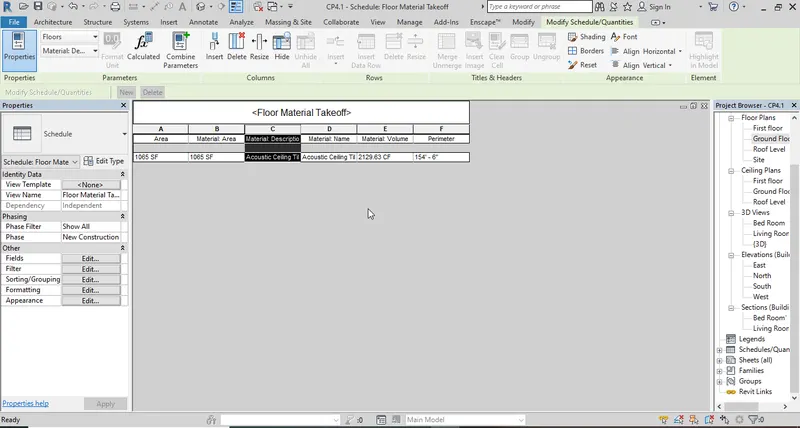
d. Material Takeoff
Q.3 Ans
Aim: To prepare a schedule report for Area and volume of each floor.
Procedure:
Step 1: Go to view -> Schedule -> Schedule / Quantities.
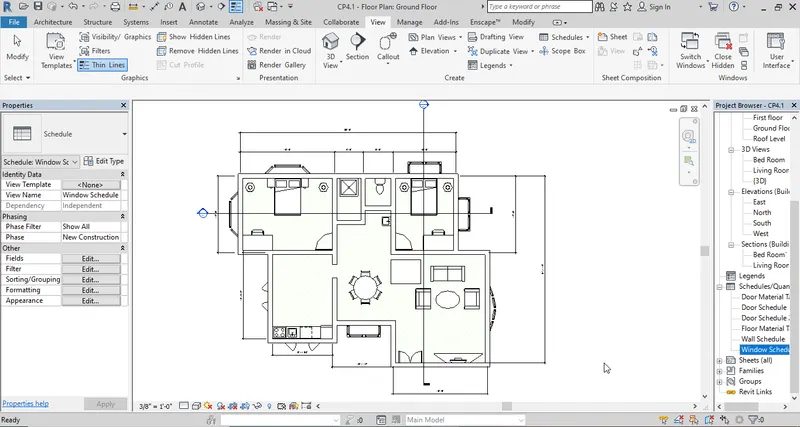
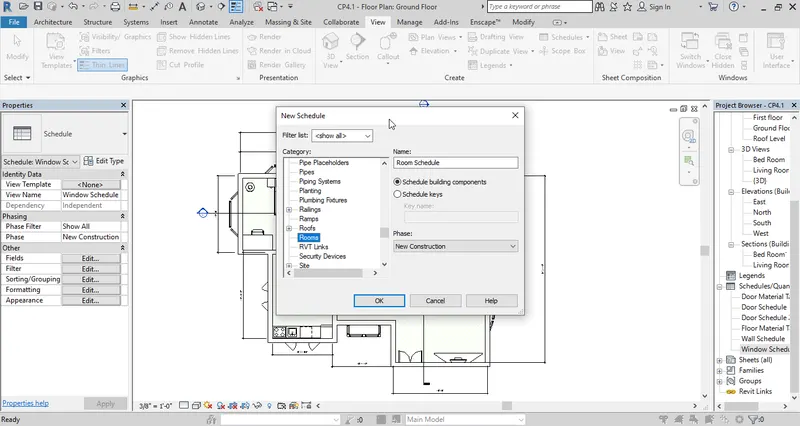
Step 2: Select the catogery for quantity. To know the schedule/quantity of room select the Rooms category.
Step 3: Select the parameters for schedule and quantity.
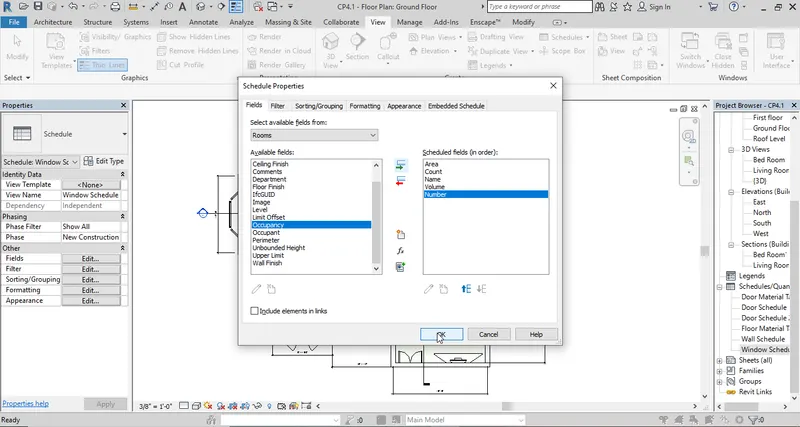
Step 4: Schdeule for rooms area and volume are ready.
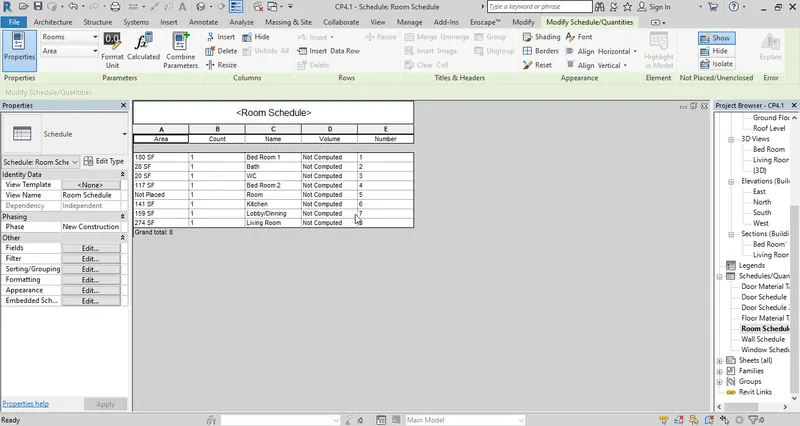
Result:
Q.4 Ans
Aim: To prepare a schedule of total cost of material.
Procedure:
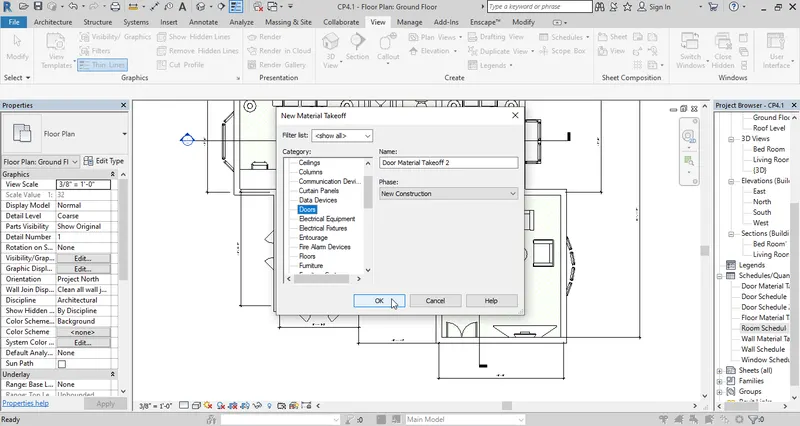
Step 1: Go to view -> schedules -> Material Takeoff.
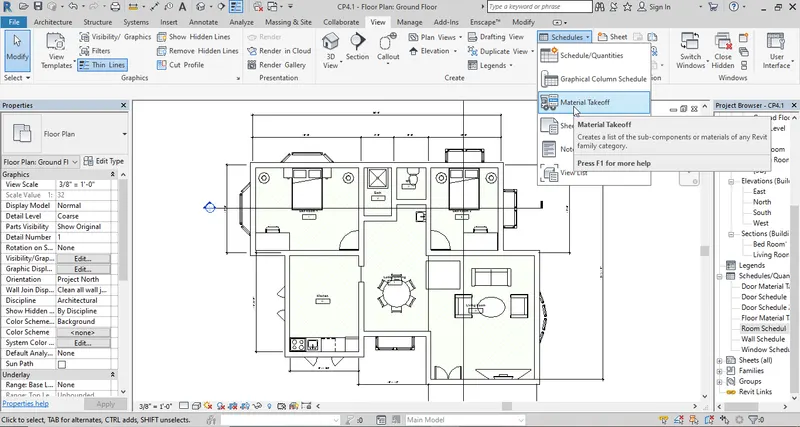
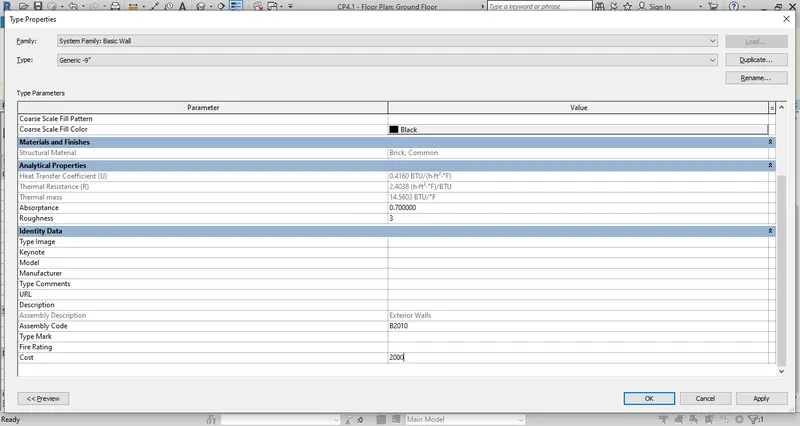
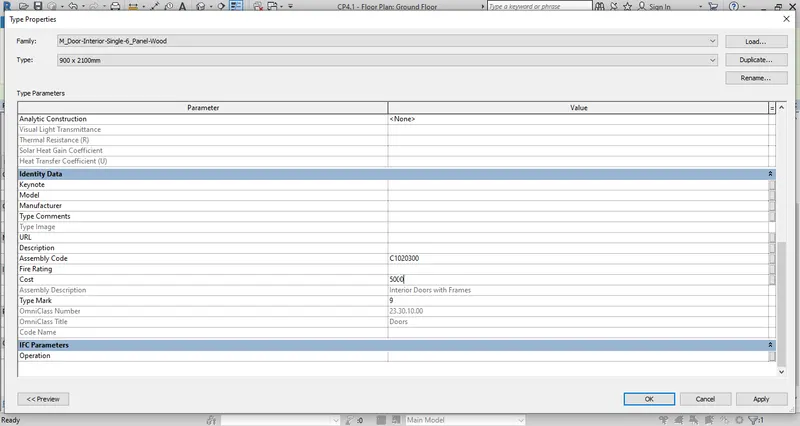
Step 2: To calculate the cost we have to provvide the cost for the category.
Go to Properties -> Identify Data -> Cost Add the cost.
Step 3: Select the parameters for the schedule and click ok.
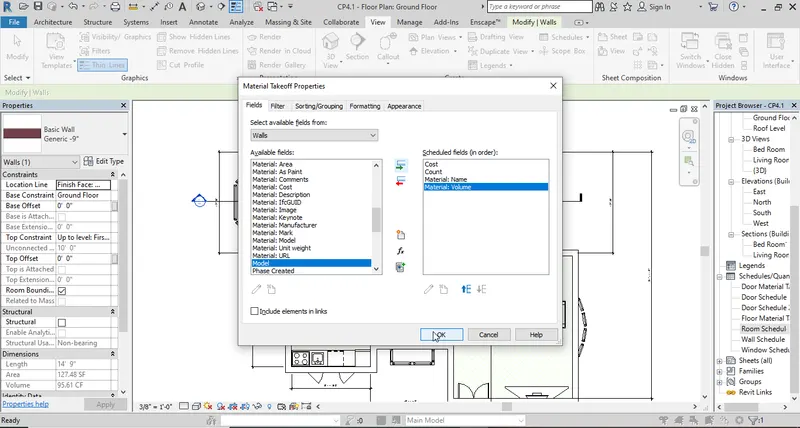
Step 4: The wall material takeoff is ready.
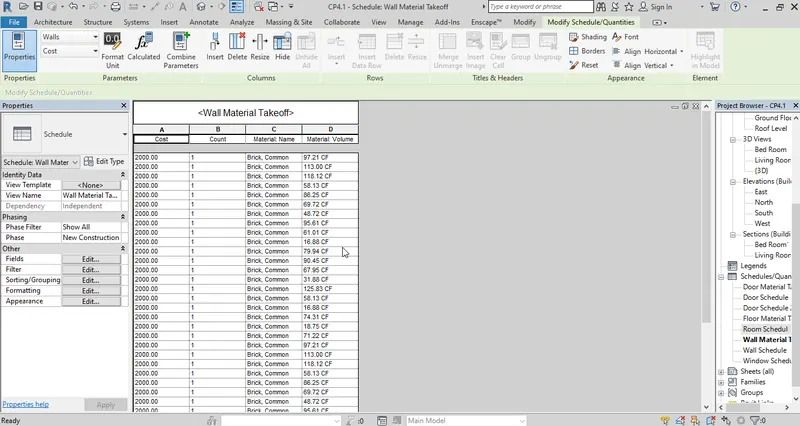
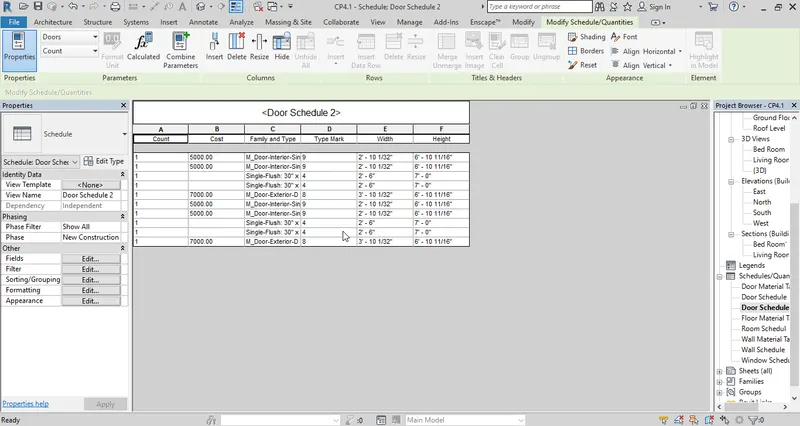
Step 5: Repeat the process for window costing. Add the cost for window and create a schedule.
Q.5 Ans
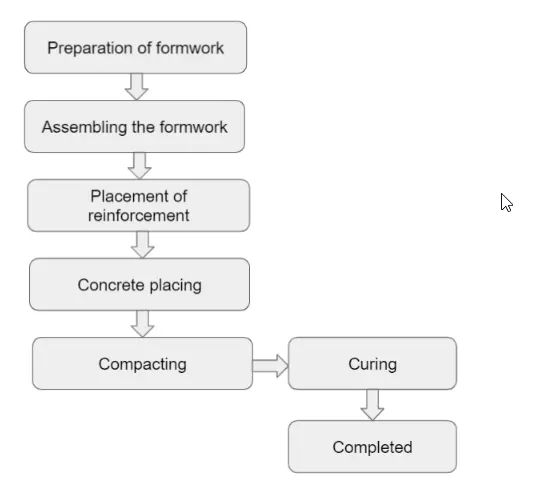
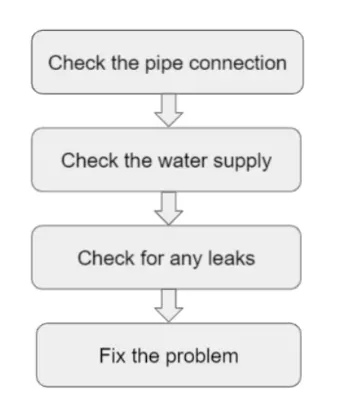
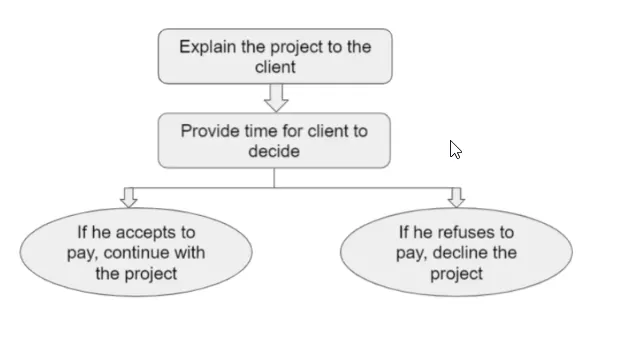
Aim: Flowchart for
a. How to decide framing for a structure using Dynamo?
b. If there is no water coming from the pipe.
c. If request for money declined from the client has been declined for the project.
Q.6 Ans
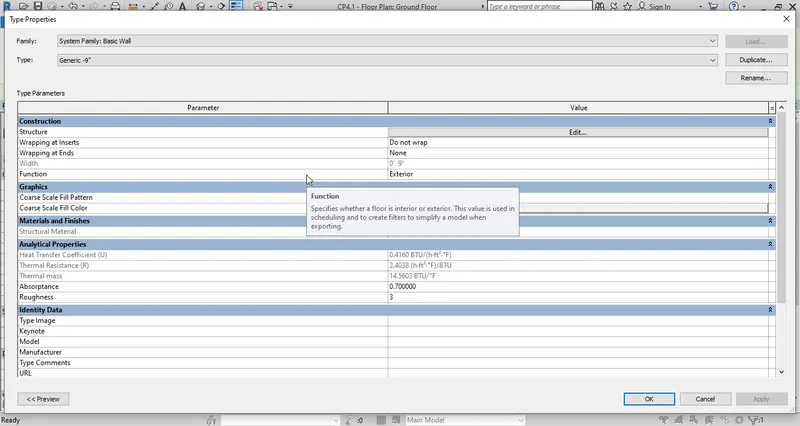
Aim: Parameters associated with each model elements are as follows:
Procedure:
a) Walls:
- Wall type
- Wall description
- Wall length
- Wall thickness
- Wall height
- Wall materials
- Wall location
- Material cost
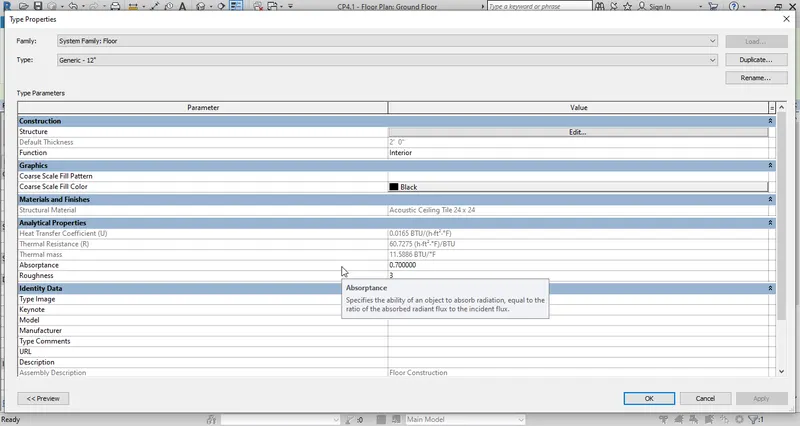
b) Floor:
- Floor type
- Floor description
- Floor area
- Floor thickness
- Floor material
- Material cost
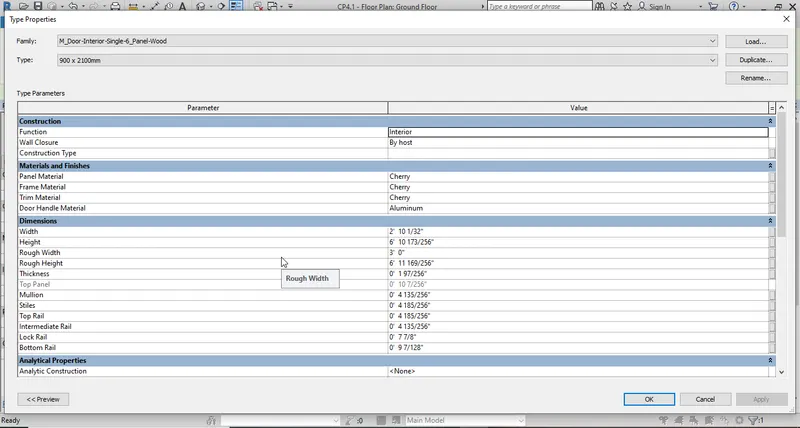
c) Door:
- Door type
- Door description
- Door height
- Door width
- Door material
- Material cost
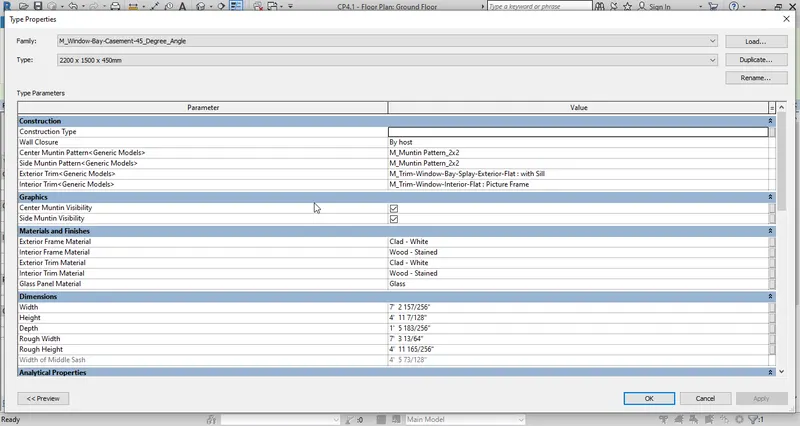
D) Window:
- Window type
- Window description
- Window width
- window height
- Window material
- Material cost
e) Table:
- Table type
- Table length
- Table width
- Table weight
- Table material
- Table cost
f) Building:
- Building type
- Building floor area
- Building perimeter
- Building location
- Building height
- Material
- Possible loads on a building.
Result:
a. Wall Parameters.
b. Floor Parameters.
c. Door Parameters.
d. Window parameters.
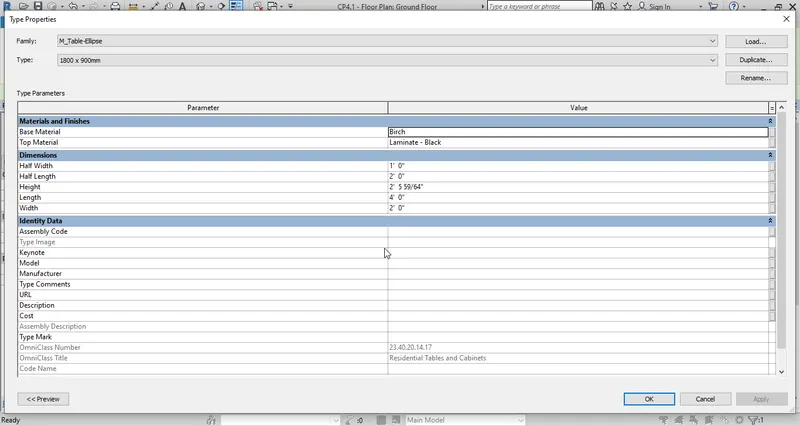
e. Table parameters.