REVIT_PENT HOUSE_ PROJECT
AIM:- MODEL A PENT HOUSE
Commands used:-
Architectural
Structural
collaborate
copy monitor
Grids
Levels
Columns
Foundation
walls
beams
ceilings
roofs
floors
Families
Procedure:-
STEP-1
Open the architectural tab and draw the grids in horizontal and vertical and collaborate the file and save it as central file
Open the structural tab and draw the grids in horizontal and vertical and collaborate and save it as central file
select the manage tab select specify the point and make it as 0'0" and then aquire the coordinates
Link the archtectural tab in the structural and then overlap the grids on each other with relocate ucs option
Select the elevation and draw the elevation and rename it as required
STEP-2
Open the Structural template
Select the foundation option select isolated footing and draw the footings
Select the structural column and select the type of column in property bar and draw the columns
Select the beams and select the type of beam in property menu and draw the beam
Prepare the structural framing structure
Save it
STEP-3
Open the architectural tab select the floor plan view and then select walls
Draw the outer walls
Select the interior partition wall and draw the partition walls
In the property tab select the width and material of the walls
Select the ceiling and draw the ceiling with pick wall method and contraint it to level 2
Select the ceiling and select the property tab to change the ceiling property
Select the windows and select type of windows and draw the windows where ever required
Select the doors and select type of door and draw the doors where ever required
Select the backside of the building select the wall and select it as curtain wall
select the insert tab and select load family
select the family which we need to insert like furniture, light etc
select the architectural tab and then select the component and add the components where ever required
STEP-4
Seelct the backside of the building and draw the walls at -6' for swimming pool
Select the walls and select the property tab to change the property of the wall
Select the floor and draw the floor near the swimming pool
STEP-5
Seelct the elevation plan
select the staircse and place the staircase at its desired location and then contrain it to level 2
STEP-6
Select the Railing and select the area where railing should be done
STEP-7
Select the light fixtures and place the ligts accorndingly in all the rooms
select the wardrobe and place them in all the rooms and closet
STEP-8
Place the other components of the buildings as per requirment from the component section
Select the geographical location of the project in the manage tab
STEP-9
Do the energy analysis in the analysis tab
Seelct the Analysis tab and set the boundry condition and apply the loads to the structure
Select the robo analysis and export the project to robo and do the structural analysis for the building
RESULTS:-
PLANS
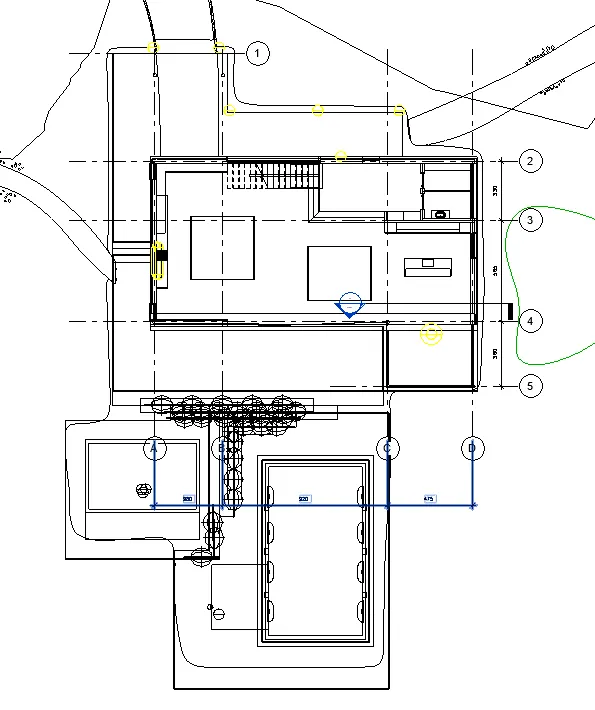
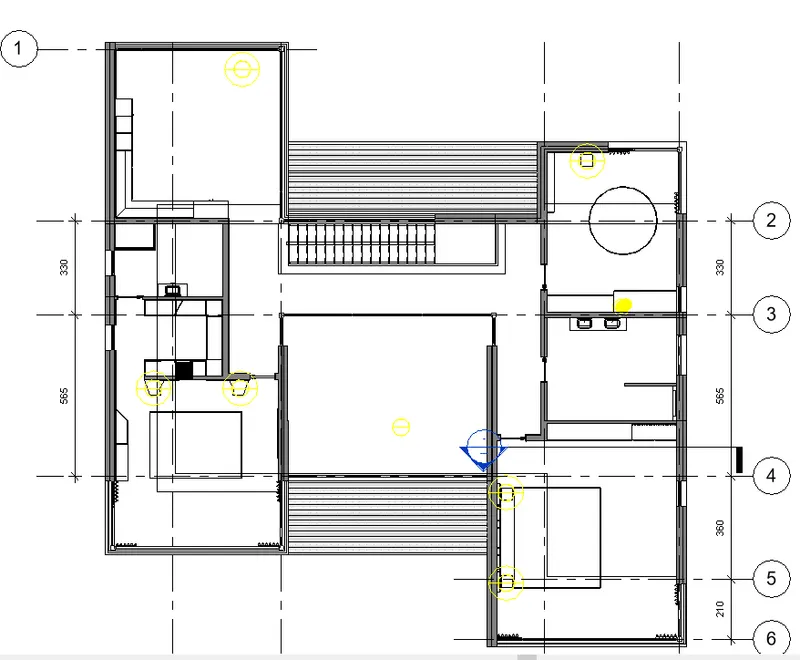
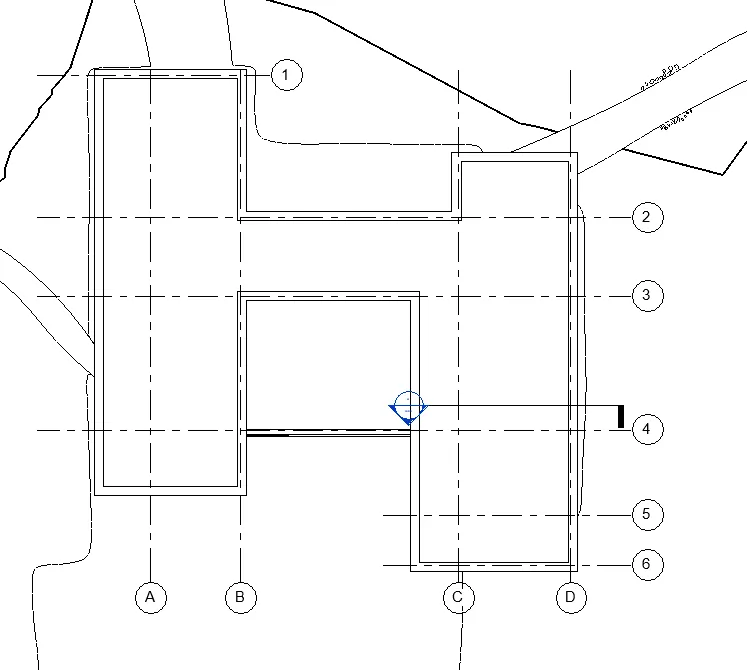
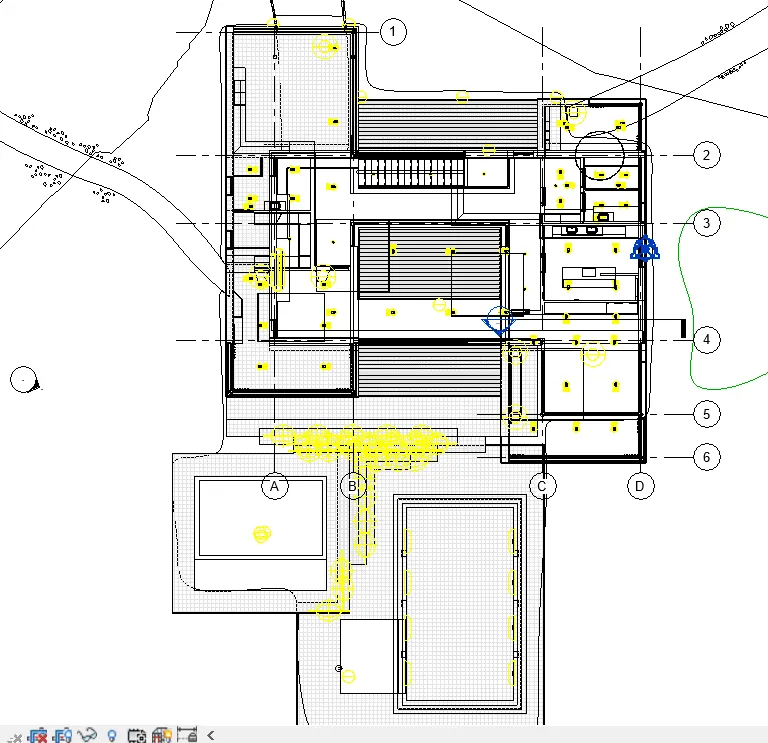
ELEVATIONS
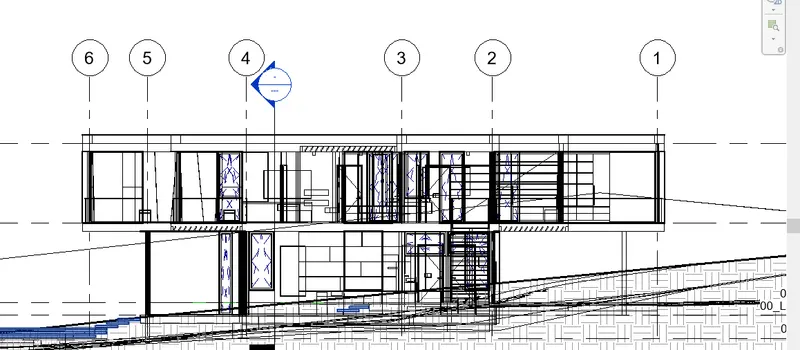
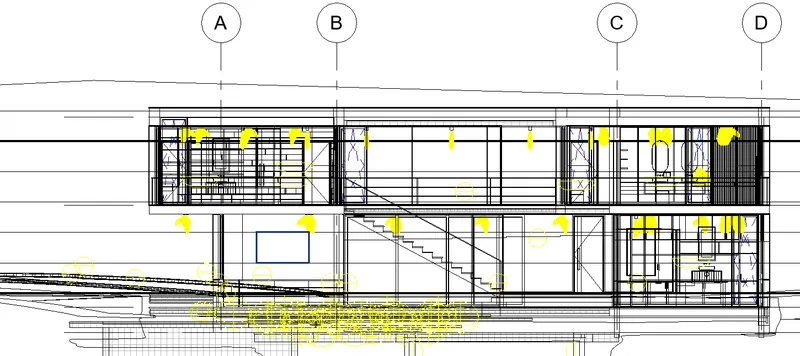
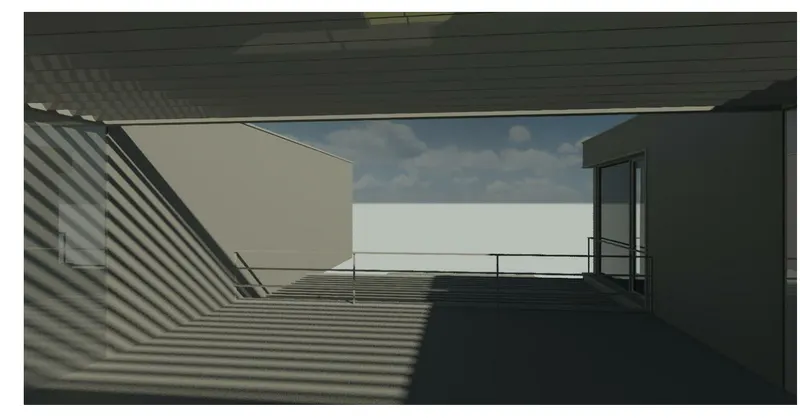
RENDERED VIEW
BALCONY
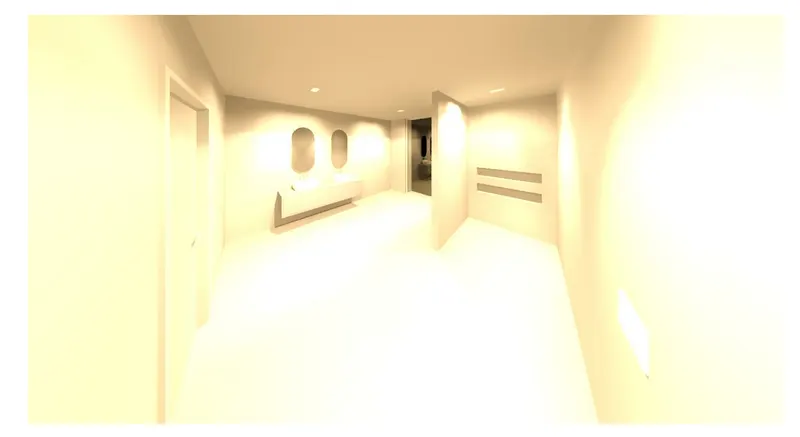
BATHROOM
BEDROOM-1
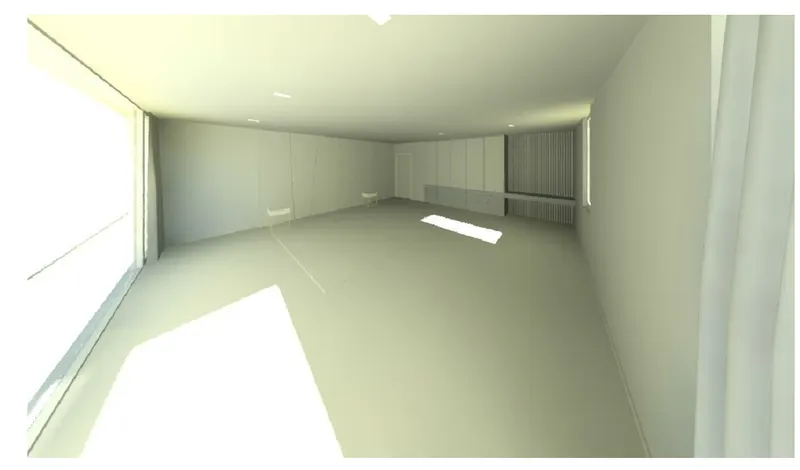
BEDROOM-2
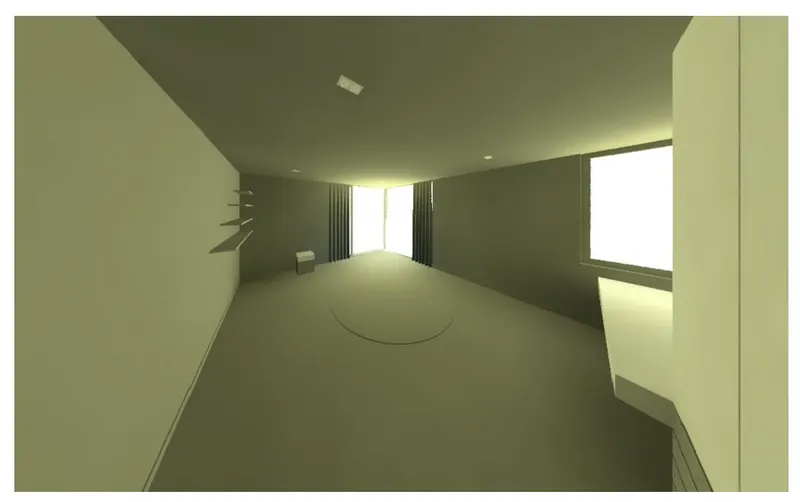
BEDROOM-3
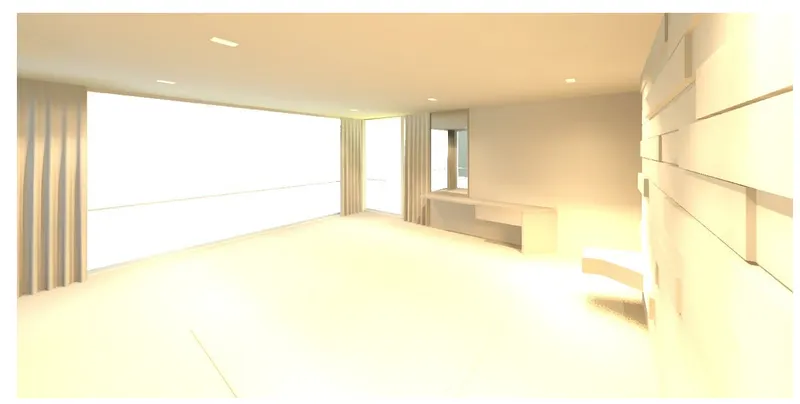
CLOSET
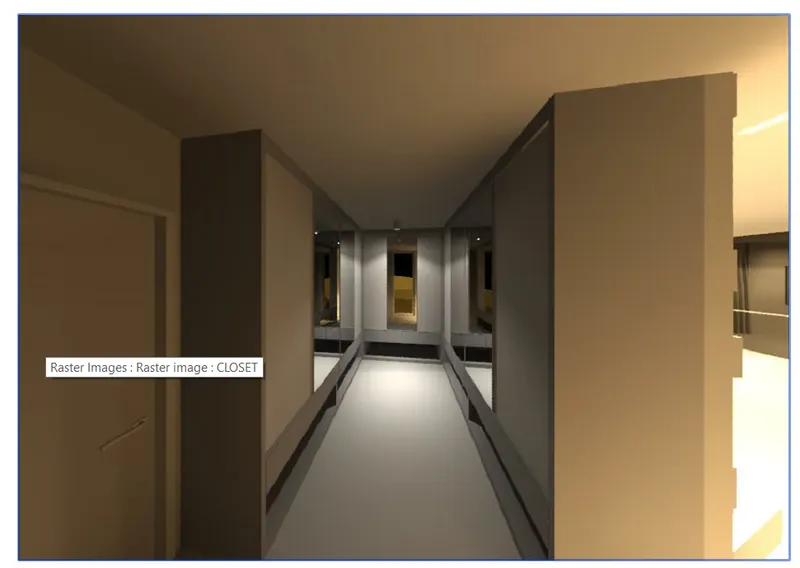
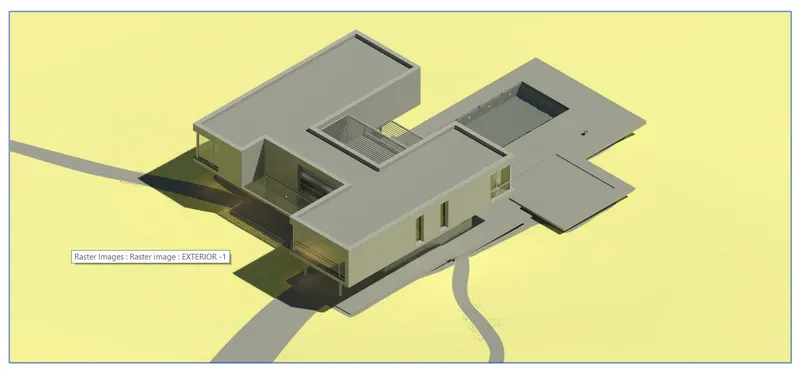
EXTERIOR VIEW-1
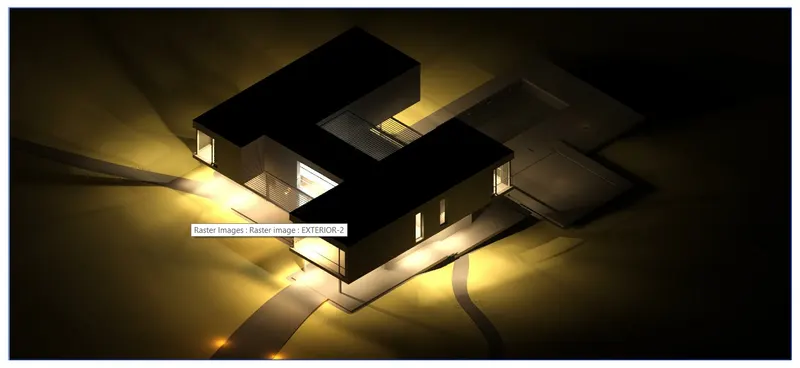
EXTERIOR VIEW-2
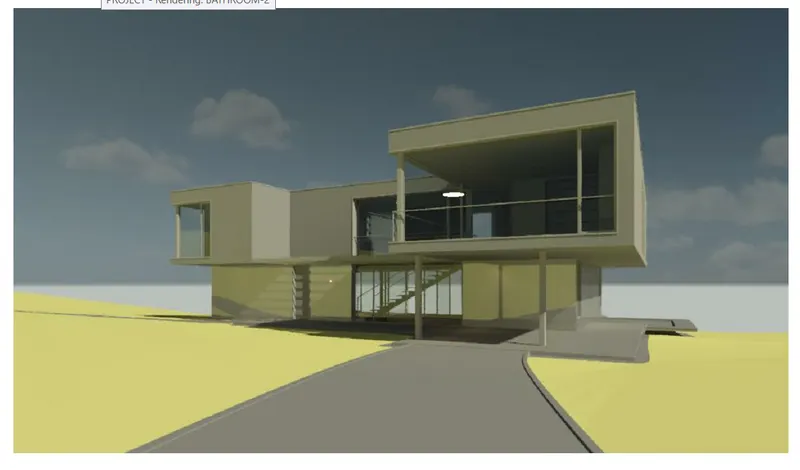
FRONT VIEW
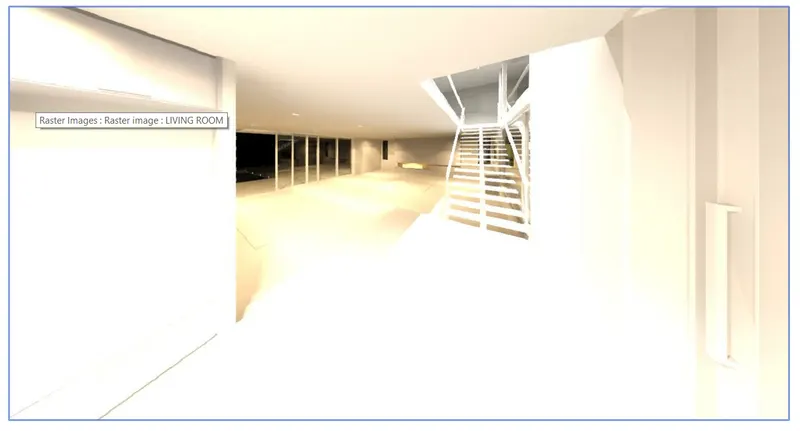
LIVING HALL
SWIMMING POOL
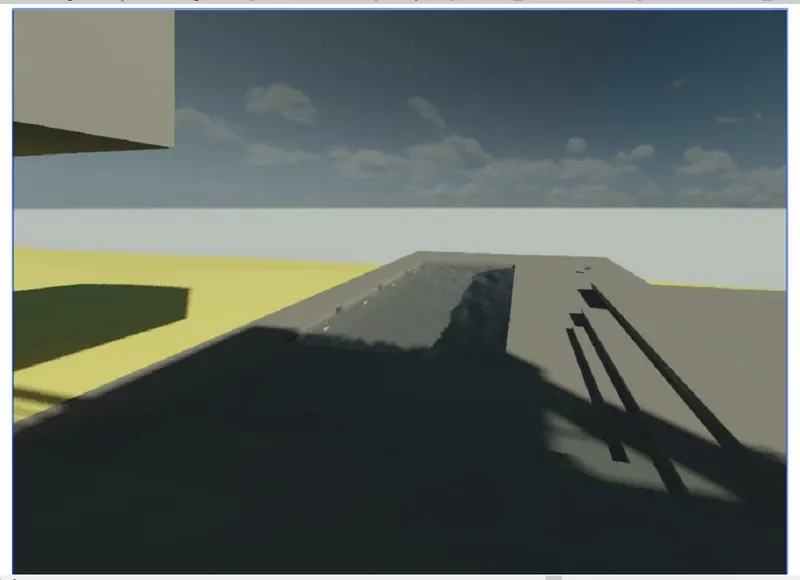
BACK VIEW
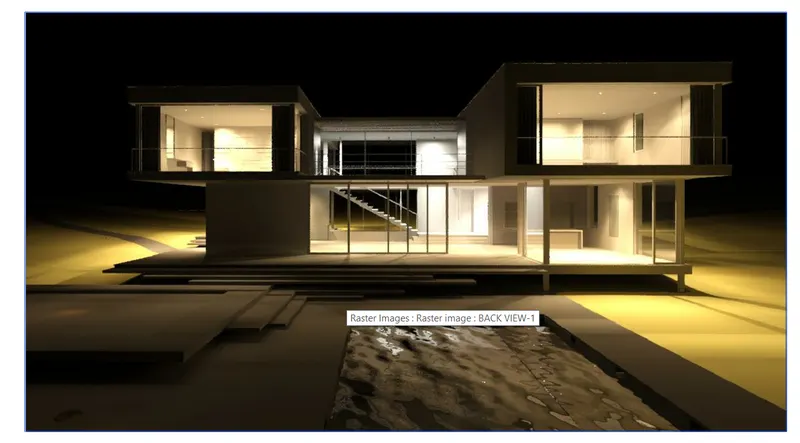
P.S I HAVE NOT ADDED MANY FAMILIES DUE TO SOFTWARE ISSUES