Introduction to REVIT concepts
AIM: Introduction to REVIT concepts.
INTRODUCTION:
Revit is BIM software that brings all architecture, engineering, and construction disciplines into a unified modeling environment, driving more efficient and cost-effective projects. The main objective of this challenge is to understand the overall layout and various tools that are available and used by us in REVIT.
TASK 1: From the File menu, create a new project (Structural / Architectural / Construction template ) and name the project appropriately
- Open Revit Software.
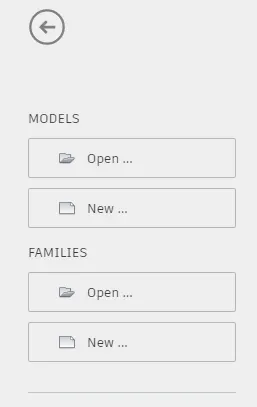
- From the model, tab click on new.
- A new project dialogue box appears and then click on the Architecture template.
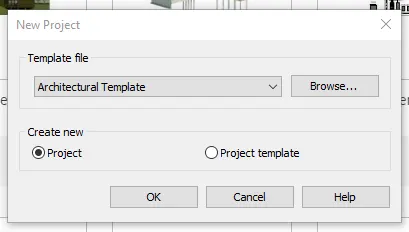
- Click on ok.
- A new workspace will be loaded.
- To name the project, go to the File menu, save and enter the project name as project 1.
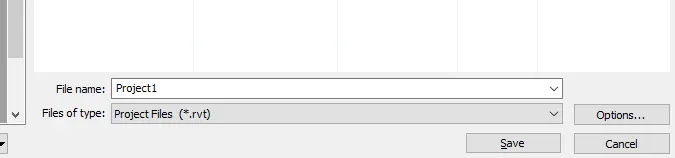
Result: New file with the name project 1 will be created.
TASK 2: Save the new project file. Close and open using icons from the file toolbar
- The dialogue box appears, give the name and click on save.
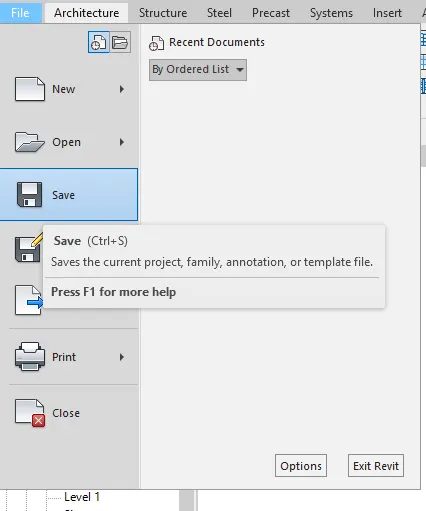
- To change the location of the saved project, click on save as and enter a different location.
- To open a file in the File menu click on open project.
- An open dialogue box appears and clicks on the required file.
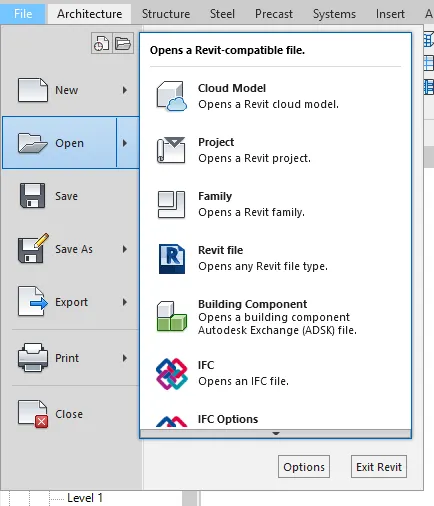
- To close the file, in the File menu click on close.
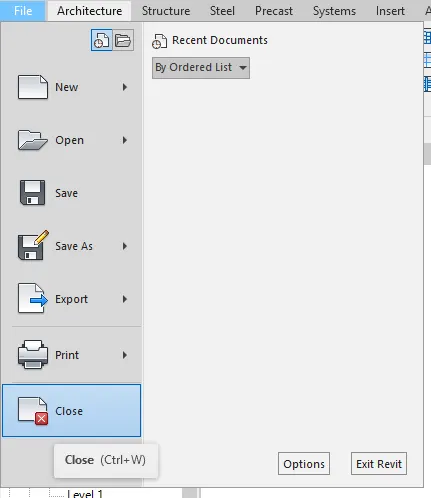
Result: The file is saved and opened and closed by the file menu.
TASK 3: From the architecture/ structure toolbar familiarize yourself with options to draw a wall. Create a rectangular layout of walls of about 40’-0” X 35’-0”
- Open the Revit software, select a new, and select imperial-architecture template.
- Click on the wall from the architectural tab and select basic wall 8".
- Click on the floor plan area and enter 40'.
- Move the mouse downwards and type 35'.
- Again type 40' placing the mouse to the left.
- Again type 35' upwards.
- A rectangle is created of 40'x35'.
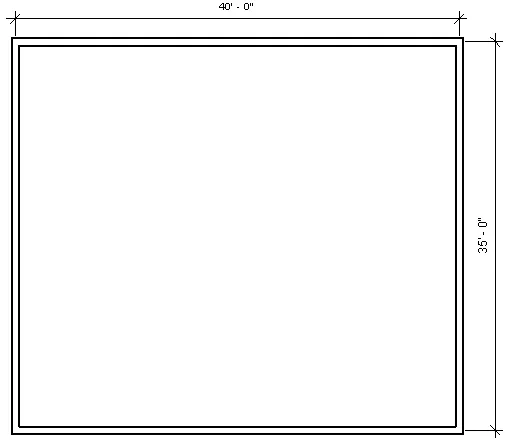
Result: Wall of 40'x35' is created using a wall tool.
TASK 4: From the Annotate toolbar use the aligned option to add dimensions to the layout
- Click on annotate toolbar.
- Click on the aligned option.
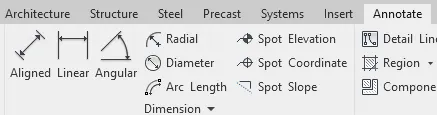
- Click on side of the wall where to start then drag the dimension line to where we need.
- Similarly, do the same on the other side.
Result: the dimensions are using annotate toolbar using the aligned option.
TASK 5: Use the properties browser to switch to different wall types
- Select the wall and then on the left in the property browser, the property of the wall be displayed.
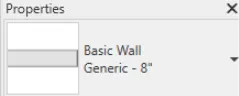
- Click on the drop-down menu and we can see different types of walls.
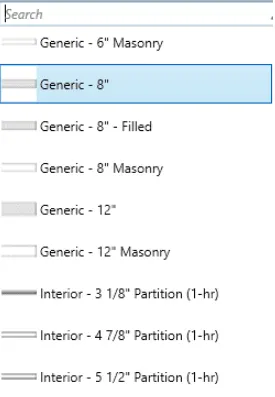
- There are basic walls, curtain walls, and stacked walls.
- Select the required type, here select 12" masonry, then selected wall will change accordingly.
Result: with the use of the property browser, the wall type is changed.
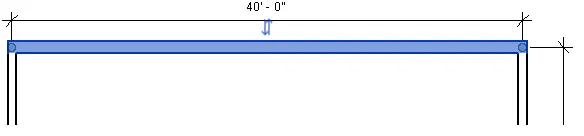

TASK 6: Create a 3D view from the view toolbar and save the view with the appropriate name
- Click on the View tab.
- Click on 3d view.
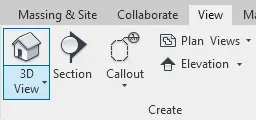
- Click on default 3d view.
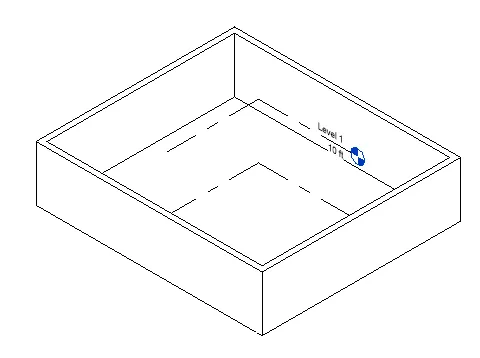
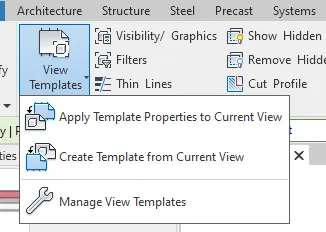
- Click on view template and click on create a template from the current view.
- In the new view dialogue box, insert the name as 3d view and click ok.
- The view will be created and we can take the view from apply template property to the current view.
Result: the 3d view is created and saved by the name 3d view.
TASK 7: Navigate through the 3D model using the view cube. Orbit/pan through the model layout created
- Click on the view on the view cube on the right side of the workspace.
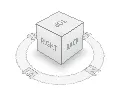
- Click on different views.
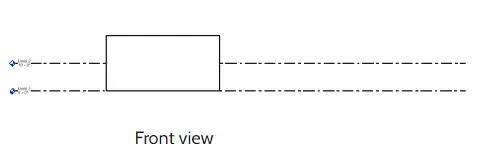
- To pan, click on the navigation wheel below the view cube.
- Click on an option.
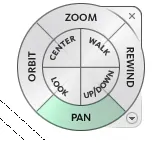
- Click on the left cursor and move the mouse to the pan.
- Similarly, click the on-orbit option on the navigation wheel.
Result: use of view cube and pan/orbit in navigation wheel is shown.
TASK 8: Use the visibility settings option below to switch model to shaded, realistic, hidden lines options
- Click on the cube at the bottom toolbar-visual style.
- Select the hidden line.
- Select shaded.
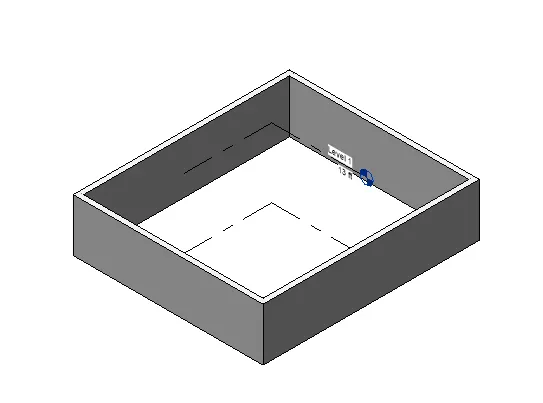
- Select hidden.
Result: Hidden line, shaded, realistic options are done by visibility settings.
TASK 9: Turn the sun path on and off to view shadings in the layout created
- Click on the icon of the sun on the bottom toolbar.
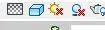
- Click it so that the sun path is on.
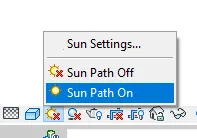
- The date and time will be visible.
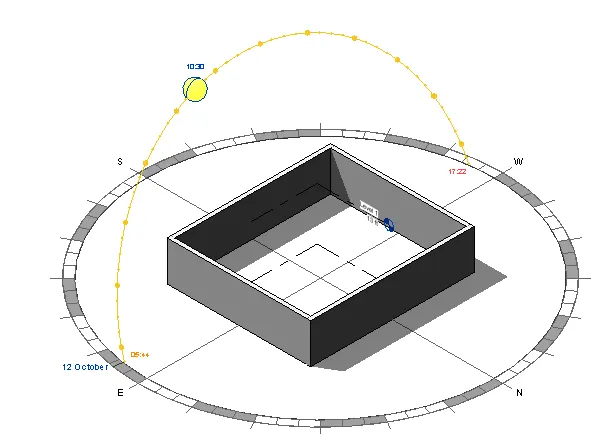
- Similarly, put the sun path off.
Result: Use of sun path on/off is done.
TASK 10: Use the Manage toolbar to enter project settings, project name, and project issue date (choose according to your convenience).
- Click on the manage toolbar, click project information.
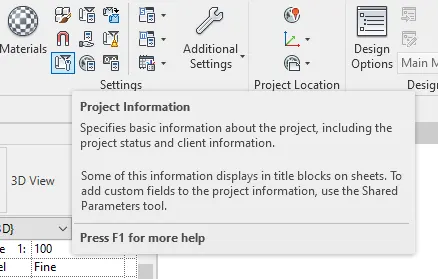
- Project information dialog box appears.
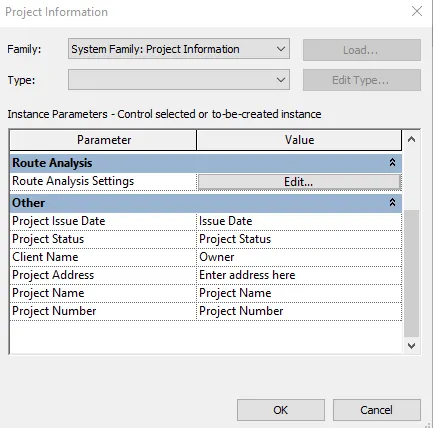
- From the other click on project issue date and give a value.
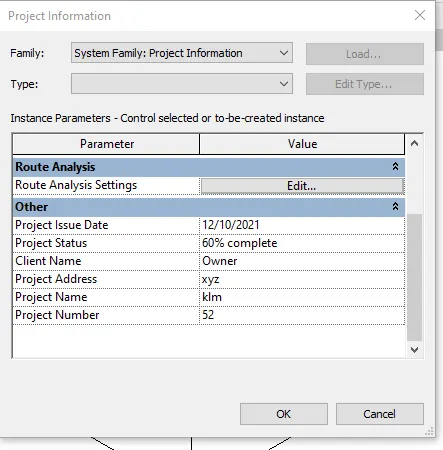
- Similarly select the project name, project status, client name, project address, and project number.
Result: by manage the toolbar, project settings are changed.
TASK 11: What is the Analyze toolbar used in Revit? How it is beneficial for design and modeling

- Analyze the toolbar helps in evaluating the building performance and analyzing the model by boundary conditions, loads, etc.
- It also evaluated the sustainability of the model.
The benefits are as follows:
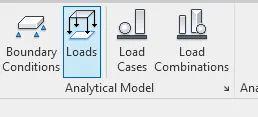
- It has structural analysis in which we can give the boundary conditions to the model.
- We can apply loads line point, line, and area load to the model.
- We can edit add and edit the load cases and add load combinations.
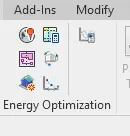
- It also helps to perform energy optimization and energy analysis.
- It performs system analysis and generates reports for the whole building energy simulation and analysis.
- We will be able to understand how sustainable and energy-efficient the building will be and changes we can make in order to make it efficient.
- It also allows creating heating and cooling load analysis report, useful for mechanical engineers for designing duts or cooling systems.
- Revit allows us to perform analysis in multiple disciplines, so when we are collaborating in every discipline they can perform their own task separately and come together as a team to show progress.
- We can achieve the progress of the project together from all disciplines.
TASK 12: What are the links that Revit supports to be linked to the model?
- In the insert, tab links are found which are used to link different files to the current file.
- Link Revit: It allows to link another Revit model to the current model.
- Link IFC: to link the IFC file to the current model to reference its information for additional design works.
- Link Cad: To link the 2nd cad file to the current Revit file to create 3D by Revit tools.
- Link Topography: to link existing topography to the current model.
- Manage links: provides a feature to manage the links to the building models. Like if we are linking the electrical and structural model, to remove electrical from structural go to the link manager and unload the model which we don’t want.
TASK 13: Why do you need the Collaborate tab in Revit? How it supports modeling and its efficiency
- It is the feature that helps to collaborate and help the team members to work on the model simultaneously.

- Like if a structural and mechanical engineer wants to work in a file simultaneously, the collaborate option creates a central file and will have the facility to create multiple local files that enable collaboration.
- In modeling, it helps the team members of different disciplines to work on the same file simultaneously.
- The efficiency of the modeling will be high, as the work can be finished faster.
- We do not have to wait for one model to be completed to start the model of the next discipline.