Introduction to REVIT concepts
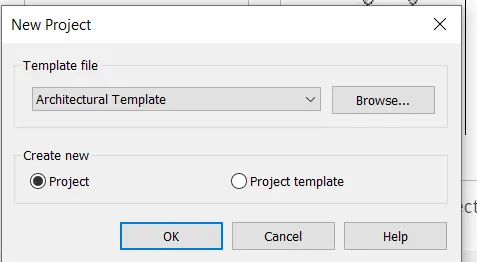
1.From the file menu, create a new project (Structural / Architectural / Construction template ) and name the project appropriately.
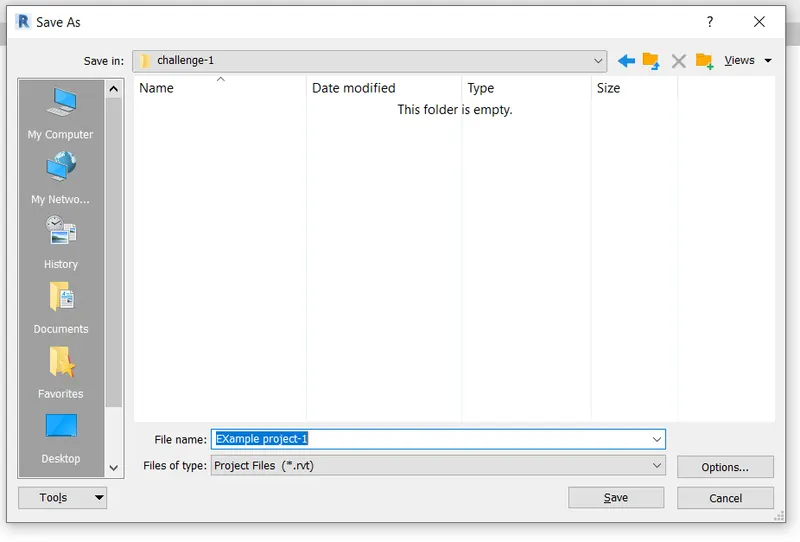
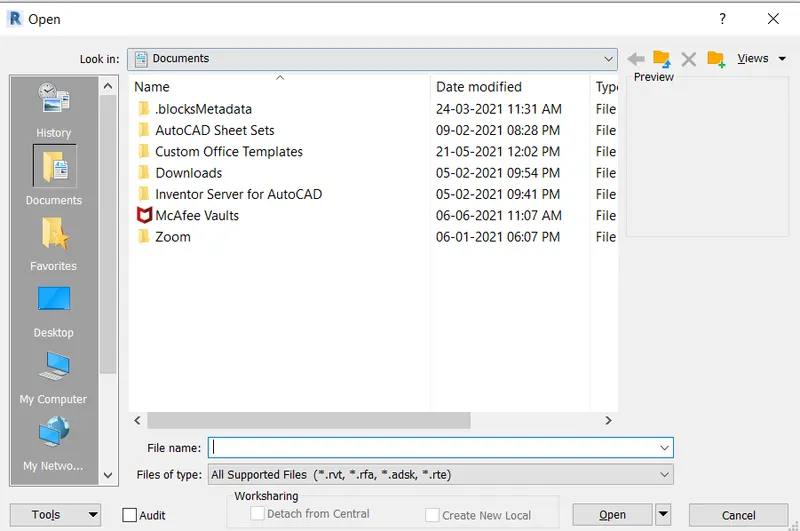
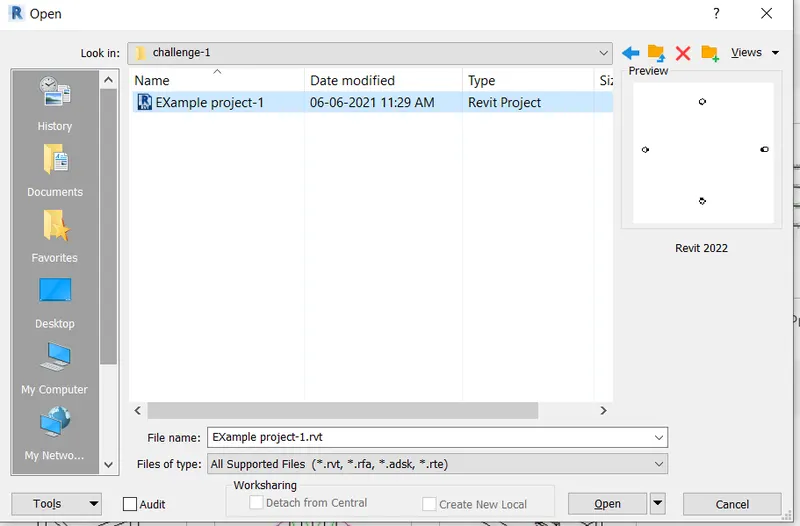
2.Save the new project file. Close and open using icons from file toolbar.
3) From the architecture/ structure toolbar familiarize with options to draw a wall. Create a rectangular layout of walls of about 40’-0” X 35’-0”
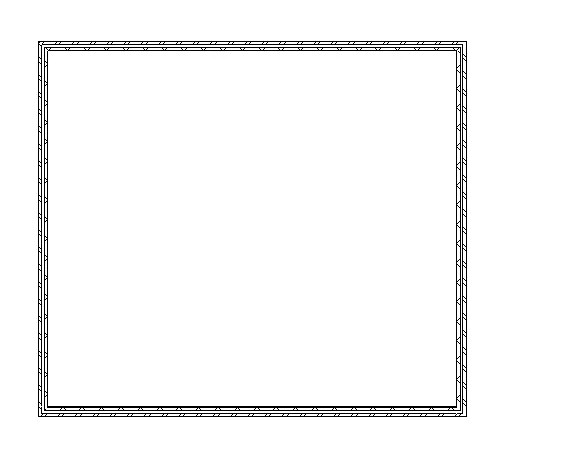
4) From the Annotate toolbar use the aligned option to add dimensions to the layout
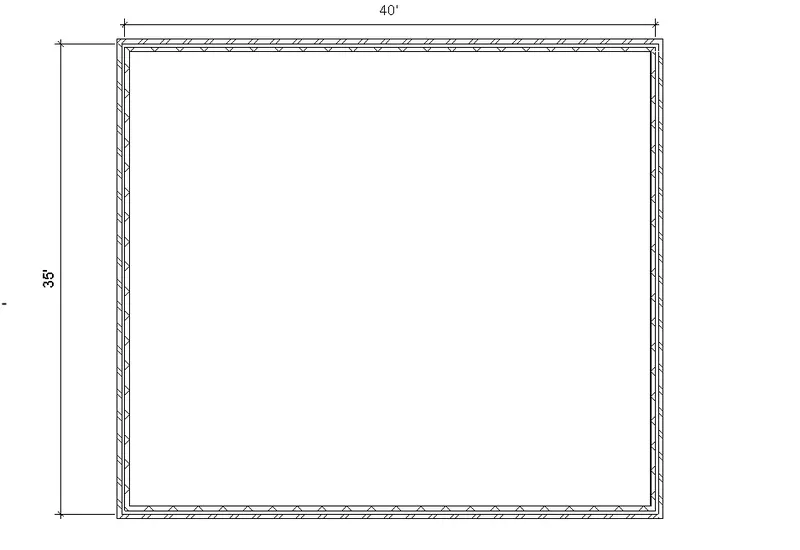
5) Use the properties browser to switch to different wall types
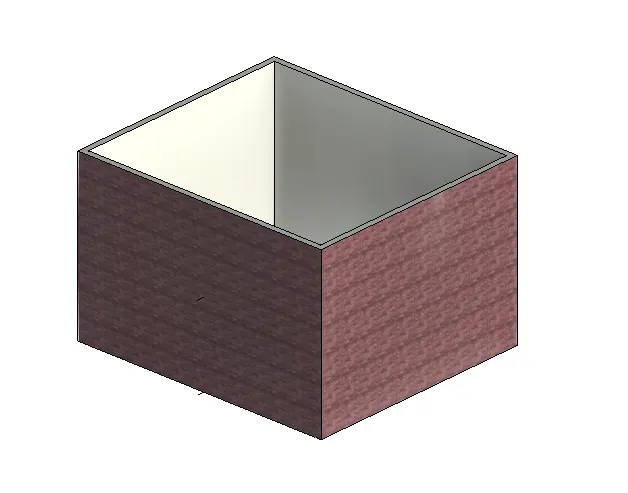
6) Create a 3D view from the view toolbar and save the view with the appropriate name
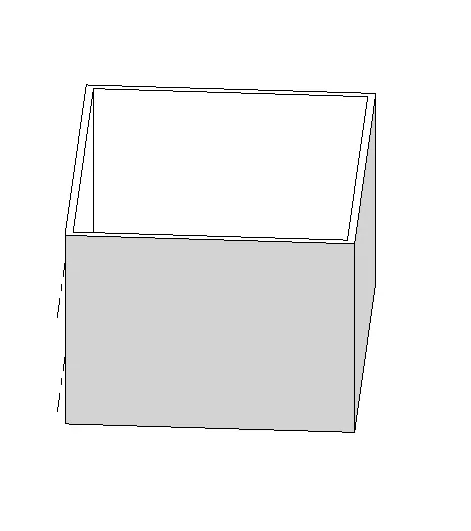
7) Navigate through the 3D model using the view cube. Orbit/pan through the model layout created
8) Use the visibility settings option below to switch model to shaded, realistic, hidden lines options
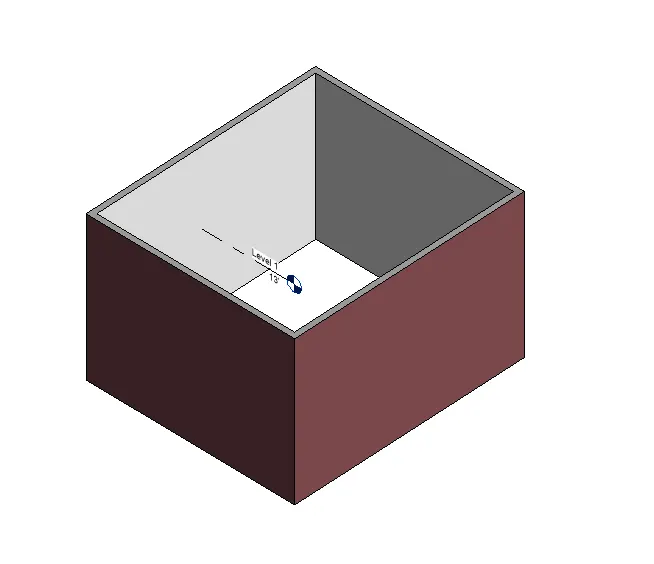
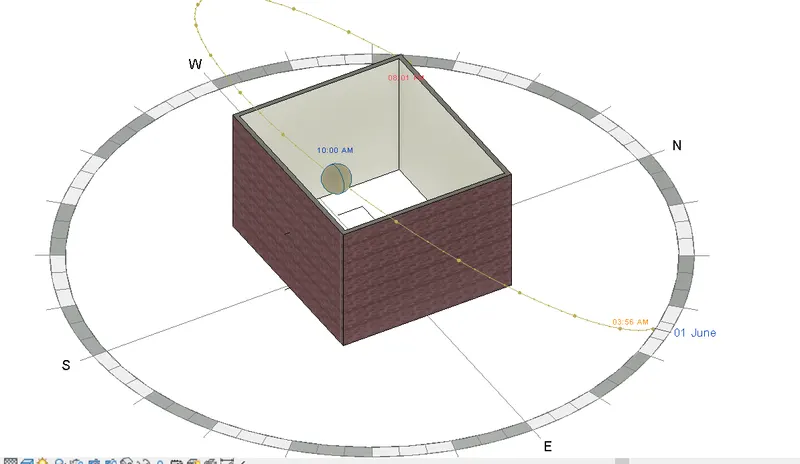
) Turn the sun path on and off to view shadings in the layout created
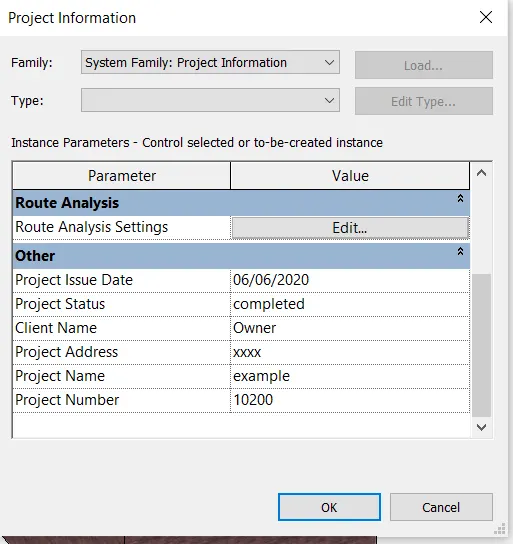
Use the Manage toolbar to enter project settings, project name, and project issue date (choose according to your convenience).
The Analyze toolbar used in Revit:

- The above icons are used to design and analyze the elements.
- we can model the elemnts and applied the load on it.
- After a run with the help of load combination we can find the result.
The links that Revit supports to be linked to the model:

The Collaborate tab in Revit:
