Drafting of various geometries using Chamfer, Fillet tool in AutoCad
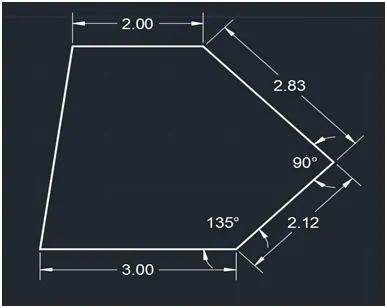
Decimal
AIM:
To draw the following drawing using Decimal units.
Procedure:
Step:1
- Type L on the command line and press enter.
- Click the cursor on any point on screen (i.e Start Point of line).
- Type @3, 0 on the command line and press enter.
- Type @2.12<45 on the command line and press enter.
- Type @2.80<135 on the command line and press enter.
- Type @2<180 on the command line and press enter.
- Type @ C on the command line and press enter.
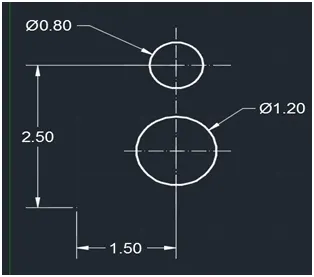
Step:2
- Type Circle on the command line and press enter.
- Click the cursor on any point on screen (i.e Centre point of Circle).
- Give 1.20 as diameter and press enter.
- Again Type Circle on the command line and press enter.
- Click the cursor on screen which is located @ the distance of 1.5 from centre of already drawn circle.
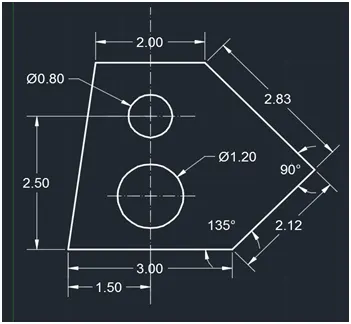
Step:3
- Type M on the command line and press enter.
- Click the cursor on centre of the first circle (i.e base point of the object).
- Drag the mouse and place base point @1.5, 1.0 from the previous drawn object.
Results:
Architectural
AIM:
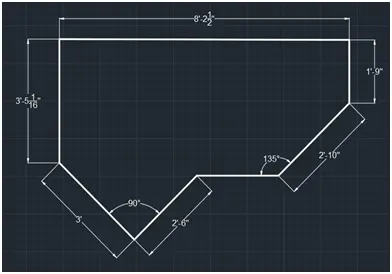
To draw the following drawing using Architectural units.
Procedure:
- Type L on the command line and press enter.
- Click the cursor on any point on screen (i.e Start Point of line).
- Type @3’<315on the command line and press enter.
- Type @2’6”<45 on the command line and press enter.
- Type @2’3 13/116” <45 on the command line and press enter.
- Type @1’9”<90 on the command line and press enter.
- Type @8’2 1/2”<180 on the command line and press enter.
- Type @ C on the command line and press enter.
Results:
Engineeing
AIM:
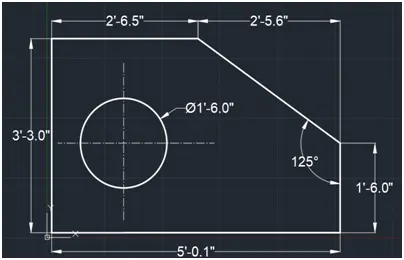
To draw the following drawing using Engineering units.
Procedure:
Step-1
- Type Rec on the command line and press enter.
- Click the cursor on any point on screen (i.e Base point of rectangular).
- Type @5’0.1”, 3’3”the command line and press enter.
- Type F on the command line and press enter.
- Select the angle option and give distance as 1’6” & angle is 55.
- Type circle on the command line and press enter
- Click the cursor on 1’3”,1’6” from already drawn object (i.e Centre point of Circle)
- Give 1’6” as diameter and press enter.
Results:
4
AIM:
To draw the following drawing using any of the method
Procedure:
Step-1
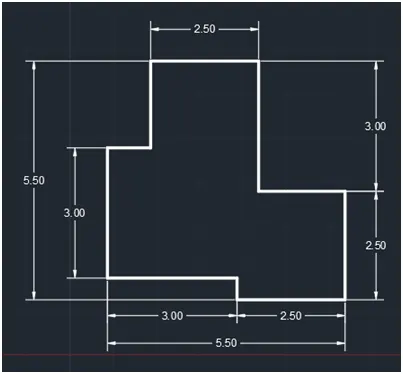
- Type L on the command line and press enter.
- Click the cursor on any point on screen (i.e Base point of line ).
- Type @3,0 the command line and press enter.
- Type @0,-0.5 the command line and press enter.
- Type @2.5,0 the command line and press enter.
- Type @0,2.5 the command line and press enter.
- Type @-2.5,0 the command line and press enter.
- Type @0,3 the command line and press enter.
- Type @-2.5,0 the command line and press enter.
- Type @0,-2 the command line and press enter.
- Type @-1,0 the command line and press enter.
- Type c the command line and press enter.
Results:
5
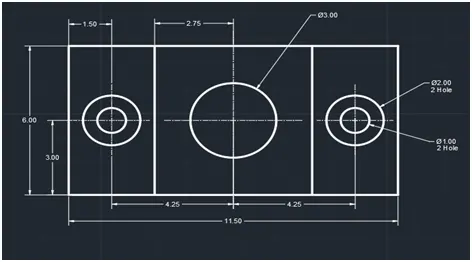
AIM:
To draw the following drawing using any of the method
Procedure:
Step-1
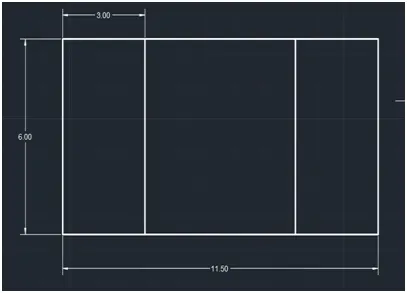
- Type L on the command line and press enter.
- Click the cursor on any point on screen (i.e Base point of line ).
- Type @11.50,0 the command line and press enter.
- Type @0,6 the command line and press enter.
- Type @-11.50,0 the command line and press enter.
- Type C the command line and press enter.
- Type O on the command line and press enter.
- Give offset distance of 3 units on command line and press enter.
- Make the 6 units line offset from left side and right side of the object
- Finally press enter.
Step-2
- Type circle on the command line and press enter
- Click the cursor on any point on the screen (i.e Centre point of Circle)
- Give 3 units as diameter and press enter.
- Again Type circle on the command line and press enter
- Click the cursor on centre of already drawn circle (i.e Centre point of second Circle)
- Give 2 units as diameter and press enter.
- Type O and give offset distance as 0.5 and press enter
- Drag the mouse inward of the circle and press enter.
- Select the 2units dia of circle and type M on command line and press enter.
- Give displacement option and give the displacement distance as 4.25 and press enter.
- Drag the mouse towards right and left side of the 3 units dia of circle and press enter
Results:
6
AIM:
To draw the following drawing using any of the method
Procedure:
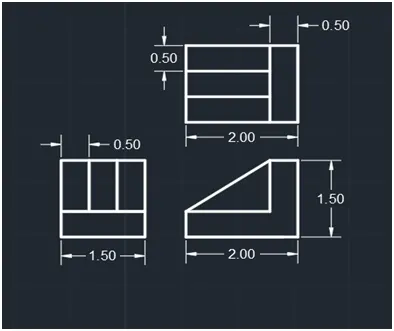
Step-1
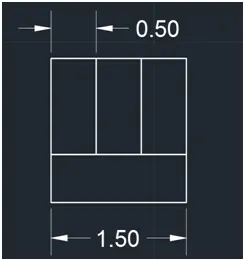
- Type rec on the command line and press enter.
- Click the cursor on any point on screen (i.e Base point of Rectangular ).
- Type @1.50,0.5 the command line and press enter.
- Type rec on the command line and press enter.
- Click the cursor on Top edge of the already drawn Rectangular (i.e Base point of Rectangular ).
- Type @0.50,1 the command line and press enter.
- Type copy and Select the 0.5,1 units Rectangle and select array option. Give 3 no’s of array and select fit option.
- Drag the mouse and place the cursor on right side of the rectangular.
Step-2
- Type line on the command line and press enter.
- Drag the horizontal line from Drawn objects (i.e Base point of Rectangular ).
- Type line and draw the Vertical line which is parallel to already drawn objects.
- Type line on the command line and press enter.
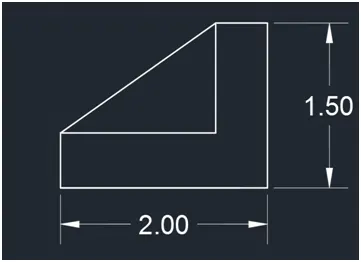
- Type @2<0 on the command line and press enter.
- Type @1.5<90 on the command line and press enter.
- Type @0.5<180 on the command line and press enter.
- Type @1<270 on the command line and press enter.
- Type @1.5<180 on the command line and press enter.
- Type C on the command line and press enter.
Step-3
- Type rec on the command line and press enter.
- Click the cursor on any point on screen (i.e Base point of Rectangular ).
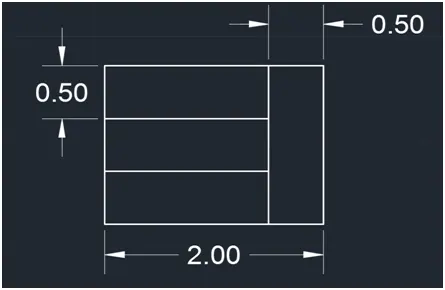
- Type @0.50,1.5 the command line and press enter.
- Type rec on the command line and press enter.
- Click the cursor on Top edge of the already drawn Rectangular (i.e Base point of Rectangular ).
- Type @1.50,0.5 the command line and press enter.
- Type copy and Select the 1.5,0.5 units Rectangle and select array option. Give 3 no’s of array and select fit option.
- Drag the mouse and place the cursor on right side of the rectangular.
rrange the drawn object in respective position.
Results:
7
AIM:
To draw the following drawing using any of the method
Procedure:
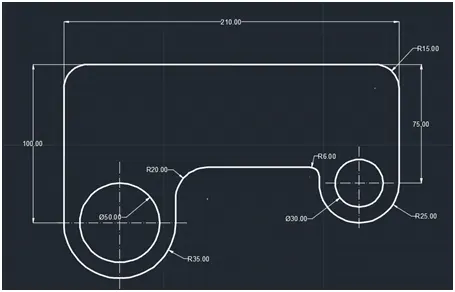
Step-1
- Type L on the command line and press enter.
- Click the cursor on any point on screen (i.e Base point of line ).
- Type @100<270 the command line and press enter.
- Type @70<0 the command line and press enter.
- Type @35<90 the command line and press enter.
- Type @140<0 the command line and press enter.
- Type @100<270 the command line and press enter.
- Type @10<270 the command line and press enter.
- Type @50<0 the command line and press enter.
- Type @75<90 the command line and press enter.
- Type @100<180 the command line and press enter.
- Type circle on the command line and press enter.
- Select 2 point option for create circle and click the points at left lower end of the already drawn drawing and select second point. Type o and press enter and give the offset value of 10 units and drag the mouse inward.
- Make similar procedure on right side.
- Type F on command line and Give Radius as 15,20,6 and select the object and fillet it.
- Trip it unnecessary objects.
Step-2
- Type rec on the command line and press enter.
- Click the cursor on any point on screen (i.e Base point of Rectangular ).
- Type @70,30 the command line and press enter.
- Type Copy on the command line and press enter.
- Click the cursor on any edge of the already drawn Rectangular (i.e Base point of Rectangular ).
- Type @30,0 the command line and press enter.
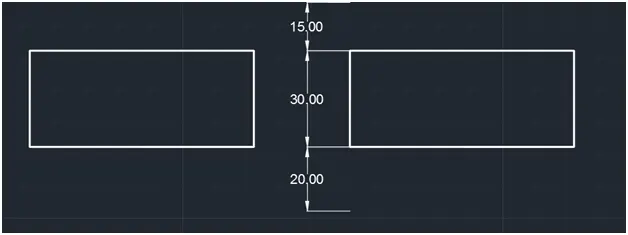
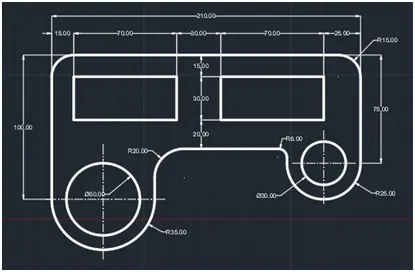
Rearrange the separately drawn objects
Results:
8
AIM:
To draw the following drawing using any of the method
Procedure:
Step-1
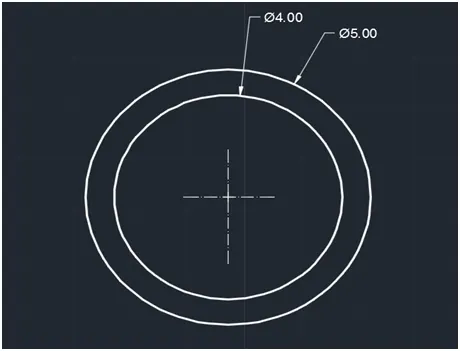
- Type Circle on the command line and press enter.
- Click the cursor on any point on screen (i.e Base point of Circle ).
- Type Radius as 5 units and press enter.
- Type o and Give offset value as 0.5 and press enter.
Step-2
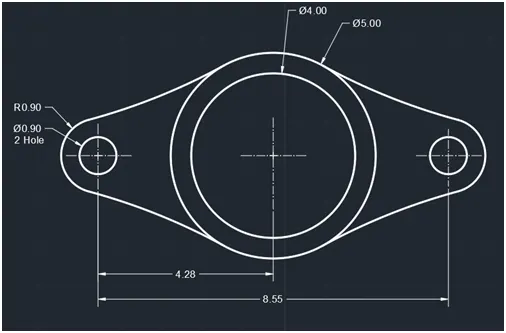
- Type Circle on the command line and press enter.
- Click the cursor on center of drawn circle (i.e Base point of Circle ).
- Type Radius as 0.9 units and press enter.
- Type M and Give Displacement value as 4.28 and both side and press enter.
- Type Fillet on the command line and press enter.
- Select the both drawn object and press entre
Results
9
AIM:
To draw the following drawing using any of the method
Procedure:
Step-1
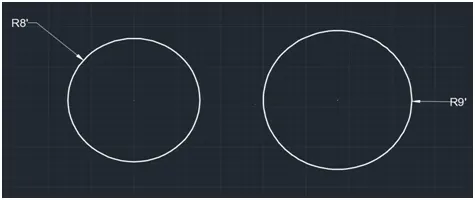
- Type Circle on the command line and press enter.
- Click the cursor on any point on screen (i.e Base point of Circle ).
- Type Radius as 8’ units and press enter.
- Type Circle on the command line and press enter.
- Click the cursor at the distance of 32’6” from the centre of previously drawn circle (i.e Base point of Circle ).
- Type Radius as 9’ units and press enter.
Step-2
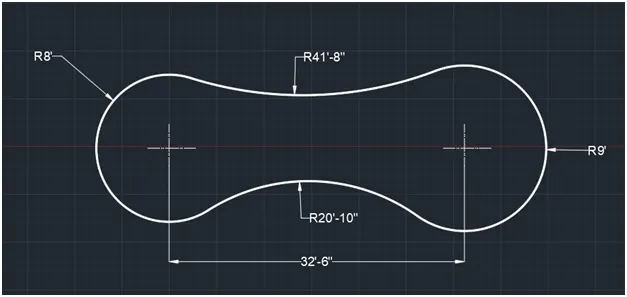
- Type Fillet on the command line and press enter.
- Give the fillet radius 41’8” at top and 20’10” at bottom.
- Click the cursor on top and bottom of the objects.
Results:
10
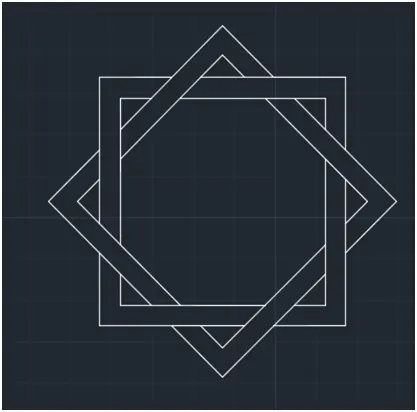
AIM:
To draw the following drawing using any of the method
Procedure:
Step-1
- Type Rec on the command line and press enter.
- Click the cursor on any point on screen (i.e Base point of Circle ).
- Type @6,6 and press enter.
- Type O on the command line and press enter.
- Give the offset value 0.5 and press enter.
- Select the object and type Rotate and press enter.
- Select centre of the polygon as the base point and select the copy option.
- Give rotate angle as 45 and press enter.
- Trim it all unnecessary line
Results:
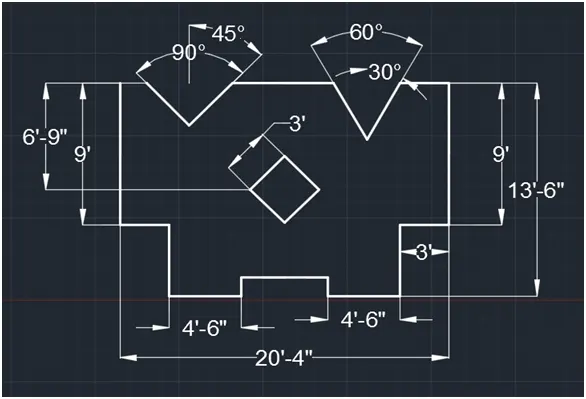
11
AIM:
To draw the following drawing using any of the method
Procedure:
Step-1
- Type L on the command line and press enter.
- Click the cursor on any point on screen (i.e Base point of line).
- Type @9’<270 and press enter.
- Type @3’<0 and press enter.
- Type @4’6”<0 and press enter.
- Type @4’6”<0 and press enter.
- Type @4’6”<0 and press enter.
- Type @1’2”<90 and press enter.
- Type @2’8”<90 and press enter.
- Type mirror and press enter.
- Place the base point at end of 2’8” length of line. And drag the mouse vertically.
- After mirror the object, type line on command line and press enter.
- Place the start point on right top of the object.
- Type @3’<180 and press enter.
- Type @4’1.625” <240 and press enter.
- Type @4’1.625” <120 and press enter.
- Type @6’3”<180 and press enter.
- Type @3’9.25” <225 and press enter.
- Type @3’9.25” <135 and press enter.
- Type C on command line and press enter.
- Type Rec on the command line and press enter.
- Click the cursor on any point on screen (i.e Base point of Rectangular).
- Select the rotate option and give rotate angle as 45 and press enter.
- Type @ 3’,3’ size and press enter.
- Type move on command line and press enter.
- Select the rectangle and select the base point of the move.
- Drag the mouse the move the object and place the selected object at @10’2”,6’9” and press enter.
Results: