Drafting of various geometries using Chamfer, Fillet tool in AutoCad
1.
AIM:-
To create geometry using Auto CAD .
Step by step procedure :-
- Command: UNITS
- Command: LIMITS
- Specify lower left corner (0,0)
- Specify upper right corner (420,297)
- Command: ZOOM
- Command: ALL
- Regenerating model
- Command: LINE
- Specify first point:
- Specify next point:3
- Specify next point:2.12
- Specify next point:2.83
- Specify next point:2
- Specify next point:Close
- Command: XLINE
- Specify a point: Vertical
- Specify through point:
- Specify through point:Cancel
- Command: offset
- Specify offset distance or: T
- Select object to offset:
- Specify through point:1.5
- Select object to offset:
- Specify through point:1
- Select object to offset:
- Specify through point:2.5
- Select object to offset: Cancel
- Command: Circle
- Specify center point for circle:
- Specify diameter of circle: 0.8
- Exit
- Command: Circle
- Specify center point for circle:
- Specify diameter of circle: 1.2
- Exit
- Command: Erase
- Select object:
- Select object:
- Select object:
- Select object:
- Cancel
- Command: SAVE AS
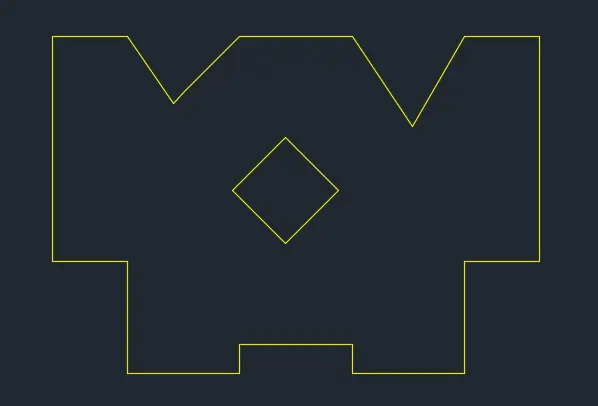
Result:
2.
AIM:-
To create geometry using Auto CAD .
Step by step procedure :-
- Command: UNITS
- Command: LIMITS
- Specify lower left corner (0,0)
- Specify upper right corner (420,297)
- Command: ZOOM
- Command: ALL
- Regenerating model
- Command: LINE
- Specify first point:
- Specify next point:2'6<30
- Specify next point:1<0
- Specify next point:2'10<45
- Specify next point:1'9<90
- Specify next point:Cancel
- Command: LINE
- Specify first point:
- Specify next point:3'<60
- Specify next point:2'5<90
- Specify next point: Intersection point
- Specify next point:Cancel
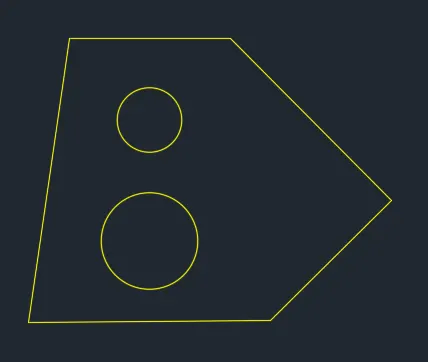
Result:
3.
AIM:-
To create geometry using Auto CAD .
Step by step procedure :-
- Command: UNITS
- Command: LIMITS
- Specify lower left corner (0,0)
- Specify upper right corner (420,297)
- Command: ZOOM
- Command: ALL
- Regenerating model
- Command: LINE
- Specify first point:
- Specify next point:5'0.1
- Specify next point:3'3
- Specify next point:5'0.1
- Specify next point:Close
- Command: offset
- Specify offset distance or: T
- Select object to offset:
- Specify through point:1'6
- Select object to offset:
- Specify through point:1'3
- Select object to offset:
- Specify through point:2'6.5
- Select object to offset: Exit
- Command: Circle
- Specify center point for circle:
- Specify radius of circle: d specify diameter of circle: 1'6
- Command: LINE
- Specify first point:
- Specify next point:
- Specify next point:Cancel
- Command: Trim
- Select cutting edges
- Select object or
- Select object to trim and erase
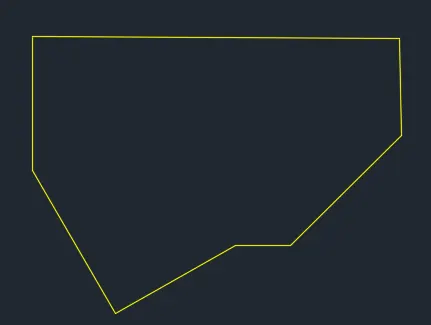
Result:
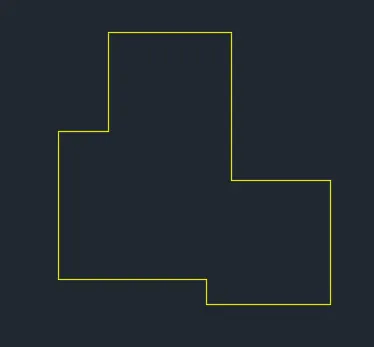
4.
AIM:-
To create geometry using Auto CAD .
Step by step procedure :-
- Command: UNITS
- Command: LIMITS
- Specify lower left corner (0,0)
- Specify upper right corner (420,297)
- Command: ZOOM
- Command: ALL
- Regenerating model
- Command: XLINE
- Specify a point: Vertical
- Specify through point:
- Specify through point:Cancel
- Command: offset
- Specify offset distance or: T
- Select object to offset:
- Specify through point:1
- Select object to offset:
- Specify through point:3
- Select object to offset:
- Specify through point:3.5
- Select object to offset:
- Specify through point:5.5
- Select object to offset: Cancel
- Command: XLINE
- Specify a point: H
- Specify through point:
- Specify through point:Cancel
- Command: offset
- Specify offset distance or: T
- Select object to offset:
- Specify through point:o.5
- Select object to offset:
- Specify through point:2.5
- Select object to offset:
- Specify through point:3.5
- Select object to offset:
- Specify through point:5.5
- Select object to offset: Cancel
- Command: Trim
- Select cutting edges
- Select object or
- Select object to trim
- Cancel
- Command: CHAMFER
- Select first line:
- Select second line:
- Exit
- Command: CHAMFER
- Select first line:
- Select second line:
- Exit
- Command: CHAMFER
- Select first line:
- Select second line:
- Exit
- Command: Trim
- Select cutting edges
- Select object or
- Select object to trim
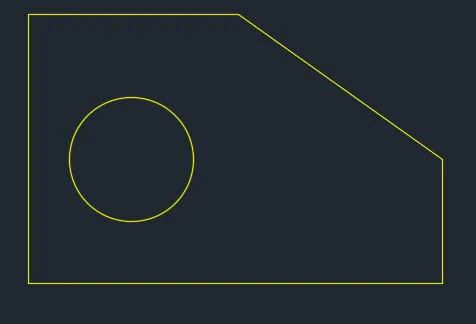
Result:
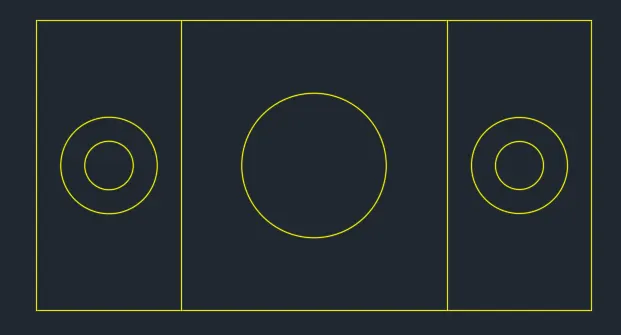
5.
AIM:-
To create geometry using Auto CAD .
Step by step procedure :-
- Command: UNITS
- Command: LIMITS
- Specify lower left corner (0,0)
- Specify upper right corner (420,297)
- Command: ZOOM
- Command: ALL
- Regenerating model
- Command: LINE
- Specify first point:
- Specify next point:11.5
- Specify next point:6
- Specify next point:11.5
- Specify next point:Close
- Command: offset
- Specify offset distance or: T
- Select object to offset:
- Specify through point:1.5
- Select object to offset:
- Specify through point:1.5
- Select object to offset:
- Specify through point:2.75
- Select object to offset:
- Specify through point:2.75
- Select object to offset:
- Specify through point:1.5
- Select object to offset: Exit
- Command: offset
- Specify offset distance or: 3
- Select object to offset:
- Select object to offset: Exit
- Command: Circle
- Specify center point for circle:
- Specify radius of circle: d specify diameter of circle: 1
- Exit
- Command: Circle
- Specify center point for circle:
- Specify radius of circle: d specify diameter of circle: 2
- Exit
- Command: Circle
- Specify center point for circle:
- Specify radius of circle: d specify diameter of circle: 1
- Exit
- Command: Circle
- Specify center point for circle:
- Specify radius of circle: d specify diameter of circle: 2
- Exit
- Command: Circle
- Specify center point for circle:
- Specify radius of circle: d specify diameter of circle: 3
- Exit
- Command: Trim
- Select cutting edges
- Select object or
- Select object to trim and erase
Result:
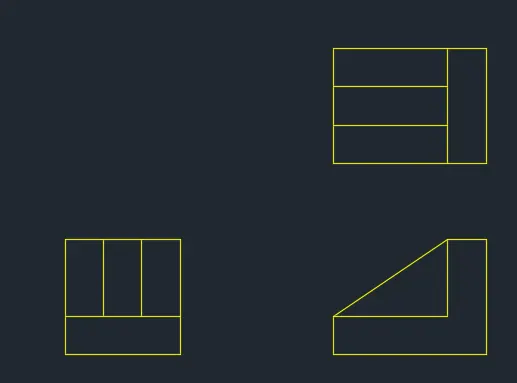
6.
AIM:-
To create geometry using Auto CAD .
Step by step procedure :-
- Command: UNITS
- Command: LIMITS
- Specify lower left corner (0,0)
- Specify upper right corner (420,297)
- Command: ZOOM
- Command: ALL
- Regenerating model
- Command: XLINE
- Specify a point: Vertical
- Specify through point:
- Specify through point:Cancel
- Command: offset
- Specify offset distance or: T
- Select object to offset:
- Specify through point:0.5
- Select object to offset:
- Specify through point:0.5
- Select object to offset:
- Specify through point:0.5
- Select object to offset:
- Specify through point:2
- Select object to offset:
- Specify through point:1.5
- Select object to offset:
- Specify through point:0.5
- Select object to offset: Exit
- Command: XLINE
- Specify a point: H
- Specify through point:
- Specify through point:Cancel
- Command: offset
- Specify offset distance or: T
- Select object to offset:
- Specify through point:o.5
- Select object to offset:
- Specify through point:1
- Select object to offset:
- Specify through point:1
- Select object to offset:
- Specify through point:0.5
- Select object to offset:
- Specify through point:0.5
- Select object to offset:
- Specify through point:0.5
- Select object to offset: Exit
- Command: Trim
- Select cutting edges
- Select object or
- Select object to trim and erase extra lines
- Command: LINE
- Specify first point:
- Specify next point:
- Exit
Result:
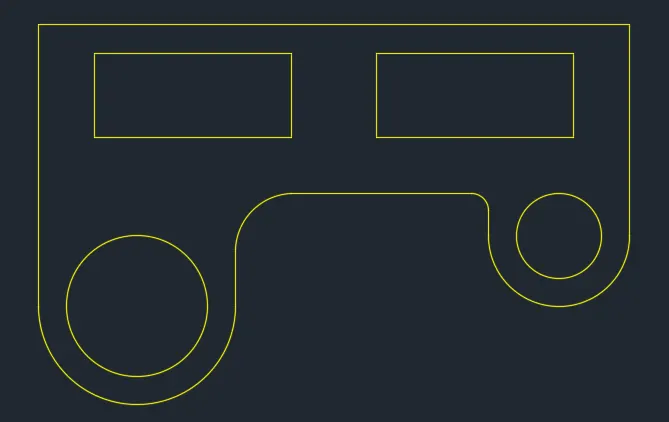
7.
AIM:-
To create geometry using Auto CAD .
Step by step procedure :-
- Command: UNITS
- Command: LIMITS
- Specify lower left corner (0,0)
- Specify upper right corner (420,297)
- Command: ZOOM
- Command: ALL
- Regenerating model
- Command: XLINE
- Specify a point: Vertical
- Specify through point:
- Specify through point:Cancel
- Command: offset
- Specify offset distance or: T
- Select object to offset:
- Specify through point:10
- Select object to offset:
- Specify through point:30
- Select object to offset:
- Specify through point:20
- Select object to offset:
- Specify through point:75
- Select object to offset:
- Specify through point:100
- Select object to offset: Exit
- Command: XLINE
- Specify a point: H
- Specify through point:
- Specify through point:Cancel
- Command: offset
- Specify offset distance or: T
- Select object to offset:
- Specify through point:20
- Select object to offset:
- Specify through point:35
- Select object to offset:
- Specify through point:70
- Select object to offset:
- Specify through point:30
- Select object to offset:
- Specify through point:70
- Select object to offset:
- Specify through point:20
- Select object to offset:
- Specify through point:25
- Select object to offset: Exit
- Command: Circle
- Specify center point for circle:
- Specify radius of circle: d specify diameter of circle: 50
- Exit
- Command: Circle
- Specify center point for circle:
- Specify radius of circle: d specify diameter of circle: 30
- Exit
- Command: arc
- Specify start point of arc:
- Specify second point of arc: e
- Specify radius of arc: 35
- Cancel
- Command: arc
- Specify start point of arc:
- Specify second point of arc: e
- Specify radius of arc: 25
- Cancel
- Command: Trim
- Select cutting edges
- Select object or
- Select object to trim and erase extra lines
- Command: FILLET
- Select first object:
- Select second object or: R
- Specify fillet radius:6
- Enter
- Command: FILLET
- Select first object:
- Select second object or: R
- Specify fillet radius:20
- Enter
- Command: FILLET
- Select first object:
- Select second object or: R
- Specify fillet radius:15
- Enter
- Command: FILLET
- Select first object:
- Select second object or: R
- Specify fillet radius:15
- Enter
Result:
8.
AIM:-
To create geometry using Auto CAD .
Step by step procedure :-
- Command: UNITS
- Command: LIMITS
- Specify lower left corner (0,0)
- Specify upper right corner (420,297)
- Command: ZOOM
- Command: ALL
- Regenerating model
- Command: XLINE
- Specify a point: H
- Specify through point:
- Specify through point:Cancel
- Command: offset
- Specify offset distance or: 2.5
- Select object to offset:
- Specify point on side to offset:
- Select object to offset:
- Specify point on side to offset:
- Select object to offset: Exit
- Command: XLINE
- Specify a point: V
- Specify through point:
- Specify through point:Cancel
- Command: offset
- Specify offset distance or: T
- Select object to offset:
- Specify through point:4.275
- Select object to offset:
- Specify through point:8.55
- Select object to offset:
- Select object to offset: Exit
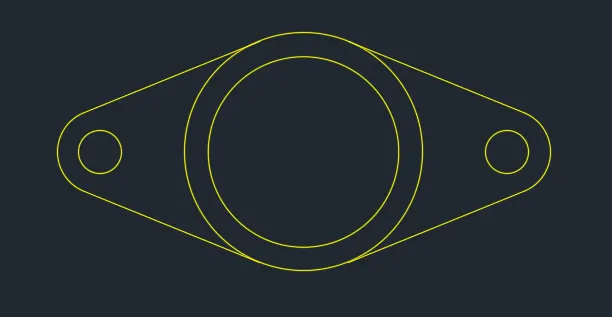
- Command: Circle
- Specify center point for circle:
- Specify radius of circle: d specify diameter of circle: 0.9
- Exit
- Command: Circle
- Specify center point for circle:
- Specify radius of circle: d specify diameter of circle: 0.9
- Exit
- Command: Circle
- Specify center point for circle:
- Specify radius of circle: d specify diameter of circle: 5
- Exit
- Command: Circle
- Specify center point for circle:
- Specify radius of circle: d specify diameter of circle: 4
- Exit
- Command: Circle
- Specify center point for circle:
- Specify radius of circle: 0.9
- Exit
- Command: Circle
- Specify center point for circle:
- Specify radius of circle: 0.9
- Exit
- Command: Erase
- Select objects:
- Select objects:
- Select objects:
- Select objects:
- Select objects:
- Select objects:
- Enter
- Command: OSNAP (Tangent on)
- Command: LINE
- Specify first point:
- Specify next point:
- Command: LINE
- Specify first point:
- Specify next point:
- Command: LINE
- Specify first point:
- Specify next point:
- Command: LINE
- Specify first point:
- Specify next point:
- Exit
- Command: Trim
- Select cutting edges
- Select object or
- Select all object to trim
Result:
10.
AIM:-
To create geometry using Auto CAD .
Step by step procedure :-
- Command: UNITS
- Command: LIMITS
- Specify lower left corner (0,0)
- Specify upper right corner (420,297)
- Command: ZOOM
- Command: ALL
- Regenerating model
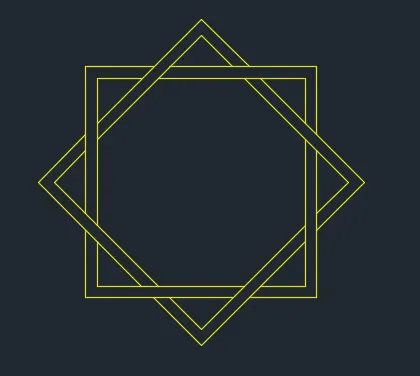
- Command: XLINE
- Specify a point: H
- Specify through point:
- Specify through point:Cancel
- Command: XLINE
- Specify a point: V
- Specify through point:
- Specify through point:Cancel
- Command: XLINE
- Specify a point: A
- Enter angle of xline:45
- Specify through point:
- Specify through point:Cancel
- Command: XLINE
- Specify a point: A
- Enter angle of xline:135
- Specify through point:
- Specify through point:Cancel
- Command: offset
- Specify offset distance or: 5
- Select object to offset:
- Specify point on side to offset:
- Select object to offset:
- Specify point on side to offset:
- Select object to offset:
- Specify point on side to offset:
- Select object to offset:
- Specify point on side to offset:
- Select object to offset:
- Specify point on side to offset:
- Select object to offset:
- Specify point on side to offset:
- Select object to offset:
- Specify point on side to offset:
- Select object to offset:
- Specify point on side to offset:
- Select object to offset:Exit
- Command: Trim
- Select cutting edges
- Select object or
- Select all object to trim
- Command: offset
- Specify offset distance or: 0.5
- Select object to offset:
- Specify point on side to offset:
- Select object to offset:
- Specify point on side to offset:
- Select object to offset:
- Specify point on side to offset:
- Select object to offset:
- Specify point on side to offset:
- Select object to offset:
- Specify point on side to offset:
- Select object to offset:
- Specify point on side to offset:
- Select object to offset:
- Specify point on side to offset:
- Select object to offset:
- Specify point on side to offset:
- Select object to offset:Exit
- Command: Trim
- Select cutting edges
- Select object or
- Select all object to trim
Result:
11.
AIM:-
To create geometry using Auto CAD .
Step by step procedure :-
- Command: UNITS
- Command: LIMITS
- Specify lower left corner (0,0)
- Specify upper right corner (420,297)
- Command: ZOOM
- Command: ALL
- Regenerating model
- Command: XLINE
- Specify a point: H
- Specify through point:
- Specify through point:Cancel
- Command: offset
- Specify offset distance or: T
- Select object to offset:
- Specify through point:2'8''
- Select object to offset:
- Specify through point:3'7''
- Select object to offset:
- Specify through point:9'
- Select object to offset:
- Specify through point:13'6''
- Select object to offset:
- Specify through point:1'2''
- Select object to offset: Exit
- Command: XLINE
- Specify a point: V
- Specify through point:
- Specify through point:Cancel
- Command: offset
- Specify offset distance or: T
- Select object to offset:
- Specify through point:3'
- Select object to offset:
- Specify through point:4'6''
- Select object to offset:
- Specify through point:4'6''
- Select object to offset:
- Specify through point:4'6''
- Select object to offset:
- Specify through point:3'
- Select object to offset:
- Specify through point:10'2''
- Select object to offset:Exit
- Command: LINE
- Specify first point:
- Specify next point:<60
- Exit
- Command: LINE
- Specify first point:
- Specify next point:
- Exit
- Command: Trim
- Select cutting edges
- Select object or
- Select object to trim
- Command: LINE
- Specify first point:
- Specify next point:<45
- Exit
- Command: LINE
- Specify first point:
- Specify next point:
- Exit
- Command: Trim
- Select cutting edges
- Select object or
- Select object to trim
- Specify a point: A
- Enter angle of xline:45
- Specify through point:
- Specify through point:Cancel
- Specify a point: A
- Enter angle of xline:135
- Specify through point:
- Specify through point:Cancel
- Command: offset
- Specify offset distance or: 1'6''
- Select object to offset:
- Specify point on side to offset:
- Select object to offset:
- Specify point on side to offset:
- Select object to offset:
- Specify point on side to offset:
- Select object to offset:
- Specify point on side to offset:
- Select object to offset:Exit
- Command: Trim
- Select cutting edges
- Select object or
- Select all object to trim
Result: