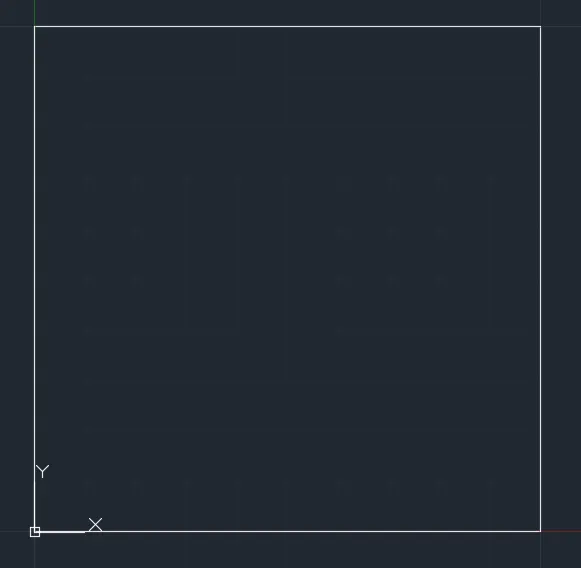
Creation of geometries by Coordinate system methods using AutoCad
1.P-1
AIM:-
To create geometry using Auto CAD .
Step by step procedure :-
- Command: UNITS
- Command: LIMITS
- Specify lower left corner (0,0)
- Specify upper right corner (420,297)
- Command: ZOOM
- Command: ALL
- Regenerating model
- Command: LINE
- Specify first point (2,1)
- Specify next point (@0,1)
- Specify next point (@-5,0)
- Specify next point (@0,4)
- Specify next point (@5,0)
- Specify next point (@0,1)
- Specify next point (@-6,0)
- Specify next point CLOSE
- Command: SAVE AS
Result:
2.P-2
AIM:-
To create geometry using Auto CAD .
Step by step procedure :-
- Command: UNITS
- Command: LIMITS
- Specify lower left corner (0,0)
- Specify upper right corner (420,297)
- Command: ZOOM
- Command: ALL
- Regenerating model
- Command: LINE
- Specify first point (2,1)
- Specify next point (@3,0)
- Specify next point (@0,4)
- Specify next point (@1,0)
- Specify next point (@0,-4)
- Specify next point (@3,0)
- Specify next point (7,8)
- Specify next point (-3,0)
- Specify next point CLOSE
- Command: SAVE AS
Result:

3.P-4
AIM:-
To create geometry using Auto CAD .
Step by step procedure :-
- Command: UNITS
- Command: LIMITS
- Specify lower left corner (0,0)
- Specify upper right corner (420,297)
- Command: ZOOM
- Command: ALL
- Regenerating model
- Command: LINE
- Specify first point (2,1)
- Specify next point (@1,0)
- Specify next point (5,3)
- Specify next point (7,5)
- Specify next point (@0,-4)
- Specify next point (@1,0)
- Specify next point (@0,7)
- Specify next point (5,5)
- Specify next point (2,8)
- Specify next point CLOSE
- Command: SAVE AS
Result:

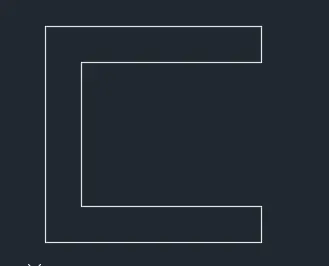
4.P-5
AIM:-
To create geometry using Auto CAD .
Step by step procedure :-
- Command: UNITS
- Command: LIMITS
- Specify lower left corner (0,0)
- Specify upper right corner (420,297)
- Command: ZOOM
- Command: ALL
- Regenerating model
- Command: LINE
- Specify first point (2,1)
- Specify next point (@1,0)
- Specify next point (@0,7)
- Specify next point (@5,0 )
- Specify next point (@0,-6)
- Specify next point (@-3,0)
- Specify next point (@0,-1)
- Specify next point (@4,0)
- Specify next point (@0,8)
- Specify next point (@-7,0)
- Specify next point CLOSE
- Command: SAVE AS
Result:
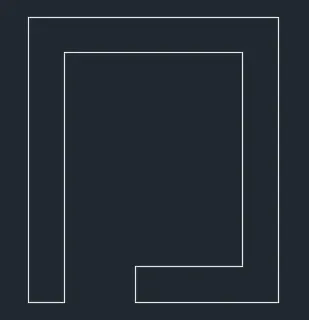
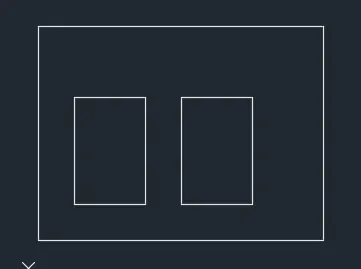
5.P-7
AIM:-
To create geometry using Auto CAD .
Step by step procedure :-
- Command: UNITS
- Command: LIMITS
- Specify lower left corner (0,0)
- Specify upper right corner (420,297)
- Command: ZOOM
- Command: ALL
- Regenerating model
- Command: LINE
- Specify first point (2,1)
- Specify next point (@0,6)
- Specify next point (@8,0)
- Specify next point (@0,-6)
- Specify next point CLOSE
- Command: LINE
- Specify first point (3,2)
- Specify next point (@0,3)
- Specify next point (@2,0)
- Specify next point (@0,-3)
- Specify next point CLOSE
- Command: LINE
- Specify first point (6,2)
- Specify next point (@0,3)
- Specify next point (@2,0)
- Specify next point (@0,-3)
- Specify next point CLOSE
- Command: SAVE AS
Result:
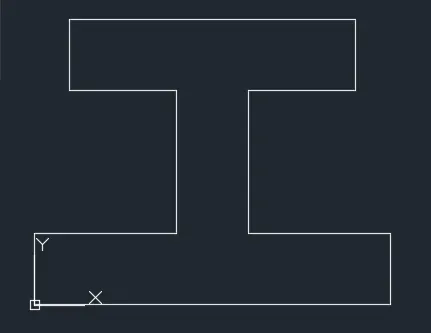
6.P-8
AIM:-
To create geometry using Auto CAD .
Step by step procedure :-
- Command: UNITS
- Command: LIMITS
- Specify lower left corner (0,0)
- Specify upper right corner (420,297)
- Command: ZOOM
- Command: ALL
- Regenerating model
- Command: LINE
- Specify first point (0,0)
- Specify next point (@10,0)
- Specify next point (@0,2)
- Specify next point (@-4,0)
- Specify next point (@0,4)
- Specify next point (@3,0)
- Specify next point (@0,2)
- Specify next point (@-8,0)
- Specify next point (@0,-2)
- Specify next point (@3,0)
- Specify next point (@0,-4)
- Specify next point (-4,0)
- Specify next point CLOSE
- Command: SAVE AS
Result:
7.P-9
AIM:-
To create geometry using Auto CAD .
Step by step procedure :-
- Command: UNITS
- Command: LIMITS
- Specify lower left corner (0,0)
- Specify upper right corner (420,297)
- Command: ZOOM
- Command: ALL
- Regenerating model
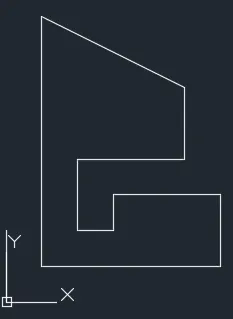
- Command: LINE
- Specify first point (1,1)
- Specify next point (@5,0)
- Specify next point (@0,2)
- Specify next point (@-3,0)
- Specify next point (@0,-1)
- Specify next point (@-1,0)
- Specify next point (@0,2)
- Specify next point (@3,0)
- Specify next point (@0,2)
- Specify next point (@3,0)
- Specify next point (@0,2)
- Specify next point (1,8)
- Specify next point CLOSE
- Command: SAVE AS
Result:
8.P-10
AIM:-
To create geometry using Auto CAD .
Step by step procedure :-
- Command: UNITS
- Command: LIMITS
- Specify lower left corner (0,0)
- Specify upper right corner (420,297)
- Command: ZOOM
- Command: ALL
- Regenerating model
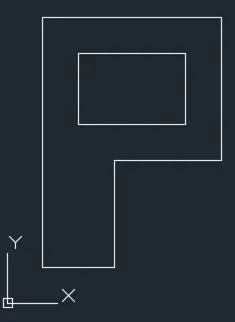
- Command: LINE
- Specify first point (1,1)
- Specify next point (@2,0)
- Specify next point (@0,3)
- Specify next point (@3,0)
- Specify next point (@0,4)
- Specify next point (@-5,0)
- Specify next point CLOSE
- Command: LINE
- Specify next point (2,5)
- Specify next point (@3,0)
- Specify next point (@0,2)
- Specify next point (@-3,0)
- Specify next point CLOSE
- Command: SAVE AS
Result:
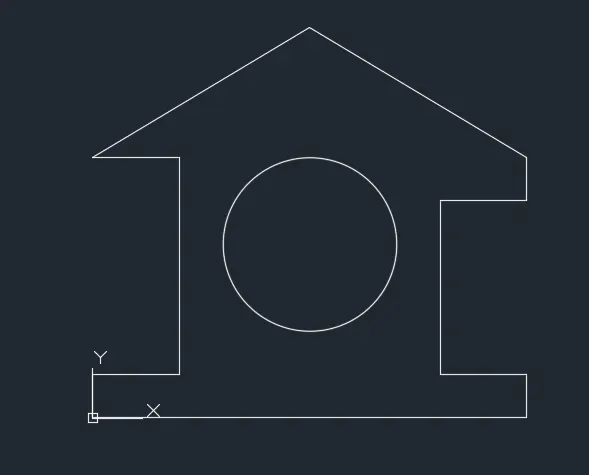
9.Profile-wood
AIM:-
To create geometry using Auto CAD .
Step by step procedure :-
- Command: UNITS
- Command: LIMITS
- Specify lower left corner (0,0)
- Specify upper right corner (420,297)
- Command: ZOOM
- Command: ALL
- Regenerating model
- Command: LINE
- Specify first point (0,0)
- Specify next point (@10,0)
- Specify next point (@0,1)
- Specify next point (@-2,0)
- Specify next point (@0,4)
- Specify next point (@2,0)
- Specify next point (@0,1)
- Specify next point (5,9)
- Specify next point (0,6)
- Specify next point (@2,0)
- Specify next point (@0,-5)
- Specify next point (@-2,0)
- Specify next point CLOSE
- Command: CIRCLE
- Specify centre point of circle: (5,4)
- Specify radius of circle: 2
- EXIT
- Command: SAVE
Result:
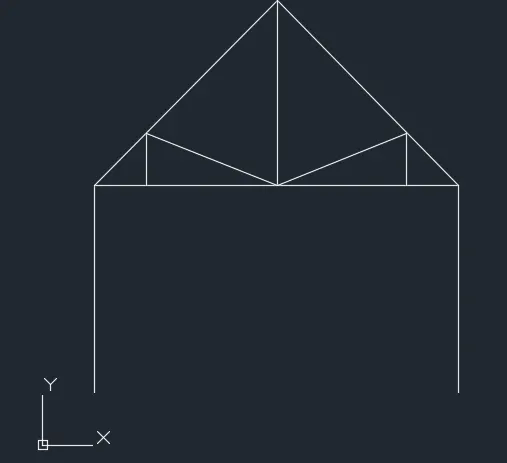
10.Queen post Truss
AIM:-
To create geometry using Auto CAD .
Step by step procedure :-
- Command: UNITS
- Command: LIMITS
- Specify lower left corner (0,0)
- Specify upper right corner (420,297)
- Command: ZOOM
- Command: ALL
- Regenerating model
- Command: LINE
- Specify first point (1,1)
- Specify next point (@0,4)
- Specify next point (@7,0)
- Specify next point (@0.-4)
- Cancel
- Command: LINE
- Specify next point (5) < 45
- Specify next point (8,5)
- Cancel
- Command: LINE
- Specify first point (4.5,8.6)
- Specify next point < Ortho on >
- Cancel
- Command: LINE
- Specify next point (2,6)
- Specify next point < Ortho on >
- Cancel
- Specify next point (2,6)
- Specify next point (4.5,5)
- Cancel
- Specify next point (7,6)
- Specify next point < Ortho on >
- Cancel
- Specify next point (7,6)
- Specify next point (4.5,5)
- cancel
- Command: SAVE AS
Result:
11.Mono Pitch
AIM:-
To create geometry using Auto CAD .
Step by step procedure :-
- Command: UNITS
- Command: LIMITS
- Specify lower left corner (0,0)
- Specify upper right corner (420,297)
- Command: ZOOM
- Command: ALL
- Regenerating model
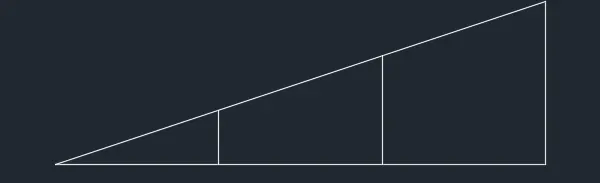
- Command: LINE
- Specify first point (1,1)
- Specify next point (@5,0)
- Specify next point (@0,2)
- Specify next point CLOSE
- Command: LINE
- Specify next point (3,1)
- Specify next point (@0,0.667)
- CANCEL
- Command: LINE
- Specify next point (5,1)
- Specify next point (@0,1.333)
- CANCEL
- Command: SAVE AS
Result:
12.Grid
AIM:-
To create geometry using Auto CAD .
Step by step procedure :-
- Command: UNITS
- Command: LIMITS
- Specify lower left corner (0,0)
- Specify upper right corner (420,297)
- Command: ZOOM
- Command: ALL
- Regenerating model
- Command:
- Specify first point (0,0)
- Specify next point (@10,0)
- Specify next point (@0,10)
- Specify next point (@-10,0)
- Specify next point CLOSE
- Command: SAVE AS
Result: