Drafting of various geometries using Chamfer, Fillet tool in AutoCad
AIM:
To draw the given sketches in AutoCAD.
INTRODUCTION:
AutoCAD offers various tools like Line, circle, chamfer, fillet, mirror, trim, move, rotate, arc, annotate, etc.., by using those tools we are sketching the drawings.
PROCEDURE:
Procedure for Drawing 1:
- Start with new file.
- Set the Units, Decimal as type of length and Precisions as 0.000.
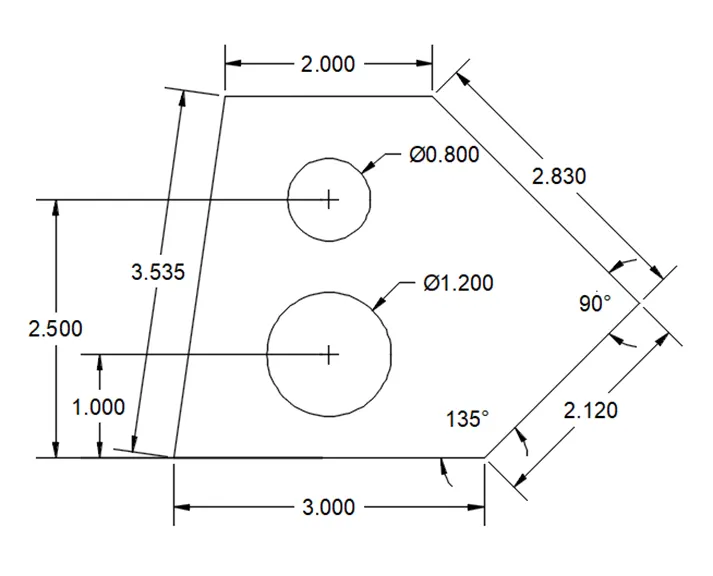
- Line command: Specify the point, draw 3.0 line, next with @2.12<45, and next with @2.83<135, and next 2.0 then close the line command.
- Circle command: Specify the point 1.0 at height from half of the base line with Diameter of 1.2, and similarly specify the point 2.5 at half of the same base line with Diameter of 0.80.
- Give dimensions to all the lines with Dimlinear command.
- Give the angle to the lines with Dimangular.
- Give the diameter to the circles with Dimdiameter.
Procedure for Drawing 2:
- Set the units, Decimal as type of length and Precisions as 0.000.
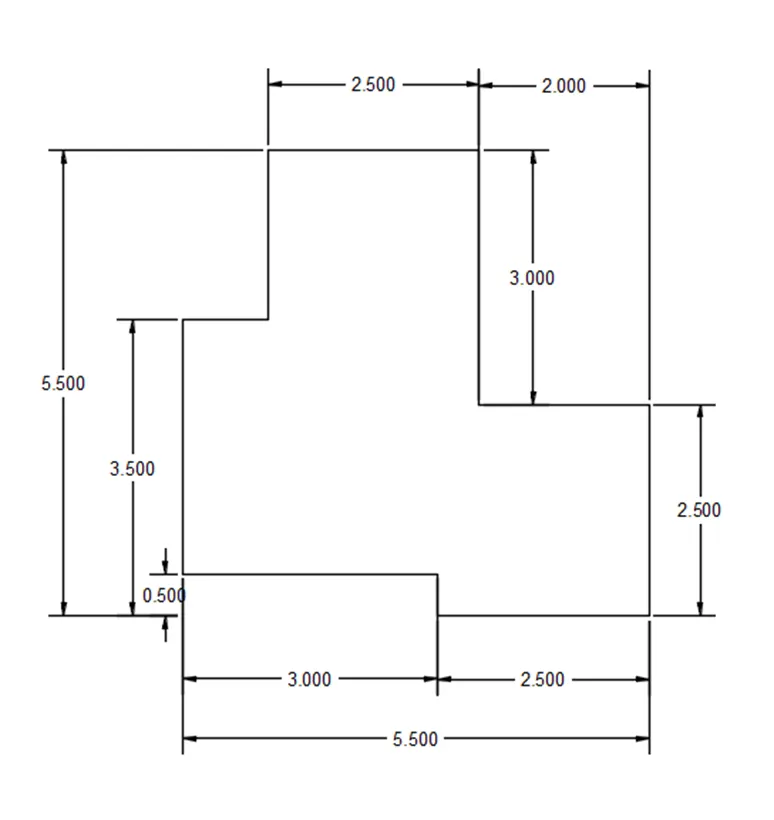
- Choose line command, specify the point randomly, give 3.0 length in right, 0.5 length in down, 2.5 length in right, 2.5 length in top, 2.0 length in left, 3.0 length in top, 2.5 length in left, 2.5 length in down, 1.0 length in left and close the line command.
- Specify the dimension to all the lines using Dimlinear command.
Procedure for Drawing 3:
- Set the units, Decimal as type of length and Precisions as 0.00.
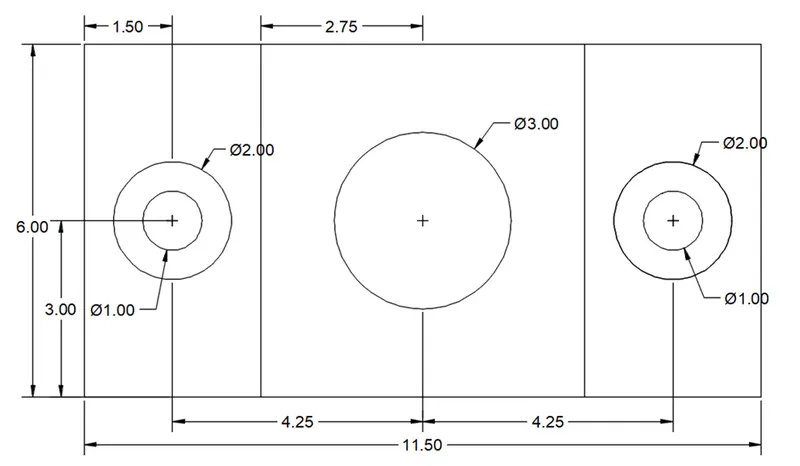
- Choose line command, specify the point randomly, and draw line with 11.55 length in right, 6.0 length in top, 11.5 length in left then close the line command.
- Copy the line with 6.0 length from left side and paste in distance of 3.0 in right side on the 11.5 length line.
- Copy the line with 6.0 length from right side and paste in distance of 3.0 in left side on the 11.5 length line.
- Draw the circle at height of 3.0 with the distance of 1.5 length from both the ends. The diameter of circles are 1.0 and 2.0 in the both the ends.
- And also draw the circle with diameter of 3.0 at the height of 3.0 from the mid-point of base line.
- Give dimensions to all the lines with Dimlinear command.
- Give the diameter to the circles with Dimdiameter.
Procedure for Drawing 4:
- Set the units, Decimal as type of length and Precisions as 0.0.
- Choose line command and specify the random point.
- Draw a line horizontally right side side with 1.5 length, vertically down side with length 0.5, horizontally left side with 1.5 length, vertically up side with 1.5 length, horizontally right side with 1.5 length, vertically down side with 10 length.
- Choose Offset command, Specify the point with 1.0 length with distance of 0.5 length and click at vertically left side 2 times.
- Choose Line command, Select Extension snap object for base line of just drawn object in horizontally to right side, specify the point randomly with extension line.
- Draw a line in horizontally right side side with 15 length, vertically up sideward with 1.5 length, horizontally left side with 0.5 length, vertically down side with length 1.0, horizontally left side with 1.0 length and close the line command. Finally join the edge points using line command.
- Choose the side line in vertically as Extension snap object for next object.
- Choose line command specify the point with extension line, draw the line in vertically up side with 1.5 length, horizontally left side with 2.0 length, vertically down side with 1.5 length, and close the line command.
- Choose offset command, select right side line offset the line with 0.5 length.
- Choose the offset command and select the top horizontal line and specify the distance with 0.5 length and continue for 2 offset lines.
- Trim the excess line.
- Give dimensions to all the lines with Dimlinear command.
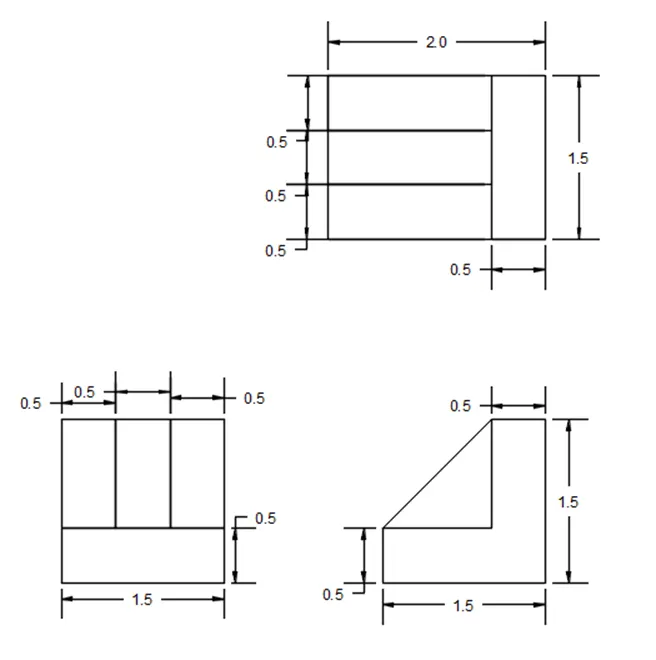
Procedure for Drawing 5:
- Set the units, Decimal as type of length and Precisions as 0.0.
- Choose line command and specify the random point.
- Draw horizontal line with length 8.55 in right side.
- Draw a circle in both ends with diameter of 0.9.
- Specify the middle point of the line and draw 2 circles, one with the diameter of 0.4 and another one with 0.5 diameter.
- Choose the arc command at one end, draw an arc with 0.9 radius and join arc and circle with diameter 5.0 at the tangent on circle at top and bottom both side.
- Mirror the Arc and lines with reference of middle point mirror to other end.
- Give dimensions to all the lines with Dimlinear command.
- Give the diameter to the circles with Dimdiameter and Dimradius.
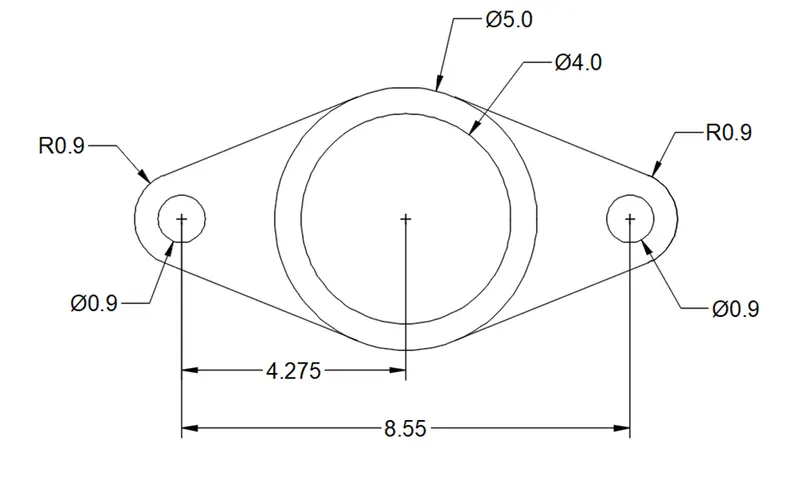
Procedure for Drawing 6:
- Set the units, Decimal as type of length and Precisions as 0
- Choose line command and specify the random point.
- Draw a line vertically up side with 100 length, 210 length in horizontally right side, 75 length in vertically down side.
- Select the line of 210 length copy to length of 10, 40, and 60 in vertically down side.
- Similarly copy the line with length 100 and paste at length 20, 90, 120, and 190 in horizontally right side.
- Choose circle with 2 end points and draw a circle at bottom of the 100 length line, circle with diameter of 70 is R35, similarly in other end draw circle with diameter 50 is R25.
- Draw a circle at center point of R35 draw another circle with radius of 25, similarly in other end circle at the center of R25 draw another circle with radius 15.
- Tangent line with both circle of R35 and R25 from both end to horizontal line.
- Use fillet command, Fillet at top edges of the lines with radius of 15 at both ends is done.
- Fillet with radius of 20 in one left side and Fillet with radius of 6 in right side.
- Give dimensions to all the lines with Dimlinear command.
- Give the diameter to the circles with Dimradius.
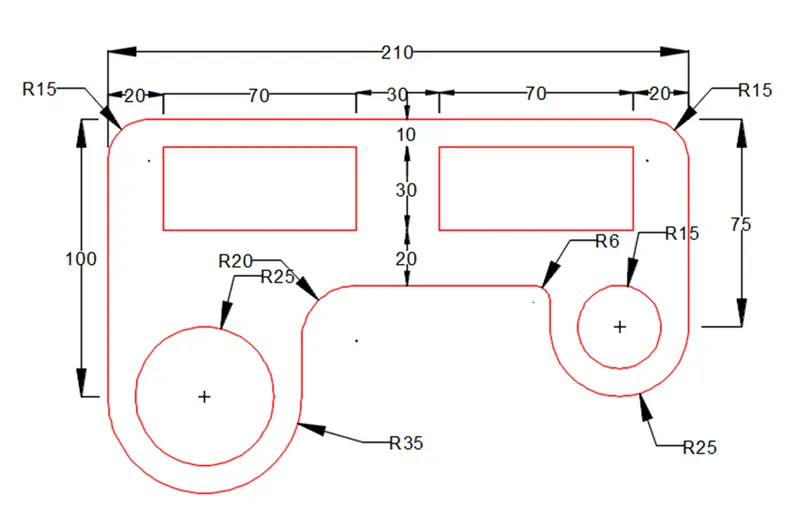
Procedure for Drawing 7:
- Set the units, Architectural as type of length and Precisions is 0’-0”.
- Choose line command and specify the random point.
- Set Polar tracking to 45’, 90’, 135’,…..
- Choose line command and specify the point randomly.
- Draw a line vertically upward side with 2’5” length, 8’ in horizontally right side, 1’-9” in vertically down side, 2’-10” with angle <225’ vertically down side.
- From Starting point draw a line with 3’ length with angle <300’ in vertically right down side, 2’-6” with angle <30’ horizontally upward right side, then join the previous line with recent line.
- Give dimensions to all the lines with Dimlinear, Dimangle command.
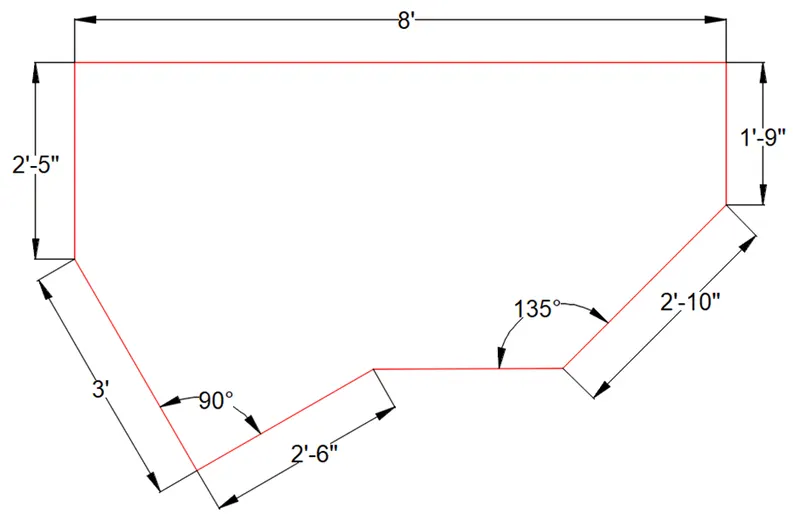
Procedure for Drawing 8:
- Set the units, Engineering as type of length and Precisions is 0’-0.0”.
- Choose line command and specify the random point.
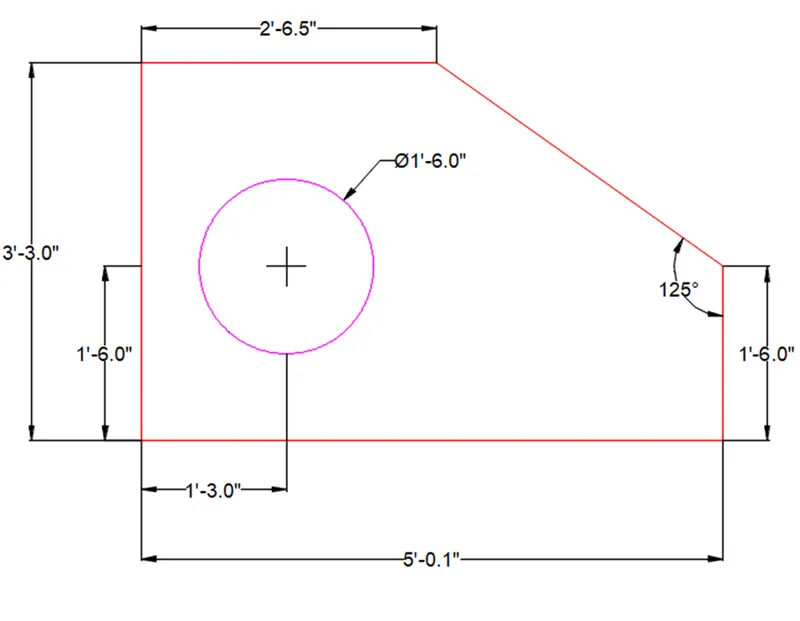
- Draw a line 2’-6.5” in horizontally left side, 3’-3.0” in vertically down side, 5’-0.1” in horizontally right side, 1’-6” in vertically upward side and close the line command.
- Draw a circle in length of 1’-3.0” from left towards right and height 1’-6.0” from base line, Draw a circle with 1’-6.0” diameter.
- Give dimensions to all the lines with Dimlinear command.
- Give the diameter to the circles with Dimdiameter.
Procedure for Drawing 9:
- Set the units, Engineering as type of length and Precisions is 0’-0.0”.
- Choose line command and specify the random point.
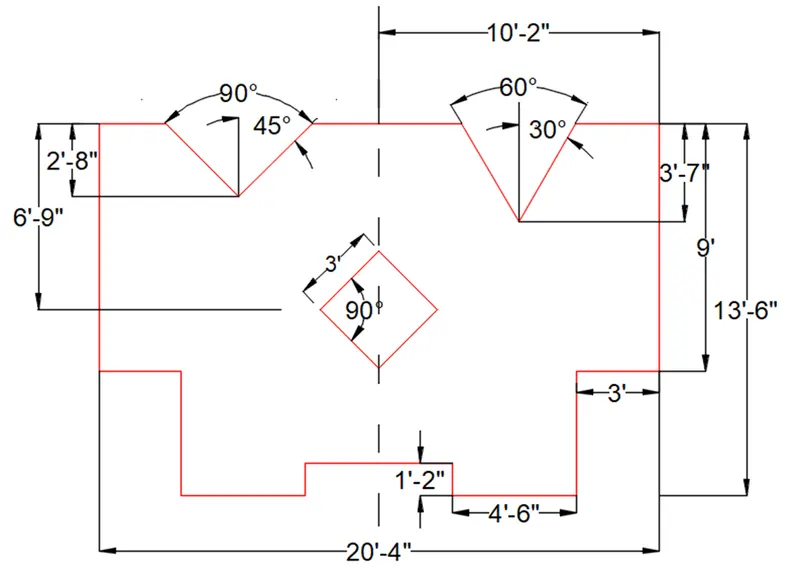
- Draw line with 10’-2” horizontally right side line, 13’-6” in vertically downwards line, 3’ horizontally left side line, 4’-6” horizontally left side line, 1’-2” in vertically upwards line.
- Use mirror tool to mirror the object, the reference point is initial point of the sketch.
- Draw a Square box with 3’x3’ dimension and rotate in 45 degree angle and place at distance of 6’-9” from middle of the top line.
- Draw 3’-7” line in vertically downward side from right side with length of 5’-1” from top line and draw 60 degree angle with the line.
- Draw 2’-8” line in vertically downward side from left side with length of 5’-1” from top line and draw 90 degree angle with the line.
- Give dimensions to all the lines with Dimlinear, Dimangle command.
Procedure for Drawing 10:
- Set the units, Engineering as type of length and Precisions is 0’-0.0”.
- Use circle command specify the random point.
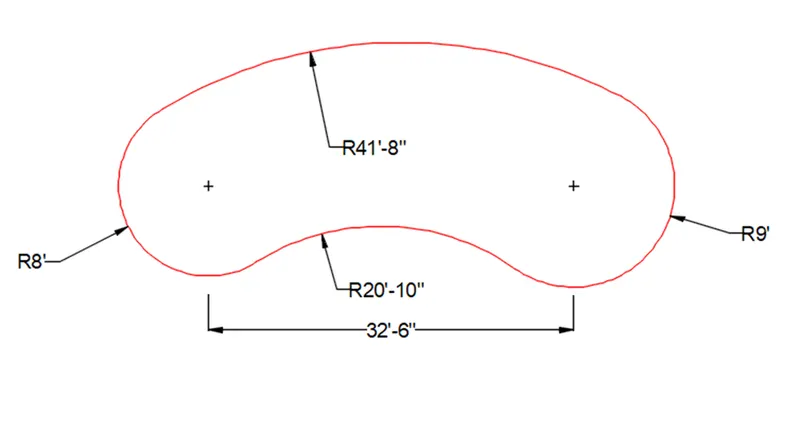
- Draw a Circle with radius of 8’ and 9’ at distance of 32’-6”.
- Use TAN, TAN, RADIUS command select the upper outer part of both circles and put radius 41’-8”, and similarly select tangent as lower inner side of both circles and put the radius 20’-10”.
- Give dimensions to the lines with Dimlinear command.
- Give the diameter to the circles with Dimradius.
Procedure for Drawing 11:
- Set the units, Decimal as type of length and Precisions as 0.0.
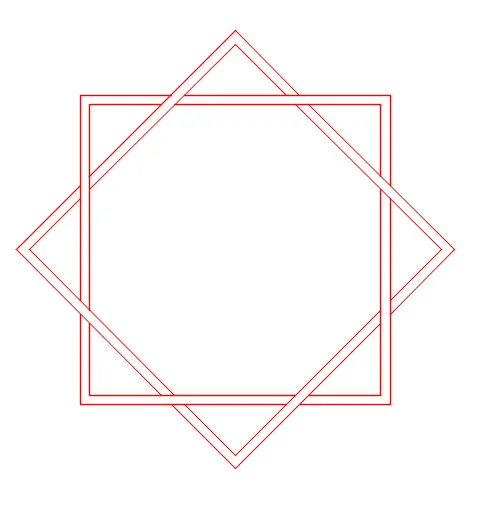
- Choose line command and create square box and rotate it with 45 degree angle.
- Trim the unwanted lines.