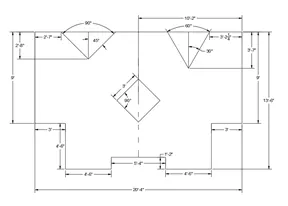
Drafting of various geometries using Chamfer, Fillet tool in AutoCad
AIM: Creating of Various Geometries using Chamfer, Fillet tool in Autocad.
Introduction: Autocad is a drafting software which is used to draft the drawings in present case We are using autocad to create various drawings using different tools in autocad (2019) like Line , pline, rectangle, fillet, champer, etc and along with that isometric drawings using specific commonds and tools.
Procedure:
Launching the autocad app and select start new drawing and in command type startup<1then select new drawing in app icon further go for quick setup and start drawing
Selecting of Tools:
Line: Ribbon< Home< Line, Command: Line or L, Home< Draw< Line.
Polyline: Ribbon< Home< Polyine, Command: polyline or pl, Home< Draw< polyline.
Rectangle: Ribbon< Home< rectangle, Command: rectangle or rec, Home< Draw< rectangle.
Ploygon: Ribbon< Home< Ploygon, Command: Ploygon or pol, Home< Draw< Ploygon.
Circle: Ribbon< Home< Circle, Command: Circle or C, Home< Draw< Circle.
Fillet: Ribbon< Home< Fillet, Command: Fillet or F, Home< modify< Fillet.
Chamfer: Ribbon< Home< Chamfer, Command: Chamfer or cha, Home< modify<Chamfer.
Move: Ribbon< Home< move, Command: move or M, Home< modify<Move.
Copy: Ribbon< Home< Copy, Command: Copy or co, Home< modify<Copy.
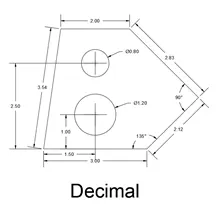
1. By using Decimal System:
Procedure:
- Taking line tool and give coordinate (0,0) and further give (@3<0), and (@2.12<45), (@2.83<135) , (@2,180) and C for close.
- select a circle pic a point (1.5,1) and select Diameter 1.20 and entre
- select another point by taking circle command as (1.5,2.5)and draw a circle with dia 0.80 and Entre.
- Provide necresarry dimention from tool box or home dimension.
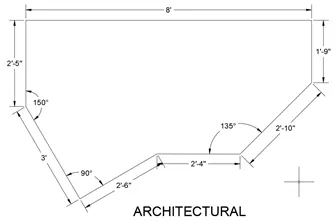
2. By using Architecture System:
Procedure:
- Taking line tool and give coordinate (0,0) and further give (@8'<0), and (@1'9"<270), (@2'10"<225) , (@2'4"<180) , (@2'6"<225), (@3'<135)and C for close.
- Provide necresarry dimention from tool box or home dimension.
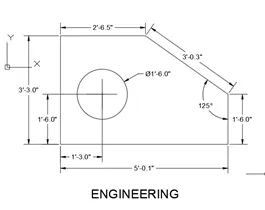
3. By using Engineering System:
Procedure:
- Taking line tool and give coordinate (0,0) and further give (@5'0.1"<0), and (@1'6.0"<90), (@3'0.3"<135) , (@2'6.5",180) and C for close.
- select a circle pic a point (1'3.0", 1'6.0") and select Diameter 1'6.0" and entre
- Provide necresarry dimention from tool box or home dimension.
4. By using Decimal System:
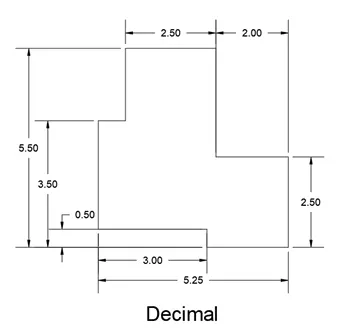
Procedure:
- Taking line tool and give coordinate (0,0) and further give (@3<0), and (@0.5<270), (@2.25<0) , (@2.5,90), (@2,180), (@3,90), (@2.5,180), (@2,270), (@0.5,180)and C for close.
- Provide necresarry dimention from tool box or home dimension.
5. By using Decimal System:
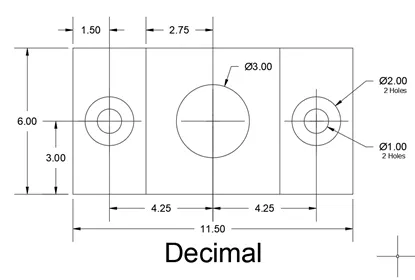
Procedure:
- Taking Rectangle tool and give coordinate (0,0) and further give (@11.5,6) and Entre.
- select point at (1.5,3) and (5.75,3).
- select 2nd point and copy it to positive x at a distance 4.25 and Enter.
- select circle at 1 st point and give dia of 2 and entre.
- and select a offset o and give dimension of 0.5 internally and enter.
- Select a circle of dia 3 from 2 nd point and Enter.
- Copy the 1st point circle at center point and copy to 3 rd point Enter.
- Provide necresarry dimention from tool box or home dimension.
6. By using Decimal System:
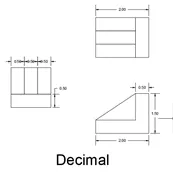
Procedure:
- Taking Rectangle tool and give coordinate (0,0) and further give (@11.5,6) and Entre.
- select point at (1.5,3) and (5.75,3).
- select 2nd point and copy it to positive x at a distance 4.25 and Enter.
- select circle at 1 st point and give dia of 2 and entre.
- and select a offset o and give dimension of 0.5 internally and enter.
- Select a circle of dia 3 from 2 nd point and Enter.
- Copy the 1st point circle at center point and copy to 3 rd point Enter.
- Provide necresarry dimention from tool box or home dimension.
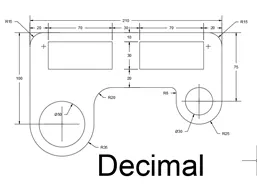
Procedure:
- Taking Rectangle tool and give coordinate (0,0) and further give (@11.5,6) and Entre.
- select point at (1.5,3) and (5.75,3).
- select 2nd point and copy it to positive x at a distance 4.25 and Enter.
- select circle at 1 st point and give dia of 2 and entre.
- and select a offset o and give dimension of 0.5 internally and enter.
- Select a circle of dia 3 from 2 nd point and Enter.
- Copy the 1st point circle at center point and copy to 3 rd point Enter.
- Provide necresarry dimention from tool box or home dimension.
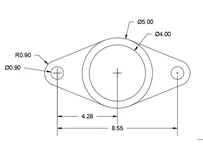 .
.
Procedure:
- Taking line tool and give coordinate (0,0) and further give (@5'0.1"<0), and (@1'6.0"<90), (@3'0.3"<135) , (@2'6.5",180) and C for close.
- select a circle pic a point (1'3.0", 1'6.0") and select Diameter 1'6.0" and entre
- Provide necresarry dimention from tool box or home dimension.
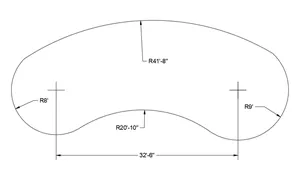
Procedure:
- Taking line tool and give coordinate (0,0) and further give (@5'0.1"<0), and (@1'6.0"<90), (@3'0.3"<135) , (@2'6.5",180) and C for close.
- select a circle pic a point (1'3.0", 1'6.0") and select Diameter 1'6.0" and entre
- Provide necresarry dimention from tool box or home dimension.
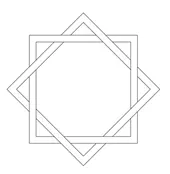
Procedure:
- Taking Rectangle tool and give coordinate (0,0) and further give (@8,8) and Entre.
- Give offset as 1 internally.
- select whole and rotate it by selecting copy at 45 degree.
- take trim option and erase alternately the lines at intersection.