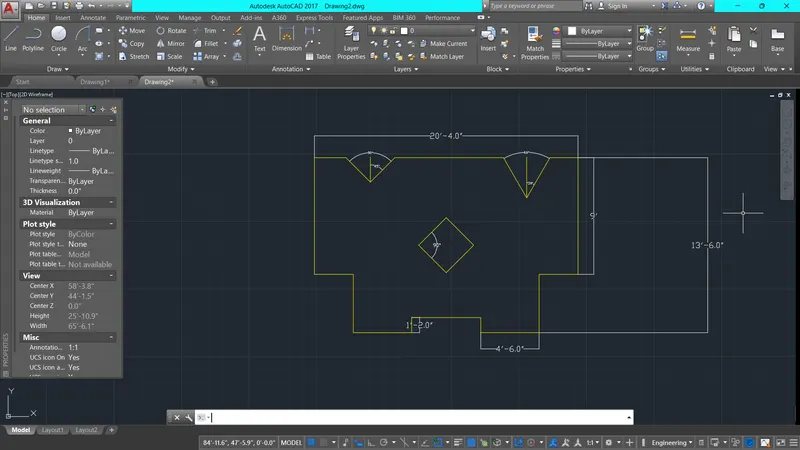
Drafting of various geometries using Chamfer, Fillet tool in AutoCad
AIM:
To draw the above figuure using autocad
PROCEDURE:
- Line command
- starting point (0,0)
- Form 3.0 unit left
- after that move 2.1 at an angle 45 degrees to (2.1<45)
- Then 2.8 at an angle of 90 degrees inside
- 2.0m on left side
- close
- else
- type ptype command and select point
- mark point at distance 1.5 from point and at height 1.0 & 2.50 from base
- circle command
- select draw circle from diameter
- now at point draw circle of dia 1.20 & at point draw circle of dia 0.8
- else
RESULT:
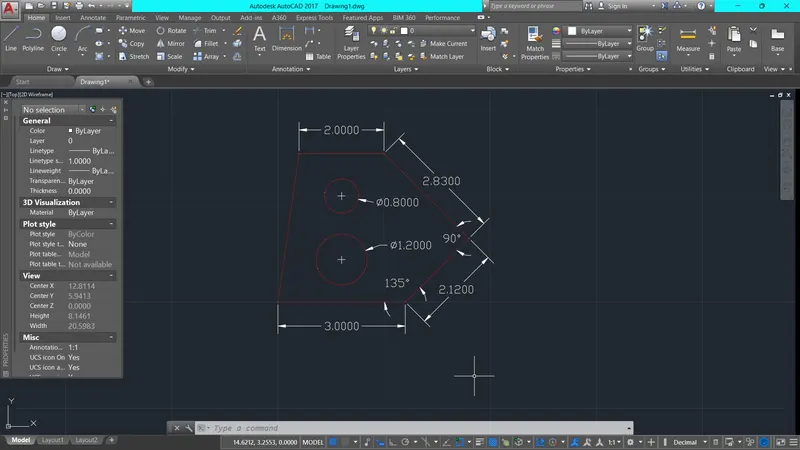
AIM:
To draw the above figure using autocad
PROCEDURE:
- Line command
- starting point (10,10)
- 2'10'<45 degree
- 1'9" in upward
- 8' in leftward
- 2'5" in downward
- 3'<150 degree inside
- close
- using DIM command show the dimension of each line & angles also
RESULT:
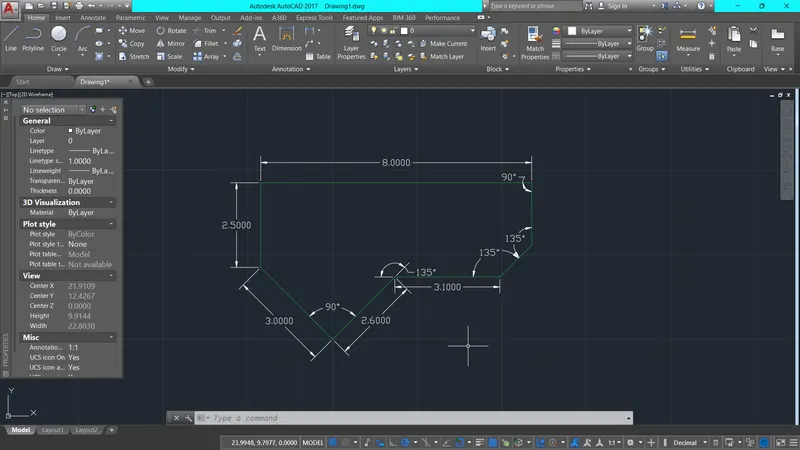
AIM:
To draw the above figure using autocad
PROCEDURE:
- polyline command
- starting point (0,0)
- 2'6.5" in the left direction
- 3'3" in a downward direction
- 5'0.1" in the left direction
- 1'6" in an upward direction
- close
- select a suitable point type by using the ptype command
- mark a point using point command at a distance 1'3" left from 1'6"upward
- esc
RESULT:
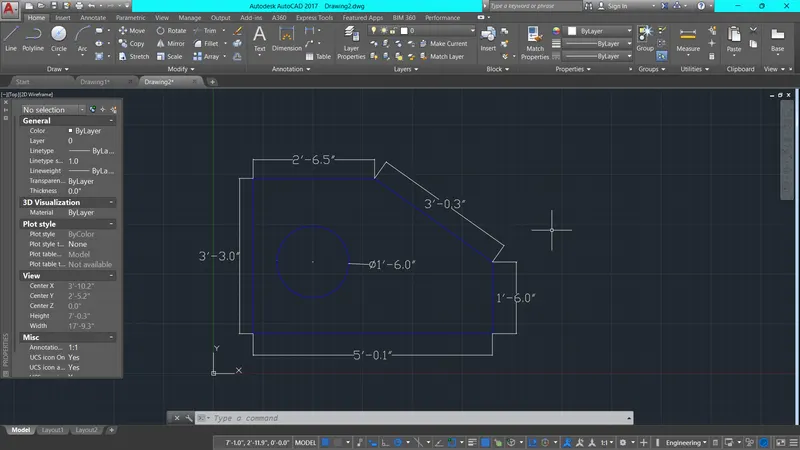
AIM:
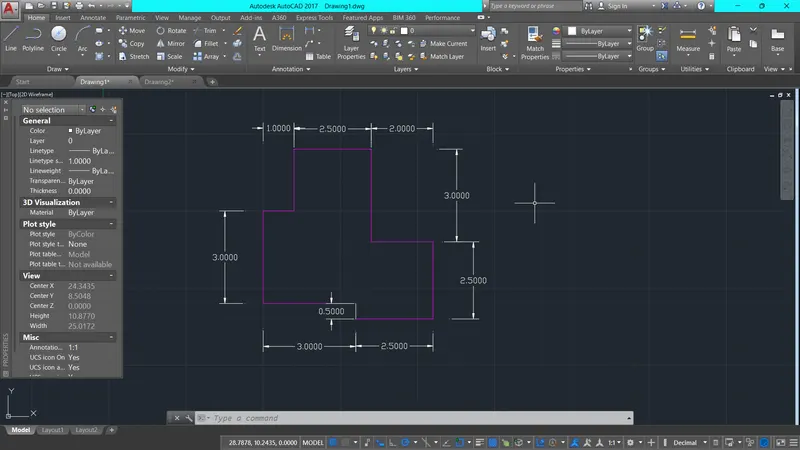
To draw the above figure using autocad
PROCEDURE:
- Open autocad
- new file
- starting point is (0,0)
- b=3.0,0.0
- c=3.0,-0.5
- d=5.50,-0.50
- e=5.50,2.0
- f=8.80,3.60
- g=8.80,0.0
RESULT:
AIM:
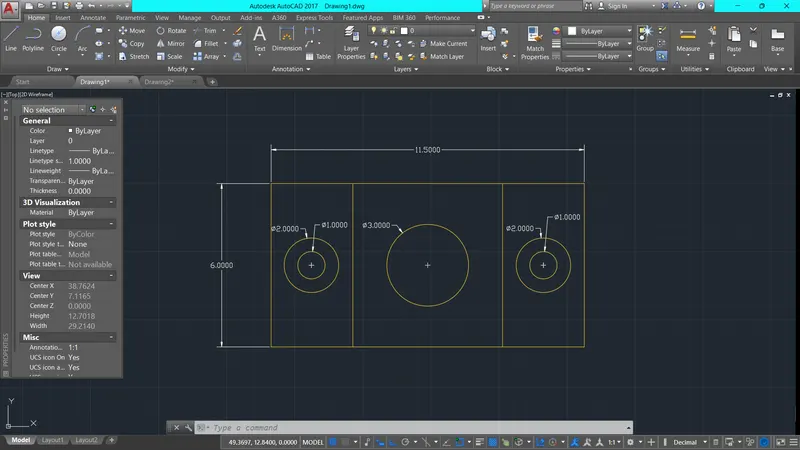
To draw the above figure using autocad
PROCEDURE:
- Open autocad
- "rec" command
- draw a rec 11.5X6.0
- 'O' offset command select line at distances in right side 3.0&8.50 to draw line
- now mark point center as per dimension given to draw a circle
- circle command draw two circle of dia 1.0 & 2.0 at point
- copy those two circle and keep at on other side paste it
- again using the circle command draw a circle of dia 3
- esc
RESULT:
AIM:
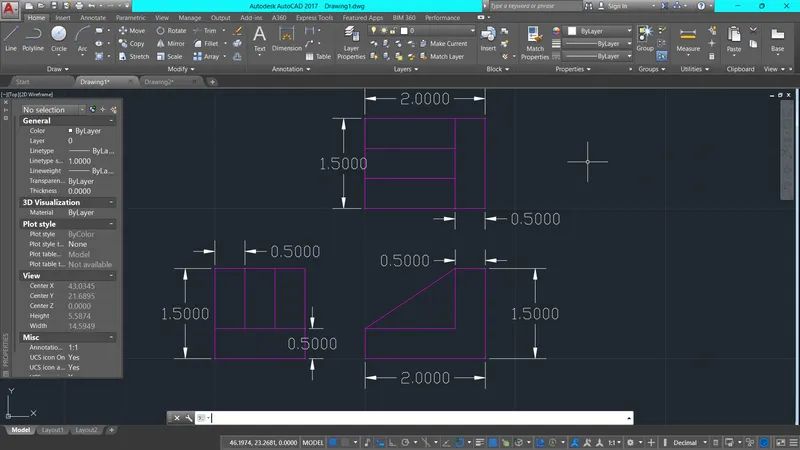
To draw the above figure using autocad
PROCEDURE:
- Open autocad
- "rec" command
- draw a rec 1.5X1.50
- 'O' offset command select line at distances in 0.50
- again offset at distance 0.5 in upward
- trim command the unrequired line and and the result you can seein the image
- line command
- 2.0 unit in right side
- 1.5 unit in upward direction
- 0.5 in left side
- 1.0 in downward
- 1.5 in leftward
- close
- again line command join
- esc
- in similar way draw other part also
RESULT:
AIM:
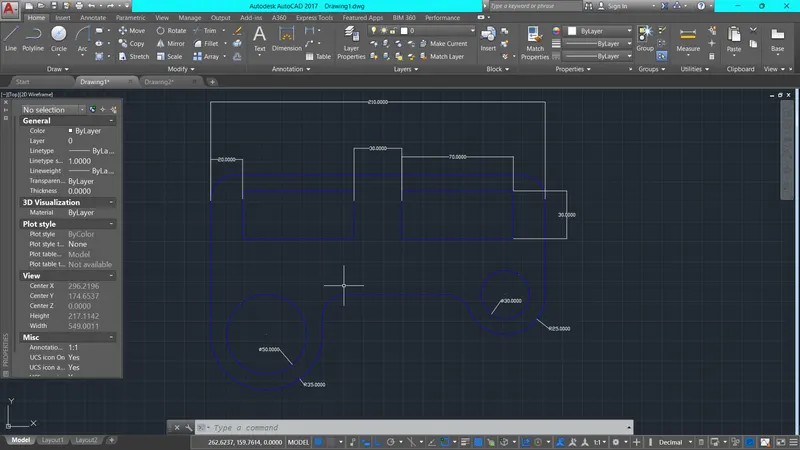
To draw the above figure using autocad
PROCEDURE:
- Open autocad
- "arc" command
- starting point (20,20)
- draw arc of radius 35
- line command start drawing a line from point as per given dimension
- "arc" command draw arc of radius 25
- mark point using point command in given dimension
- draw two circle using circle command of 50&30 at piont
- now draw of rec command of size 70X30
- copy that rectangle and paste it
- F-fillet command ,select radius option & give R15 & R20 &R6
- esc
RESULT:
AIM:
To draw the above figure using autocad
PROCEDURE:
- Open autocad
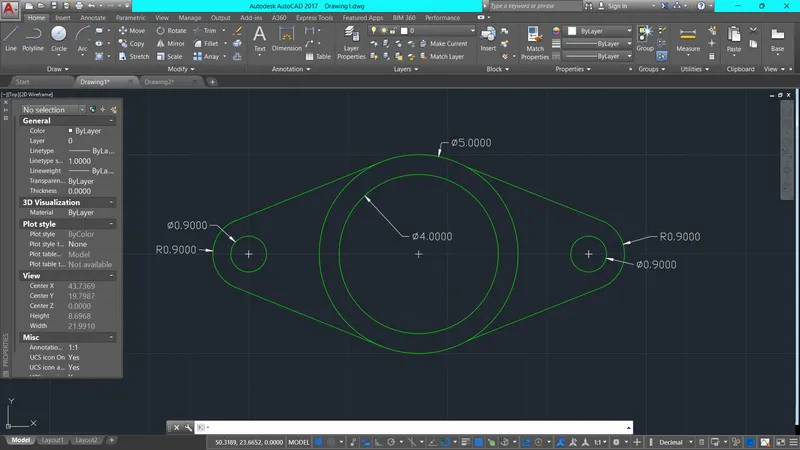
- mark three point at a distance 4.3 each
- using circle command draw circle at point R2.0 & R2.5
- again at point make circle of R0.5 & R0.9
- draw tangent line on both side
- using trim command erase unnecessary arc
RESULT:
AIM:
To draw the above figure using autocad
PROCEDURE:
- Open autocad
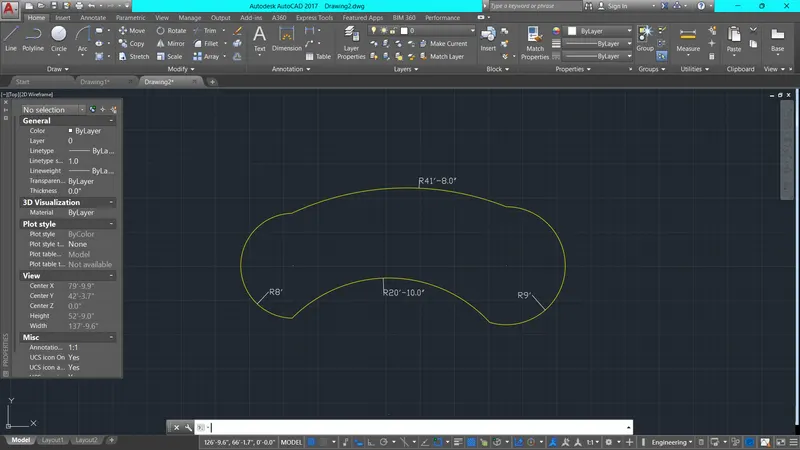
- mark two point using point command the distance between those piont is 30'6"
- using circle command draw two circle at point R8 & R9
- select draw circle tangent to tangent and radius
- now draw two circle one is outer nad other is inner of thos two circle of radius R41'8" & R20'10"
- using trim command erases the unrequired arc
- esc
RESULT:
AIM:
To draw the above figure using autocad
PROCEDURE:
- Open autocad
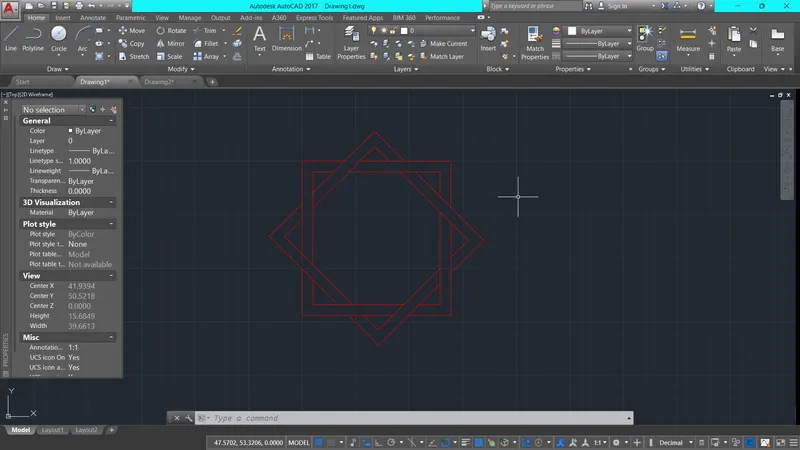
- "rec" command
- draw a rectangle of sides 10
- mark point at the center of rectangle
- 'O' offset command offset the rec at distance 0.5 toward inside of rectangle
- copy command copy whole thing somewhere
- rotate the copied rec at an angle 45 degree using "RO" command
- now move command rotate rec move to the center
- esc
RESULT:
AIM:
To draw the above figure using autocad
PROCEDURE:
- Open autocad
- Line command
- starting point (20,20)
- now a select whole thing and using mirror command and main thing don't erase select line
- now mark three point using point command
- now draw a rec of side 3.0 and rotate it 45 degree after that move it to point through the center of that rectangle
- line command start from angle 60 degrees on line and mirror that draw line (orthomode)
- the same process for 45 degree
- using trim command erase unrequired line
- esc
RESULT: