Drafting of various geometries using Chamfer, Fillet tool in AutoCad
AIM: To draw the given geometry in autocad using Chamfer and Fillet tool.
INTRODUCTION
Fillet Tool :- A fillet can be created between two objects of the same or different object types: 2D polylines, arcs, circles, ellipses, elliptical arcs, lines, rays, splines, and xlines. If the two selected objects are on the same layer, the arc defined is created on that layer. Otherwise, the arc is created on the current layer. The layer affects object properties including color and linetype.
Chamfer Tool :- A chamfer can be defined by selecting two objects of the same or different object types: lines, polylines, rays, and xlines.If the two selected objects are on the same layer, the line defined is created on that layer. Otherwise, the line is created on the current layer.
Procedure :-
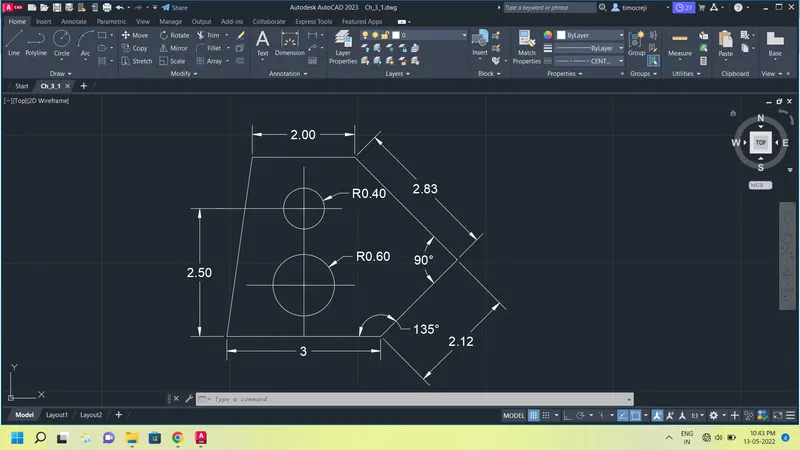
Challenge-3/1
• Open a new file and using decimal units of precision 0.0 .
Using rectangle tool create a rectangle of dimensions 4.5 and 3.5.
• Now type chamfer in the command and click on distance mode.
• First chamfer distance 2 and Second distance 2 and click on the top line and right side line of triangle to create a chamfer of 2.83 unit.
• Repeat the above step for first distance 1.5 and second 1.5 for the chamfer of 2.12 unit.
• Again repeat the above step by first distance 3.5 and 0.5 for the chamfer of 3.99 unit.
• using fillet of zero radius make all edges pointing.
• create a perpendicular from the middle of bottom line.
• Using circle command create 2 circle distance of 1 unit from bottom and another on 2.5 unit of radius 0.60 and 0.40 respectively.
• using Dimension command mark the dimensions.
• Exit the tools by using escape key.
Result :-
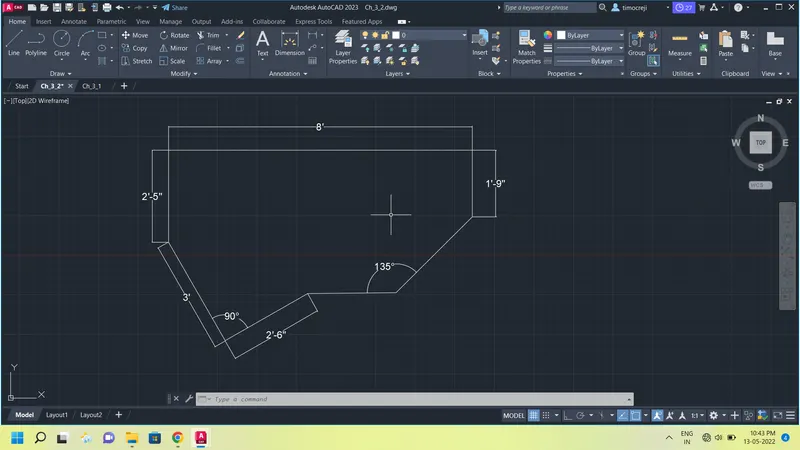
Challenge 3/2
• Open new file from the main menu.
• Select architectural unit and precession 0'0".
• Turn on polar tracking for angles 15,30,45,60 and so on.
• Using line Command draw a horizontal line at any cordinate and draw 2'6" line at 225 degrees.
• Then draw a 3' line perpendicular to it.
• Similarly draw a 2'5" vertical line and 8' horizontal line, 1'9" vertical line and 2'10" @225 degrees and close.
• Using the fillet tool of radius 0" select all the line to obtain a sharp edges.
• Press Esc key to exit from all the tools.
Result :-
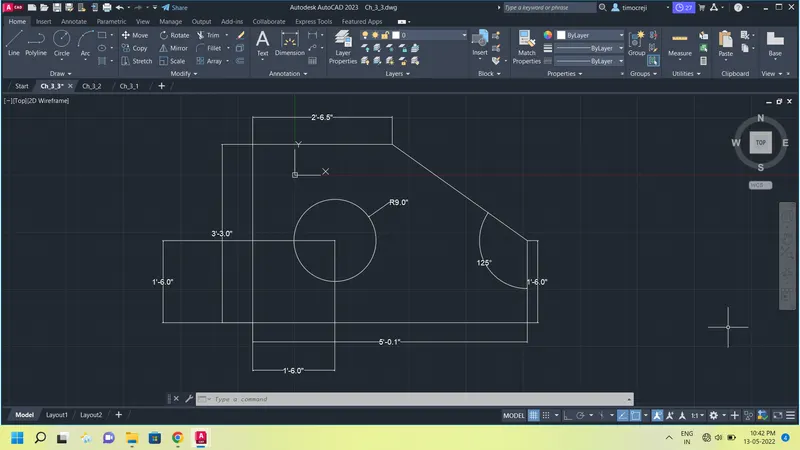
Challenge 3/3
• Open new file and set engineering and precision to 0'-0.0" .
• Command line: 2'6.5" in -ve X-axis, 3'3" in -ve Y-axis, 5'0.1" in +ve X-axis.
• Using two straight line from the starting and ending point.
• Using trim tool trim the extension line.
• Now using chamfer tool and distance mode. Type the first line distance & second line distance . Click on both line to obtain a chamfer.
• Now using offset Command , make a offset 3'3" line at a distanceof 1'3.0" and 5'0.1" at a distance of 1'6.0" .
• Using command circle, draw a circle of diameter of 1'6.0" from the centre of offsetted lines.
• Command erase: Erase the offsets.
• press Esc key to exit the tools.
Result :-
Challenge 3/4
• Open a new page and select decimals units.
• Keep precision 0.00 while keeping ortho on.
• Using the lin3 command draw 3.00m line in +ve X axis.
• Similarly draw 0.50 In -ve Y axis, 2.50m in +ve X axis, 2.50m in +ve Y axis, 2.00m in -ve X axis, 3.00m in +ve Y axis, 2.50m in -ve X axis, 2.00m in -ve Y axis, 3.00m in -ve Y axis and close.
• Using the Fillet tool and radius zero make all edges sharp.
• Press the Esc key to exit the tools.
Result :-
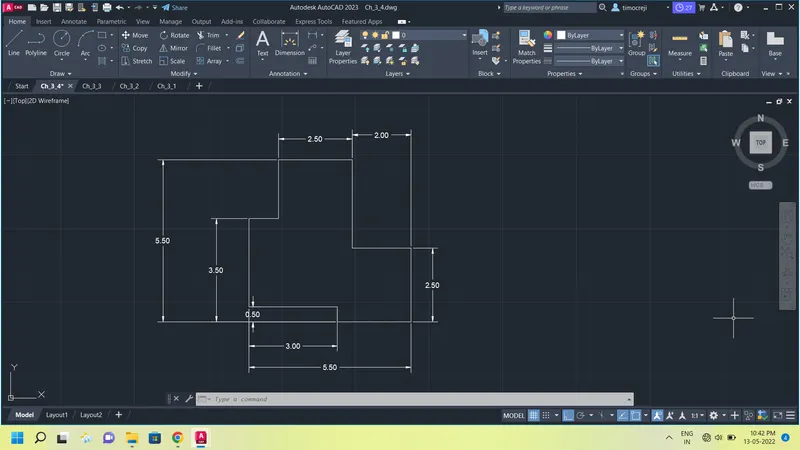
Challenge 3/5
• Open a new page select decimal and precision 0.00 while keeping ortho on.
• Using line Command draw a 6.00m vertical. 11.50m horizontal and 6.00m vertical and 11.50m horizontal line.
• In object snap setting keep midpoint, centre, intersection and geometric centre on.
• Using circle command draw circle at the centre with diameter 3.00m.
• Using offset command make offset 6.00m line at a distance of 3.00m on both sides and offset the 11.50m line at adistance of 3.00m.
• Again with Circle Command draw concentric circles at the intersection of the offsetted line of diameter 1.00m and 2.00m on both sides.
• Using erase command erase the offsets.
• With the help of Fillet tool and radius zero make a sharp edge.
• Press the Esc key to exit the tools.
Result :-
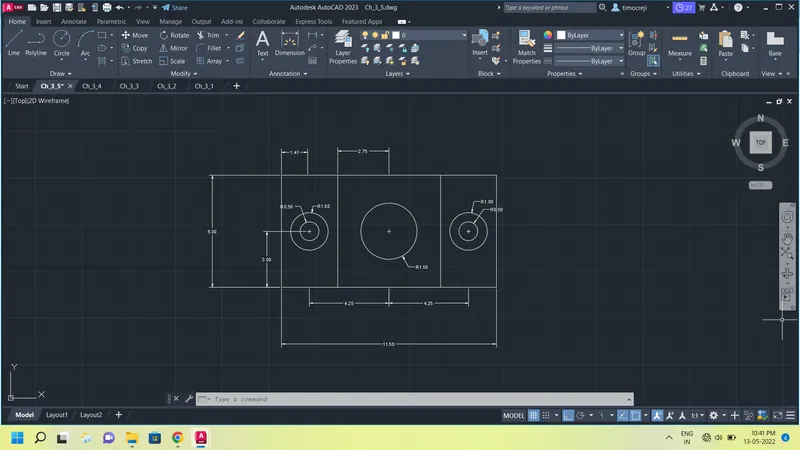
Challenge 3/6
• Open a new page select decimal with precision 0.0.
• Using the line command make a 1.5m horizontal and 1.5m vertical on both sides.
Now using offset command make a offset 1.5m line to 0.5m.
• Using the divide command divide 1.5m line into 3 segments.
• Using the line command join the divided lines.
• In object snap setting keeping the Extension On.
• Using the line command draw 2.0m line and 1.5m line and 0.5m horizontal on top and In vertical and 1.5m horizontal and 0.5m vertical and join the slant line.
• Repeat the above step for 2.0m horizontal and 1.5m vertical on both sides.
• Using offset ommand make a offset 1.5m line to 0.5m.
• Again using divide command divide 1.5m line into 3 segments.
• Again join the divided lines.
• With the help of Fillet tool and radius of Zero make the edges sharp.
• Press the Esc key to exit the tools.
Result :-
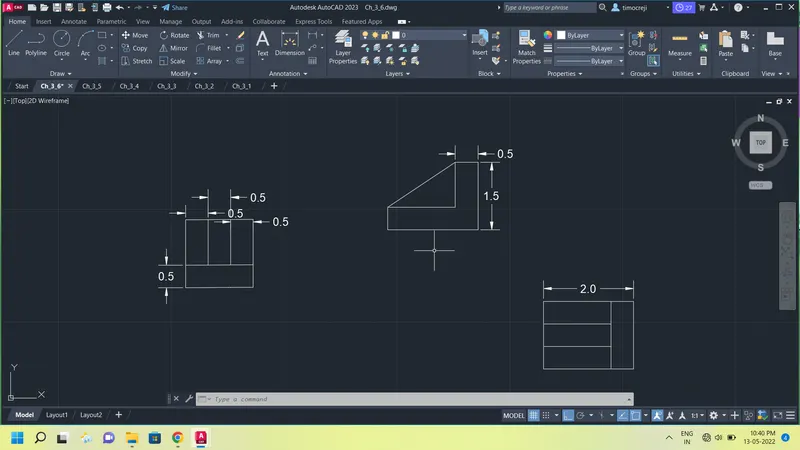
Challenge 3/7
• Open a New page and set decimal and precision to 0.
• Using line command Draw a 210m horizontal line and 100m vertical line on left side and 75m vertical line on right side.
• Since our arc has radius of 35m drawing a line of 70m on left side and has a radius of 25m drawing a line of 50m on right side.
• Using arc Command taking start, end and radius methods, draw an arc of radius 35m on right side and an arc of radius 25m on left side.
• Again using circle command from midpoint of 70m line on left side draw a cirle of diameter of 50m and 30m on right side.
• Now using Offset taking 210m line at a distance of 60m.
• Using the fillet command we will Filleting to radius 15m on top right and left and radius of 20m on inner left and radius of 6m on inner right.
• Again using offset command offsetting 210m line to 1Om and 100m and 75m line to 20m.
• Using rectangle tool of 70m length and width of 30m from off setted line on both sides.
• Using erase erase the otfsetted line and unwanted lines.
• Now press Esc key to exit from all the tools.
Result :-
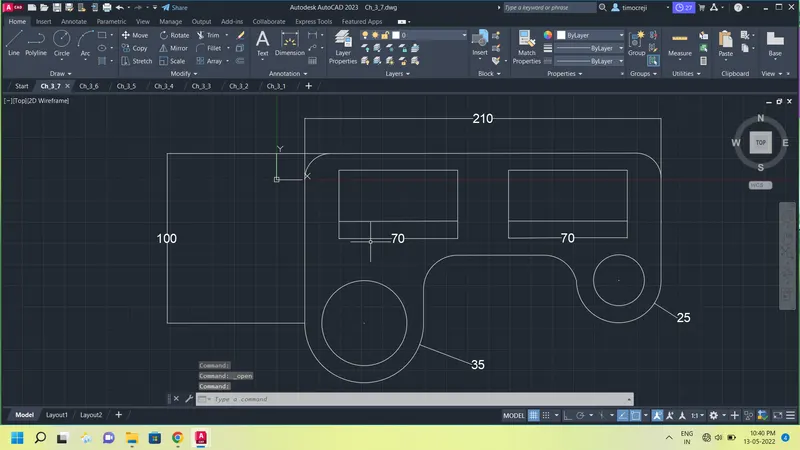
Challenge 3/8
• Open new page set decimal and precision to 0.00.
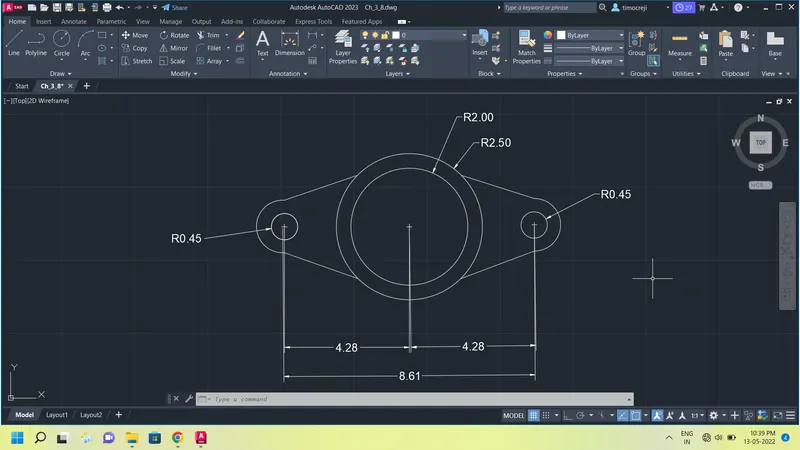
• Using circle draw concentric circles of diameter 5.00m and 4.00m.
• Using line tool make a line from the centre point
of circle draw 4.275m line on both sides.
• Using again circle command Drawing a circle of diameter 0.90m on both sides.
• Using arc tool from start, end and radius draw an arc of radius 0.90 on both sides
• Using the line command, Join the lines to the arc.
• Press the Esc key to exit the tools.
Result :-
Challenge 3/9
• Open a new page and set Engineering and precision to 0'0".
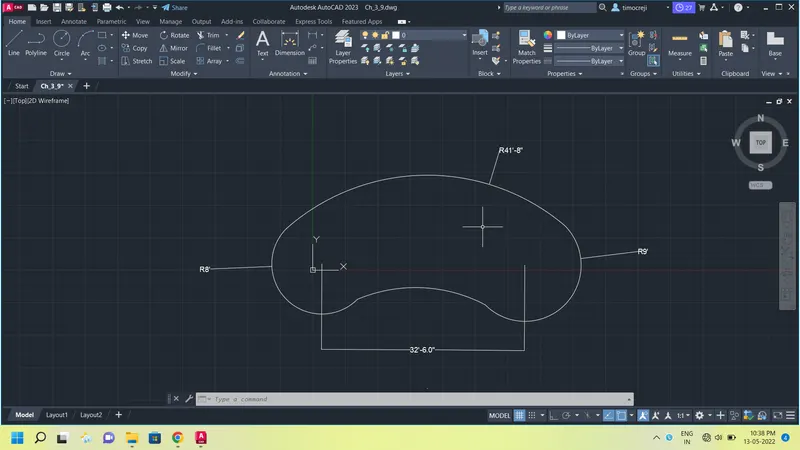
. Using line command draw a 32'6" horizontal line.
• Using the circle command draw a circle of radius 8' on left side of line and radius of 9' on right side of line.
• Using command Arc from start, end and radius drawing a arc of 41'8" on top and 20'10" on bottom.
• Using trim, trim the unwanted line and curves.
• Press the Esc key to exit the tools.
Result :-
Challenge 3/10
• Open a new page with decimal.
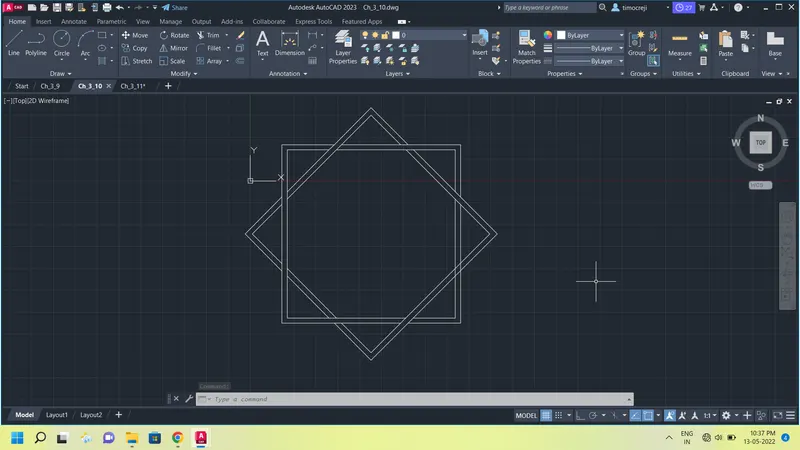
• Using rectangle tool draw a rectangte of same length and same width of one smaller size and another slightly bigger one from common centre. * Using the rotate tool we rotating the 2nd smaller drawn squares by 45 degree.
• Using the trim command trim the crossing lines according to the figure.
• Press the Esc key to exit the tools.
Result :-
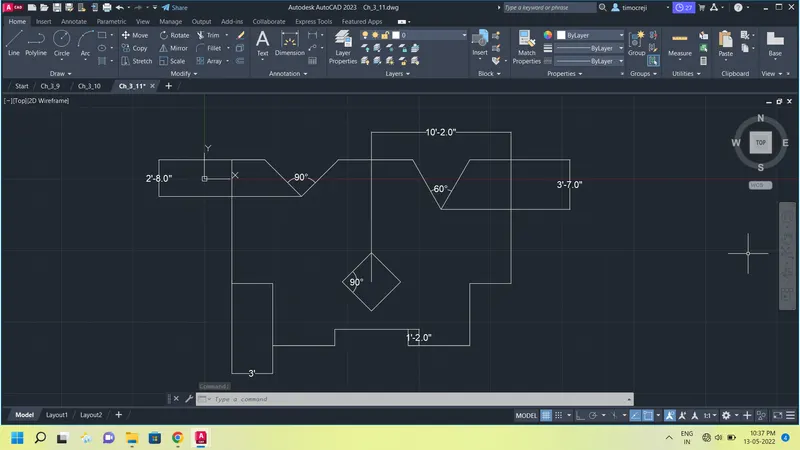
Challenge 3/11
• Open a new page and set engineering and precision 0'0".
• Using line command draw 10' 2" horizontal line, 9' vertical line, 3' horizontal line,4'6" vertical and horizontal line and 1'2" vertical line.
• Using mirror command mirror the above lines at centre axis.
• Now using the command - offset make a offset the 20'4" to a distance of 6'9" arnd 13'6" to a distance of 10'2".
• Using the Rectangle tool draw a rectangle of length and width 3' from the centre point of off setted line.
• And with the move tool moving the centre of rectangle to the centre of offsetted line.
• using the command rotate: Rotating the Rectangle by 45 degrees.
• Using offset offsetting 20"4" to a distance of 2'8" with polar tracking on draw an angle of 90 degrees. Offset 20'4" to a distance of 3'7' with polar tracking on draw an angle of 60 degrees.
• Using the command erase: Erase the unwanted lines.
• Using the fillet tool to make a sharp edge.
• Press the Esc key to exit the tools.
Result :-