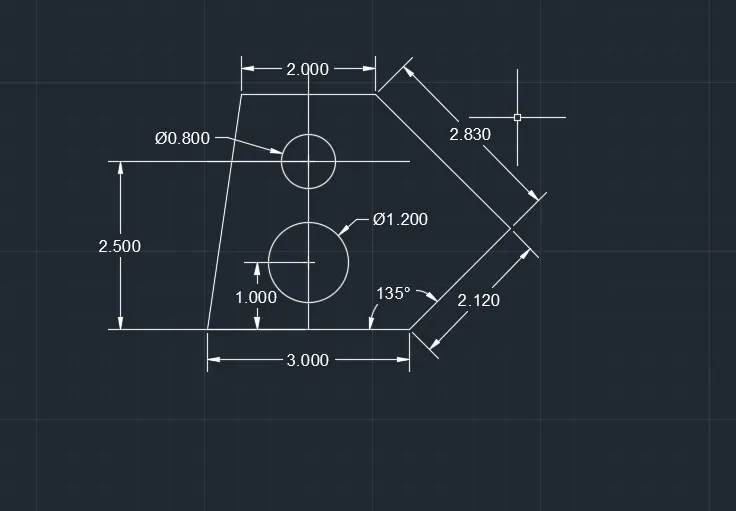
Drafting of various geometries using Chamfer, Fillet tool in AutoCad
1. Decimal- Creating Geomtry in Decimal unit.
Steps:-
:- First of all select Line tool.
:- Draw a line of 3 units.
:- then Draw a line at an angle of 135 degree of length 2.12 unit with base line.
:- Now take line tool and draw a line of 2.83 units at an angle of 90 degree.
:- Now take line tool and draw a line of 2.0 units straight and close the geometry.
:- Now draw a line at center ie 1.3 units of base line.
:- Take offset of distance 1.0 unit and 2.5 unit from base line.
:- draw a circle with center 1 unit from base line of radius 0.600 units.
:- then draw a circle with center 2.5 unit from base line and radius of 0.400 units.
:- Now with the help of dimension line illustrate the dimensions of each line and circle wit dimdiameter command.
Note:- I forgot to show the 90 degree angle. It Can be shown with dimangular command.
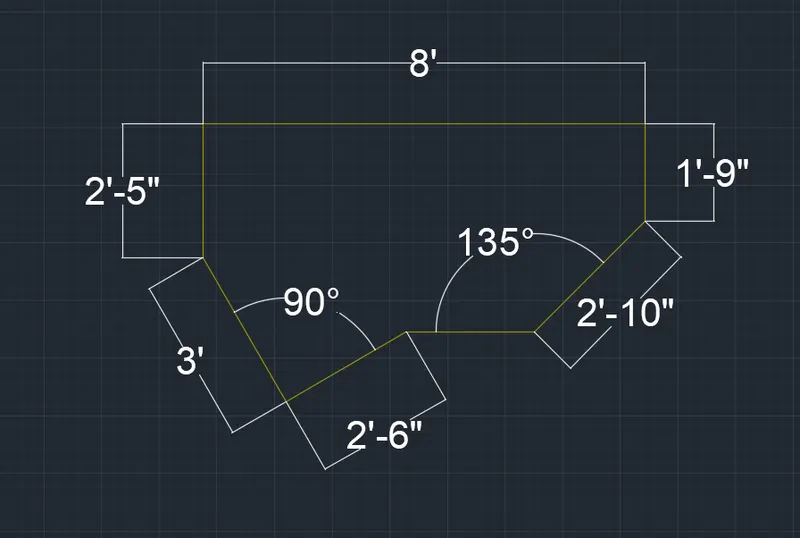
2. Steps are following:-
:- First draw a line of 2'10" at an angle of 45 degree.
:- Now draw a line with ortho on of length 1'9" above this line.
:- Again from this end draw a line draw line of length 8' in Horizontal,left side.
:- from this end draw a line of length 2'5" towards bottom.
:- again deraw two lines 3' and 216" at 90 degree to each other.
:- Select these lines and move with " Move" Command and join at end of 2'5" line.
:- now draw a horizontal line of any length from first 2'10" line.
:- Now rotate the both line which are at 90 degree to each other to meet the horizontal line.
:- now trim the extra line and Hence Geometry is ready.
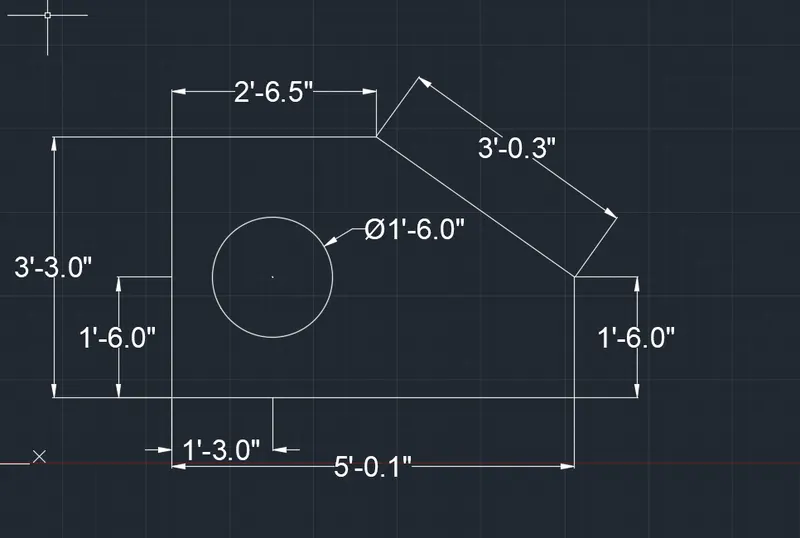
3.0:- Steps to draw the geometry.
:- first select line command and draw a line of 5'0.1".
:- Now take offset at a distance of 3'3" from base line.
:- then draw a line connecting on end of these two lines.
:- agains take offset at distance of 2'6.5" and 5'01" from this line.
: Now take offset at a distance of 1'6" from base line.
:-then take fillet command and select the lines of length 1'6" and 2'6.5".
:- again take offset at a distance of 1'3.0" from left side line.
: now at the intersection point with circle command draw a circle of radius 0'9".
: Now at the end select TRIM command and trim the extra lines.
:- finally illustrate the dimensions of each parts.
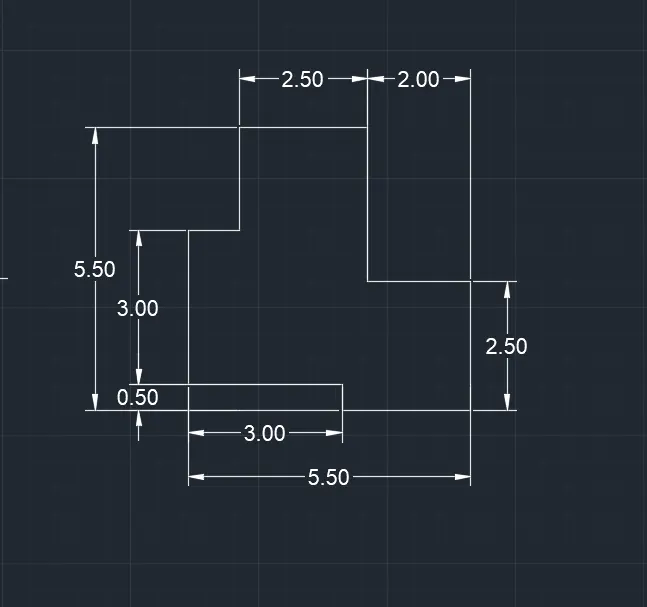
4. Steps are following:-
:- First of all setup units in Decimal.
:- First select Line command and make ortho on.
:- draw a base line of length 5.50 Units.
:- take offset at a distance of 0.50 units from Base line.
:- Again take offset at a distance 2.50 units from Base line.
:- Again take offset from base line at a distance of 3.50 units from base line.
:- Again take offset of 5.50 units from base line.
:- Now draw a line meeting left ends of top line and bottom line.
:- No take offset from above line at 01 unit, 3.50 units and 5.50 units.
: Now with the help of Fillet command match all the lines.
:- finally show all the dimensions with dimension line.
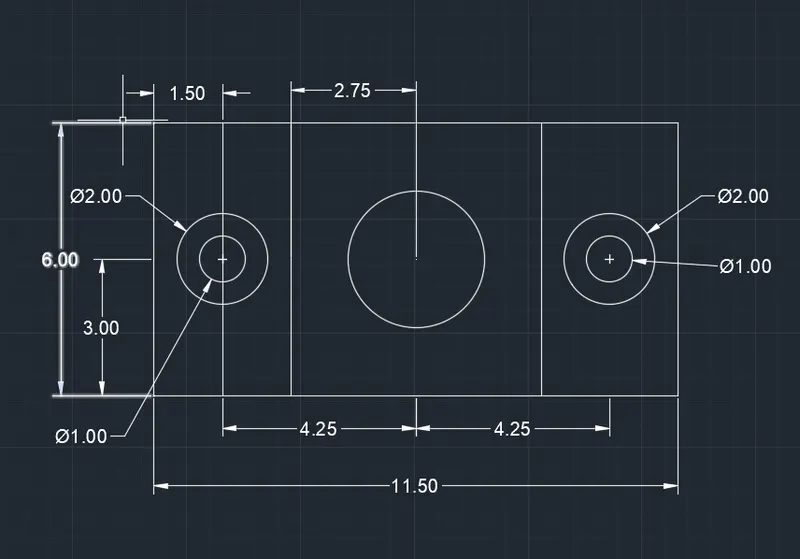
5. Steps are following:-
:- First Draw a base line of 11.50 units and take offset of 6.0 and 3.0 units from this line.
:- Now draw a line meeting left ends of all three lines and take offset of 11.50 unit from this line.
:- Again take offset of 1.50 unit, 3.0 unit, 5.75 unit from this line and same from other right side line.
:- Now at the Mid intersection point draw a circle of radius 1.50 units and at left and right intersection point draw circle of radius 0.50 unit and 1.0 unit on both side.
:- Now trim all the extra line and shoew the dimensions of each geometry with dimension line and dimdiameter.
Note:- I forgot to show the diameter of Middle Circle, it can be shown by command "DimDiameter".
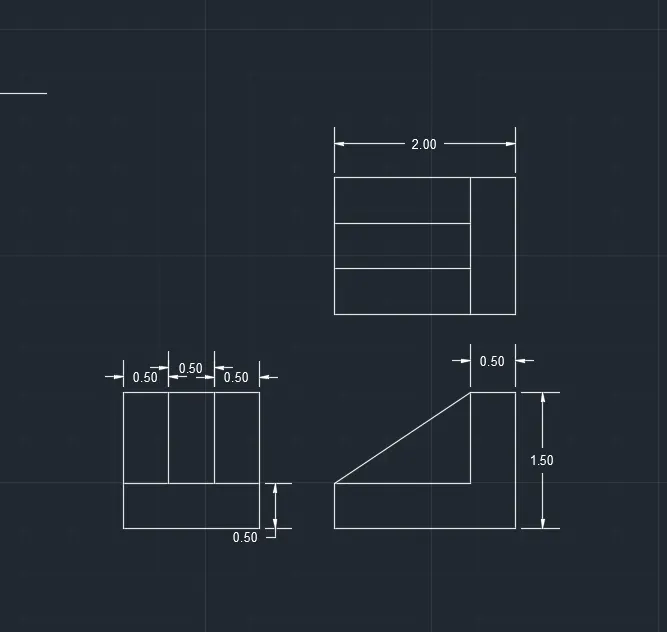
6.0 Steps shown bellow:-
:- First of all set units in Decimal and draw an line of length 2.0 units.
:- Now take "Offset" from this line at 0.50 unit, 1.0 unit and 1.50 unit.
:- Now with line command close the left and right side meeting ends of top and bottom lines both side.
:- Now Take " Offset" of 0.50 unit from right side line. Trim the extra lines.
:- Finally first geometry is ready.
:- Again take Line command and Draw a line below above gemetry starting point in the line of above geometry.
:- Now take Offset of 1.0 unit and 1.50 unit from this line.
:- Now take Line command and draw a line from top line right enf to bottom line right end.
:- Now take offset from this line at 0.50 unit and Trim/Fillet all lines to make L-Shaped Geometry.
:- Again draw a line with "ortho off" fromleft side L-top to right side L- End.
:- Again draw a line with "ortho off" from left side L-top to right side L- End.
:- Again Tale line tool and draw a line beside the L shape dise view of length 1.50 unit.
:- Now take offset at 0.50 and 1.50 unit from this line.
:- Now draw line from top left and right to meeet left and right bottom line.
:- No take offset from left line of 0.50 unit, 1.0 unit.
:- Now fially trm the extra lines and show the dimensions.
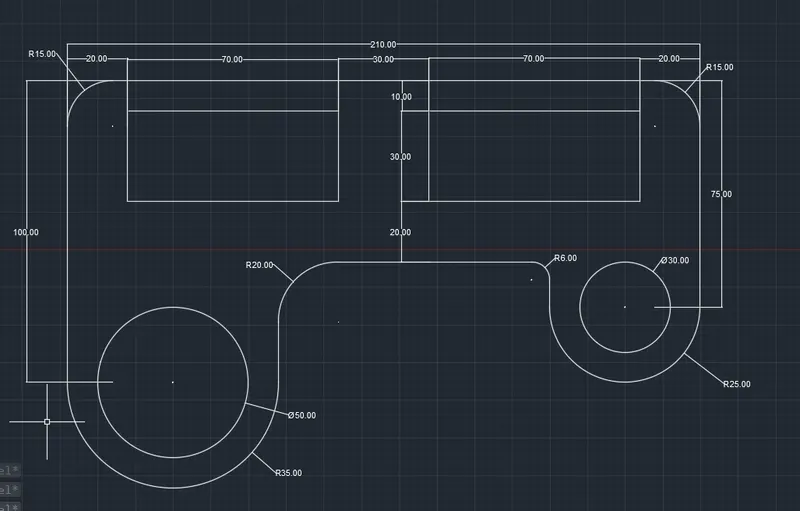
7.0) Steps are shown below:-
:- First take line tool and draw a line of length 210 unit and 10, 40 and 60 unit from this first line.
:- Now draw a line in left and right end of first line to make rectangle with line at 60 unit from this line.
:- Now take offset of 20 and 90 unit both end.
:- take trim command and trim the extra lines to make a rectangle of size 70x30 unit inside big rectangle.
:- Again take offset of 100 unit from the first top line. and extend the left line upto this line.
:- Now draw a line at offset of 25 unit and 70 unit from left line.
:- Now consider center, the intersection point of line at 100 unit from top and line at 35,and 70 unit from left.
:- Now draw a circle with this center with radius 25 unit and 35 unit. and trim the extra lines.
:- Now take offset of top line at 75 unit and offset of right most line of 25 unit.
:- Now at inter section point. considering it center draw circle of raius 25 unit and 15 unit.
:- Now trim the extra line to make the geometry.
: now with fillet command with radius 15 unit make arc at top left and right corner.
:- Again with fillet command make arc of radius 20 unit and 6 unit at bottom line meeting the outer semi circle.
:- Now show all the dimensions and hence geometry is ready.
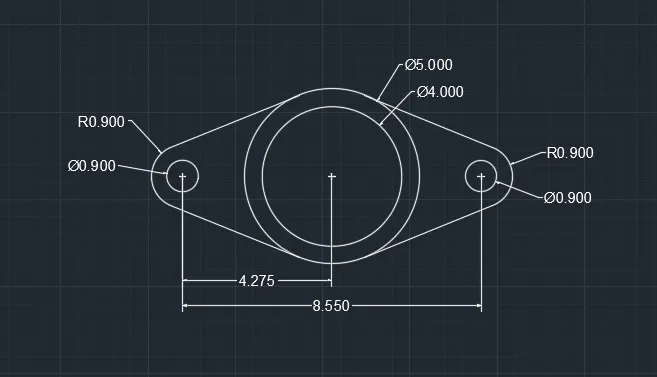
8.0) Steps are shown below:-
:- First of all draw a line of length 8.55 unit.
:- Now at mid point draw a circle of radius 2.5 unit and 2.0 unit.
:- Then at both ends of line draw a circle of Radius 0.450 unit and 0.90 unit.
:- Now with Snaping tools putting on tangent, draw a line making tangent with end circle of radius 0.90 unit and radius 2.50 unit, on both side and also on left and right side,
:- Now Trim all the extra line and show the dimensions. hence geometyry is ready.
09)
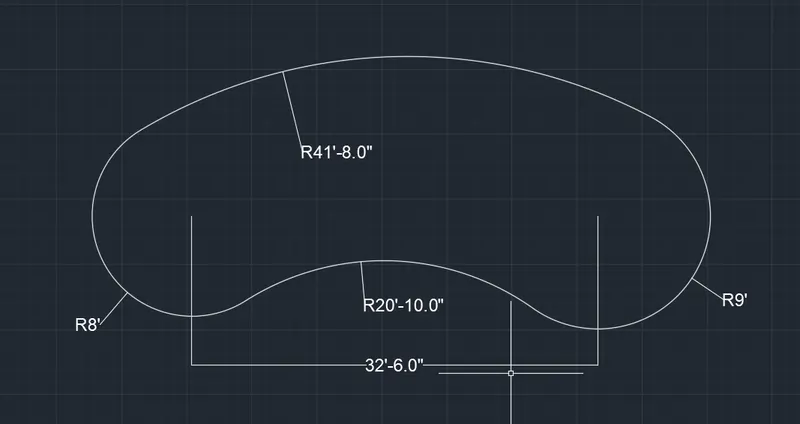
:- First draw a line of length 32'6".
:- Considering both ends of this line as center, draw circle of radius 8' at left end and with radius 9' at right end.
:- now with tan, tan, radius command draw a circle with radius 41'8" , tangent at both the circles on top.
:- Again with " Tan, Tan,radius" command draw a circle with radius 20'10" tangent at bottom of both the circles.
:- Now trim all the extra part of circle to draw the geometry. hance Show the Radius of all circles with "Dimaradius" command.
10). Steps are sjhown below:-
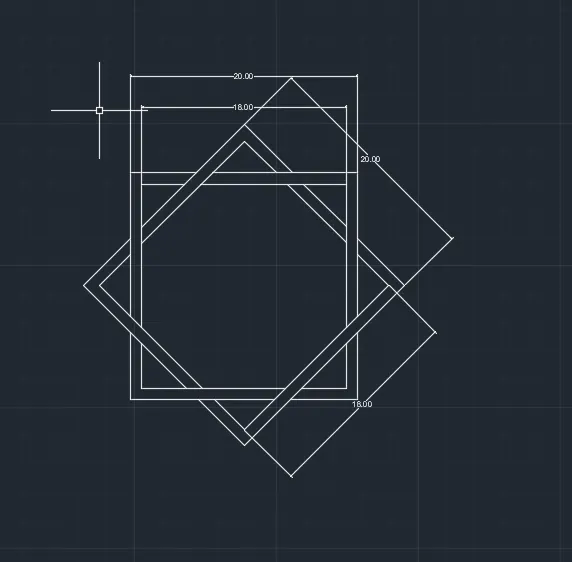
:- First of all draw a square of sides 20'x 20', then take offset of 2'.
:-now select the geometry and with rotate command, rotate by 45 degree.
:- Now with "TRIM" command trip mid Crossing line as per the geometry shown in figure.
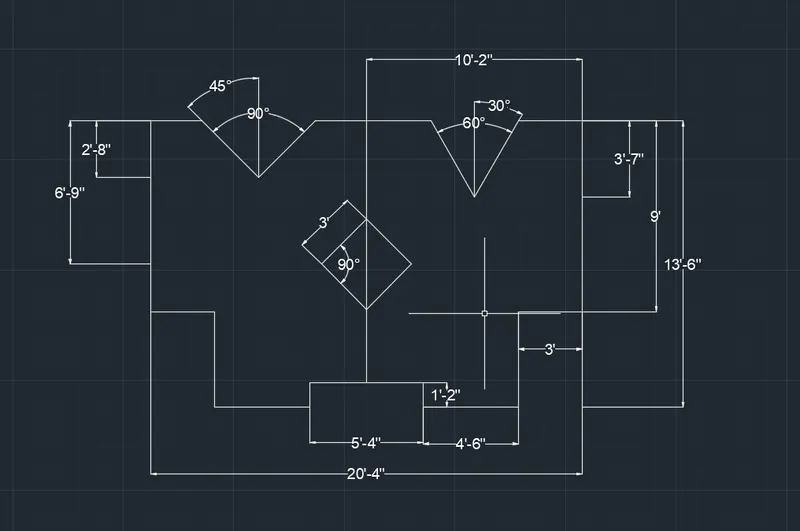
11.0 Steps are shown below:-
:- First Draw a line of length 20' 4" with line command.
:- then take offset at distance 2'8", 3'7", 6'9", 9', and 13'6".
:- again take offset of 1'2" from botom line.
:- Draw a line from end of top line meeting the left end of bottom line and take offset of 3', from this line.
:- Now take offset of 4'6" from this new line and also an offset of 10'2" and 20'4" from first line.
:- Now with the help of "Fillet" commant make the left Geometry shape.
:- Again take offset from right most line at 3' and from this new line take again offset of 4'6".
:- now with "Fillet" tool make the geometry of right side.
:-Then at Mid intersection point draw a square of sides 3' and with the help of Polar tracking tool.
:- Now at top line take offset from right of 3' and Draw a line of any length at an angle of 240 degree and again from intersection point draw a line at an angle of 120 degree.
:- Now trim the extra lines and then a geometry of 60 degree is created.
:- Again Take offset of 2'6" from Left most line and from this line and top line intersection point draw a line of any length at an angle of -45 degree and then draw a line from next intersection point at an angle of 45 degree.
:- finally trim all the extra Lines and our geometry is Ready. all dimensions are then shown.