Drafting of various geometries using Chamfer, Fillet tool in AutoCad
AIM:
Aim of this project is to learn chamfer and fillet command and its uses in drawing and drafting.
Fillet and Chamfer:
Fillet and Chamfer are used to edit the edges of the object in the drawing.
We can find the fillet tool in the modify panel or command "F" in the Command Bar.
For the Chamfer tool Type CHA in the Command Bar. or select from the modify panel.
Fillet:
In fillet tool we have three options which are Radius and polyline, Trim and finally multiple.
To use this tool let's just draw rectangle by typing Rec in the command Bar.
Starting point of the rectangle is 1,1
The specify the next point @10,10
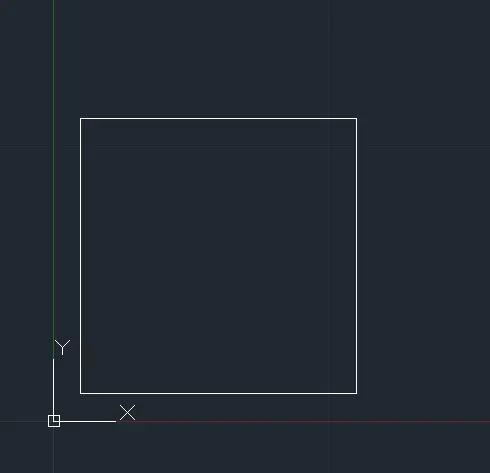
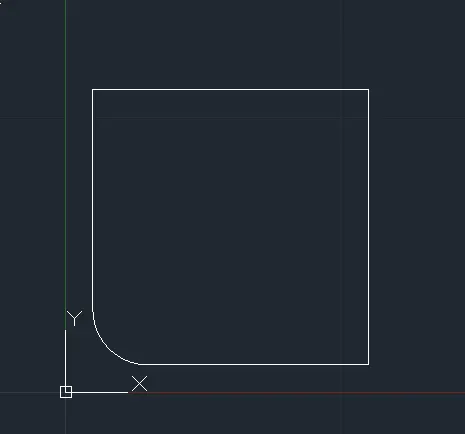
Now select the fillet tool in modify panel or type "F" in the command bar. once done select the radius.
Specify the radius "2".
then select the first object and second object.
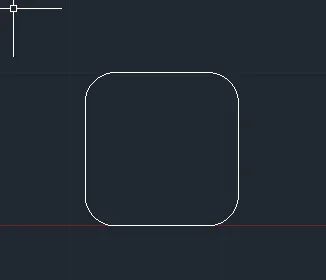
once done the line bending according to our specified radius.
If we select the trim option, we can trim linear line into curve line.
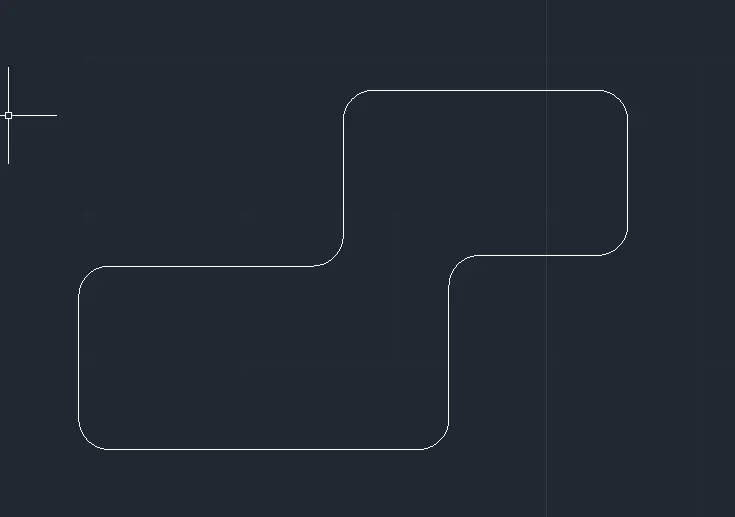
For Polyline Drawing we can choose polyline option in fillet tool.
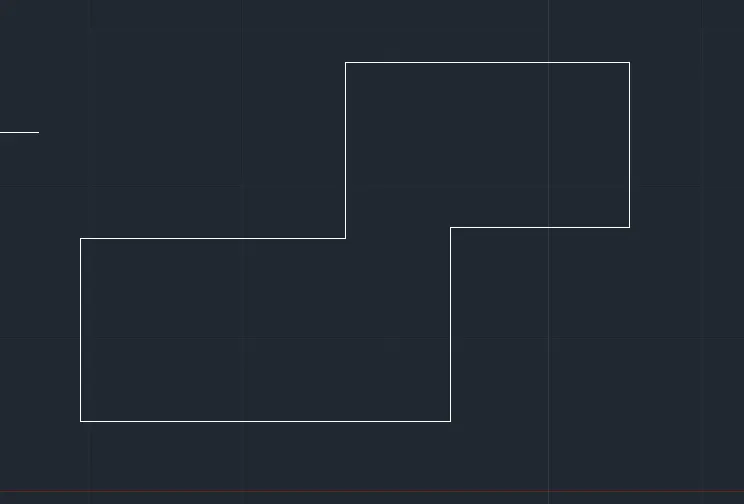
Type "F" in the command Bar.
Select the Radius and specify the radius "2"
Then select the polyline option.
Select the object.
The last option in the fillet tool is Multiple.
multiple options are used to modify multiple objects at same time.
we can curve the linear line at the four corners and multiple objects at same time.
Chamfer:
Chamfer is the tool that allows us to cut off or chamfer the edges according to the specified Measurement.
We can find the fillet tool in the modify tool next to the fillet option or simply type the "CHA" in the command bar.
In Chamfer tool we have three option as same as fillet like Angle, Distance, Polyline, Multiple.
Example:
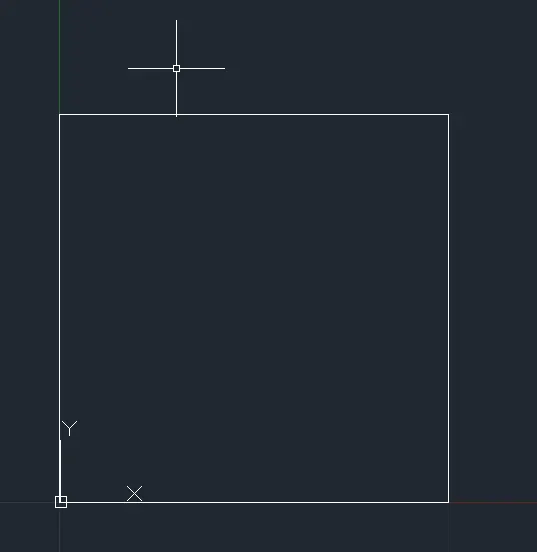
Let's just draw a rectangle with the size of 10,10.
Type "CHA" in the command bar.
then multiple option popup in the screen.
then choose the distance
specify the distance "2"
specify the first line and second line.
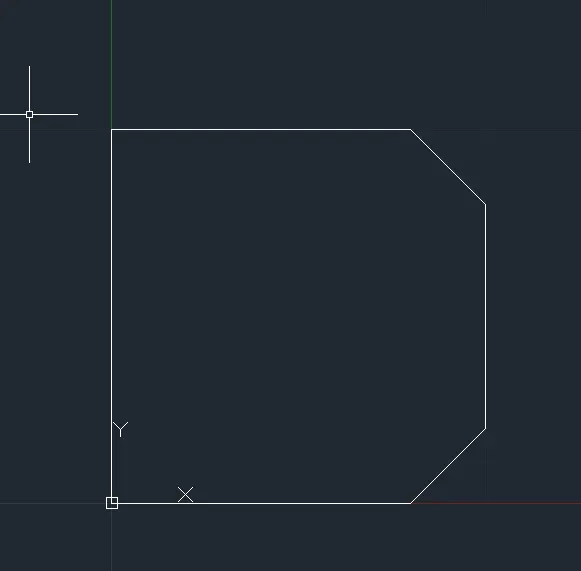
If we select the trim option, we can trim linear line into cutoff line.
Type "CHA" in the command Bar.
Select the Radius and specify the radius "0.5"
Then select the polyline option.
Select the object.
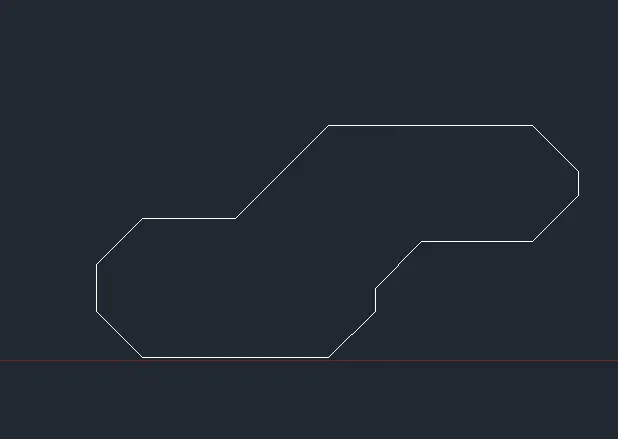
The last option in the fillet tool is Multiple.
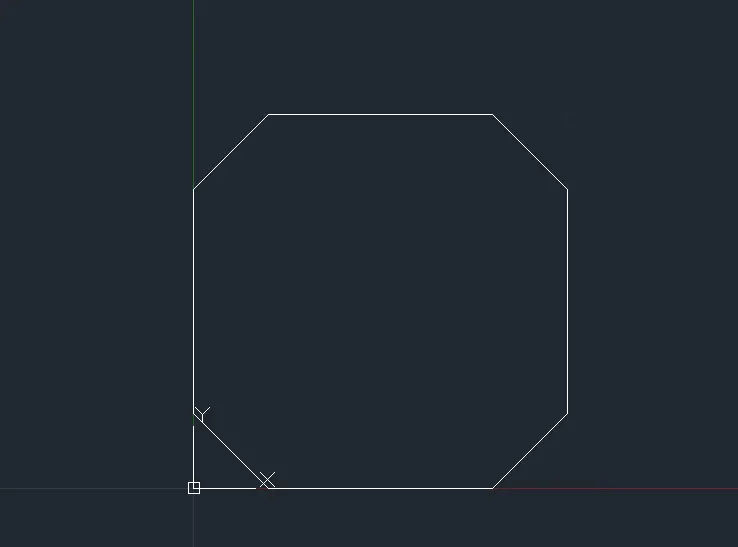
multiple options are used to modify multiple objects at same time.
we can chamfer the linear line at the four corners and multiple objects at same time.