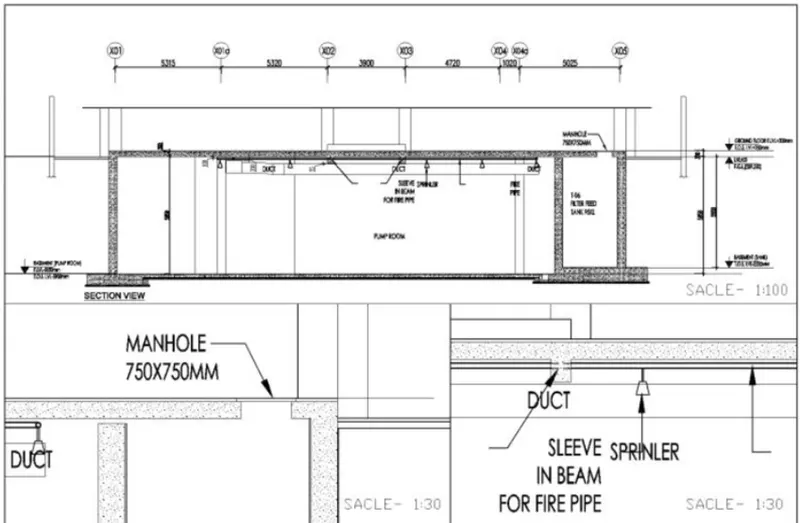
Creation of Multiple viewports, Scaling the drawing and setting in Template in AutoCad
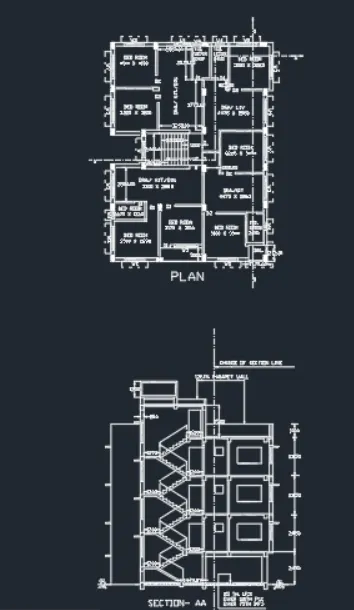
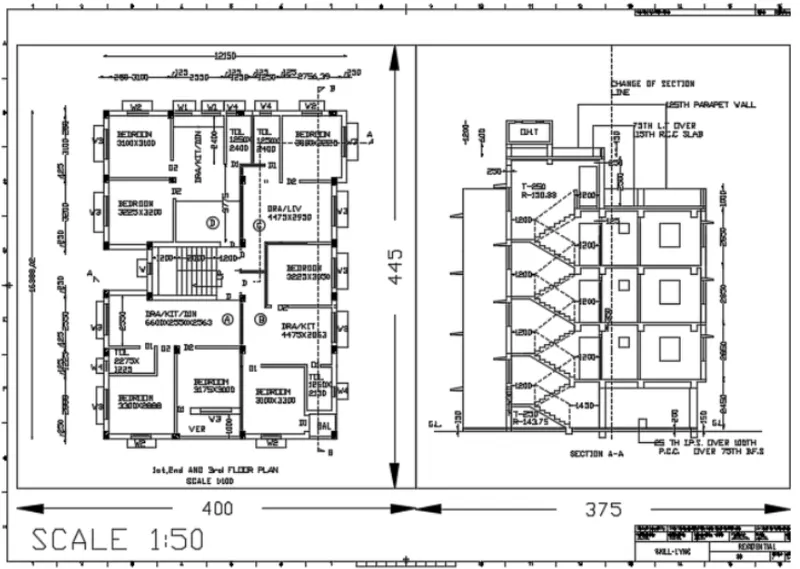
1. Create a layout of the Plan and Section A of the project in Challenges 7, using the template Tutorial-mArch.dwt in a scale as given in the Figure. Use the MV command to create the viewport of the size as shown in Figure. Also, use ATTEDIT command to edit the information in the title block. Use A1 size for the layout. Take a plot.
- AIM:
To create a layout of the Plan and Section A of the project in Challenges 7, using the template Tutorial-mArch.dwt in a scale as given in the Figure.
Use MV command to create the viewport of the size as shown in Figure.
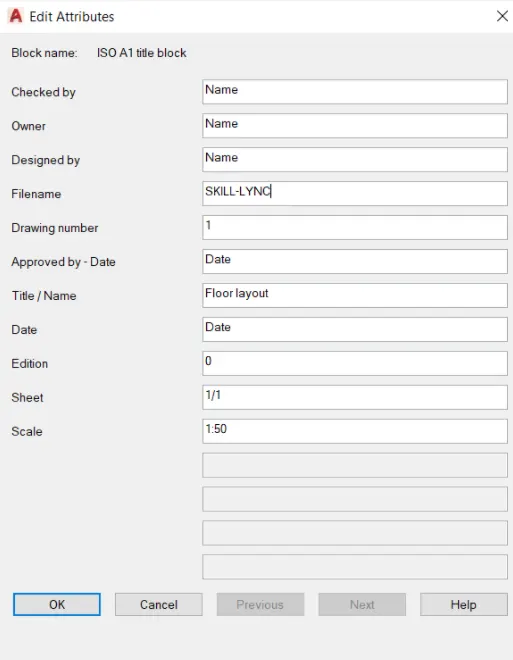
use ATTEDIT command to edit the information in the title block and use A1 size for the layout. Take a plot.
- PROCEDURE:
STEP 1:
In command prompt type > units > set as decimals.
In command prompt type limits > 0,0 and 100,100.
STEP 2:
In command prompt type layout > template > tutorial arch.m
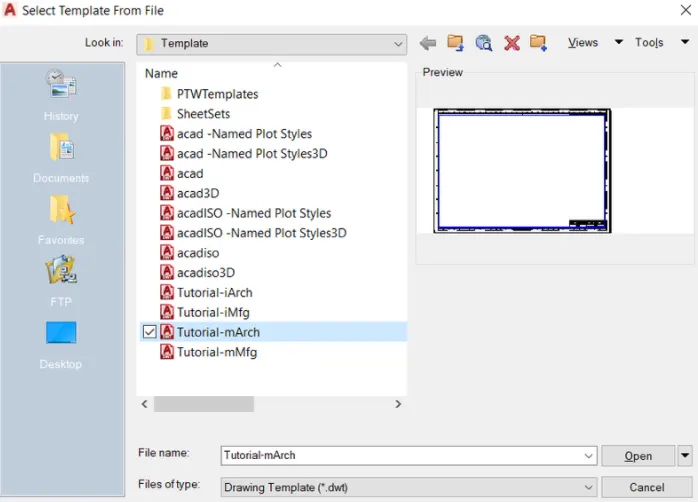
In command prompt type Ms to specify centre of the plot.
To edit the title, click on title box.
In command prompt type Mv to add view.
STEP 3:
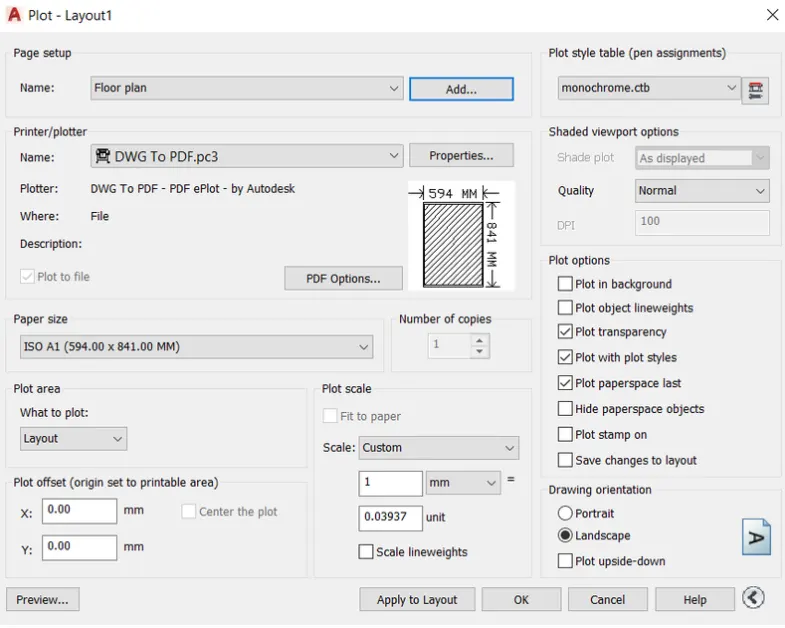
In command prompt type CTRL + P to plot.
In command prompt type page setup.
- RESULT:
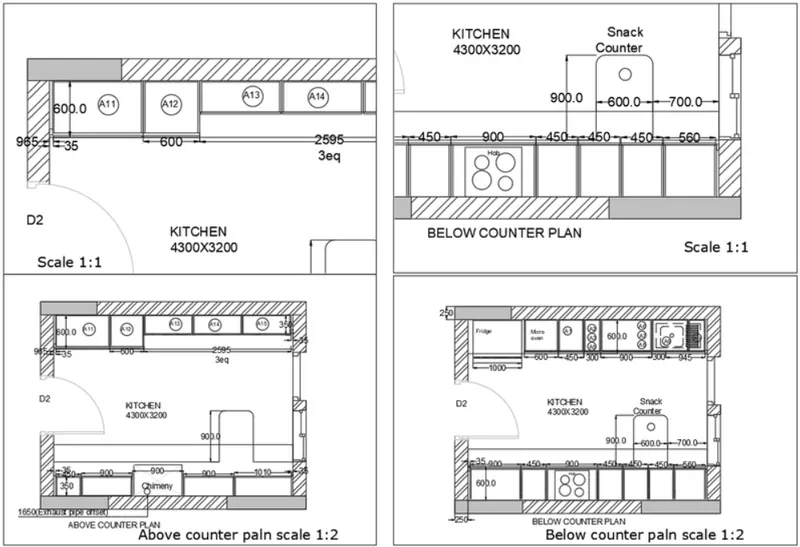
2. Create a layout of the Kitchen drawn in Challenge 9 as shown in Figure. Use the scale as shown in the Figure. Use A4 Size page for the layout. Take a plot.
- AIM:
To create a layout of the Kitchen by use of scale, layout, and plot it.
- PROCEDURE:
STEP 1:
In command prompt type > Ref.
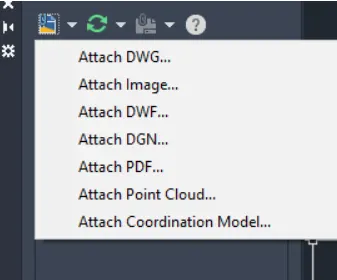
On left corner > click on attach .dwg file > to attach the drawing.
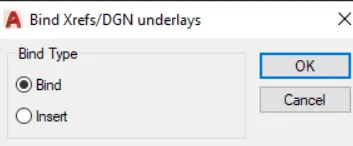
Blind the attached file and explode the drawing.
STEP 2:
In command prompt type layout > template > tutorial arch.m
In command prompt type Ms to specify centre of the plot.
To edit the title, click on title box.
In command prompt type Mv to add view.
STEP 3:
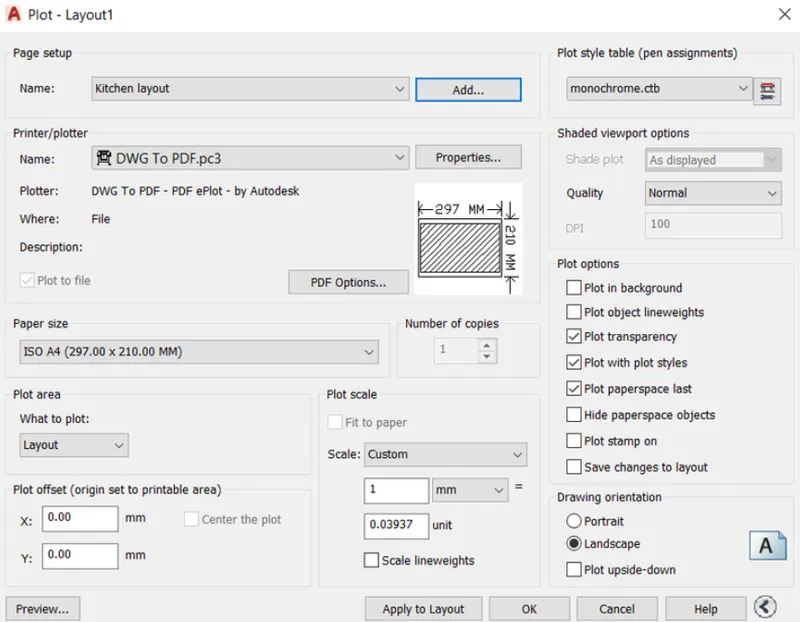
In command prompt type CTRL + P to plot.
In command prompt type page setup.
- RESULT:
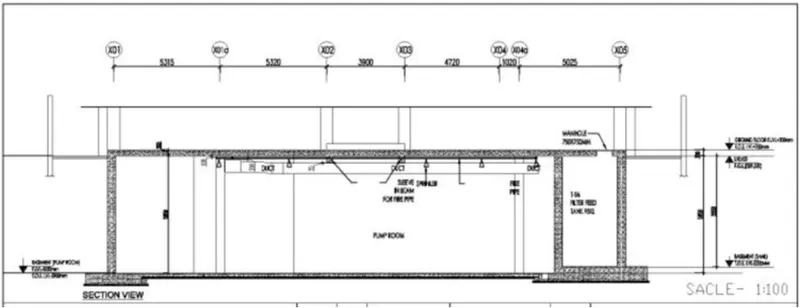
3. Create a layout of the section created in Challenges 9.
Use scale as mentioned in the Figure. Use MV command create multiple viewports. Take a plot.
- AIM:
To create a layout of the section by of scale, Mv coomand, and by taking a plot.
- PROCEDURE:
STEP 1:
In command prompt type > Ref.
On left corner > click on attach .dwg file > to attach the drawing.
Blind the attached file and explode the drawing.
STEP 2:
In command prompt type layout > template > tutorial arch.m
In command prompt type Ms to specify centre of the plot.
To edit the title, click on title box.
In command prompt type Mv to add view.
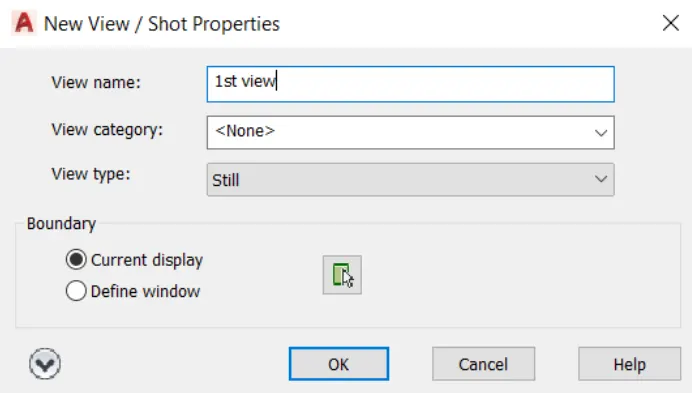
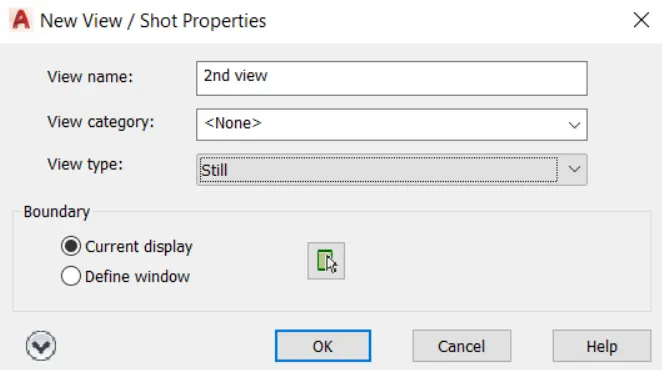
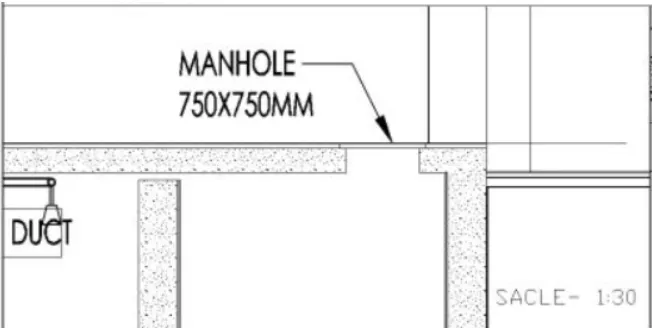
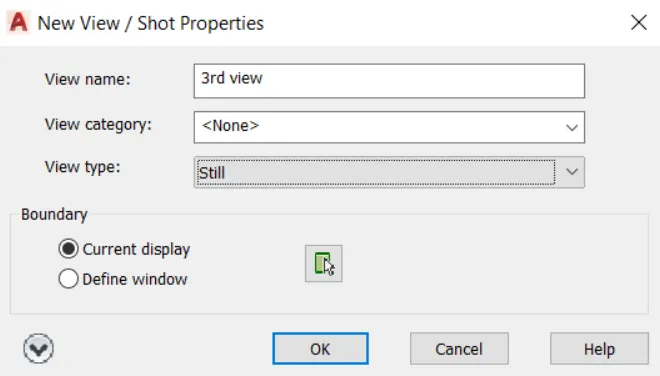
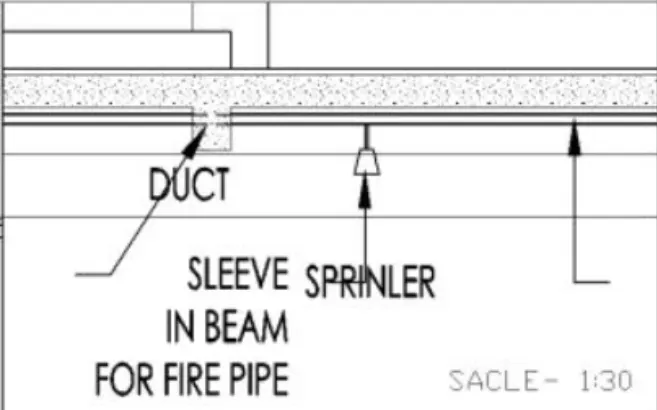
Select view option for view.
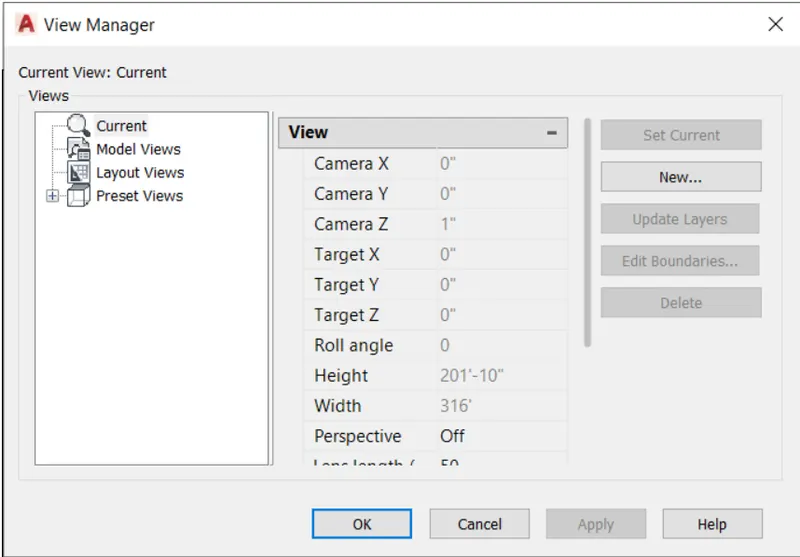
Repeat the following for all sections.
STEP 3:
In command prompt type CTRL + P to plot.
In command prompt type page setup.
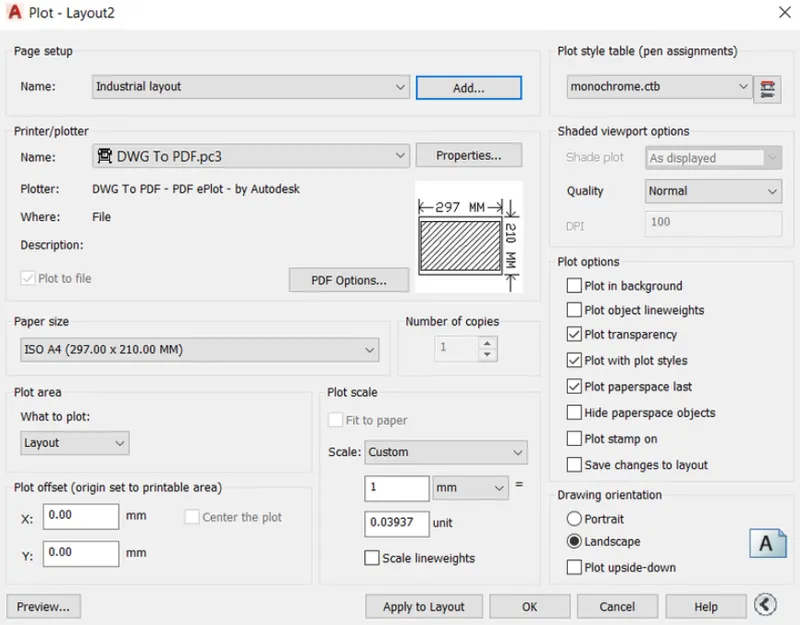
RESULT: