Creation of Multiple viewports, Scaling the drawing and setting in Template in AutoCad
AIM:
1. Create a layout of the Plan and Section A of the project in Challenges 7, using the template Tutorial-mArch.dwt in a scale as given in the Figure. Use the MV command to create the viewport of the size as shown in Figure. Also, use ATTEDIT command to edit the information in the title block. Use A1 size for the layout. Take a plot.
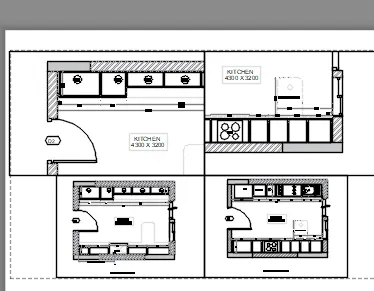
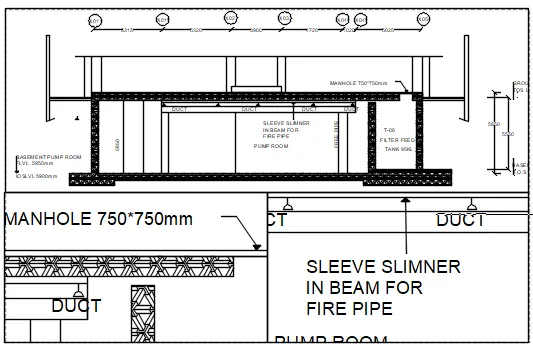
2. Create a layout of the Kitchen drawn in Challenge 9 as shown in Figure. Use the scale as shown in the Figure. Use A4 Size page for the layout. Take a plot.
3. Create a layout of the section created in Challenges 9.
Use scale as mentioned in the Figure. Use MV command create multiple viewports. Take a plot.
PROCEDURE:
1.open the drawing of section 7. put scale 1;50, insert template mArch from insert tab<layout<template<mArch.dwt.
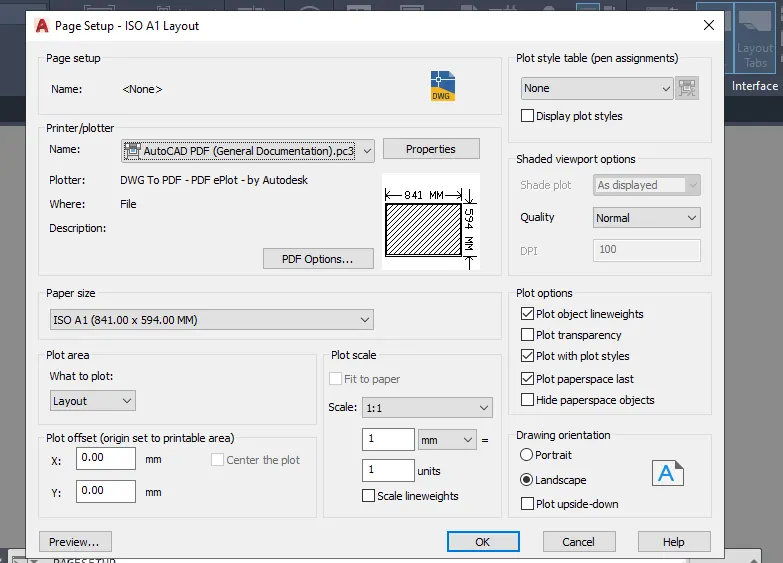
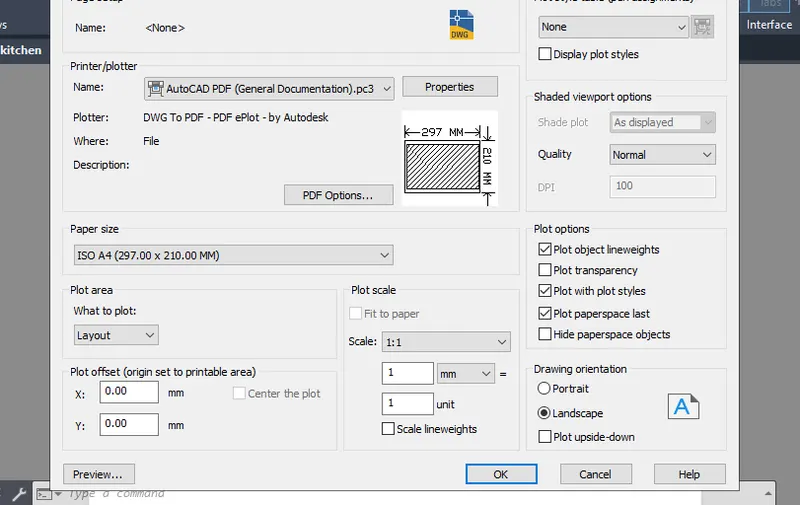
then go to page setupmanager. set the plot paper size scale as in the figure
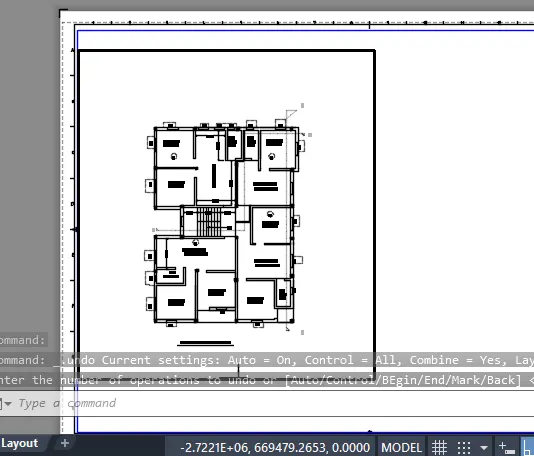
then go to the layout created and give mview command and create aviewports of the required size and adjust the view according to the viewport in question.
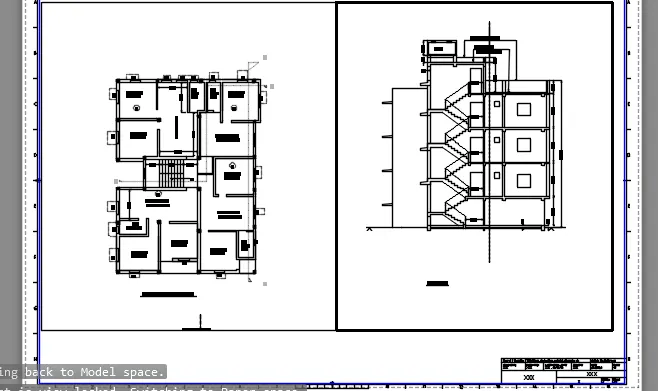
then go to mview command and lock the objects .
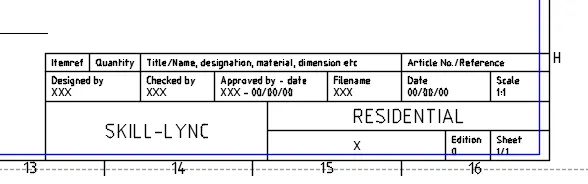
give the command ps to got to the paper space now give the attdef command and edit the attributes according to required from properties that is change the owner name and plan
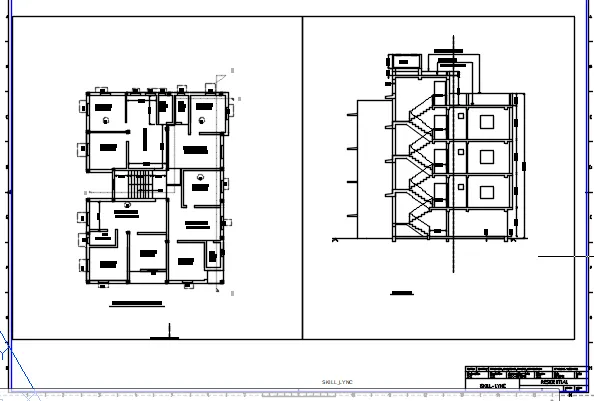
2.create a layout layout 1. set page setip manager as per the requirement the plotter,paper sizeetc.
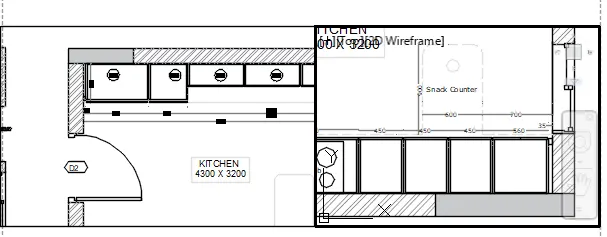
create viewports using mview and specifying corners according to the figure for above two viewports. set scale 1:1 and lock them.
now create the below two viewports using mview and specifying corners and give scale giving the scale 1:2 and lock them.
3. open the drawing of the section of the industrial plan from the challenge 10 and create a layout _layout1
set the page manager take the plotter ,paper size etc according to the requirement.
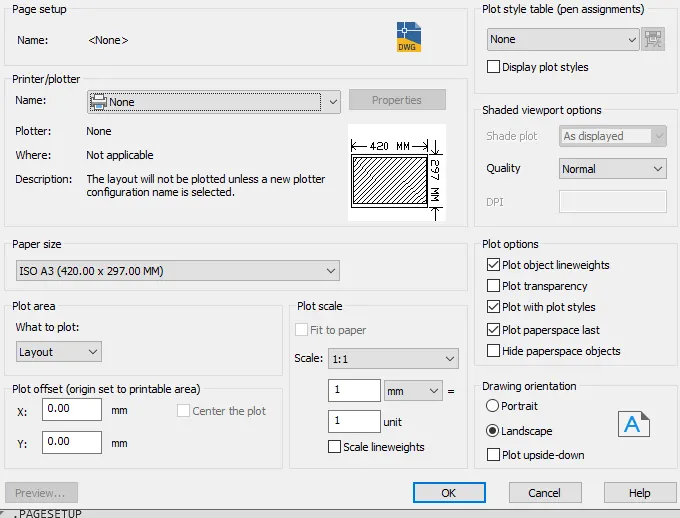
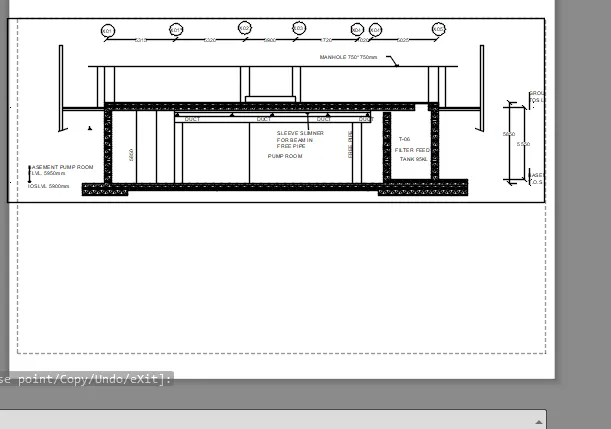
now create a viewport using mview command and select scale 1:100
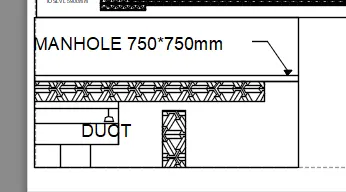
now create a new viewport using mview command and select the scale as 1:30
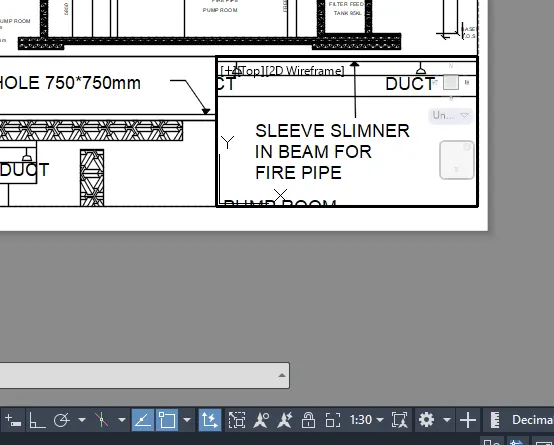
now create a new viewport using mview command and select the scale 1:30 and draw the last viewport
RESULT:
1.
2.
3.