Creation of Multiple viewports, Scaling the drawing and setting in Template in AutoCad
1. AIM:
Create the templates as shown in Figures.
INTRODUCTION:
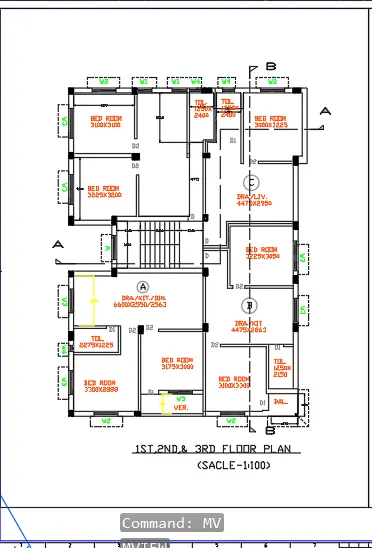
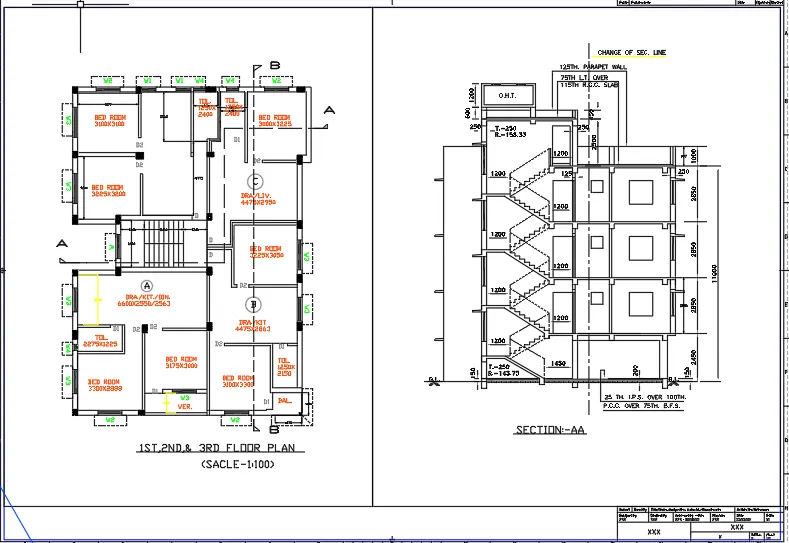
- TCreate a layout of the Plan and Section A of the project in Challenges 7, using the template TutorialmArch.dwt in a scale as given in the Figure.
- Use the MV command to create the viewport of the size asshown in Figure.
- Also, use ATTEDIT command to edit the information in the title block.
- Use A1 size forthe layout. Take a plot.
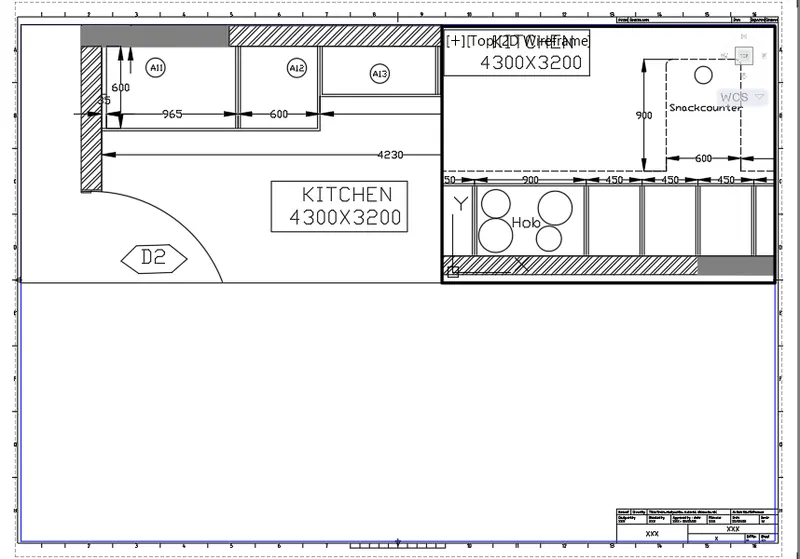
- Create a layout of the Kitchen drawn in Challenge 9 as shown in Figure.
- Use the scale as shown in theFigure. Use A4 Size page for the layout. Take a plot.
Create the templates:
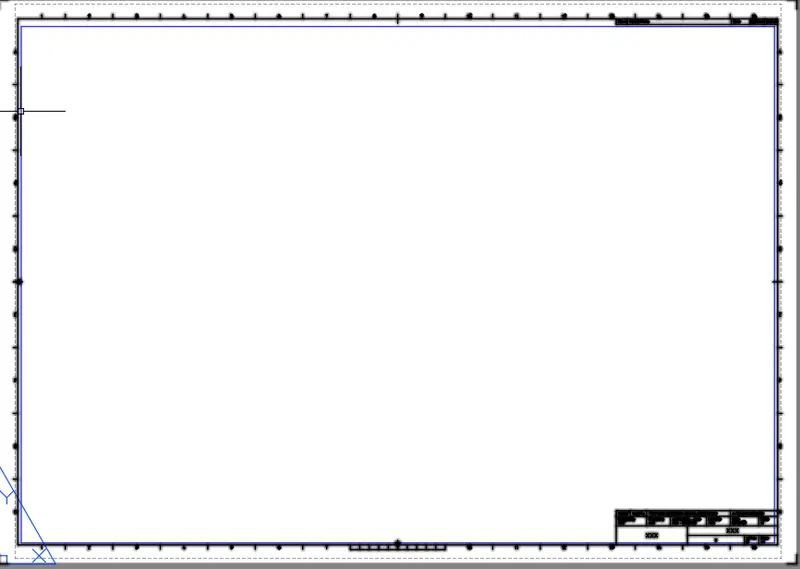
- Frist create the "Layout" command.
- Then Click 'templete' option and selected the option tutorial march.dwt
- And Click "MV" command for create the space of drawing.
- It can keep a multiple view of drawings in one template.
- Then click 'PS' to edit the space line in the layout.
- The click the Costum option and create the scale.
- And Click "SAVE"command to save the Text.
- Finally we SNIPPING TOOL to screenshot the drawing.
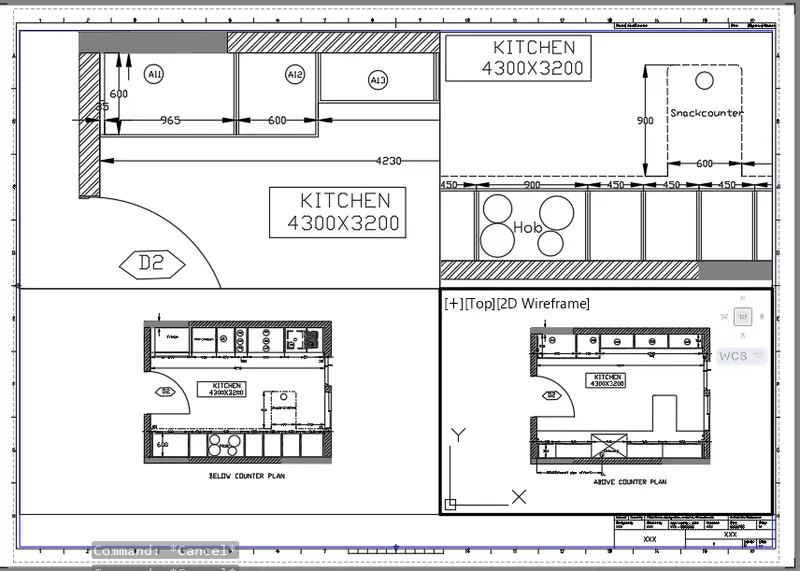
RESULT:
In this challenge we create the layout for different plan and different scale.