Creation of Multiple viewports, Scaling the drawing and setting in Template in AutoCad
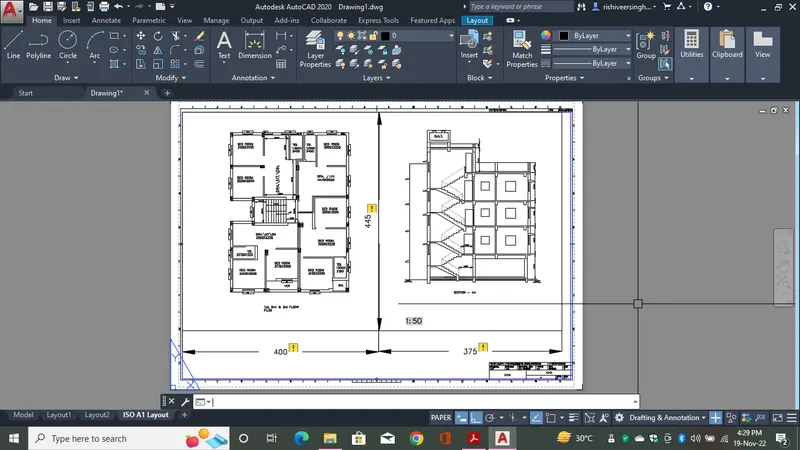
Aim - The aim of the challenge is to create a layout of the Plan and Section A of the project in Challenges 7, using the template Tutorial-mArch.dwt in a scale as given in the Figure. After cretion of the layout have to take the layout.
Procedure - The first step is to select the template tutirial-mArch from the dictionary.
After selcting the template we have to do the page setup.
After saving the page setip we can start the layout procedure with the help of MV command to insert new viewports.
After inserting the viewport we have to set the scale as show in the figure and lock it to avoid scale chnging during zoom in zoom out process.
Please follow the the procedure as shown below,
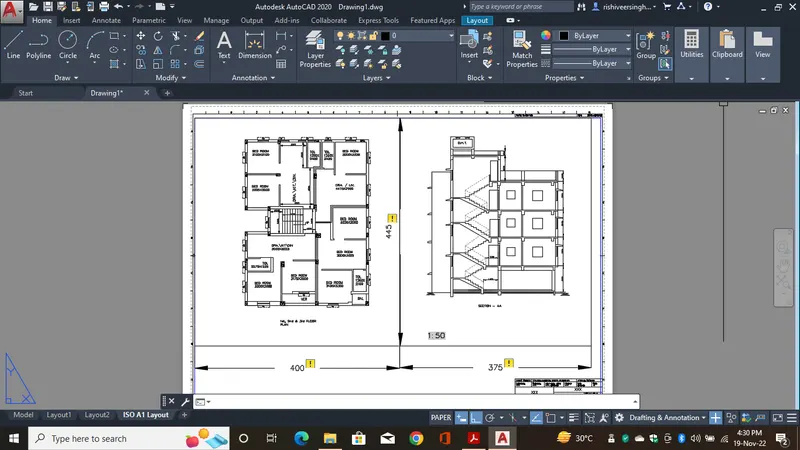
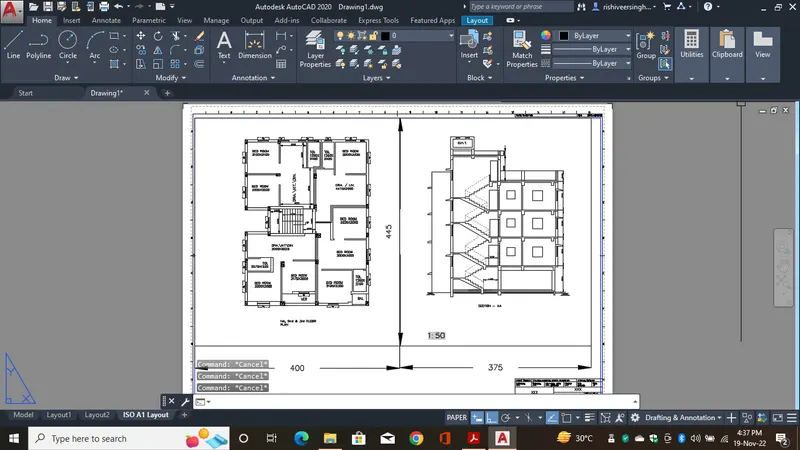
Result - After creating the viewport and doint the PLOT the final plot of the layout is shown below,
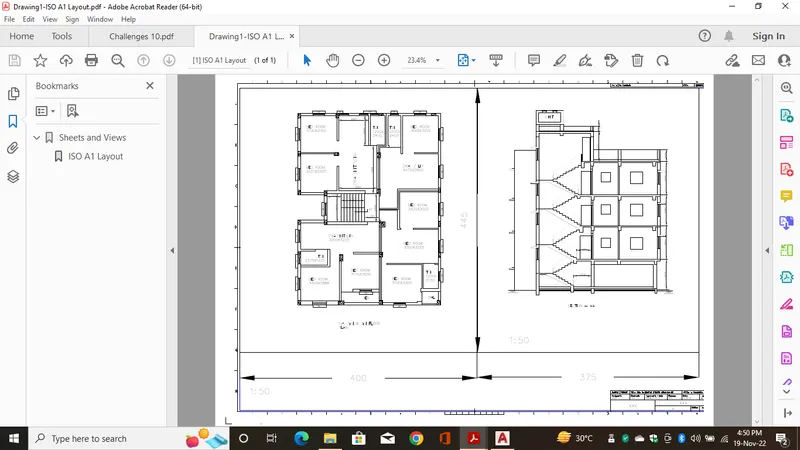
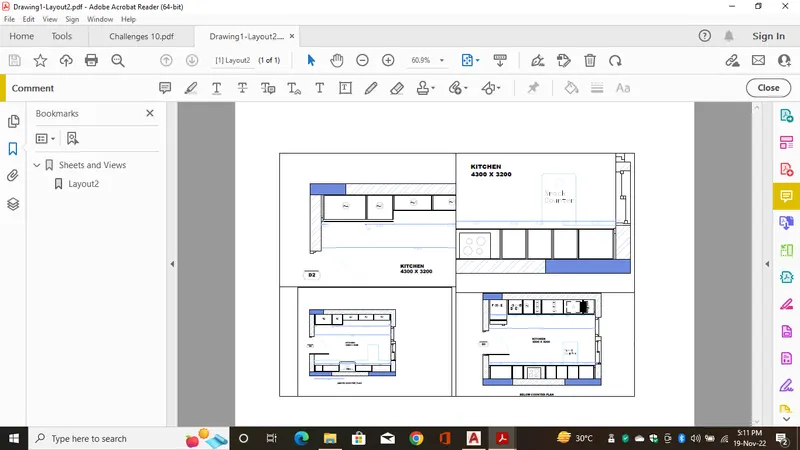
2. Aim - The aim of the challenge is to create layout of the Kitchen drawn in Challenge 9 as shown in Figure. Use the scale as shown in the Figure. Use A4 Size page for the layout. After cretion of the layout have to take the layout.
Procedure - The first step is to select the template.
After selcting the template we have to do the page setup.
After saving the page setip we can start the layout procedure with the help of MV command to insert new viewports.
After inserting the viewport we have to set the scale as show in the figure and lock it to avoid scale chnging during zoom in zoom out process.
Please follow the the procedure as shown below,
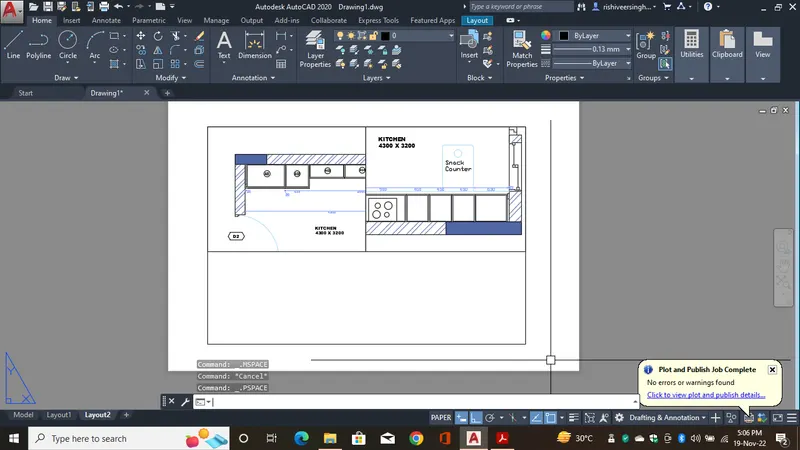
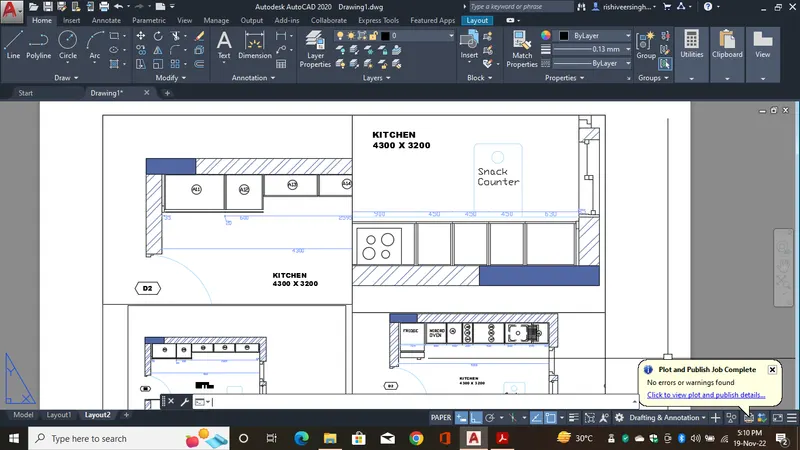
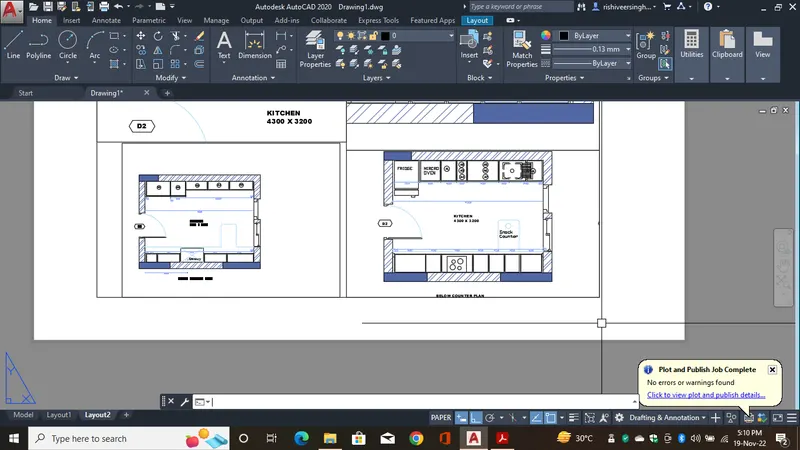
Result - After creating the viewport and doint the PLOT the final plot of the layout is shown below,
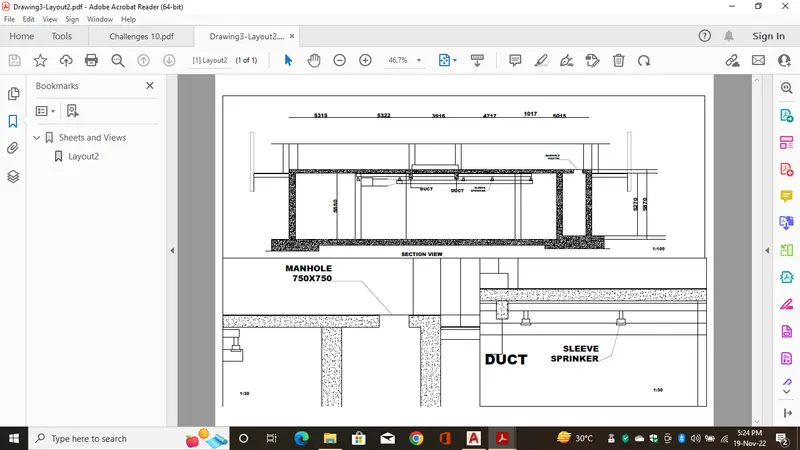
3. Aim - The aim of the challenge is to create a layout of the section created in Challenges 9.
Use scale as mentioned in the Figure. Use MV command create multiple viewports. Take a plot
Procedure - The first step is to select the template.
After selcting the template we have to do the page setup.
After saving the page setip we can start the layout procedure with the help of MV command to insert new viewports.
After inserting the viewport we have to set the scale as show in the figure and lock it to avoid scale chnging during zoom in zoom out process.
Please follow the the procedure as shown below,
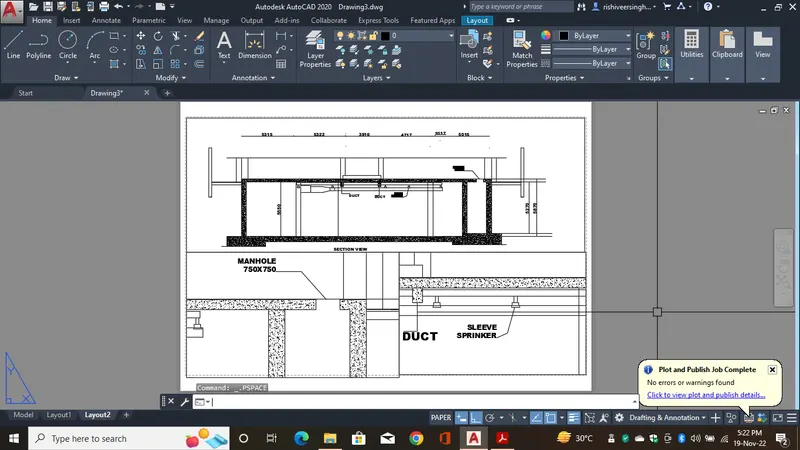
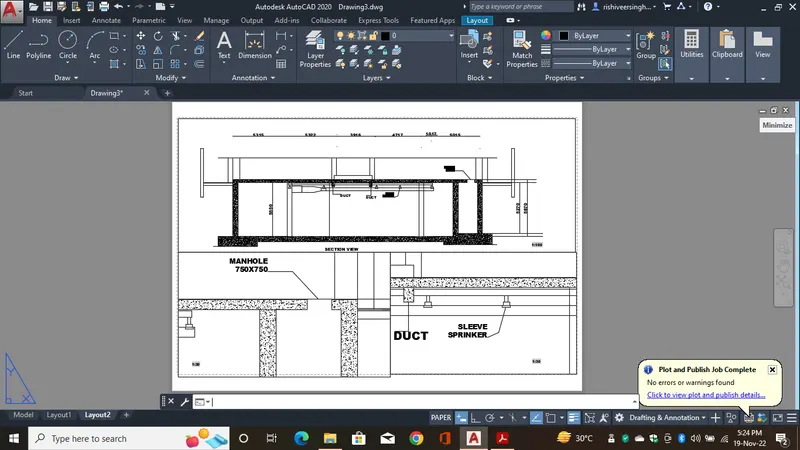
Result - After creating the viewport and doint the PLOT the final plot of the layout is shown below,