Creation of geometries by Coordinate system methods using AutoCad
1.
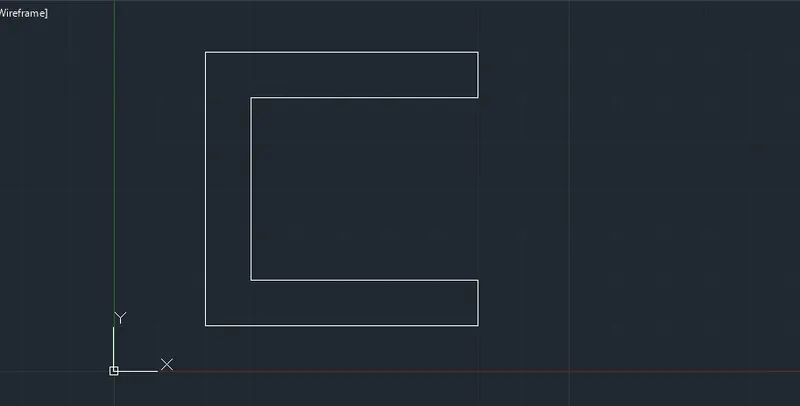
Aim - The purpose of the drawing is to create the letter "C" by use of coordinate system and Line command to enhance my autocad learning.
Procedure -
The first step is to take the Line command by typing L.
Take the start point by entering the X and Y coordinates as 2,1.
Next command by entering the X and Y coordinates as @0,6.
Next command by entering the X and Y coordinates as @6,0.
Next command for X and Y coordinates will be @0,-1.
Next command for X and Y coordinates will be @-5,0.
Next command for X and Y coordinates will be @0,-4.
Next command for X and Y coordinates will be @5,0.
Next command for X and Y coordinate will be @0,-1.
Next command for X and Y coordinate will be @0,-1.
The last command will C for close and the figure will be completed.
Result -
2.
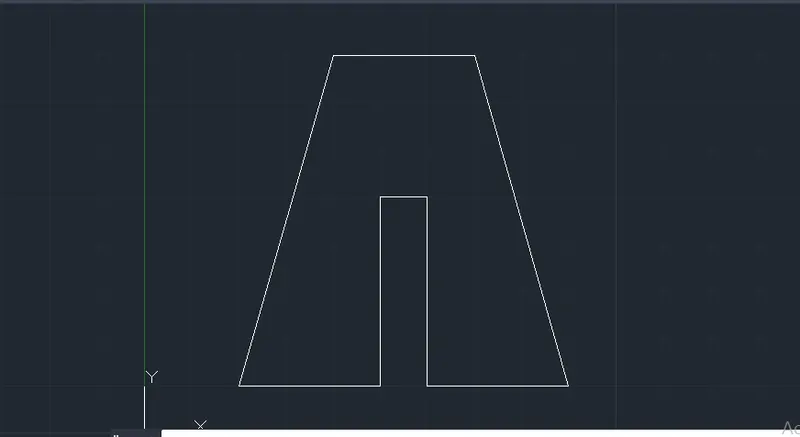
Aim - The purpose of the drawing is to create the letter "A" by use of coordinate system and Line command to enhance my autocad learning.
Procedure -
The first step is to take the Line command by typing L.
Take the start point by entering the X and Y coordinates as 2,1.
Take the Next command by entering the X and Y coordinates as @2,7.
Take the Next command by entering the X and Y coordinates as @3,0.
Next command for X and Y coordinates will be @2,-7.
Next command for X and Y coordinates will be @-3,0.
Next command for X and Y coordinates will be @0,4.
Next command for X and Y coordinates will be @-1,0.
Next command for X and Y coordinate will be @0,-4.
Last command for X and Y coordinate will be @-3,0 or close and the figure will be completed.
Result -
3.
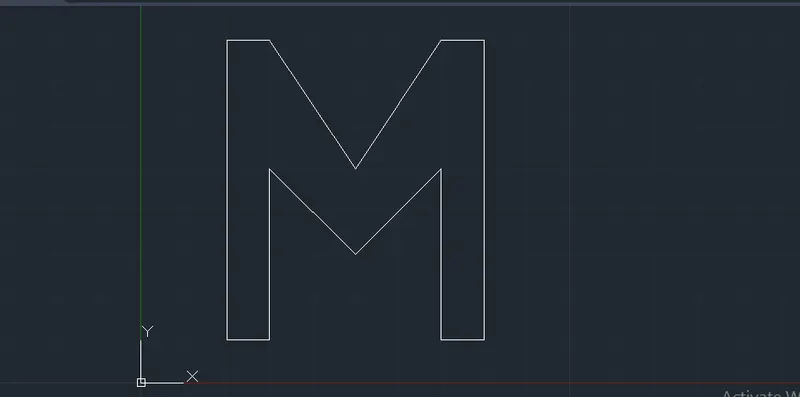
Aim - The purpose of the drawing is to create the letter "M" by using of coordinate system and Line command to enhance my autocad learning.
Procedure -
The first step is to take the Line command by typing L.
Take the start point by entering the X and Y coordinates as 2,1.
Take the Next command by entering the X and Y coordinates as @0,7.
Take the Next command by entering the X and Y coordinates as @1,0.
The Next command for X and Y coordinates will be @2,-3.
Next command for X and Y coordinates will be @2,3.
Next command for X and Y coordinates will be @1,0.
Next command for X and Y coordinates will be @0,-7.
Next command for X and Y coordinate will be @-1,0.
Next command for X and Y coordinate will be @0,4.
Next command for X and Y coordinate will be @2,-2.
Next command for X and Y coordinate will be @-2,2.
Next command for X and Y coordinate will be @0,-4.
The last command will C for close and the figure will be completed.
Result -
4.
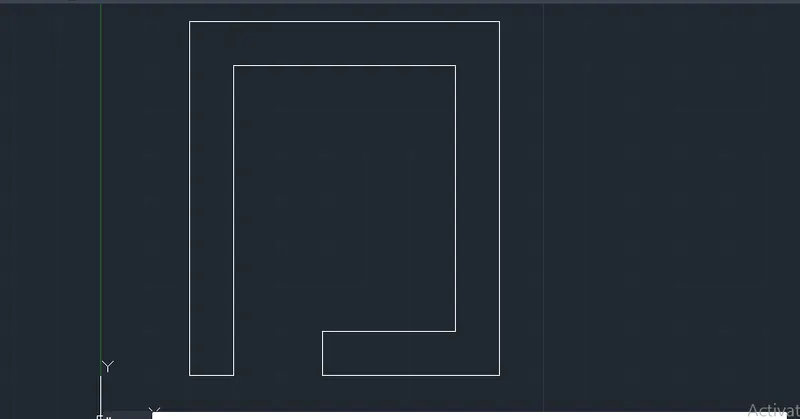
Aim - The purpose of the challenge is to create a semi rectangle by use of coordinate system and Line command to enhance my autocad learning.
Procedure -
The first step is to take the Line command by typing L.
Take the start point by entering the X and Y coordinates as 2,1.
Take the Next command by entering the X and Y coordinates as @0,8.
Take the Next command by entering the X and Y coordinates as @7,0.
The Next command for X and Y coordinates will be @0,-8.
Next command for X and Y coordinates will be @-4,0.
Next command for X and Y coordinates will be @0,1.
Next command for X and Y coordinates will be @3,0.
Next command for X and Y coordinate will be @0,6.
Next command for X and Y coordinate will be @-5,0.
Next command for X and Y coordinate will be @0,-7.
The last command will C for close and the figure will be completed.
Result -
5.
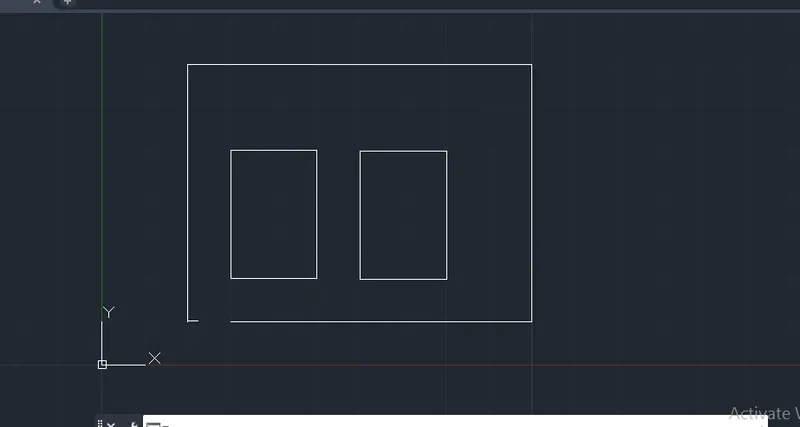
Aim - The purpose of the challenge is to create a 2D wall with two openings by use of coordinate system and Line command to enhance my autocad learning.
Procedure -
The first step is to take the Line command by typing L.
Take the start point by entering the X and Y coordinates as 2,1.
Take the Next command by entering the X and Y coordinates as @0,6.
Take the Nextcommand by entering the X and Y coordinates as @0,8.
The Next command for X and Y coordinates will be @0,-6.
Next command for X and Y coordinates will be @-7,0.
Again take the line command and start point will be 2,1 as there is an opening in the bigger rectangle.
Next command for X and Y coordinates will be @.25,0 to provide the opening.
Press escape to exit the command.
Now again take the Line command and start point will be 3,2.
Next point will be @0,3.
Next command for X and Y coordinates will be @2,0.
Next command for X and Y coordinates will be @0,-3.
Next command will close.
Again take the Line command and the start point will be 6,2.
Next point will be @0,3.
Next point for X and Y coordinate will be @2,0.
Next command for X and Y coordinate will be @0,-3.
The last command will be C for close and the figure will be completed.
Result -
6.
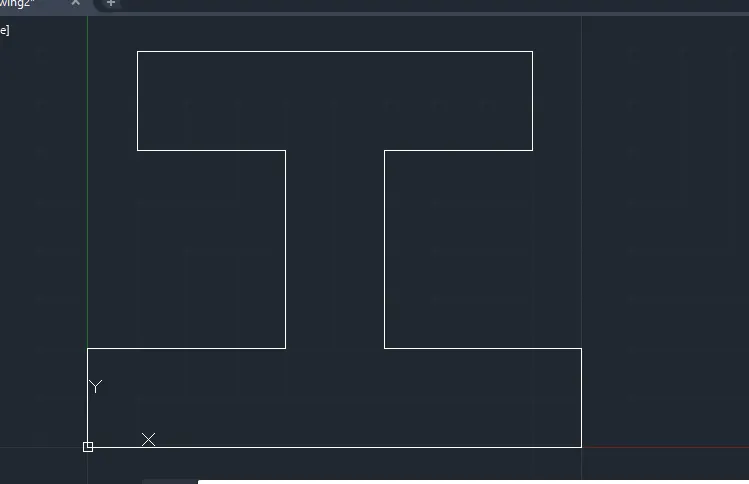
Aim - The purpose of the challenge is to create a letter "I" by use of coordinate system and Line command to enhance my autocad learning.
Procedure -
The first step is to take the Line command by typing L.
Take the start point by entering the X and Y coordinates as 0,0.
Take the Next command by entering the X and Y coordinates as @0,2.
Take the Next command by entering the X and Y coordinates as @4,0.
The Next command for X and Y coordinates will be @0,4.
Next command for X and Y coordinates will be @-3,0.
Next command for X and Y coordinates will be @0,2.
Next command for X and Y coordinates will be @8,0.
Next command for X and Y coordinate will be @0,-2.
Next command for X and Y coordinate will be @-3,0.
Next command for X and Y coordinate will be @0,-4.
Next command for X and Y coordinate will be @4,0.
Next command for X and Y coordinate will be @0,-2.
The last command will C for close and the figure will be completed.
Result -
7.
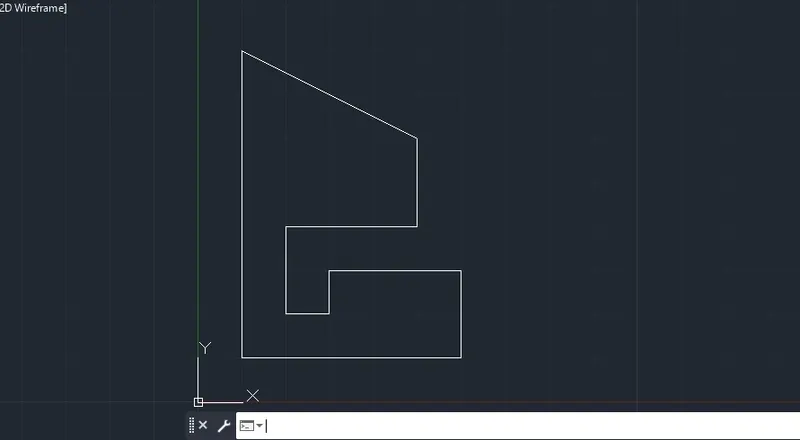
Aim - The purpose of the challenge is to create the figure in the challenge by use of coordinate system and Line command to enhance my autocad learning.
Procedure -
The first step is to take the Line command by typing L.
Take the start point by entering the X and Y coordinates as 1,1.
Take the Next command by entering the X and Y coordinates as @0,7.
Take the Next command by entering the X and Y coordinates as @4,-2.
The Next command for X and Y coordinates will be @0,-2.
Next command for X and Y coordinates will be @-3,0.
Next command for X and Y coordinates will be @0,-2.
Next command for X and Y coordinates will be @1,0.
Next command for X and Y coordinate will be @0,1.
Next command for X and Y coordinate will be @3,0.
Next command for X and Y coordinate will be @0,-2.
The last command will C for close and the figure will be completed.
Result -
8.
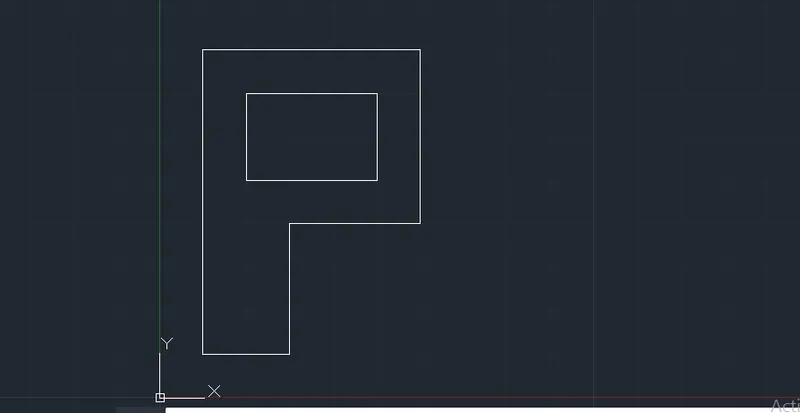
Aim - The purpose of the challenge is to create a letter "P" by use of coordinate system and Line command to enhance my autocad learning.
Procedure -
The first step is to take the Line command by typing L.
Take the start point by entering the X and Y coordinates as 1,1.
Take the Next command by entering the X and Y coordinates as @0,7.
Take the Next command by entering the X and Y coordinates as @5,0.
The Next command for X and Y coordinates will be @0,-4.
Next command for X and Y coordinates will be @-3,0.
Next command for X and Y coordinates will be @0,-3.
Next command will C for close.
Now again take the Line command and the start point will be 2,5.
Next command for X and Y coordinate will be @0,2.
Ninth command for X and Y coordinate will be @3,0.
Next command for X and Y coordinate will be @0,-2.
The last command will C for close and the figure will be completed.
Result -
9.
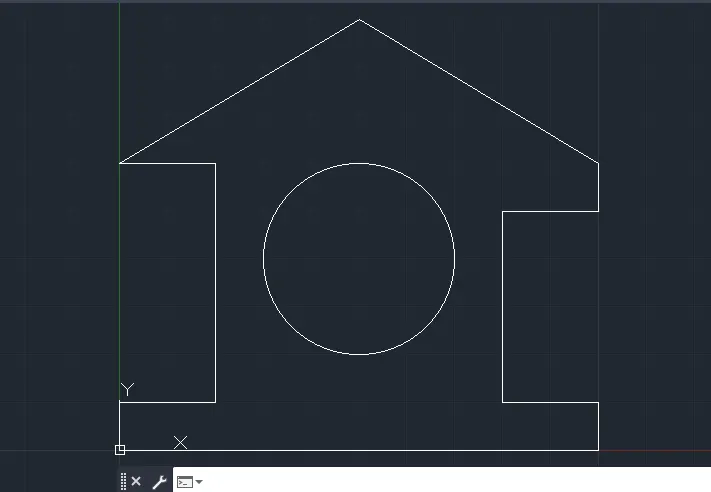
Aim - The purpose of the challenge is to create a Profile-wood by use of coordinate system and Line and Circle command to enhance my autocad learning.
Procedure -
The first step is to take the Line command by typing L.
Take the start point by entering the X and Y coordinates as 0,0.
Take the Next command by entering the X and Y coordinates as @0,1.
Take the Next command by entering the X and Y coordinates as @2,0.
The Next command for X and Y coordinates will be @0,5.
Next command for X and Y coordinates will be @-2,0.
Next command for X and Y coordinates will be @5,3.
Next command for X and Y coordinate will be @5,-3.
Next command for X and Y coordinate will be @0,-1.
Next command for X and Y coordinate will be @-2,0.
Next command for X and Y coordinate will be @0,-4.
Next command for X and Y coordinate will be @2,0.
Next command for X and Y coordinate will be @0,-1.
Next command will C for close.
Now take the circle command and the start point will be 5,4 with a radius of 2.
Press enter and the figure will be completed.
Result -
10.
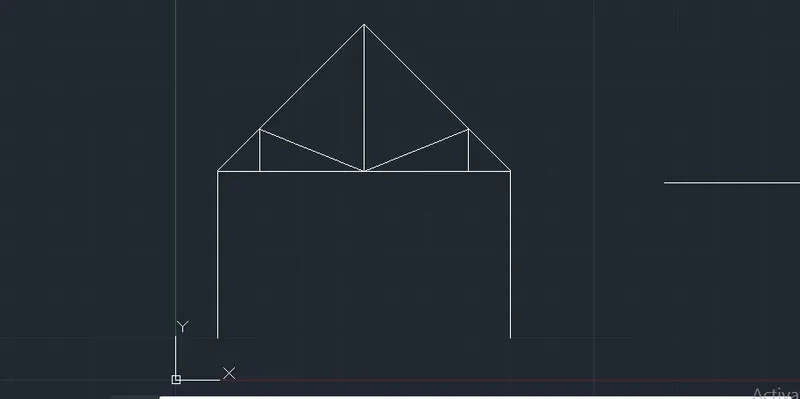
Aim - The purpose of the challenge is to create a Queen Post Truss by use of coordinate system and Line command to enhance my autocad learning.
Procedure -
The first step is to take the Line command by typing L.
Take the start point by entering the X and Y coordinates as 1,1.
Take the Next command by entering the X and Y coordinates as @0,4.
Take the Next command by entering the X and Y coordinates as @3.5,3.5 or @3.5<45.
The Next command for X and Y coordinates will be @3.5,-3.5 or @3.5<-45.
Next command for X and Y coordinates will be @-1,0.
Next command for X and Y coordinates will be @0,1.
Next command for X and Y coordinate will be @-2.5,-1.
Next command for X and Y coordinate will be @-2.5,1.
Next command for X and Y coordinate will be @-0,-1.
Next command for X and Y coordinate will be @-1,0.
Next command for X and Y coordinate will be @7,0.
Next command will be close.
Again take the Line command and the start point will be 4.5,6.
Last point will be @0,3.5 and the figure will be completed.
Result -
11.
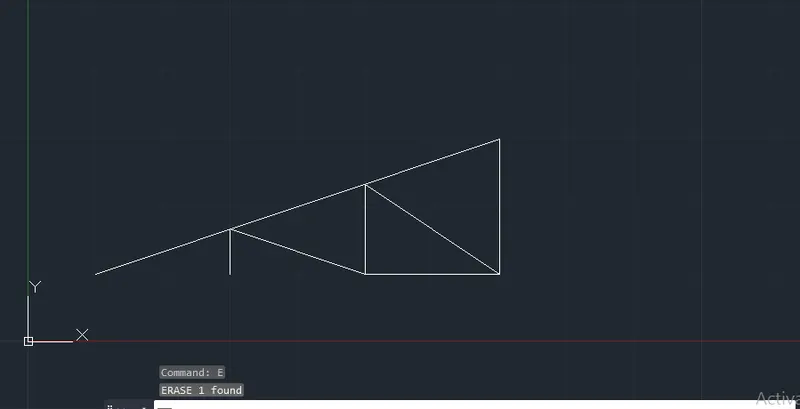
Aim - The purpose of the challenge is to create a Mono Pitch by use of coordinate system and Line command to enhance my autocad learning.
Procedure -
The first step is to take the Line command by typing L.
Take the start point by entering the X and Y coordinates as 1,1.
Take the Next command by entering the X and Y coordinates as @6,2.
Take the Next command by entering the X and Y coordinates as @0,-2.
The Next command for X and Y coordinates will be @-2,1.33.
Next command for X and Y coordinates will be @0,-1.33.
Next command for X and Y coordinates will be @-2,.67.
Next command for X and Y coordinate will be @0,-1.
Press enter and again take the Line command.
The start point will be 5,1.
Next command for X and Y coordinate will be @2,0.
Press enter and the figure will be completed.
Result -