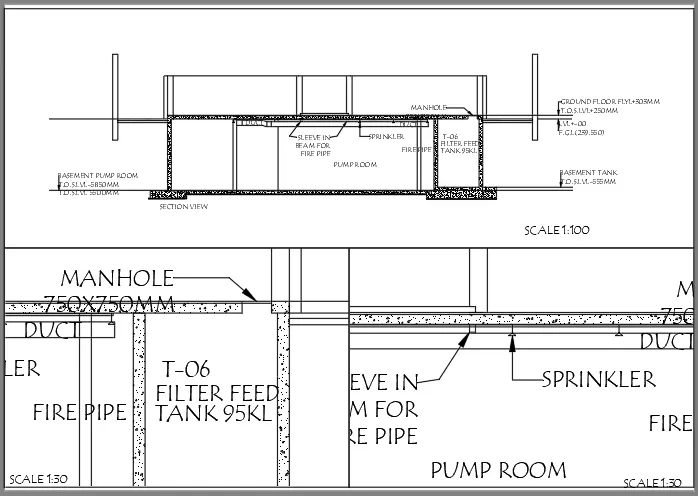
Creation of Multiple viewports, Scaling the drawing and setting in Template in AutoCad
AIM - Creation of Multiple viewports, Scaling the drawing and setting in Template in AutoCad
Challenge 1 - Create a layout of the Plan and Section A of the project in Challenges 7, using the template Tutorial-mArch.dwt in a scale as given in the Figure. Use the MV command to create the viewport of the size as shown in Figure. Also, use ATTEDIT command to edit the information in the title block. Use A1 size for the layout. Take a plot.
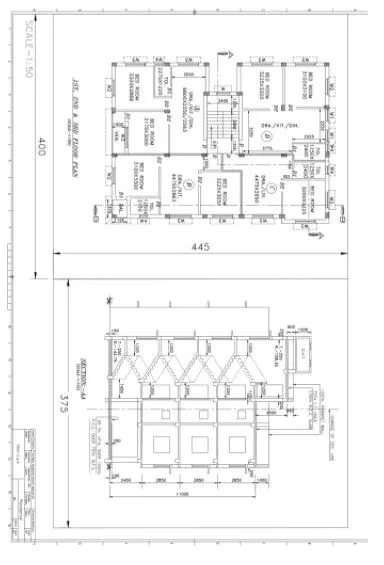
Procedure -
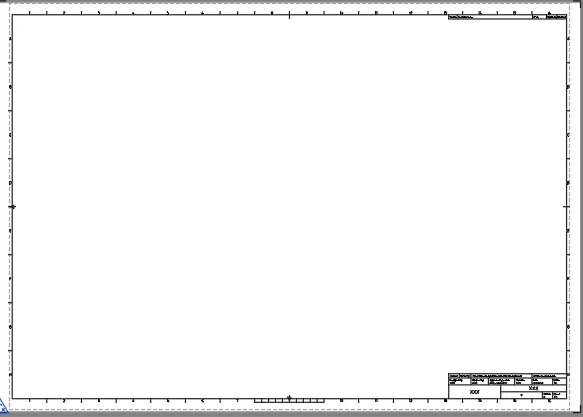
A new layout is now created using the command LAYOUT and select template and as required mArch.dwt template was selected and delete the exisiting viewport.
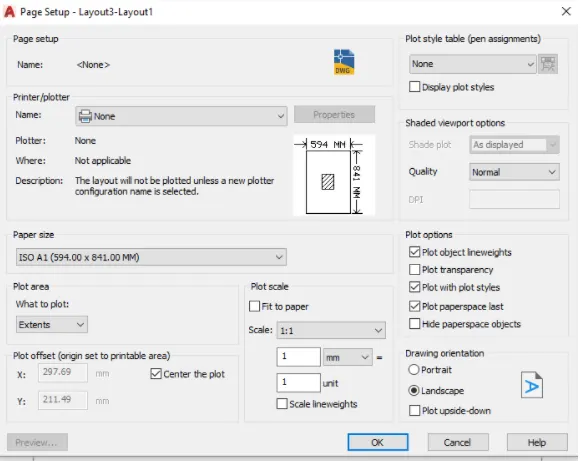
Right click on the layout and select page setup manager and modify the settings as required.
Now using the rec command 2 rectangles of equal sizes was drawn so that it will fit in the paper.
Now click MV and select object as these rectangles and in this way two model spaces was created
Type v in command bar to open the view manager.
Select the required models V1 and V2 and apply it in both the rectangles.
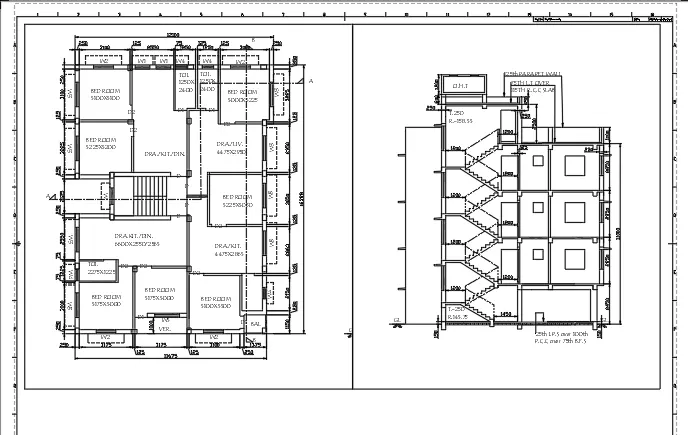
Type ATTEDIT to open the edit attributes dialogue box and apply the required comments and click ok.
Type PLOT to open the page setup manager the following settings was applied and click the preview option at botton.
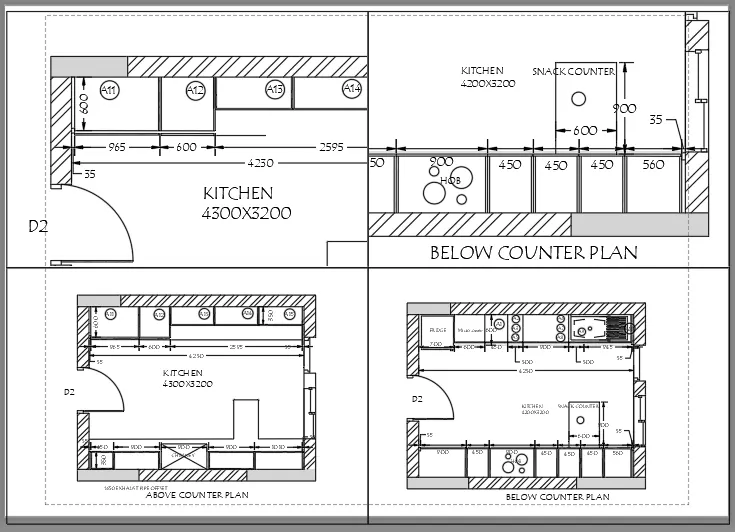
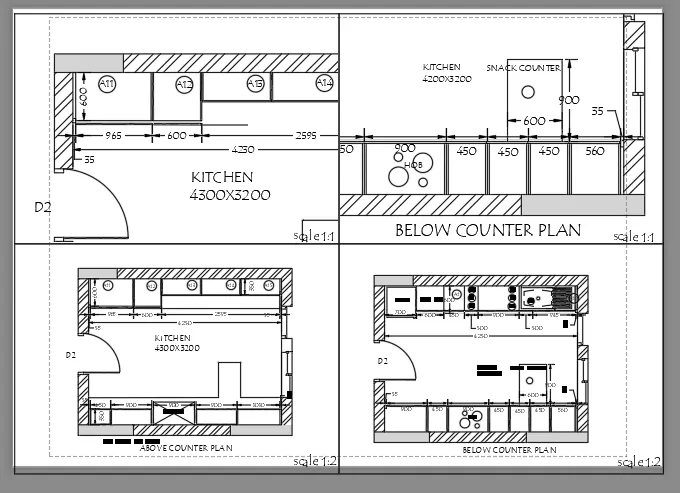
Challenge 2 - Create a layout of the Kitchen drawn in Challenge 9 as shown in Figure. Use the scale as shown in the Figure. Use A4 Size page for the layout. Take a plot.
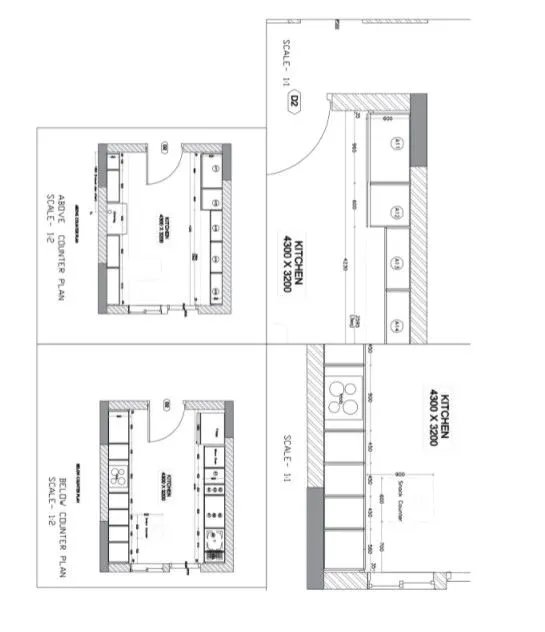
Procedure -
A new layout is now created using the command LAYOUT and delete the exisiting viewport.

Right click on the layout and select page setup manager and modify the settings as required.
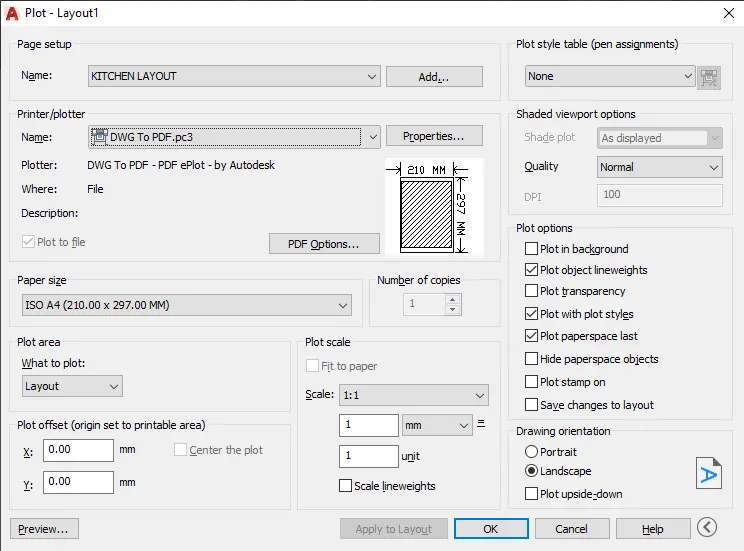
We will be plotting this drawing in A4 paper
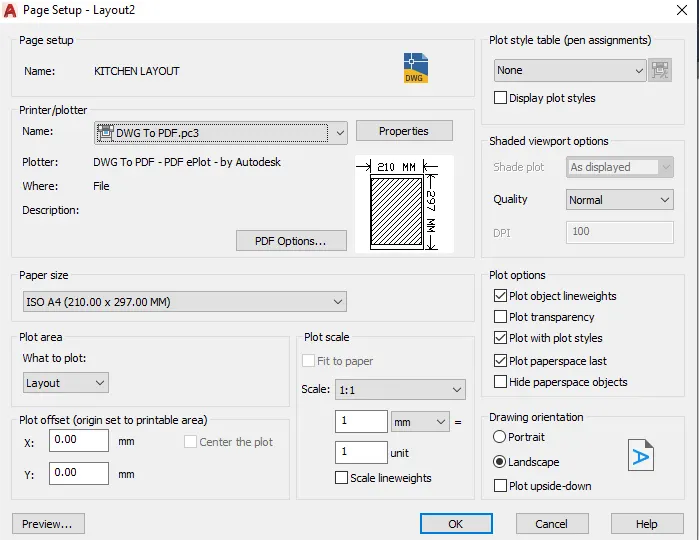
Now using the rec command 4 rectangles of equal sizes was drawn so that it will fit in the paper.
Now click MV and select object as these rectangles and in this way four model spaces was created
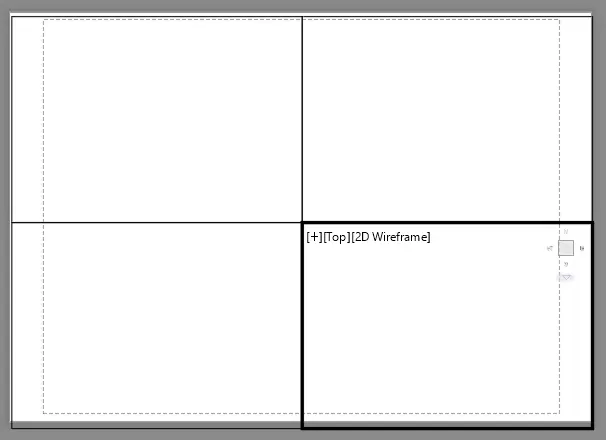
Type v in command bar to open the view manager.
Select the required models V1, V2, V3 and V4 and apply it in the respective rectangles.
Type PLOT to open the page setup manager the following settings was applied and click the preview option at botton
The preview of the whole drawing is as shown
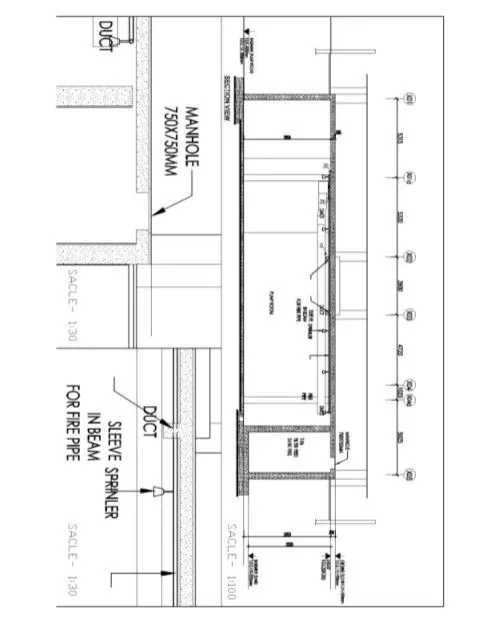
Challenge 3 - Create a layout of the section created in Challenges 9. Use scale as mentioned in the Figure. Use MV command create multiple viewports. Take a plot.
Procedure -
A new layout is now created using the command LAYOUT and delete the exisiting viewport.
Right click on the layout and select page setup manager and modify the settings as required.
We will be plotting this drawing in A4 paper
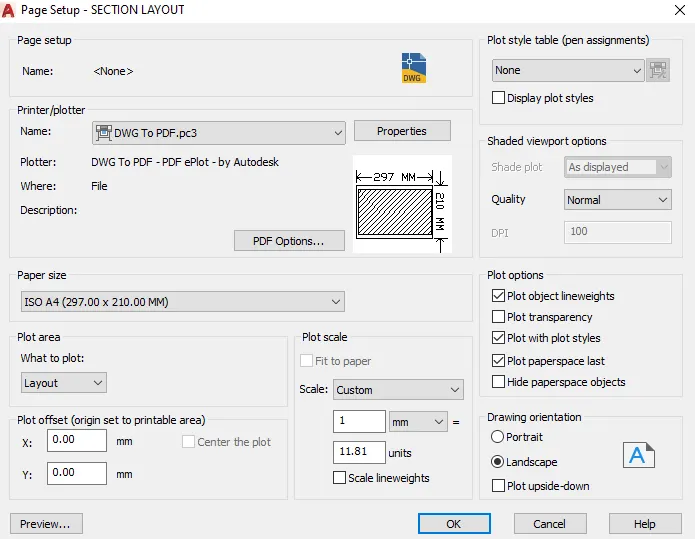
Now using the rec command 3 rectangles of equal sizes was drawn so that it will fit in the paper.
Now click MV and select object as these rectangles and in this way four model spaces was created
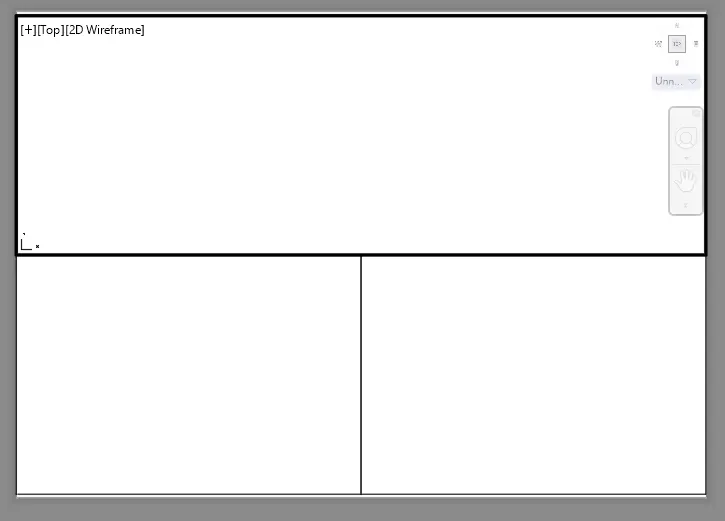 |
Type v in command bar to open the view manager.
Select the required models V1, V2 and V3 and apply it in the respective rectangles.
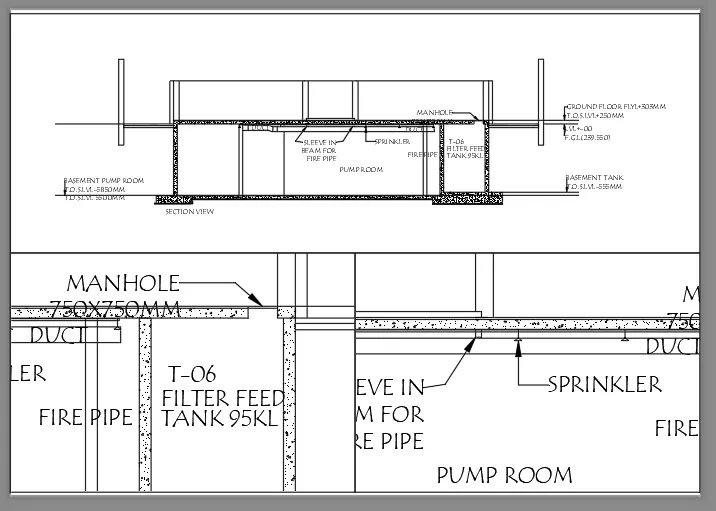
Type PLOT to open the page setup manager the following settings was applied and click the preview option at botton
The preview of the whole drawing is as shown