Creation of Multiple viewports, Scaling the drawing and setting in Template in AutoCad
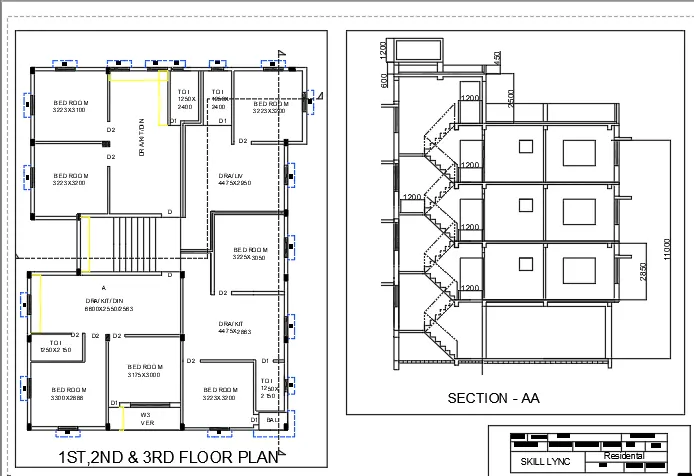
To Create a layout of the Plan and Section A of the project in Challenges 7.
Commands used
1. Line
2. Polygon
3. Rectangle
4. Circle
5. Copy
7. Trim
8. Mirror
9. Offset
10. Array
11. Move
Steps:
- Take view command and choose the plan from challenge 7
- Right click on Layout1
- Create the layout and choose A1
- Take Ms command
- Take MV command
- Draw two vew ports as given in plan
- Select the two view ports
- Go to properties
- Lock it
- Type> ATTEdit
- Enter
- Select the object as template
- Edit the attribute as per requirement
Result :
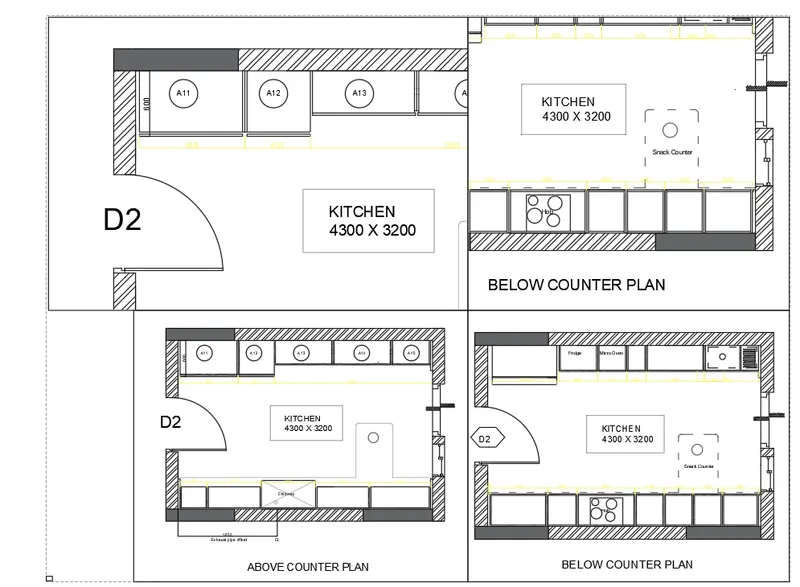
2.To create the layout of the kitchen as shown below by using the view ports.
Steps:
- Open the challenge from previously done challenge
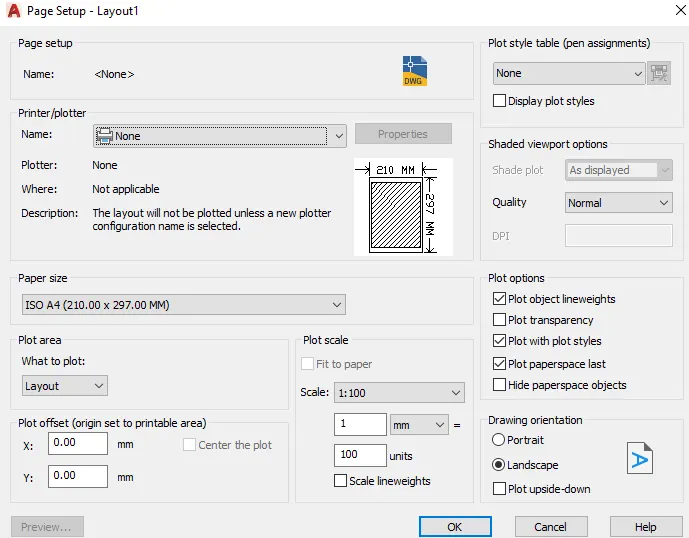
- Open page layout and set the page to A4 and scale .
- Click> Set current
- Click > New
- Specify view name Kitchen-Above Counter plan
- Select Define window
- Select the window for plan
- Right click on Layout1 and rename it
- Open the Kitchen layout
- Type MV and enter
- Specify 4
- Take Ms command
- Take MV command
- Select Object
- Similarly do for the another rectangle
- The two view ports are ready
- Type v in command bar
- Click Kitchen-Above counter and Plan Set current
- Again do similar process for other view port
- Select Scale as per view ports shown in drawing
- Select the all view ports
- Go to properties and lock it
- Type plot in command bar
Result :
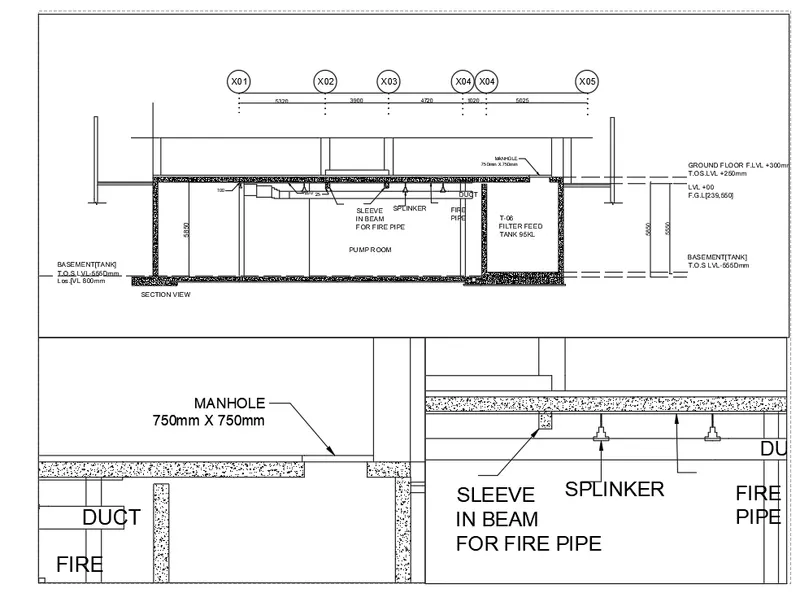
3.To create the layout of the Industrial Building as shown below by using the view ports.
Steps
- Open view command
- Click New
- Select Define window
- Select the window for view
- To create layout
- Right click on Layout1
- Right click on new layout and Rename
- Rename Industrial Building
- Open the Industrial Building layout
- Type MV and enter
- Specify 3
- Select the corner as it will gives following results
- Take Ms command
- Take MV command
- Create viewports for different views
- Type v in command bar
- Click > Kitchen-Above counter Plan> Set current > Ok
- Select the all view ports
- Go to properties and lock
- Type plot in command bar
- Dialogue box will open
Result :