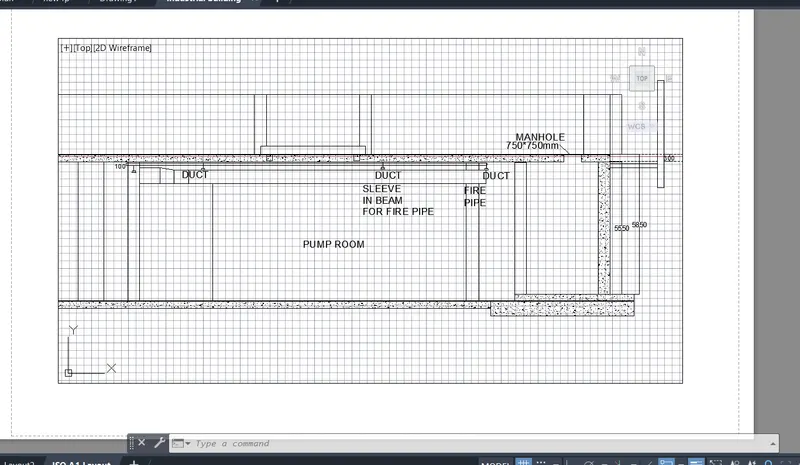
Creation of Multiple viewports, Scaling the drawing and setting in Template in AutoCad
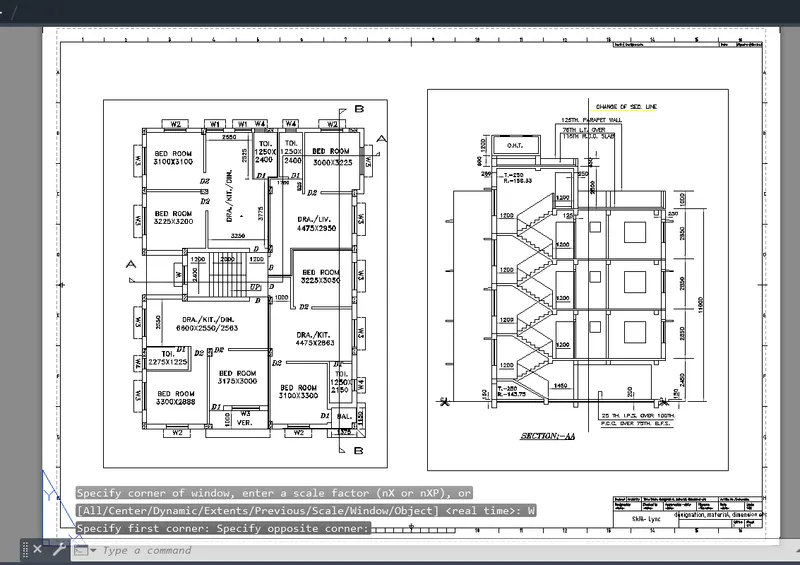
Aim:To create the layout of the plan and the section A
Procedure:
- Create the view of a plan and the section A
- Enter "Layout" in the command bard
- Select template from the layout
- Select template Tutorial-mArch.dwt
- Add the view of plan and section in the template
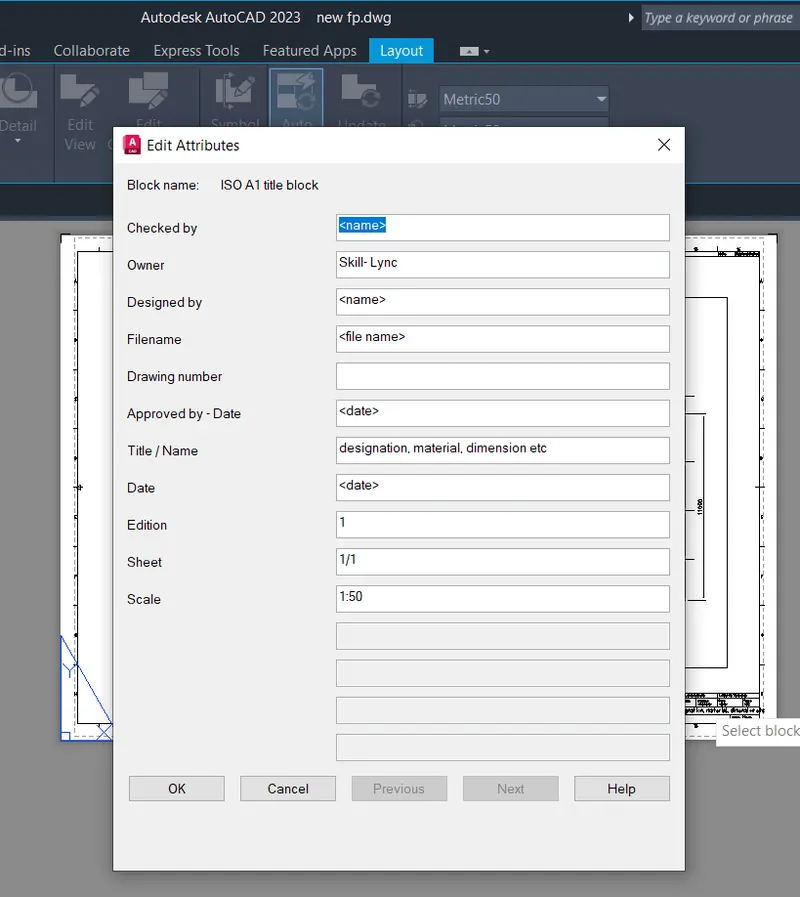
- Enter ATEDIT in the command bar
- In the dialouge box enter the details as mentioned
- The template is created.
Result:
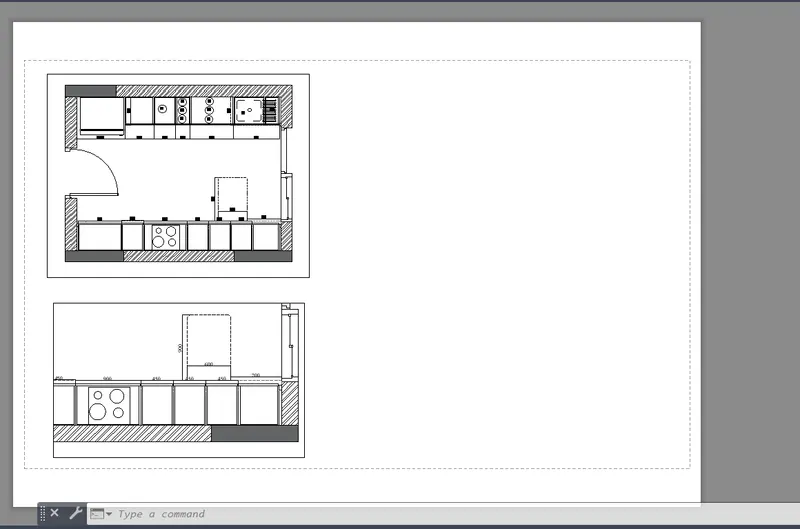
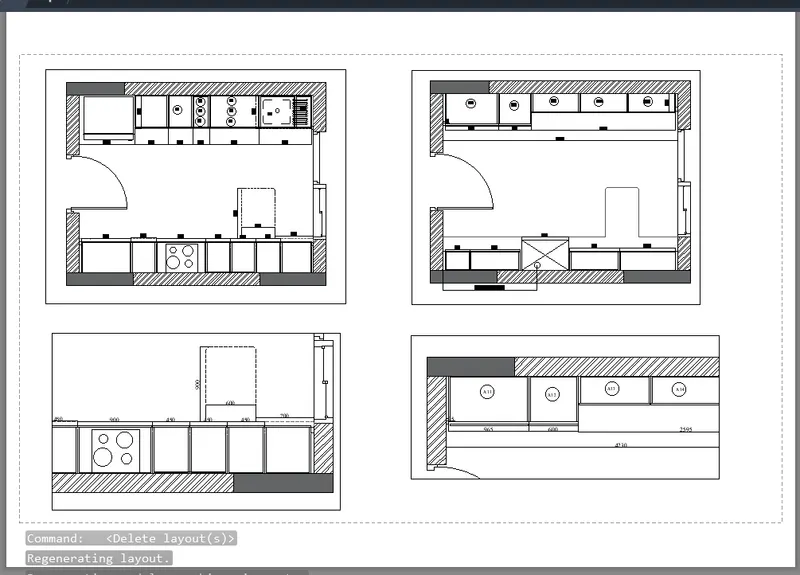
Aim: To create the layout of the kitchen
Procedure :
- Go to the layout select page setup in the ribbon
- In the page setup set the page size as A1
- To create the view as shown go to the view in the ribbon
- Select the new view and set the view by using window selection
- Create 4 views as shown
- Go to layout and enter "MV" command
- Select "named" and enter the name of the created view
- Create the 4 view in the layout.
Result:
Aim: To create the layout of the section
Procedure:
- Go to the layout select page setup in the ribbon
- In the page setup set the page size as A1
- To create the view as shown go to the view in the ribbon
- Select the new view and set the view by using window selection
- Create views as shown
- Go to layout and enter "MV" command
- Select "named" and enter the name of the created view
- Create the view in the layout.
Result: