Creation of Multiple viewports, Scaling the drawing and setting in Template in AutoCad
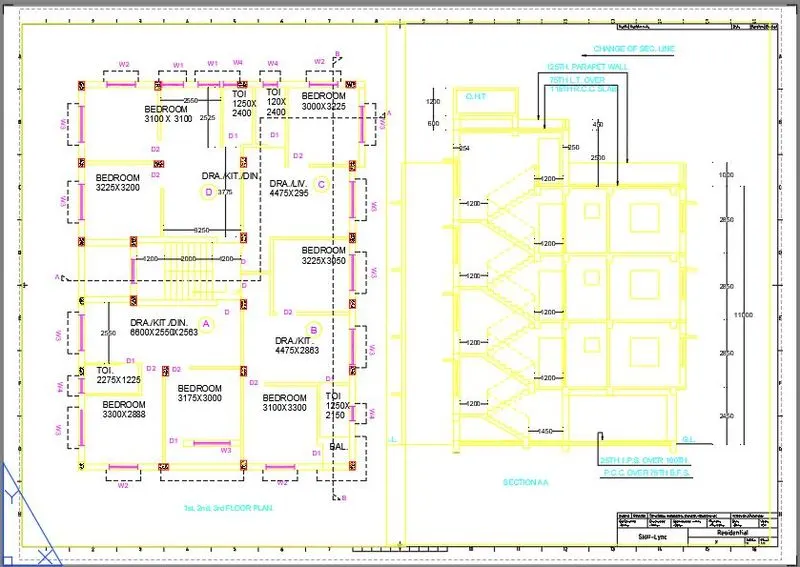
1) AIM:- To create a layout of the Plan and Section A of the project in Challenges 7, using the template Tutorial-mArch.dwt in a scale as given in the Figure.
Procedure:-
- take the autocad drawing drawn for challenge 7, take the layout option and right click on the layout and take the new template option.
- use the template tutorial-march.dwt
- type 'mv' and draw a viewport.
- click on the viewport drawn and double click on it and select the required drawing,- 1st, 2nd and 3rd floor plan . change the scale to 1:100.
- similarly do the same for the section AA drawing .change the scale to 1:100.
- lock the viewport so that the viewport cant be changed.
- click the title block and change the details given in the title block
- the resulting drawing is as given below.
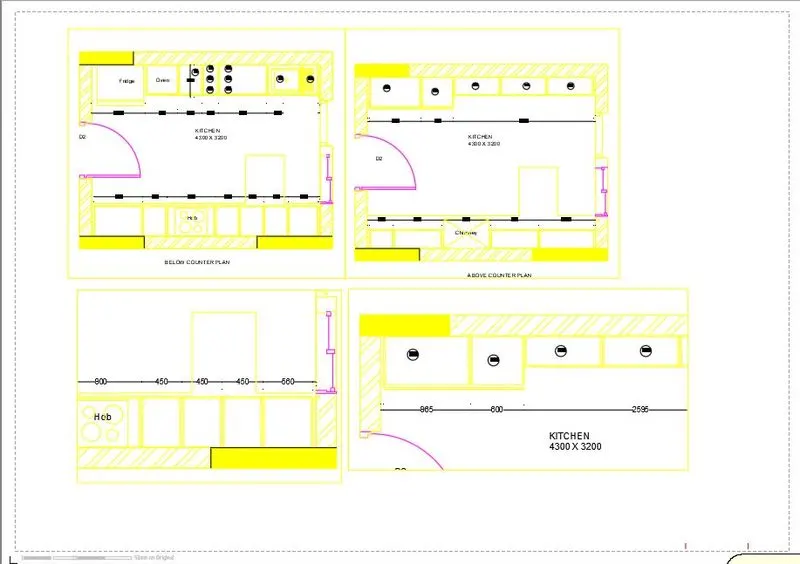
2) AIM:- To create a layout of the Kitchen drawn in challenge 9 as shown in Figure. Use the scale as shown in the Figure.
Procedure:-
- take the autocad drawing drawn for challenge 9, take the layout option and right click on the layout and take the new template option.
- use the template A4-H.
- type 'mv' and draw a viewport.
- click on the viewport drawn and double click on it and select the required drawing, above counter plan and below counter plan. change the scale to 1:2.
- similarly do the same for the other two drawing .change the scale to 1:1.
- lock the viewport so that the viewport cant be changed.
- click the title block and change the details given in the title block
- the resulting drawing is as given below.
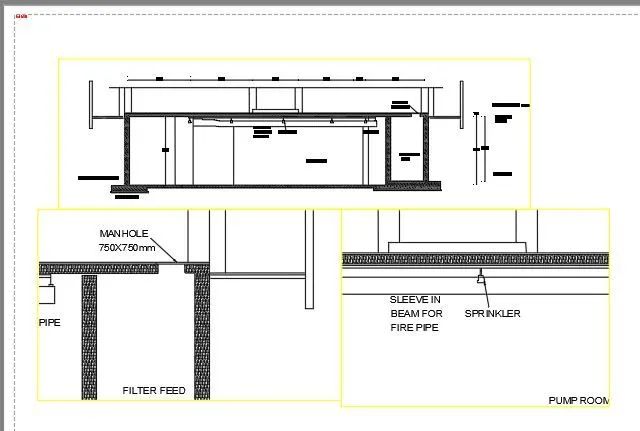
3) AIM:- To create a layout of the section created in Challenges 9.
Procedure:-
- take the autocad drawing drawn for challenge 9, take the layout option and right click on the layout and take the new template option.
- use the template A4-H.
- type 'mv' and draw a viewport.
- click on the viewport drawn and double click on it and select the required drawing, section plan. change the scale to 1:100.
- similarly do the same for the other two drawing .change the scale to 1:30.
- lock the viewport so that the viewport cant be changed.
- click the title block and change the details given in the title block
- the resulting drawing is as given below.