Creation of Multiple viewports, Scaling the drawing and setting in Template in AutoCad
Aim: Create a layout of the Plan and Section A of the project in Challenges 7, using the template Tutorial-mArch.dwt in a scale as given in the Figure. Use the MV command to create the viewport of the size as shown in Figure. Also, use ATTEDIT command to edit the information in the title block. Use A1 size for the layout. Take a plot.
I am using metric template
when you go to drawing on the below there will be model, layout
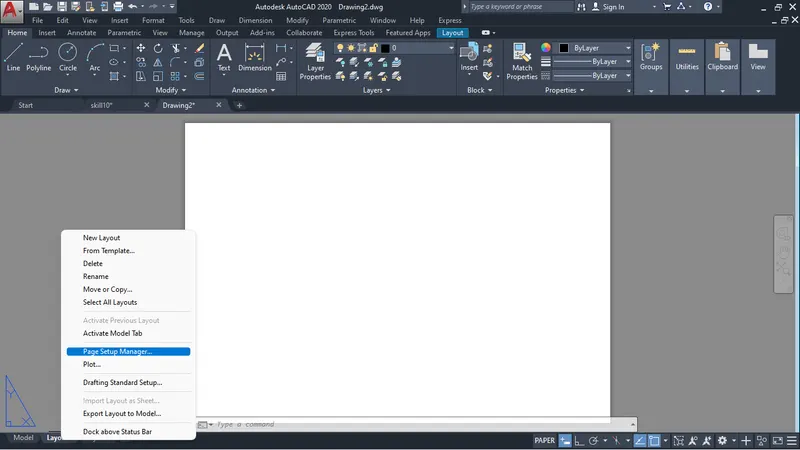
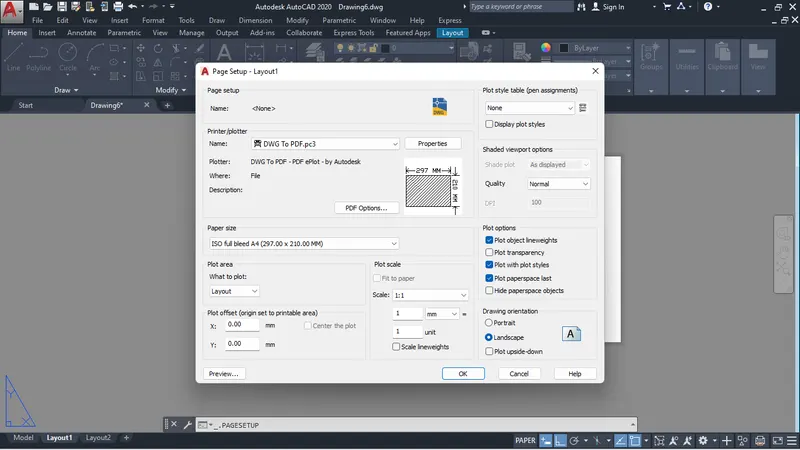
when you go in the layout you can set page ,use the template and plot.
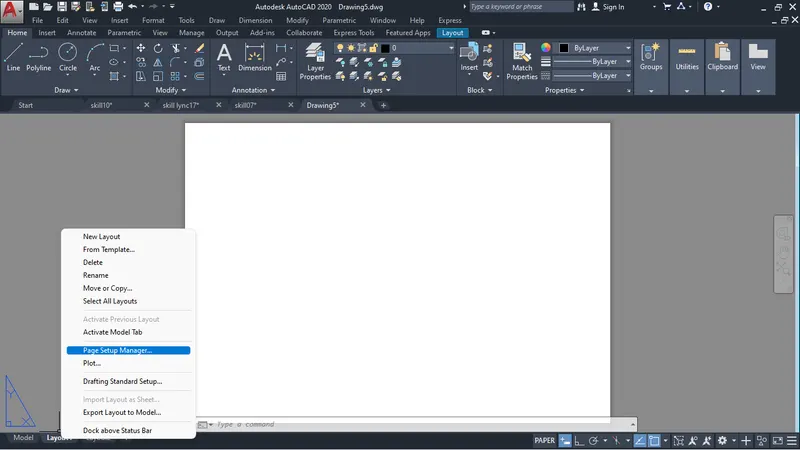
I used the template tutorial-march to use that you have right click on the layout there will be option
From template you can see that option in above fig.
click on template there will a dialog box open where you can find the tutorial- march template select that
and open it.
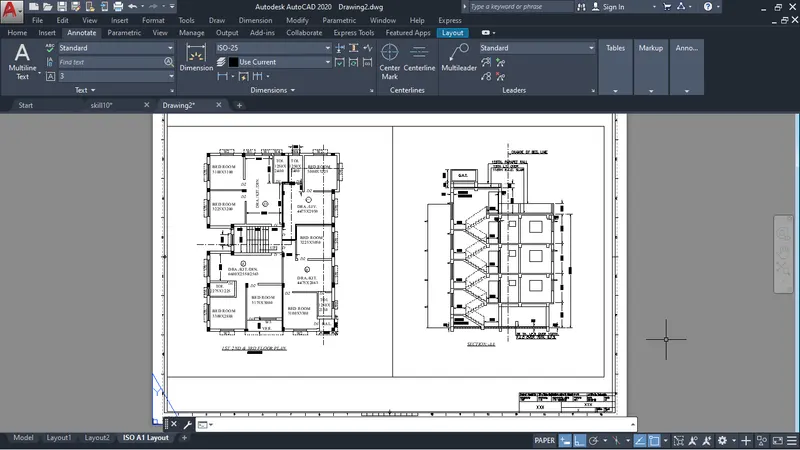
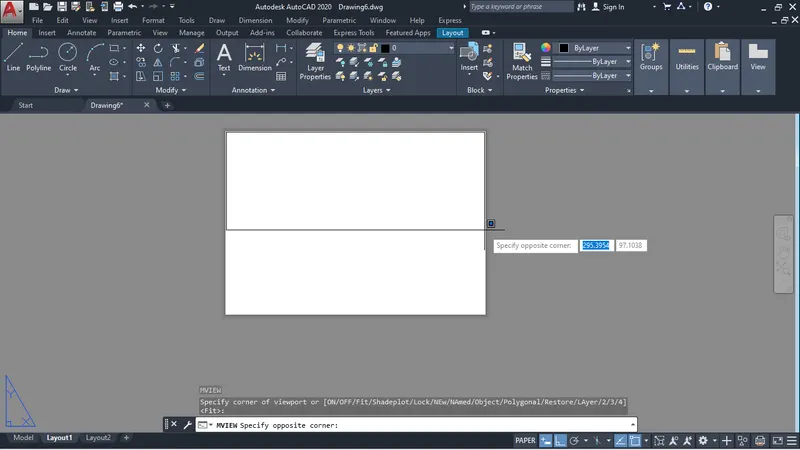
after that you can use polyline or line or rectangle to create viewport according to given size.
I used MV command- to convert the rectangle into viewport
when you give the MV command there will be some option I select object
and select the rectangle that i have created.
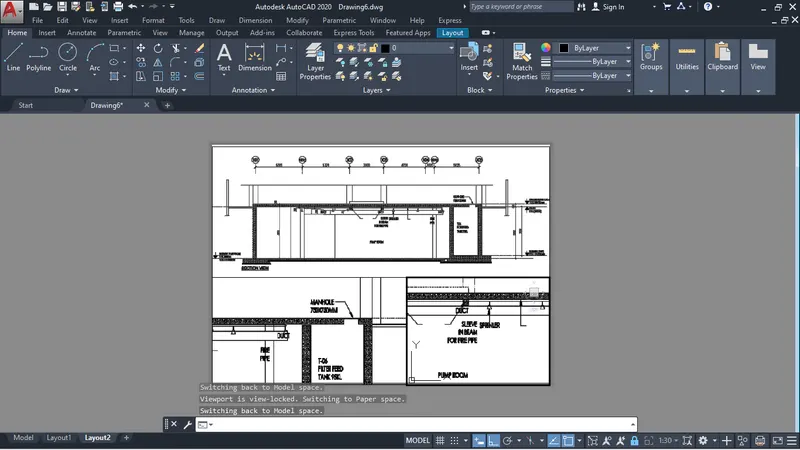
When you select rectangle it will be converted into viewport.
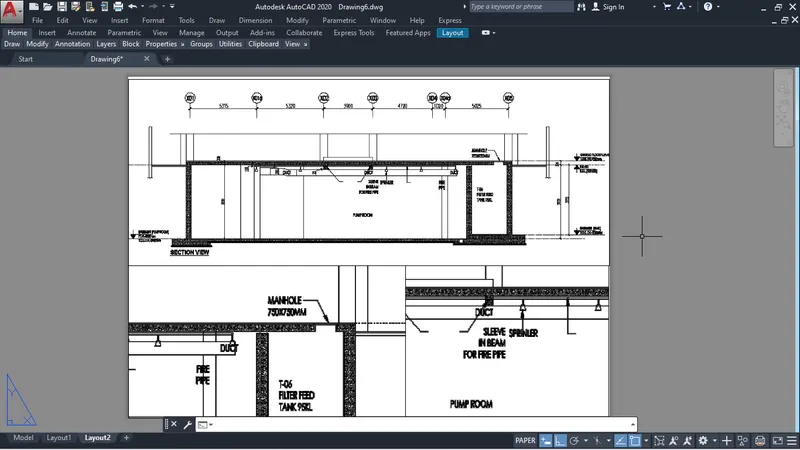
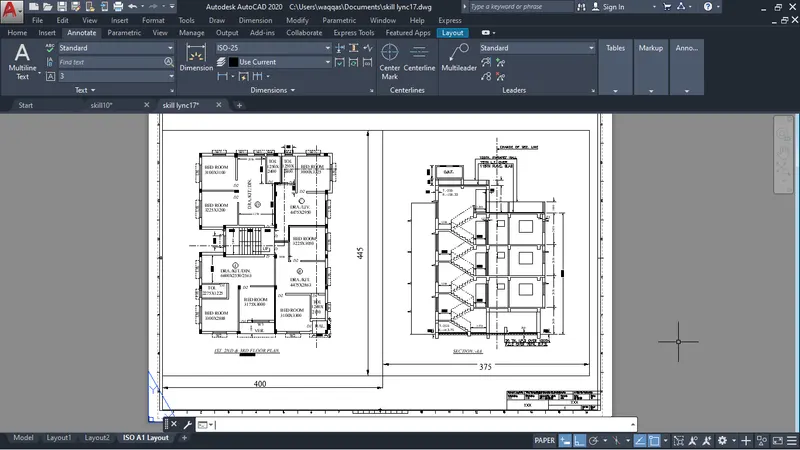
Then you adjust the drawing by command-MS
You can use Pan adjust the drawing as you want and also give the scale to the drawing.
I have given the scale- 1:50
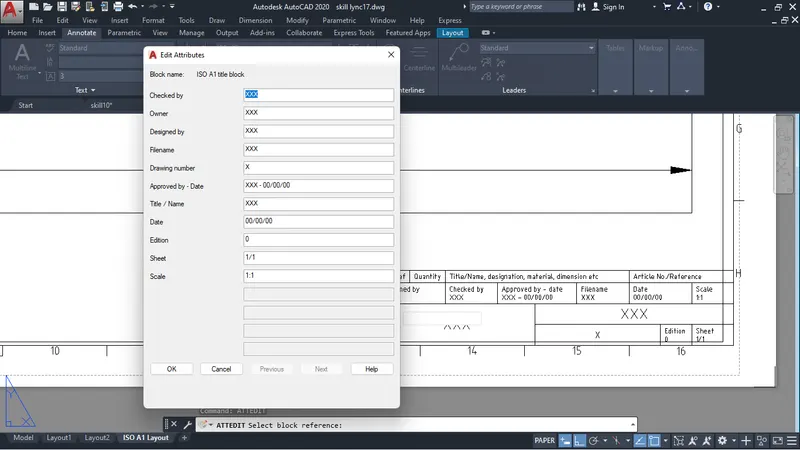
You can also edit the attribute by command- ATTEDIT
when you give the command there will be open a dialog box edit attribute
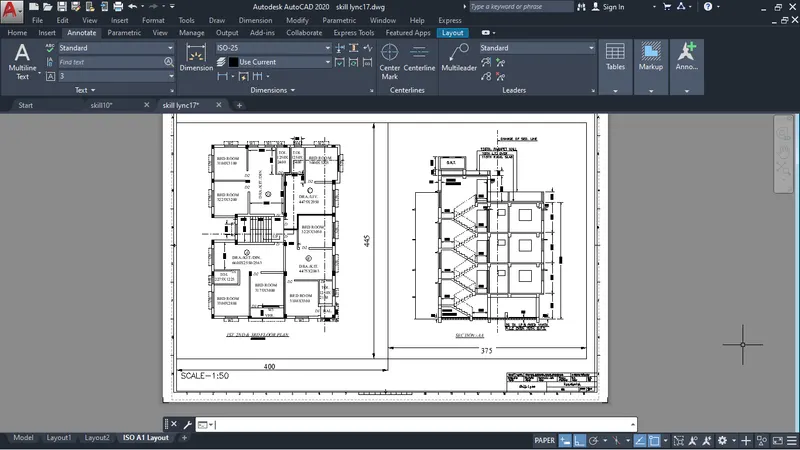
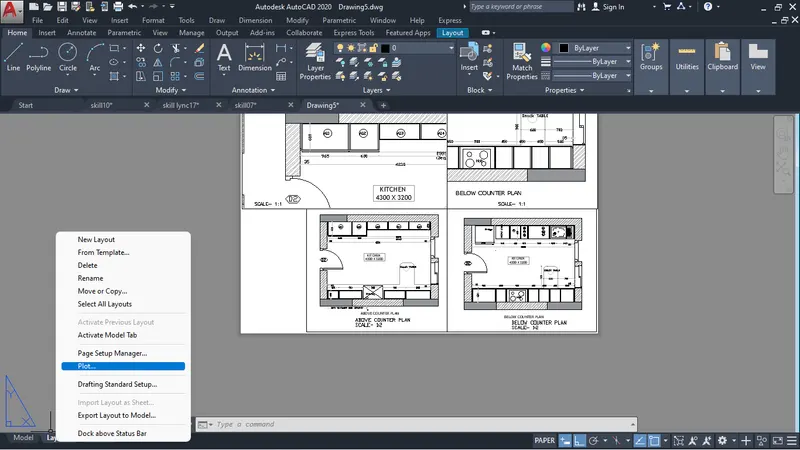
After that we can take plot to do that take mouse curser on layout click right there will be just below page setup
manager you see the plot option click on that choose the drawing in which file you want then click okay or you can
see preview the first then print.
Aim: Create a layout of the Kitchen drawn in Challenge 9 as shown in Figure. Use the scale as shown in the Figure. Use A4 Size page for the layout. Take a plot.
Simply as above we can do the viewport and ploting for kitchen.
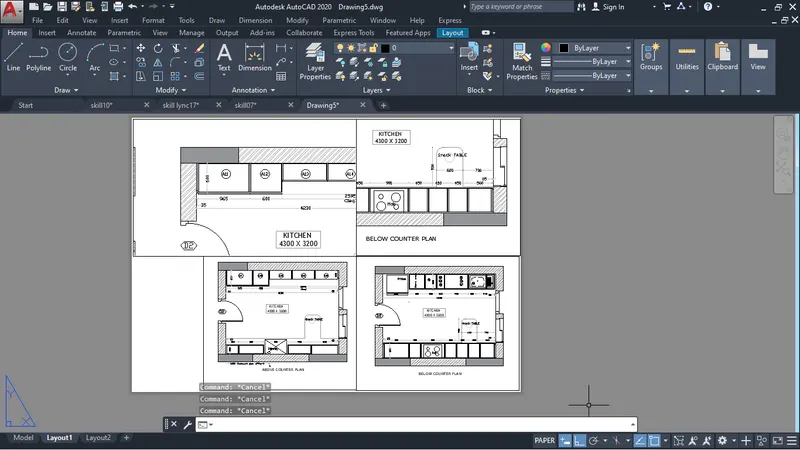
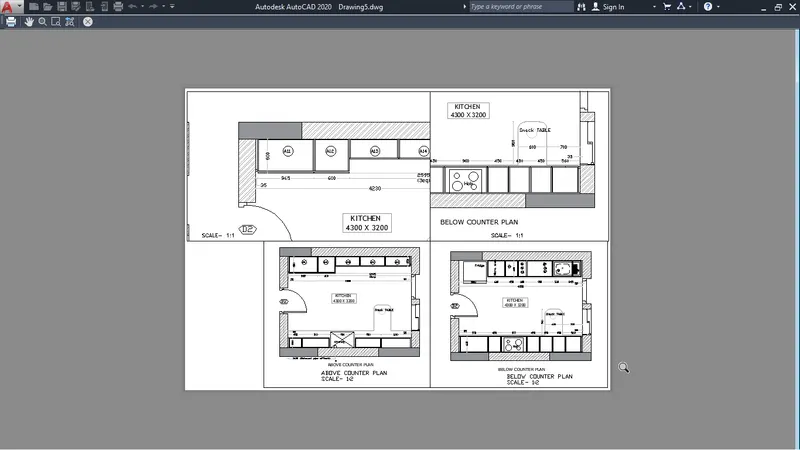
Aim: Create a layout of the Kitchen drawn in Challenge 9 as shown in Figure. Use the scale as shown in the Figure. Use A4 Size page for the layout. Take a plot.