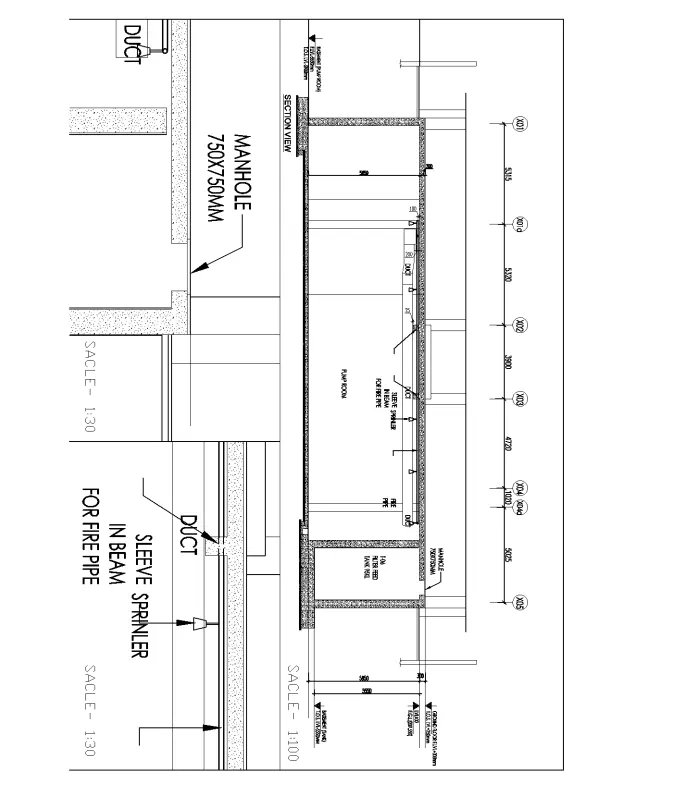
Creation of Multiple viewports, Scaling the drawing and setting in Template in AutoCad
Q.1 Ans
Aim: Create multiple views of layout created in challenge 7.
Procedure:
Step 1:
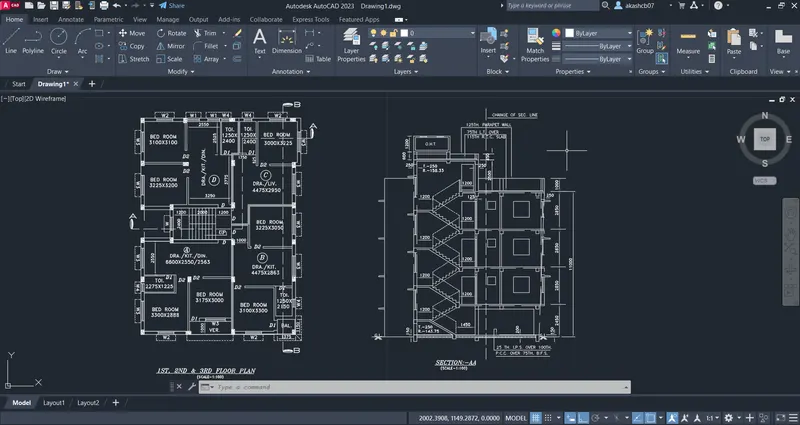
- Open the created layout in challenge 7.
- Set the page limits from Limit 0,0 to limax 100,100.
- Go to layout -> template -> tutorial arch.
- Use the "MS" command for specify the centre and scale of layout.
- Use the "MV" command to create a multiple views in layout.
- Go to Titlebox and edit the title of the layout.
- Use "Plot" or "Ctrl+P" to plot and change the layout of page.
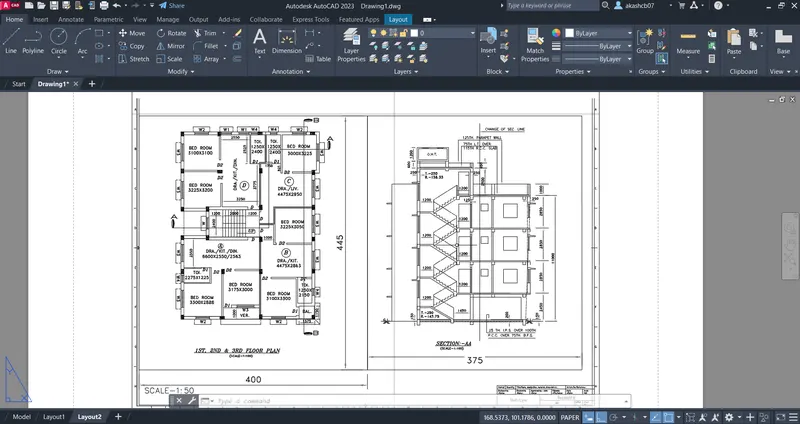
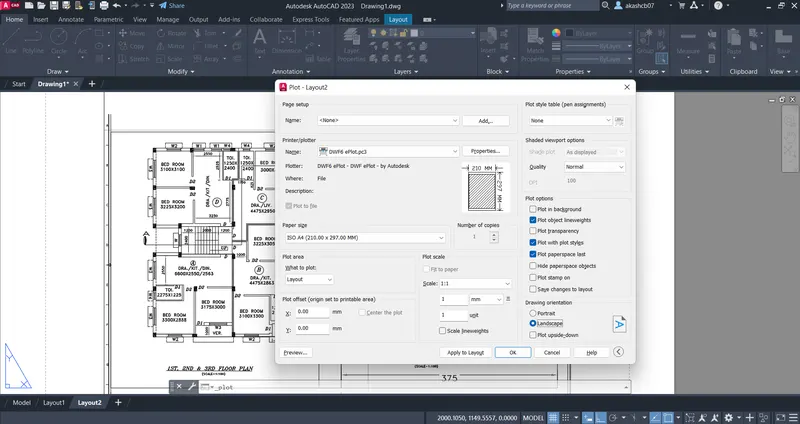
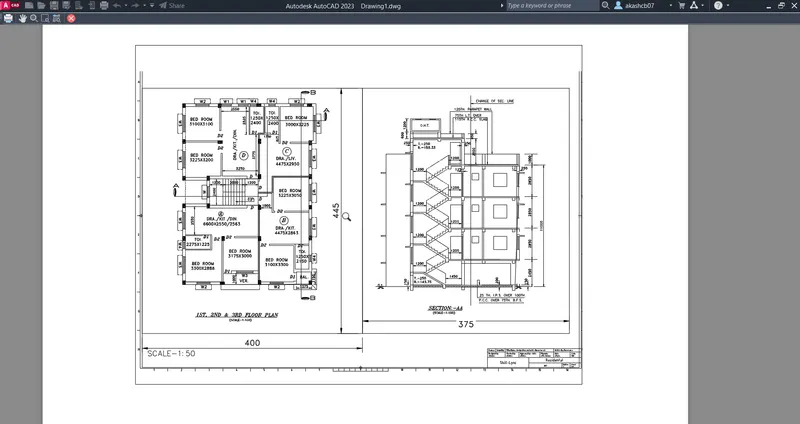
Result:
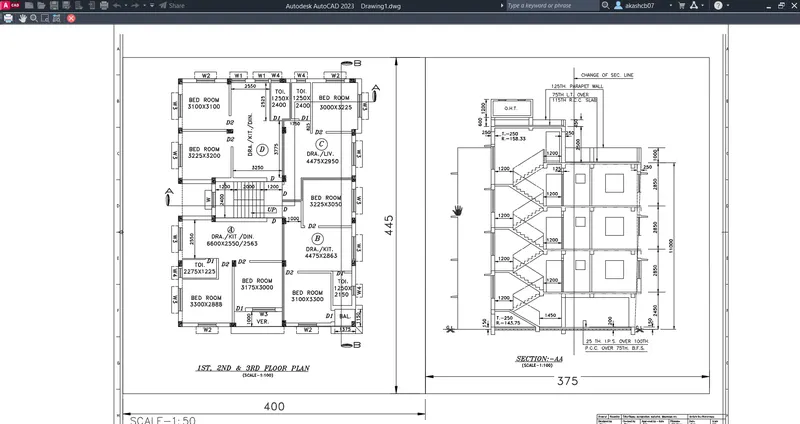
Q Ans
Aim: Create a layout of the Kitchen drawn in Challenge 9 as shown in Figure. Use A4 Size page for the layout.
Procedure:
Step 1:
- Open the created layout in challenge 9.
- Set the page limits from Limit 0,0 to limax 100,100.
- Go to layout -> template -> tutorial arch.
- Use the "MS" command for specify the centre and scale of layout.
- Use the "MV" command to create a multiple views in layout.
- Go to Titlebox and edit the title of the layout.
- Use "Plot" or "Ctrl+P" to plot and change the layout of page.
- Select the size of page from page setup as "A4".
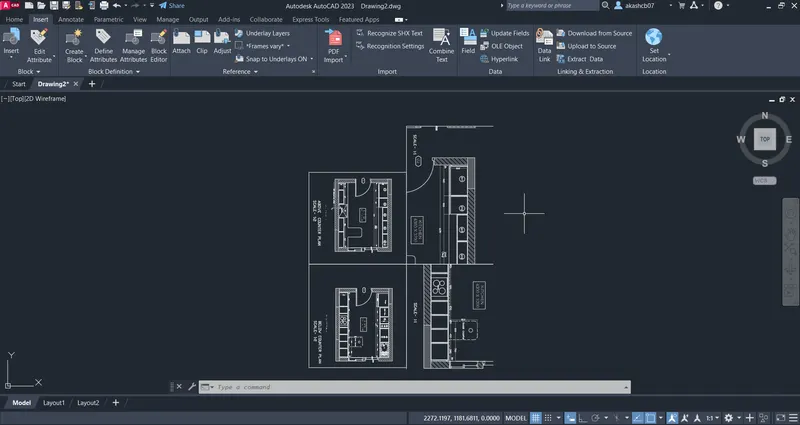
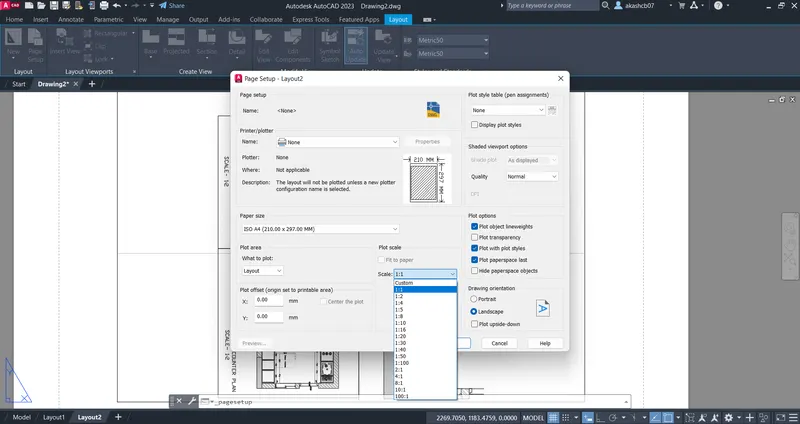
Result:
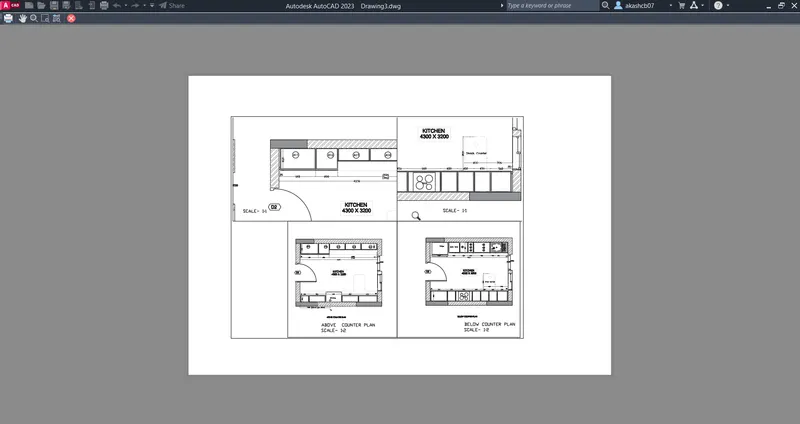
Q.3 Ans
Aim: Create a layout of the section created in Challenges 9. Use scale as mentioned in the Figure. Use MV command create multiple viewports.
Procedure:
Step 1:
- Open the created layout in challenge 9.
- Set the page limits from Limit 0,0 to limax 100,100.
- Go to layout -> template -> tutorial arch.
- Use the "MS" command for specify the centre and scale of layout.
- Use the "MV" command to create a multiple views in layout.
- Go to Titlebox and edit the title of the layout.
- Use "Plot" or "Ctrl+P" to plot and change the layout of page.
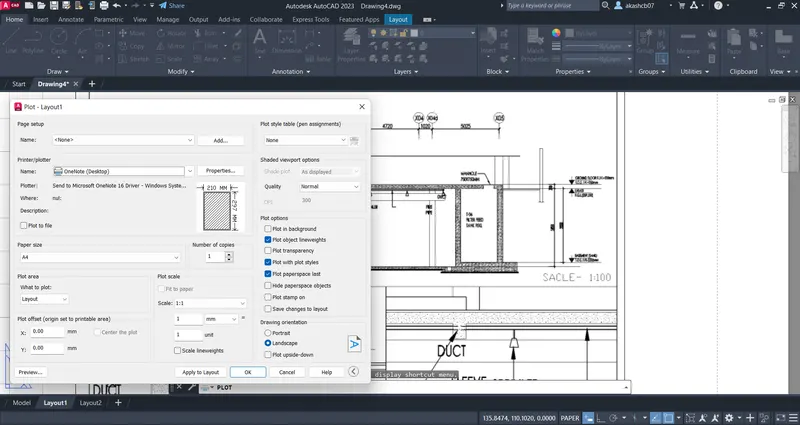
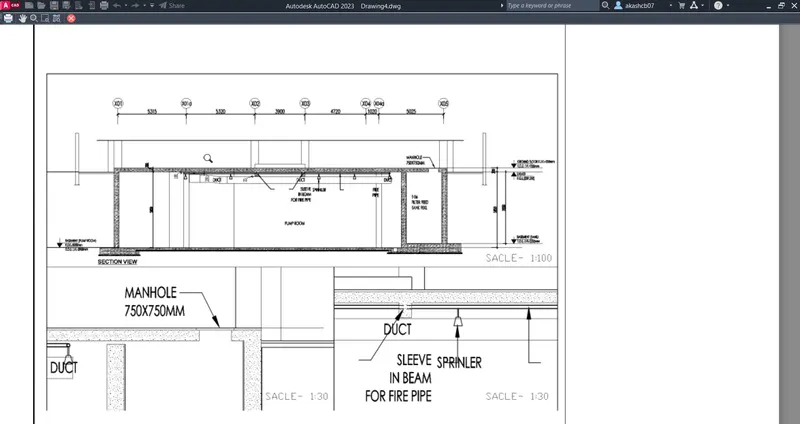
Result: