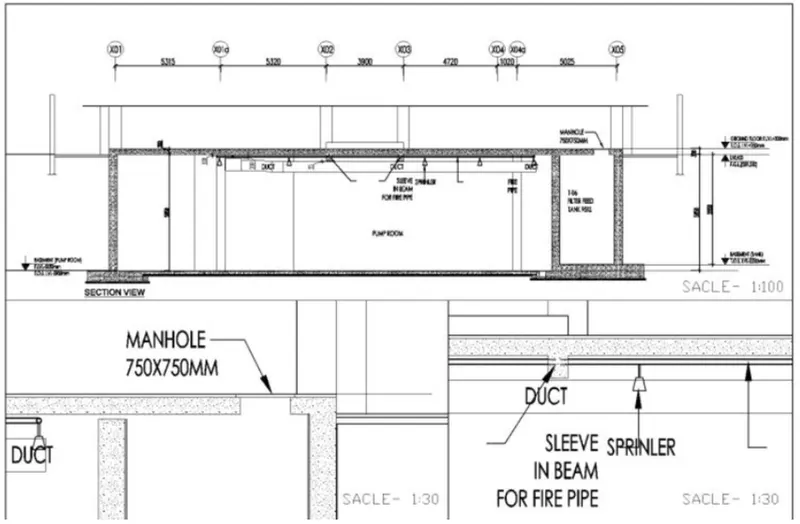
Creation of Multiple viewports, Scaling the drawing and setting in Template in AutoCad
1)
AIM:
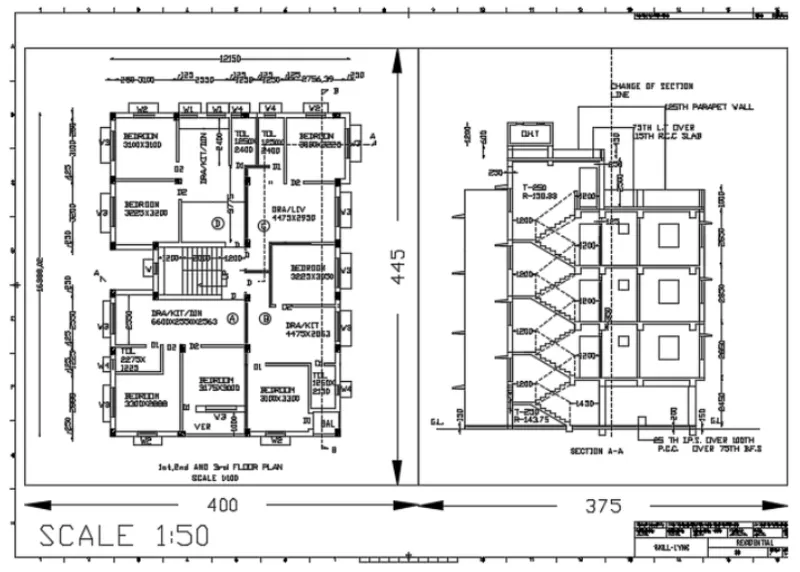
- To create a layout of the Plan and Section A of the project in Challenges 7, using the template Tutorial-
mArch.dwt in a scale as given in the Figure. - To use the MV command to create the viewport of the size as shown in Figure.
- To use ATTEDIT command to edit the information in the title block. Use A1 size for the layout and take a plot.
PROCEDURE:
- The Challenges 7 drawing is opened.
- From the left bottom corner the layout tab is opened.
- It is right clicked and Template option is selected.
- In the dialogue box Tutorial_mArch template is opened.
- The template is editted using ATTEDIT command.
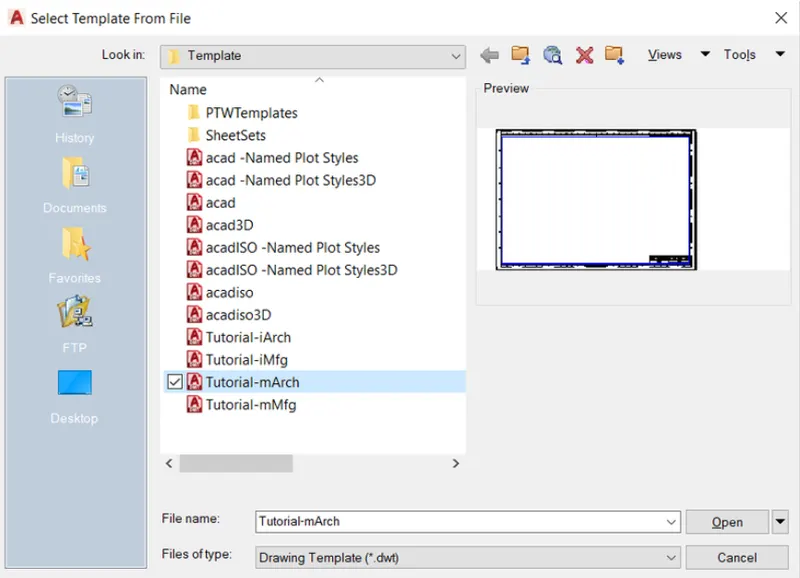
- Two rectangles of given dimensions are created.
- Using MV command and Object option they are made into viewports.
- The plan and elevation are then placed as required using MS command and PAN command.
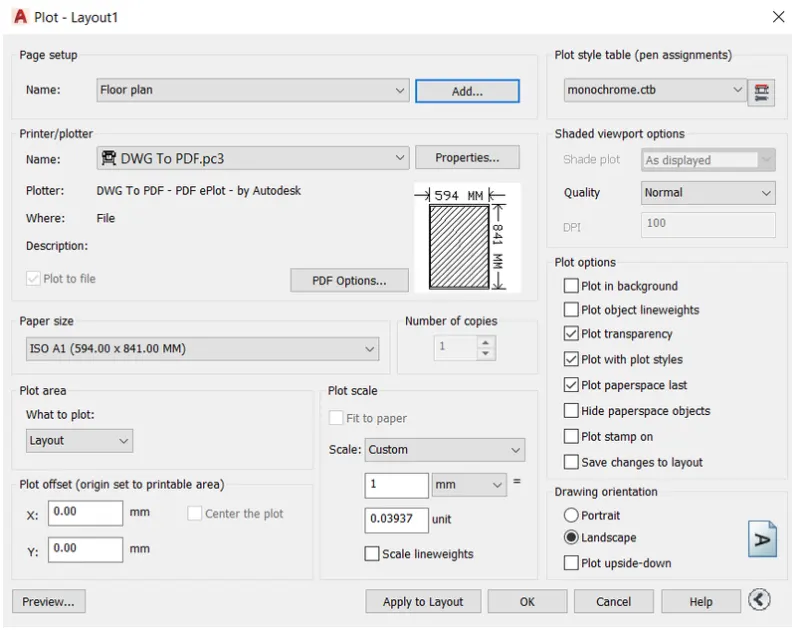
- The Layout tab is right clicked again and Plot option is selected.
- In the Plot dialogue box the Name and Paper size are given as required and plot is taken.
RESULT:
- The required plot of the plan and elevation is taken using the mentioned commands.
2)
AIM:
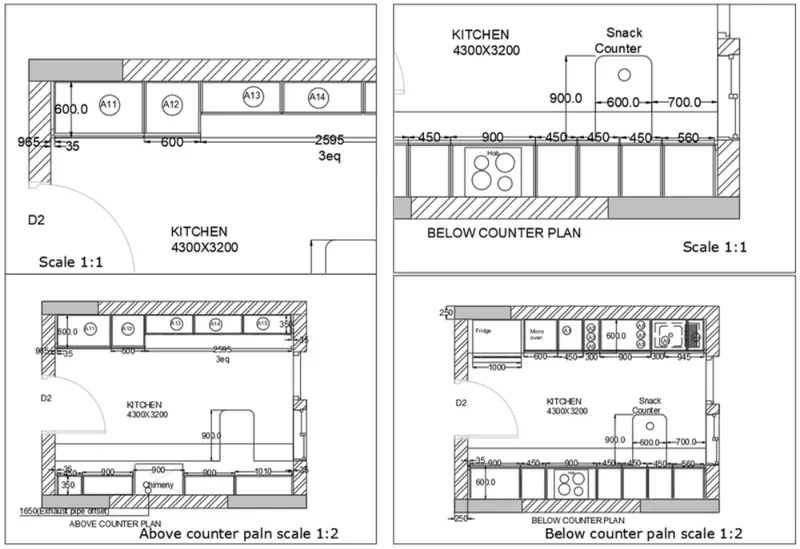
- To create a layout of the Kitchen drawn in Challenge 9 as per the scale shown in the Figure.
- To use A4 Size page for the layoutand take a plot.
PROCEDURE:
- The Kitchen layout drawing is opened.
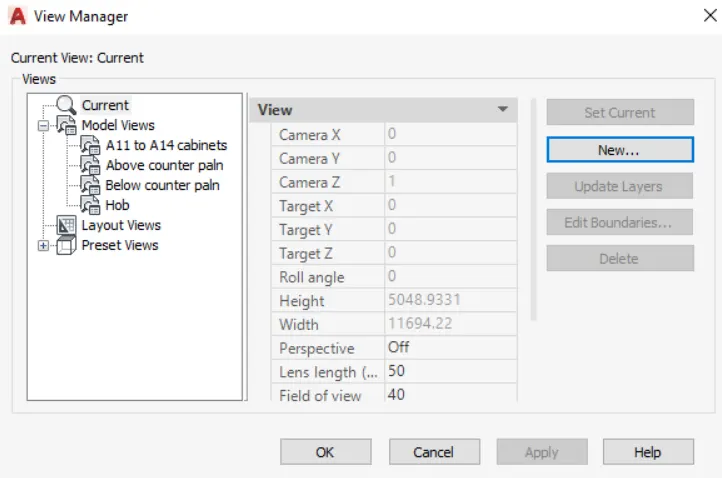
- View manager is opened from View panel from the ribbon and new views are created and named as follows.
- Open layout and rename it as Kitchen Layout by right clicking and selecting rename option.
- Open Page setup manager and select the paper size as A4.
- Select MV command and create 4 viewports.
- MS command is given and the Views created are placed in the viewports from the View Panel in the ribbon.
- PS command is given to work the paper space and the text is given in paper space using DTEXT command.
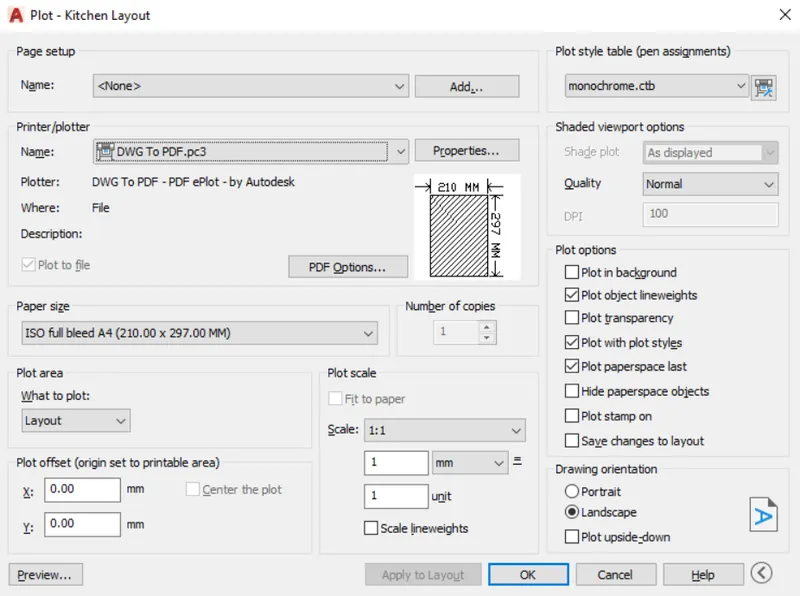
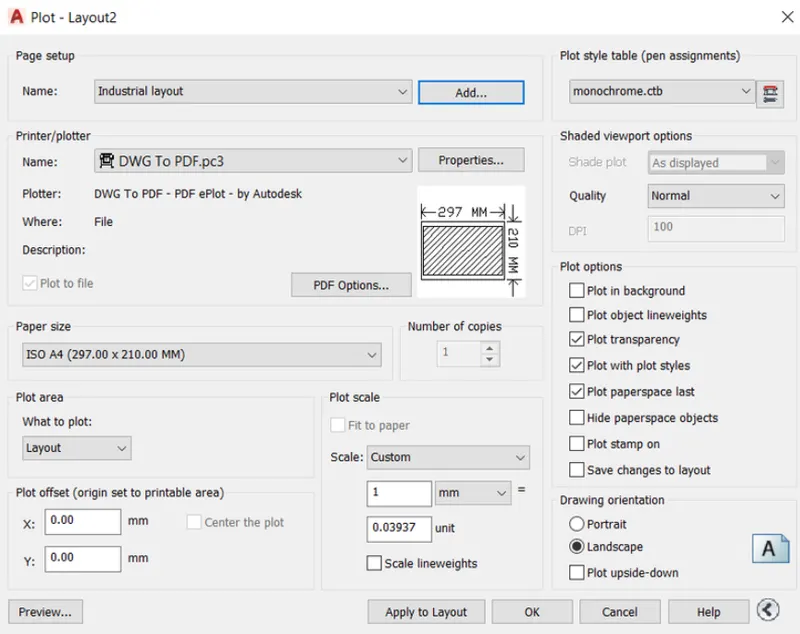
- The layout tab is right clicked and the Plot option is selected to open Plot dialogue box.
- The name, Paper size and plot style are given as per requirement.
.
FINAL RESULT:
- The required plot of the ktichen layout is taken using A4 page size.
3)
AIM:
- To create a layout of the section created in Challenges 9. Use scale as mentioned in the Figure.
- To use MV command create multiple viewports. Take a plot.
PROCEDURE:
- The required drawing is opened.
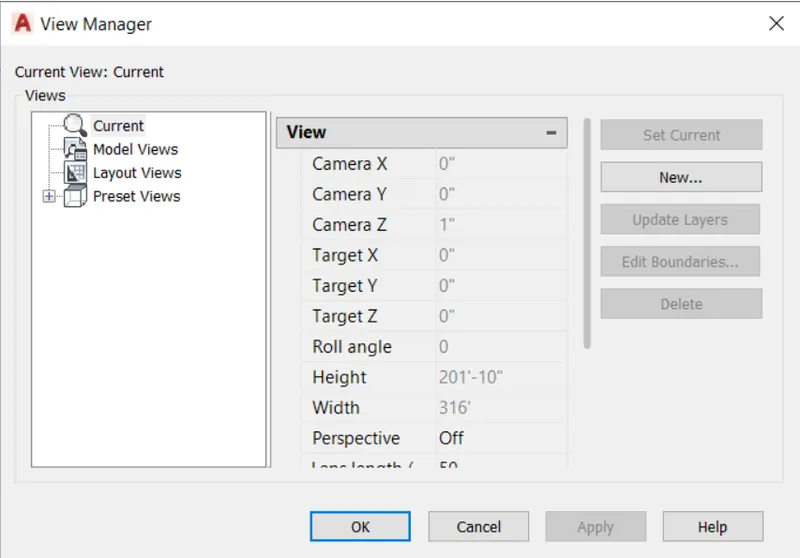
- View manager is opened from View panel in the ribbon and the required views are created and saved.
- Layout is opened from the bottom left corner.
- Multiple viewports are created using MV command.
- The views are then inserted into the viewports by MS command and selecting the views from the Views dropdown in the view panel.
- Plot dialogue box is opened and the required name, plot style and paper size are given .
FINAL RESULT:
- The layout of the section is created and plot is taken.