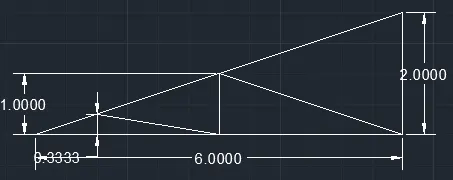
Creation of geometries by Coordinate system methods using AutoCad
Q1.
Aim:
- To create the geometries using all the coordinates system methods
- To use the Line tool to create the geometries and use circle tool when required.
Procedure:
Absolute co-ordinate system:
Select line tool from the ribbon tab, the command prompt shows "specify the first point".
In the command prompt, enter the first point as (2,1).
Then the command asks to enter the next point.
Specify the next point as (2,7)
Specify the next point as (8,7)
Specify the next point as (8,6)
Specify the next point as (3,6)
Specify the next point as (3,2)
Specify the next point as (8,2)
Specify the next point as (8,1),
Specify the next point as (2,1), else click on the "close" from the command prompt.
Relative rectangular co-ordinate:
Select line tool from the ribbon tab, the command prompt shows "specify the first point".
In the command prompt, enter the first point as (2,1).
Then the command asks to enter the next point.
Specify the next point as (@0,6)
Specify the next point as (@6,0)
Specify the next point as (@0,-1)
Specify the next point as (@-5,0)
Specify the next point as (@0,-4)
Specify the next point as (@5,0)
Specify the next point as (@0,-1)
Specify the next point as (@-6,0) or Click on the "close" from the command prompt, the endpoint of previous line gets connected with the starting point (i.e) (2,1).
Polar co-ordinates:
Select line tool from the ribbon tab, the command prompt shows "specify the first point".
In the command prompt, enter the first point as (2,1).
Then the command asks to enter the next point.
Specify the next point in the command prompt as (@6<90)
Specify the next point in the command prompt as (@6<0)
Specify the next point in the command prompt as (@1<270)
Specify the next point in the command prompt as (@5<180)
Specify the next point in the command prompt as (@4<270)
Specify the next point in the command prompt as (@5<0)
Specify the next point in the command prompt as (@1<270)
Specify the next point in the command prompt as (@6<180)
Direct distant method:
In the command prompt type 'L' enter, now the line command is activated.
Click on the workspace to specify the start point.
Enter the length as "6" and press enter keeping the cursor pointing towards upwards or 0 Y direction.
Enter the length as "6" and press enter keeping the cursor pointing towards 0right side X direction.
Enter the length as "1" and press enter key keeping the cursor pointing towards downward Y direction.
Enter the length as "5" and press enter keeping the cursor pointing towards left X direction.
Enter the length as "4" and press enter keeping the cursor pointing towards downward Y direction.
Enter the length as "5" and press enter keeping the cursor pointing towards right X direction.
Enter the length as "1" and press enter key keeping the cursor pointing towards downward Y direction.
Enter the length as "6" and press enter keeping the cursor pointing towards left side X direction.
Output:
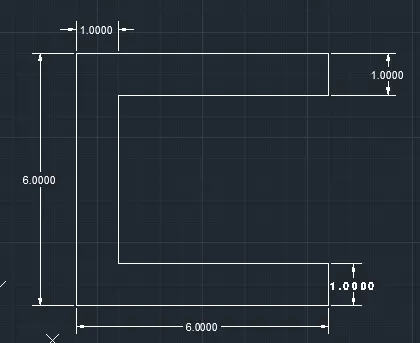
Q2:
Aim:
- To create the geometries from using all the coordinates system methods.
- To use the Line tool to create the geometries and use circle tool when required.
Procedure:
Absolute co-ordinate system:
Select line tool from the ribbon tab, the command prompt shows "specify the first point".
In the command prompt, enter the first point as (2,1).
Then the command asks to enter the next point.
Specify the next point and type as (4,8)
Specify the next point and type as (7,8)
Specify the next point and type as (9,1)
Specify the next point and type as (6,1)
Specify the next point and type as (6,5)
Specify the next point and type as (5,5)
Specify the next point and type as (5,1)
Specify the next point and type as (2,1) or else click close in the command prompt.
Relative Rectangular co-ordinate system:
Select line tool from the ribbon tab, the command prompt shows "specify the first point".
In the command prompt, enter the first point as (2,1).
Then the command asks to enter the next point.
Specify the next point and type as (@2,7)
Specify the next point and type as (@3,0)
Specify the next point and type as (@2,-7)
Specify the next point and type as (@-3,0)
Specify the next point and type as (@0,4)
Specify the next point and type as (@-1,0)
Specify the next point and type as (@0,-4)
Specify the next point and type as (@-3,0) else click "close" in the command prompt
Polar co-ordinate system:
Select line tool from the ribbon tab, the command prompt shows "specify the first point".
In the command prompt, enter the first point as (2,1).
Then the command asks to enter the next point.
Specify the point as (@7<74.05)
Specify the point as (@3<0)
Specify the point as (@7<285.95)
Specify the point as (@3<180)
Specify the point as (@4<90)
Specify the point as (@1<180)
Specify the point as (@4<270)
Specify the point as (@3<180)
Direct distant method:
In the command prompt type 'L' enter, now the line command is activated.
Click on the workspace to specify the start point.
Enter the length as "7" and press enter keeping the cursor pointing between X and Y direction at an angle of 74.05.
Enter the length as "3" and press enter keeping the cursor pointing towards positive X direction.
Enter the length as "7" and press enter keeping the cursor pointing between X and Y direction at an angle of 285.95.
Enter the length as "3" and press enter keeping the cursor pointing towards negative X direction.
Enter the length as "4" and press enter keeping the cursor pointing towards positive Y direction.
Enter the length as "1" and press enter keeping the cursor pointing towards negative X direction.
Enter the length as "4" and press enter keeping the cursor pointing towards negative Y direction.
Enter the length as "3" and press enter keeping the cursor pointing towards negative X direction.
Output:
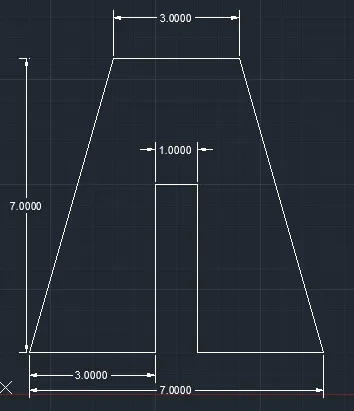
Q3.
Aim:
- To create the geometries using all the coordinates system methods
- To use the Line tool to create the geometries and use circle tool when required.
Procedure:
Absolute co-ordinate system:
Select line tool from the ribbon tab, the command prompt shows "specify the first point".
In the command prompt, enter the first point as (2,1).
Then the command asks to enter the next point.
Specify the next point in the command prompt as (2,8)
Specify the next point in the command prompt as (3,8)
Specify the next point in the command prompt as (5,5)
Specify the next point in the command prompt as (7,8)
Specify the next point in the command prompt as (8,9)
Specify the next point in the command prompt as (8,1)
Specify the next point in the command prompt as (7,1)
Specify the next point in the command prompt as (7,5)
Specify the next point in the command prompt as (5,3)
Specify the next point in the command prompt as (3,5)
Specify the next point in the command prompt as (3,1)
Specify the next point in the command prompt as (2,1) or else click "close" from the command prompt.
Relative rectangular co-ordinate system:
Select line tool from the ribbon tab, the command prompt shows "specify the first point".
In the command prompt, enter the first point as (2,1).
Then the command asks to enter the next point.
Specify the next point in the command prompt as (@0,7)
Specify the next point in the command prompt as (@1,0)
Specify the next point in the command prompt as (@2,-3)
Specify the next point in the command prompt as (@2,3)
Specify the next point in the command prompt as (@1,0)
Specify the next point in the command prompt as (@0,-7)
Specify the next point in the command prompt as (@-1,0)
Specify the next point in the command prompt as (@0,4)
Specify the next point in the command prompt as (@-2,-2)
Specify the next point in the command prompt as (@-2,2)
Specify the next point in the command prompt as (@0,-4)
Specify the next point in the command prompt as (@-1,0)
Polar co-ordinate system:
Select line tool from the ribbon tab, the command prompt shows "specify the first point".
In the command prompt, enter the first point as (2,1).
Then the command asks to enter the next point.
Specify the next point in the command prompt as (@7<90)
Specify the next point in the command prompt as (@1<0)
Specify the next point in the command prompt as (@3.6<304)
Specify the next point in the command prompt as (@3.6<56)
Specify the next point in the command prompt as (@1<0)
Specify the next point in the command prompt as (@7<270)
Specify the next point in the command prompt as (@1<180)
Specify the next point in the command prompt as (@4<90)
Specify the next point in the command prompt as (@2.8<225)
Specify the next point in the command prompt as (@2.8<135)
Specify the next point in the command prompt as (@4<270)
Specify the next point in the command prompt as (@1<180)
Direct distant method:
Type "L" in the command prompt and press enter to activate line command.
Click on the worksapce to specify the first point and enter the length as "7" keeping the cursor in the positive Y direction.
Enter the length as "1" and press enter keeping the cursor pointing in positive X direction.
Enter the length as "3.6" and press enter keeping the cursor pointing between negative X and negative Y direction at an angle of 304.
Enter the length as "3.6" and press enter keeping the cursor pointing between positive X and positive Y direction at an angle of 56.
Enter the length as "1" and press enter keeping the cursor pointing positive X direction.
Enter the length as "7" and press enter keeping the cursor pointing negative Y direction.
Enter the length as "1" and press enter keeping the cursor pointing negative X direction.
Enter the length as "4" and press enter key keeping the cursor in positive Y direction.
Enter the length as "2.8" and press enter keeping the cursor pointing between X and Y direction at an angle of 225.
Enter the length as "2.8" and press enter keeping the cursor pointing between X and Y direction at an angle of 135.
Enter the length as "4" and press enter key keeping the cursor in negative Y direction.
Enter the length as "1" and press enter key keeping the cursor in negative X direction.
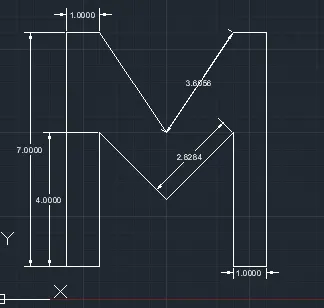
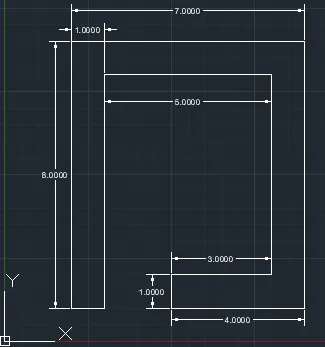
Q4.
Aim:
- To create the geometries using all the coordinates system methods
- To use the Line tool to create the geometries and use circle tool when required.
Procedure:
Absolute co-ordinate system:
Select line tool from the ribbon tab, the command prompt shows "specify the first point".
In the command prompt, enter the first point as (2,1).
Then the command asks to enter the next point.
Specify the next point as (2,9) in the command prompt.
Specify the next point as (9,9) in the command prompt.
Specify the next point as (9,1) in the command prompt.
Specify the next point as (5,1) in the command prompt.
Specify the next point as (5,2) in the command prompt.
Specify the next point as (8,2) in the command prompt.
Specify the next point as (8,8) in the command prompt.
Specify the next point as (3,8) in the command prompt.
Specify the next point as (3,1) in the command prompt.
Specify the next point as (2,10) or else click "close" in the command prompt.
Relative rectangular co-ordinate system:
Select line tool from the ribbon tab, the command prompt shows "specify the first point".
In the command prompt, enter the first point as (2,1).
Then the command asks to enter the next point.
Specify the next point as (@0,8) in the command prompt.
Specify the next point as (@7,0) in the command prompt.
Specify the next point as (@0,-8) in the command prompt.
Specify the next point as (@-4,0) in the command prompt.
Specify the next point as (@0,1) in the command prompt.
Specify the next point as (@3,0) in the command prompt.
Specify the next point as (@0,6) in the command prompt.
Specify the next point as (@-5,0) in the command prompt.
Specify the next point as (@0,-7) in the command prompt.
Specify the next point as (@-1,0) in the command prompt.
Polar co ordinate system:
Select line tool from the ribbon tab, the command prompt shows "specify the first point".
In the command prompt, enter the first point as (2,1).
Then the command asks to enter the next point.
Specify the next point as (@8<90) in the command prompt.
Specify the next point as (@7<0) in the command prompt.
Specify the next point as (@8<270) in the command prompt.
Specify the next point as (@4<180) in the command prompt.
Specify the next point as (@1<90) in the command prompt.
Specify the next point as (@3<0) in the command prompt.
Specify the next point as (@6<90) in the command prompt.
Specify the next point as (@5<180) in the command prompt.
Specify the next point as (@7<270) in the command prompt.
Specify the next point as (@1<180) in the command prompt else click "close" from the command prompt.
Direct distant method:
Type "l" and press enter to activate line command.
Click on the workspace to specify the starting point.
Enter the length as "8" and press enter keeping the cursor pointing in positive Y direction.
Enter the length as "7" and press enter keeping the cursor pointing in positive X direction.
Enter the length as "8" and press enter keeping the cursor pointing in negative Y direction.
Enter the length as "4" and press enter keeping the cursor pointing in negative X direction.
Enter the length as "1" and press enter keeping the cursor pointing in positive Y direction.
Enter the length as "3" and press enter keeping the cursor pointing in positive X direction.
Enter the length as "6" and press enter keeping the cursor pointing in positive Y direction.
Enter the length as "5" and press enter keeping the cursor pointing in negative X direction.
Enter the length as "7" and press enter keeping the cursor pointing in negative Y direction.
Enter the length as "1" and press enter keeping the cursor pointing in negative X direction.
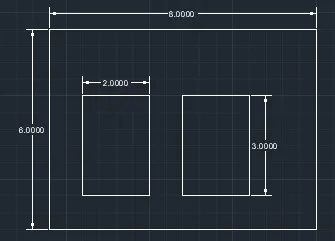
Q5.
Aim:
- To create the geometries using all the coordinates system methods
- To use the Line tool to create the geometries and use circle tool when required.
Procedure:
Absolute co-ordinate system:
Select line tool from the ribbon tab, the command prompt shows "specify the first point".
In the command prompt, enter the first point as (2,1).
Then the command asks to enter the next point.
Specify the next point as (2,7) in the command prompt.
Specify the next point as (10,7) in the command prompt.
Specify the next point as (10,1) in the command prompt.
Click "close" from the command prompt.
Type "l" and press enter to activate line command.
Specify the starting point as (3,2) in the command prompt.
Specify the next point as (3,5) in the command prompt.
Specify the next point as (5,5) in the command prompt.
Specify the next point as (5,2) in the command prompt.
Click "close" from the command prompt.
Type "l" and press enter to activate line command.
Specify the starting point as (6,2) in the command prompt.
Specify the next point as (6,5) in the command prompt.
Specify the next point as (8,5) in the command prompt.
Specify the next point as (8,2) in the command prompt.
Click "close" from the command prompt.
Relative rectangular co-ordinate system:
Select line tool from the ribbon tab, the command prompt shows "specify the first point".
In the command prompt, enter the first point as (@2,1).
Then the command asks to enter the next point.
Specify the next point as (@0,6) in the command prompt.
Specify the next point as (@8,0) in the command prompt.
Specify the next point as (@0,-6) in the command prompt.
Click "close" from the command prompt.
Type "l" and press enter to activate the line command.
Specify the starting point as (@3,2) in the command prompt.
Specify the next point as (@0,3) in the command prompt.
Specify the next point as (@2,0) in the command prompt.
Specify the next point as (@0,-3) in the command prompt.
Click "close" from the command prompt.
Type "l" and press enter to activate the line command.
Specify the starting point as (@6,2) in the command prompt.
Specify the next point as (@0,3) in the command prompt.
Specify the next point as (@2,0) in the command prompt.
Specify the next point as (@0,-3) in the command prompt.
Click "close" from the command prompt
Polar co-ordinate system method:
Select line tool from the ribbon tab, the command prompt shows "specify the first point".
In the command prompt, enter the first point as (2,1).
Then the command asks to enter the next point.
Specify the next point as (@6<90) in the command prompt.
Specify the next point as (@8<0) in the command prompt.
Specify the next point as (@6<270) in the command prompt.
Specify the next point as (@8<180) in the command prompt.
Press "esc" to close the line command.
Select line tool from the ribbon tab, the command prompt shows "specify the first point".
In the command prompt, enter the first point as (3,2).
Then the command asks to enter the next point.
Specify the next point as (@3<90) in the command prompt.
Specify the next point as (@2<0) in the command prompt.
Specify the next point as (@3<270) in the command prompt.
Specify the next point as (@2<180) in the command prompt.
Press "esc" to close the line command.
Select line tool from the ribbon tab, the command prompt shows "specify the first point".
In the command prompt, enter the first point as (6,2).
Then the command asks to enter the next point.
Specify the next point as (@3<90) in the command prompt.
Specify the next point as (@2<0) in the command prompt.
Specify the next point as (@3<270) in the command prompt.
Specify the next point as (@2<180) in the command prompt.
Direct distant method:
Type "l" and press enter to activate line command.
Click on the workspace to specify the starting point.
Enter the length as "6" and press enter keeping the cursor pointing in positive Y direction.
Enter the length as "8" and press enter keeping the cursor pointing in positive X direction.
Enter the length as "6" and press enter keeping the cursor pointing in negative Y direction.
Enter the length as "8" and press enter keeping the cursor pointing in negative X direction and press "esc"
Type "l" and press enter to activate line command.
specify the starting point as (3,2) in the command prompt.
Enter the length as "3" and press enter keeping the cursor pointing in positive Y direction.
Enter the length as "2" and press enter keeping the cursor pointing in positive X direction.
Enter the length as "3" and press enter keeping the cursor pointing in negative Y direction.
Enter the length as "2" and press enter keeping the cursor pointing in negative X direction.
Press "esc" to close the line command.
Type "l" and press enter to activate line command.
specify the starting point as (6,2) in the command prompt.
Enter the length as "3" and press enter keeping the cursor pointing in positive Y direction.
Enter the length as "2" and press enter keeping the cursor pointing in positive X direction.
Enter the length as "3" and press enter keeping the cursor pointing in negative Y direction.
Enter the length as "2" and press enter keeping the cursor pointing in negative X direction.
Press "esc" to close the line command.
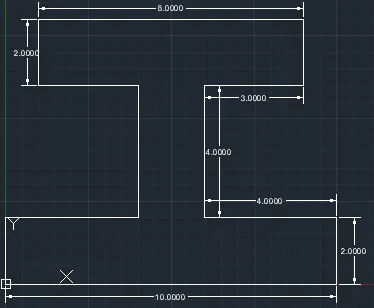
Q6.
Aim:
- To create the geometries using all the coordinates system methods
- To use the Line tool to create the geometries and use circle tool when required.
Procedure:
Absolute co-ordinate system:
Select line tool from the ribbon tab, the command prompt shows "specify the first point".
In the command prompt, enter the first point as (0,0).
Then the command asks to enter the next point.
Specify the next point as (0,2) in the command prompt and press enter.
Specify the next point as (4,2) in the command prompt and press enter.
Specify the next point as (4,6) in the command prompt and press enter.
Specify the next point as (1,6) in the command prompt and press enter.
Specify the next point as (1,8) in the command prompt and press enter.
Specify the next point as (9,8) in the command prompt and press enter.
Specify the next point as (9,6) in the command prompt and press enter.
Specify the next point as (6,6) in the command prompt and press enter.
Specify the next point as (6,2) in the command prompt and press enter.
Specify the next point as (10,2) in the command prompt and press enter.
Specify the next point as (10,0) in the command prompt and press enter.
Specify the next point as (0,0) or click "close" from the command prompt to complete the geometry.
Relative rectangular co-ordinate system:
Select line tool from the ribbon tab, the command prompt shows "specify the first point".
In the command prompt, enter the first point as (0,0).
Then the command asks to enter the next point.
Specify the next point as (@0,2) in the command prompt and press enter.
Specify the next point as (@4,0) in the command prompt and press enter.
Specify the next point as (@0,4) in the command prompt and press enter.
Specify the next point as (@-3,0) in the command prompt and press enter.
Specify the next point as (@,2) in the command prompt and press enter.
Specify the next point as (@8,0) in the command prompt and press enter.
Specify the next point as (@0,-2) in the command prompt and press enter.
Specify the next point as (@-3,0) in the command prompt and press enter.
Specify the next point as (@0,-4) in the command prompt and press enter.
Specify the next point as (@4,0) in the command prompt and press enter.
Specify the next point as (@0,-2) in the command prompt and press enter.
Specify the next point as (@-10,0) or click "close" from the command prompt to complete the geometry.
Polar co-ordinate method:
Select line tool from the ribbon tab, the command prompt shows "specify the first point".
In the command prompt, enter the first point as (0,0).
Then the command asks to enter the next point.
Specify the next point as (@2<90) in the command prompt and press enter.
Specify the next point as (@4<0) in the command prompt and press enter.
Specify the next point as (@4<90) in the command prompt and press enter.
Specify the next point as (@3<180) in the command prompt and press enter.
Specify the next point as (@2<90) in the command prompt and press enter.
Specify the next point as (@8<0) in the command prompt and press enter.
Specify the next point as (@2<270) in the command prompt and press enter.
Specify the next point as (@3,180) in the command prompt and press enter.
Specify the next point as (@4<270) in the command prompt and press enter.
Specify the next point as (@4<0) in the command prompt and press enter.
Specify the next point as (@2<270) in the command prompt and press enter.
Specify the next point as (@10<180) or click "close" from the command prompt to complete the geometry.
Direct distant method:
Type "l" and press enter to activate line command.
Click on the workspace to specify the starting point.
Enter the length as "1" and press enter keeping the cursor pointing in positive Y direction.
Enter the length as "4" and press enter keeping the cursor pointing in positive X direction.
Enter the length as "4" and press enter keeping the cursor pointing in positive Y direction.
Enter the length as "3" and press enter keeping the cursor pointing in negative X direction.
Enter the length as "2" and press enter keeping the cursor pointing in positive Y direction.
Enter the length as "8" and press enter keeping the cursor pointing in positive X direction.
Enter the length as "2" and press enter keeping the cursor pointing in negative Y direction.
Enter the length as "3" and press enter keeping the cursor pointing in negative X direction.
Enter the length as "4" and press enter keeping the cursor pointing in negative Y direction.
Enter the length as "4" and press enter keeping the cursor pointing in positive X direction.
Enter the length as "2" and press enter keeping the cursor pointing in negative Y direction.
Enter the length as "10" and press enter keeping the cursor pointing in negative X direction.
Press "esc" to finish.
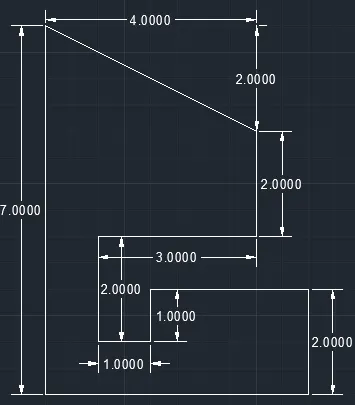
Q7.
Aim:
- To create the geometries using all the coordinates system methods
- To use the Line tool to create the geometries and use circle tool when required.
Procedure:
Absolute co-ordinate system:
Select line tool from the ribbon tab, the command prompt shows "specify the first point".
In the command prompt, enter the first point as (1,1).
Then the command asks to enter the next point.
Specify the next point as (1,8) in the command prompt and press enter.
Specify the next point as (5,6) in the command prompt and press enter.
Specify the next point as (5,4) in the command prompt and press enter.
Specify the next point as (2,2) in the command prompt and press enter.
Specify the next point as (3,2) in the command prompt and press enter.
Specify the next point as (3,3) in the command prompt and press enter.
Specify the next point as (6,3) in the command prompt and press enter.
Specify the next point as (6,1) in the command prompt and press enter.
Click "close" in the command prompt.
Rectangular relative co-ordinate method:
Select line tool from the ribbon tab, the command prompt shows "specify the first point".
In the command prompt, enter the first point as (1,1).
Then the command asks to enter the next point.
Specify the next point as (@0,7) in the command prompt and press enter.
Specify the next point as (@4,-2) in the command prompt and press enter.
Specify the next point as (@0,-2) in the command prompt and press enter.
Specify the next point as (@-3,0) in the command prompt and press enter.
Specify the next point as (@0,-2) in the command prompt and press enter.
Specify the next point as (@1,0) in the command prompt and press enter.
Specify the next point as (@0,1) in the command prompt and press enter.
Specify the next point as (@3,0) in the command prompt and press enter.
Specify the next point as (@0,-2) in the command prompt and press enter.
Click "close" from the command prompt.
Polar co-ordinate method:
Select line tool from the ribbon tab, the command prompt shows "specify the first point".
In the command prompt, enter the first point as (1,1).
Then the command asks to enter the next point.
Specify the next point as (@7<90) in the command prompt and press enter.
Specify the next point as (@4<333) in the command prompt and press enter.
Specify the next point as (@2<270) in the command prompt and press enter.
Specify the next point as (@3<180) in the command prompt and press enter.
Specify the next point as (@2<270) in the command prompt and press enter.
Specify the next point as (@1<0) in the command prompt and press enter.
Specify the next point as (@1<90) in the command prompt and press enter.
Specify the next point as (@3<0) in the command prompt and press enter.
Specify the next point as (@2<270) in the command prompt and press enter.
Specify the next point as (@5<180) in the command prompt and press enter.
Direct distant method:
Type "l" and press enter to activate line command.
Click on the workspace to specify the starting point.
Enter the length as "7" and press enter keeping the cursor pointing in positive Y direction.
Enter the length as "4" and press enter keeping the cursor pointing in X Y direction at an angle of 333.
Enter the length as "2" and press enter keeping the cursor pointing in negative Y direction.
Enter the length as "3" and press enter keeping the cursor pointing in negative X direction.
Enter the length as "2" and press enter keeping the cursor pointing in negative Y direction.
Enter the length as "1" and press enter keeping the cursor pointing in positive X direction.
Enter the length as "1" and press enter keeping the cursor pointing in positive Y direction.
Enter the length as "3" and press enter keeping the cursor pointing in positive X direction.
Enter the length as "2" and press enter keeping the cursor pointing in negative Y direction.
Enter the length as "5" and press enter keeping the cursor pointing in negative X direction.
Press "esc" to finish.
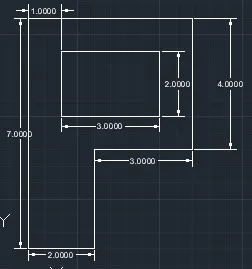
Q8.
Aim:
- To create the geometries using all the coordinates system methods
- To use the Line tool to create the geometries and use circle tool when required.
Procedure:
Absolute co-ordinate system:
Select line tool from the ribbon tab, the command prompt shows "specify the first point".
In the command prompt, enter the first point as (1,1).
Then the command asks to enter the next point.
Specify the next point as (1,8) in the command prompt and press enter.
Specify the next point as (6,8) in the command prompt and press enter.
Specify the next point as (6,4) in the command prompt and press enter.
Specify the next point as (3,4) in the command prompt and press enter.
Specify the next point as (3,1) in the command prompt and press enter.
Click "close" from the command prompt.
Type "l", press enter and specify the first point as (2,5) in the command prompt and press enter.
Specify the next point as (2,7) in the command prompt and press enter.
Specify the next point as (5,7) in the command prompt and press enter.
Specify the next point as (5,5) in the command prompt and press enter.
Click "close" from the command prompt to finish.
Relative rectangular co-ordinate method:
Select line tool from the ribbon tab, the command prompt shows "specify the first point".
In the command prompt, enter the first point as (1,1).
Then the command asks to enter the next point.
Specify the next point as (@0,7) in the command prompt and press enter.
Specify the next point as (@5,0) in the command prompt and press enter.
Specify the next point as (@0,-4) in the command prompt and press enter.
Specify the next point as (@-3,0) in the command prompt and press enter.
Specify the next point as (@0,-3) in the command prompt and press enter.
Specify the next point as (@-2,0) in the command prompt and press enter.
Press "esc"
elect line tool from the ribbon tab, the command prompt shows "specify the first point".
In the command prompt, enter the first point as (2,5).
Then the command asks to enter the next point.
Specify the next point as (@0,2) in the command prompt and press enter.
Specify the next point as (@3,0) in the command prompt and press enter.
Specify the next point as (@0,-2) in the command prompt and press enter.
Specify the next point as (@-3,0) in the command prompt and press enter.
Press "esc" to finish.
Polar co-ordinate system:
Select line tool from the ribbon tab, the command prompt shows "specify the first point".
In the command prompt, enter the first point as (1,1).
Then the command asks to enter the next point.
Specify the next point as (@7<90) in the command prompt and press enter.
Specify the next point as (@5<0) in the command prompt and press enter.
Specify the next point as (@4<270) in the command prompt and press enter.
Specify the next point as (@3<180) in the command prompt and press enter.
Specify the next point as (@3<270) in the command prompt and press enter.
Specify the next point as (@2<180) in the command prompt and press enter.
Press "esc"
Select line tool from the ribbon tab, the command prompt shows "specify the first point".
In the command prompt, enter the first point as (2,5).
Then the command asks to enter the next point.
Specify the next point as (@2<90) in the command prompt and press enter.
Specify the next point as (@3<0) in the command prompt and press enter.
Specify the next point as (@2<270) in the command prompt and press enter.
Specify the next point as (@3<180) in the command prompt and press enter.
Press "esc" to finish.
Direct distant method:
Type "l" and press enter to activate line command.
Click on the workspace to specify the starting point.
Enter the length as "7" and press enter keeping the cursor pointing in positive Y direction.
Enter the length as "5" and press enter keeping the cursor pointing in X Y direction at an angle of 333.
Enter the length as "4" and press enter keeping the cursor pointing in negative Y direction.
Enter the length as "3" and press enter keeping the cursor pointing in negative X direction.
Enter the length as "3" and press enter keeping the cursor pointing in negative Y direction.
Enter the length as "2" and press enter keeping the cursor pointing in negative X direction.
Press "esc"
Type "l" and press enter to activate line command.
Click on the workspace to specify the starting point.
Enter the length as "2" and press enter keeping the cursor pointing in positive Y direction.
Enter the length as "3" and press enter keeping the cursor pointing in positive X direction.
Enter the length as "2" and press enter keeping the cursor pointing in negative Y direction.
Enter the length as "3" and press enter keeping the cursor pointing in negative X direction.
Press "esc" to finish.
Q 9:
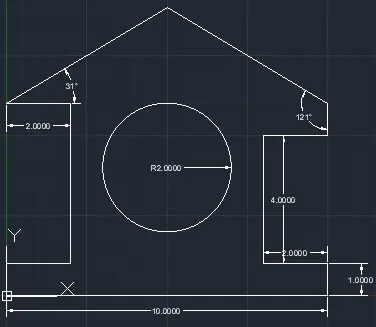
Aim: To draw the profile using any coordinate system methods.
Procedure:
Relative rectangular co-ordinate system:
Select line tool from the ribbon tab, the command prompt shows "specify the first point".
In the command prompt, enter the first point as (0,0).
Then the command asks to enter the next point.
Specify the next point as (@0,1) in the command prompt and press enter.
Specify the next point as (@2,0) in the command prompt and press enter.
Specify the next point as (@0,5) in the command prompt and press enter.
Specify the next point as (@2,0) in the command prompt and press enter.
Specify the next point as (@5,3) in the command prompt and press enter.
Specify the next point as (@5,-3) in the command prompt and press enter.
Specify the next point as (@0,-1) in the command prompt and press enter.
Specify the next point as (@-2,0) in the command prompt and press enter.
Specify the next point as (@0,-4) in the command prompt and press enter.
Specify the next point as (@2,0) in the command prompt and press enter.
Specify the next point as (@0,-1) in the command prompt and press enter.
Click "close" from the command prompt
Click circle from the ribbon tab, select "Centre,radius" from the drop down list.
Specify the centre point as (5,4).
Now enter the radius as "2" and press enter.
Output:
Q 10:
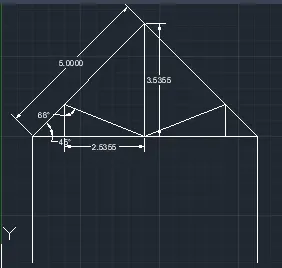
Aim: To draw the queen post truss using any coordinate system methods.
Procedure:
Relative rectangular co-ordinate system:
Select line tool from the ribbon tab, the command prompt shows "specify the first point".
In the command prompt, enter the first point as (1,1).
Then the command asks to enter the next point.
Specify the next point as (@4<90) in the command prompt and press enter.
Specify the next point as (@5<45) in the command prompt and press enter.
Specify the next point as (@5<315) in the command prompt and press enter.
Specify the next point as (@4<270) in the command prompt and press enter.
Press "esc".
Select line tool from the ribbon tab, the command prompt shows "specify the first point".
In the command prompt, enter the first point as (1,5).
Then the command asks to enter the next point.
Specify the next point as (@7<0), press enter and press "esc" to close line command.
Select line tool from the ribbon tab, the command prompt shows "specify the first point".
In the command prompt, enter the first point as (2,5).
Then the command asks to enter the next point.
Specify the point as (@1<90) in the command prompt and press enter.
Specify the point as (@2.5355<292) in the command prompt and press enter.
Specify the point as (@3.5355<90) in the command prompt and press enter.
Press "esc".
Select line tool from the ribbon tab, the command prompt shows "specify the first point".
In the command prompt, enter the first point as (4.5,5).
Then the command asks to enter the next point.
Specify the point as (@2.5355<68) in the command prompt and press enter.
Specify the point as (@1<270) in the command prompt and press enter.
Press "esc" to finish.
Output:
Q 11:
Aim: To draw the mono pitch using any coordinate system methods.
Procedure:
Relative rectangular co-ordinate system:
Select line tool from the ribbon tab, the command prompt shows "specify the first point".
In the command prompt, enter the first point as (1,1).
Then the command asks to enter the next point.
Specify the next point as (@6,0) in the command prompt and press enter.
Specify the next point as (@0,2) in the command prompt and press enter.
Click close from the command prompt tab.
Again select line tool from the ribbon tab, the command prompt shows "specify the first point".
In the command prompt, enter the first point as (2,1).
Then the command asks to enter the next point.
Specify the next point as (@0,0.667) in the command prompt and press enter.
Specify the next point as (@2,-0.667) in the command prompt and press enter.
Specify the next point as (@0,1.333) in the command prompt and press enter.
Specify the next point as (@2,-1.333) in the command prompt and press enter.
Press "esc" to finish.