Creating a Residence Layout, Seating plan, Toilet and Utility room plan using AutoCad
AIM:-
To create a Residence Layout, Seating plan, Toilet and Utility room plan using AutoCad.
INTRODUCTION:-
The main objective of this challenge is to get in touch with various tools in AutoCad like rectangle, polylines, circle, arc modification tools like copy, move, offset, mirror, trim, fillet. These tools will be understood by creating a Residence Layout, Seating plan, Toilet and Utility room plan.
PART 1: Creating a Residence Layout using the AutoCAD
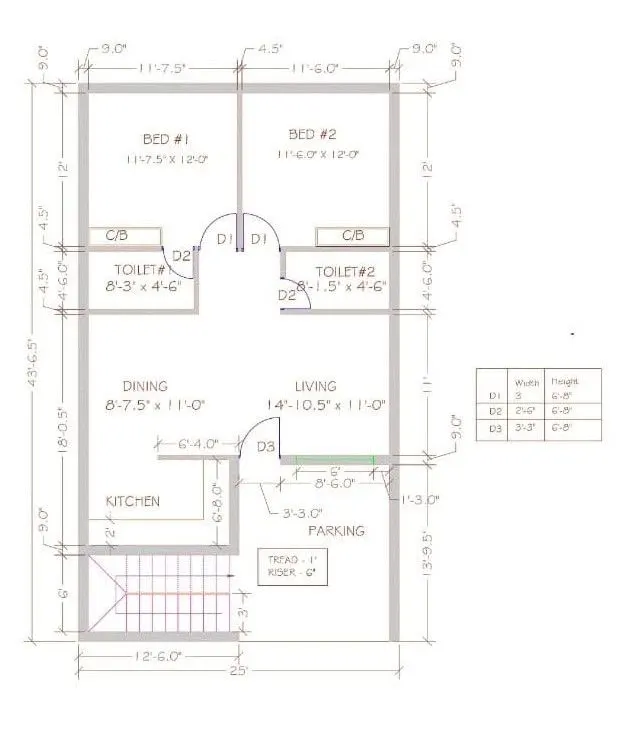
Procedure:
- Command: UN
- UNITS
- Command: LIMITS
- Reset Model space limits:
- Specify lower left corner or [ON/OFF] <0'-0.0",0'-0.0">:
- Specify upper right corner <35'-0.0",24'-9.0">: 75',75'
- Command: z
- ZOOM
- Specify corner of window, enter a scale factor (nX or nXP), or [All/Center/Dynamic/Extents/Previous/Scale/Window/Object] : a
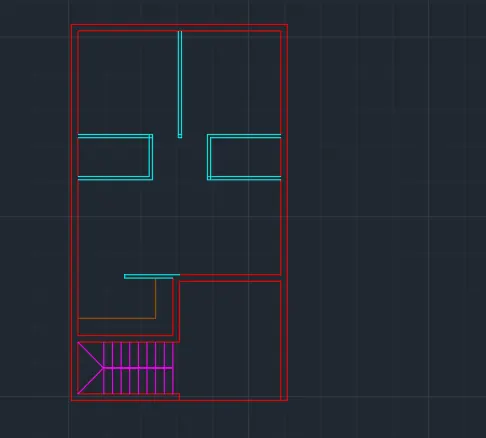
- Create a layer ‘Exterior Wall’ and choose the color.
- Using the CONSTRUCTION LINE command (XL) draw horizontal and vertical lines.
- The offset distance of 43’ 6.5” & 25” is created for the outer line using OFFSET command.
- Create a 9” offset distance for wall thickness.
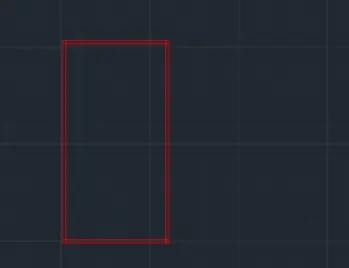
- Using OFFSET and TRIM command, create other exterior Walls as per the plan given.
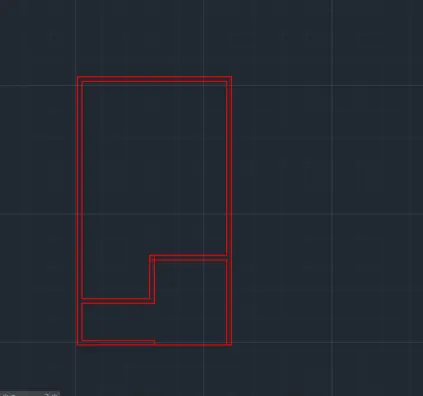
- Create a layer ‘Interior Wall’ and choose the color.
- Using OFFSET and TRIM command, create other interior Walls as per the plan given.
- Create a 4.5” offset distance for wall thickness.
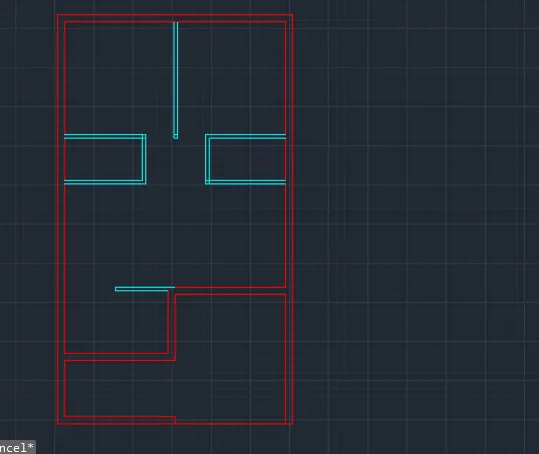
- Create a layer ‘Staircase’ and choose the color.
- Using LINE and OFFSET commands, create a Staircase as per the plan given.
- Create a layer ‘Kitchen Slab’ and choose the color.
- Using OFFSET command, create Kitchen Slab as per the plan given.
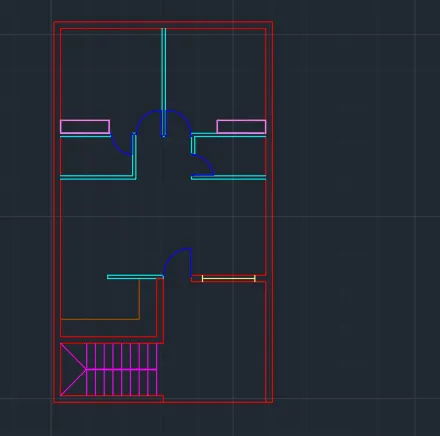
- Create a layer ‘Door’ and choose the color.
- Using LINE, ARC, TRIM & OFFSET commands, create doors of different sizes as per the plan given.
- Create a layer ‘Window’ and choose the color.
- Using LINE command & OBJECT SNAP tool, create a window as per the plan given.
- Create a layer ‘Cupboard’ and choose the color.
- Using RECTANGLE Command, create Cupboard as per the plan given.
- Create a layer ‘Dimension’ and choose the color.
- Give the dimensions as per the drawing using the DIMLIN command.
- Create a layer ‘Text’ and choose the color.
- Using MTEXT command, Create all the text.
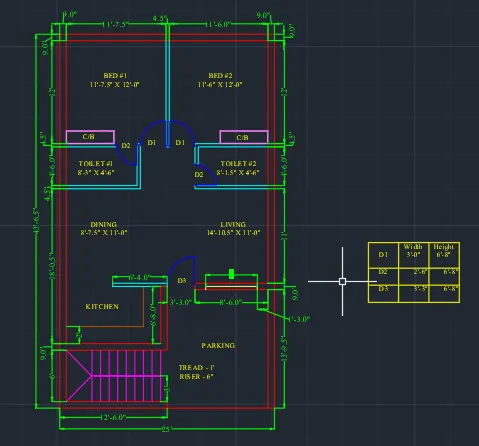
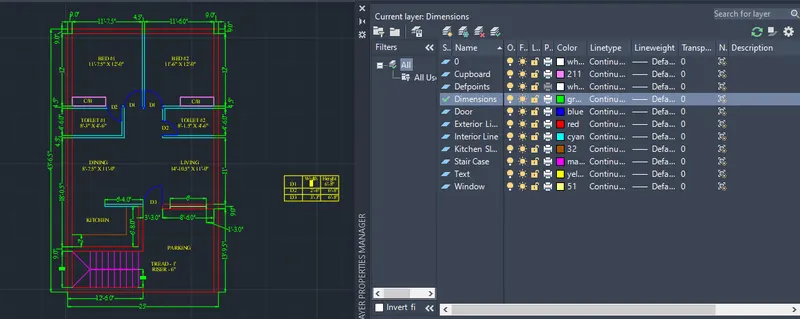
The Residential Plan was created using AutoCAD.
PART 2: Creating a seating plan for an outdoor canopy using the AutoCAD
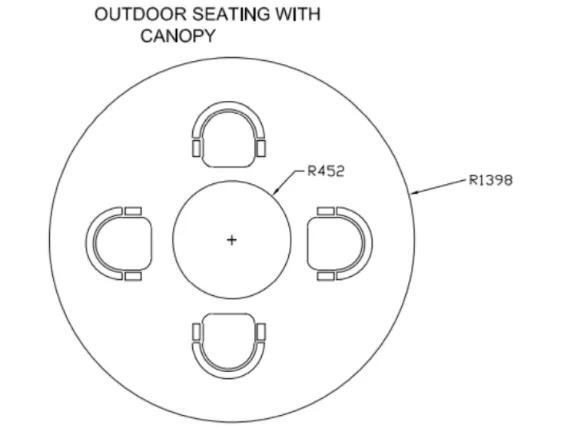
Procedure:
- Command: UN
- UNITS
- Command: LIMITS
- Reset Model space limits:
- Specify lower left corner or [ON/OFF] <0.0,0.0>:
- Specify upper right corner <420.0,297.0>: 2500,2500
- Command: Z
- ZOOM
- Specify corner of window, enter a scale factor (nX or nXP), or [All/Center/Dynamic/Extents/Previous/Scale/Window/Object] : a
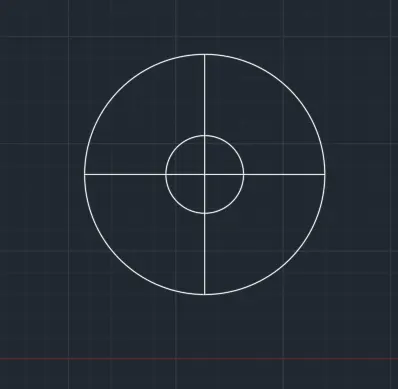
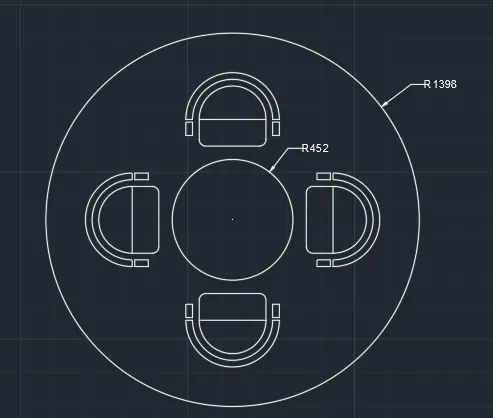
- Command: _circle
Specify center point for circle or [3P/2P/Ttr (tan tan radius)]: 20,20
Specify radius of circle or [Diameter]: 1398 - Command: _circle
Specify center point for circle or [3P/2P/Ttr (tan tan radius)]: 20,20
Specify radius of circle or [Diameter] <1398.0>: 452 - Divide the circle into 4 quadrants by using line command and Object Snap.
- To Create Chair:-
- Command: _rectang
Specify first corner point or [Chamfer/Elevation/Fillet/Thickness/Width]:
Specify other corner point or [Area/Dimensions/Rotation]: @200,500 - Command: FILLET
Current settings: Mode = TRIM, Radius = 50.0
Select first object or [Undo/Polyline/Radius/Trim/Multiple]:
Select second object or shift-select to apply corner or [Radius]: - Command: FILLET
Current settings: Mode = TRIM, Radius = 50.0
Select first object or [Undo/Polyline/Radius/Trim/Multiple]:
Select second object or shift-select to apply corner or [Radius]: - Command: _arc
Specify start point of arc or [Center]:
Specify second point of arc or [Center/End]: _e
Specify end point of arc:
Specify center point of arc (hold Ctrl to switch direction) or [Angle/Direction/Radius]: _r
Specify radius of arc (hold Ctrl to switch direction): 250 - Command: OFFSET
Current settings: Erase source=No Layer=Source OFFSETGAPTYPE=0
Specify offset distance or [Through/Erase/Layer] : 50
Select object to offset or [Exit/Undo] : - Command: _rectang
Specify first corner point or [Chamfer/Elevation/Fillet/Thickness/Width]:
Specify other corner point or [Area/Dimensions/Rotation]: @100,50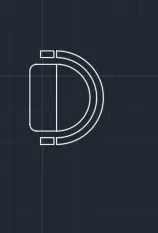
- After creating a chair move it to one quadrant and by using the array command make other chairs.
- Command: ARRAY
8 found
Enter array type [Rectangular/PAth/POlar] : PO
Type = Polar Associative = Yes
Specify center point of array or [Base point/Axis of rotation]: B
Specify base point or [Key point] :
Specify center point of array or [Base point/Axis of rotation]: *Cancel*
Command: ARRAY
Select objects: Specify opposite corner: 6 found
Select objects: Specify opposite corner: 4 found (2 duplicate), 8 total
Select objects:
Enter array type [Rectangular/PAth/POlar] : PO
Type = Polar Associative = Yes
Specify center point of array or [Base point/Axis of rotation]:
Select grip to edit array or [ASsociative/Base point/Items/Angle between/Fill angle/ROWs/Levels/ROTate items/eXit]: I
Enter number of items in array or [Expression] <6>: 4
Select grip to edit array or [ASsociative/Base point/Items/Angle between/Fill angle/ROWs/Levels/ROTate items/eXit]: X
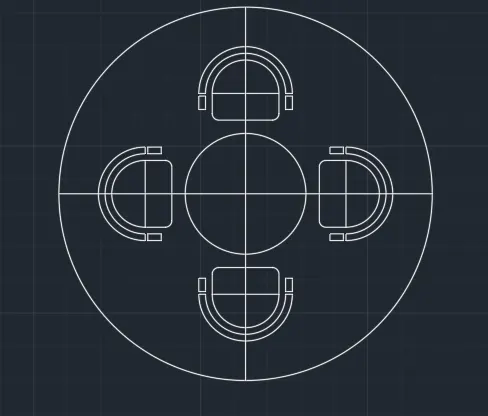
- Give the dimensions and the seating plan was created.
PART 3: Creating the toilers and utilities room using the AutoCAD
Procedure:
- Command: UN
- UNITS
- Command: LIMITS
- Reset Model space limits:
- Specify lower left corner or [ON/OFF] <0.0,0.0>:
- Specify upper right corner <420.0,297.0>: 2500,2500
- Command: Z
- ZOOM
- Specify corner of window, enter a scale factor (nX or nXP), or [All/Center/Dynamic/Extents/Previous/Scale/Window/Object] : a
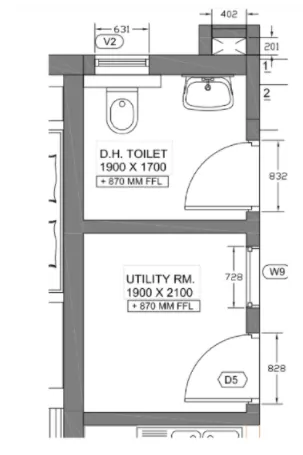
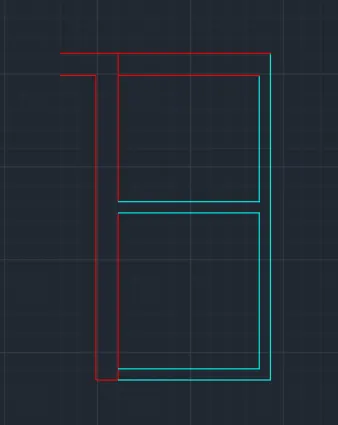
- Create a layer ‘Exterior Wall’ & 'Interior Wall' and choose the color.
- Using the CONSTRUCTION LINE command (XL) draw horizontal and vertical lines.
- Using OFFSET, TRIM command, Create all the Exterior Wall and Interior Wall.
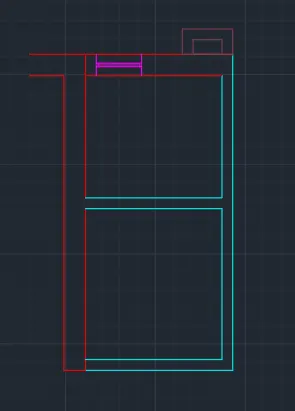
- Create a layer ‘Duct’ and choose the color.
- Using RECTANGLE Command, create Duct as per the plan given.
- Create a layer ‘Ventilator’ and choose the color.
- Using LINE, OFFSET, TRIM Command, create a Ventilator as per the plan given.
- Create a layer ‘Door’ and choose the color.
- Using LINE, ARC, TRIM & OFFSET commands, create doors of different sizes as per the plan given.
- Create a layer ‘Window’ and choose the color.
- Using the LINE command & OBJECT SNAP tool, create a window as per the plan given.
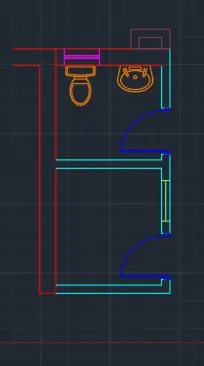
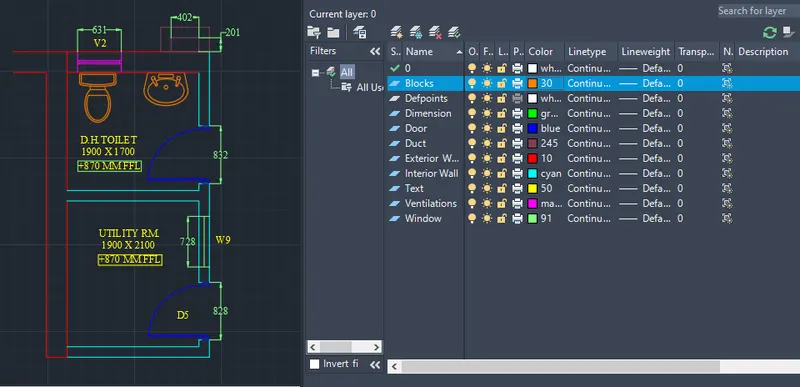
- Create a layer ‘Block’ and choose the color.
- Add pre-existing block drawing of toilet and washbasin using DESIGN CENTER.
- Create a layer ‘Dimension’ and choose the color.
- Give the dimensions as per the drawing using the DIMLIN command.
- Create a layer ‘Text’ and choose the color.
- Using MTEXT command, Create all the text.
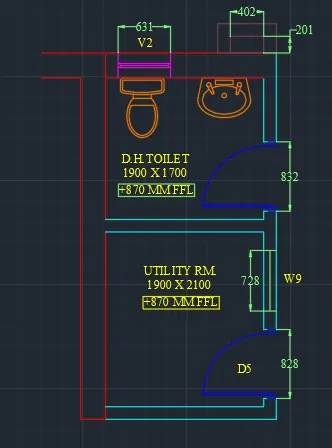
- The Toilers and Utility room plan was created using AutoCAD.
CONCLUSION:-
All result of each drawing has been attached which was taken from AutoCAD.