Creation of geometries by Coordinate system methods using AutoCad
Q. 1.Create the geometries from P1 to P10 using all the coordinates system methods. You need to use the Line tool to create the geometries. Where required you need to use the circle tool.
Please read the drawings and find out the missing dimensions before working on the sketches.
Note: Use the Imperial Template and the Decimal Units to draft the features. Dimensions are there for
references.
2.Civil Related Problems
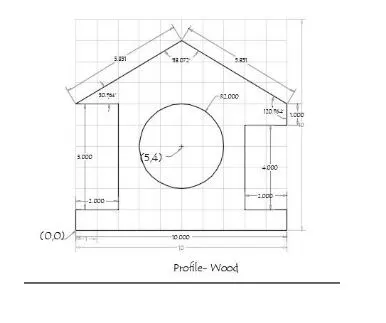
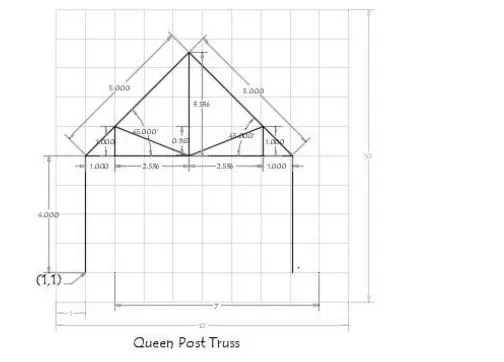
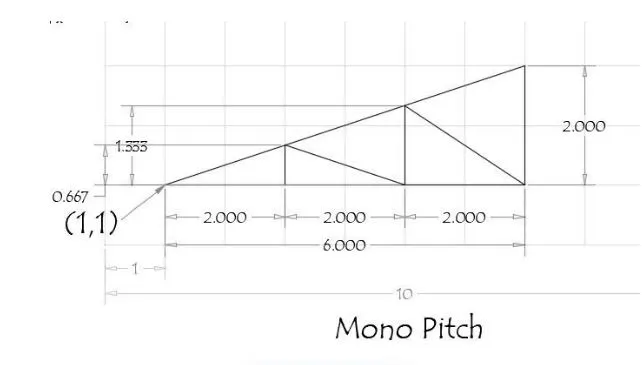
Draw the profile and the trusses using any coordinate system methods. The dimensions are there for references.
Aim:
- Create the geometries from P1 to P10 using all the coordinates system methods. You need to use the Line tool to create the geometries. Where required you need to use the circle tool.
- Civil Related Problems
Draw the profile and the trusses using any coordinate system methods.
Introduction of co-ordinate system
Before going to drawing we should know the coordinate system in Auto cadd
There are two types of coordinate system in auto cadd
- cartesian
- polar coordinate system
To these coordinate system absolute and relative coordinates are applicable in auto cadd
Also coordinates in auto cadd can be set by mouse , input, the value of coordinate in the command line and enter coordinates using dynamic input.
3. Direct distance entry
Commands used :
- Line
- Dimlinear
- Text
- circle
Procedure :
We have to Create the geometries from P1 to P10 using all the coordinates system methods. we need to use the Line tool to create the geometries. Where required we need to use the circle tool.
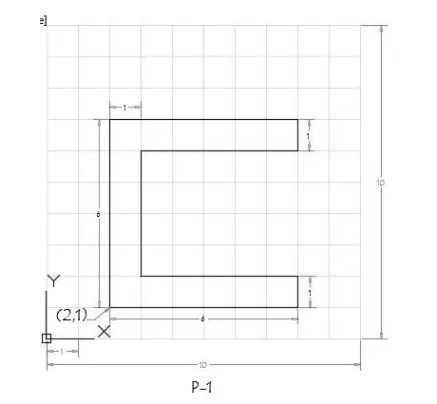
1.P-1 Drawing :
P-1 Drwing using Absolute coordinate system
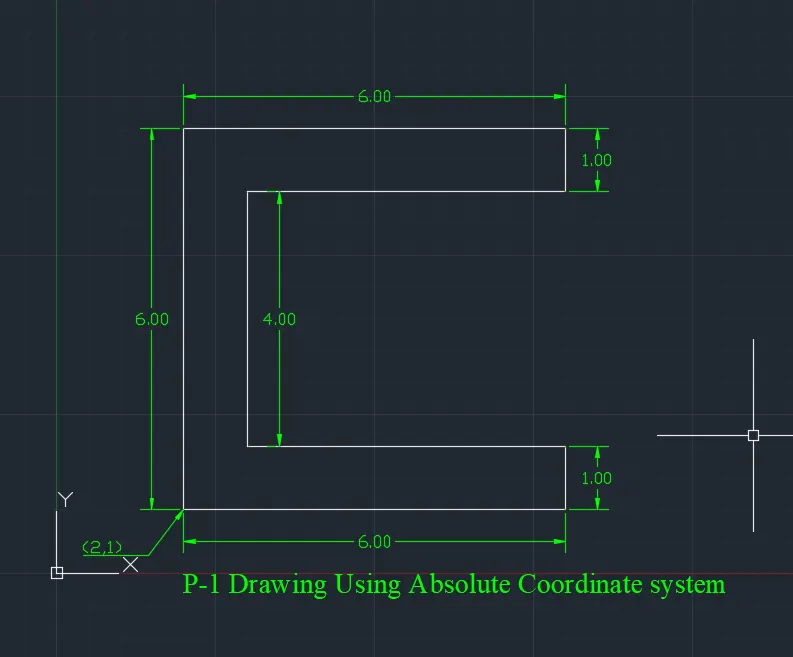
The coordinates are
starting point (2,1)
Then next poins (8,1),(8,2),(3,2),(3,6),(8,6),(8,7),(2,7) Then end point or close.
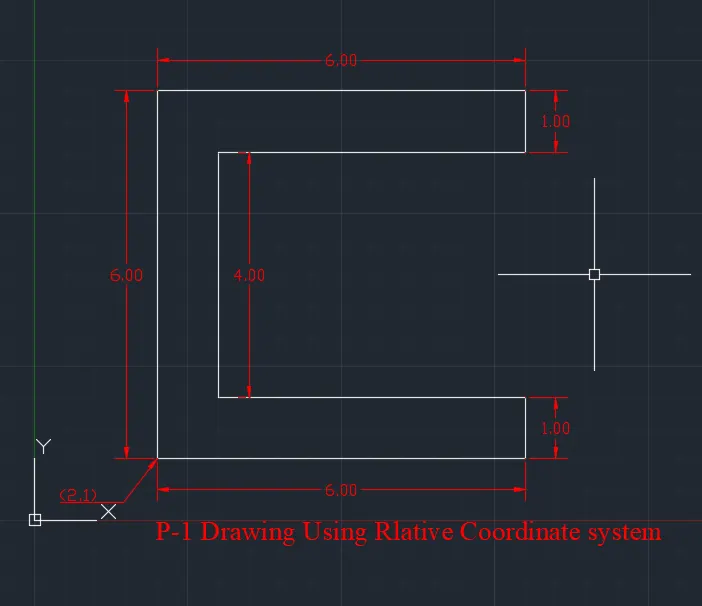
P-1 Drwing using Relative coordinate system (Relative Rectangular)
The coordintes are (2,1),(@6,0),(@0,1),(@-5,0),(@0,4),(@5,0),(@0,1),(@-6,0)
Here below we have P-1 Drawing
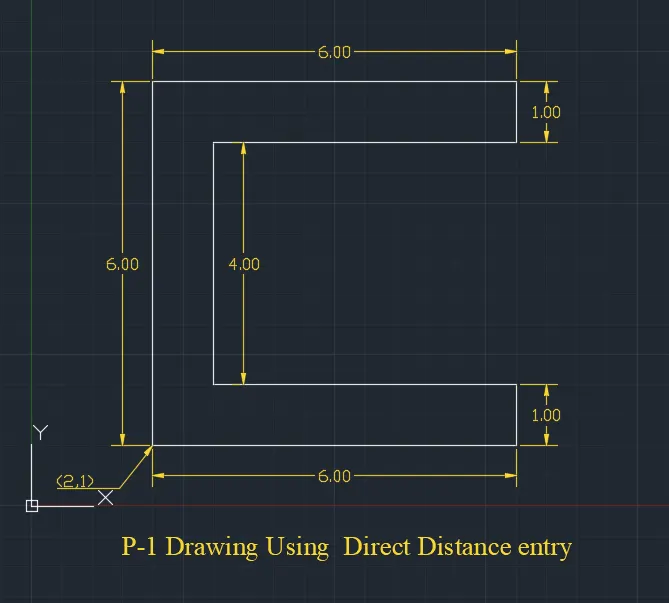
Direct Distance entry system
The Provided Distance we have to enter by changing the direction using cursor by mouse
Here below we have P-1 Drawing
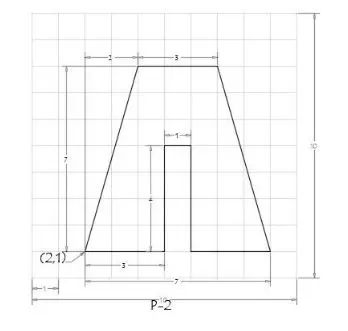
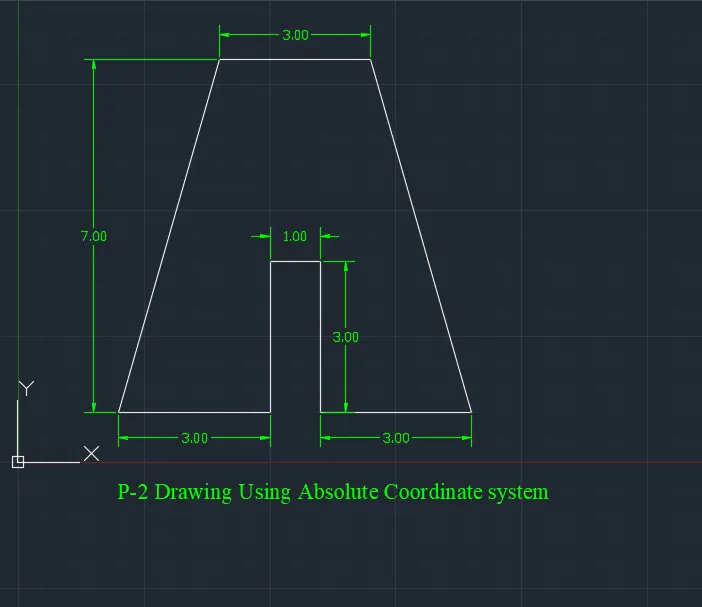
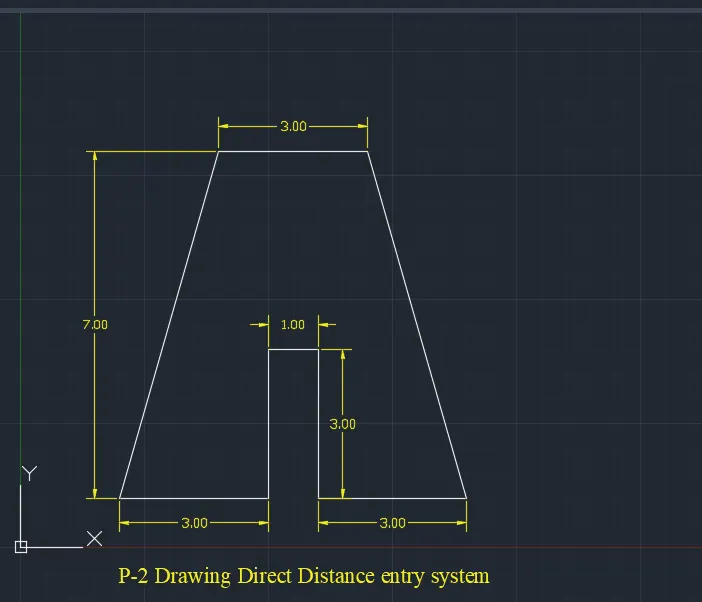
2.P- 2 Drawing :
Using Absolute coordinate system
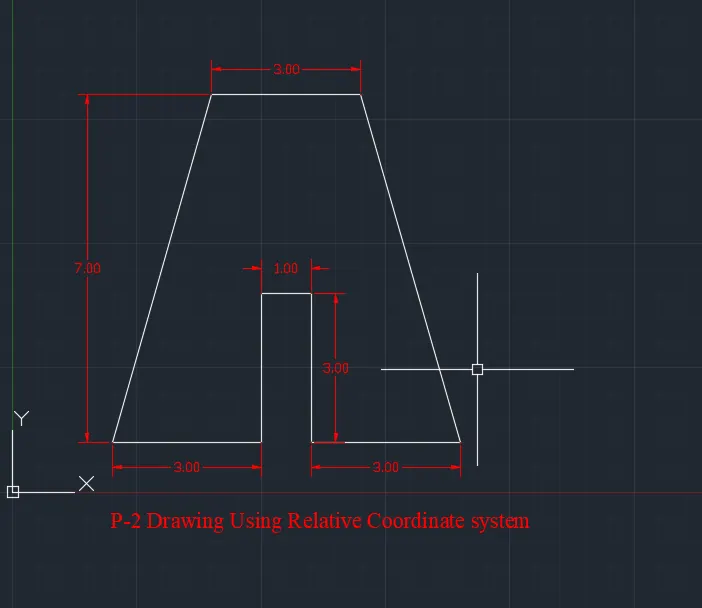
P-2 Drwing using Relative coordinate system (Relative Rectangular)
The coordintes are (2,1),(@3,0),(@0,4),(@1,0),(@0,-4),(@3,0),(@-2,7),(@-3,0,(@-2,-7)
Here below we have P-2 Drawing
Direct Distance entry system
The Provided Distance we have to enter by changing the direction using cursor by mouse
Here below we have P-2 Drawing
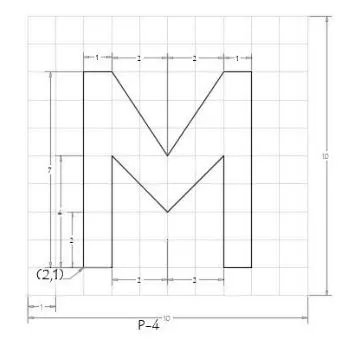
3.P- 4 Drawing :
Using Absolute coordinate system
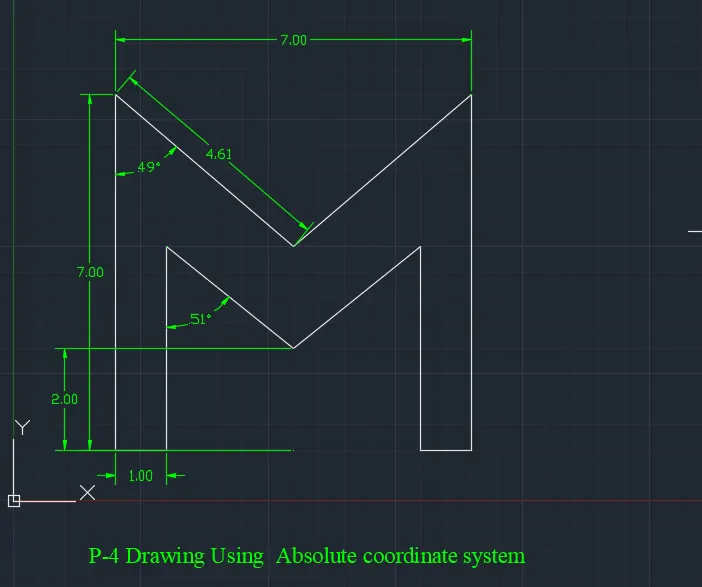
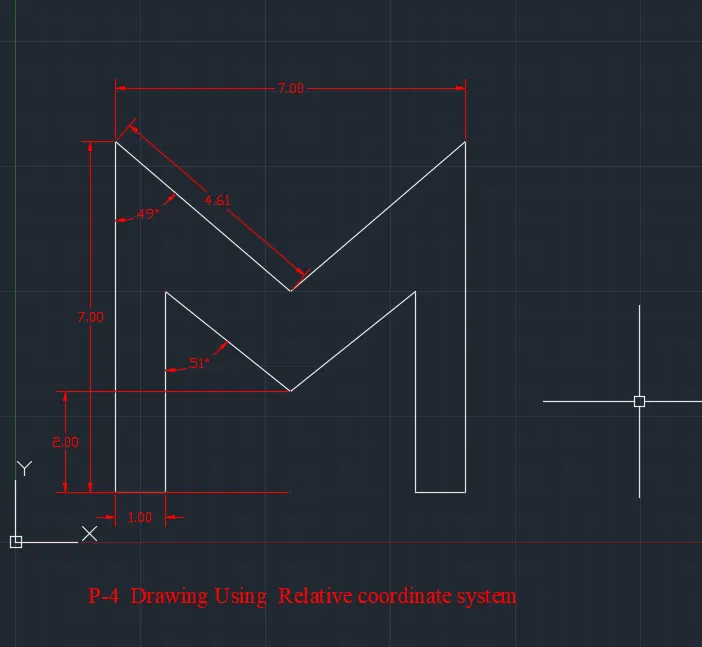
P-4 Drwing using Relative coordinate system (Relative Rectangular)
The coordintes are (2,1),(@1,0),(@0,4),(@2,-2),(@2,2),(@0,-4),(@1,0),(@0,7), (@-2,-3), (@2,-3), (@-1,0), (@0,-7)
Here below we have P-4 Drawing
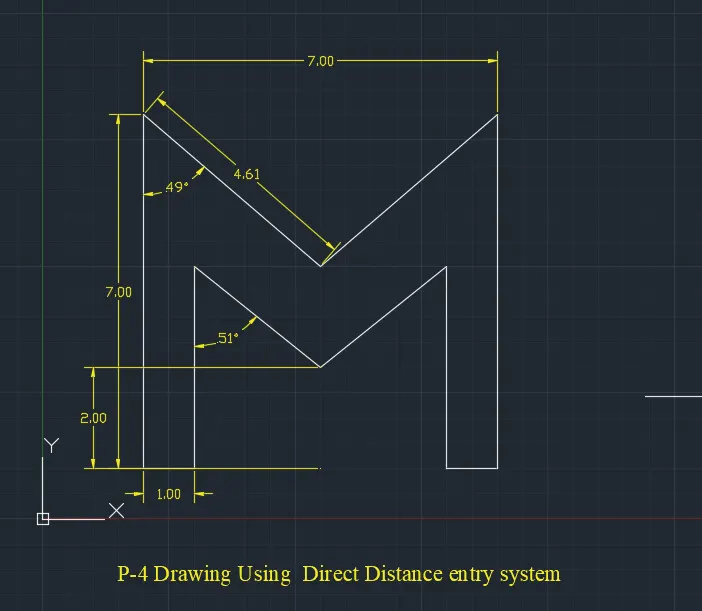
Direct Distance entry system
The Provided Distance we have to enter by changing the direction using cursor by mouse
Here below we have P-4 Drawing
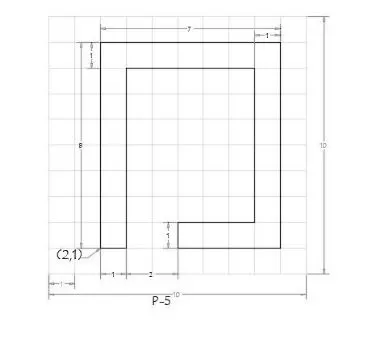
4.P- 5 Drawing :
Using Absolute coordinate system
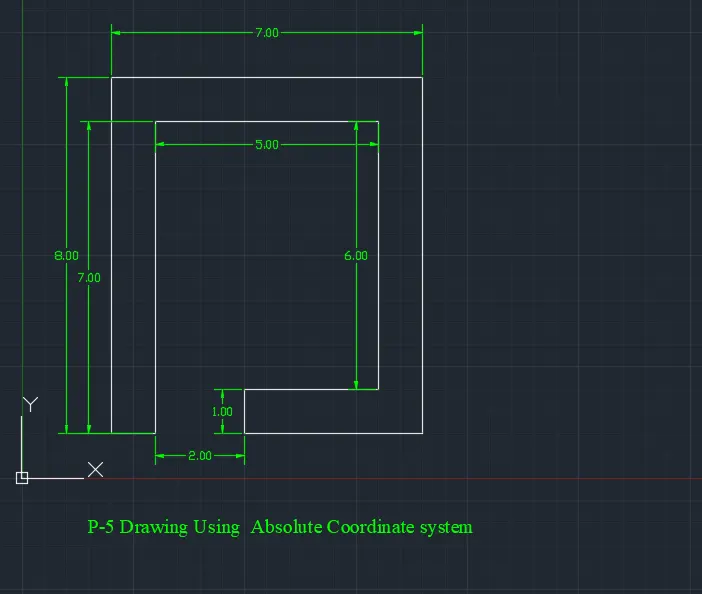
P-5 Drwing using Relative coordinate system (Relative Rectangular)
The coordintes are (2,1),(@1,0),(@0,7),(@5,0),(@2,2),(@0,-6),(@-3,0),(@0,-1), (@4,0), (@0,8), (@-7,0), (@0,-8)
Here below we have P-5 Drawing
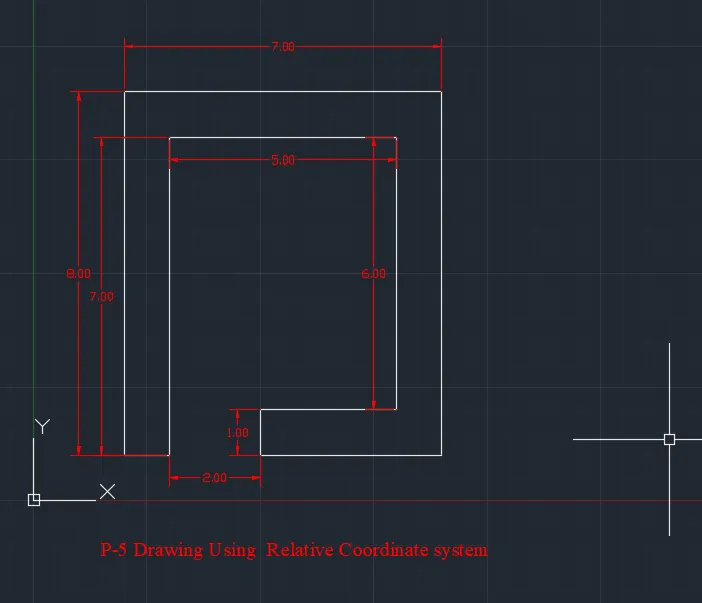
Direct Distance entry system
The Provided Distance we have to enter by changing the direction using cursor by mouse
Here below we have P-5 Drawing
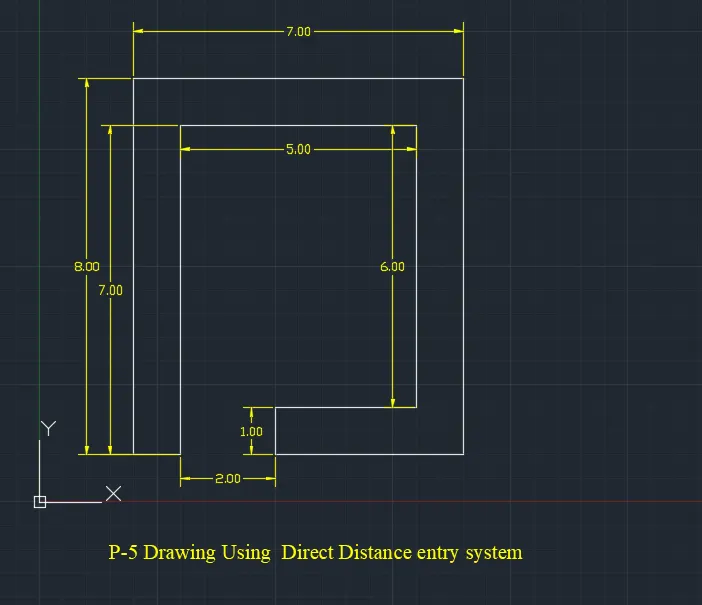
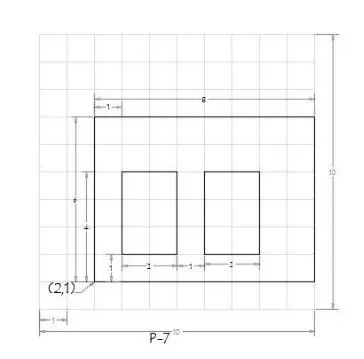
5.P- 7 Drawing :
Using Absolute coordinate system
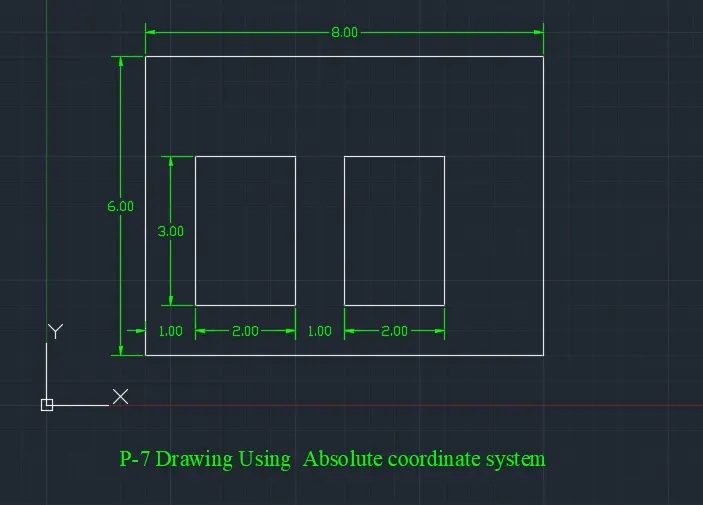
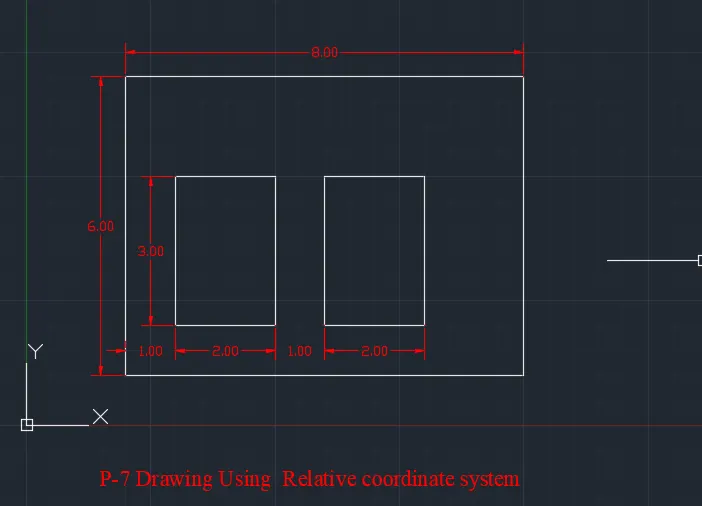
P-7 Drwing using Relative coordinate system (Relative Rectangular)
The coordintes are (2,1),(@8,0),(@0,6),(@-5,0),(@0,-6),(@3,5),(@2,0), (@0,-3), (@-2,0), (@0,3), (@6,5), (@2,0), (@0,-3), (@-2,0), (@0,3)
Here below we have P-5 Drawing
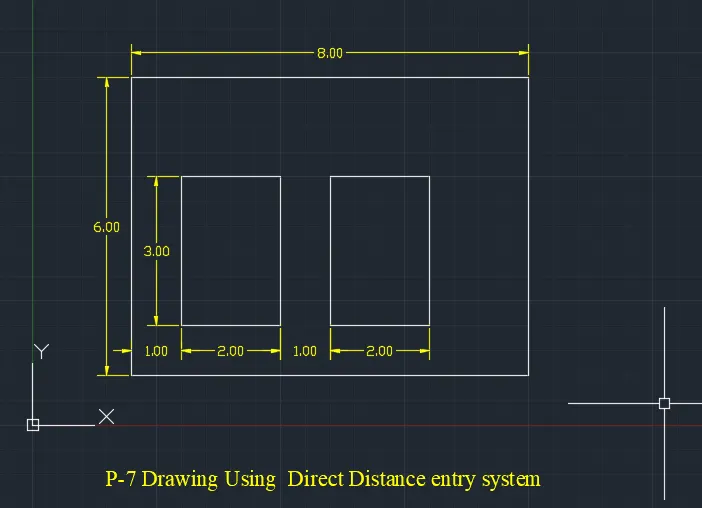
Direct Distance entry system
The Provided Distance we have to enter by changing the direction using cursor by mouse
Here below we have P-7 Drawing
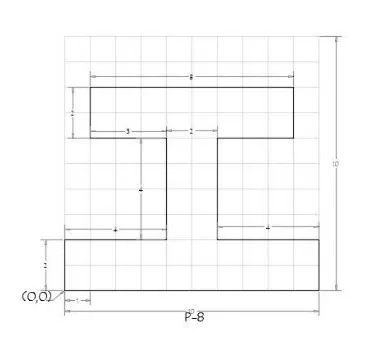
6.P- 8 Drawing :
Using Absolute coordinate system
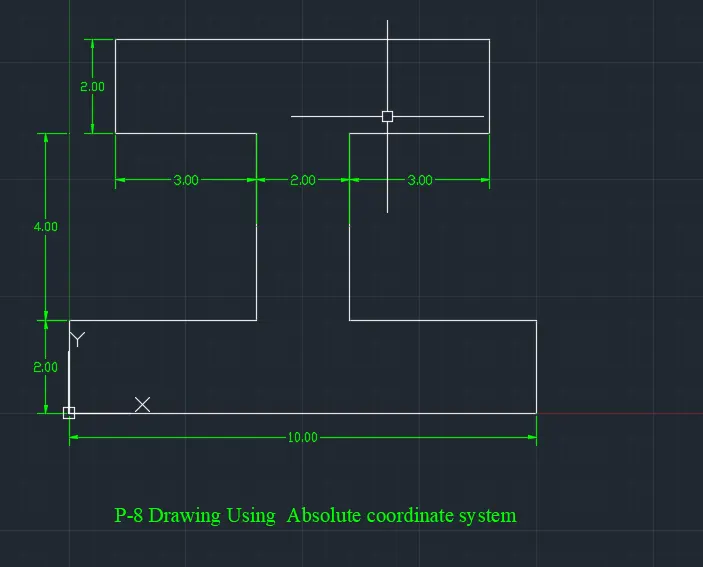
P-8 Drwing using Relative coordinate system (Relative Rectangular)
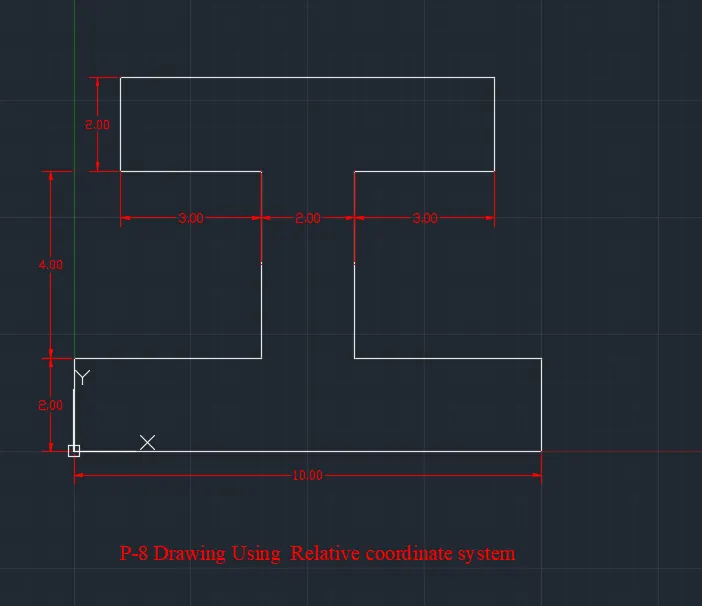
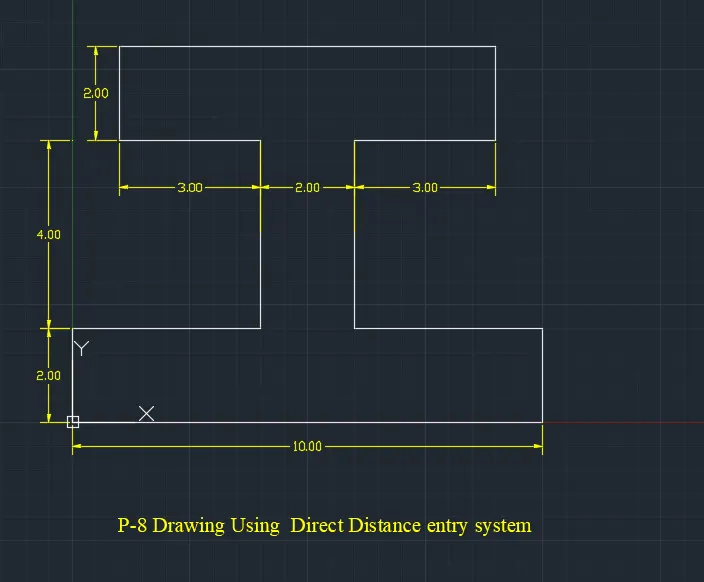
The coordintes are (0,0),(@0,2),(@4,0),(@0,4),(@-3,0),(@0,2),(@8,0), (@0,-2), (@-3,0), (@0,-4), (@4,0), (@0,-2), (@-10,0)
Here below we have P-8 Drawing
Direct Distance entry system
The Provided Distance we have to enter by changing the direction using cursor by mouse
Here below we have P-8 Drawing
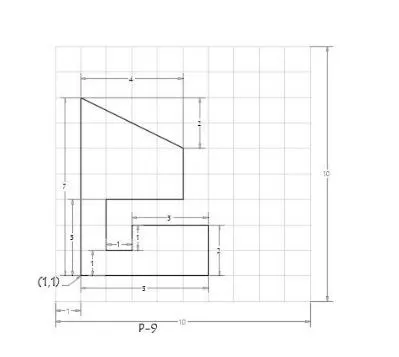
7.P- 9 Drawing :
Absolute coordinate system
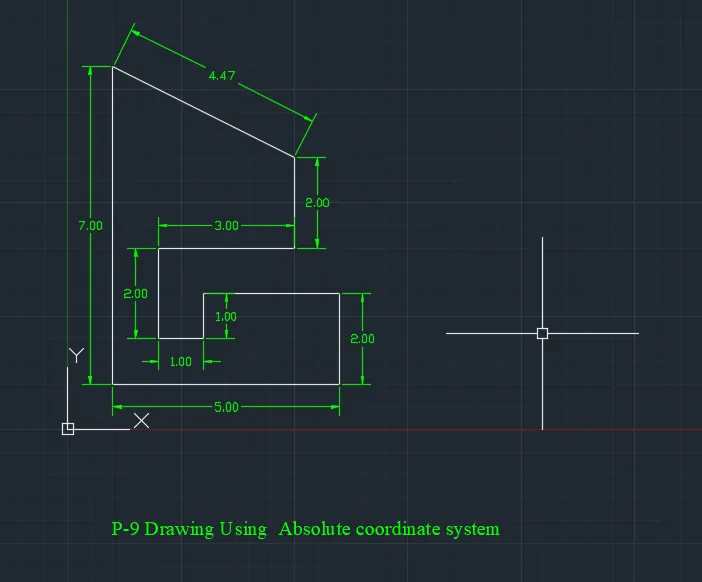
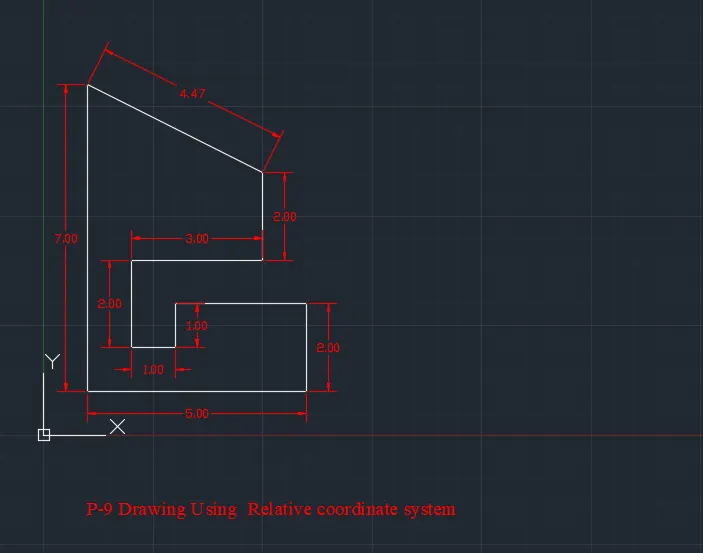
P-9 Drwing using Relative coordinate system (Relative Rectangular)
The coordintes are (1,1),(@5,0),(@0,2),(@-3,0),(@0,-1),(@-1,0),(@0,2), (@3,0), (@-0,2), (@-4,2), (@0,-7)
Here below we have P-9 Drawing
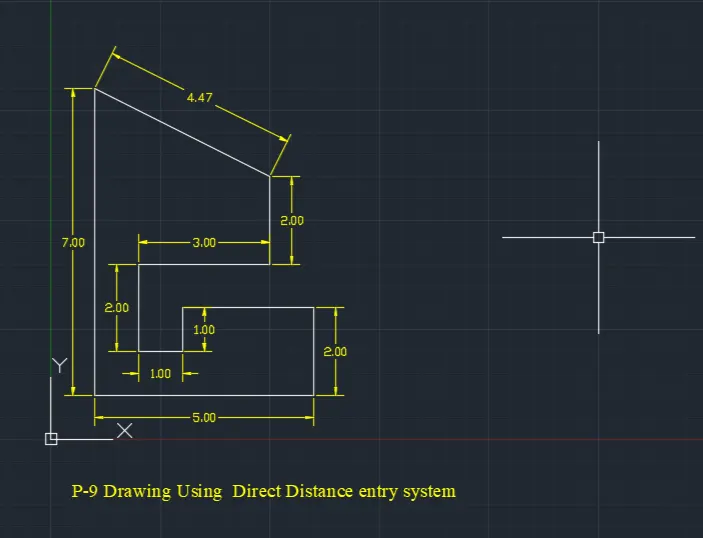
Direct Distance entry system
The Provided Distance we have to enter by changing the direction using cursor by mouse
Here below we have P-9 Drawing
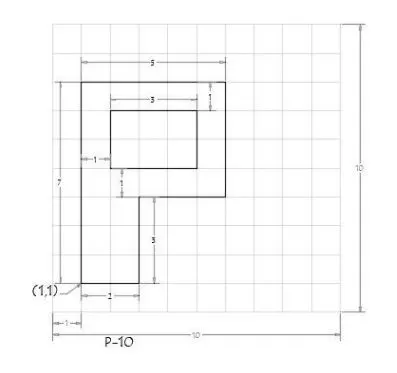
8.P- 10 Drawing :
Absolute coordinate system
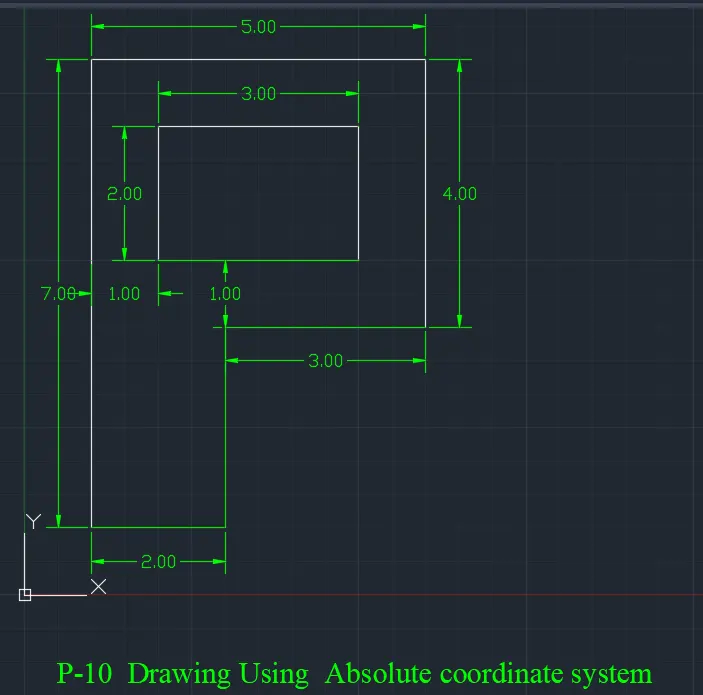
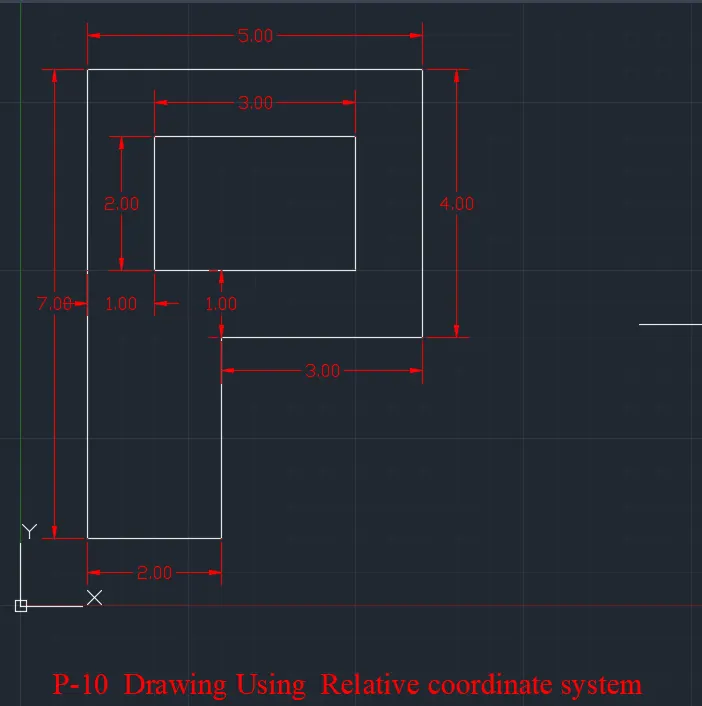
P-10 Drwing using Relative coordinate system (Relative Rectangular)
The coordintes are (1,1),(@2,0),(@0,3),(@3,0),(@0,4),(@-5,0),(@0,-7), (@2,7), (@3,0), (@0,-2), (@-3,0),(@0,2)
Here below we have P-10 Drawing
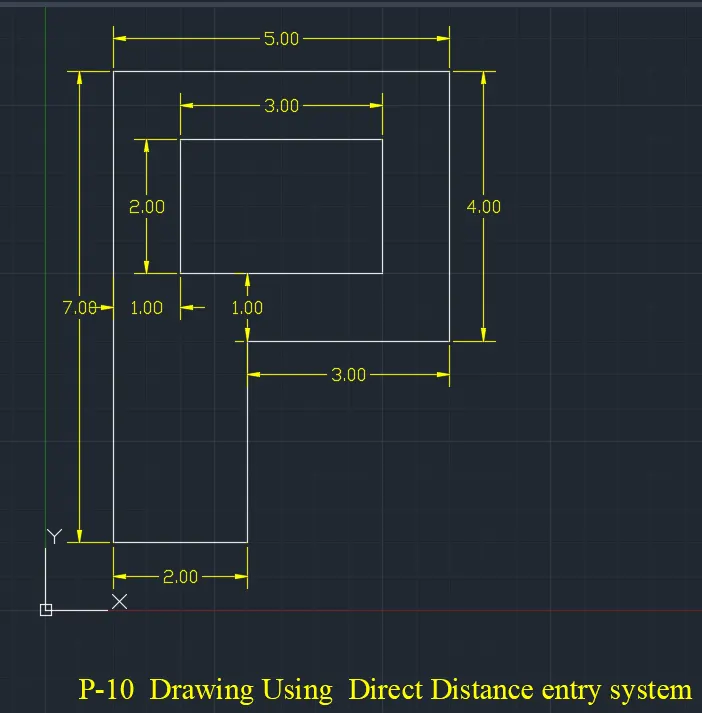
Direct Distance entry system
The Provided Distance we have to enter by changing the direction using cursor by mouse
Here below we have P-9 Drawing
Civil Related Problems
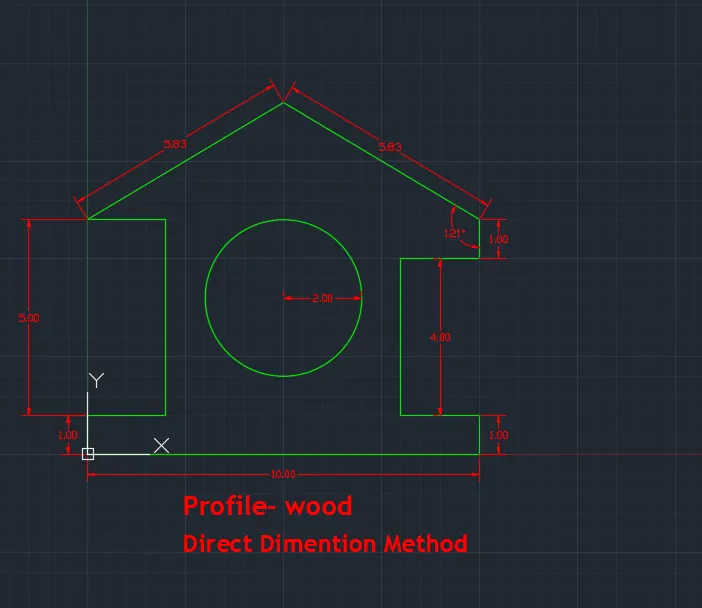
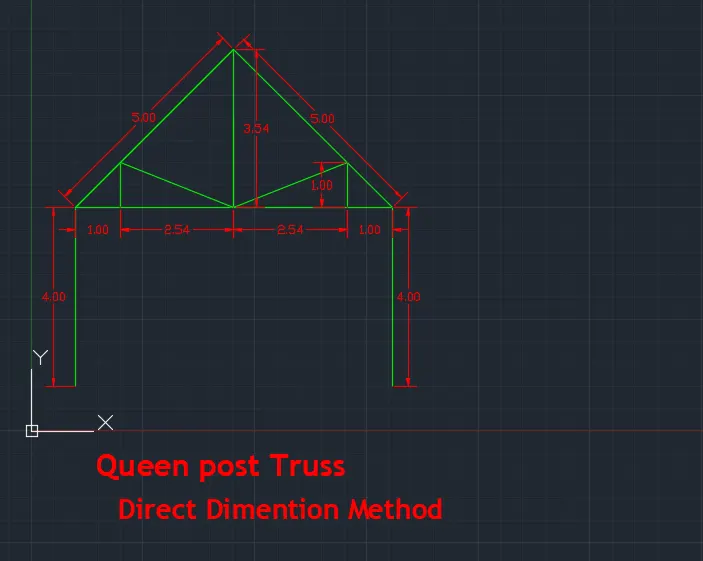
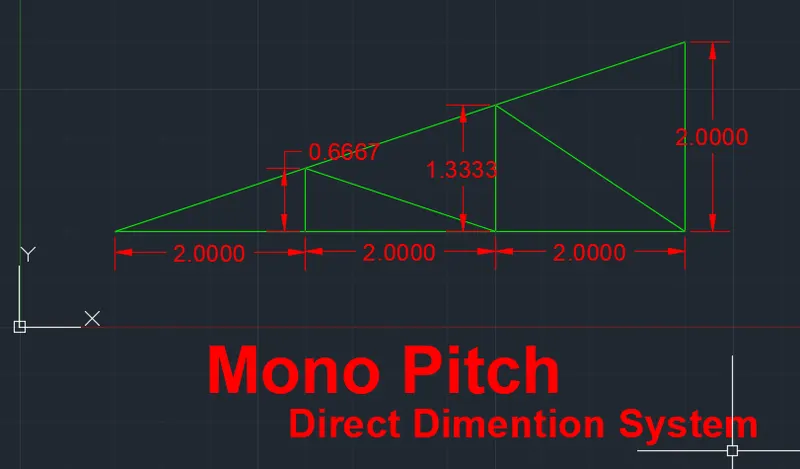
we have to Draw the profile and the trusses Direct Distance entry system methods
1.Profile - wood
2. we have to Draw The Queen Post Truss Direct Distance entry system methods
3.we have to Draw The Mono Pitch Direct Distance entry system methods
Result:
- The geomeries are clearly mentioned in all The drawings, And missing value also updated.
- using all the coordinate systems are clearly drawn from P-1 to P-10 drawings.
- The profile and trusses are drawn by using Direct Distance entry system.