Creation of geometries by Coordinate system methods using AutoCad
AIM
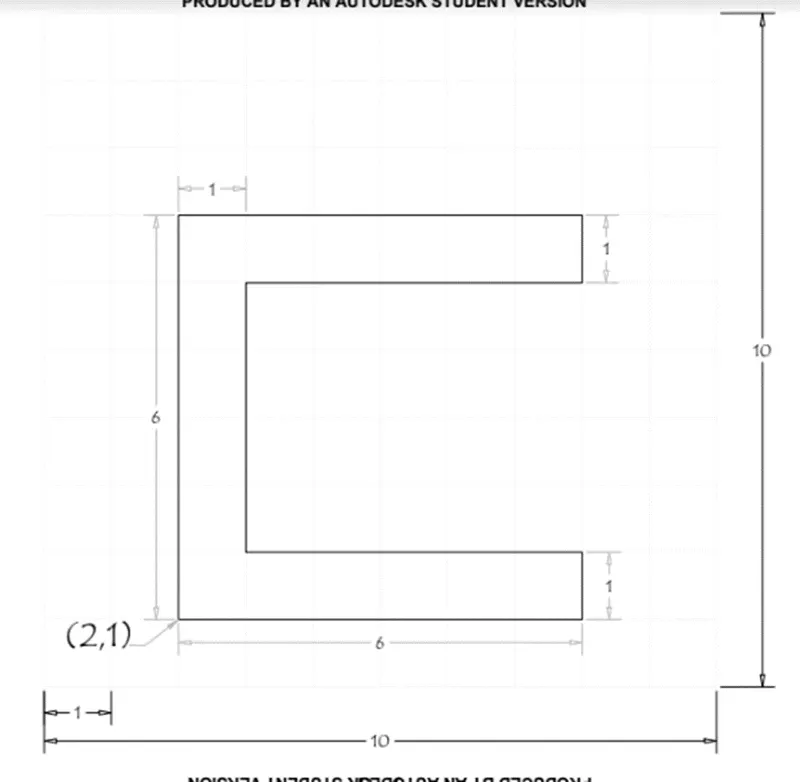
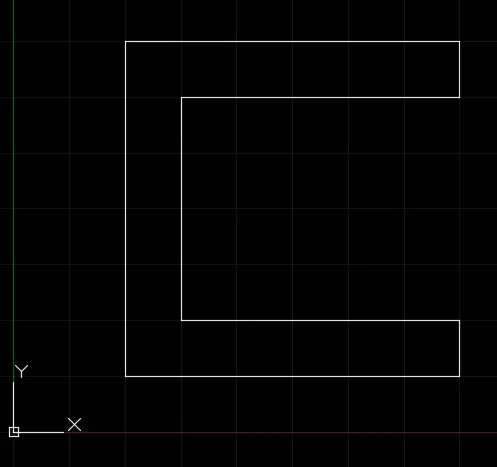
To create the following geometry using all the coordinates system methods.
INTRODUCTION
We have two coordinate systems in AutoCAD
- Absolute coordinate system
- Relative coordinate system
- Relative rectangular coordinate
- Relative polar coordinate
ABSOLUTE COORDINATE SYSTEM
Absolute coordinates are coordinates that reference the position of an object with respect to an origin in a given coordinate system. The origin has a coordinate of 0,0.
RELATIVE COORDINATE SYSTEM
Relative coordinates are locations defined by their distance from a reference point. For relative coordinates, AutoCAD does not count from 0,0. Instead, the reference point is the previous point in the drawing.
Relative Rectangular Coordinate system:
After the first points are entered, the next points can be entered by specifying the next coordinate compare/relative from the first points. The relative coordinate started with the symbol “@” to tell AutoCAD it was a relative coordinate. Using relative coordinate points entered by typing in the format @x,y
Relative Polar coordinate system:
Polar coordinates are used when we need to draw the next points at a specific angle. The polar coordinates system in AutoCAD specifies the distance length at which angle. Using polar coordinate points entered by typing in the format @distance<angle.
PROCEDURE:
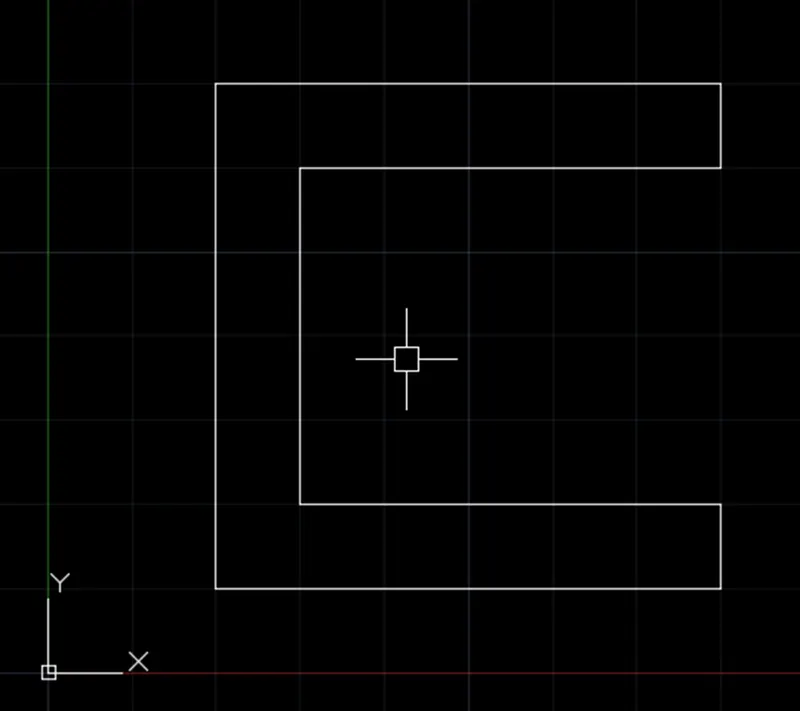
1. Creating using the absolute coordinate system:
Enter LINE command: L [Enter] (Ensuring the dynamic input button is off)
LINE specify first pint: 2,1 (X=2, Y=1)
Specify next point or [Undo]: 8,1 (X=8, Y=1)
Specify next point or [Undo]: 8,2 (X=8, Y=2)
Specify next point or [Close Undo]: 3,2 (X=3, Y=2)
Specify next point or [Close Undo]: 3,6 (X=3, Y=6)
Specify next point or [Close Undo]: 8,6 (X=8, Y=6)
Specify next point or [Close Undo]: 8,7 (X=8, Y=7)
Specify next point or [Close Undo]: 2,7 (X=2, Y=7)
Specify next point or [Close Undo]: c
RESULT
2. Create using the relative rectangular coordinate system
Enter LINE command: L [Enter]
LINE specify first pint: 2,1 (X=2, Y=1) [start point]
Specify next point or [Undo]: @6,0
Specify next point or [Undo]: @0,1
Specify next point or [Close Undo]: @-5,0
Specify next point or [Close Undo]: @0,4
Specify next point or [Close Undo]: @5,0
Specify next point or [Close Undo]: @0,1
Specify next point or [Close Undo]: @-6,0
Specify next point or [Close Undo]: c
RESULT
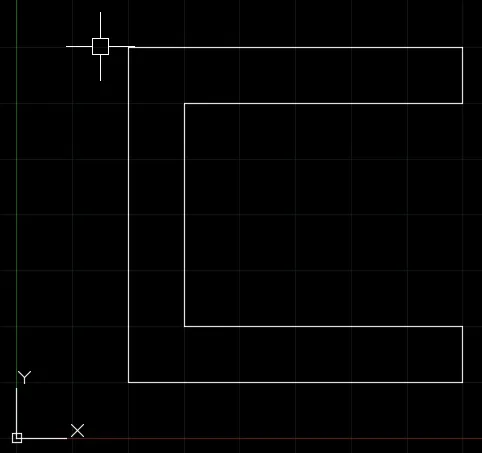
3. Create using the relative polar coordinate system
Enter LINE command: L [Enter]
LINE specify first pint: 2,1 (X=2, Y=1) [start point]
Specify next point or[Undo]: @6<0
Specify next point or[Undo]: @1<90
Specify next point or[Close Undo]: @5<180
Specify next point or[Close Undo]: @4<90
Specify next point or[Close Undo]: @5<0
Specify next point or[Close Undo]: @1<90
Specify next point or[Close Undo]: @6<180
Specify next point or[Close Undo]: c
RESULT
AIM
To create the following geometry using all the coordinates system methods.
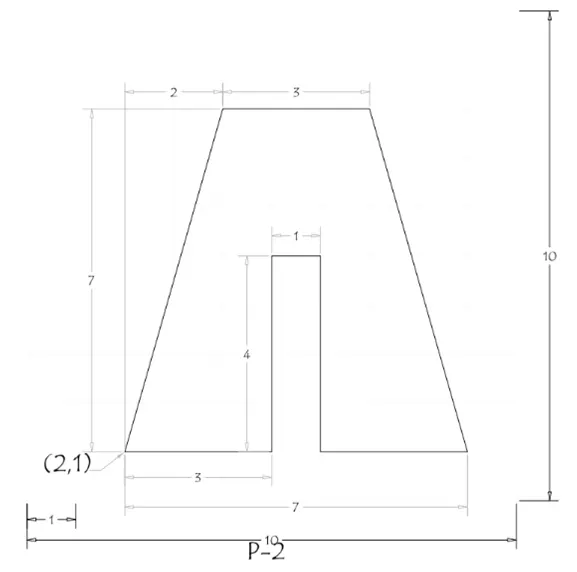
PROCEDURE:
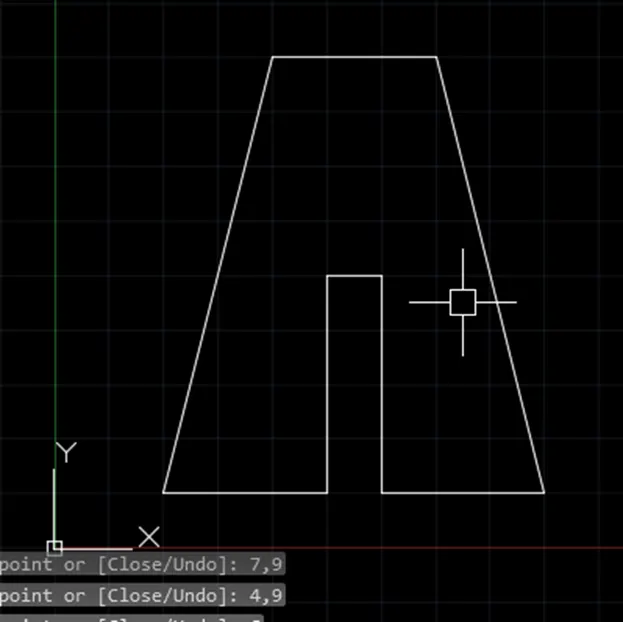
1. Creating using the absolute coordinate system:
Enter LINE command: L [Enter] (Ensuring the dynamic input button is off)
LINE specify first pint: 2,1 (X=2, Y=1)
Specify next point or [Undo]: 5,1 (X=5, Y=1)
Specify next point or [Undo]: 5,5 (X=5, Y=5)
Specify next point or [Close Undo]: 6,5 (X=6, Y=5)
Specify next point or [Close Undo]: 6,1 (X=6, Y=1)
Specify next point or [Close Undo]: 9,1 (X=9, Y=1)
Specify next point or [Close Undo]: 7,9 (X=7, Y=9)
Specify next point or [Close Undo]: 4,9 (X=4, Y=9)
Specify next point or [Close Undo]: c
RESULT
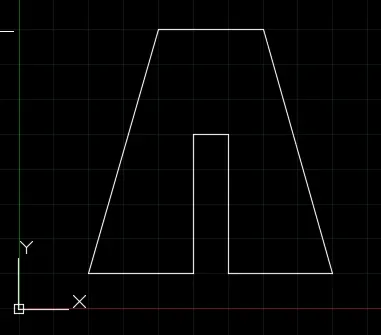
2. Create using the relative rectangular coordinate system
Enter LINE command: L [Enter]
LINE specify first pint: 2,1 (X=2, Y=1) [start point]
Specify next point or [Undo]: @3,0
Specify next point or [Undo]: @0,4
Specify next point or [Close Undo]: @1,0
Specify next point or [Close Undo]: @0,-4
Specify next point or [Close Undo]: @3,0
Specify next point or [Close Undo]: @-2,7
Specify next point or [Close Undo]: @-3,0
Specify next point or [Close Undo]: c
RESULT
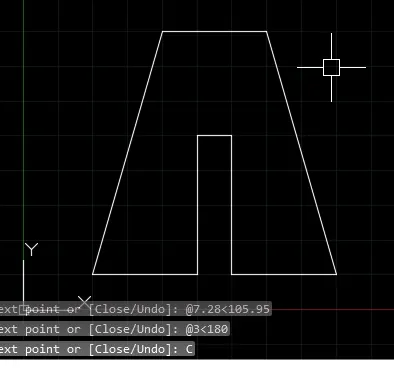
3. Create using the relative polar coordinate system
Enter LINE command: L [Enter]
LINE specify first pint: 2,1 (X=2, Y=1) [start point]
Specify next point or[Undo]: @3<0
Specify next point or[Undo]: @4<90
Specify next point or[Close Undo]: @1<0
Specify next point or[Close Undo]: @4<270
Specify next point or[Close Undo]: @3<0
Specify next point or[Close Undo]: @7.28<105.95
Specify next point or[Close Undo]: @3<180
Specify next point or[Close Undo]: c
RESULT
AIM
To create the following geometry using the absolute coordinates system method.
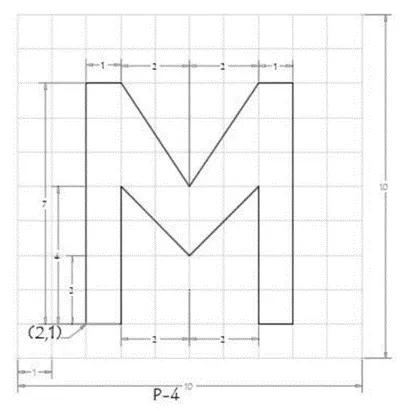
PROCEDURE:
Creating using the absolute coordinate system:
Enter LINE command: L [Enter] (Ensuring the dynamic input button is off)
LINE specify first pint: 2,1 (X=2, Y=1)
Specify next point or [Undo]: 3,1
Specify next point or [Undo]: 3,5
Specify next point or [Close Undo]: 5,3
Specify next point or [Close Undo]: 7,5
Specify next point or [Close Undo]: 7,1
Specify next point or [Close Undo]: 8,1
Specify next point or [Close Undo]: 8,8
Specify next point or [Close Undo]: 7,8
Specify next point or [Close Undo]: 5,5
Specify next point or [Close Undo]: 3,8
Specify next point or [Close Undo]: 2,8
Specify next point or [Close Undo]: c
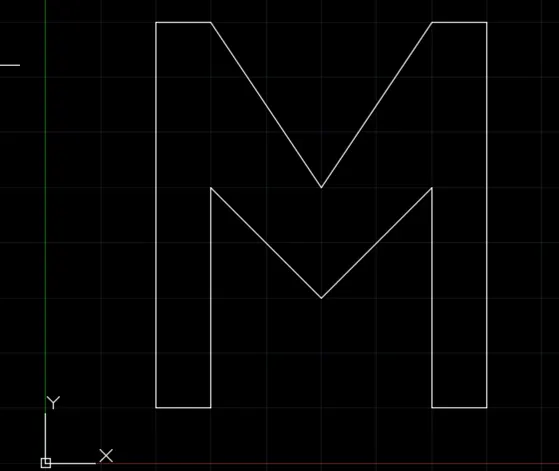
RESULT
AIM
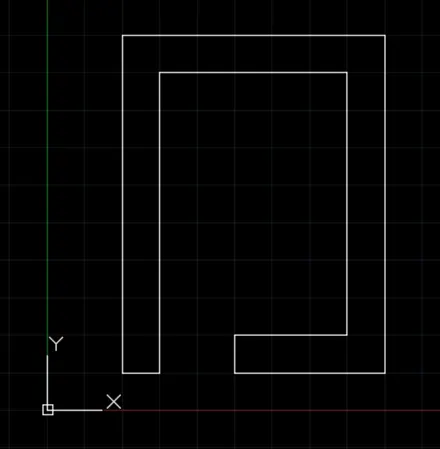
To create the following geometry using the relative rectangular coordinates system method.
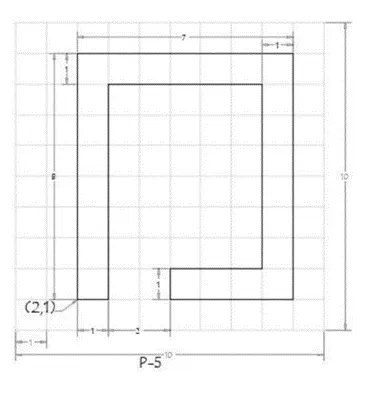
PROCEDURE:
Create using the relative rectangular coordinate system
Enter LINE command: L [Enter]
LINE specify first pint: 2,1 (X=2, Y=1) [start point]
Specify next point or [Undo]: @1,0
Specify next point or [Undo]: @0,8
Specify next point or [Close Undo]: @5,0
Specify next point or [Close Undo]: @0,-7
Specify next point or [Close Undo]: @-3,0
Specify next point or [Close Undo]: @0,-1
Specify next point or [Close Undo]: @4,0
Specify next point or [Close Undo]: @0,9
Specify next point or [Close Undo]: @-7,0
Specify next point or [Close Undo]: c
RESULT
AIM
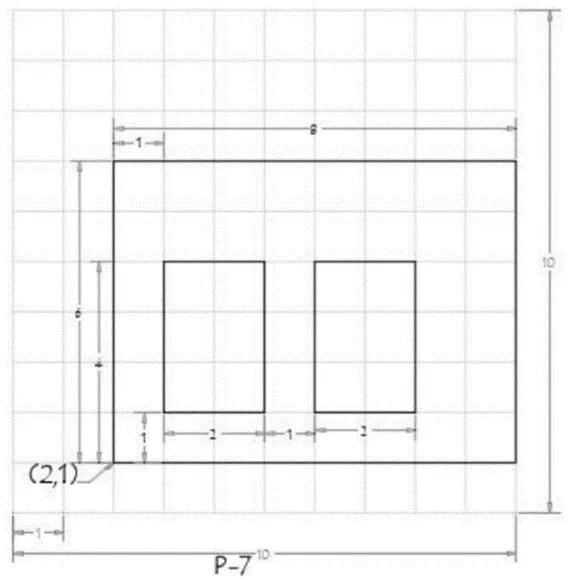
To create the following geometry using the absolute coordinates system method.
PROCEDURE:
Creating using the absolute coordinate system:
Enter LINE command: L [Enter] (Ensuring the dynamic input button is off)
LINE specify first pint: 2,1 (X=2, Y=1)
Specify next point or [Undo]: 10,1
Specify next point or [Undo]: 10,7
Specify next point or [Close Undo]: 2,7
Specify next point or [Close Undo]: c
Enter LINE command: L [Enter] (Ensuring the dynamic input button is off)
LINE specify first pint: 3,2 (X=2, Y=1)
Specify next point or [Undo]: 5,2
Specify next point or [Undo]: 5,5
Specify next point or [Close Undo]: 3,5
Specify next point or [Close Undo]: c
Enter LINE command: L [Enter] (Ensuring the dynamic input button is off)
LINE specify first pint: 6,2 (X=2, Y=1)
Specify next point or [Undo]: 8,2
Specify next point or [Undo]: 8,5
Specify next point or [Close Undo]: 6,5
Specify next point or [Close Undo]: c
RESULT
AIM
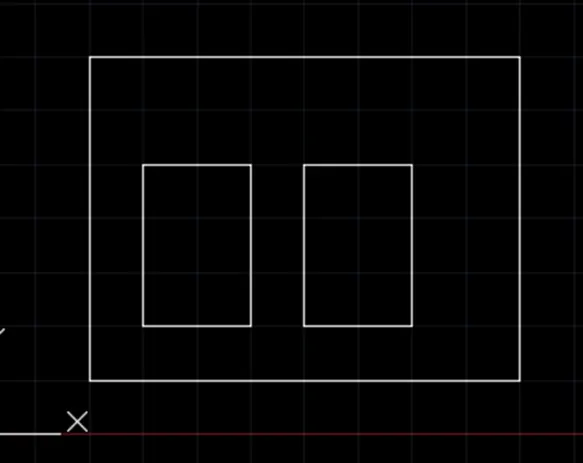
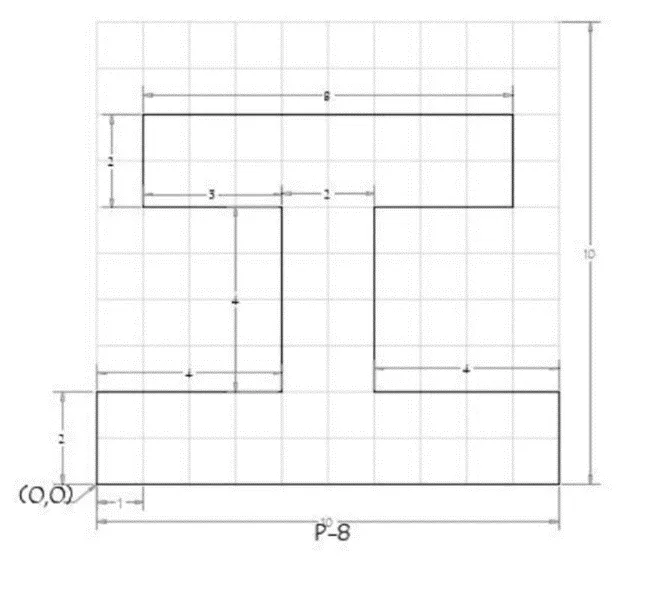
To create the following geometry using the absolute coordinates system method.
PROCEDURE:
Creating using the absolute coordinate system:
Enter LINE command: L [Enter] (Ensuring the dynamic input button is off)
LINE specify first pint: 0,0 (X=0, Y=0)
Specify next point or [Undo]: 10,0
Specify next point or [Undo]: 10,2
Specify next point or [Close Undo]: 6,2
Specify next point or [Close Undo]: 6,6
Specify next point or [Close Undo]: 9,6
Specify next point or [Close Undo]: 9,8
Specify next point or [Close Undo]: 1,8
Specify next point or [Close Undo]: 1,6
Specify next point or [Close Undo]: 4,6
Specify next point or [Close Undo]: 4,2
Specify next point or [Close Undo]: 0,2
Specify next point or [Close Undo]: c
RESULT
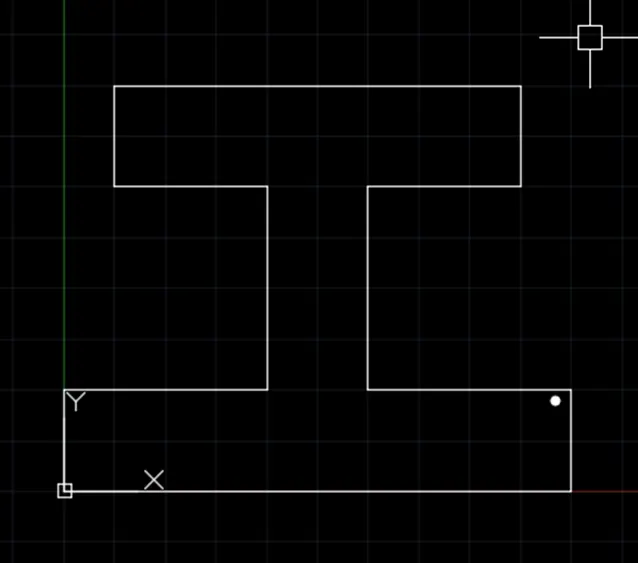
AIM
To create the following geometry using the absolute coordinates system method.
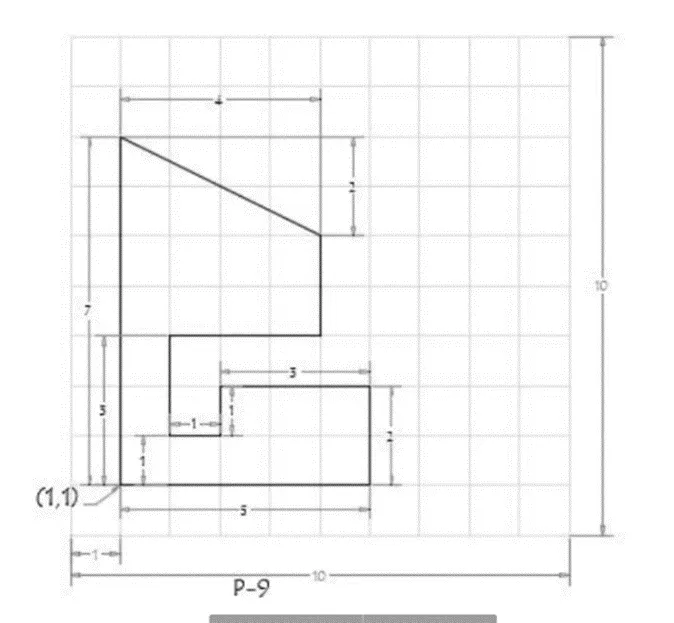
PROCEDURE:
Creating using the absolute coordinate system:
Enter LINE command: L [Enter] (Ensuring the dynamic input button is off)
LINE specify first pint: 1,1 (X=1, Y=1)
Specify next point or [Undo]: 6,1
Specify next point or [Undo]: 6,3
Specify next point or [Close Undo]: 3,3
Specify next point or [Close Undo]: 3,2
Specify next point or [Close Undo]: 2,2
Specify next point or [Close Undo]: 2,4
Specify next point or [Close Undo]: 5,4
Specify next point or [Close Undo]: 5,6
Specify next point or [Close Undo]: 1,8
Specify next point or [Close Undo]: c
RESULT
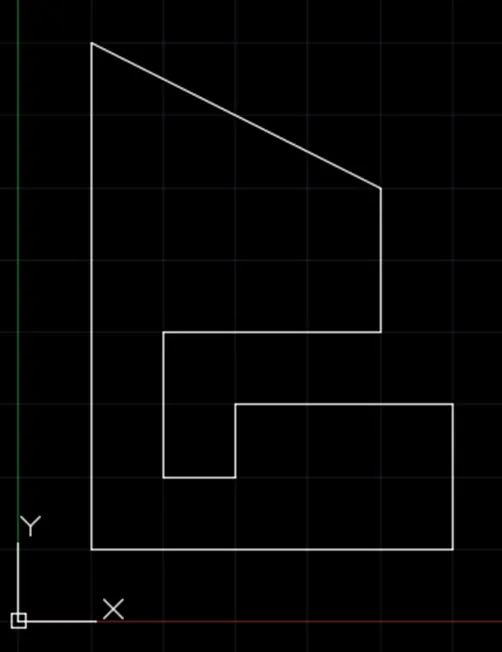
AIM
To create the following geometry using the absolute coordinates system method.
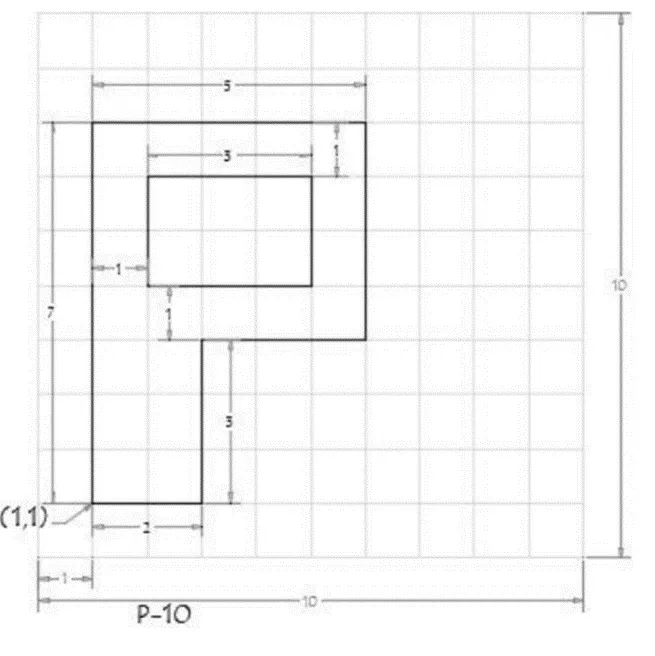
PROCEDURE:
Creating using the absolute coordinate system:
Enter LINE command: L [Enter] (Ensuring the dynamic input button is off)
LINE specify first pint: 1,1 (X=1, Y=1)
Specify next point or [Undo]: 3,1
Specify next point or [Undo]: 3,4
Specify next point or [Close Undo]: 6,4
Specify next point or [Close Undo]: 6,8
Specify next point or [Close Undo]: 1,8
Specify next point or [Close Undo]: c
Enter LINE command: L [Enter] (Ensuring the dynamic input button is off)
LINE specify first pint: 2,5 (X=2, Y=5)
Specify next point or [Undo]: 5,5
Specify next point or [Close Undo]: 5,7
Specify next point or [Close Undo]: 2,7
Specify next point or [Close Undo]: c
RESULT
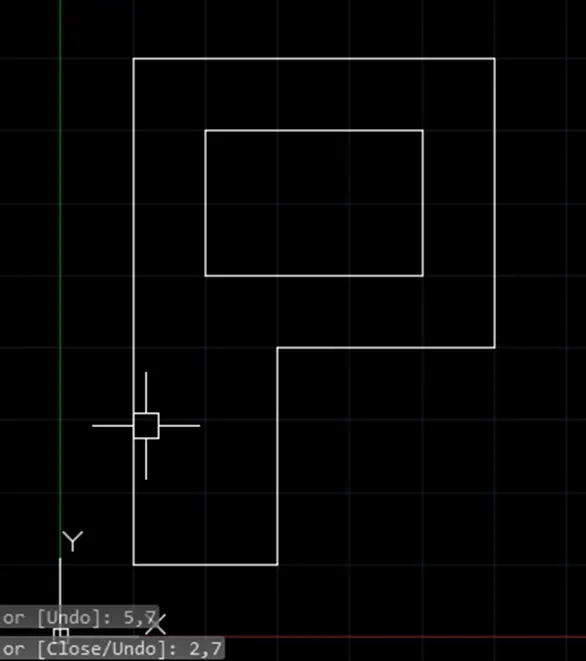
AIM
To draw the following profile using the relative rectangular coordinates system method.
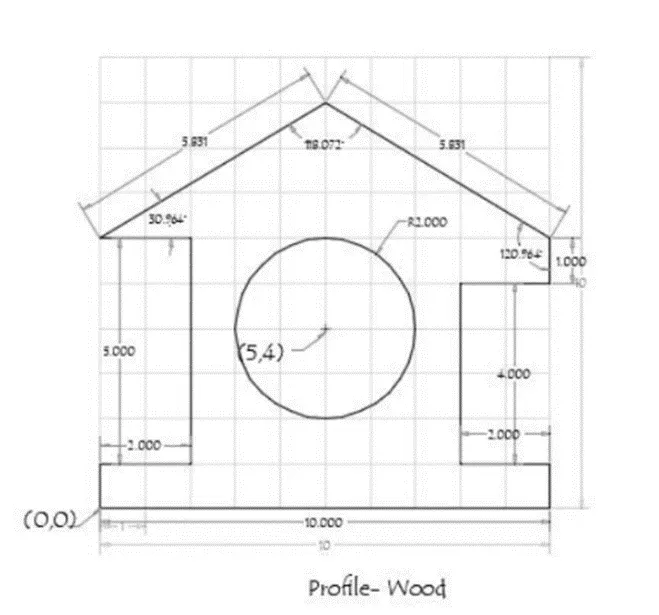
PROCEDURE:
Create using the relative rectangular coordinate system
Enter LINE command: L [Enter]
LINE specify first pint: 0,0 (X=0, Y=0) [start point]
Specify next point or [Undo]: @10,0
Specify next point or [Undo]: @0,1
Specify next point or [Close Undo]: @-2,0
Specify next point or [Close Undo]: @0,4
Specify next point or [Close Undo]: @2,0
Specify next point or [Close Undo]: @0,1
Specify next point or [Close Undo]: @-5,3
Specify next point or [Close Undo]: @-5,-3
Specify next point or [Close Undo]: @2,0
Specify next point or [Close Undo]: @0,-5
Specify next point or [Close Undo]: @-2,0
Specify next point or [Close Undo]: c
Enter CIRCLE command: C
CIRCLE Specify center point for circle: 5,4
Specify radius of circle or [Diameter]: 2
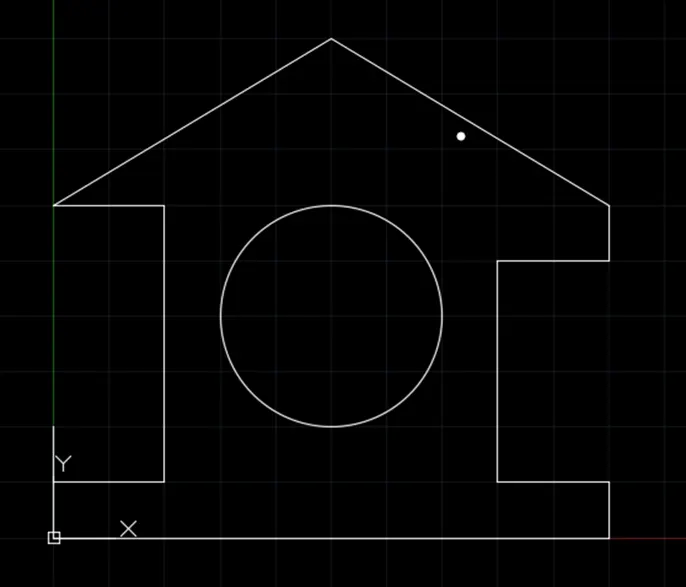
RESULT
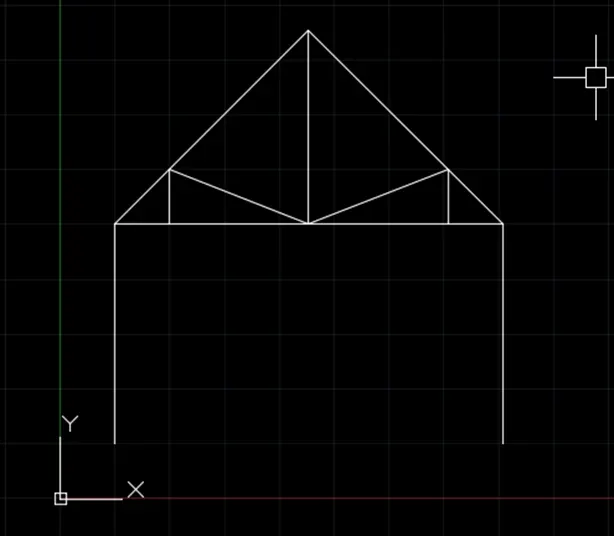
AIM
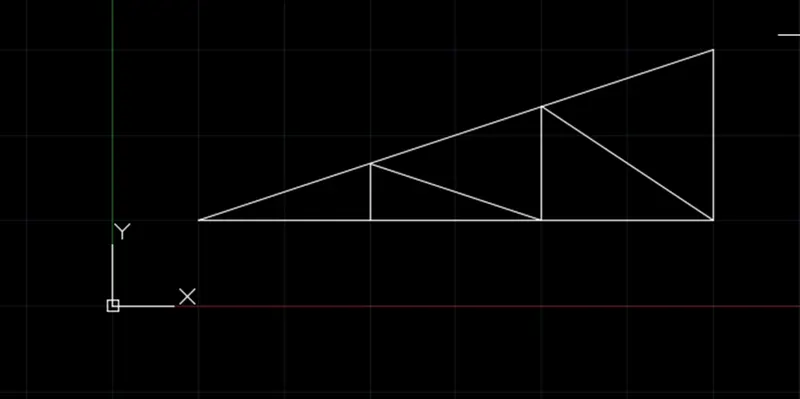
To draw the following truss using the relative polar coordinates system method.
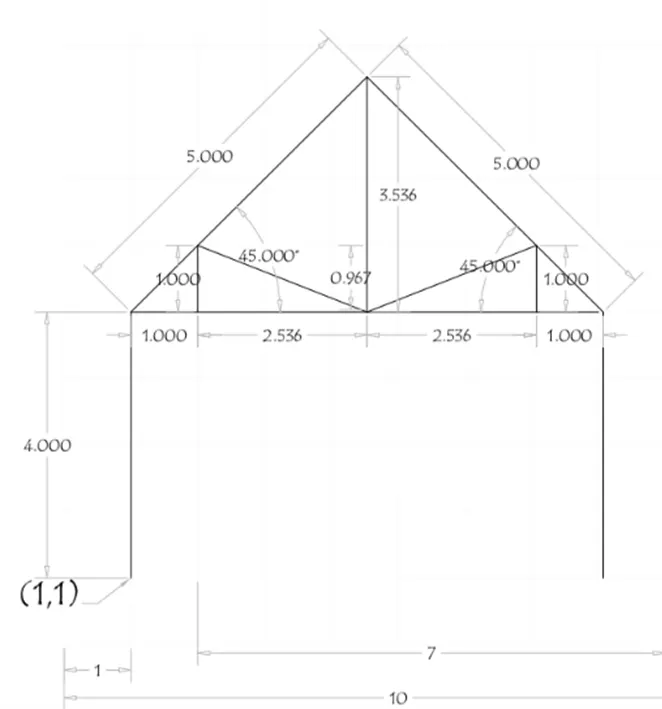
PROCEDURE:
Create using the relative polar coordinate system
Enter LINE command: L [Enter]
LINE specify first pint: 1,1 (X=1, Y=1) [start point]
Specify next point or[Undo]: @4<90
Specify next point or[Undo]: @5<45
Specify next point or[Close Undo]: @5<315
Specify next point or[Close Undo]: @4<270
Specify next point or[Close Undo]: Esc
Creating using the absolute coordinate system:
Enter LINE command: L [Enter] (Ensuring the dynamic input button is off)
LINE specify first pint: 1,5 (X=1, Y=5)
Specify next point or [Undo]: 8,5
Specify next point or [Undo]: Esc
Create using the relative rectangular coordinate system
Enter LINE command: L [Enter]
LINE specify first pint: 2,5 (X=2, Y=5) [start point]
Specify next point or [Undo]: @0,1
Specify next point or [Undo]: @2.536,-1
Specify next point or [Close Undo]: @2.536,1
Specify next point or [Close Undo]: @0,-1
Specify next point or [Close Undo]: Esc
Creating using the relative polar coordinate system:
Enter LINE command: L [Enter] (Ensuring the dynamic input button is off)
LINE specify first pint: 4.536,5 (X=4.536, Y=5)
Specify next point or[Undo]: @3.536<90
Specify next point or [Undo]: Esc
RESULT
AIM
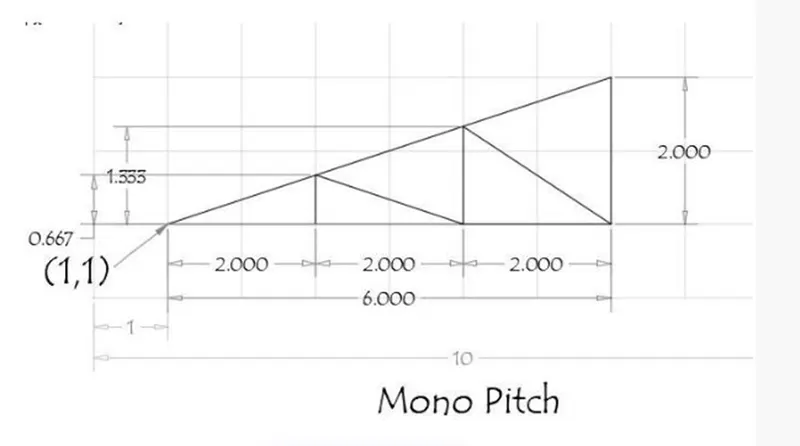
To draw the following truss using the relative polar coordinates system method.
PROCEDURE:
Creating using the absolute coordinate system:
Enter LINE command: L [Enter] (Ensuring the dynamic input button is off)
LINE specify first pint: 1,1 (X=1, Y=1)
Specify next point or [Undo]: 7,1
Specify next point or [Undo]: 7,3
Specify next point or [Undo]: c
Create using the relative rectangular coordinate system
Enter LINE command: L [Enter] (Ensuring the dynamic input button is off)
LINE specify first pint: 3,1 (X=3, Y=1)
Specify next point or [Undo]: @0,0.667
Specify next point or [Undo]: @2,-0.667
Specify next point or [Undo]: @0,1.333
Specify next point or [Undo]: @2,-1.333
Specify next point or [Undo]: Esc
RESULT