Creation of geometries by Coordinate system methods using AutoCad
Aim:
To create the geometry of given pictures in AutoCAD using all the coordinate system methods.
Introduction:
Here, we have four type of Coordinate methods.
- Absolute coordinate method
- Relative rectangular coordinate method
- Relative polar coordinate method
- Direct distance entry method
- Absolute coordinate method:
- In this system, all input points specify in the drawing with respect to origin (0,0).
- Relative rectangular coordinate method:
- In this method, first point entered with respect to origin and remaining points are entered be specifying the next coordinate with respect to the first point.
- This system started with the symbol of ‘@’. Here, points entered by typing “@x,y” and pressing enter button.
- Relative polar coordinate method:
- It helps when we used to draw the next points at a specific angle.
- In this system, points entered by typing “@distance
- Direct distance entry method:
- It is very simplest method to draw a line by enter a distance and pointing a cursor towards a direction we need to draw.
- First point is entered with the origin and then move cursor according to which direction we need and enter a required distance.
Procedure:
P1:
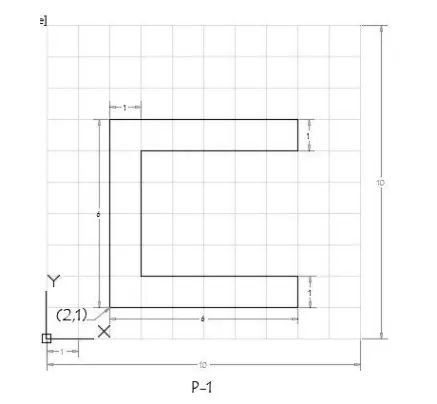
Step -1: Open AutoCAD > Startup > 1 > Open a new file > Setup Imperial and decimal.
Step -2: Set the limits of sheet by using limits command and do drafting.
Absolute coordinate system:
- Type command “L” > mention the initial coordinate (2,1)
- Type the specify next point 2 (8,1)
- Type the specify next point 3 (8,2)
- Type the specify next point 4 (3,2)
- Type the specify next point 5 (3,6)
- Type the specify next point 6 (8,6)
- Type the specify next point 7 (8,7)
- Type the specify next point 8 (2,7)
- Click “c” to close the drawing where did you start.
Relative rectangular coordinate system:
- Type “L” line command at command line and enter (2,1) to create initial point to draw.
- Type the specify next point 2 @6,0
- Type the specify next point 3 @0,1
- Type the specify next point 4 @-5,0
- Type the specify next point 5 @0,4
- Type the specify next point 6 @5,0
- Type the specify next point 7 @0,1
- Type the specify next point 8 @-6,0
- Type “c” close the line drawing to where we start.
Relative Polar coordinate system:
- Type “L” line command at command line and enter (2,1) to create initial point to draw.
- Type the specify next point 2 @6<0
- Type the specify next point 3 @1<90
- Type the specify next point 4 @5<180
- Type the specify next point 5 @4<90
- Type the specify next point 6 @5<0
- Type the specify next point 7 @1<90
- Type the specify next point 8 @6<180
- Type “c” close the line drawing to where we start.
Direct distance entry system:
- Type “L” line command at command line and enter (2,1) to create initial point to draw.
- Type the specify next point 2 enter distance 6 and point cursor to +VE X-axis
- Type the specify next point 3 enter distance 1 and point cursor to +VE Y-axis
- Type the specify next point 4 enter distance 5 and point cursor to -VE X-axis
- Type the specify next point 5 enter distance 4 and point cursor to +VE Y-axis
- Type the specify next point 6 enter distance 5 and point cursor to +VE X-axis
- Type the specify next point 7 enter distance 1 and point cursor to +VE Y-axis
- Type the specify next point 8 enter distance 6 and point cursor to -VE X-axis
- Type “c” close the line drawing to where we start.
Result:
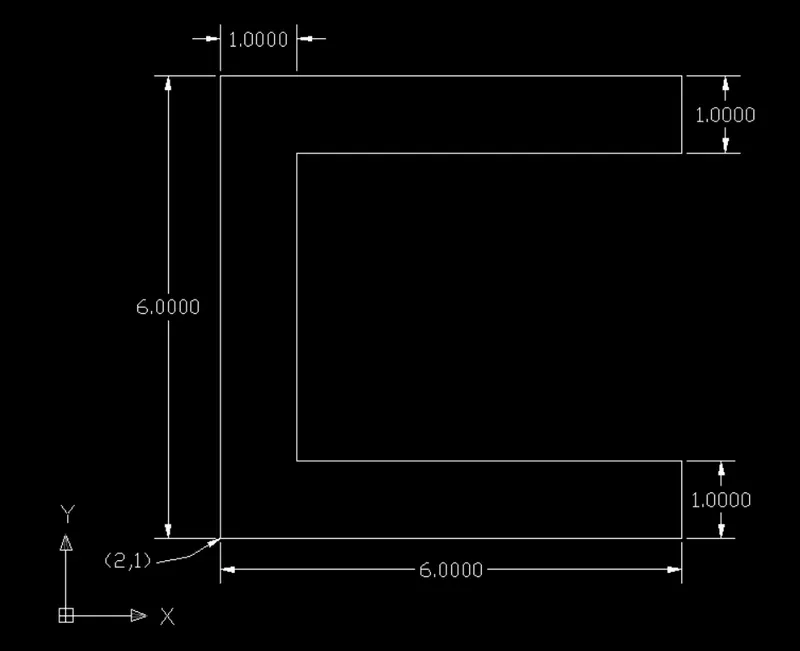
P2:
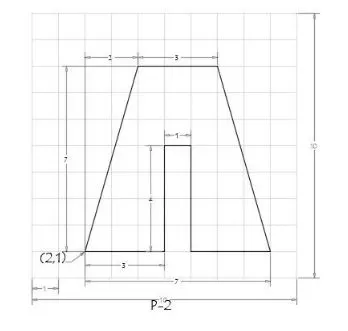
Step -1: Open AutoCAD > Start-up > 1 > Open a new file > Setup Imperial and decimal.
Step -2: Set the limits of sheet by using limits command and do drafting.
Absolute coordinate system:
- Type command “L” > mention the initial coordinate (2,1)
- Type the specify next point 2 (5,1)
- Type the specify next point 3 (5,5)
- Type the specify next point 4 (6,5)
- Type the specify next point 5 (6,1)
- Type the specify next point 6 (9,1)
- Type the specify next point 7 (7,8)
- Type the specify next point 8 (4,8)
- Click “c” to close the drawing where did you start.
Relative rectangular coordinate system:
- Type “L” line command at command line and enter (2,1) to create initial point to draw.
- Type the specify next point 2 @3,0
- Type the specify next point 3 @0,4
- Type the specify next point 4 @1,0
- Type the specify next point 5 @0,-4
- Type the specify next point 6 @3,0
- Type the specify next point 7 @-2,7
- Type the specify next point 8 @-3,0
- Type “c” close the line drawing to where we start.
Relative Polar coordinate system:
- Type “L” line command at command line and enter (2,1) to create initial point to draw.
- Type the specify next point 2 @3<0
- Type the specify next point 3 @4<90
- Type the specify next point 4 @1<0
- Type the specify next point 5 @4<270
- Type the specify next point 6 @3<0
- Type the specify next point 7 @7.2801<105.945
- Type the specify next point 8 @3<180
- Type “c” close the line drawing to where we start.
Direct distance entry system:
- Type “L” line command at command line and enter (2,1) to create initial point to draw.
- Type the specify next point 2 enter distance 3 and point cursor to +VE X-axis
- Type the specify next point 3 enter distance 4 and point cursor to +VE Y-axis
- Type the specify next point 4 enter distance 1 and point cursor to +VE X-axis
- Type the specify next point 5 enter distance 4 and point cursor to -VE Y-axis
- Type the specify next point 6 enter distance 3 and point cursor to +VE X-axis
- Type the specify next point 7 enter distance 7.2801<105.945 and point cursor to +VE Y-axis
- Type the specify next point 8 enter distance 3 and point cursor to -VE X-axis
- Type “c” close the line drawing to where we start.
Result:
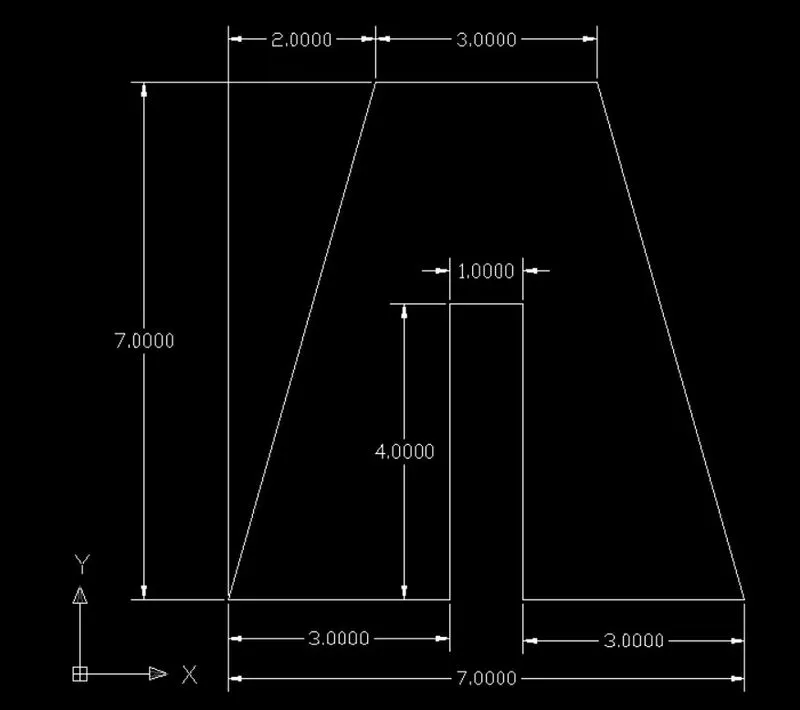
P3:
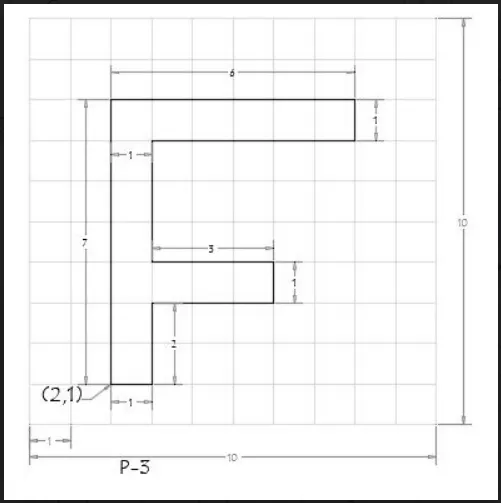
Step -1: Open AutoCAD > Start-up > 1 > Open a new file > Setup Imperial and decimal.
Step -2: Set the limits of sheet by using limits command and do drafting.
Absolute coordinate system:
- Type command “L” > mention the initial coordinate (2,1)
- Type the specify next point 2 (3,1)
- Type the specify next point 3 (3,3)
- Type the specify next point 4 (6,3)
- Type the specify next point 5 (6,4)
- Type the specify next point 6 (3,4)
- Type the specify next point 7 (3,7)
- Type the specify next point 8 (8,7)
- Type the specify next point 9 (8,8)
- Type the specify next point 10 (2,8)
- Click “c” to close the drawing where did you start.
Relative rectangular coordinate system:
- Type “L” line command at command line and enter (2,1) to create initial point to draw.
- Type the specify next point 2 @1,0
- Type the specify next point 3 @0,2
- Type the specify next point 4 @3,0
- Type the specify next point 5 @0,1
- Type the specify next point 6 @-3,0
- Type the specify next point 7 @0,3
- Type the specify next point 8 @5,0
- Type the specify next point 9 @0,1
- Type the specify next point 10 @-6,0
- Type “c” close the line drawing to where we start.
Relative Polar coordinate system:
- Type “L” line command at command line and enter (2,1) to create initial point to draw.
- Type the specify next point 2 @1<0
- Type the specify next point 3 @2<90
- Type the specify next point 4 @3<0
- Type the specify next point 5 @1<90
- Type the specify next point 6 @3<180
- Type the specify next point 7 @3<90
- Type the specify next point 8 @5<0
- Type the specify next point 9 @1<90
- Type the specify next point 10 @6<180
- Type “c” close the line drawing to where we start.
Direct distance entry system:
- Type “L” line command at command line and enter (2,1) to create initial point to draw.
- Type the specify next point 2 enter distance 1 and point cursor to +VE X-axis
- Type the specify next point 3 enter distance 2 and point cursor to +VE Y-axis
- Type the specify next point 4 enter distance 3 and point cursor to +VE X-axis
- Type the specify next point 5 enter distance 1 and point cursor to +VE Y-axis
- Type the specify next point 6 enter distance 3 and point cursor to -VE X-axis
- Type the specify next point 7 enter distance 3 and point cursor to +VE Y-axis
- Type the specify next point 8 enter distance 5 and point cursor to +VE X-axis
- Type the specify next point 9 enter distance 1 and point cursor to +VE Y-axis
- Type the specify next point 10 enter distance 6 and point cursor to -VE X-axis
- Type “c” close the line drawing to where we start.
Result:
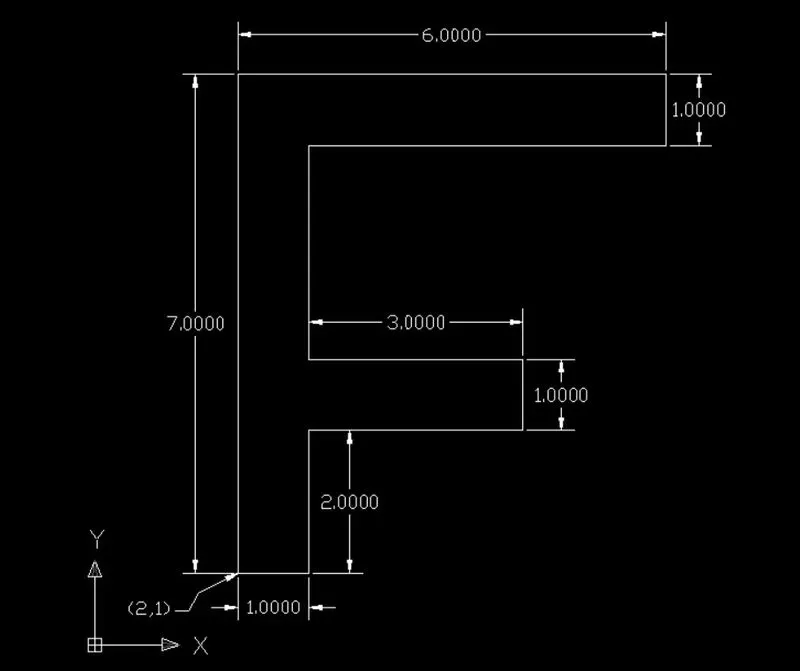
P4:
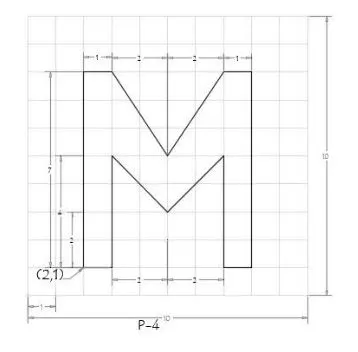
Step -1: Open AutoCAD > Start-up > 1 > Open a new file > Setup Imperial and decimal.
Step -2: Set the limits of sheet by using limits command and do drafting.
Absolute coordinate system:
- Type command “L” > mention the initial coordinate (2,1)
- Type the specify next point 2 (3,1)
- Type the specify next point 3 (3,5)
- Type the specify next point 4 (5,3)
- Type the specify next point 5 (7,5)
- Type the specify next point 6 (7,1)
- Type the specify next point 7 (8,1)
- Type the specify next point 8 (8,8)
- Type the specify next point 9 (7,8)
- Type the specify next point 10 (5,5)
- Type the specify next point 11 (3,8)
- Type the specify next point 12 (2,8)
- Click “c” to close the drawing where did you start.
Relative rectangular coordinate system:
- Type “L” line command at command line and enter (2,1) to create initial point to draw.
- Type the specify next point 2 @1,0
- Type the specify next point 3 @0,4
- Type the specify next point 4 @2,-2
- Type the specify next point 5 @2,2
- Type the specify next point 6 @0,-4
- Type the specify next point 7 @1,0
- Type the specify next point 8 @0,7
- Type the specify next point 9 @-1,0
- Type the specify next point 10 @-2,-3
- Type the specify next point 11 @-2,3
- Type the specify next point 12 @-1,0
- Type “c” close the line drawing to where we start.
Relative Polar coordinate system:
- Type “L” line command at command line and enter (2,1) to create initial point to draw.
- Type the specify next point 2 @1<0
- Type the specify next point 3 @4<90
- Type the specify next point 4 @2<315
- Type the specify next point 5 @2<45
- Type the specify next point 6 @4<270
- Type the specify next point 7 @1<0
- Type the specify next point 8 @7<90
- Type the specify next point 9 @1<180
- Type the specify next point 10 @3<236
- Type the specify next point 11 @3<135
- Type the specify next point 12 @1<180
- Type “c” close the line drawing to where we start.
Direct distance entry system:
- Type “L” line command at command line and enter (2,1) to create initial point to draw.
- Type the specify next point 2 enter distance 1 and point cursor to +VE X-axis
- Type the specify next point 3 enter distance 4 and point cursor to +VE Y-axis
- Type the specify next point 4 enter distance @2<315 and point cursor to +VE X-axis and -VE Y axis
- Type the specify next point 5 enter distance @2<45 and point cursor to +VE X-axis and +ve Y axis
- Type the specify next point 6 enter distance 4 and point cursor to -VE Y-axis
- Type the specify next point 7 enter distance 1 and point cursor to +VE X-axis
- Type the specify next point 8 enter distance 7 and point cursor to +VE Y-axis
- Type the specify next point 9 enter distance 1 and point cursor to -VE X-axis
- Type the specify next point 10 enter distance 3<236 and point cursor to -VE X-axis and -ve Y axis
- Type the specify next point 11 enter distance 3<135 and point cursor to -VE X-axis and +ve y axis
- Type the specify next point 12 enter distance 1 and point cursor to -VE X-axis
- Type “c” close the line drawing to where we start.
Result:
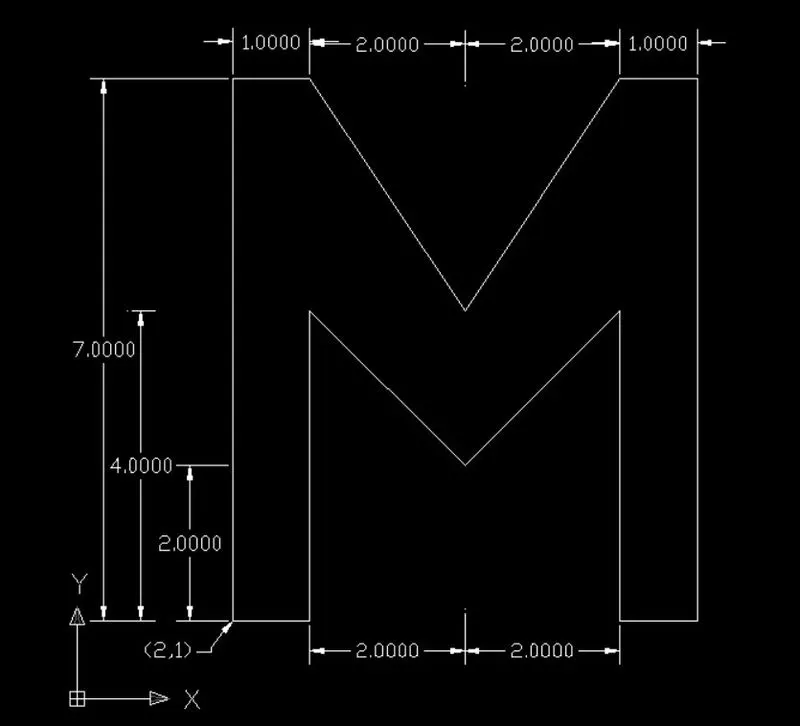
P5:
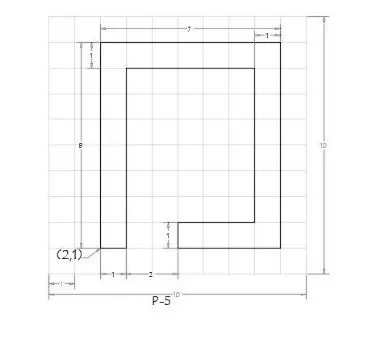
Step -1: Open AutoCAD > Start-up > 1 > Open a new file > Setup Imperial and decimal.
Step -2: Set the limits of sheet by using limits command and do drafting.
Absolute coordinate system:
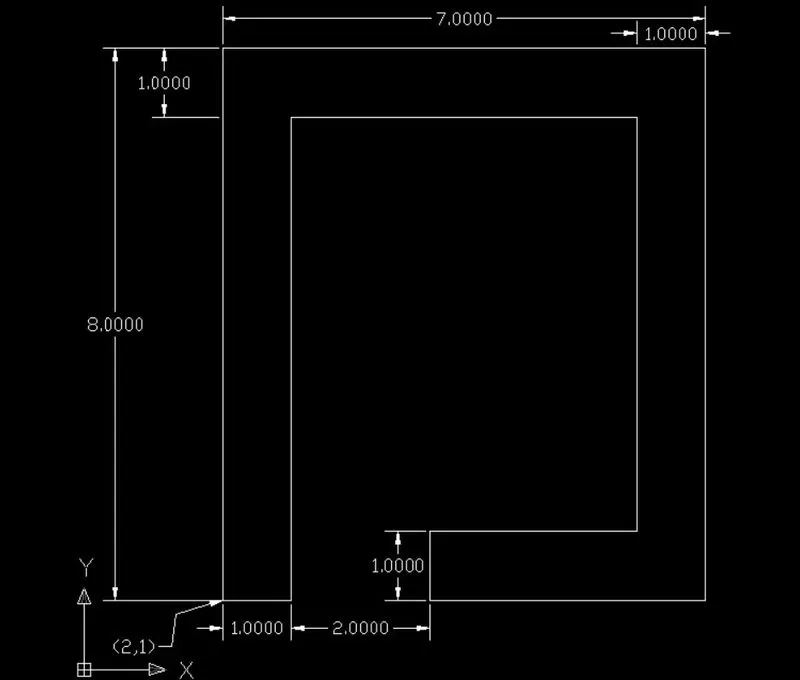
- Type command “L” > mention the initial coordinate (2,1)
- Type the specify next point 2 (3,1)
- Type the specify next point 3 (3,8)
- Type the specify next point 4 (8,8)
- Type the specify next point 5 (8,2)
- Type the specify next point 6 (5,2)
- Type the specify next point 7 (5,1)
- Type the specify next point 8 (9,1)
- Type the specify next point 9 (9,9)
- Type the specify next point 10 (2,9)
- Click “c” to close the drawing where did you start.
Relative rectangular coordinate system:
- Type “L” line command at command line and enter (2,1) to create initial point to draw.
- Type the specify next point 2 @1,0
- Type the specify next point 3 @0,7
- Type the specify next point 4 @5,0
- Type the specify next point 5 @0, -6
- Type the specify next point 6 @-3,0
- Type the specify next point 7 @0, -1
- Type the specify next point 8 @4,0
- Type the specify next point 9 @0,8
- Type the specify next point 10 @-7,0
- Type “c” close the line drawing to where we start.
Relative Polar coordinate system:
- Type “L” line command at command line and enter (2,1) to create initial point to draw.
- Type the specify next point 2 @1<0
- Type the specify next point 3 @7<90
- Type the specify next point 4 @5<0
- Type the specify next point 5 @6<270
- Type the specify next point 6 @3<180
- Type the specify next point 7 @1<270
- Type the specify next point 8 @4<0
- Type the specify next point 9 @8<90
- Type the specify next point 10 @7<180
- Type “c” close the line drawing to where we start.
Direct distance entry system:
- Type “L” line command at command line and enter (2,1) to create initial point to draw.
- Type the specify next point 2 enter distance 1 and point cursor to +VE X-axis
- Type the specify next point 3 enter distance 7 and point cursor to +VE Y-axis
- Type the specify next point 4 enter distance 5 and point cursor to +VE X-axis
- Type the specify next point 5 enter distance 6 and point cursor to -VE Y-axis
- Type the specify next point 6 enter distance 3 and point cursor to -VE X-axis
- Type the specify next point 7 enter distance 1 and point cursor to -VE Y-axis
- Type the specify next point 8 enter distance 4 and point cursor to +VE X-axis
- Type the specify next point 9 enter distance 8 and point cursor to +VE Y-axis
- Type the specify next point 10 enter distance 7 and point cursor to -VE X-axis
- Type “c” close the line drawing to where we start.
Result:
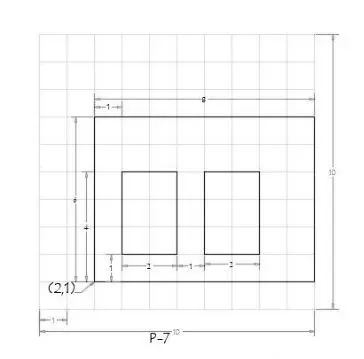
P7:
Step -1: Open AutoCAD > Start-up > 1 > Open a new file > Setup Imperial and decimal.
Step -2: Set the limits of sheet by using limits command and do drafting.
Absolute coordinate system:
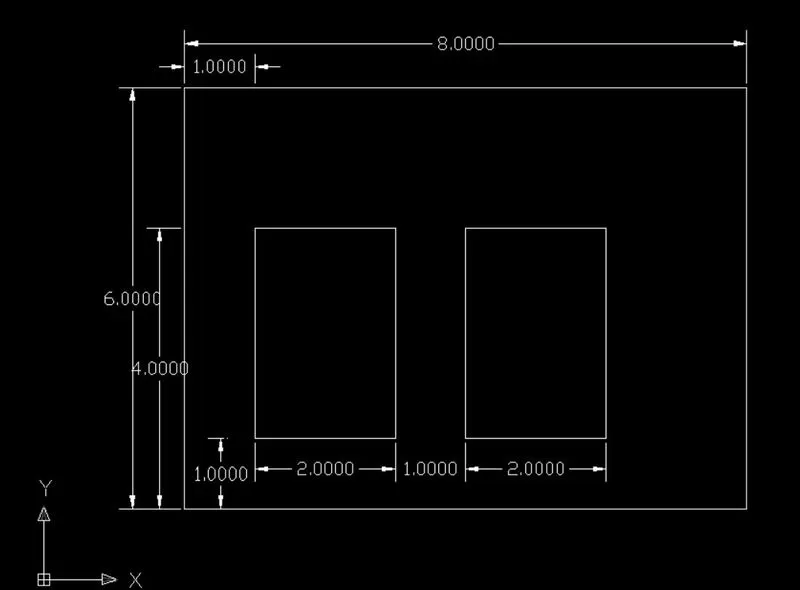
- Type command “L” > mention the initial coordinate (2,1)
- Type the specify next point 2 (10,1)
- Type the specify next point 3 (10,7)
- Type the specify next point 4 (2,7)
- Type “c” close the line tool.
- Type “L” line command to draw line and coordinate will be (3,2)
- Type the specify next point 5 (5,2)
- Type the specify next point 6 (5,5)
- Type the specify next point 7 (3,5)
- Type “c” to close the tool.
- Type “L” to open Line tool and next coordinate will be (6,2)
- Type the specify next point 8 (8,2)
- Type the specify next point 9 (8,5)
- Type the specify next point 10 (6,5)
- Click “c” to close the drawing.
Relative rectangular coordinate system:
- Type “L” line command at command line and enter (2,1) to create initial point to draw.
- Type the specify next point 2 @8,0
- Type the specify next point 3 @0,6
- Type the specify next point 4 @-8,0
- Type “c” close the tool.
- Type “L” line tool to locate next coordinate will be (3,2)
- Type the specify next point 6 @2,0
- Type the specify next point 7 @0,3
- Type the specify next point 8 @-2,0
- Type “C” close the tool where you start.
- Type “L” line tool to locate next coordinate will be (6,2)
- Type the specify next point 9 @2,0
- Type the specify next point 10 @0,3
- Type the specify next point 11 @-2,0
- Type “c” close the line drawing to where we start
Relative Polar coordinate system:
- Type “L” line command at command line and enter (2,1) to create initial point to draw.
- Type the specify next point 2 @8<0
- Type the specify next point 3 @6<90
- Type the specify next point 4 @8<180
- Type “C” close the command
- Type the specify next point 5 @2<0
- Type the specify next point 6 @3<90
- Type the specify next point 7 @2<180
- Type “C” close the command and finish where we start
- Type “L” Line tool and plot (6,2) coordinate to start next drawing
- Type the specify next point 8 @2<0
- Type the specify next point 9 @3<90
- Type the specify next point 10 @2<180
- Type “c” close the line drawing to where we start.
Direct distance entry system:
- Type “L” line command at command line and enter (2,1) to create initial point to draw.
- Type the specify next point 2 enter distance 8 and point cursor to +VE X-axis
- Type the specify next point 3 enter distance 6 and point cursor to +VE Y-axis
- Type the specify next point 4 enter distance 8 and point cursor to -VE X-axis
- Type “C” close where we start the line tool.
- Type “L” to open line tool and plot coordinate of (3,2)
- Type the specify next point 5 enter distance 2 and point cursor to +VE X-axis
- Type the specify next point 6 enter distance 3 and point cursor to +VE Y-axis
- Type the specify next point 7 enter distance 2 and point cursor to -VE X-axis
- Type “c” close the tool to where we start
- Type “L” line to plot coordinate of (6,2)
- Type the specify next point 8 enter distance 2 and point cursor to +VE X-axis
- Type the specify next point 9 enter distance 3 and point cursor to +VE Y-axis
- Type the specify next point 10 enter distance 2 and point cursor to -VE X-axis
- Type “c” close the line drawing to where we start.
Result:
P8:
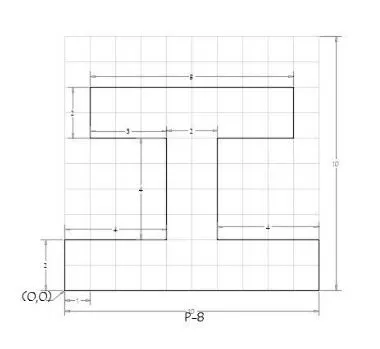
Step -1: Open AutoCAD > Start-up > 1 > Open a new file > Setup Imperial and decimal.
Step -2: Set the limits of sheet by using limits command and do drafting.
Absolute coordinate system:
- Type command “L” > mention the initial coordinate (0,0)
- Type the specify next point 2 (10,0)
- Type the specify next point 3 (10,2)
- Type the specify next point 4 (6,2)
- Type the specify next point 5 (6,6)
- Type the specify next point 6 (9,6)
- Type the specify next point 7 (9,8)
- Type the specify next point 8 (1,8)
- Type the specify next point 9 (1,6)
- Type the specify next point 10 (4,6)
- Type the specify next point 9 (4,2)
- Type the specify next point 10 (0,2)
- Click “c” to close the drawing.
Relative rectangular coordinate system:
- Type “L” line command at command line and enter (0,0) to create initial point to draw.
- Type the specify next point 2 @10,0
- Type the specify next point 3 @0,2
- Type the specify next point 4 @-4,0
- Type the specify next point 5 @0,4
- Type the specify next point 6 @3,0
- Type the specify next point 7 @0,2
- Type the specify next point 8 @-8,0
- Type the specify next point 9 @0, -2
- Type the specify next point 10 @3,0
- Type the specify next point 9 @0, -4
- Type the specify next point 10 @-4,0
- Type “c” close the line drawing to where we start.
Relative Polar coordinate system:
- Type “L” line command at command line and enter (0,0) to create initial point to draw.
- Type the specify next point 2 @10<0
- Type the specify next point 3 @2<90
- Type the specify next point 4 @4<180
- Type the specify next point 5 @4<90
- Type the specify next point 6 @3<0
- Type the specify next point 7 @2<90
- Type the specify next point 8 @8<180
- Type the specify next point 9 @2<270
- Type the specify next point 10 @3<0
- Type the specify next point 9 @4<270
- Type the specify next point 10 @4<180
- Type “c” close the line drawing to where we start.
Direct distance entry system:
- Type “L” line command at command line and enter (0,0) to create initial point to draw.
- Type the specify next point 2 enter distance 10 and point cursor to +VE X-axis
- Type the specify next point 3 enter distance 2 and point cursor to +VE Y-axis
- Type the specify next point 4 enter distance 4 and point cursor to -VE X-axis
- Type the specify next point 5 enter distance 4 and point cursor to +VE Y-axis
- Type the specify next point 6 enter distance 3 and point cursor to +VE X-axis
- Type the specify next point 7 enter distance 2 and point cursor to +VE Y-axis
- Type the specify next point 8 enter distance 8 and point cursor to -VE X-axis
- Type the specify next point 9 enter distance 2 and point cursor to -VE Y-axis
- Type the specify next point 10 enter distance 3 and point cursor to +VE X-axis
- Type the specify next point 9 enter distance 4 and point cursor to -VE Y-axis
- Type the specify next point 10 enter distance 4 and point cursor to -VE X-axis
- Type “c” close the line drawing to where we start.
Result:
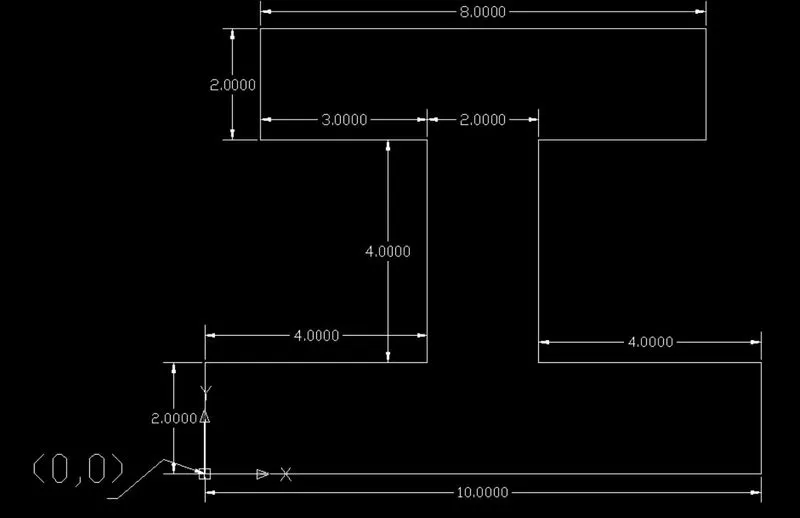
P9:
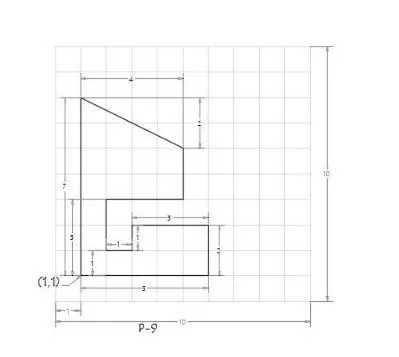
Step -1: Open AutoCAD > Start-up > 1 > Open a new file > Setup Imperial and decimal.
Step -2: Set the limits of sheet by using limits command and do drafting.
Absolute coordinate system:
- Type command “L” > mention the initial coordinate (1,1)
- Type the specify next point 2 (6,1)
- Type the specify next point 3 (6,3)
- Type the specify next point 4 (3,3)
- Type the specify next point 5 (3,2)
- Type the specify next point 6 (2,2)
- Type the specify next point 7 (2,4)
- Type the specify next point 8 (5,4)
- Type the specify next point 9 (5,6)
- Type the specify next point 10 (1,8)
- Click “c” to close the drawing.
Relative rectangular coordinate system:
- Type “L” line command at command line and enter (1,1) to create initial point to draw.
- Type the specify next point 2 @5,0
- Type the specify next point 3 @0,2
- Type the specify next point 4 @-3,0
- Type the specify next point 5 @0, -1
- Type the specify next point 6 @-1,0
- Type the specify next point 7 @0,2
- Type the specify next point 8 @3,0
- Type the specify next point 9 @0,2
- Type the specify next point 10 @-4,2
- Type “c” close the line drawing to where we start.
Relative Polar coordinate system:
- Type “L” line command at command line and enter (1,1) to create initial point to draw.
- Type the specify next point 2 @5<0
- Type the specify next point 3 @2<90
- Type the specify next point 4 @3<180
- Type the specify next point 5 @1<270
- Type the specify next point 6 @1<180
- Type the specify next point 7 @2<90
- Type the specify next point 8 @3<0
- Type the specify next point 9 @2<90
- Type the specify next point 10 @4.4721<153.435
- Type “c” close the line drawing to where we start.
Direct distance entry system:
- Type “L” line command at command line and enter (1,1) to create initial point to draw.
- Type the specify next point 2 enter distance 5 and point cursor to +VE X-axis
- Type the specify next point 3 enter distance 2 and point cursor to +VE Y-axis
- Type the specify next point 4 enter distance 3 and point cursor to -VE X-axis
- Type the specify next point 5 enter distance 1 and point cursor to +VE Y-axis
- Type the specify next point 6 enter distance 1 and point cursor to +VE X-axis
- Type the specify next point 7 enter distance 2 and point cursor to +VE Y-axis
- Type the specify next point 8 enter distance 3 and point cursor to -VE X-axis
- Type the specify next point 9 enter distance 2 and point cursor to -VE Y-axis
- Type the specify next point 10 enter distance @4.4721<153.435 and point cursor to +VE X-axis
- Type “c” close the line drawing to where we start.
Result:
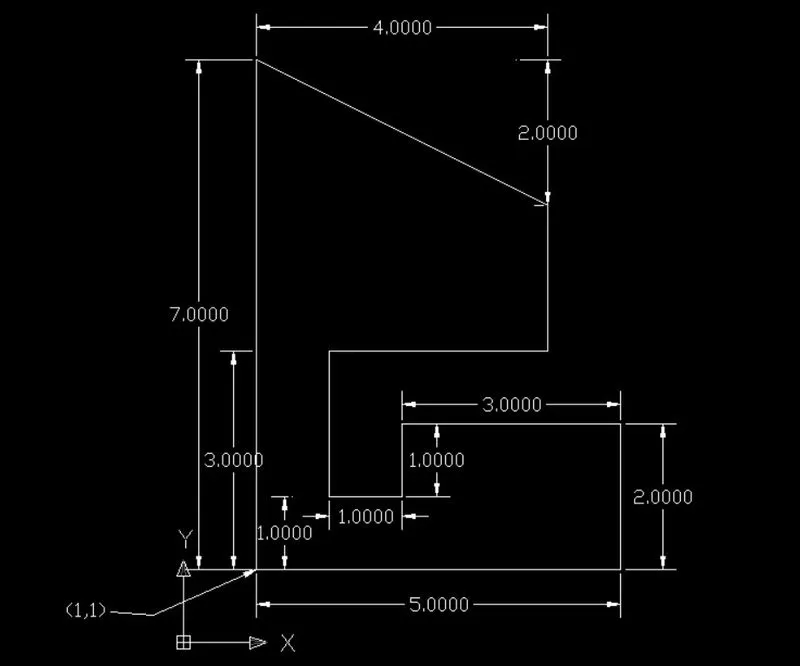
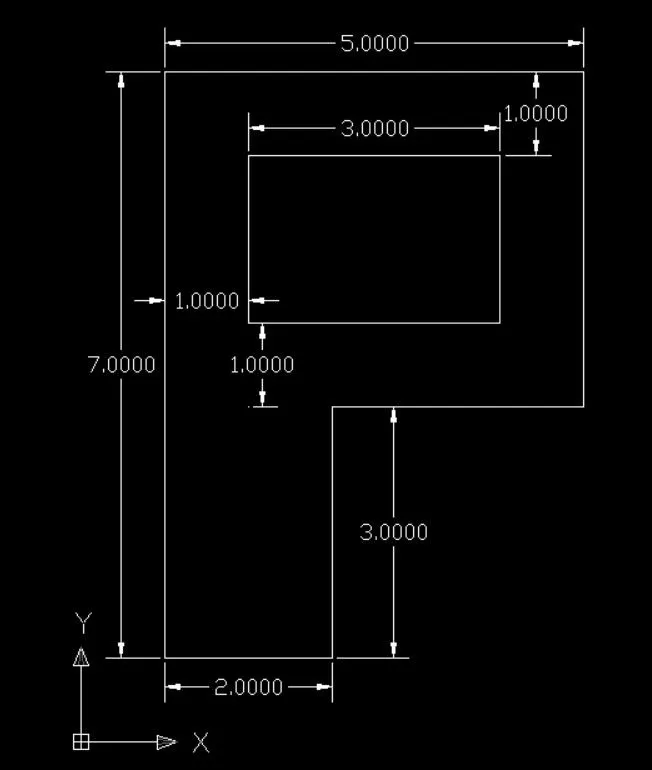
P10:
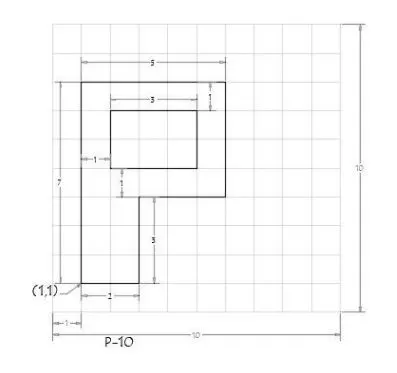
Step -1: Open AutoCAD > Start-up > 1 > Open a new file > Setup Imperial and decimal.
Step -2: Set the limits of sheet by using limits command and do drafting.
Absolute coordinate system:
- Type command “L” > mention the initial coordinate (1,1)
- Type the specify next point 2 (3,1)
- Type the specify next point 3 (3,4)
- Type the specify next point 4 (6,4)
- Type the specify next point 5 (6,8)
- Type the specify next point 6 (1,8)
- Type “c” close at where we start
- Type “L” to plot next coordinate (2,5)
- Type the specify next point 7 (5,5)
- Type the specify next point 8 (5,7)
- Type the specify next point 9 (2,7)
- Click “c” to close the drawing.
Relative rectangular coordinate system:
- Type “L” line command at command line and enter (1,1) to create initial point to draw.
- Type the specify next point 2 @2,0
- Type the specify next point 3 @0,3
- Type the specify next point 4 @3,0
- Type the specify next point 5 @0,4
- Type the specify next point 6 @-5,0
- Type “C” close the line tool.
- Type “L” to plot (2,5)
- Type the specify next point 7 @3,0
- Type the specify next point 8 @0,2
- Type the specify next point 9 @-3,0
- Type “c” close the line drawing to where we start.
Relative Polar coordinate system:
- Type “L” line command at command line and enter (1,1) to create initial point to draw.
- Type the specify next point 2 @2<0
- Type the specify next point 3 @3<90
- Type the specify next point 4 @3<0
- Type the specify next point 5 @4<90
- Type the specify next point 6 @5<180
- Type “c” close the line tool where we start
- Type “L” line to plot (2,5)
- Type the specify next point 7 @3<0
- Type the specify next point 8 @2<90
- Type the specify next point 9 @3<180
- Type “c” close the line drawing to where we start.
Direct distance entry system:
- Type “L” line command at command line and enter (1,1) to create initial point to draw.
- Type the specify next point 2 enter distance 2 and point cursor to +VE X-axis
- Type the specify next point 3 enter distance 3 and point cursor to +VE Y-axis
- Type the specify next point 4 enter distance 3 and point cursor to +VE X-axis
- Type the specify next point 5 enter distance 4 and point cursor to +VE Y-axis
- Type the specify next point 6 enter distance 5 and point cursor to -VE X-axis
- Type “C” close the line tool to complete the drawing
- Type “L” line to plot (2,5) coordinate
- Type the specify next point 7 enter distance 3 and point cursor to +VE X-axis
- Type the specify next point 8 enter distance 2 and point cursor to +VE Y-axis
- Type the specify next point 9 enter distance 3 and point cursor to -VE X-axis
- Type “c” close the line drawing to where we start.
Result:
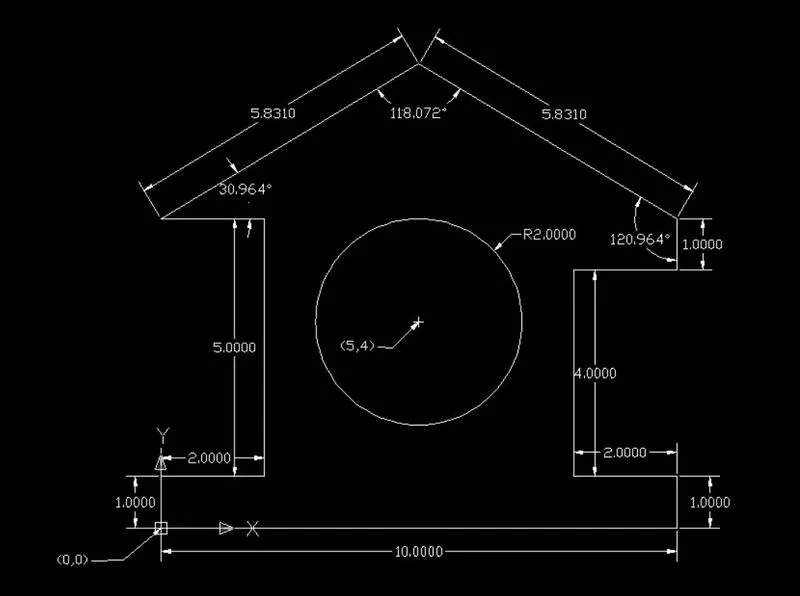
P(11)Profile Wood:
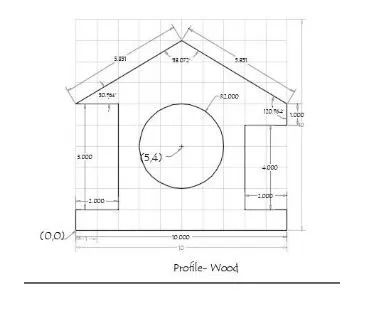
Step -1: Open AutoCAD > Start-up > 1 > Open a new file > Setup Imperial and decimal.
Step -2: Set the limits of sheet by using limits command and do drafting.
Absolute coordinate system:
- Type command “L” > mention the initial coordinate (0,0)
- Type the specify next point 2 (10,0)
- Type the specify next point 3 (10,1)
- Type the specify next point 4 (8,1)
- Type the specify next point 5 (8,5)
- Type the specify next point 6 (10,5)
- Type the specify next point 7 (10,6)
- Type the specify next point 8 (5,9)
- Type the specify next point 9 (0,6)
- Type the specify next point 10 (2,6)
- Type the specify next point 11 (2,1)
- Type the specify next point 12 (0,1)
- Type “c” close at where we start
- Type “C” circle and specify the centre coordinate for creating circle at (5,4)
- Type the radius 2 in command line and press enter.
Relative rectangular coordinate system:
- Type “L” line command at command line and enter (0,0) to create initial point to draw.
- Type the specify next point 2 @10,0
- Type the specify next point 3 @0,1
- Type the specify next point 4 @-2,0
- Type the specify next point 5 @0, 4
- Type the specify next point 6 @2,0
- Type the specify next point 7 @0,1
- Type the specify next point 8 @-5,3
- Type the specify next point 9 @-5, -3
- Type the specify next point 10 @2,0
- Type the specify next point 9 @0, -5
- Type the specify next point 10 @-2,0
- Type “c” close the line drawing to where we start.
- Type “C” circle command and to plot circle with centre coordinate of (5,4)
- Type radius 2 in command line and press enter.
Relative Polar coordinate system:
- Type “L” line command at command line and enter (0,0) to create initial point to draw.
- Type the specify next point 2 @10<0
- Type the specify next point 3 @1<90
- Type the specify next point 4 @2<180
- Type the specify next point 5 @4<90
- Type the specify next point 6 @2<0
- Type the specify next point 7 @1<90
- Type the specify next point 8 @5.831<149.036
- Type the specify next point 9 @5.831<210.964
- Type the specify next point 10 @2<0
- Type the specify next point 11 @5<270
- Type the specify next point 12 @2<180
- Type “c” close the line tool where we start
- Type “C” circle command and to plot circle with centre coordinate of (5,4)
- Type radius 2 in command line and press enter.
Direct distance entry system:
- Type “L” line command at command line and enter (0,0) to create initial point to draw.
- Type the specify next point 2 enter distance 10 and point cursor to +VE X-axis
- Type the specify next point 3 enter distance 1 and point cursor to +VE Y-axis
- Type the specify next point 4 enter distance 2 and point cursor to -VE X-axis
- Type the specify next point 5 enter distance 4 and point cursor to +VE Y-axis
- Type the specify next point 6 enter distance 1 and point cursor to +VE X-axis
- Type the specify next point 7 enter distance 5.831<149.036 and point cursor to -VE X-axis and +VE Y-axis
- Type the specify next point 8 enter distance 5.831<210.964 and point cursor to -VE X-axis and -VE Y-axis
- Type the specify next point 9 enter distance 2 and point cursor to +VE X-axis
- Type the specify next point 9 enter distance 5 and point cursor to -VE Y-axis
- Type the specify next point 9 enter distance 2 and point cursor to -VE X-axis
- Type “C” close the line tool to complete the drawing
- Type “C” circle command and to plot circle with centre coordinate of (5,4)
- Type radius 2 in command line and press enter.
Result:
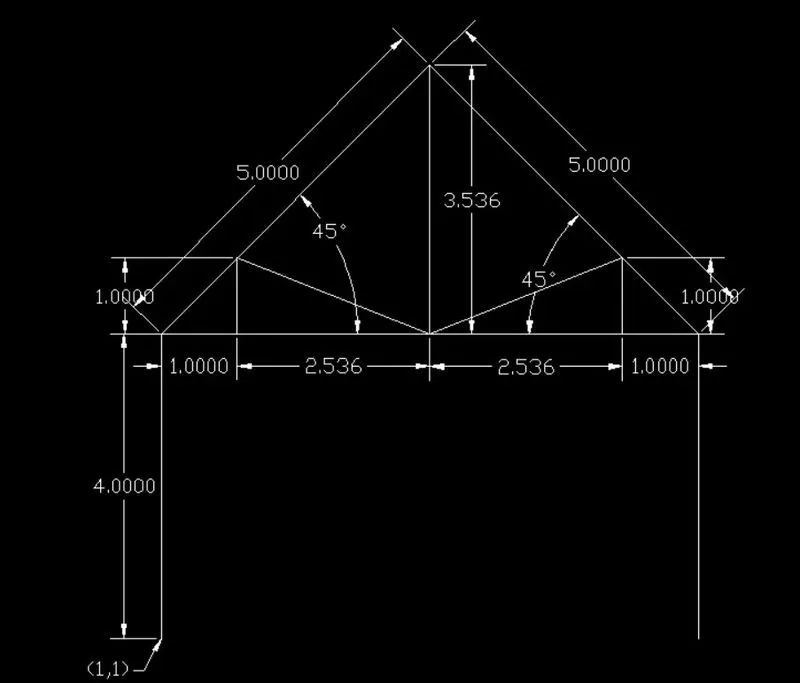
P(12) Queen Post Truss:
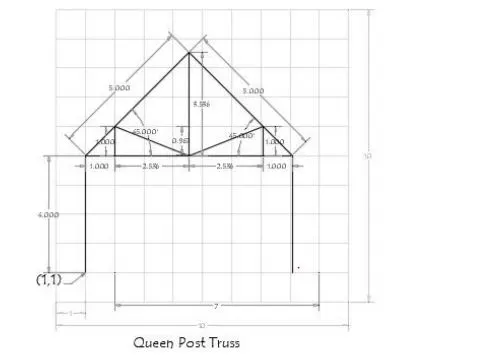
Step -1: Open AutoCAD > Start-up > 1 > Open a new file > Setup Imperial and decimal.
Step -2: Set the limits of sheet by using limits command and do drafting.
Absolute coordinate system:
- Type command “L” > mention the initial coordinate (1,1)
- Type the specify next point 2 (1,5)
- Type the specify next point 3 (4.536,8.536)
- Type the specify next point 4 (8.072,5)
- Type the specify next point 5 (8.072,1)
- Type Enter to close the line tool
- Type “L” command to plot coordinate of (4.536,8.536)
- Type the specify next point 6 (4.536,5)
- Type the specify next point 7 (2,6)
- Type the specify next point 8 (2,5)
- Type the specify next point 9 (1,5)
- Type the specify next point 10 (4.536,5)
- Type the specify next point 11 (7.072,6)
- Type the specify next point 12 (7.072,5)
- Type the specify next point 12 (8.072,5)
- Type the specify next point 13 (4.536,5)
- Type “c” close at where we start.
Relative rectangular coordinate system:
- Type “L” line command at command line and enter (1,1) to create initial point to draw.
- Type the specify next point 2 @0,4
- Type the specify next point 3 @3.536,3.536
- Type the specify next point 4 @3.536, -3.536
- Type the specify next point 5 @0, -4
- Type Enter to close the line tool
- Type “L” command to plot coordinate of (1,5)
- Type the specify next point 6 @1,0
- Type the specify next point 7 @0,1
- Type the specify next point 8 @2.536, -1
- Type the specify next point 9 @2.536,1
- Type the specify next point 10 @0, -1
- Type the specify next point 9 @1,0
- Type Enter to close the line tool
- Type “L” command to plot coordinate of (7.072,5)
- Type the specify next point 10 @-5.072,0
- Type Enter to close the line tool
- Type “L” command to plot coordinate of (4.536,5)
- Type the specify next point 10 @0,3.536
- Type “c” close the line drawing to where we start.
Relative Polar coordinate system:
- Type “L” line command at command line and enter (1,1) to create initial point to draw.
- Type the specify next point 2 @4<90
- Type the specify next point 3 @5<45
- Type the specify next point 4 @5<315
- Type the specify next point 5 @4<270
- Type Enter to close the line tool
- Type “L” command to plot coordinate of (1,5)
- Type the specify next point 6 @1<0
- Type the specify next point 7 @1<90
- Type the specify next point 8 @2.726<338.480
- Type the specify next point 9 @2.726<21.520
- Type the specify next point 10 @1<270
- Type the specify next point 11 @1<0
- Type Enter to close the line tool
- Type “L” command to plot coordinate of (4.536,8.536)
- Type the specify next point 13 @3.536<270
- Type the specify next point 14 @2.536<180
- Type the specify next point 15 @5.072<0
- Type “c” close the line tool where we start
Direct distance entry system:
- Type “L” line command at command line and enter (1,1) to create initial point to draw.
- Type the specify next point 2 enter distance 4 and point cursor to +VE Y-axis
- Type the specify next point 3 enter distance 5 and point cursor to +VE Y-axis and +VE X-axis
- Type the specify next point 4 enter distance 5 and point cursor to +VE X-axis and -VE Y-axis
- Type the specify next point 5 enter distance 4 and point cursor to -VE Y-axis
- Type Enter to close the line tool
- Type “L” command to plot coordinate of (1,5)
- Type the specify next point 6 enter distance 1 and point cursor to +VE X-axis
- Type the specify next point 6 enter distance 1 and point cursor to +VE Y-axis
- Type the specify next point 7 enter distance 2.726<338.480 and point cursor to +VE X-axis and -VE Y-axis
- Type the specify next point 8 enter distance 2.726<21.520 and point cursor to +VE X-axis and +VE Y-axis
- Type the specify next point 9 enter distance 1 and point cursor to -VE Y-axis
- Type the specify next point 9 enter distance 1 and point cursor to +VE X-axis
- Type Enter to close the line tool
- Type “L” command to plot coordinate of (4.536,8.536)
- Type the specify next point 9 enter distance 3.536 and point cursor to -VE Y-axis
- Type the specify next point 9 enter distance 2.536 and point cursor to -VE X-axis
- Type the specify next point 9 enter distance 5.072 and point cursor to +VE X-axis
- Type “C” close the line tool to complete the drawing
Result:
P(13) Mono pitch:
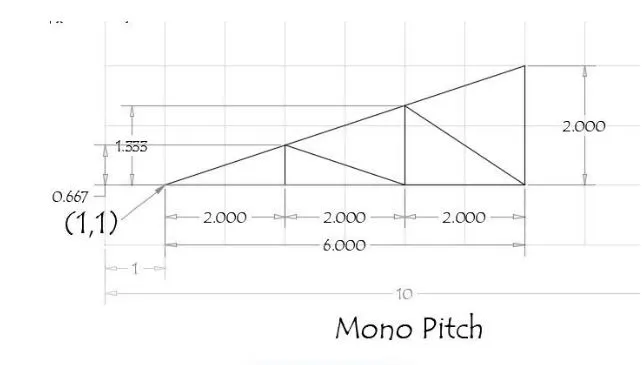
Step -1: Open AutoCAD > Start-up > 1 > Open a new file > Setup Imperial and decimal.
Step -2: Set the limits of sheet by using limits command and do drafting.
Absolute coordinate system:
- Type command “L” > mention the initial coordinate (1,1)
- Type the specify next point 2 (7,1)
- Type the specify next point 3 (7,3)
- Type “C” to close where we start the line.
- Type “L” command to plot (3,1)
- Type the specify next point 4 (3,1.6667)
- Type “C” to close where we start the line.
- Type “L” command to plot (5,1)
- Type the specify next point 5 (5,2.3333)
- Type Enter to close the line tool
Relative rectangular coordinate system:
- Type “L” line command at command line and enter (1,1) to create initial point to draw.
- Type the specify next point 2 @6,0
- Type the specify next point 3 @0,2
- Type Enter to close the line tool
- Type “L” command to plot coordinate of (3,1)
- Type the specify next point 4 @0,0.6667
- Type Enter to close the line tool
- Type “L” command to plot coordinate of (5,1)
- Type the specify next point 4 @0,1.3333
- Type Enter to close the line tool
Relative Polar coordinate system:
- Type “L” line command at command line and enter (1,1) to create initial point to draw.
- Type the specify next point 2 @6<0
- Type the specify next point 3 @2<90
- Type Enter to close the line tool
- Type “L” command to plot coordinate of (3,1)
- Type the specify next point 4 @0.6667<90
- Type Enter to close the line tool
- Type “L” command to plot coordinate of (5,1)
- Type the specify next point 5 @1.3333<90
- Type Enter to close the line tool
Direct distance entry system:
- Type “L” line command at command line and enter (1,1) to create initial point to draw.
- Type the specify next point 2 enter distance 6 and point cursor to +VE X-axis
- Type the specify next point 3 enter distance 2 and point cursor to +VE Y-axis
- Type Enter to close the line tool
- Type “L” command to plot coordinate of (3,1)
- Type the specify next point 4 enter distance 0.6667 and point cursor to +VE Y-axis
- Type Enter to close the line tool
- Type “L” command to plot coordinate of (5,1)
- Type the specify next point 5 enter distance 1.3333 and point cursor to +VE Y-axis
- Type Enter to close the line tool.
Result:
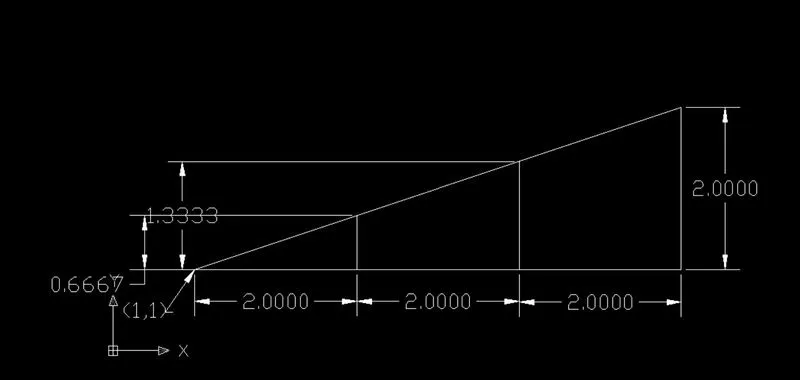
Conclusion:
These above all drawings are prepared with respect to all coordinate methods by using AutoCAD.