Creation of Column Schedule and Drawing Template using AutoCad
AIM:-
To create Column Schedule and Drawing Template using AutoCAD
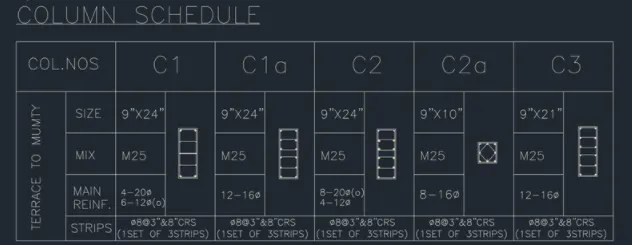
PART 1: Creating a column schedule
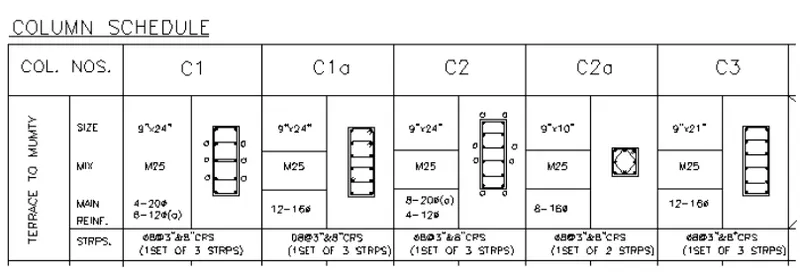
Procedure:
- Command: REC
RECTANG
Specify first corner point or [Chamfer/Elevation/Fillet/Thickness/Width]: 0,0
Specify other corner point or [Area/Dimensions/Rotation]: @60',20' - Command: EXPLODE
Select objects: Specify opposite corner: 1 found
Enter
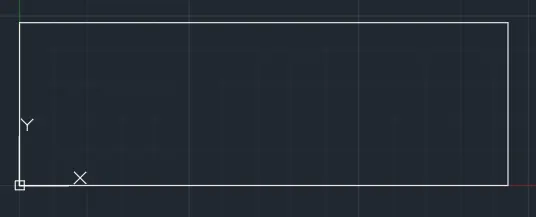
- After this using OFFSET & TRIM option make the table.
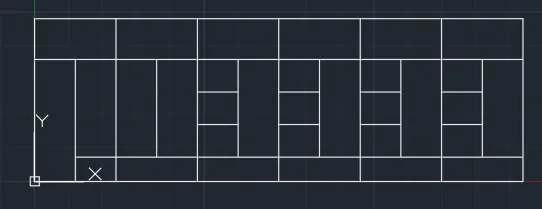
- Enter ST in Command box
- Select font name and height and click ok.
- Click ANNOTATION TAB and select SINGLE LINE in the ribbon.
- Write all text.
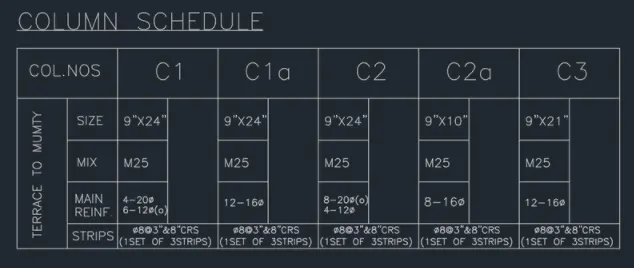
- Using LINE, CIRCLE, RECTANGLE, EXPLODE, FILLET, HATCH & OFFSET commands, create C1, C1a, C2, C2a & C3 COLUMN as per the plan given.
C1 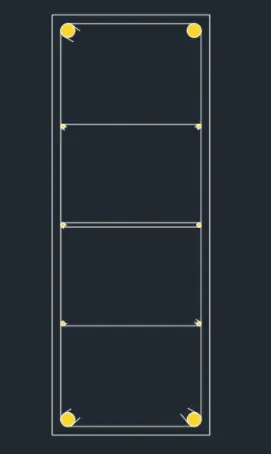
C1a 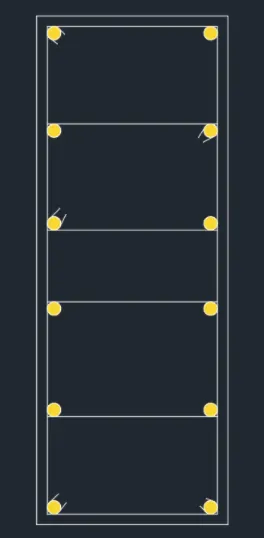
C2 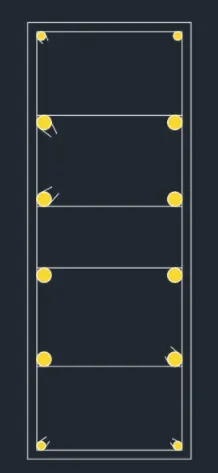
C2a 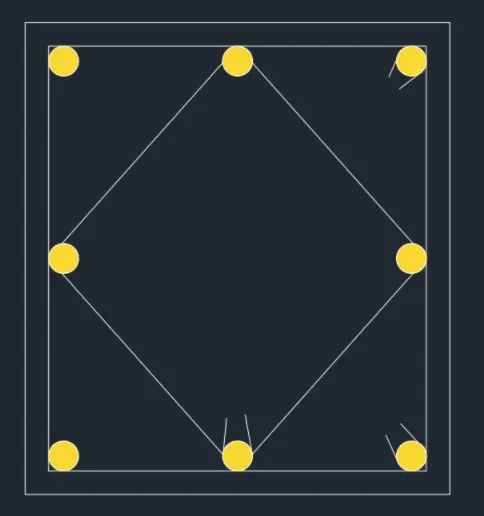
C3
RESULT:-
PART 2: Creating a window schedule as shown in the figures
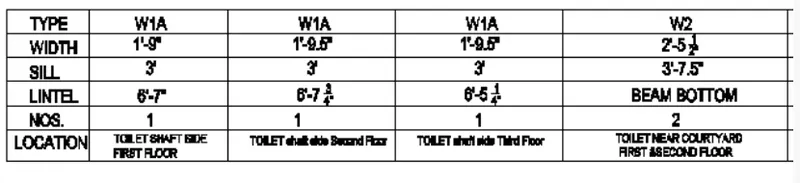
Procedure:
- Using rectangle explode offset circle fillet line hatch option
- Type REC in the Command box to create a rectangle of length 30' and width 12'.
- Type EXPLODE in the Command box and press enter after choosing the rectangle.
- Type O in the Command box for OFFSET. choose offset distance & create the Table.
- Type ST in the Command box for TEXT STYLE. choose font style as roman. Choose height as 8".
- Type MT TEXT and create all the text.
RESULT:-
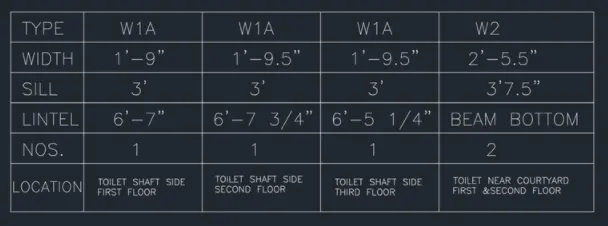
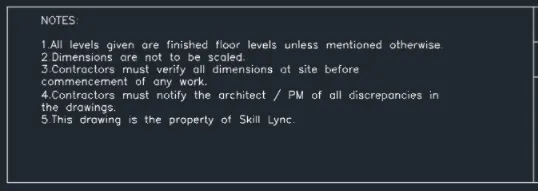
PART 3: Creating the drawing template as shown in the figure
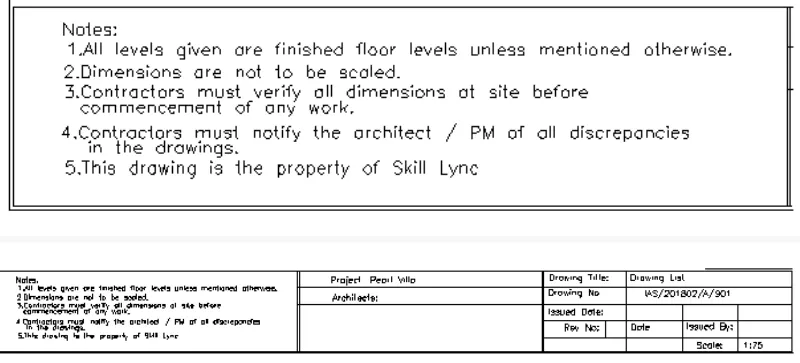
Procedure:
- Using rectangle explode offset circle fillet line hatch option
- Type REC in the Command box to create a rectangle of length 80' and width 10'.
- Type EXPLODE in the Command box and press enter after choosing the rectangle.
- Type O in the Command box for OFFSET. choose offset distance & create the Table.
- Type ST in the Command box for TEXT STYLE. choose font style as roman. Choose height as 8".
- Type MT TEXT and create all the text.
RESULT:-

PART 4: Creating the list of drawing schedule as shown in the figure
Procedure:
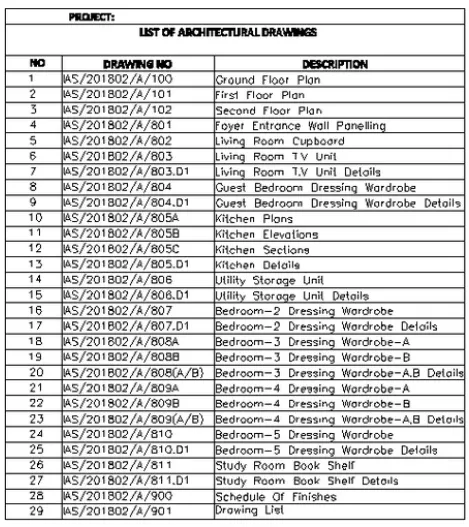
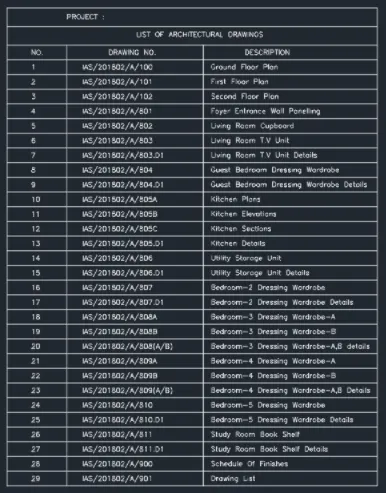
- Type TABLE in the Command box to create a TABLE.
- Specify 32 rows of the table.
- Specify 3 columns of the table.
- Specify 2 rows for the title.
- Then click ok.
- By clicking on table property choose table dimensions as per requirement.
- Type ST in the Command box for TEXT STYLE. choose font style as roman. Choose height as 8".
- Type MT TEXT and create all the text.
RESULT:-
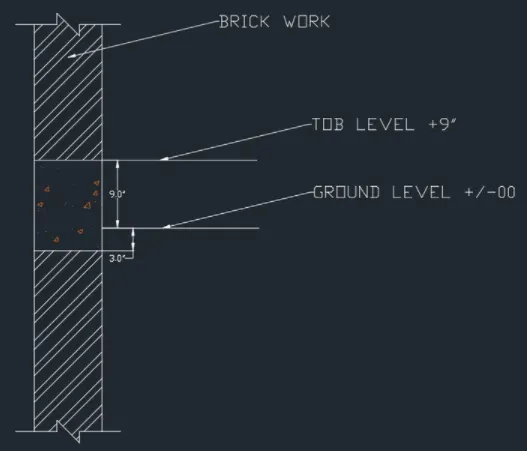
PART 5: Creating the Beam detail as shown in the figure
Procedure:
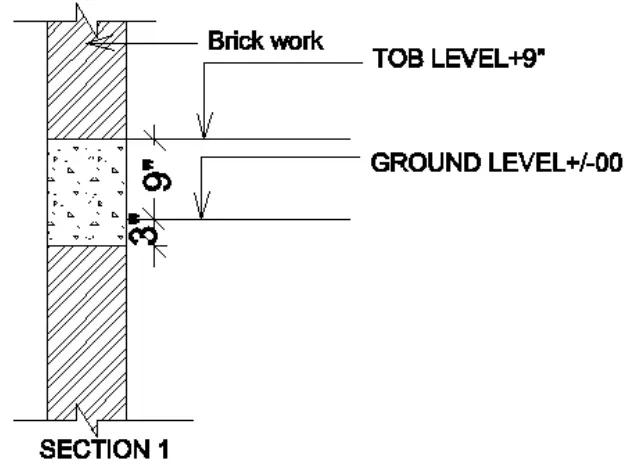
- Command: _line
Specify first point:
Specify next point or [Undo]: 3'
Specify next point or [Undo]: 6"
Specify next point or [Close/Undo]: 3'
Specify next point or [Close/Undo]: C - Type O in the Command box for OFFSET. choose offset distance 2' and after this 1' offset.
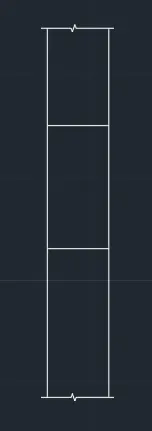
- Type H in the Command box for HATCH.
- Click on STEEL PATTERN in RIBBON.
- Select the upper and lower rectangle.
- Type H in the Command box for HATCH.
- Click on AR-CONC PATTERN in RIBBON.
- Select middle rectangle.

- Type ST in the Command box for TEXT STYLE. choose font style as roman. Choose height as 8".
- Type MT TEXT and create all the text.
- Add LEADER and type text.
- Give the dimension as per fig.
RESULT:-
CONCLUSION:-
All result of each drawing has been attached which was taken from AutoCAD