Creation of Column Schedule and Drawing Template using AutoCad
1.Aim:
To Create a Column Schedule by using Auto Cad.
INtroduction:
- To Create a Column Schedule by using a Dtext
- Now we see the Step by Step Producre to Create a Text.
Column Schedule:
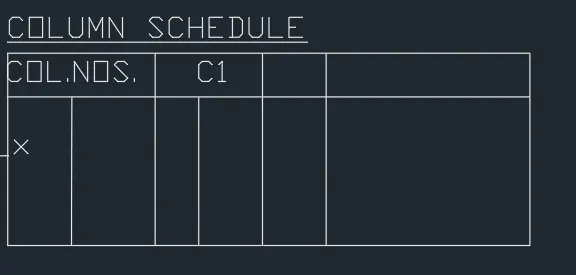
- we create a column schedule with the help of lines.
- Also insert text with help of Dtext command or Single Line text.
- Use the Fornt name:Romans;height:8",and justify Left
- First create a tabular column to type the name
- Click "DTEXT" command to create the text.
- And type the text as per dimension.
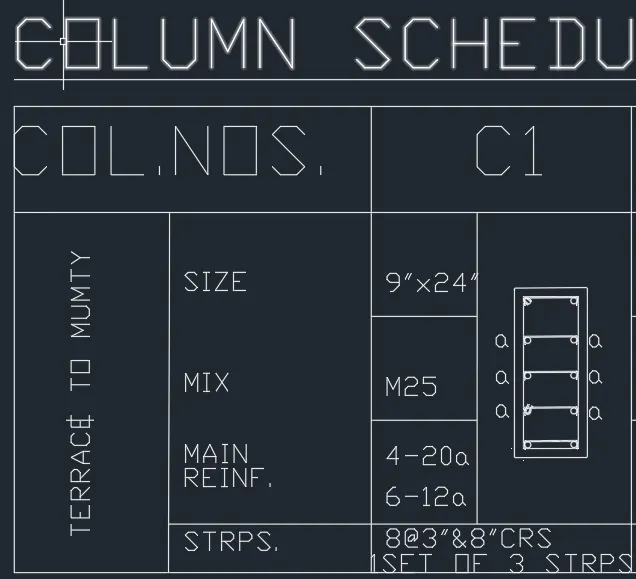
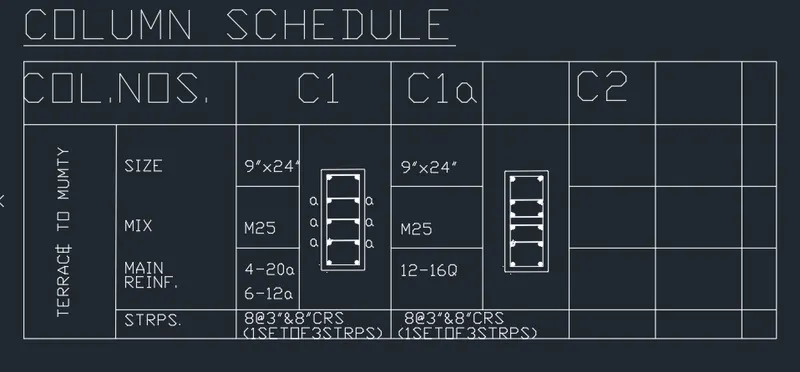
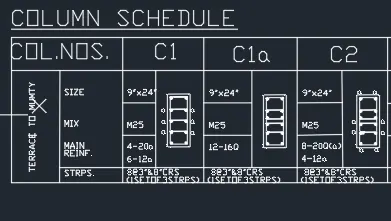
- Then draw the column reinforcement details as per given diagram
- Draw the column "circle" command used to create.
- Then draw the stripus Line & Fillet command used to draw.
- Then "HATCH" command used to hatch the circle.
- And Click "SAVE"command to save the Text.
- Finally we SNIPPING TOOL to screenshot the drawing.

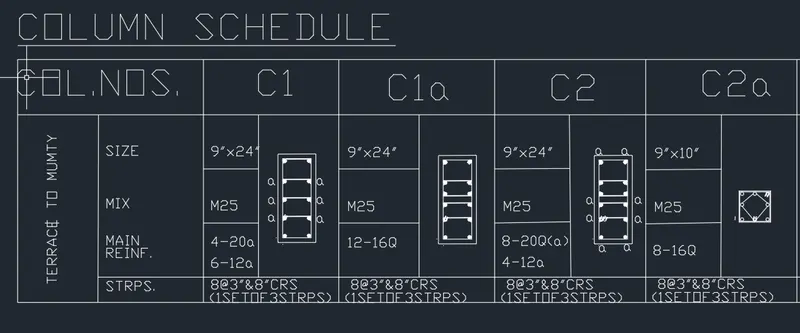
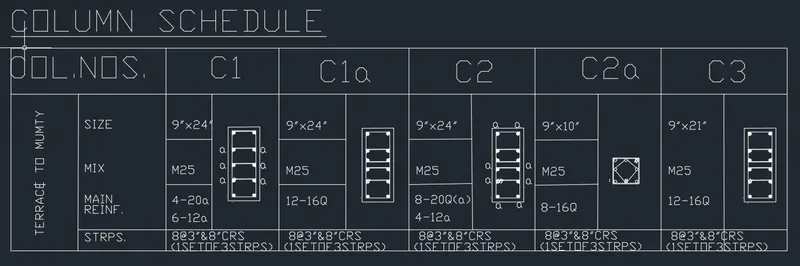
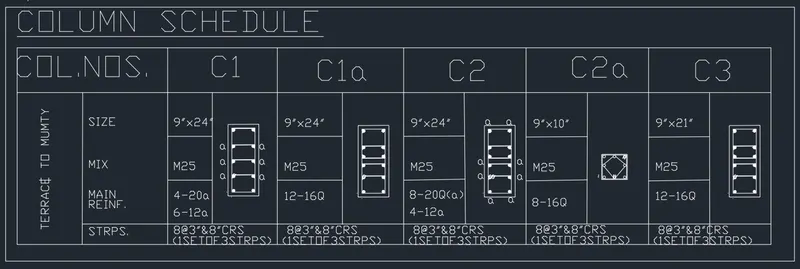
RESULT:
In this Challenge we learn to create a column schedule with the help using various command.
2.AIM:
To Create a Window Schedule in auto cad.
INtroduction:
- To Create a Window Schedule by using a Dtext.
- Now we see the Step by Step Producre to Create a Text.
Window Schedule:
- We create a Window schedule with the help of lines.
- Also insert text with help of Dtext command or Single Line text.
- Use the Fornt name:Romans;height:8",and justify Left
- First create a tabular column to type the name
- Click "DTEXT" command to create the text.
- And type the text as per dimension.
- And Click "SAVE"command to save the Text.
- Finally we SNIPPING TOOL to screenshot the drawing.

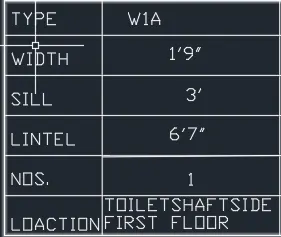
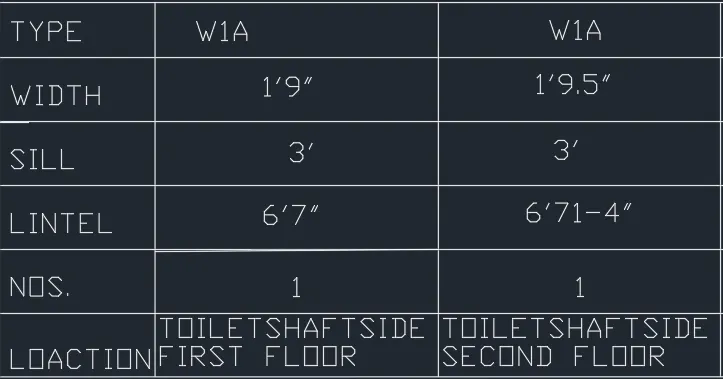
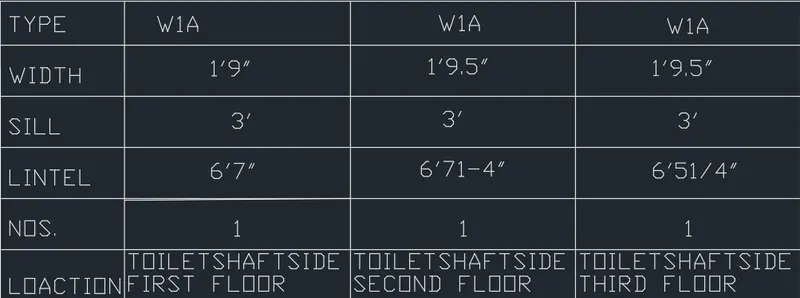
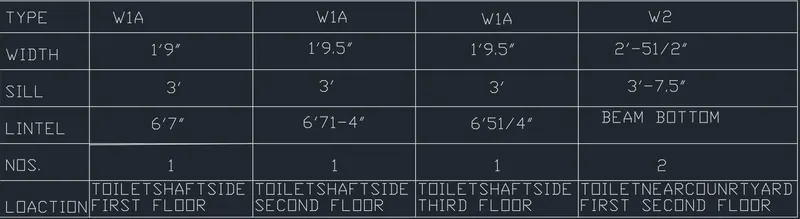
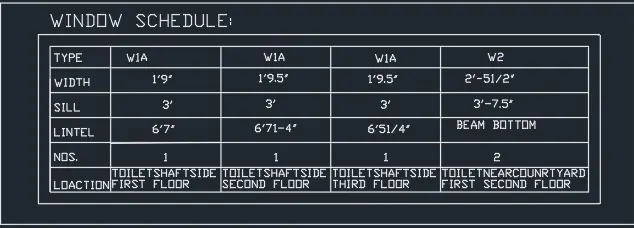
RESULT:
In this Challenge we learn to create a Window schedule with the help using various command.
3.AIM:
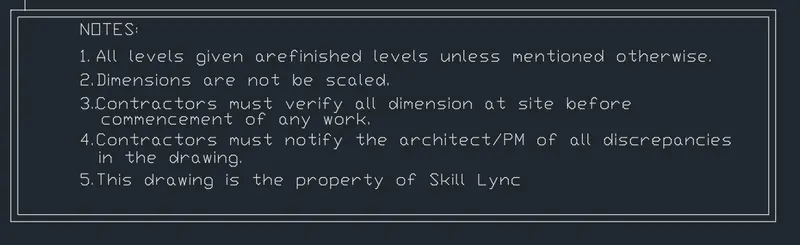
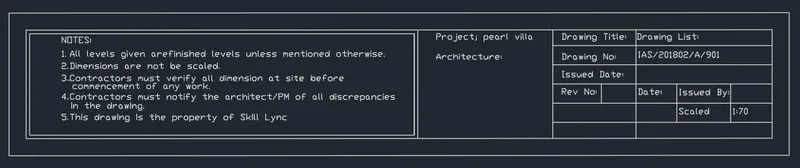
To Create a Drawing template in auto cad.
INtroduction:
- To Create a Drawing template by using a Dtext.
- Now we see the Step by Step Producre to Create a Text.
Window Schedule:
- We create a Drawing template with the help of lines.
- Also insert text with help of Dtext command or Single Line text.
- Use the Fornt name:Romans;height:5",and justify Left
- First create a tabular column to type the name
- Click "DTEXT" command to create the text.
- And type the text as per dimension.
- And Click "SAVE"command to save the Text.
- Finally we SNIPPING TOOL to screenshot the drawing.
RESULT:
In this Challenge we learn to create a Drawing template with the help using various command.
4.AIM:
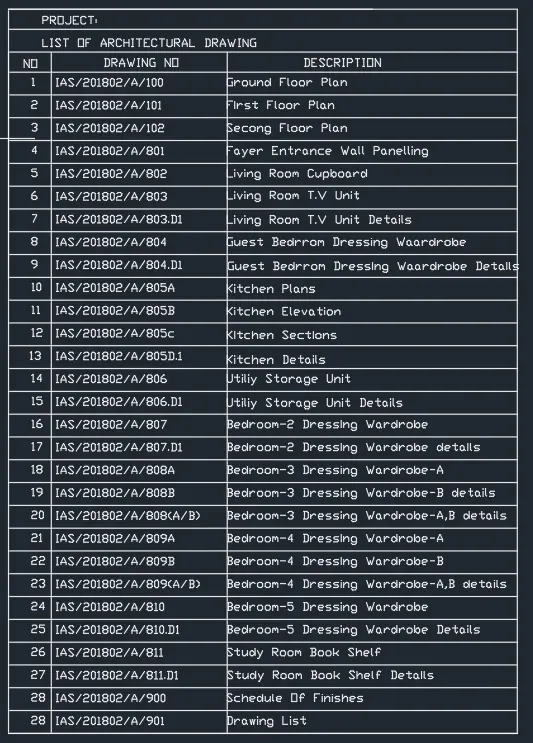
To Create a List of drawing schedule in auto cad.
INtroduction:
- To Create a List of drawing schedule by using a Dtext.
- Now we see the Step by Step Producre to Create a Text.
List of drawing schedule:
- We create a List of drawing schedule with the help of lines.
- Also insert text with help of Dtext command or Single Line text.
- Use the Fornt name:Romans;height:5",and justify Left
- First create a tabular column to type the name.
- Click "DTEXT" command to create the text.
- Click "ARRAY" command to drag the line upto 29 easy to draw.
- And type the text as per dimension.
- And Click "SAVE"command to save the Text.
- Finally we "SNIPPING TOOL" to screenshot the drawing.
RESULT:
In this Challenge we learn to create a List of drawing schedule with the help using various command.
5.AIM:
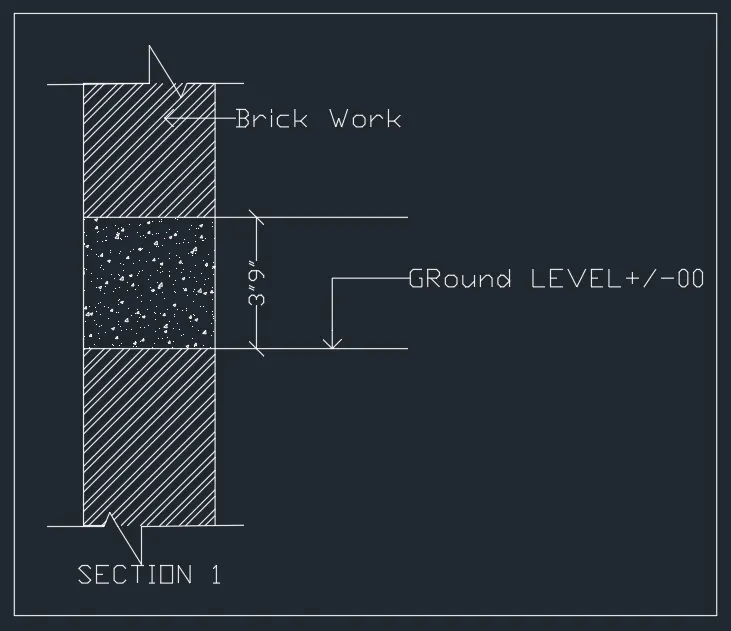
To Create a Beam detail in auto cad.
INtroduction:
- To Create a Beam detail by using a Dtext.
- Now we see the Step by Step Producre to Create a Text.
Beam detail:
- We create a List of drawing schedule with the help of lines.
- Also insert text with help of Dtext command or Single Line text.
- Use the Fornt name:Romans;height:5",and justify Left
- First create a tabular column to type the name.
- Click "DTEXT" command to create the text.
- Click "Hatch" command to for the beam and section for thre concrete member.
- Click "LEADER"command for type text for Top level and Ground level.
- And type the text as per dimension.
- And Click "SAVE"command to save the Text.
- Finally we "SNIPPING TOOL" to screenshot the drawing.

RESULT:
In this Challenge we learn to create a Beam detail with the help using various command.