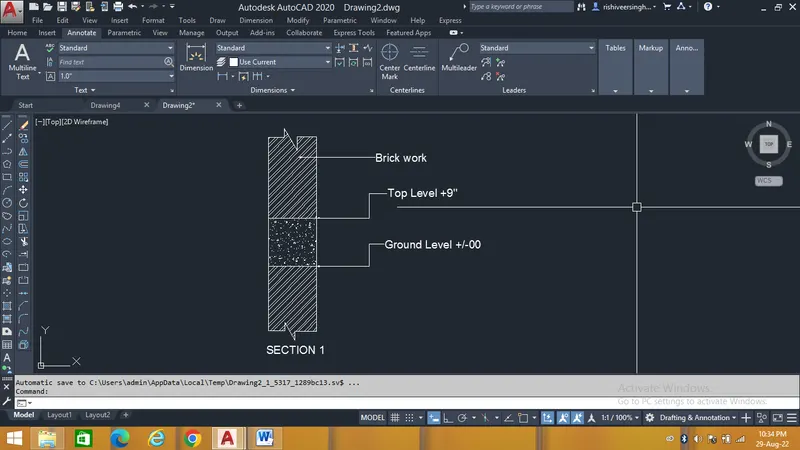
Creation of Column Schedule and Drawing Template using AutoCad
1. Column Shedule
Aim - The purpose of the challenge is to create the column shedule by using diffrent geometric tools and text command to enhance my Autocad learing.
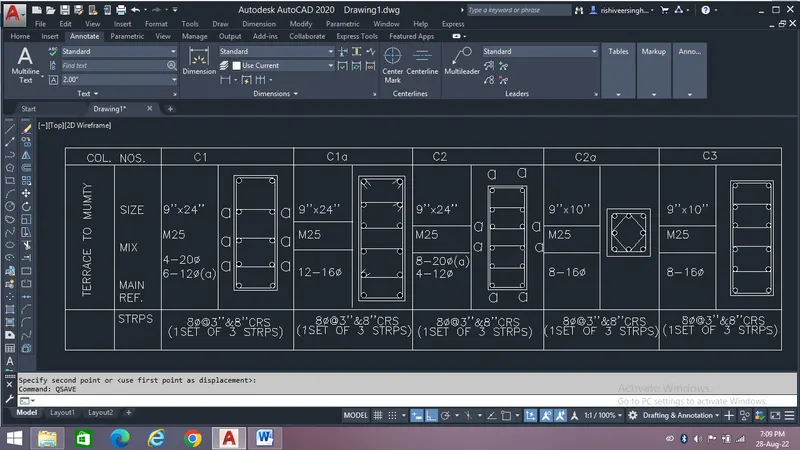
Procedure - The first step is to select the rectangle tool and create a column of given size.
Next step is to create the stirupps by using line and fillet command.
With the help of text command write the details aas shown in the figure.
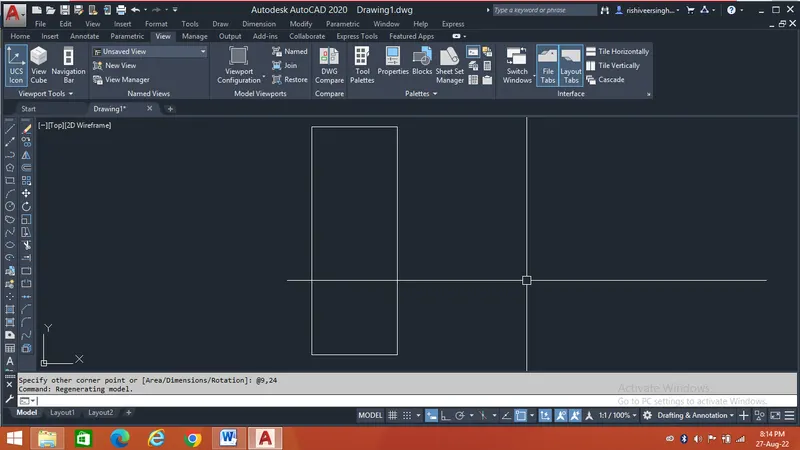
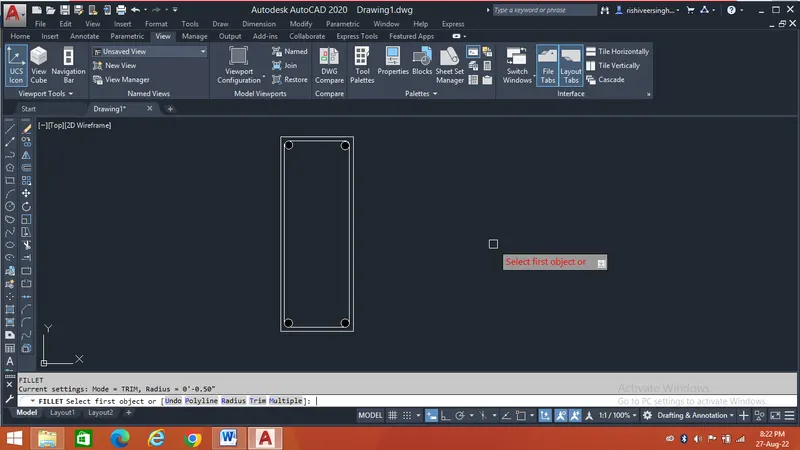
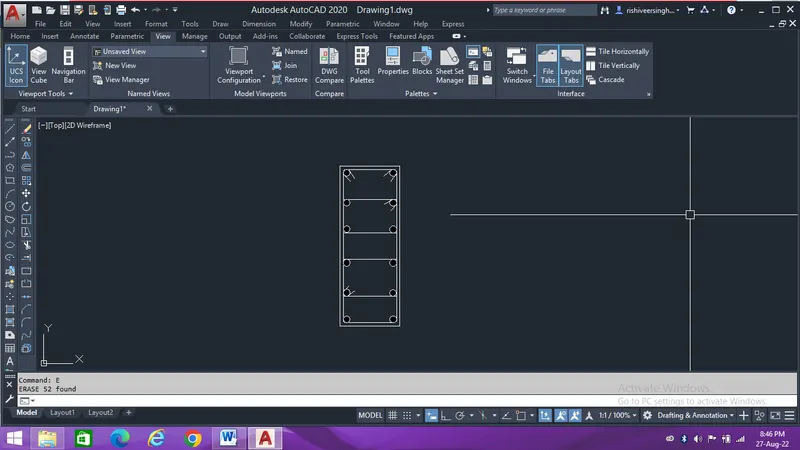
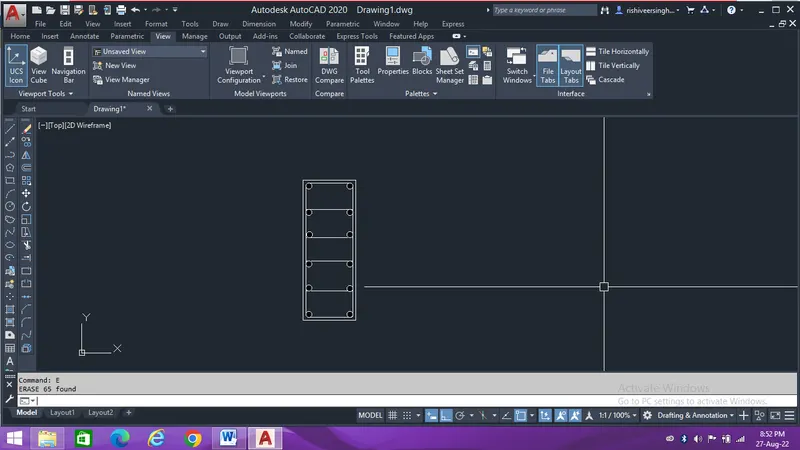
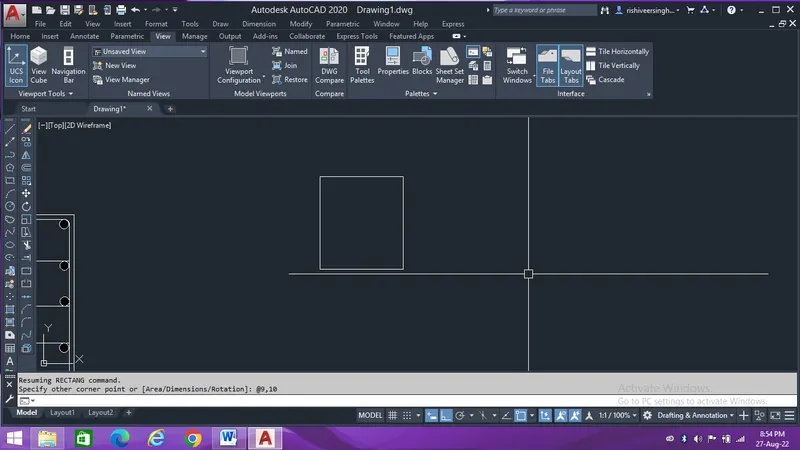
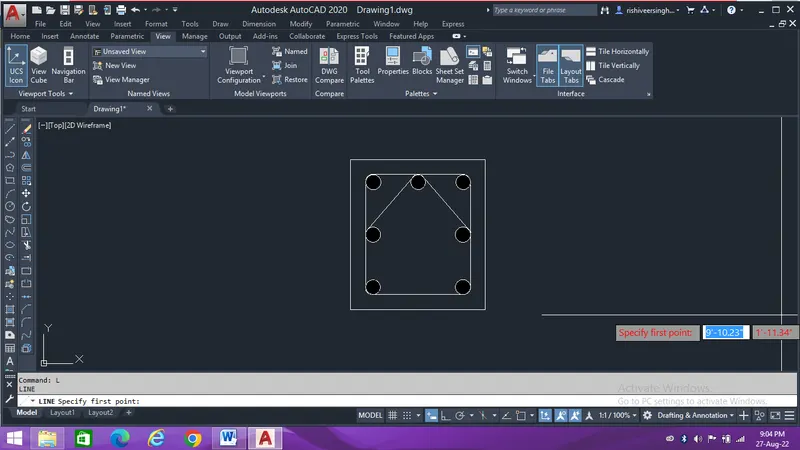
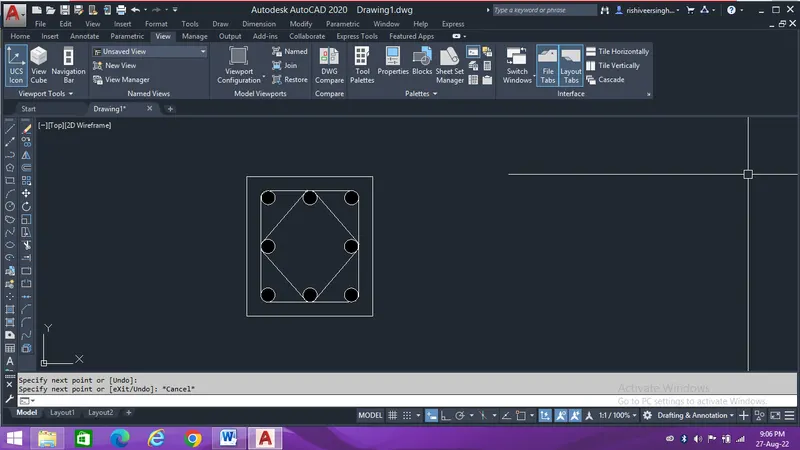
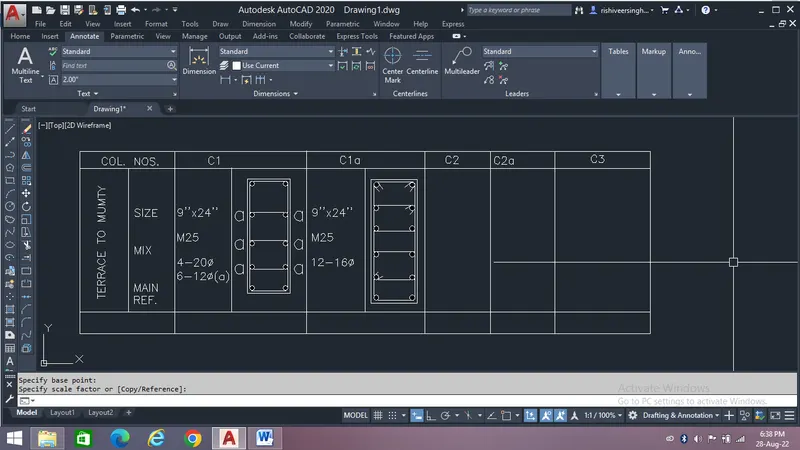
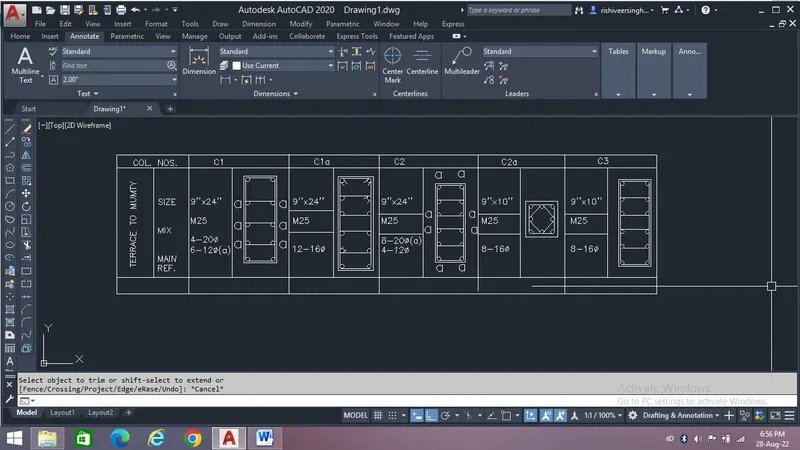
Result- After following all the mentioned steps the final drawing we get is shown below,
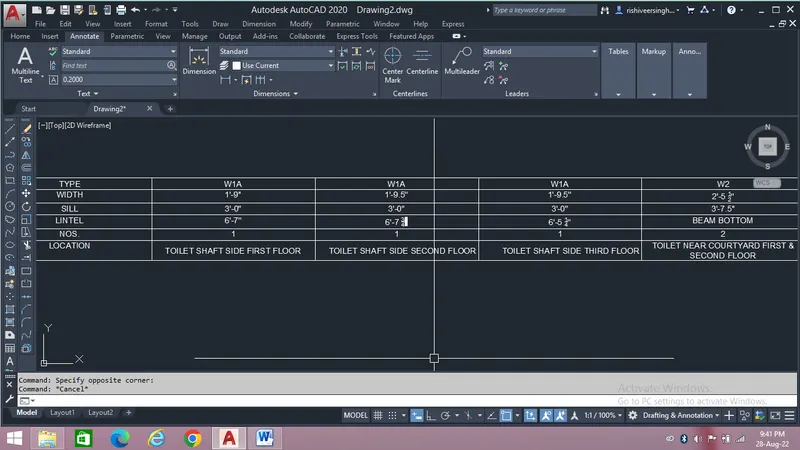
2. Window Shedule
Aim - The purpose of the challenge is to create the window shedule by using diffrent geometric tools and text command to enhance my Autocad learing.
Procedure - The first step is to select a table tool with the help of line tool or table command.
Next step is to select the text command and mention the shedule as shown in the drawing.
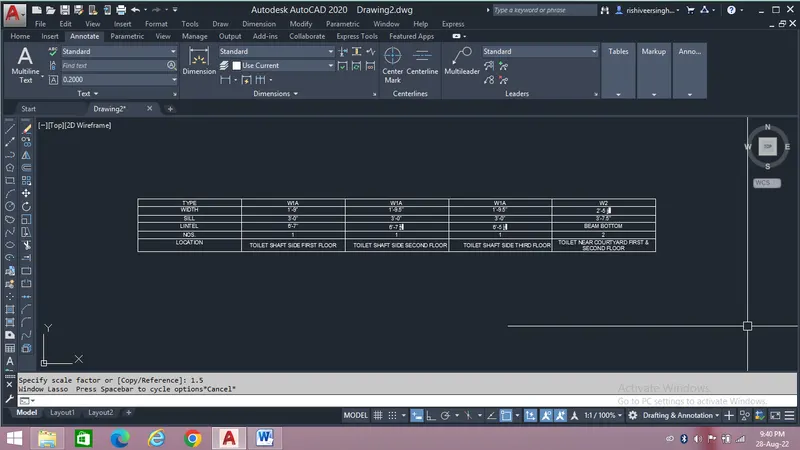
Result - After following the steps the resulted drawing is shown below,
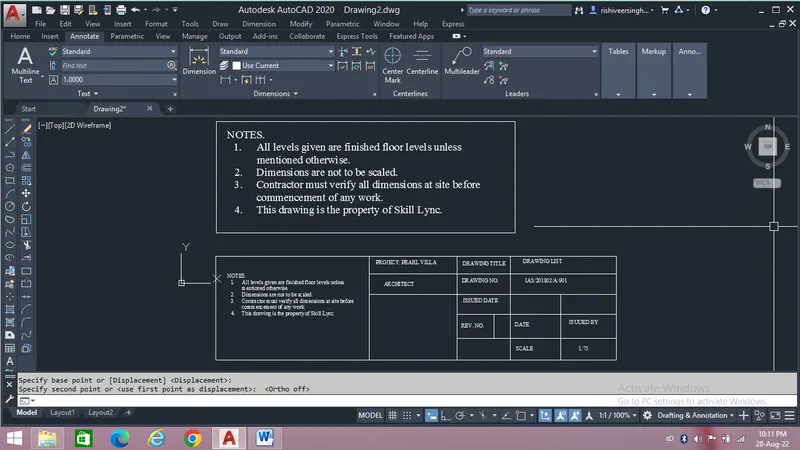
3. Drawing Templates
Aim - The purpose of the challenge is to create a drawing template by using diffrent geometric tools and text command to enhance my Autocad learing.
Procedure - The first step is to create a table with the help of rectangle tool.
Next step is to select the text command and write the details as shown in the figure.
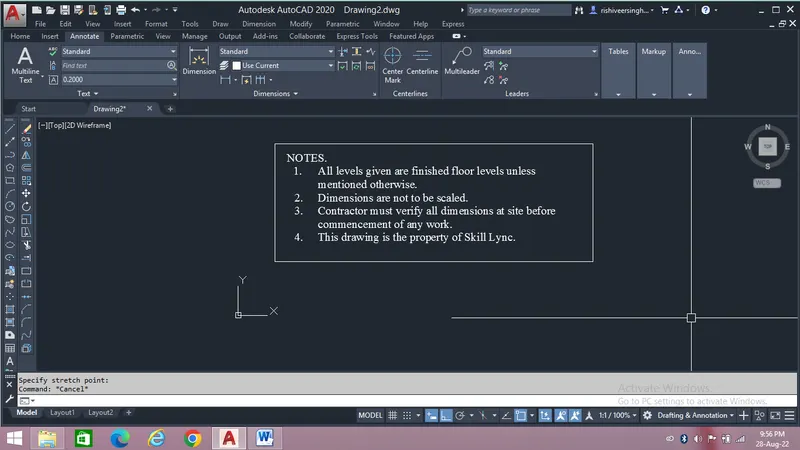
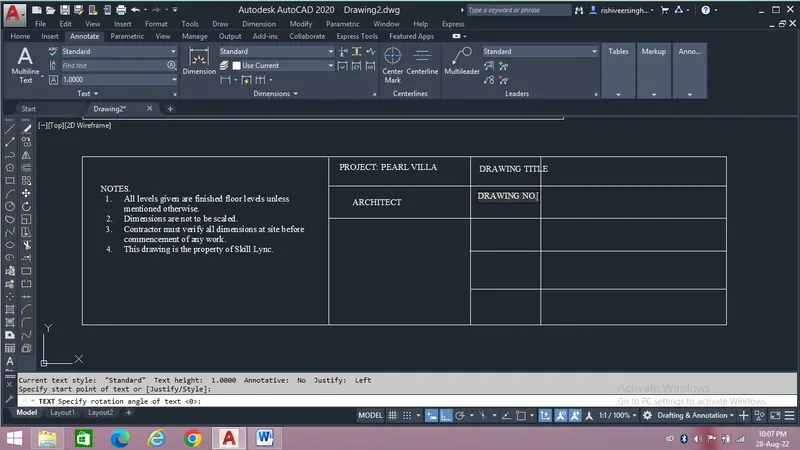
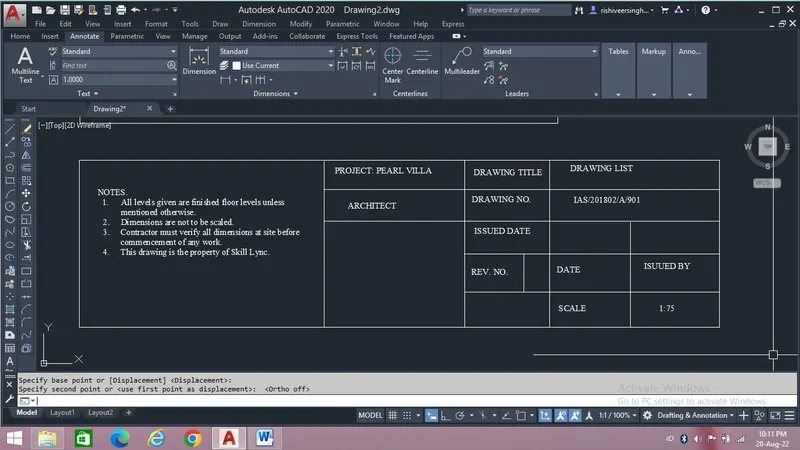
Results - After following all the steps the resulted figure is shown below,
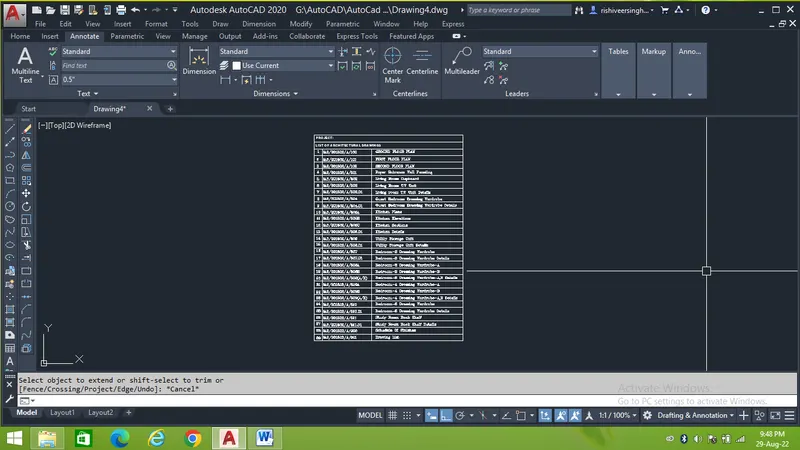
4. Drawing Shedule
Aim - The purpose of the challenge is to create the drawing shedule by using table and text command to enhance my Autocad learing.
Procedure - The first step is to create a table by using table command.
After creating of tables select the text command to write the details as shown in the figure.
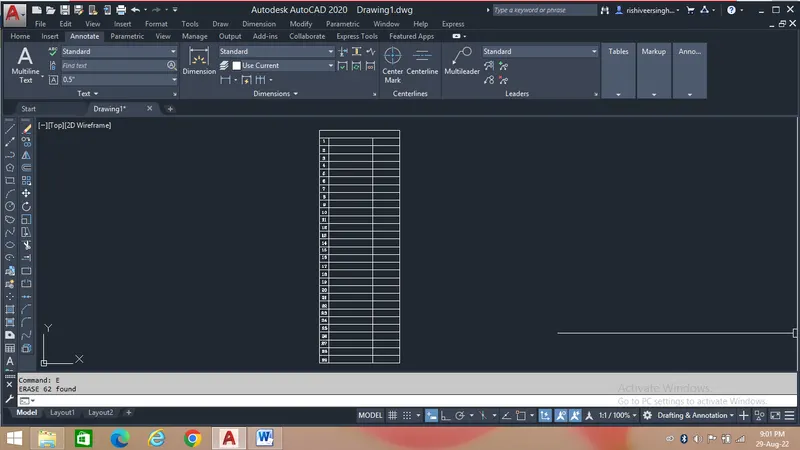
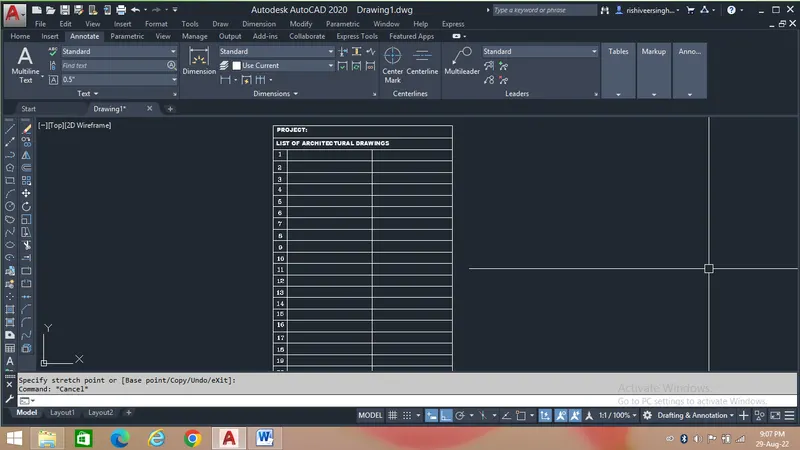
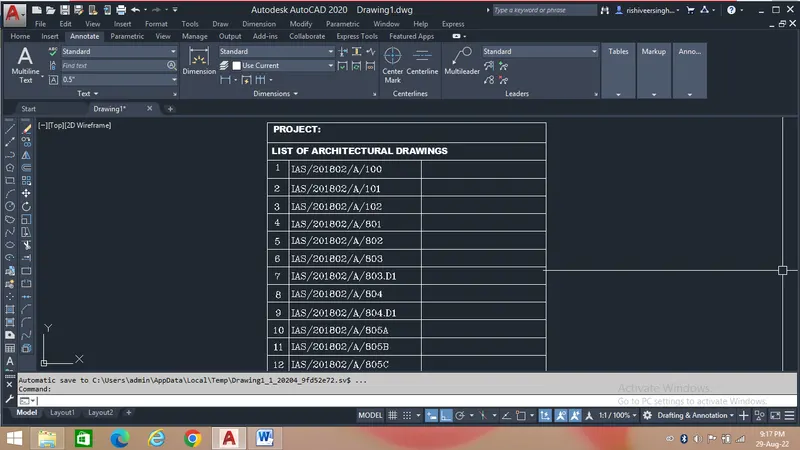
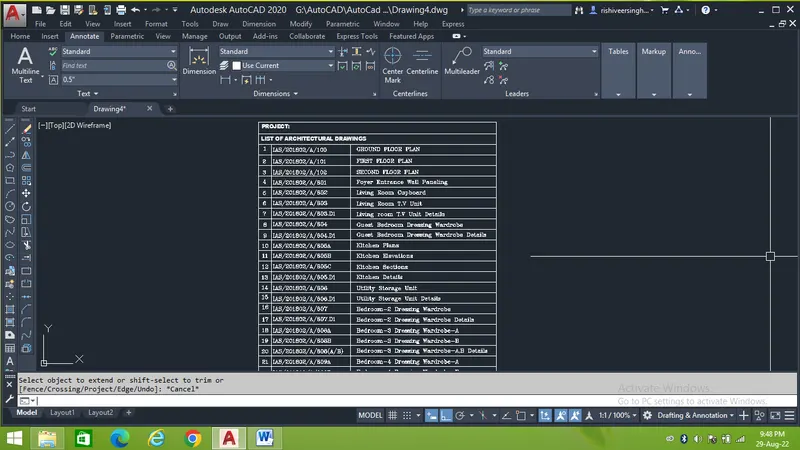
Results -After following all the steps the resulted figure as shown below,
5. Beam Details
Aim - The purpose of the challenge is to create a beam detail by using diffrent geometric tools to enhance my Autocad learing.
Procedure - The first step is to create a column of given size using line command.
Next step is do the hatching using hatch command.
Select the leader tool by QLEADER or MULTILEADER tool to mention the details as shown in the figure.
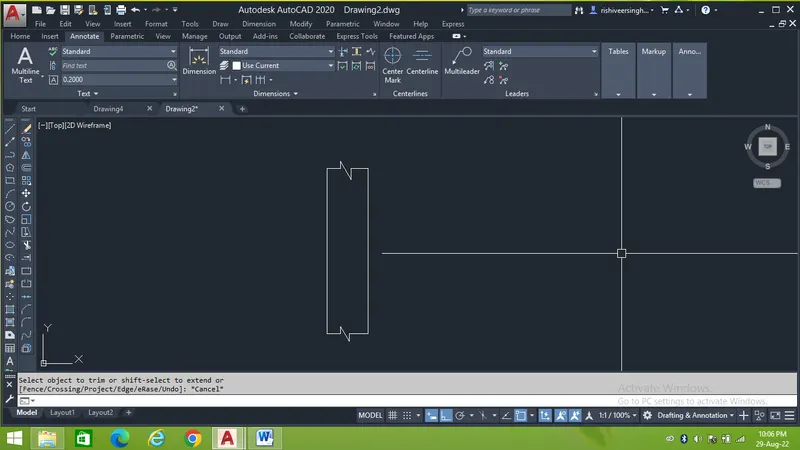
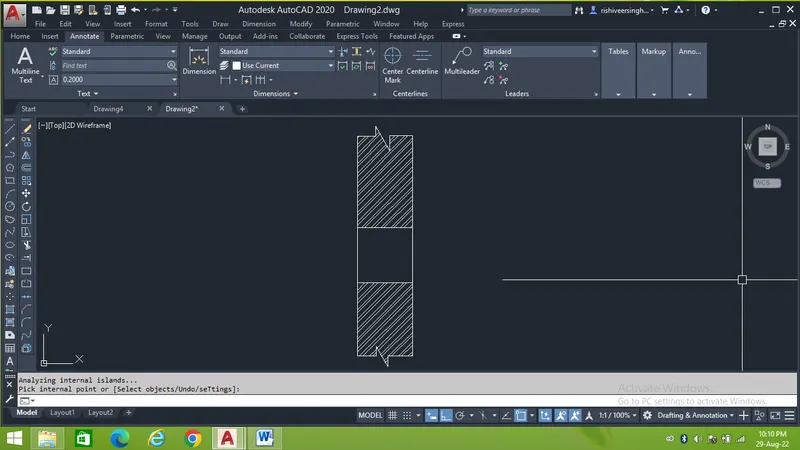
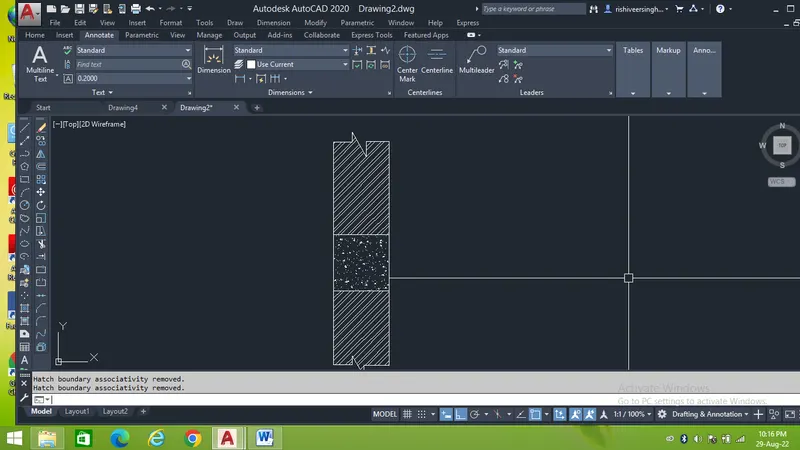
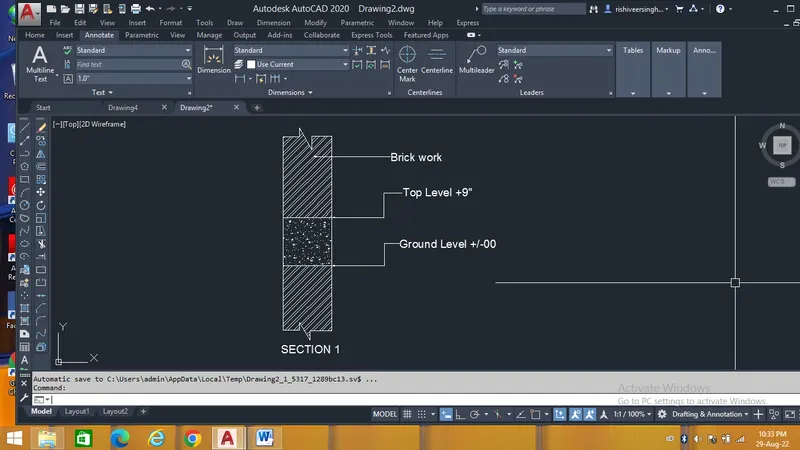
Result - After following all the steps the resltant drawing is shown below,