Creation of Column Schedule and Drawing Template using AutoCad
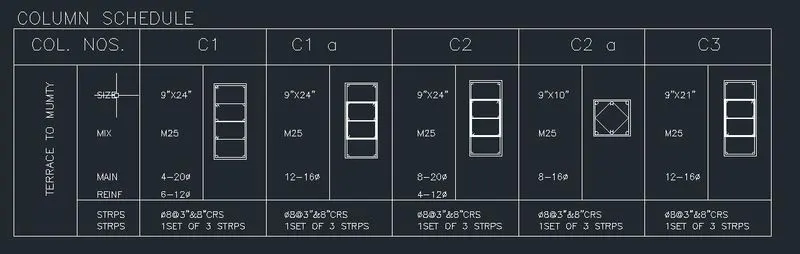
1.Create a column schedule
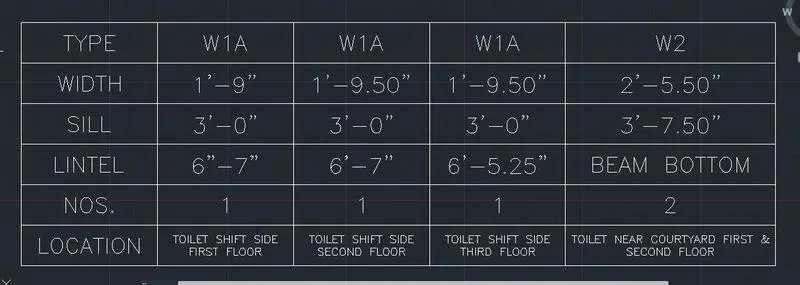
2. Create a window schedule
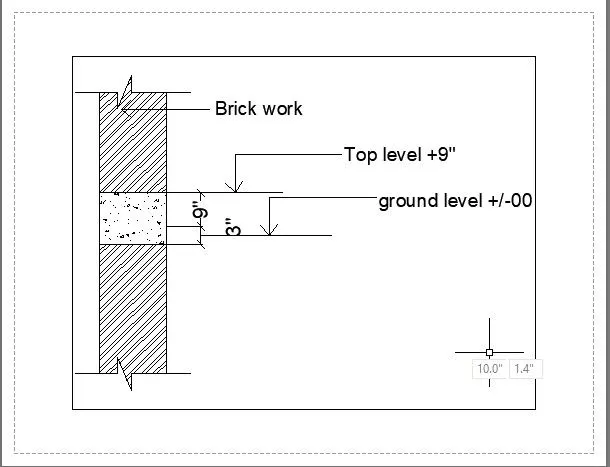
3. Create the drawing template
4. Create the list of drawing schedule
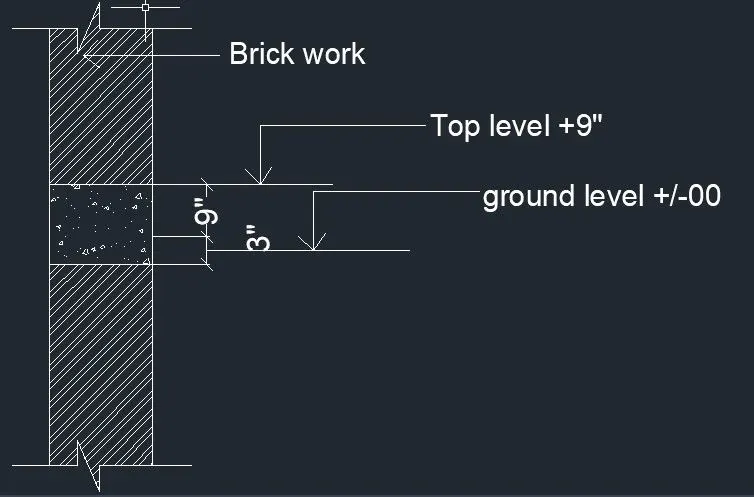
5. Create the Beam detail
Aim: To create a column,window,,drawingtemplate,beam details
software i have used autocad.
tools i used
1.line
2.text
3.table
4.jogline
5.copy
6.block
7.circle
8.hatch
step by step procedure
1.Create a column schedule
- Take a rectangle tool draw a rectangle with unspecified dimension
- explode it.
- take a line command makes the rectangle in to table.
- form three rows and 12 columns.
- take the dt command type the text related to the column schedule.
- I take style romans.shx and text height is 8".
- write all annonation which is provided in the drawing .
- draw the column reinforcement with help of tools line,extend,offset,circle,lineweight.
- make it in to block by using block tool.
- place it in to the table for reference purpose.
- The reinforcement figures shows the details about the no of bars, diameter of the bar,spacing of the bar.
- in this table i want to tell about the size of column,mix design,mainreinforcement details.
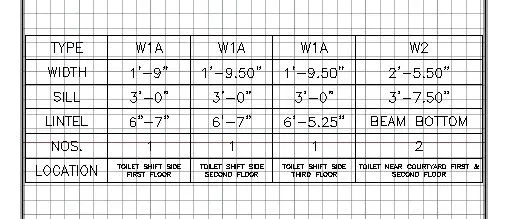
2. Create a window schedule:
- go to draw menubar select the table (or)annotative table-table panel.
- create the new table sytle
- fix the textsytle as romanshx and text height as 8".
- set that new table sytle as current.
- fix the no of columns and no of rows as 5and6.
- and set the cell styles as data for all.
- text the details like type of window,width,sill,lintel,lintel,no of window, location.
- In the loactaion data i changed the height of the text as 6".
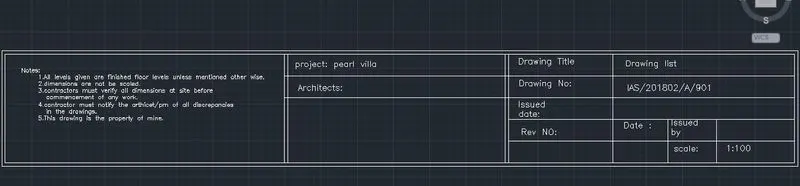
3. Create the drawing template :
- tools i have used for the drawing templates are rectangle,explode, offest,text,trim.
- Take a rectangle tool draw a rectangle with unspecified dimension
- explode it.
- take a line command make the rectangle in to table.
- wherever you want column draw the vertical line and for rows horizontal lines.
- take an offset draw the offest lines with the distance 0.3
- take the dt command give annotation to the drawing templete.
- in this drawing i have used two text height .
- if it is exceed go to scale tools makes to desired height.
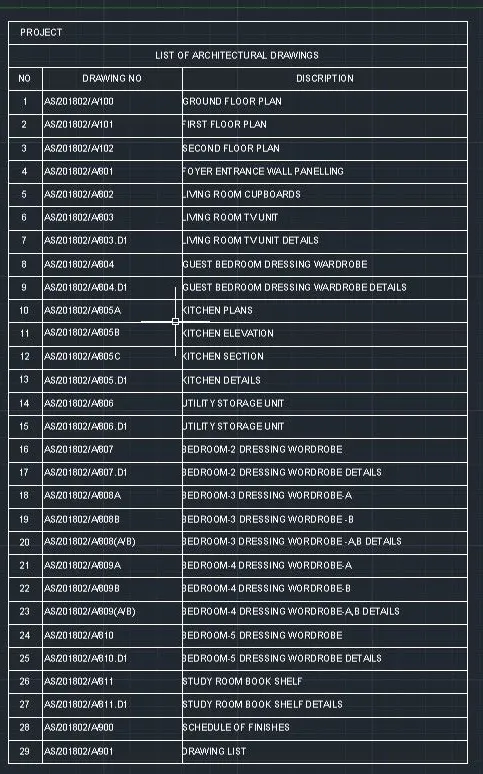
4. Create the list of drawing schedule :
- go to draw menubar select the table (or)annotative table-table panel.
- create the new table sytle
- fix the textsytle as romanshx and text height as 8".
- set that new table sytle as current.
- fix the no of columns and no of rows as 3,32 .
- and set the cell styles as two title and remaing all are data .
- by using dt command write the text in the cell.
- first title named as project.
- second title representas as list of architectural drawings.
- first column represent as serial no
- second column represent the drawing no.
- third column is represent as description of drawing no.
- fill all cells by using copy,text edit tools.
5. Create the Beam detail:
- Take the line command draw a line.
- by using offset draw the offset line with a distance of 0.23 units
- by using draw the jog lines represent as continution.
- draw the arrows by using line command make it into block by using block tool.
- by using dt command write the annotation.
- by using hatch tool fill the portion which represent the plinth beam (or) grade beam.
Result: creation a column,window,,drawingtemplate,beam details is completed.
window schedule
.
drawing templete

list of drawing schedule
beam details