Creation of Column Schedule and Drawing Template using AutoCad
AIM : To Create the cloumn shedule by using autocad.
PROCEDURE :
1.COLUMN SHEDULE:
- In this drawing we create a Column shedule.
- Now we can see the command used for this drawing as step by step.
Steps :
- Column shedule is created with the help of lines.
- Also insert text with help of DTEXT command or single line text.
- Use the font names : Romans , Height : 8" and justify left.
- First create a tabular column to type text, and names.
- Click " DTEXT " command to type text.
- Draw the column reinforcement details as per in given diagram.
- Then draw the stirups line and fillets command is used to draw.
- Then click " HAT" Hatch option to hatch the circle.
- texting is done using 'TEXT ' Option name the objects.
- once everything is done using ' snipping tool ' take a screenshot & save the copy.
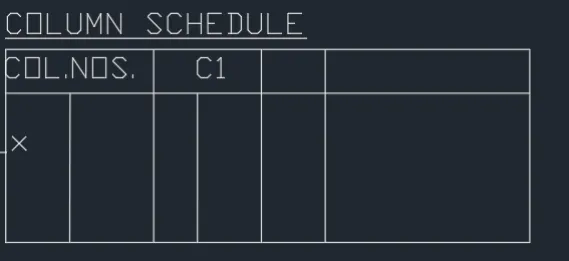
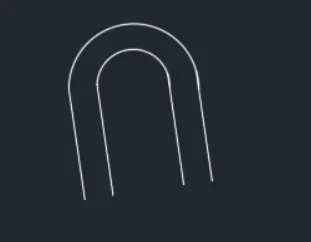
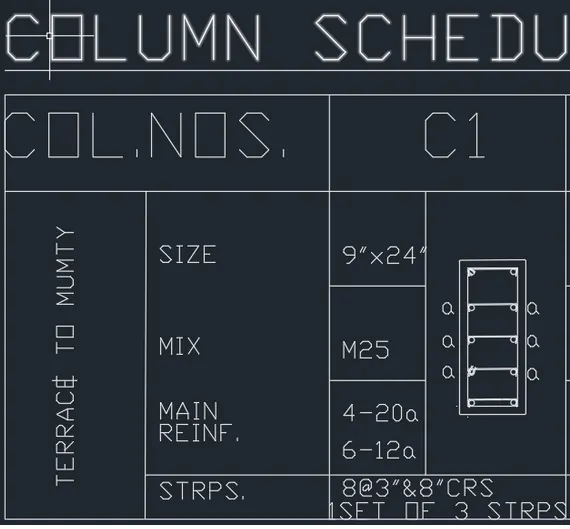
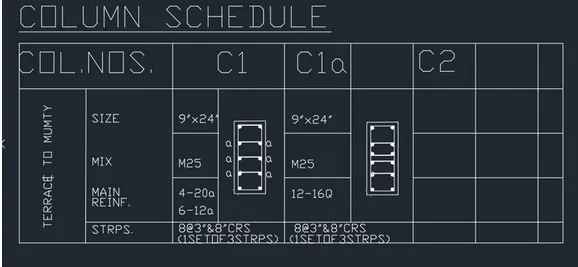
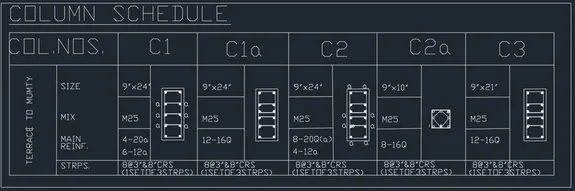
RESULT: In this challenege we learned how to create column shedule using various commands in autocad and images created are show in above figures mentioned.
2. WINDOW SHEDULE:
- In this drawing we create a Column shedule.
- Now we can see the command used for this drawing as step by step.
Steps :
- Column shedule is created with the help of lines.
- Also insert text with help of DTEXT command or single line text.
- Use the font names : Romans , Height : 8" and justify left.
- First create a tabular column to type text, and names.
- Click " DTEXT " command to type text.
- texting is done using 'TEXT ' Option name the objects.
- once everything is done using ' snipping tool ' take a screenshot & save the copy.

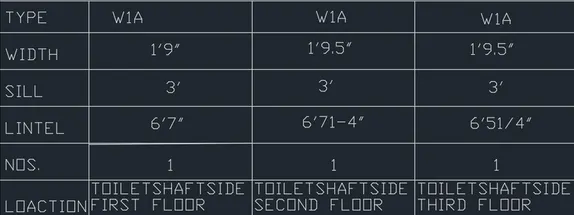
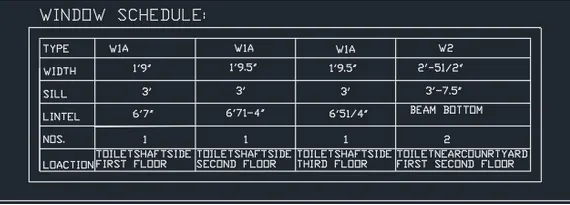
RESULT: In this challenege we learned how to create Window shedule using various commands in autocad and images created are show in above figures mentioned.
3.DRAWING TEMPLATE:
- In this drawing we create a Column shedule.
- Now we can see the command used for this drawing as step by step.
Steps :
- Column shedule is created with the help of lines.
- Also insert text with help of DTEXT command or single line text.
- Use the font names : Romans , Height : 8" and justify left.
- First create a tabular column to type text, and names.
- Click " DTEXT " command to type text.
- texting is done using 'TEXT ' Option name the objects.
- once everything is done using ' snipping tool ' take a screenshot & save the copy.
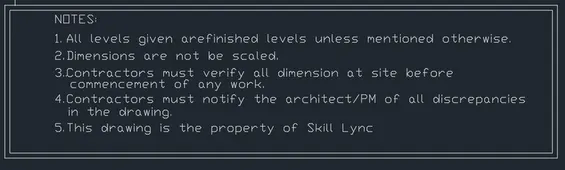
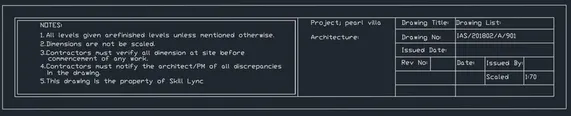
RESULT: In this challenege we learned how to create drawing template using various commands in autocad and images created are show in above figures mentioned.
4. DRAWING SHEDULE:
- In this drawing we create a drawing shedule.
- Now we can see the command used for this drawing as step by step.
Steps :
- Drawing shedule is created with the help of lines.
- Also insert text with help of DTEXT command or single line text.
- Use the font names : Romans , Height : 8" and justify left.
- First create a tabular column to type text, and names.
- Click " DTEXT " command to type text.
- Click " ARRAY " option to drag the column or lines upto 29 numbers which makes easy to text.
- texting is done using 'TEXT ' Option name the objects.
- once everything is done using ' snipping tool ' take a screenshot & save the copy.
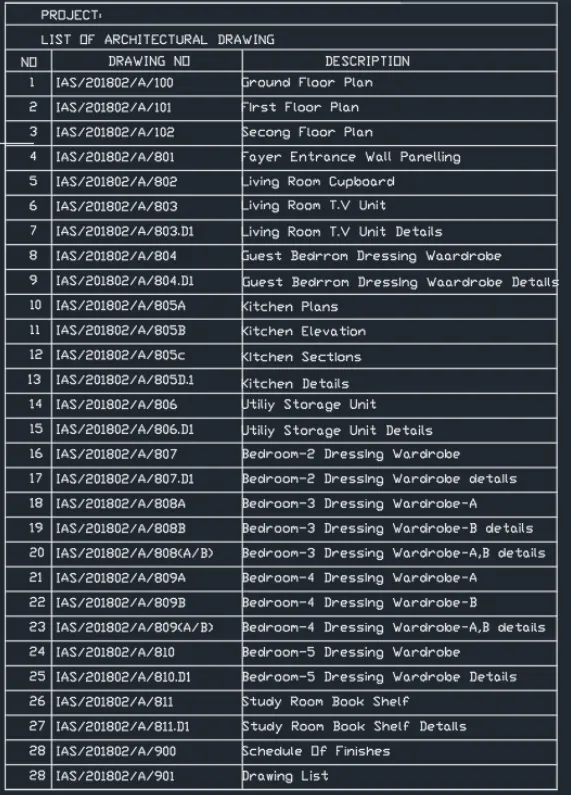
RESULT: In this challenege we learned how to create Drawing shedule using various commands in autocad and images created are show in above figures mentioned.
5.BEAM DEATILING:
- In this drawing we create a Beam detailing.
- Now we can see the command used for this drawing as step by step.
Steps :
- Beam detailing is created with the help of lines.
- Also insert text with help of DTEXT command or single line text.
- Use the font names : Romans , Height : 8" and justify left.
- First create a tabular column to type text, and names.
- Click " DTEXT " command to type text.
- Then click " HAT" Hatch option to hatch the circle.
- Click " LEADER " Command for text at top or bottom level.
- texting is done using 'TEXT ' Option name the objects.
- once everything is done using ' snipping tool ' take a screenshot & save the copy.
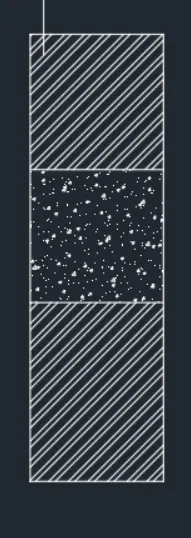
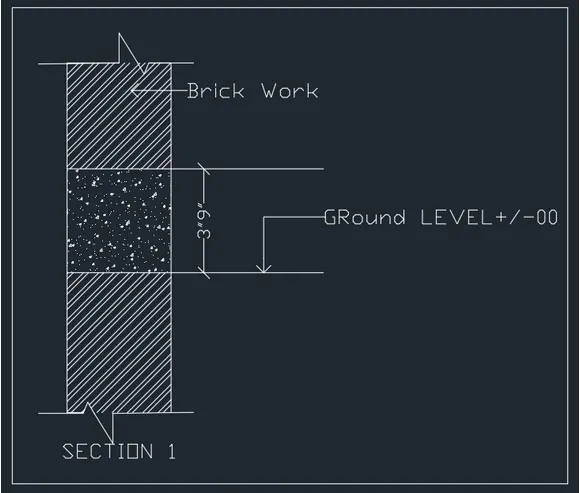
RESULT: In this challenege we learned how to create beam detailing using various commands in autocad and images created are show in above figures mentioned.