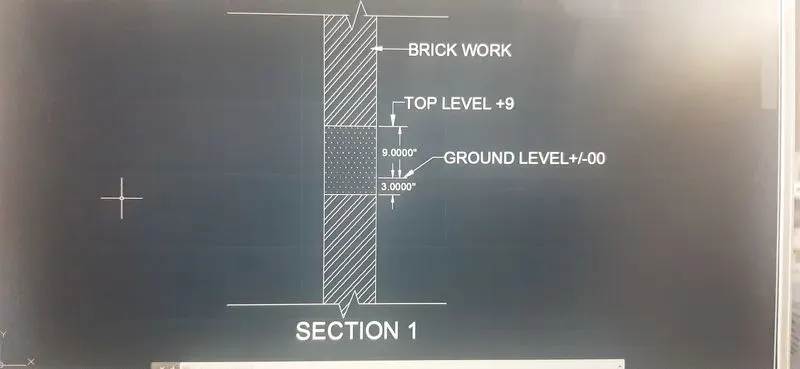
Creation of Column Schedule and Drawing Template using AutoCad
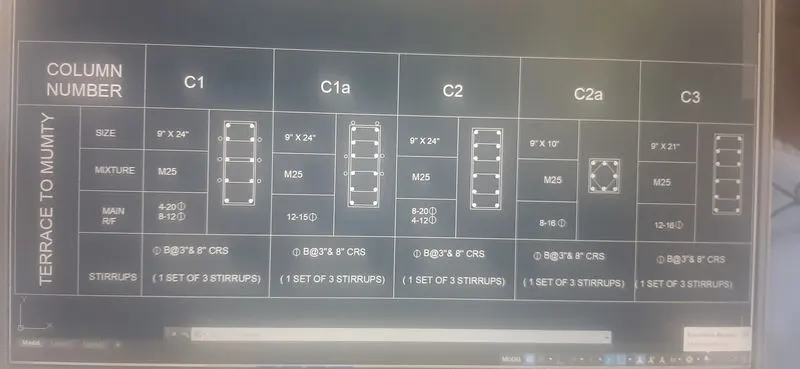
- AIM:To create a column schedule as shown in the figure.
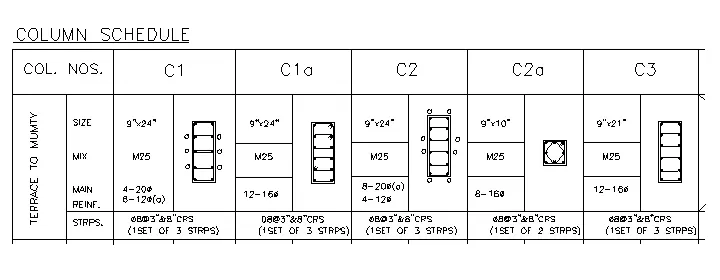
- PROCEDURE: STEP1
- In the command tab type "L'' to create tables
- In the command type ST(Text style)>Aerial.shx>left
- In the command type text to text the given text in drawing
- In the command type mtext>symbols>to get diameter symbol
- RESULT:
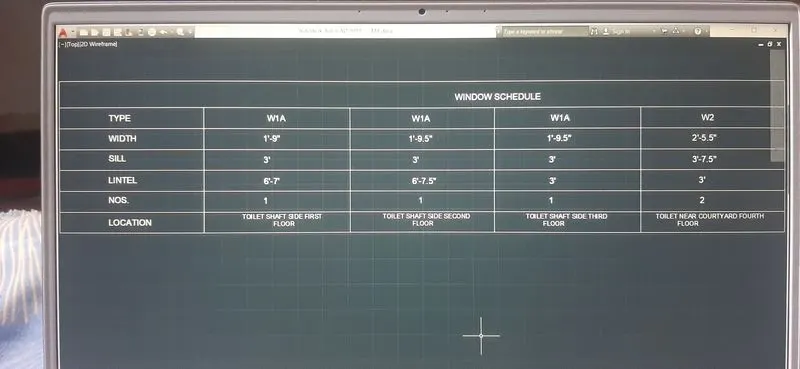
- AIM:To create a window schedule as shown in the figure.
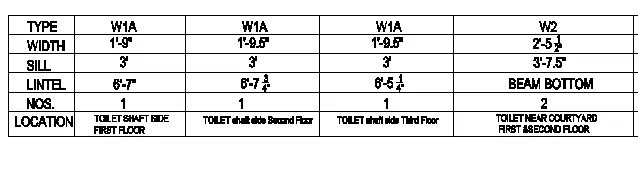
- PROCEDURE:
- In the commandtype line to create tables
- In the ceommand type ST(Text style)>Aerial.shx>centre(justify)
- In the command type text to text the given text in the drawing
- RESULT:
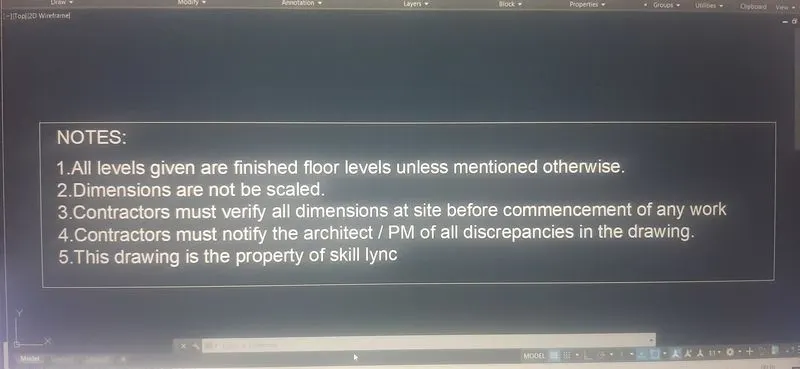
- AIM:To create the drawing template as shown in the figure.
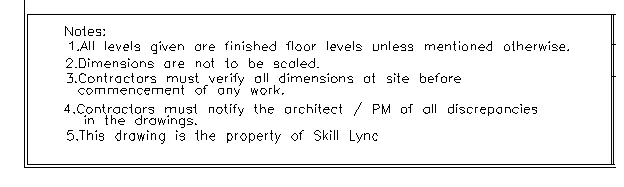

- PROEDURE:
- In the command line to create the rectangles
- In the command type ST(text style)>Aerial.shx>Left(justify)
- In the command type txt to text the given text in the drawing
- RESULT
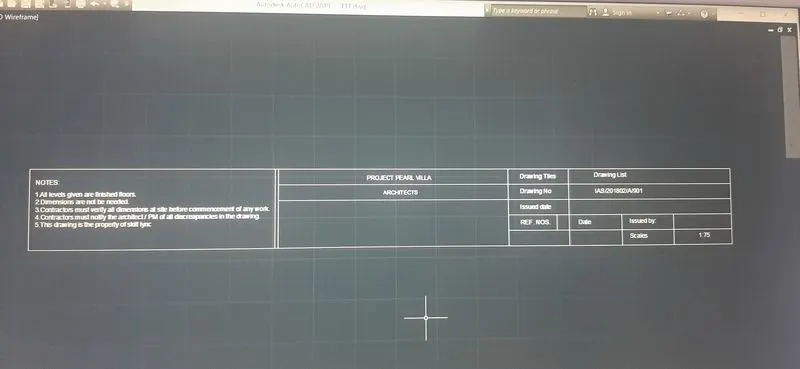
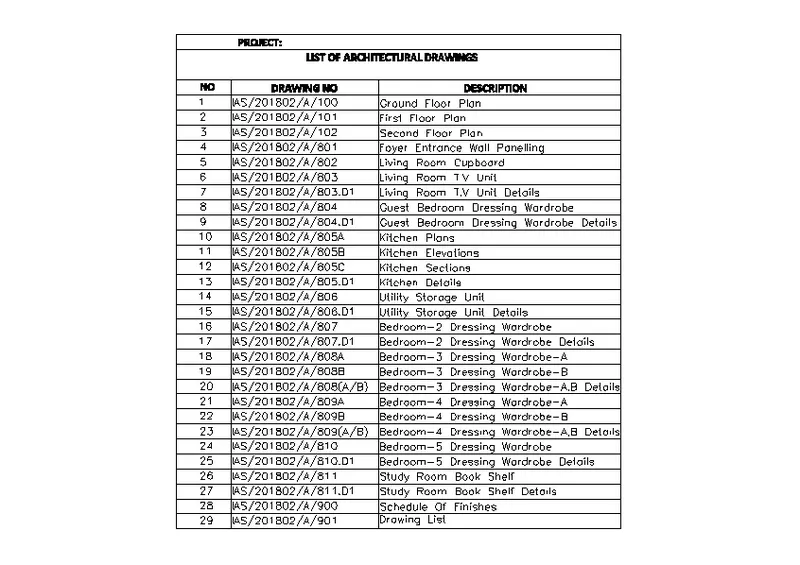
- AIM:To create the llist of drawing schedule as shown in the figure.
- PROCEDURE:
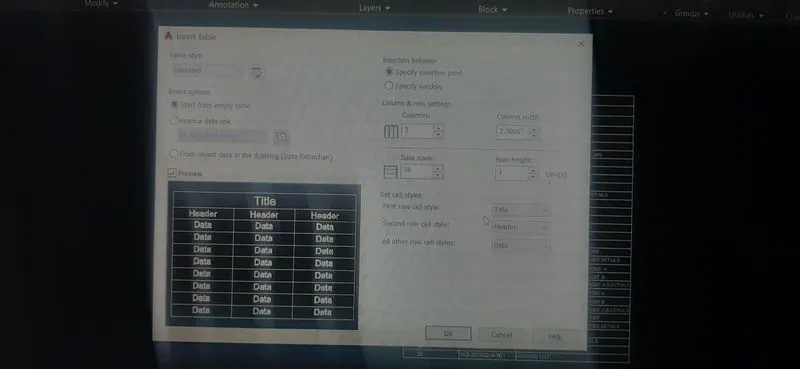
- In the command bar type 'Table' and draw the table
- Type ''3'' in the colums and ''30'' in the row
- Set the ''cell style'' and set the''TITLE'' at the first row and ''HEADER'' at the second row
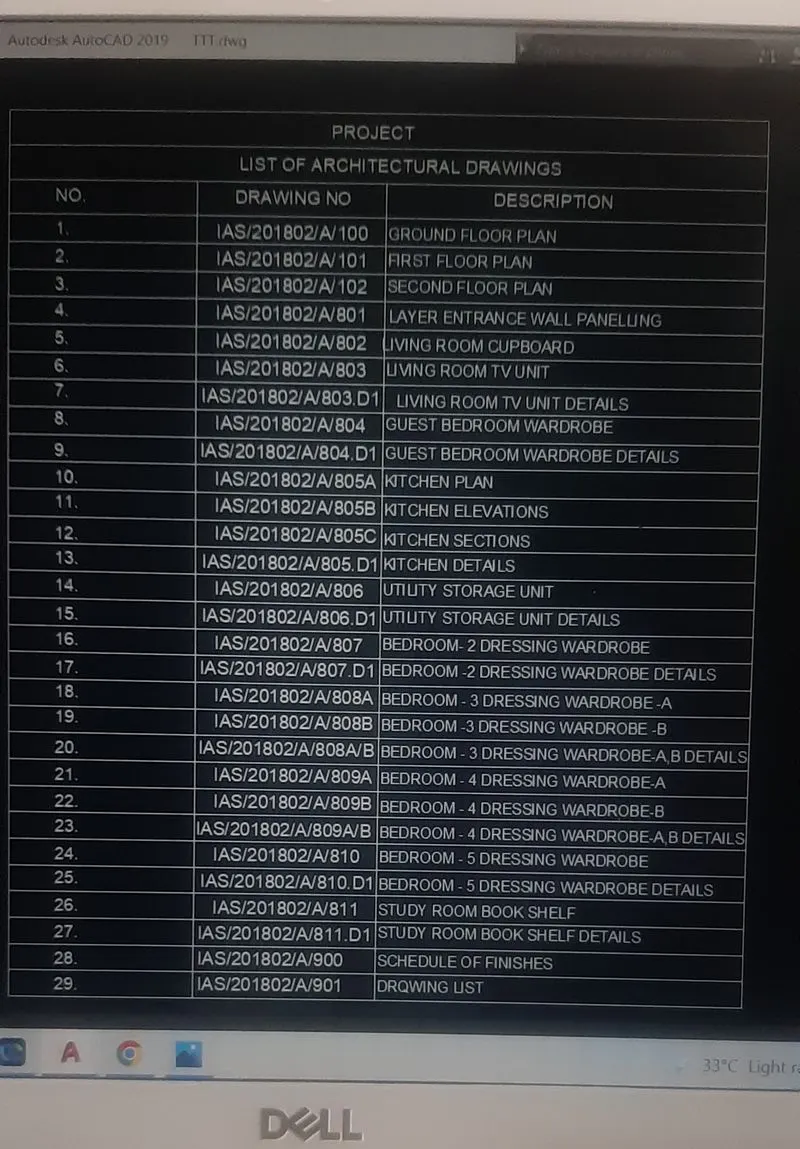
- In the command bar type text to text in the drawing
- RESULT
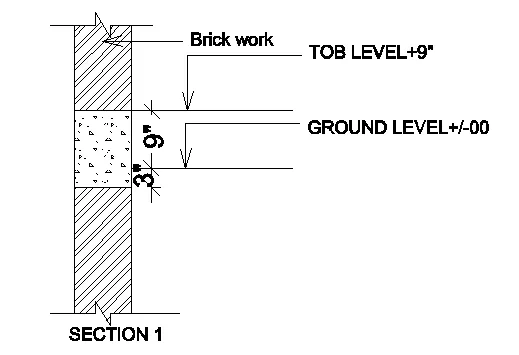
- AIM:To create the beam details as shown in the figure.
- PROCEDURE:STEP 1:
- In the command bar type ''un'' >engineering>inches
- In the command bar type ''L'' to create the column
- In the command type text to text in the given drawings
- In the command bar type ''HATCH'' to hatch in the drawing
- RESULT