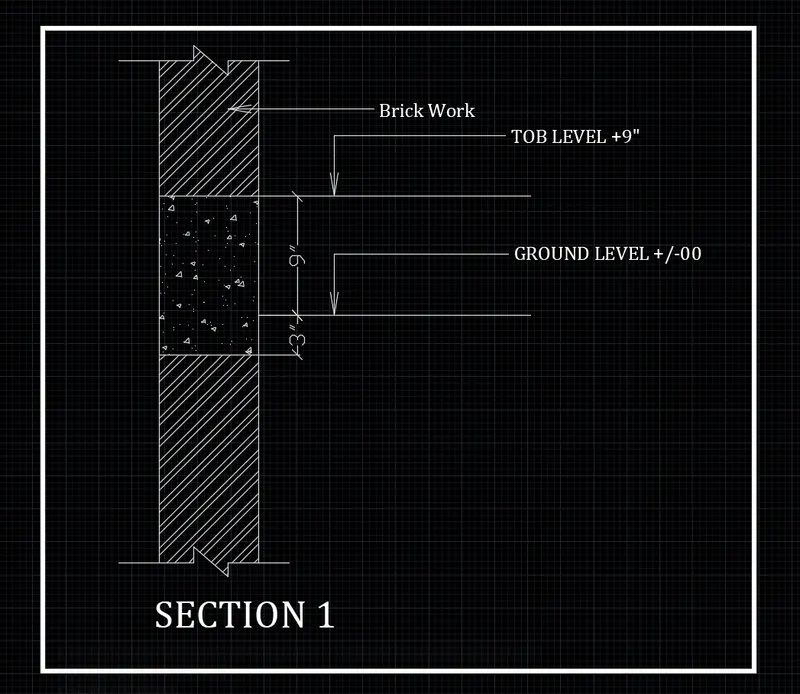
Creation of Column Schedule and Drawing Template using AutoCad
1) AIM: Create a column schedule as shown in the figure.
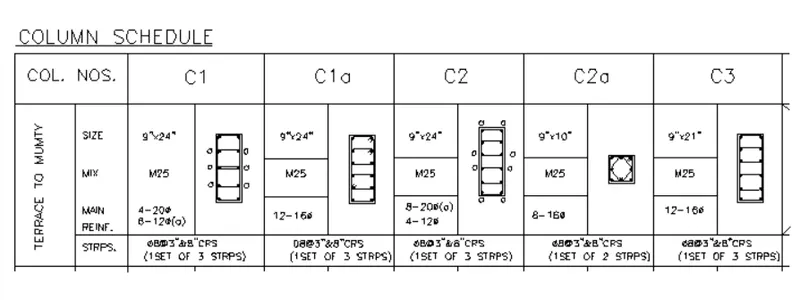
Procedure:
Steps:
- Type 'L' in the command line and create table (Height - 20' & Width - 70')
- Type 'st' in the command and define text style
- Font name - Cambria
- Height - 10"
- Now use the mtext command and type the given text
- For Diameter symbol type '%%c' or in mtext goto symbols and select diameter
- Use the rectangle and circle command to create the bar schedule
Result:
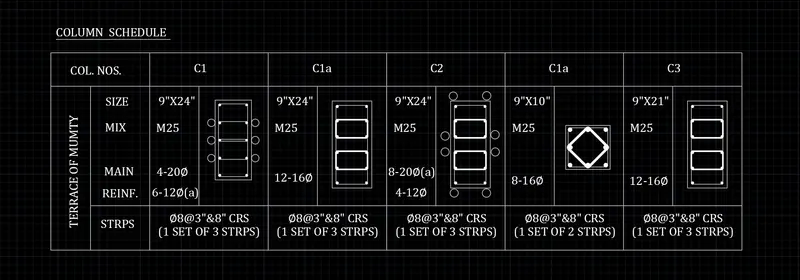
2) AIM: Create a window schedule as shown in the figures:
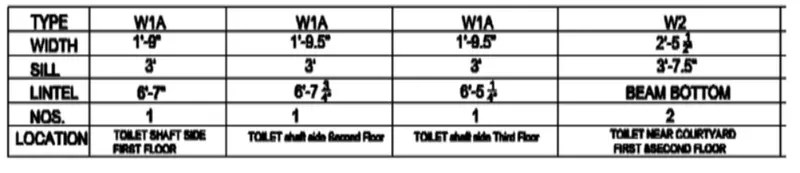
Procedure:
Steps:
- Type 'Table' in command and enter
- Select columns - 5 ; Rows - 3
- select first row and second row style as data
- Now input the text with the text type:
- font - Arial
Result:
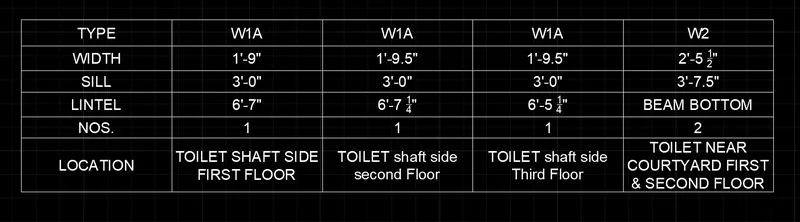
3) AIM: Create the drawing template as shown in the figure:
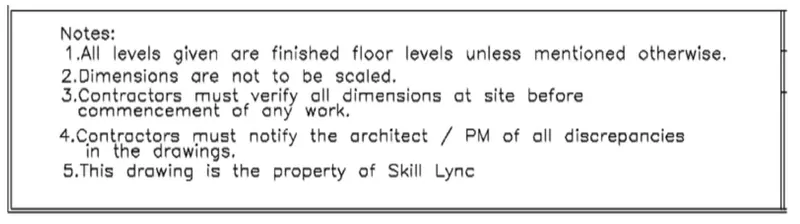
Procedure:
Steps:
- Use rec command to make a rectangle
- Type st and define text style
- font - cambria
- height - 10mm
- Use 'mtext' command to type the given text
Result:
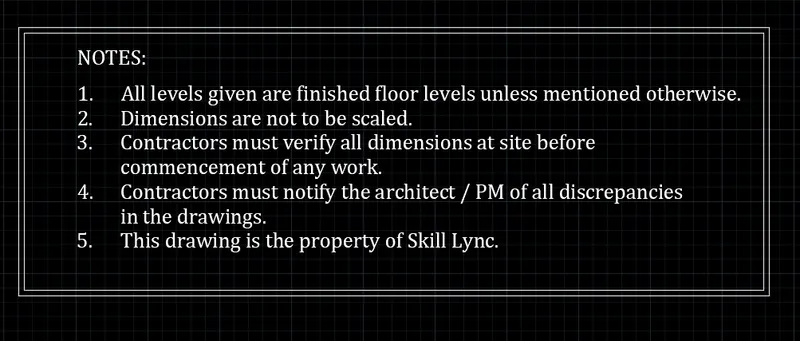
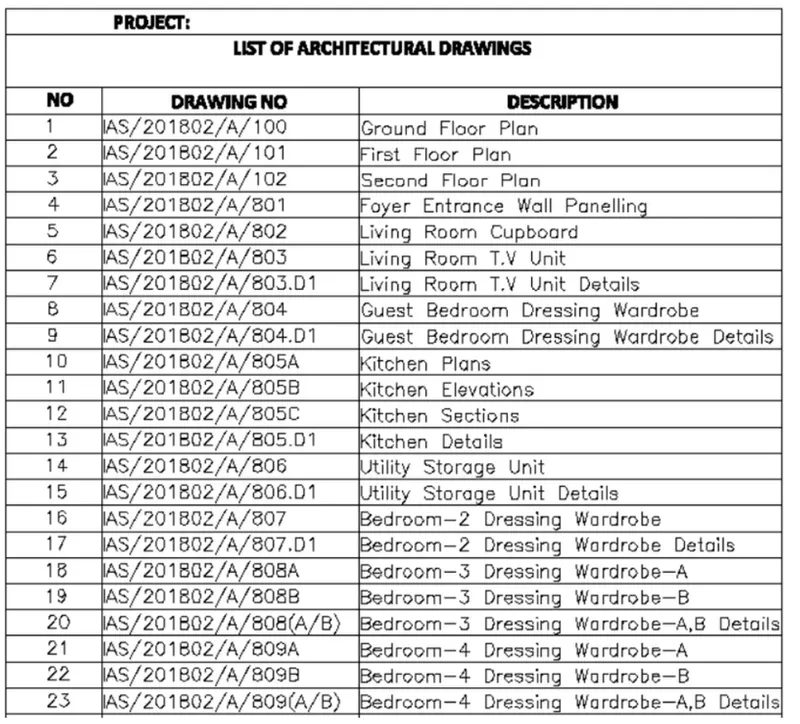
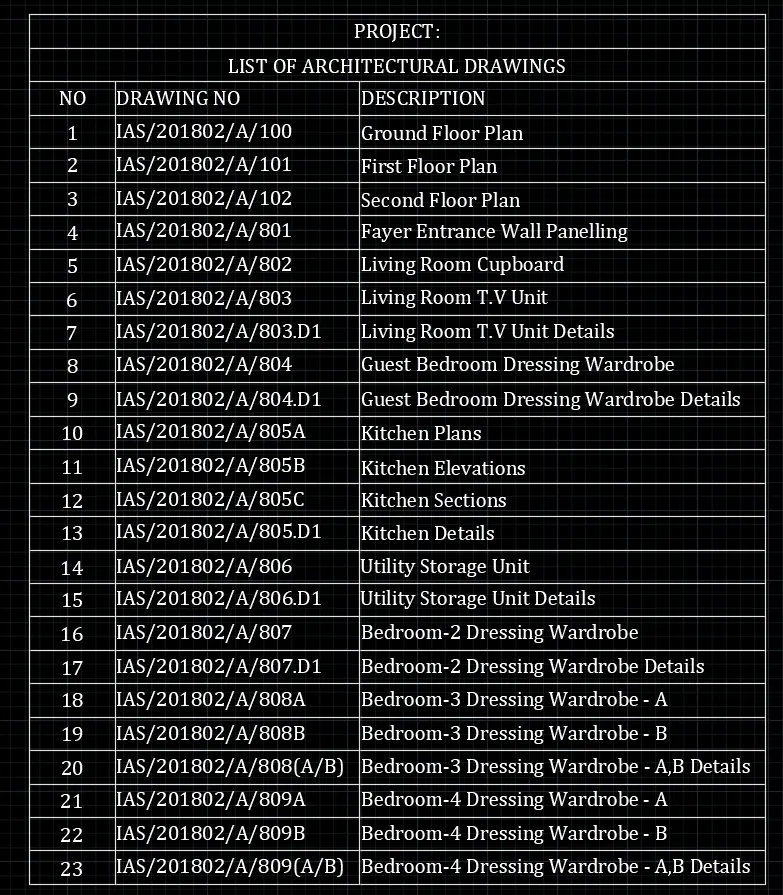
4) AIM: Create the list of drawing schedule as shown in the figure:
Procedure:
Steps:
- Use table command to create table
- Columns - 3
- Rows - 24
- Enter the text
Result:
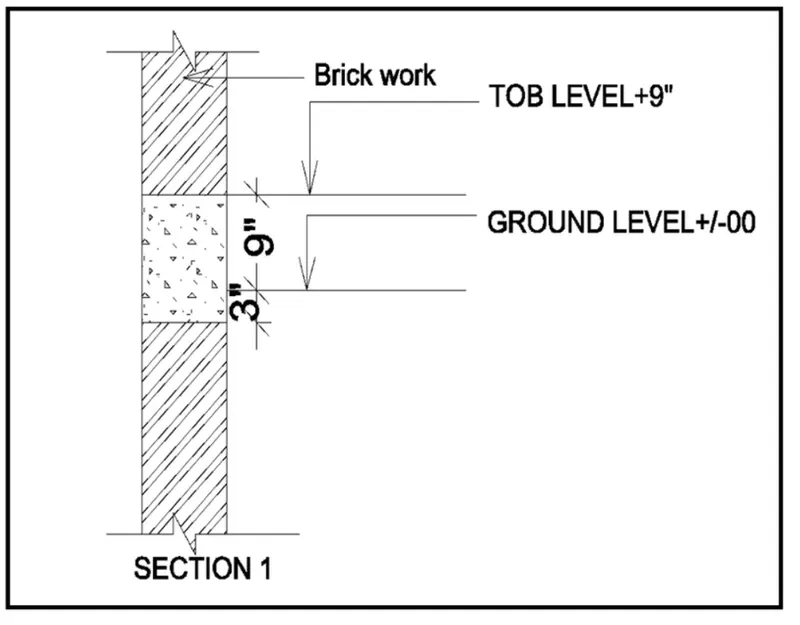
5) AIM: Create the Beam detail as shown in the figure and provide text wherever given.
Procedure:
Steps:
- Type 'un' and select the unit type to engineering
- Type 'L' and create the column
- Use the text command to enter the text
- Use the hatch command to apply hatch to the column
- Use rec command to bake boundry
Result: