Creation of Column Schedule and Drawing Template using AutoCad
1.
AIM: To create a column schedule as shown in the figure.
Cammands used:
- line
- text
- hatch
- offset
Procedure:
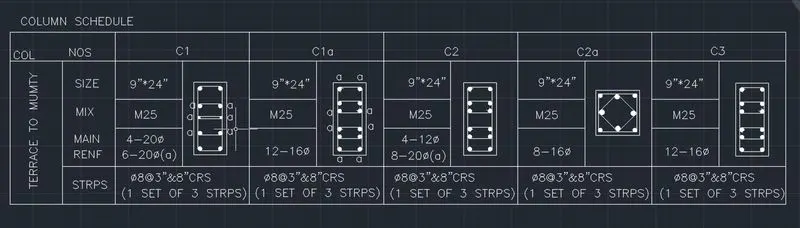
- Choose the line cammand and create a table
- choose the text style and specify the font name romans.shx and height is 8" and create an text and specify their position
RESULT: The given column shedule was drawn by using auto cad
2.
AIM: To create a window schedule as shown in the figures
Cammands used:
- line
- text
- offset
Procedure:
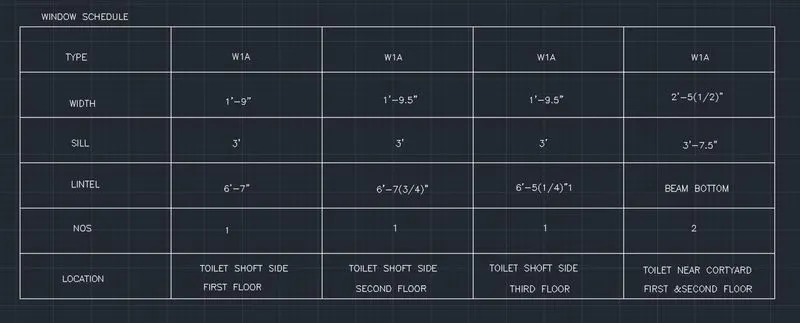
- Choose the line cammand and create a table
- choose the text style and specify the font name romans.shx and height is 8" and create an text and specify their position
Result: The given window schedule wasdrawn by using auto cad.
3.
Aim: To create the drawing template as shown in the figure:< Use the Notes as in the figure>
Cammands used:
- line
- text
- offset
Procedure:
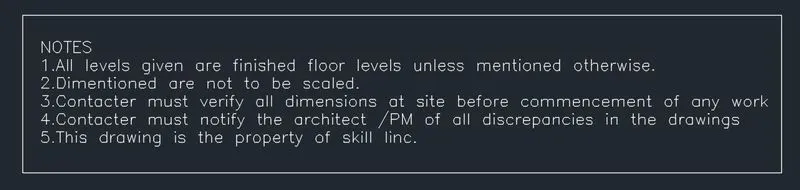
- Choose the line cammand and create a table
- choose the text style and specify the font name romans.shx and height is 8" and create an text and specify their position
4.
AIM: Create the list of drawing schedule as shown in the figure:
Cammands used:
- line
- text
- offset
Procedure:
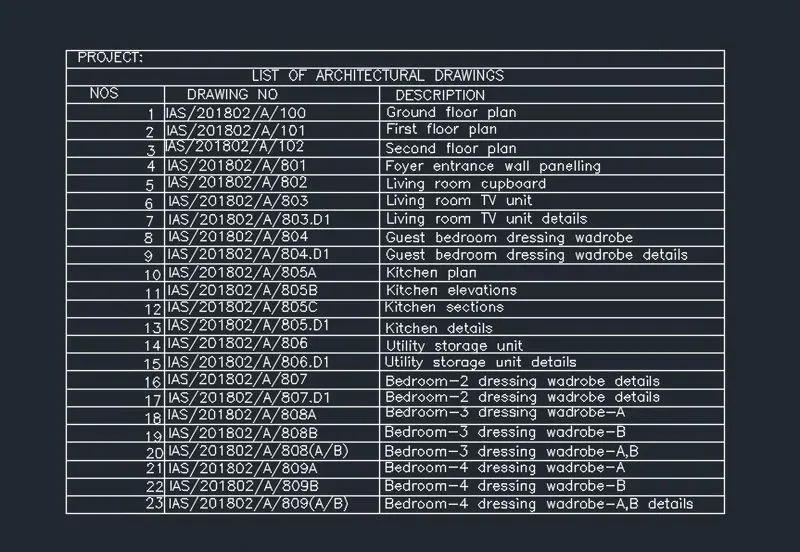
- Choose the line cammand and create a table
- choose the text style and specify the font name romans.shx and height is 8" and create an text and specify their position
Result: The given list of drawing was drawn by using auto cad
5.
AIM: To create the Beam detail as shown in the figure and provide text wherever given.
Cammands used:
- line
- text
- hatch
- offset
Procedure:
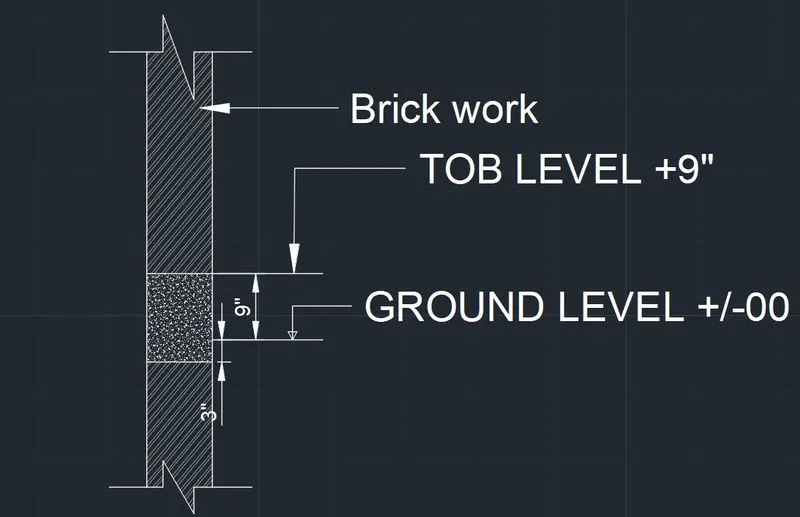
- Choose the line cammand and create a table
- choose the text style and specify the font name romans.shx and height is 8" and create an text and specify their position
- choose the hatch cammand and specify wherever required
Result: The given beam details is drawn by using autocad