Creation of Column Schedule and Drawing Template using AutoCad
1) Aim:
- To create a Column schedule with the help of lines and Text using DTEXT command or Single line text.
Procedure:
- The table is created using RECTANGULAR command and LINE command.
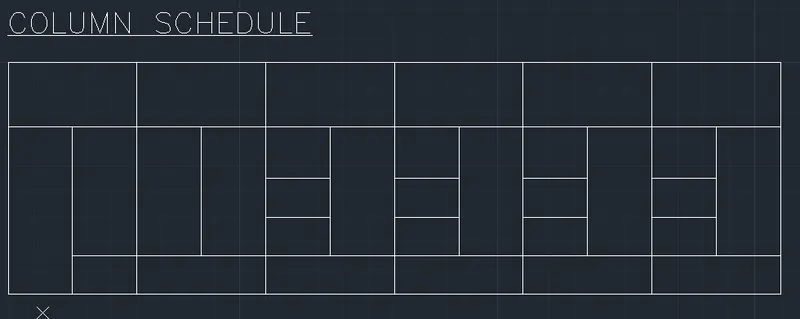
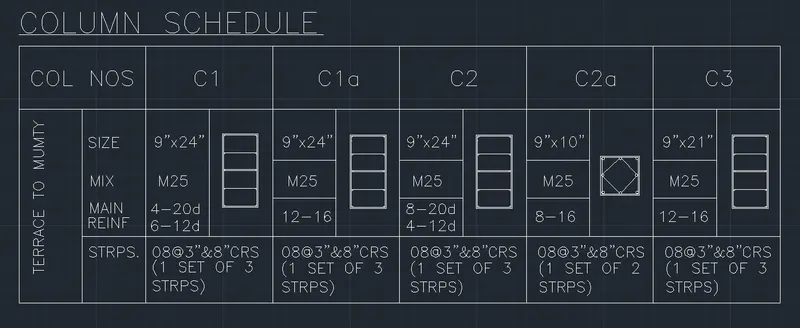
- The text is inserted in the required rows and columns using DTEXT command and Single line text as directed with 8" height.
- The font style given in the question is chosen from the Text Style dialogue box which is opened by giving the TEXTSTYLE command.
- The text is Justified to the left as required by using JUSTIFY command.
- The Column drawings are drawn using PLINE command and CIRCLE command.
Result:
The required Column schedule is created with the help of lines and Text using DTEXT command or Single line text.
2) Aim:
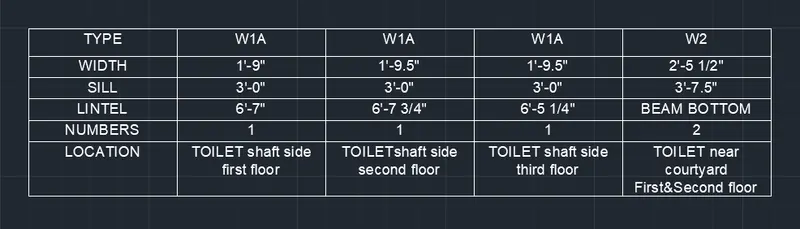
- To create a window schedule as shown in the figures:
Procedure:
- A table is created with required no. of columns and rows from the table icon in the Annotation Palette in Home.
- The given text is typed on the table by clicking the rows and columns.
- The text are justified as in the given schedule by using the Justify icon from the Table cell Palette.
Result:
The required window schedule is created as shown in the figures.
3)Aim:
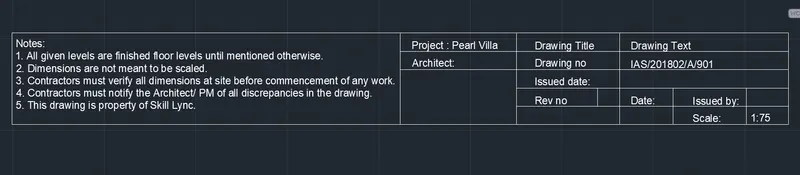
- To create the drawing template from the notes as shown in the figure.
Procedure:
- The tables are created using RECTANGULAR command.
- The text is created is using MTEXT command.
- They are justified as in the figure using JUSTIFY option.
Result:
The required drawing templateis created from the notes as shown in the figure.
4) Aim:
- To create the list of drawing schedule as shown in the figure.
Procedure:
- The outline is drawn using RECTANULAR command.
- The lines are then offseted using OFFSET tool.
- The Text is then entered using MTEXT command.
- It is Justified as per the drawing using JUSTIFY tool.
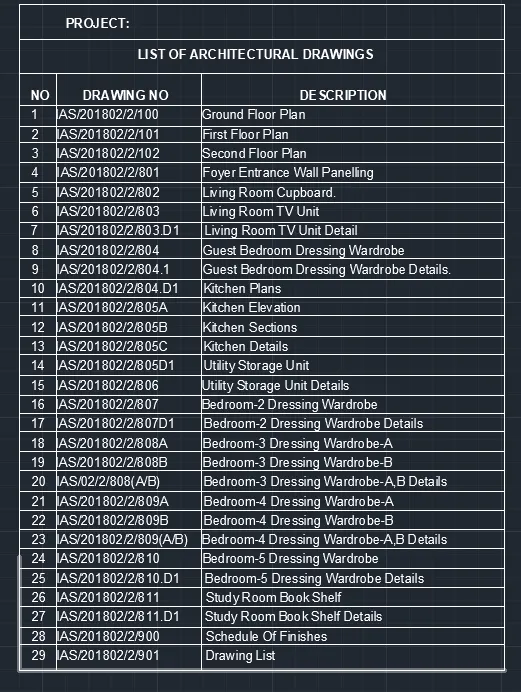
Result:
The required list of drawing schedule is created as shown in the figure.
5) Aim:
- To create the Beam detail as shown in the figure and provide text wherever given.
Procedure:
- The Beam detail is drawn using PLINE command and OFFSET command.
- The required hatches are then provided using HATCH command.
- The texts are then provided using Single line text.
- Rotation angle is given as 90 where necessary.
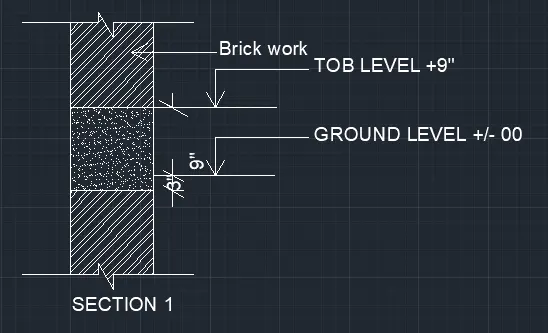
Result:
The required Beam detail is created as shown in the figure and text is provided wherever given.