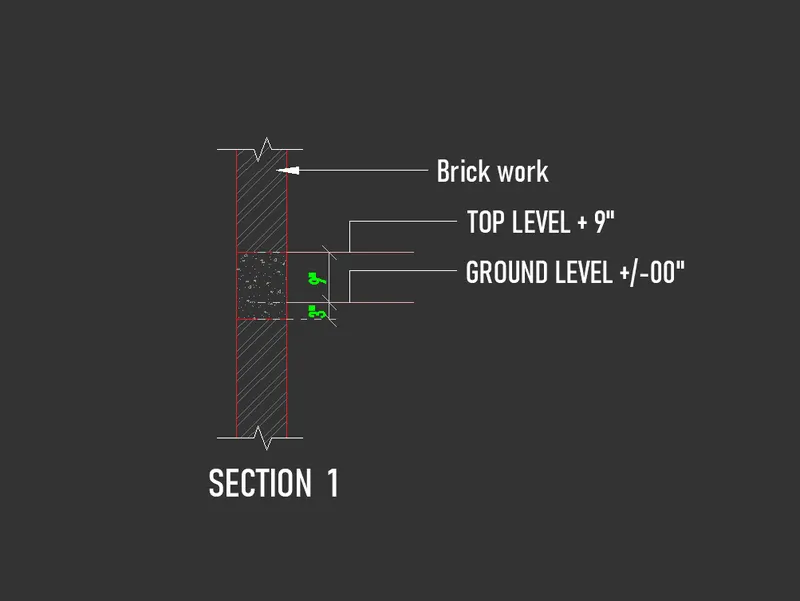
Creation of Column Schedule and Drawing Template using AutoCad
Challenge - 5
Commands used in this challenge are
- Line 'L'
- Copy 'CO' or 'CP'
- PolyLine 'PL'
- Trim 'TR'
- Offset 'O'
- Text
- Dimension 'DIM'
- Dimstyle 'D'
- MATCHPROP 'MA'
- Move 'M'
- Mirror 'MI'
- Fillet 'F'
- Erase 'E'
- Rotate
- PTYPE
- POINT
- CIRCLE
- RECTANGLE
- units
- Hatch
- Array
Q1)
Aim:- To Create a column schedule as shown in the figure below using AUTOCAD:-
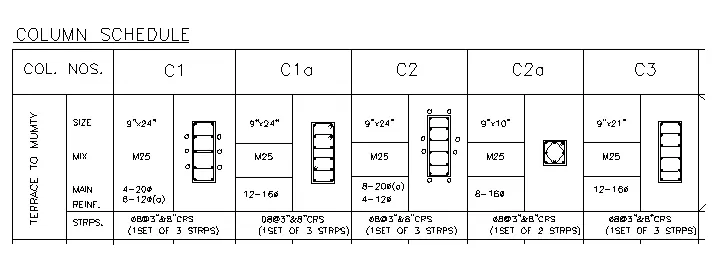
Procedure:-
- create a new file
- set the units as engineering
- using line and circle & other commands draw all column sections.
- line command and draw lines to create tables.
- in command type ST and set font type and height, etc.
- use text command and give the text in the drawing as per the given figure. for diameter symbol '%%c' used.
- give all text as per shown.
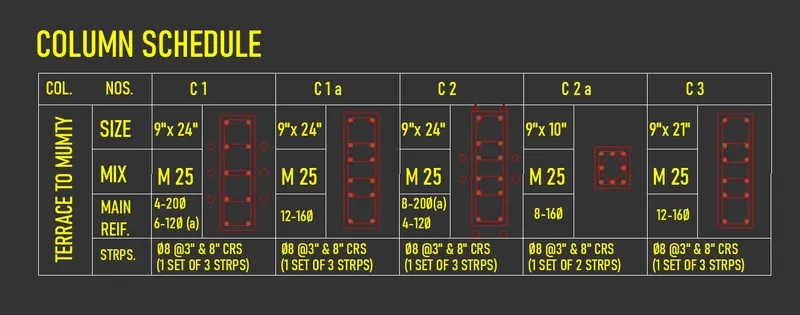
Result:-
Q2)
Aim:- To Create a Window schedule as given in the figure using AUTOCAD.
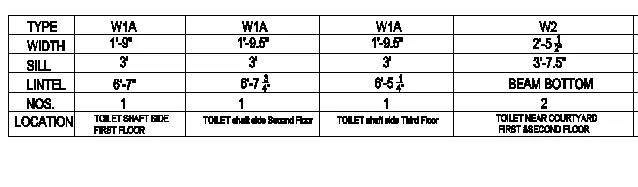
Procedure:-
- create a new file
- line command and draw lines to create tables.
- in command type ST and set font type and height, etc.
- In the command prompt type text to text the given text in the drawing.
Result:-
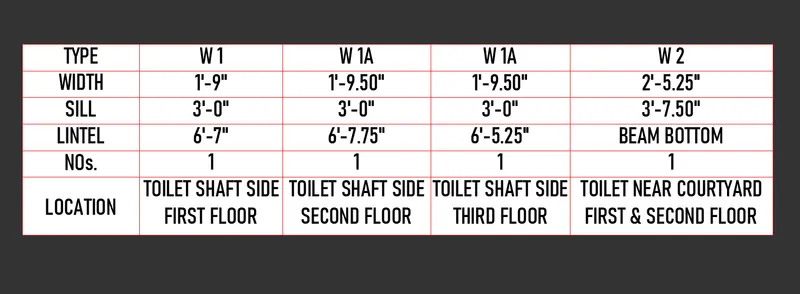
Q3)
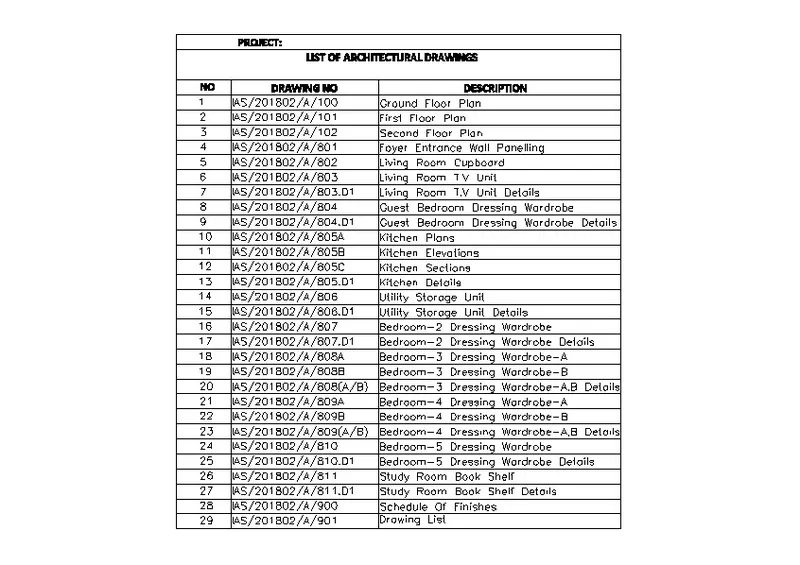
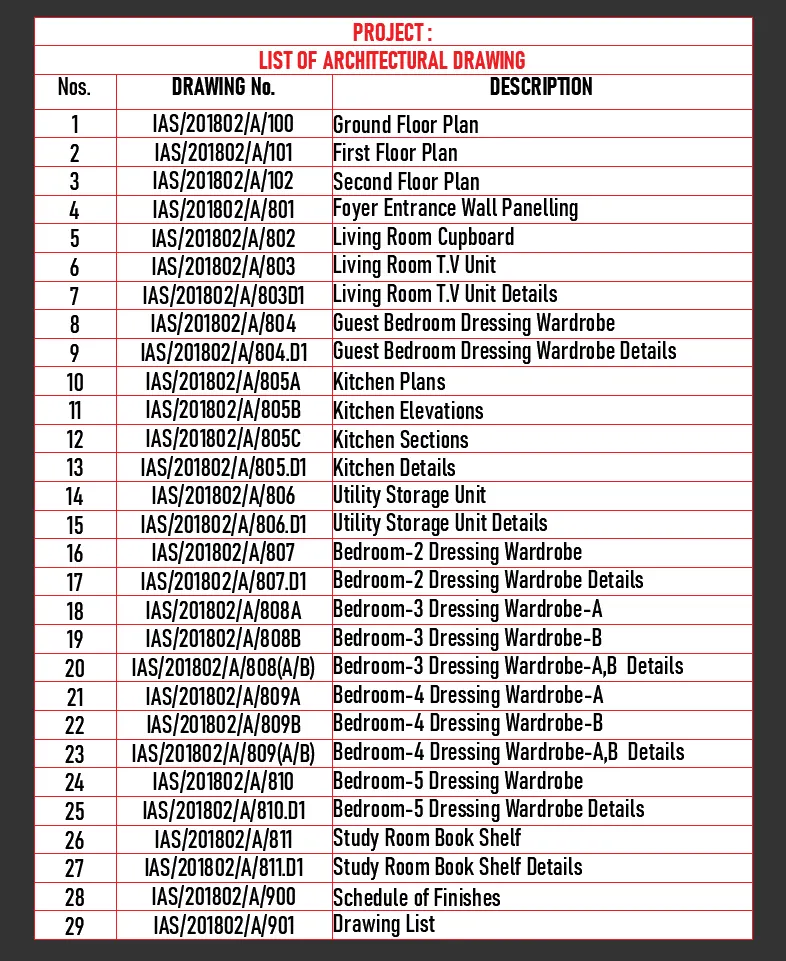
Aim:- To create the list of the drawing schedule as given in the figure using AUTOCAD.
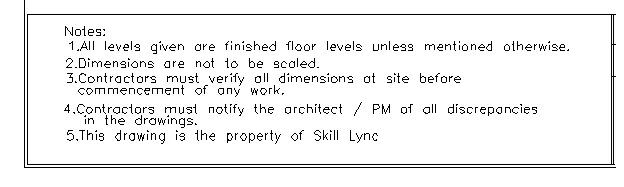

Procedure:-
- create a new file
- line command and draw lines to create tables.
- in command type ST and set font type and height, etc.
- In the command prompt type text to text the given text in the drawing.
Result:-
Q4)
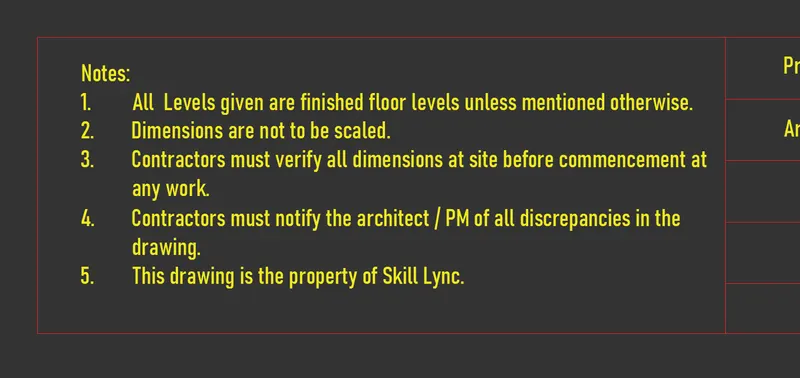
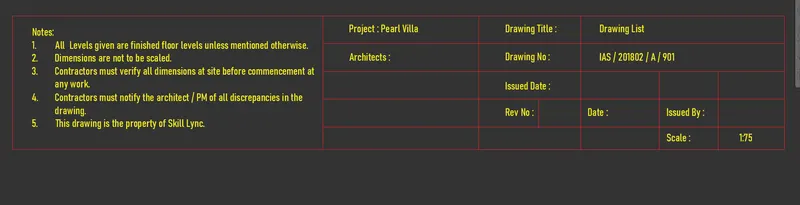
Aim:- To Create the drawing template as given in the figure using AUTOCAD.
Procedure:-
- create a new file
- Table command create tables.
- in table command we can edit, a number of rows and columns & test, title & header, etc.
- now, in that table write all text in the drawing.
Result:-
Q5)
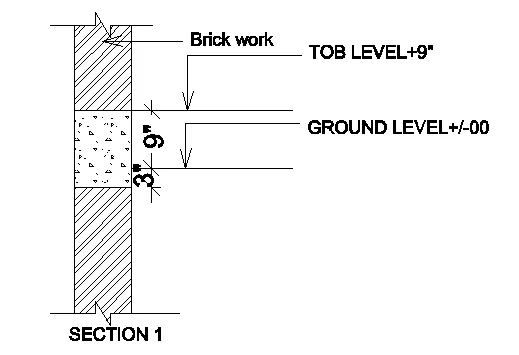
Aim:- To Create the Beam details as given in the figure using AUTOCAD.
Procedure:-
- create a new file
- set the units as engineering(inches)
- using line command draw column
- now using the hatch command give hatch in the drawing
- esc
- now, go to express tools>break-line symbol (give that break line symbol on up & down)
- now using leader give the leader
- after that using text, command give text.
Result:-